

How to Create Presentations with Mastra AI
Written by

Published on
On this page
Why build a presentation agent with Mastra AI
Mastra AI is an open-source TypeScript framework for building AI agents. It gives you a clean way to define an agent, hand it tools, and run it from a dev server with a built-in playground, all in plain TypeScript. Because Mastra supports the Model Context Protocol (MCP), your agent can connect to external services through standard MCP endpoints and use their tools like native functions.
SlideSpeak ships a hosted MCP server. Once your Mastra agent can reach it, you can describe a deck in plain language and the agent will call SlideSpeak to build, theme, and download a finished presentation. No slide editor, no manual formatting, just a prompt that turns into a PowerPoint file. You can also combine Mastra and SlideSpeak to build workflows that automate presentation generation from notes, documents, or other structured inputs.
This guide starts with setting up a fresh Mastra AI project. We will get the framework installed and running first, then wire in SlideSpeak in the steps that follow.
What you need before you start
- Node.js version 20 or higher installed.
- An API key from a supported model provider. If you do not have a preference, OpenAI is a safe default.
- A SlideSpeak account. Sign up at app.slidespeak.co.
- A SlideSpeak API key from your account settings in the SlideSpeak app.
Step 1. Scaffold a new Mastra AI project
Mastra ships an interactive setup wizard that scaffolds a complete project for you. You can also follow the quickstart guide in the Mastra docs if you want the official setup flow. For this tutorial, run the create mastra command with your package manager of choice.
npm create mastra@latest
If you prefer another package manager, the equivalents are pnpm create mastra, yarn create mastra, or bunx create-mastra.
The wizard will ask you a few questions, including which components to include and which LLM provider to use. Pick your provider and follow the prompts. When it finishes, you will have a new project directory with a src/mastra folder containing an example agent, tool, and workflow.
Step 2. Add your model provider API key
The wizard sets up an environment file for your project. Open the .env file in the project root and add the API key for the provider you chose during setup.
OPENAI_API_KEY=your-key-here
This is the key the agent uses to reach the language model. Keep it in .env so it never lands in your source code.
Step 3. Start the dev server
From inside the project directory, start the Mastra development server.
npm run dev
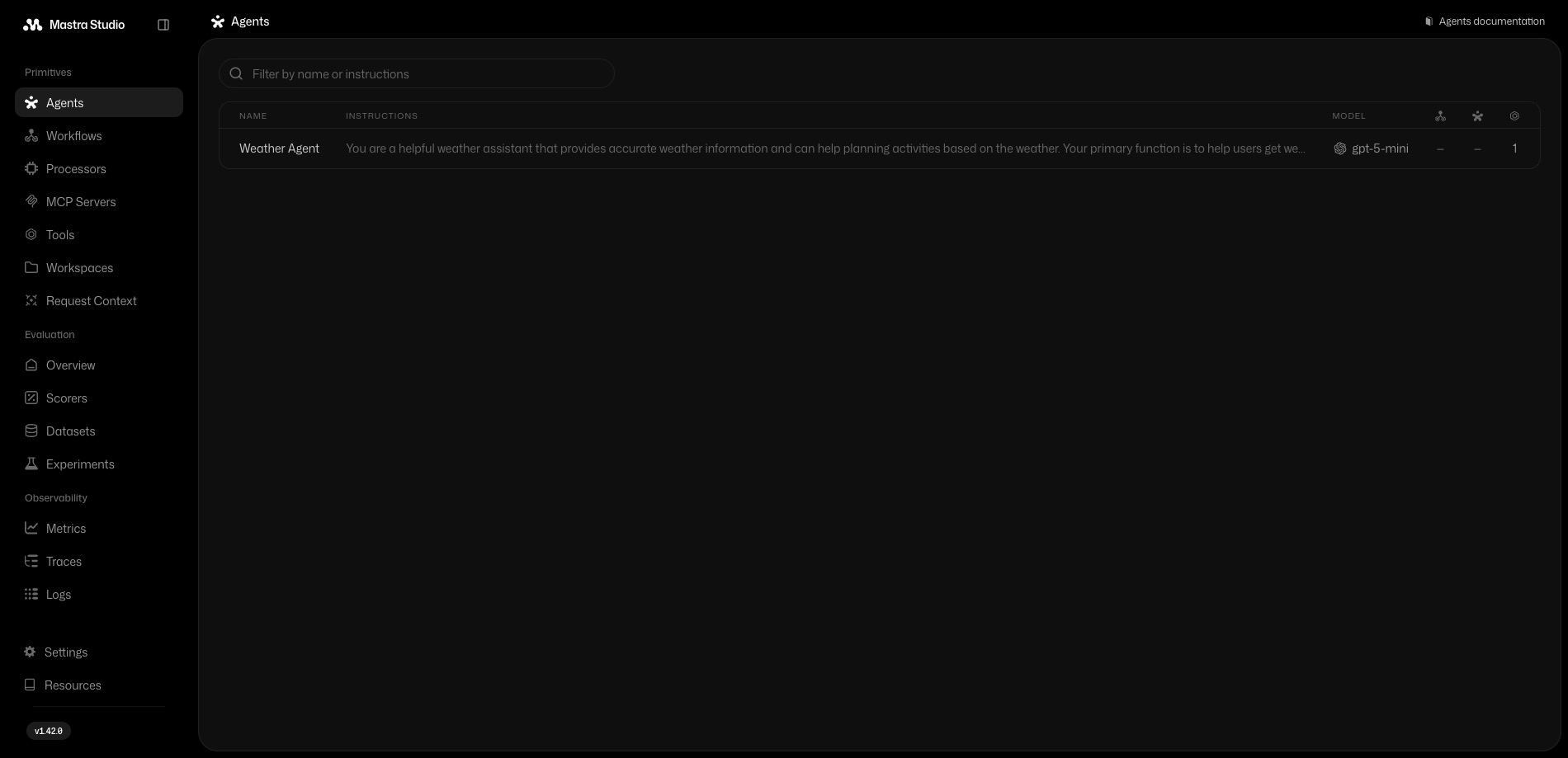
This launches Mastra Studio, the built-in playground for testing agents without building a UI. Open it at localhost:4111 in your browser. The starter project includes a weather agent, so you can confirm everything works by asking it about the weather in any city. A correct response means your provider key is set up and the agent is running.
With Mastra AI installed and running, you have a working agent and a playground to test it in. Next we will connect SlideSpeak as an MCP server so the agent can build presentations for you.
Build a meeting brief workflow with Mastra AI
To make this concrete, we will build a real Mastra AI workflow. It takes raw meeting notes, turns them into a tidy executive briefing, and hands that briefing to SlideSpeak to produce a finished deck. Instead of rewriting notes into slides by hand, you get a repeatable workflow that can run whenever a new brief is needed.
Step 4. Connect the SlideSpeak MCP server
SlideSpeak runs a hosted MCP server at https://mcp.slidespeak.co/mcp. Mastra also has an MCP setup guide if you want to see how MCP clients work inside Mastra. To reach SlideSpeak, add two values to your .env file.
SLIDESPEAK_MCP_URL="https://mcp.slidespeak.co/mcp"
SLIDESPEAK_API_KEY=your-slidespeak-key-here
Now create a small helper that opens a connection to the server and looks up SlideSpeak tools by name. Add a new file at src/mastra/mcp/slidespeak.ts.
import { MCPClient } from '@mastra/mcp';

const headers = { Authorization: `Bearer ${process.env.SLIDESPEAK_API_KEY}` };

const slidespeakMcpClient = new MCPClient({
  id: 'slidespeak-mcp-client',
  servers: {
    slidespeak: {
      url: new URL(process.env.SLIDESPEAK_MCP_URL!),
      requestInit: { headers },
      eventSourceInit: {
        fetch: (input, init) => fetch(input, { ...init, headers }),
      },
    },
  },
  timeout: 300_000,
});

export async function getSlidespeakTool(names: string[]) {
  const tools = await slidespeakMcpClient.listTools();
  const tool = names.map((name) => tools[`slidespeak_${name}`]).find(Boolean);

  if (!tool?.execute) {
    throw new Error(`SlideSpeak MCP tool '${names.join("' or '")}' is not available.`);
  }

  return tool;
}
The MCPClient opens one authenticated connection to SlideSpeak. The getSlidespeakTool helper finds a tool by name so the workflow can call it directly. SlideSpeak exposes its tools with a slidespeak_ prefix, which is why the lookup adds it for you.
Step 5. Create the briefing agent
The Mastra AI workflow needs an agent to turn messy notes into structured content. You can read more about how agents work in the Mastra agents docs. Create src/mastra/agents/meeting-briefing-agent.ts.
import { Agent } from '@mastra/core/agent';
import { Memory } from '@mastra/memory';

export const meetingBriefingAgent = new Agent({
  id: 'meeting-briefing-agent',
  name: 'Meeting Briefing Agent',
  instructions: `You convert meeting notes into concise executive briefing content.

Focus on decisions, risks, blockers, action items, owners, deadlines, metrics, and next steps.
Keep output specific, scannable, and suitable for a short executive deck.
Do not invent owners, deadlines, or metrics. Mark missing information as unspecified.`,
  model: 'openai/gpt-5-mini',
  memory: new Memory(),
});
These instructions keep the model focused on what belongs in a deck, and the line about not inventing owners or deadlines stops it from filling gaps with made-up data.
We add the notes in manually here just to keep the demo simple, but because you can integrate any MCP with Mastra AI, you can add integrations the same way you added SlideSpeak and pull notes straight from the source, whether that is a Notion doc, a Slack thread, or a call transcript. The deck-building half stays the same, so a new notes source is just another MCP connection.
Step 6. Build the workflow
A Mastra AI workflow is a chain of steps, where each step takes typed input and returns typed output. You can read more in the Mastra workflows docs. Our meeting brief workflow has five steps.
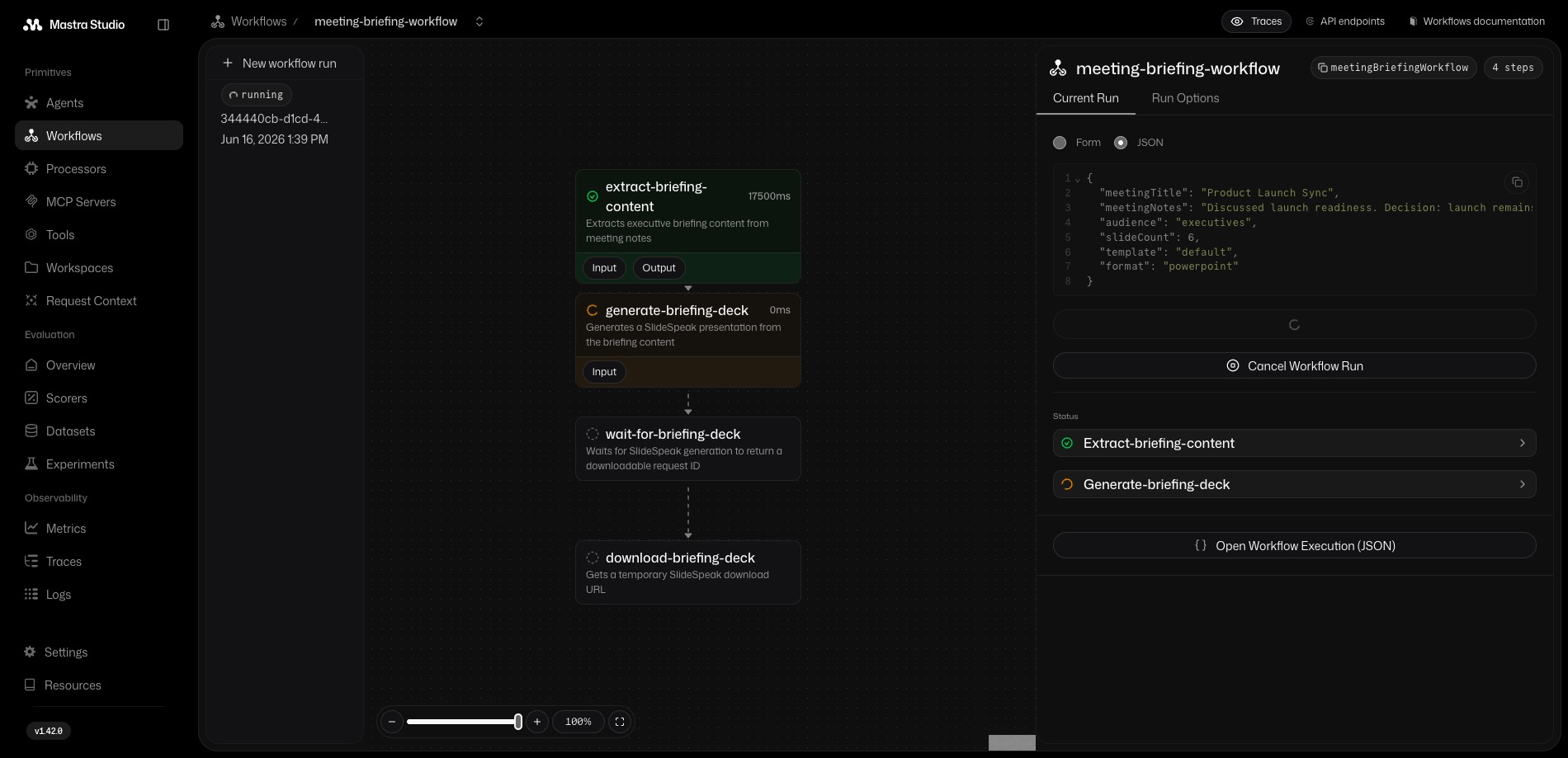
- Extract briefing content from the notes using the agent.
- Pause for a person to pick a SlideSpeak template.
- Generate the deck through SlideSpeak.
- Wait for SlideSpeak to finish.
- Download the finished file.
Create src/mastra/workflows/meeting-briefing-workflow.ts. Start with the input the workflow accepts.
import { createStep, createWorkflow } from '@mastra/core/workflows';
import { z } from 'zod';
import { getSlidespeakTool } from '../mcp/slidespeak';

const meetingBriefingInputSchema = z.object({
  meetingTitle: z.string().min(1),
  meetingNotes: z.string().min(20),
  audience: z.enum(['executives', 'team', 'client']).default('executives'),
  slideCount: z.number().int().min(3).max(8).default(4),
  template: z.string().optional(),
  format: z.enum(['powerpoint', 'pdf']).default('powerpoint'),
});
The first step hands the notes to the agent and asks for structured output that matches a schema. Mastra validates the response, so you get clean fields back instead of free text.
const extractBriefingContent = createStep({
  id: 'extract-briefing-content',
  inputSchema: meetingBriefingInputSchema,
  outputSchema: preparedBriefingSchema,
  execute: async ({ inputData, mastra }) => {
    const agent = mastra?.getAgent('meetingBriefingAgent');

    const response = await agent!.generate(
      [{ role: 'user', content: `Convert these meeting notes into briefing content.\n\n${inputData.meetingNotes}` }],
      { structuredOutput: { schema: briefingContentSchema } },
    );

    return {
      ...inputData,
      template: inputData.template ?? 'default',
      summary: response.object!.executiveSummary,
      plainText: `# ${inputData.meetingTitle}\n\n${response.object!.deckText}`,
    };
  },
});
The step that does the real work is the one that calls SlideSpeak. It grabs the generate_powerpoint tool and passes the briefing text along with your slide count, template, and format.
const generateBriefingDeck = createStep({
  id: 'generate-briefing-deck',
  inputSchema: preparedBriefingSchema,
  outputSchema: generationSchema,
  execute: async ({ inputData }) => {
    const generatePowerpoint = await getSlidespeakTool(['generate_powerpoint', 'generatePowerpoint']);

    const result = await generatePowerpoint.execute?.({
      plain_text: inputData.plainText,
      length: inputData.slideCount,
      template: inputData.template,
      response_format: inputData.format,
      tone: 'professional',
      add_speaker_notes: true,
    }, directToolContext);

    return { ...inputData, requestId: extractRequestId(result), taskId: extractTaskId(result) };
  },
});
Finally, chain the steps together and commit the workflow.
export const meetingBriefingWorkflow = createWorkflow({
  id: 'meeting-briefing-workflow',
  inputSchema: meetingBriefingInputSchema,
  outputSchema: downloadSchema,
})
  .then(extractBriefingContent)
  .then(selectTemplate)
  .then(generateBriefingDeck)
  .then(waitForBriefingDeck)
  .then(downloadBriefingDeck)
  .commit();
Step 7. Register the workflow and agent
Mastra only knows about the agents and workflows you register in src/mastra/index.ts. Add the new agent and workflow there.
import { meetingBriefingWorkflow } from './workflows/meeting-briefing-workflow';
import { meetingBriefingAgent } from './agents/meeting-briefing-agent';

export const mastra = new Mastra({
  workflows: { meetingBriefingWorkflow },
  agents: { meetingBriefingAgent },
  // ...your existing storage, logger, and observability config
});
Step 8. Run the workflow
Restart the dev server with npm run dev and open Mastra Studio at localhost:4111. Select the meeting brief workflow, paste in a meeting title and some notes, then run it.
Your Mastra AI workflow sends the structured brief to SlideSpeak, waits for the presentation to finish, and returns a download URL for the finished deck.

Conclusion
This meeting brief workflow is only one example of what you can build with Mastra AI and SlideSpeak. You could create workflows for sales proposals, weekly status reports, research summaries, roadmap updates, or any other presentation that starts from structured information. Once Mastra can gather the right context and SlideSpeak can generate the deck, presentation creation becomes something you can automate and repeat.
If you would rather automate without writing TypeScript, SlideSpeak also connects to no-code tools so you can automate reports and presentations with Zapier or build the same kind of flow in Make.
Frequently asked questions
What is Mastra AI?
Mastra AI is an open-source TypeScript framework for building AI agents. It lets you define an agent, give it tools, and run it from a dev server with a built-in playground. Because it supports the Model Context Protocol, a Mastra AI agent can connect to external services like SlideSpeak and use their tools as if they were native functions.
Do I need to know how to code to use Mastra AI?
Mastra AI is a TypeScript framework, so some comfort with JavaScript or TypeScript helps. The setup wizard scaffolds the whole project for you, and the example in this guide gives you a working starting point you can adapt. If you want to skip code entirely, SlideSpeak also works with no-code tools like Zapier and Make.
Do I need a SlideSpeak API key to generate presentations?
Yes. The SlideSpeak MCP server authenticates with your SlideSpeak API key, which you create in your account settings in the SlideSpeak app. Your Mastra AI agent sends that key with every request so SlideSpeak knows which account to build the deck for.
Can a Mastra AI agent create both PowerPoint and Google Slides decks?
SlideSpeak generates a PowerPoint file that you can download and open in PowerPoint, Keynote, or Google Slides. You can also request a PDF by changing the response format in the workflow, so the same Mastra AI agent can return the format that fits each use case.
Which model providers work with Mastra AI?
Mastra AI works with the major model providers, including OpenAI and Anthropic. You pick a provider during setup and add its API key to your .env file, then point the agent at the model you want to use.


