


How to Build Presentations with Claude Code and SlideSpeak (2026)
TL;DR
Claude Code is Anthropic's agentic coding tool, and the SlideSpeak MCP server plugs presentation generation straight into it. One command connects the two. After that, you can ask Claude Code to read your docs, your data, or your git history and turn any of it into a finished PowerPoint deck. No browser, no copy-pasting, no manual slide building.
What is Claude Code?
Anthropic's agentic coding tool, and why it matters for presentations
Claude Code is Anthropic's agentic coding tool. It runs in your terminal, IDE, or the web, reading files, running commands, and completing multi-step tasks from plain language instructions. Developers use it to fix bugs and ship features, but because it can run commands and connect to external tools, it doubles as a general purpose automation agent.
That is what matters for presentations. Claude Code supports the Model Context Protocol (MCP), an open standard for connecting AI assistants to outside services. Add the SlideSpeak MCP server and Claude Code can read your data, docs, or release notes, hand that context to SlideSpeak, and return a finished PowerPoint deck. One prompt, one deck.
What is the SlideSpeak MCP Server?
The official MCP integration for the SlideSpeak API
MCP servers are connectors that give AI assistants new capabilities. The SlideSpeak MCP server is the official connector for the SlideSpeak API. Once added, any MCP-compatible client, including Claude Code and Claude Desktop, can create presentations on your behalf.
What the SlideSpeak MCP Server Enables
- Generate complete presentations from natural language prompts
- Turn documents and file contents into slide decks
- Browse and apply SlideSpeak templates so decks match your brand
- Get a download link for the finished PPTX file right in your terminal
The server is available as a hosted remote endpoint at mcp.slidespeak.co, so there is nothing to install or run yourself. You authenticate with a SlideSpeak API key, and if you prefer to self-host, a Docker image and local setup are available too.
The combination with Claude Code is powerful for one simple reason. Claude Code already has access to your local files and tools. SlideSpeak handles design, layout, and slide structure. Together they close the gap between raw material and a deck you can actually present.
Setting Up SlideSpeak MCP in Claude Code
From API key to first presentation in about five minutes
Get a SlideSpeak API Key
Sign up for an account on the SlideSpeak app, then generate an API key from your account settings. This key authenticates your requests to the SlideSpeak API, which powers the MCP server.
💡 Tips:
- API access requires a SlideSpeak subscription
- Keep your key secret and never commit it to version control
- You can regenerate the key any time if it leaks
Install Claude Code
If you don't have Claude Code yet, head to the Claude Code page and follow the instructions, or just run npm install -g @anthropic-ai/claude-code in your terminal, then launch it with the claude command and sign in. It works on macOS, Windows, and Linux.
💡 Tips:
- Claude Code requires a Claude subscription or Claude API credits
- Run it from the folder that holds the files you want to turn into slides
Add the SlideSpeak MCP Server
Claude Code can connect to the hosted SlideSpeak server with a single command. Run the command below, replacing the placeholder with your real API key. This registers the remote server, so there is no Docker setup and nothing to keep running in the background.
claude mcp add --transport http slidespeak https://mcp.slidespeak.co/mcp \
  --header "Authorization: Bearer YOUR-SLIDESPEAK-API-KEY"
Prefer config files? Add this to a .mcp.json in your project root instead and keep the key in an environment variable.
{
  "mcpServers": {
    "slidespeak": {
      "type": "http",
      "url": "https://mcp.slidespeak.co/mcp",
      "headers": {
        "Authorization": "Bearer ${SLIDESPEAK_API_KEY}"
      }
    }
  }
}
💡 Tips:
- Add the --scope project flag to share the server with teammates via a checked-in .mcp.json file
- Use --scope user to make the server available in every project on your machine
Verify the Connection
Start Claude Code and type /mcp. You should see slidespeak listed as a connected server along with its available tools. If the server shows as failed, double-check that your API key is valid and that you copied the header exactly.

💡 Tips:
- The /mcp command also shows you every tool the server exposes
- Restart Claude Code after changing MCP configuration
Generate Your First Presentation
Ask Claude Code for a deck in plain language. Try 'Create a 5 slide presentation about the benefits of async communication for remote teams.' Claude Code will call the SlideSpeak tools and reply with a download link to the finished PPTX file.
💡 Tips:
- Start simple, then iterate with follow-up requests
- Open the link in your browser to download and review the deck
Real Workflows: Claude Code + SlideSpeak
Practical ways to turn the files you already have into presentations
The setup is quick, but the workflows are where this integration earns its place. Claude Code can read anything you point it at before it asks SlideSpeak to build slides, and that context makes the decks dramatically better than a one-line prompt ever could. The real power shows up when you add a second MCP server next to SlideSpeak, so the source material comes from the tools your team already lives in. Here are two workflows worth setting up first.
Upload Your Document → Presentation
The most direct path is to upload a document straight into SlideSpeak. Point Claude Code at a local file, whether a PDF, a Word doc, or a spreadsheet, and it sends the file over with the upload_document tool, then builds a deck from what is actually inside it. Because it reads the full document first, it keeps the real wording, numbers, and headings instead of inventing filler.
To test this, we dropped Apple's FY2024 financial report on the Desktop and gave Claude Code a single prompt, "Upload the Apple report in Desktop to SlideSpeak and then use that to generate a summary presentation about the report." These are the slides it returned.
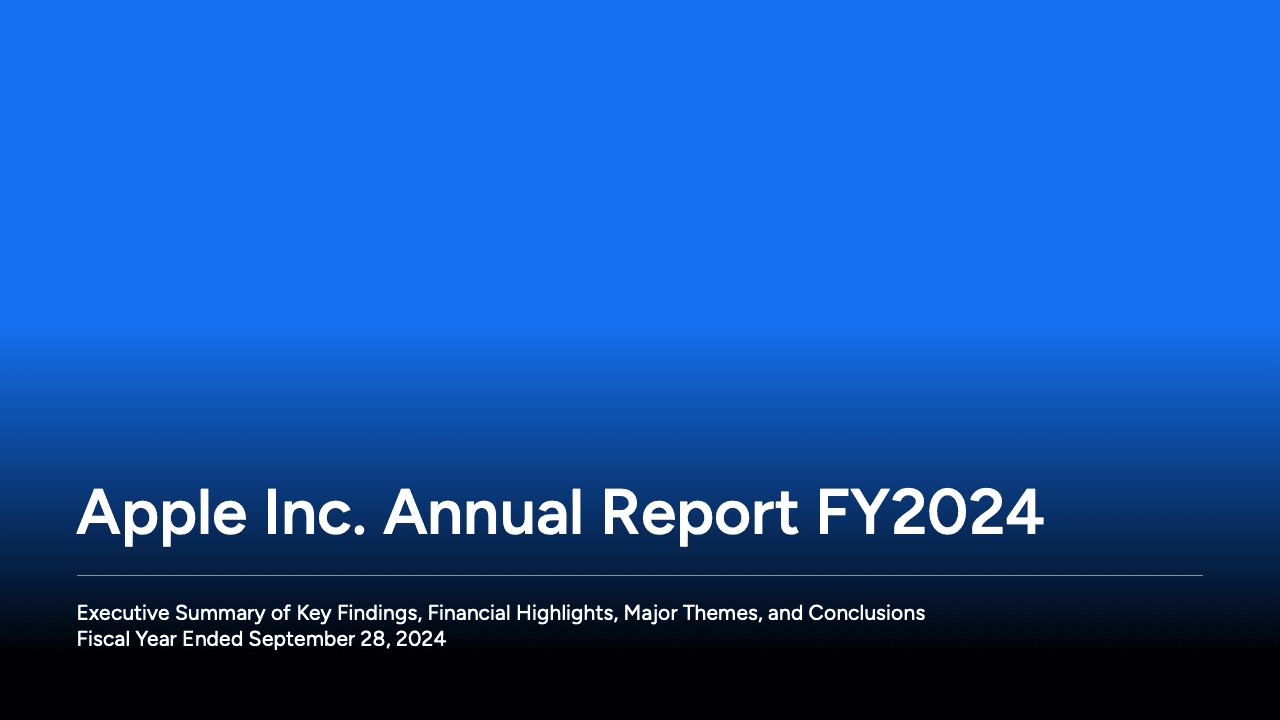
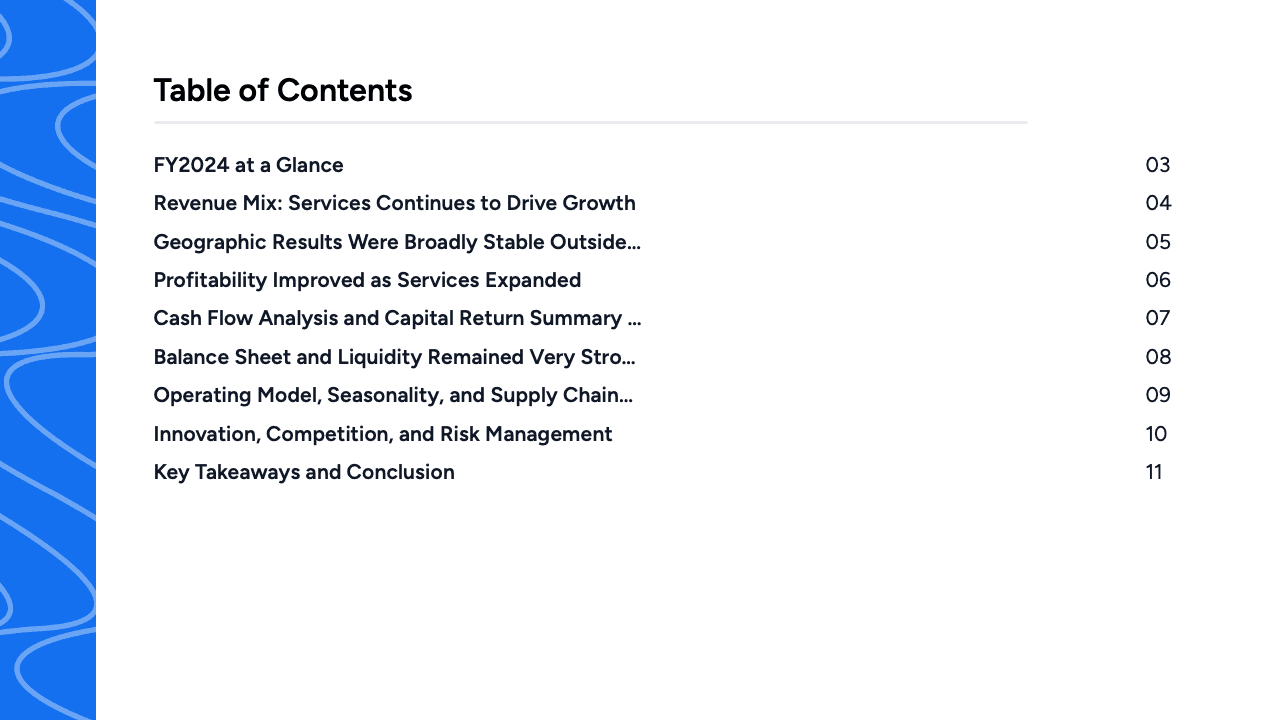
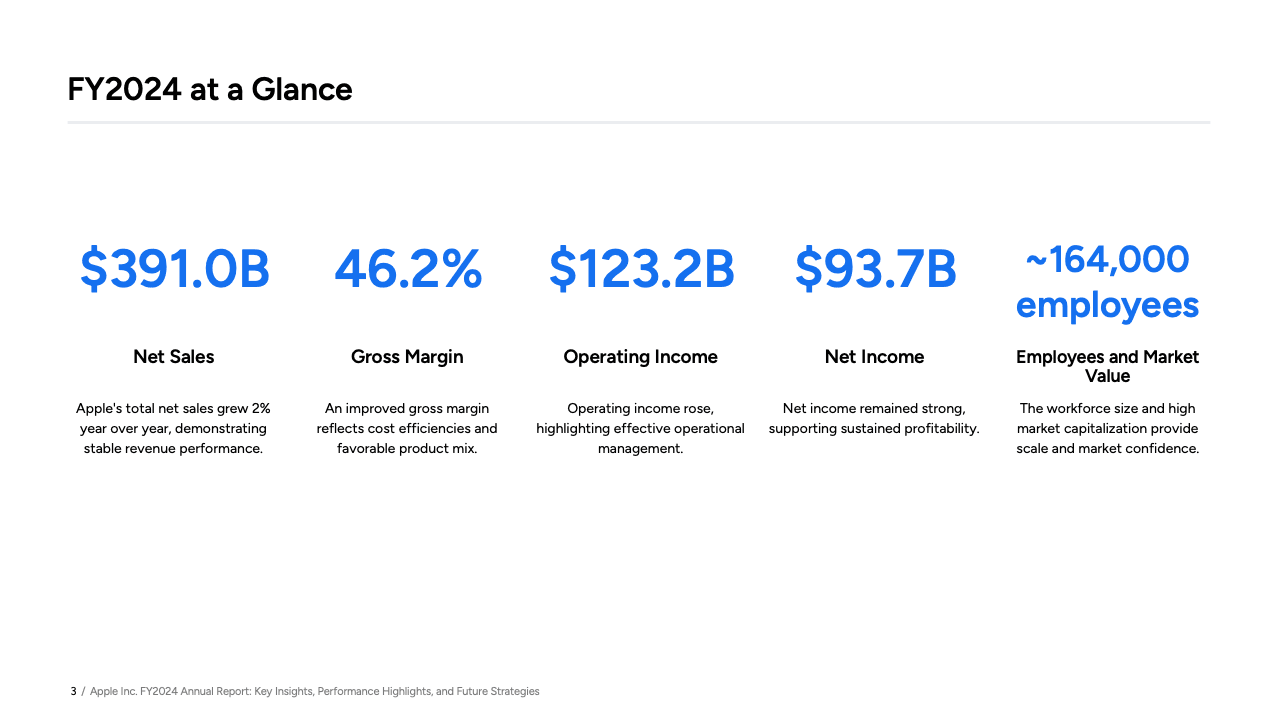
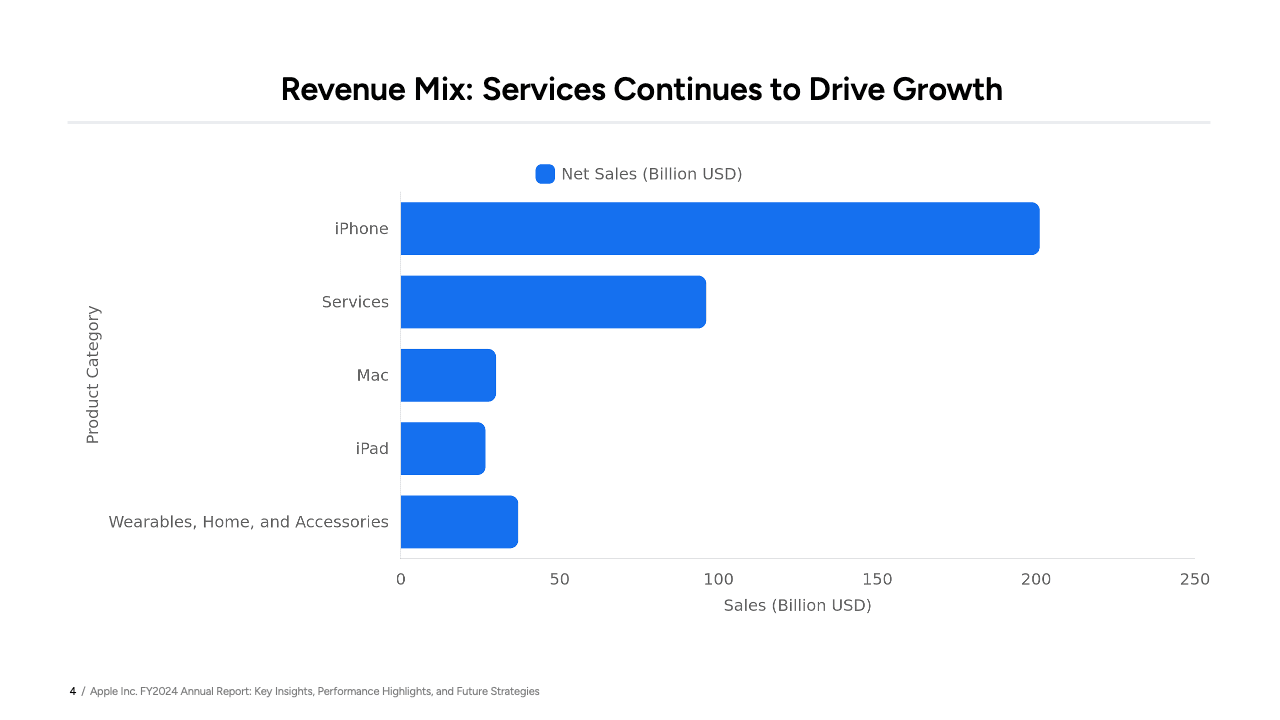
A deck generated by Claude Code from an Apple annual report uploaded to SlideSpeak, with a title slide, table of contents, KPI summary, and revenue chart.
External Sources (Drive, Notion) → Presentation
Your source material does not have to sit on the same machine. Add another MCP server alongside SlideSpeak, like Google Drive or Notion, and Claude Code can pull content straight from the tools your team already uses.
To add one, head to Claude on the web at claude.ai or in the desktop app, click the plus icon in the message box, and choose Add connectors. This opens the connectors catalog shown below, where you can connect Google Drive, Notion, and the rest in a couple of clicks, and they will sit right alongside SlideSpeak for Claude Code to use.
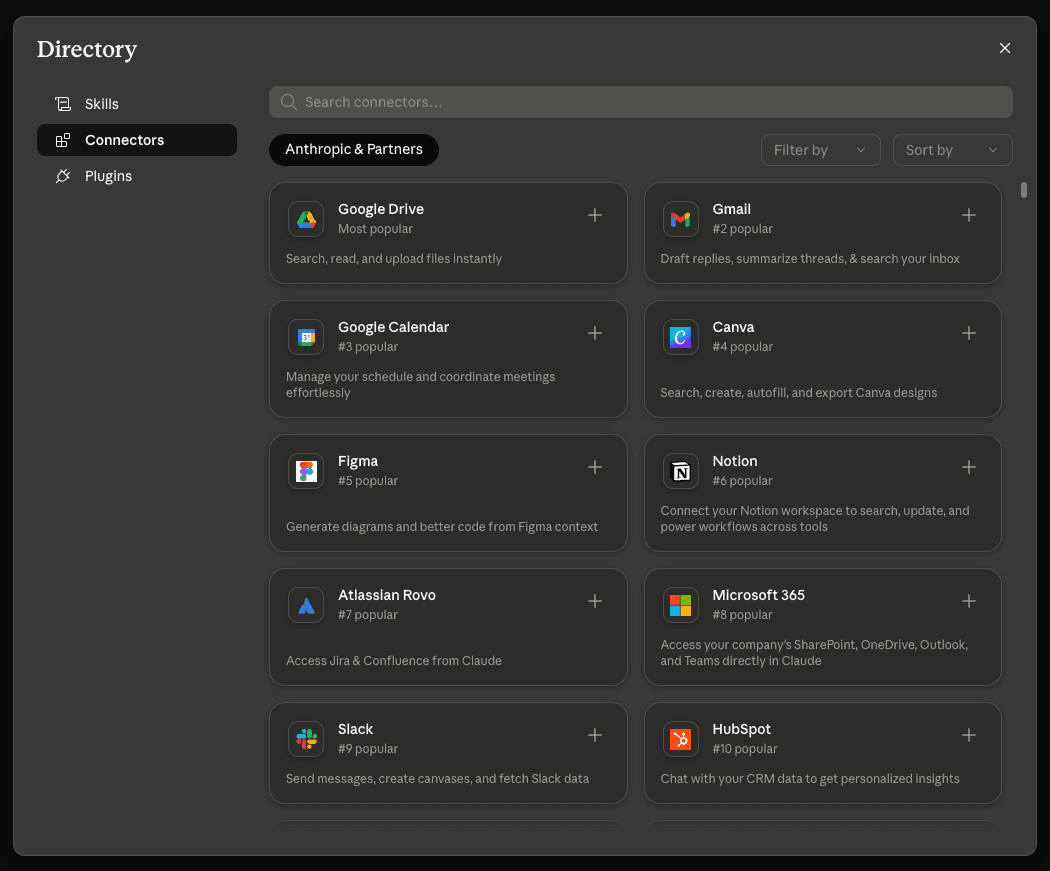
Ask for "a kickoff deck from the Project Launch page in Notion" or "find the Q3 strategy doc in Drive and build a 12 slide deck from it." Claude Code opens the page or document, follows the structure of your headings and bullet points, and generates a deck where every talking point traces back to where the work was actually planned. Refresh it before the next meeting and the slides stay in sync with the source.
This is the whole point of MCP. SlideSpeak and your source tools never need to know about each other. Claude Code sits in the middle and connects them on demand, so you can swap one source for another without changing how you ask.
More Workflows to Try
Once you see the pattern, the same approach extends to almost any source Claude Code can reach. A few more to explore.
- Codebase to stakeholder deck. Point Claude Code at a repository and it reads the git log and changelog into a release update with speaker notes.
- Live data to weekly auto-report. A scheduled agent pulls fresh Stripe, GA4, or Jira numbers every Monday and rebuilds the deck via cron or headless -p mode.
- Web research to pitch deck. Pair SlideSpeak with web search to research competitors and build a competitive landscape deck with stock images.
Conclusion
Claude Code turned the terminal into a place where work gets delegated, not just typed. With the SlideSpeak MCP server connected, that delegation now covers presentations. The reports, docs, and data you already maintain become source material for decks that build themselves.
For developers, this removes one of the least loved parts of the job. Sprint reviews, status updates, onboarding decks, and stakeholder summaries all start from information that already lives in your repository. Now the slides can start there too.
Get Started Today
- Head to the SlideSpeak app to grab your API key
- Add the server with one claude mcp add command
- Ask Claude Code for your first deck
Want a customized workflow built around your own tools and data? Reach out at support@slidespeak.co and the team will help you set it up.
Frequently Asked Questions
Common questions about using SlideSpeak MCP with Claude Code