


How to Build Presentations with Codex and SlideSpeak (2026)
TL;DR
Codex is OpenAI's agentic coding tool, and the SlideSpeak MCP server plugs presentation generation straight into it. A few lines in your config file connect the two. After that, you can ask Codex to read your docs, your data, or your git history and turn any of it into a finished PowerPoint deck. No browser, no copy-pasting, no manual slide building.
What is Codex?
OpenAI's agentic coding tool, and why it matters for presentations
Codex is OpenAI's agentic coding tool. It runs in your terminal, in your IDE, or on the web, and it can read files, run commands, and complete multi-step tasks on its own. You describe what you want in plain language, and Codex figures out the steps and executes them.
It is not limited to writing software. Codex supports the Model Context Protocol (MCP), an open standard that lets AI assistants connect to outside services. Add the SlideSpeak MCP server, and Codex can generate and export PowerPoint presentations. It reads your docs, data, or release notes, hands that context to SlideSpeak, and returns a finished deck. One prompt, one deck.
What is the SlideSpeak MCP?
MCP servers are connectors that give AI assistants new capabilities. The SlideSpeak MCP server is the official connector for the SlideSpeak API. Once added, any MCP-compatible client, including Codex and Claude Desktop, can create presentations on your behalf.
What the SlideSpeak MCP Enables
- Generate complete presentations from natural language prompts
- Turn documents and file contents into slide decks
- Browse and apply SlideSpeak templates so decks match your brand
- Get a download link for the finished PPTX file right in your terminal
The server is available as a hosted remote endpoint at mcp.slidespeak.co, so there is nothing to install or run yourself. You authenticate with a SlideSpeak API key, and a Docker image and local setup exist for developers who prefer to self-host.
The combination with Codex is powerful for one simple reason. Codex already has access to your local files and tools. SlideSpeak handles design, layout, and slide structure. Together they close the gap between raw material and a deck you can actually present.
Setting Up SlideSpeak MCP in Codex
From API key to first presentation in about five minutes
Get a SlideSpeak API Key
Sign up for an account on the SlideSpeak app, then generate an API key from your account settings. This key authenticates your requests to the SlideSpeak API, which powers the MCP server.
💡 Tips:
- API access requires a SlideSpeak subscription
- Keep your key secret and never commit it to version control
- You can regenerate the key any time if it leaks
Install Codex
If you don't have Codex yet, head to the Codex CLI docs and follow the instructions, or just run npm install -g @openai/codex in your terminal, or use brew install codex on macOS. Launch it with the codex command and sign in with your ChatGPT account. It works on macOS, Windows, and Linux.
💡 Tips:
- Codex is included with ChatGPT Plus, Pro, Team, Enterprise, and Edu plans, or you can sign in with an OpenAI API key
- Run it from the folder that holds the files you want to turn into slides
Add the SlideSpeak MCP
Codex reads its configuration from ~/.codex/config.toml. Add an mcp_servers entry for the hosted SlideSpeak endpoint. The bearer_token_env_var setting tells Codex which environment variable holds your key, so the key itself never sits in the config file.
[mcp_servers.slidespeak]
url = "https://mcp.slidespeak.co/mcp"
bearer_token_env_var = "SLIDESPEAK_API_KEY"
Then export your key so Codex can read it when it starts. Add this line to your shell profile to make it permanent.
export SLIDESPEAK_API_KEY="YOUR-SLIDESPEAK-API-KEY"💡 Tips:
- Codex sends the key as an Authorization Bearer header, exactly what the SlideSpeak server expects
- The CLI and the IDE extension share the same config file, so you only set this up once
- Drop a config.toml in a project's .codex folder to scope the server to that project
Verify the Connection
Start Codex and type /mcp. You should see slidespeak listed as a connected server along with its available tools. If the server shows as failed, double-check that your API key is valid and that the SLIDESPEAK_API_KEY variable is set in the same shell that launched Codex.
💡 Tips:
- The /mcp command also shows you every tool the server exposes
- Restart Codex after changing config.toml so it picks up the new server
Generate Your First Presentation
Ask Codex for a deck in plain language. Try "Create a 5 slide presentation about the benefits of async communication for remote teams." Codex will call the SlideSpeak tools and reply with a download link to the finished PPTX file.
💡 Tips:
- Start simple, then iterate with follow-up requests
- Open the link in your browser to download and review the deck
Real Workflows: Codex + SlideSpeak
Turn the files you already have into finished decks
Connecting the server takes five minutes. Getting real value out of it is about how you feed Codex. Point it at your actual source material first, your docs, your data, your notes, and let it digest that before it reaches for SlideSpeak. A deck built from real context beats one spun up from a single throwaway line every time. The workflows below are the ones to try on day one.
Upload Your Document → Presentation
The most direct path is to upload a document straight into SlideSpeak. Point Codex at a local file, a PDF report, a Word doc, or a spreadsheet, and it sends the file to SlideSpeak with the upload_document tool, then builds a deck from what is actually inside it.
Ask for something like "upload the Q3 strategy doc and build a 12 slide presentation from it." Codex reads the file, pulls the structure and key points, then hands the content to SlideSpeak's generation tools. Drop in branding options for your logo, colors, and fonts, and the deck that comes back is ready to share. A messy quarterly report becomes a clean board deck in one prompt.
Because Codex reads the full document first, it keeps the wording, numbers, and headings that matter instead of inventing generic filler. You stay in control of the narrative while SlideSpeak handles layout, design, and slide structure.
Research Library → Outline → Presentation
This one shines when your source is a pile of reference material, not a single file. Add a second MCP server next to SlideSpeak and Codex can pull from it, draft an outline you review, then build the deck. Zotero, the reference manager researchers use for papers, PDFs, and highlights, is a good example.
The zotero-mcp server runs locally and lets Codex search your library, read full papers, and pull your annotations. Add it next to SlideSpeak in config.toml. SlideSpeak points to a hosted endpoint and Zotero runs a local command, so the two sit side by side.
[mcp_servers.slidespeak]
url = "https://mcp.slidespeak.co/mcp"
bearer_token_env_var = "SLIDESPEAK_API_KEY"

[mcp_servers.zotero]
command = "zotero-mcp"
env = { ZOTERO_LOCAL = "true" }
Now work in two steps. First, gather and outline, "search my Zotero library for papers on software modernization and change management, read the abstracts and my highlights, and draft a 5 slide outline." Codex reads the papers and writes a structured outline grounded in them. Review it, reorder, cut what you do not need.
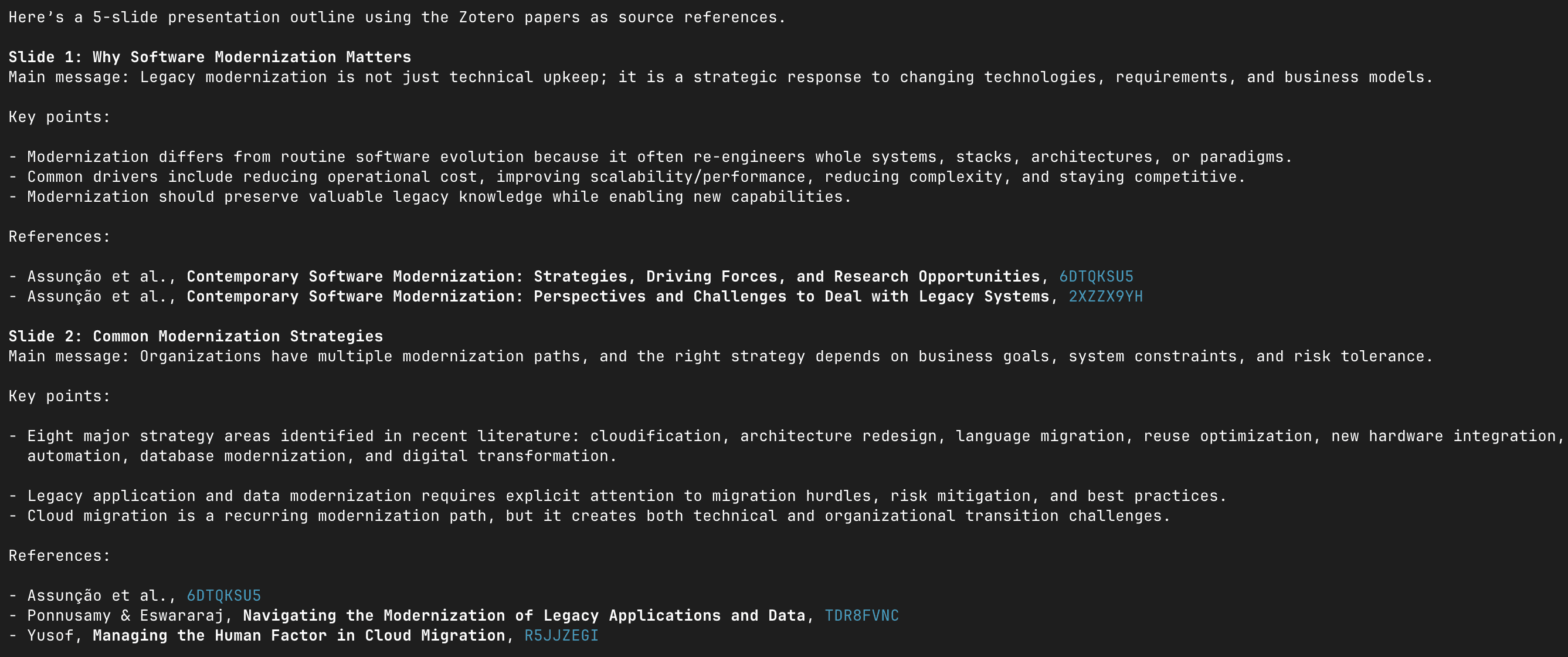
Then ask for the deck, "build that outline into a presentation with SlideSpeak." Codex hands the approved outline over and SlideSpeak generates the slides. The outline step is the point. It lets you fix the argument before any slides exist, so the deck follows your thinking instead of a generic template.
Zotero is just one example. Swap it for a Google Drive, Notion, or Confluence MCP server and the same two-step flow holds. The source changes, the workflow does not.
More Workflows to Try
Once you see the pattern, the same approach extends to almost anything Codex can read in your project. A few more to explore.
- Codebase to release deck. Point Codex at a repository and it reads the git log, CHANGELOG, and merged pull requests into a release update with speaker notes.
- Decks on autopilot. Wrap a prompt in Codex's non-interactive codex exec mode and run it from a cron job or CI pipeline so the deck rebuilds itself on a schedule.
- Onboarding deck from your docs. Codex reads your README and docs folder and turns them into a new-hire walkthrough of the codebase.
- Roadmap deck from open issues. Pair SlideSpeak with a GitHub MCP server and Codex turns milestones and open issues into a quarterly roadmap deck.
Conclusion
Codex turned the terminal into a place where work gets delegated, not just typed. With the SlideSpeak MCP server connected, that delegation now covers presentations. The reports, docs, and data you already maintain become source material for decks that build themselves.
For developers, this removes one of the least loved parts of the job. Sprint reviews, status updates, onboarding decks, and stakeholder summaries all start from information that already lives in your repository. Now the slides can start there too.
Get Started Today
- Head to the SlideSpeak app to grab your API key
- Add the server with one mcp_servers block in config.toml
- Ask Codex for your first deck
Want a customized workflow built around your own tools and data? Reach out at support@slidespeak.co and the team will help you set it up.
Frequently Asked Questions
Common questions about using SlideSpeak MCP with Codex