
Best Claude Design Alternatives in 2026
Written by

Published on
On this page
Introduction
Claude Design is Anthropic’s AI design tool, pairing a chat interface with a live canvas. You describe what you want and Claude builds it, from slides and interactive prototypes to product wireframes and docs. You can then refine the result by chatting or leaving inline comments straight on the canvas.
It is a real step up from generating a layout in a chat window, though as an early research preview it still has limits. You do not get the full canvas control, template libraries, and brand tooling of a dedicated design app, so a finished, on-brand deliverable often means finishing the job elsewhere.
This guide covers the best places to take it. Below are the top 6 Claude design alternatives in 2026, with what each one does best and where it fits, so you can pick the tool that matches the design work you actually do.
Why look for a Claude design alternative
Claude Design is impressive, but once you move past the first draft it runs into the polish, control, and consistency that finished work needs. It is great for shaping an idea quickly. Turning that idea into a finished, on-brand deliverable is where a dedicated tool takes over. A few limits show up quickly when you lean on it as your main design tool.
Limited canvas control
You refine through chat and inline comments, but you do not get the precise drag, snap, and align of a mature visual editor, so small fixes that would take seconds in Figma or a slide editor turn into rounds of prompting.
Few ready-made templates
You can feed it a design system, fonts, and logos to stay on brand, but there is no deep library of polished, ready-to-use templates to start from the way specialist tools offer, and starting from a strong template is still the fastest route to a professional result.
Generalist depth
It spans many output types, from slides and prototypes to wireframes and docs, so it does not go as deep as a tool built for one job, whether that is presentations, product UI, or print-ready assets.
Handoff gaps
Getting a clean, on-brand export into PowerPoint, an editable design file, or a codebase often still means finishing somewhere else.
A good Claude design alternative keeps the speed of a prompt but adds the editor, templates, and export that turn an idea into a finished deliverable. The strongest options go one step further and connect back to Claude over the Model Context Protocol (MCP), so you can drive the design tool straight from a Claude conversation. Four of the six picks below do exactly that, and the first pick skips the middleman entirely by running on your existing Claude or ChatGPT access.
Claude design alternatives by use case
Claude Design is a generalist, so people reach for it for very different jobs, from slide decks and landing pages to product UI and docs. The alternatives below are specialists, and each one is strongest in one of those lanes. Before the full reviews, here is the short version of which tool tackles which part of Claude Design’s range.
- Presentations and slide decks. SlideSpeak is the most complete replacement, since it hands back an editable PowerPoint or Google Slides file. Gamma is the faster, more structured runner-up.
- Websites and landing pages. Open Design covers the full page-building spread Claude Design does, while Pen lands the design straight in your codebase, ready to become real code.
- Product UI, wireframes, and prototypes. Pen and Paper both give Claude a real canvas with editable elements, which beats refining screens through chat.
- Designing with several AI agents at once. Doop is the only pick built for it, with a shared canvas your whole team’s agents can join.
- A free, open source replacement. Open Design and Doop are both open source, and Pen is currently free too. More on that below.
How we picked these alternatives
We did not compile this list from marketing pages. Here is how we evaluated each tool.
- Hands-on testing. We gave the design tools the same real brief, a hero section for a consultants landing page modeled on an existing site, and judged how close the first pass came and how much cleanup it needed.
- Claude MCP support. Tools that connect to Claude over MCP plug into your existing workflow, so you can prompt from chat and have the tool generate, edit, and export without copying work back and forth. We weighted this heavily.
- Templates and brand control. We looked at how easy each tool makes it to stay on brand, from template libraries to design systems and brand kits.
- Export and handoff. A design you cannot get out of the tool is a dead end, so we checked what each one exports, from PowerPoint and Google Slides to editable design files and code.
- Pricing. We compared free plans and entry-level paid tiers so you know what regular use actually costs.
Claude design alternatives at a glance
Here is how the six tools compare on the things that matter most. The column worth watching is MCP. A tool that connects to Claude over MCP stays inside your Claude workflow instead of living in a separate tab.
| Tool | Best for | Connects to Claude (MCP) | Free plan | Paid plans from | Export and handoff |
|---|---|---|---|---|---|
| Open Design | Open source all-rounder | Not needed, runs on your Claude directly | Yes, free and open source with BYOK | $20/month hosted, or free with your own key | Editable project files, HTML |
| Pen | Designing inside your IDE | Yes, local MCP server | Yes, currently free | Free for now, paid plans may come later | .pen files in your repo, code |
| Paper | AI-native design canvas | Yes, MCP via Paper Desktop | Yes | $16/month billed yearly | Editable design files |
| Doop | Multiple AI agents on one canvas | Yes, MCP with OAuth | Yes, free and open source | Free in beta, self-hosting always free | Live frame URLs, image exports |
| SlideSpeak | Presentations | Yes, hosted MCP server | Yes, starter credits | $29/month | PowerPoint, Google Slides, PDF |
| Gamma | Fast structured decks | No official Claude MCP | Yes, one-time credits | $8/month billed yearly | PowerPoint, PDF, web |
The rest of this guide walks through each tool in turn, what it does best, what it costs, and where it falls short.
1. Open Design, best open source alternative
Open Design is the closest thing on this list to Claude Design itself, with one big difference. It is fully open source. It is an AI design workspace that turns the coding agent you already use, like Claude Code, into a design engine. You describe what you want and it builds the result on a live canvas, and like Claude Design it covers a whole spread of output types, slide decks, prototypes, wireframes, landing pages, dashboards, and brand systems, rather than specializing in one.
The subscription model is what sets Open Design apart. You can bring your own API key for Claude, Gemini, and other providers, reuse the ChatGPT or Claude subscription you are already paying for by letting it drive the coding agent that comes with it, or skip the setup entirely and take a hosted plan that bundles model credits. If you live in Claude Code or a similar agent, your design tool and your assistant can share the same account instead of adding another bill.
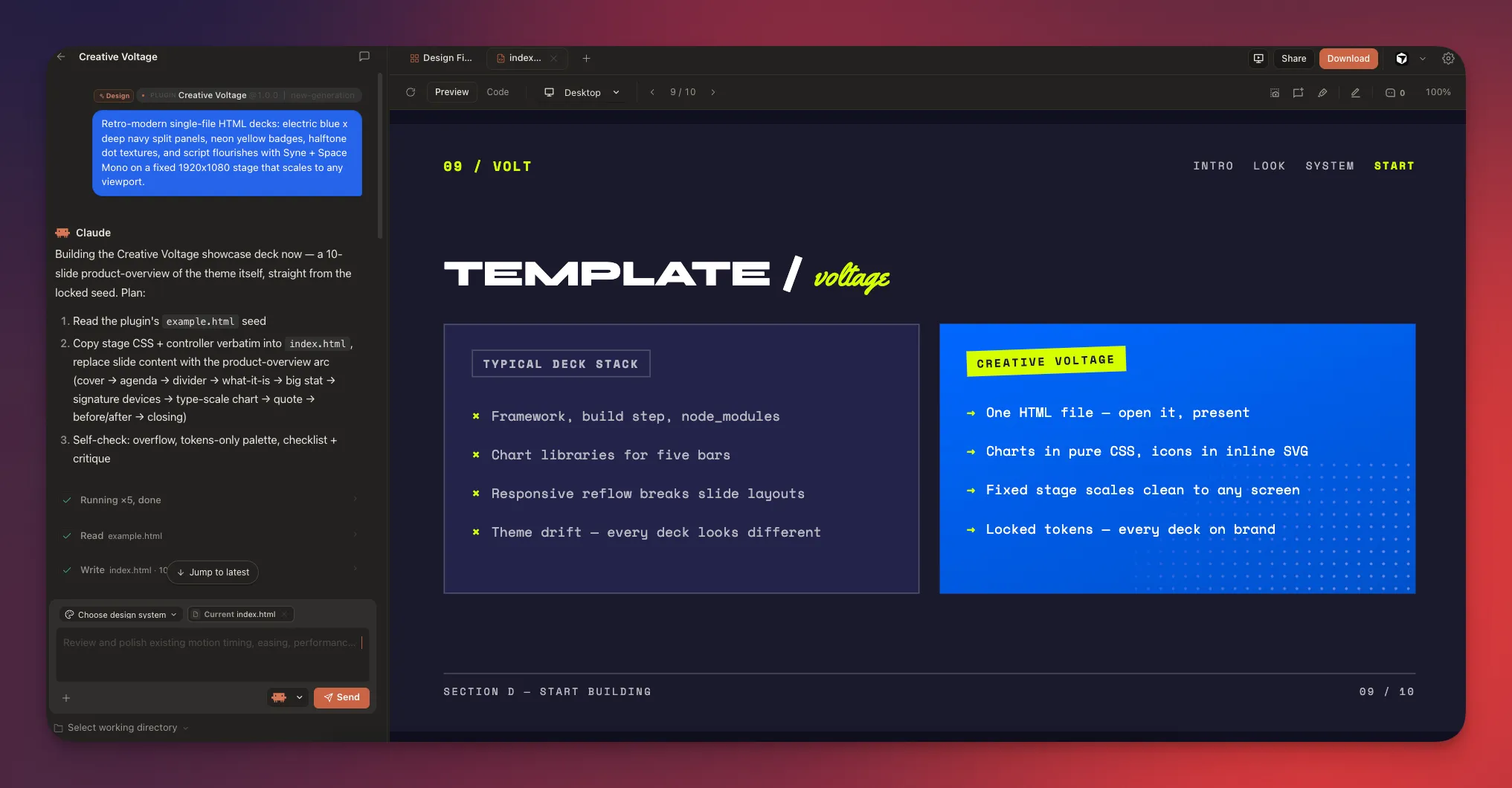
Being open source pays off most in the template department. The community has built up a growing library of design systems, templates, and plugins to start from, so you get the polished starting points Claude Design lacks, and your designs stay ordinary project files you own rather than documents locked in someone else’s cloud. The trade off is that the quality of what it produces tracks the model you plug into it.
Key features
- Fully open source, with a large and active community on GitHub.
- Bring your own API key, use your existing ChatGPT or Claude subscription through the agent it drives, or pick a hosted plan with bundled model credits.
- Covers many output types like Claude Design, from slide decks and prototypes to wireframes, landing pages, and dashboards.
- Local first, so designs are editable project files you own, backed by a library of community design systems and plugins.
Pros
- Free software with no vendor lock-in, and the community can extend it.
- No extra AI bill, it runs on the key or subscription you already have.
- The broadest output range here, mirroring Claude Design’s generalist approach.
Cons
- The hosted plans meter usage in credits, and the BYOK route means managing your own keys.
- On the free and BYOK routes there is no built-in model, so output quality depends on the agent and model you connect.
- A young open source ecosystem next to established tools like Figma and Canva.
Pricing
The software itself is free and open source, and with your own key or subscription you pay nothing beyond the model access you already have. If you would rather not manage keys, hosted plans with bundled model credits start at $20 per month. See the full details on the Open Design pricing page.
Who should use Open Design
Anyone who wants Claude Design’s breadth in an open source package, from developers using their own API key or a coding agent like Claude Code to non-technical users who just install the app and connect their existing Claude or ChatGPT account.
Try at open-design.ai
2. Pen, best for designing inside your IDE
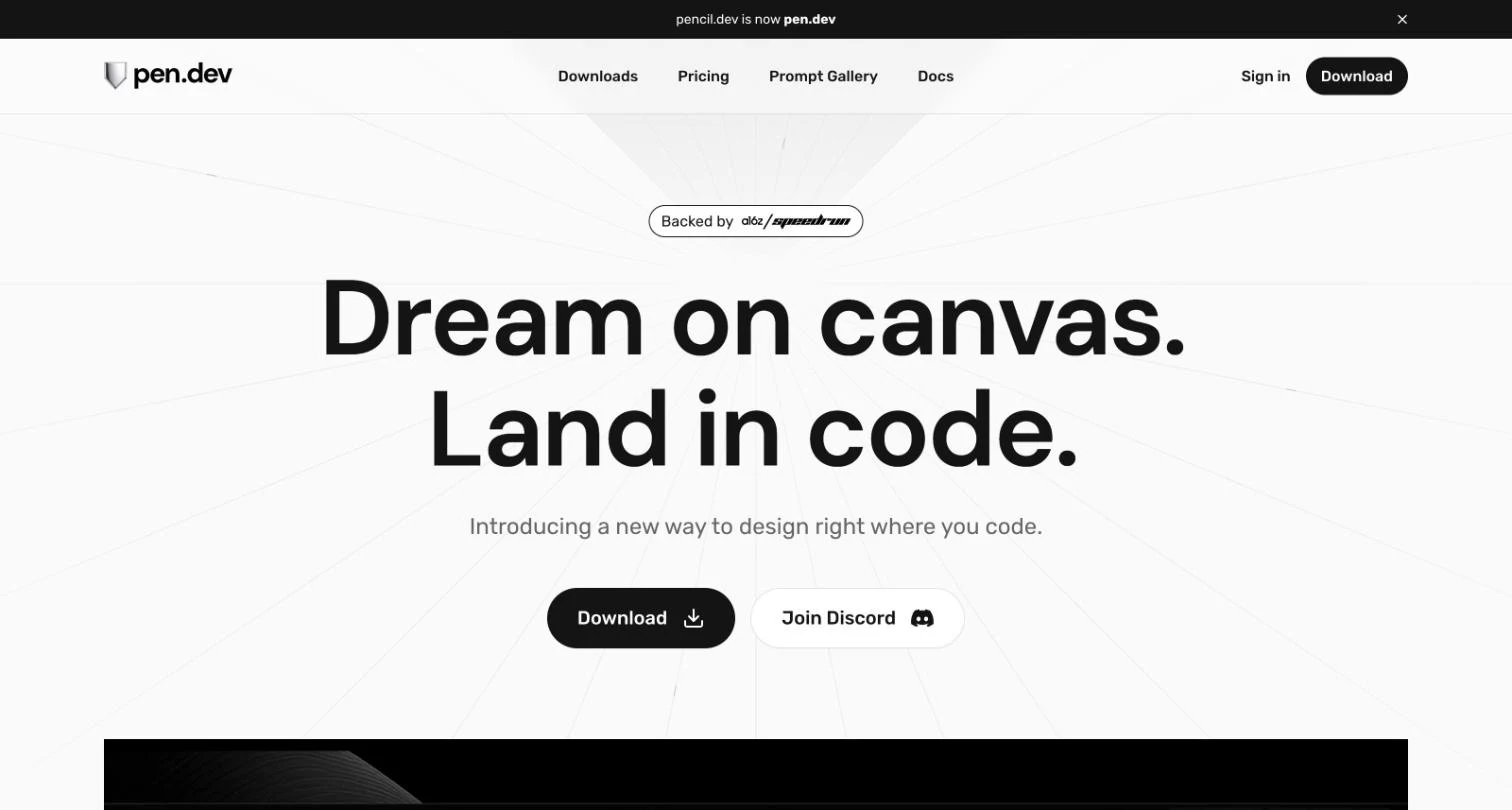
If your design work is UI and product screens rather than slides, Pen is the most code-native pick on this list. Formerly known as Pencil, it is an agent-driven design canvas built around an open design format that lives in your codebase. Your designs are structured .pen files sitting next to your code, and a Figma-style editor with layers, editable properties, and an infinite canvas opens right inside Cursor, VS Code, or as a standalone app.
The AI side runs through a local MCP server. Claude Code, Cursor, Codex, and other MCP-capable agents get tools to insert, update, move, and restyle design elements, so you prompt from the assistant you already use and watch the canvas update in real time. Because the same agent can see both the .pen file and your components, it can generate React and Tailwind code from an approved layout without the screenshot handoffs that usually sit between design and development.
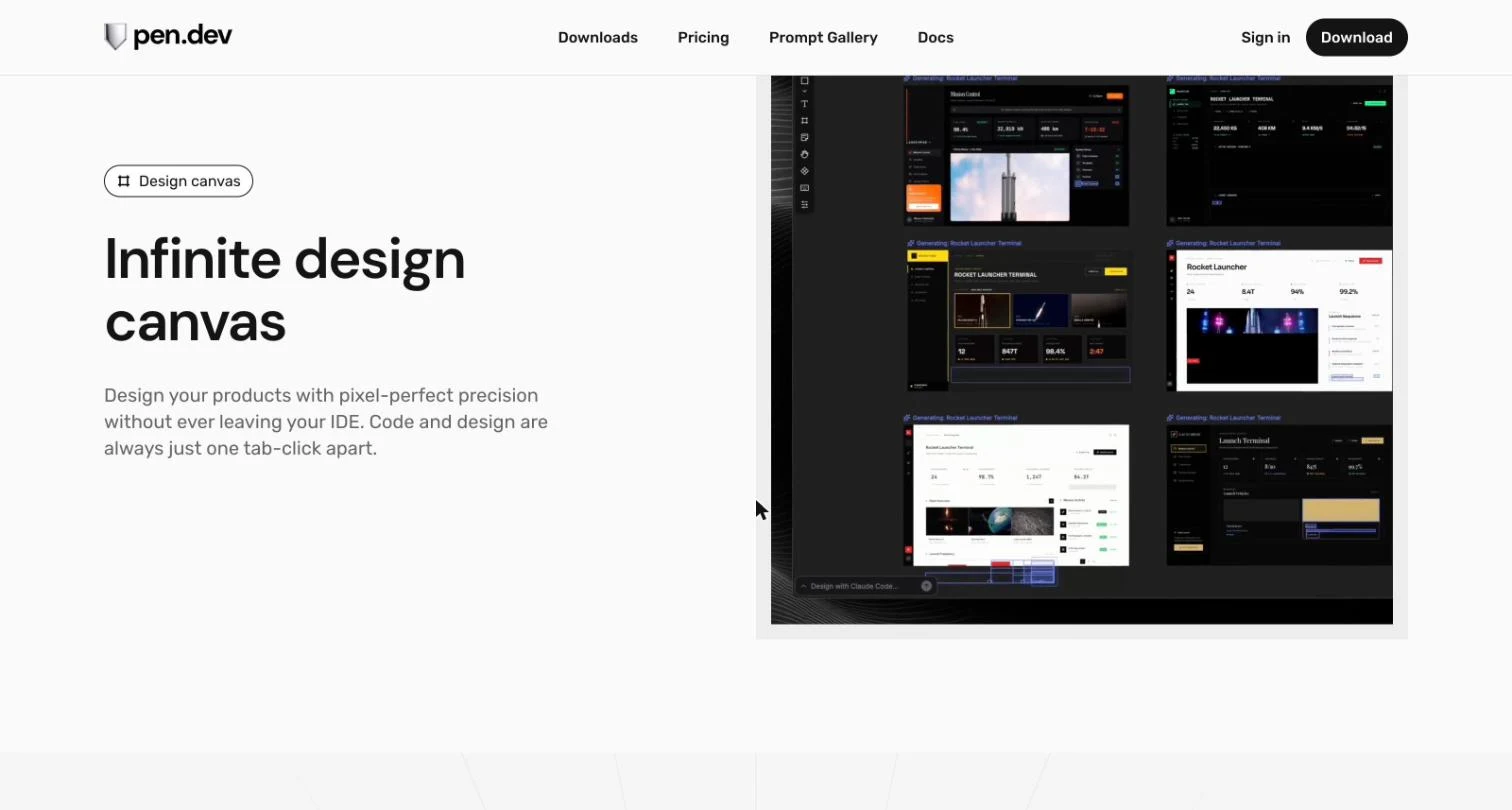
What you give up is the polish of a mature design suite. Pen is young, so there is no deep template library or plugin ecosystem yet, and the whole workflow assumes you are comfortable in an IDE with a coding agent set up. The tool itself is currently free, though, so if you already pay for Claude Code or Cursor, trying it costs nothing.
Key features
- Infinite design canvas that opens inside Cursor and VS Code, or as its own app, with layers and pixel-perfect editing.
- Designs are open-format .pen files that live in your repo and version with your code.
- Local MCP server lets Claude Code, Cursor, Codex, and other agents create and edit designs from a prompt.
- Generates code from approved designs, so the layout you sign off becomes React and Tailwind instead of a handoff.
Pros
- Design and code share one workspace, so nothing gets lost translating mockups into components.
- Runs locally, so your design files stay on your machine and in your git history.
- Currently free, and it reuses the coding agent subscription you already have.
Cons
- Built for developers, so non-technical users will find the IDE-centric setup a hurdle.
- AI generation needs a separate coding agent subscription, like Claude Code, since Pen ships no model of its own.
- A young tool with a small template and plugin ecosystem so far.
Pricing
Pen is currently free, and the team says it will describe terms clearly before introducing any paid plans, per the pen.dev pricing page. The coding agent that powers generation is billed separately, for example a Claude subscription for Claude Code.
Who should use Pen
Developers and design-minded engineers who want their designs versioned next to their code, and who already run Claude Code, Cursor, or another MCP-capable agent.
Try at pen.dev
3. Paper, best for an AI-native design canvas
Paper is a newer design tool built around a Figma-style canvas, and its MCP server lets Claude design directly on it. Instead of describing a layout, the model lays out real, editable elements you can then nudge, restyle, and arrange yourself. It sits in an interesting spot between a chat window and a full design editor, polished enough that whatever Claude builds is ready to keep working on.
We gave it our consultants hero brief, and Paper MCP impressed us. With very little instruction it produced a clean, good looking design, and because it read the codebase first the result matched our design system closely, right down to the fonts, the brand blue, and the serif italic accent the live site uses. It was usable straight after the first pass, with only small touch ups needed.
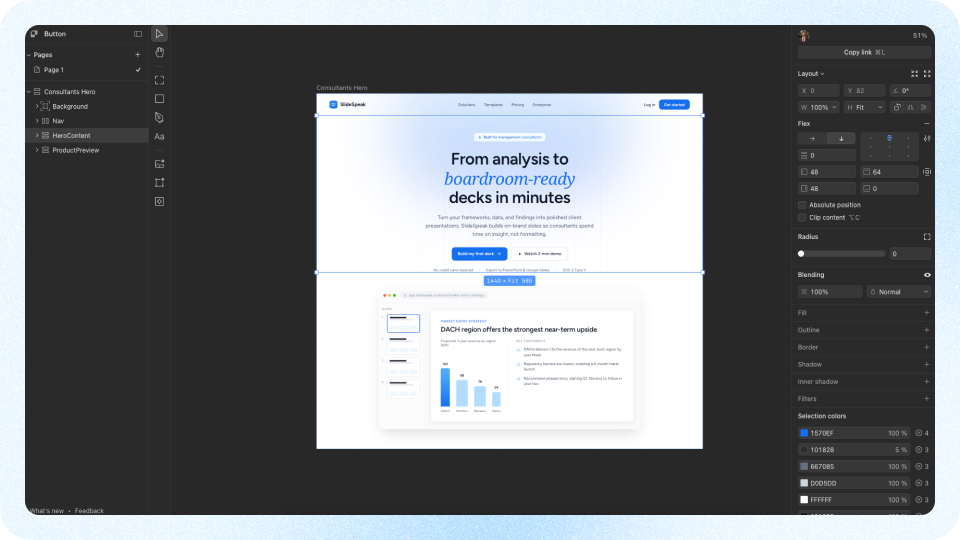
What stands out about Paper is how little hand holding it needs to land a polished result, and how naturally it stays on brand when you point it at your code. The trade off is maturity. Paper is new, so it has a smaller community, fewer plugins and templates, and a thinner set of features than an established tool like Figma. If you want the safety of a large ecosystem and years of tutorials, that gap is worth weighing.
Key features
- Generates nice looking designs from very little instruction, with sensible layout and type out of the box.
- Reads the surrounding codebase and follows its design system, so output stays on brand.
- Produces designs that are usable right after the first pass, with only minor cleanup.
- Connects to Claude over MCP, so the model can design on the canvas directly.
Pros
- The best first-pass quality of the tools we tested, with the least prompting.
- Pointing it at your code keeps fonts, colors, and styling on brand without a manual brand kit.
- Generous free tier for trying the MCP workflow.
Cons
- You are still doing manual work to finish an AI draft into a final design.
- Paper is a newer tool, so there is a learning curve to picking it up on top of whatever you already use, and a smaller ecosystem of plugins, templates, and tutorials.
Pricing
Paper has a free plan that includes weekly MCP tool calls and limited image generation. Pro costs $20 per user per month, or $16 per month billed yearly, and raises the MCP limits, adds video export, and increases image sizes. An Organizations plan with SSO and admin controls is available on request.
Who should use Paper
Developers and designers who want Claude to generate polished, on-brand designs, and who do not mind that Paper is younger and lighter on community support and features than the bigger tools.
Try at paper.design
4. Doop, best for designing with multiple AI agents
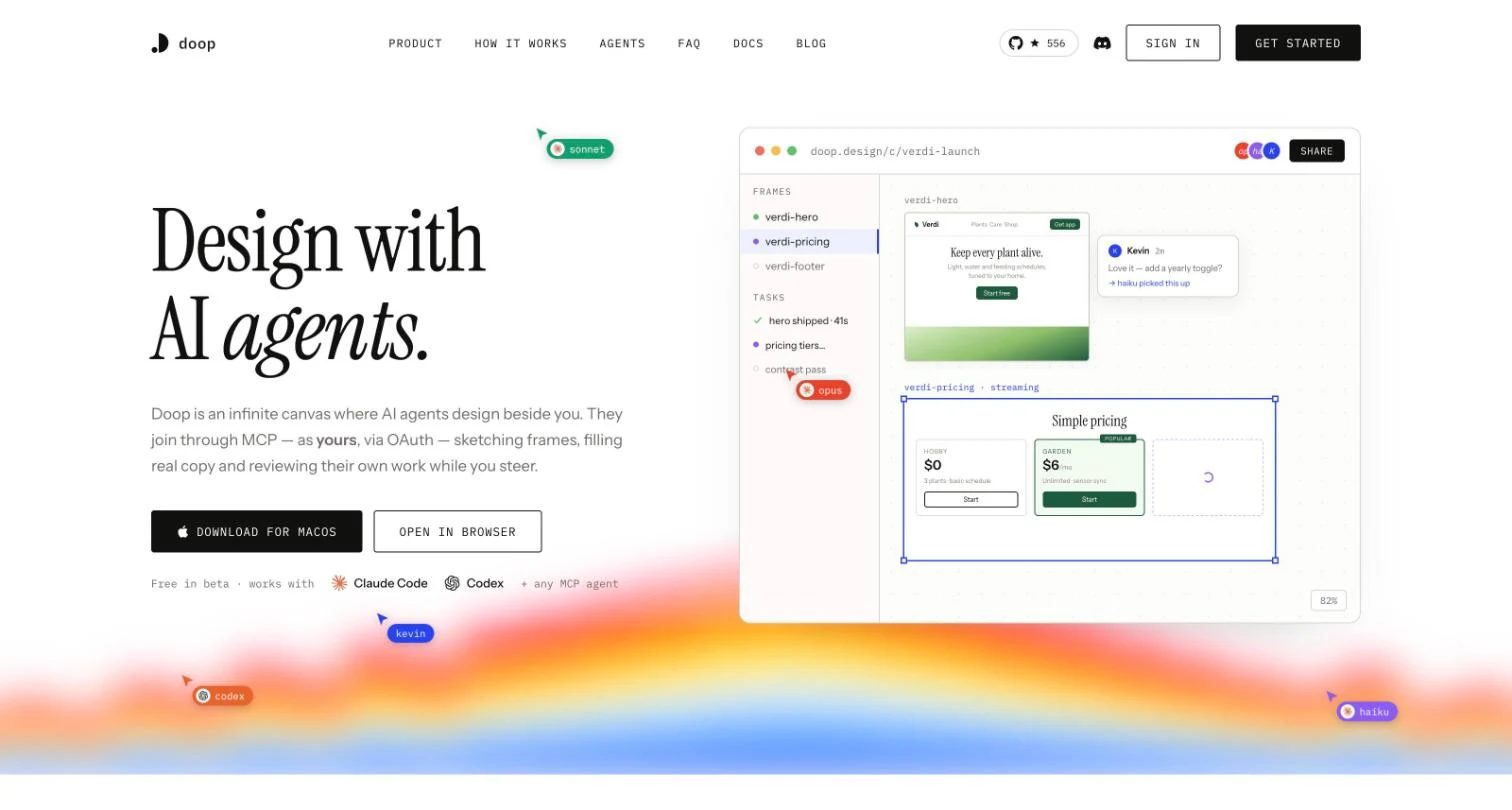
Doop takes the idea behind Claude Design and makes it multiplayer. It is an infinite canvas where AI agents design beside you, and beside each other. Your Claude Code, a teammate’s Codex, and any other MCP agent can all join the same canvas, sketch frames, fill in real copy, and review their own work while everyone watches the designs render live. Comments you leave on a frame become tasks the next agent picks up.
The connection model is what makes it feel different. Agents join over MCP with one command and a browser approval, authenticated through OAuth as you, so there are no API keys to copy around. From then on the canvas acts as shared memory. What has been designed, decided, and commented stays visible to every agent that joins later, which solves the amnesia you normally get when each chat session starts from zero.
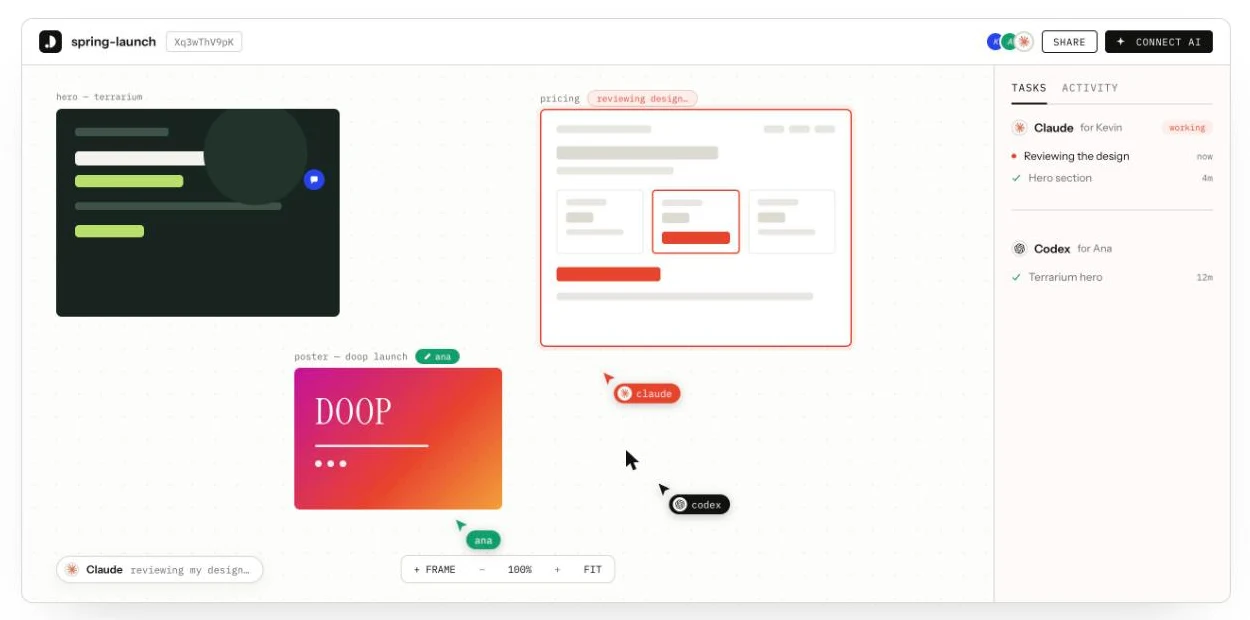
Because agents can screenshot and judge their own frames before showing them to you, first passes arrive further along than a raw chat draft, and the canvas learns your taste from the feedback you give. Like Open Design, Doop is fully open source, with the code on GitHub, so you can self-host the whole canvas with Docker instead of using the hosted beta. The trade off is maturity and format. Its frames are live HTML rather than editable PowerPoint or design files, and like Pen it brings no model of its own, so the output quality tracks the agent you connect.
Key features
- Infinite multiplayer canvas where several AI agents and humans design together in real time.
- Agents join over MCP with OAuth, one command and a browser approval, no API keys to share.
- Comments become tasks, and decisions persist on the canvas as shared memory for every agent.
- Agents self-review their frames with built-in rendering, and live exports turn frames into URLs that update as the design changes.
- Open source on GitHub, with a self-hostable Docker deployment alongside the hosted canvas.
Pros
- The only tool here built for several agents working one canvas at once, which suits teams already running multiple assistants.
- Setup is genuinely light, with OAuth instead of key management or local config.
- Free and open source, with a hosted beta and a self-host option, so it costs nothing beyond the agent you already use.
Cons
- Frames are live HTML, so there is no editable PowerPoint or design file export yet.
- A beta product, so features, limits, and eventual pricing are still moving targets.
- No built-in model, so you need your own Claude Code, Codex, or another MCP agent to design with.
Pricing
Doop is open source and free while in beta, with no paid plans published yet. You can use the hosted canvas or self-host from the GitHub repo with Docker. The AI itself is whatever agent you connect, so your only cost is the Claude or other subscription you already pay for.
Who should use Doop
Teams and solo builders who already run Claude Code or another agent and want a shared, persistent canvas where those agents design in the open, rather than in separate chat windows.
Try at doop.design
5. SlideSpeak, best for presentations
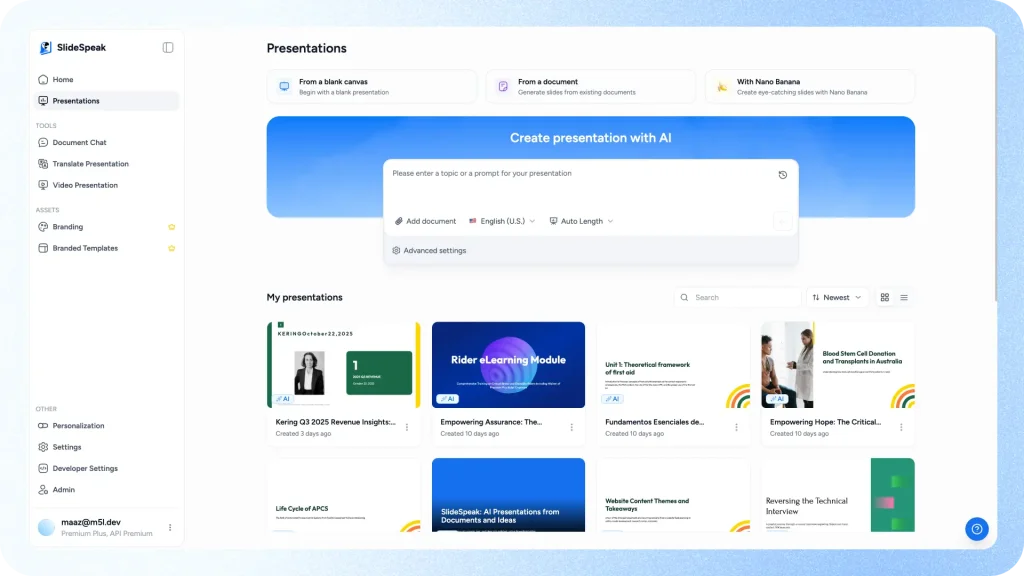
If the design work you keep asking Claude for is slides, SlideSpeak is the most direct upgrade. It is an AI presentation maker that turns a prompt or an existing document into a finished, on-brand deck, which is exactly the last mile Claude cannot cover on its own. You describe the deck or upload a report, pick a template, and SlideSpeak writes the content, lays out every slide, and hands back an editable file.
SlideSpeak gives you the finished deck, not just the words for it. It ships a library of designed templates, supports branded templates so every export matches your fonts, colors, and logo, and lets you download straight to PowerPoint or Google Slides, with a built-in editor for the tweaks the AI does not nail on the first pass. It also reaches beyond slide generation, with tools to translate presentations, turn decks into videos, and convert documents into slides, so the whole presentation workflow lives in one place.
The part that matters most for Claude users is that SlideSpeak runs a hosted MCP server. Connect it and Claude can build, theme, and download a presentation itself, calling SlideSpeak as a tool rather than just describing slides it cannot produce. Our guide on building presentations with Claude Code and SlideSpeak walks through the setup. In practice it turns Claude from a brainstorming partner into something that ships the actual file.
Key features
- Turns prompts and documents like PDFs, Word files, and reports into complete presentations.
- Applies designed and branded templates so decks stay consistent and on brand.
- Exports to PowerPoint and Google Slides, with a built-in editor for final tweaks.
- Connects to Claude and other agents over MCP, so AI can generate the deck end to end.
- Extras like presentation translation, deck-to-video, and document-to-slides conversion.
Pros
- The finished file is the output, so there is no rebuilding slides by hand.
- Branded templates mean exports match your fonts, colors, and logo without manual styling.
- The MCP connection is hosted, so setup is a link rather than a local install.
Cons
- Focused on presentations, so it will not cover UI design or general graphics.
- The free plan includes 3 credits, so regular use means upgrading to a paid plan.
Pricing
SlideSpeak has a free plan with starter credits so you can try it before paying. Premium starts at $29 per month with 1,000 monthly credits and full PowerPoint and PDF export. Premium Plus starts at $34 per month and adds branded presentations and a custom brand image library. Enterprise plans with custom templates and SSO are available, and annual billing saves 15 percent.
Who should use SlideSpeak
Anyone who uses Claude to draft slide content and wants a finished, on-brand deck without rebuilding it by hand, from sales teams and consultants to anyone turning documents into presentations at scale.
Try at slidespeak.co
6. Gamma, best for fast structured decks
Gamma is another presentation focused option, alongside SlideSpeak. It narrows in on decks, documents, and simple web pages, and that focus shows in how quickly it can turn a prompt into a finished, well structured presentation. You give it a topic or an outline, and it generates a full deck with sensible flow, ready to refine.
What makes the building easy is the set of features Gamma wraps around that generation. Smart layouts arrange your content automatically as you add or remove it, so slides stay balanced without manual fiddling, and it can produce charts, graphs, and diagrams from your data rather than leaving you to create them manually. For turning rough ideas into a clean deck fast, those tools take a lot of the busywork out of presentation design.
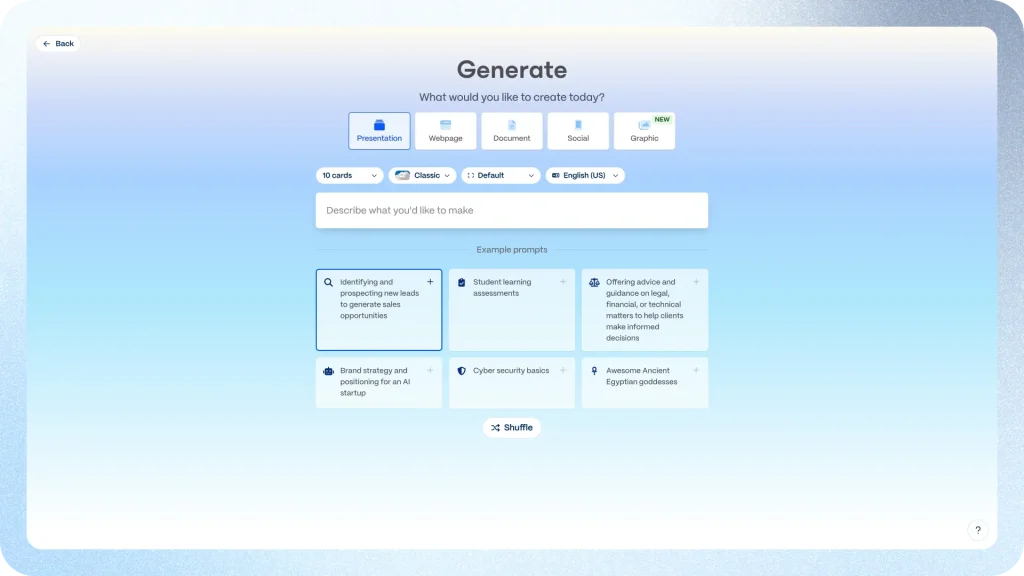
The thing to understand is how Gamma handles editing. It uses a block based editor, much like a modern document tool, where you work with structured blocks rather than free elements on a canvas. That keeps everything tidy and consistent, but it also means you do not get full control over every element the way you would in Pen, Paper or SlideSpeak. If your design calls for precise, pixel level placement, the block model can feel constraining, though for most decks the trade is well worth the speed and polish it brings.
Key features
- Tailored toward presentations, turning a prompt or outline into a structured deck fast.
- Smart layouts arrange content automatically so slides stay balanced as you edit.
- Builds charts, graphs, and diagrams from your data to make decks easier to create.
- Keeps everything clean and consistent through a structured, document like editor.
Pros
- Very fast from prompt to a well structured, presentable deck.
- Smart layouts remove most of the manual alignment work.
- Doubles as a doc and simple website builder if you need those formats.
Cons
- You do not get true canvas control, so precise, pixel level placement is hard.
- No official Claude MCP connection.
- The free plan gives you only a few credits before a premium subscription is needed to keep generating.
Pricing
Gamma’s free plan comes with 400 one-time credits and adds Gamma branding to exports. Plus starts at $8 per month billed yearly with 1,000 monthly credits, and Pro starts at $18 per month billed yearly with 4,000 monthly credits and full branding removal.
Who should use Gamma
Anyone who mainly needs presentations and wants AI to do the heavy lifting on structure and layout, and who is happy to trade pixel level control for the speed of a block based editor.
Try at gamma.app
The best free Claude design alternatives
If price is what sent you looking, three of the six picks are genuinely free, not just free trials. They share the same model: the software costs nothing, and the AI is the Claude, ChatGPT, or other agent subscription you already pay for.
- Open Design is free and open source. You bring your own API key or reuse your existing Claude or ChatGPT subscription, and hosted plans only exist for people who prefer not to manage keys.
- Doop is open source as well, with the code on GitHub. The hosted canvas is free in beta, and because the whole thing ships as a single Docker container, you can also self-host it and keep your designs on your own infrastructure.
- Pen is currently free, per the pen.dev pricing page, though it is closed source and the team may introduce paid plans later.
The other three picks use free tiers instead. Paper’s free plan includes weekly MCP tool calls, while SlideSpeak and Gamma both give you starter credits to test their presentation generation before paying.
How to choose the right Claude design alternative
The six tools solve different problems, so the fastest way to choose is to match the tool to the output you actually ship. Weigh four things.
- The kind of output you need. Slides point to SlideSpeak or Gamma, product UI points to Pen or Paper, designing with several agents at once points to Doop, and a bit of everything points to Open Design.
- How much editing control you want. Pen and Paper give you a full canvas, SlideSpeak gives you an approachable editor, Open Design hands you the raw project files, Doop keeps frames live on a shared canvas, and Gamma trades control for speed with its block model.
- Whether brand consistency matters. SlideSpeak’s branded templates, Paper’s code-aware generation, and Pen’s designs living next to your code all keep output on brand in different ways.
- Whether it stays in your Claude workflow. SlideSpeak, Pen, Paper, and Doop connect to Claude over MCP, and Open Design goes further by running on your Claude or ChatGPT access directly. Only Gamma lives in its own tab.
If you are still unsure, start with the free plan of the tool that matches your main output. Every pick on this list has one, so testing your real work costs nothing but an afternoon.
TL;DR
Claude Design is great for shaping ideas but not for shipping finished, on-brand work, so pair it with a dedicated tool and pick by what you are making.
- For an open source Claude Design alternative, Open Design, which runs on your own key or your existing Claude or ChatGPT subscription.
- For presentations, SlideSpeak, which also connects to Claude over MCP.
- For designing inside your IDE, Pen, which stores designs as files in your codebase and connects over a local MCP server.
- For an AI-native design canvas, Paper, which connects over MCP and stays on brand from your code.
- For designing with multiple AI agents on one shared canvas, Doop, open source and free in beta.
- For fast, structured decks, Gamma.
Frequently asked questions
Claude is Anthropic’s general AI assistant for chatting, writing, and reasoning. Claude Design is its dedicated design tool, pairing that same model with a live canvas, so instead of describing a layout in chat you get a real design you can refine with chat or inline comments, from slides and prototypes to product wireframes and docs.
It depends on the work. Open Design is the pick if you want an open source generalist that mirrors Claude Design’s range, SlideSpeak is the strongest pick for presentations, Pen and Paper for UI and product design, Doop for designing with several AI agents on one canvas, and Gamma for fast, structured decks.
SlideSpeak, Pen, Paper, and Doop all offer an MCP server, so Claude can build inside them directly. Open Design does not need MCP at all, since it uses Claude itself as its design engine. Gamma does not currently connect to Claude over MCP.
Open Design and Doop are both free and open source, so you only pay for the model or agent behind them, and Doop can even be self-hosted. Pen is also currently free. Beyond that, Paper’s free plan includes MCP tool calls, and SlideSpeak and Gamma both give you free credits to test their presentation generation before paying.
The main ones are editing and export. You refine through chat and comments rather than a true canvas, there is no template or brand library to start from, and getting a finished PowerPoint, design file, or coded page usually means moving the work to another tool.
No. Each one is meant to pair with Claude rather than replace it. You keep Claude for ideas and drafts, then use the tool to turn that into a finished, on-brand deliverable, often driven straight from Claude over MCP.


