

How to Turn a PowerPoint into Notes, Handouts, or a Transcript
Written by

Published on
On this page
Sometimes you need the opposite of a slide deck. You have a PowerPoint (a lecture, a training deck, a 60-slide strategy presentation) and what you actually want is the text: study notes, a printed handout, or a full transcript of everything on the slides. PowerPoint can do some of this natively, and AI can do the rest in seconds.
Here are the four ways to turn a PowerPoint into notes, from the built-in options to the fully automatic one.
1. The fastest way: let AI turn your slides into notes
The manual methods below all share one weakness: they only capture text that lives in PowerPoint’s text placeholders. Charts, tables, diagrams, images, and text boxes get left behind. An AI summarizer reads the whole slide instead.
With SlideSpeak’s free PowerPoint summarizer the workflow is three steps:
- Upload your PowerPoint (decks with 100+ slides are fine).
- Ask for what you need: a summary, study notes, key takeaways, action items, or a slide-by-slide transcript of the content.
- Copy the result or keep asking follow-up questions about the deck.


Because the AI understands charts, tables, and images as well as text, the notes include the things a copy-paste never catches: what the graph on slide 12 actually shows, or what the table of pricing tiers means. It reads speaker notes too, so nothing hiding under the slides is lost. This is the method to use when the deck is long, visual, or not yours.

2. Copy all slide text with Outline view
PowerPoint’s Outline view strips away the design and shows your deck as plain text, which makes it the quickest built-in way to get slide content out.
- Open your presentation and go to View > Outline View.
- Click anywhere in the outline pane, press Ctrl+A (Cmd+A on Mac) to select everything, and copy.
- Paste into Word, Google Docs, or your notes app. Slide titles become headings and bullet points come along for the ride.
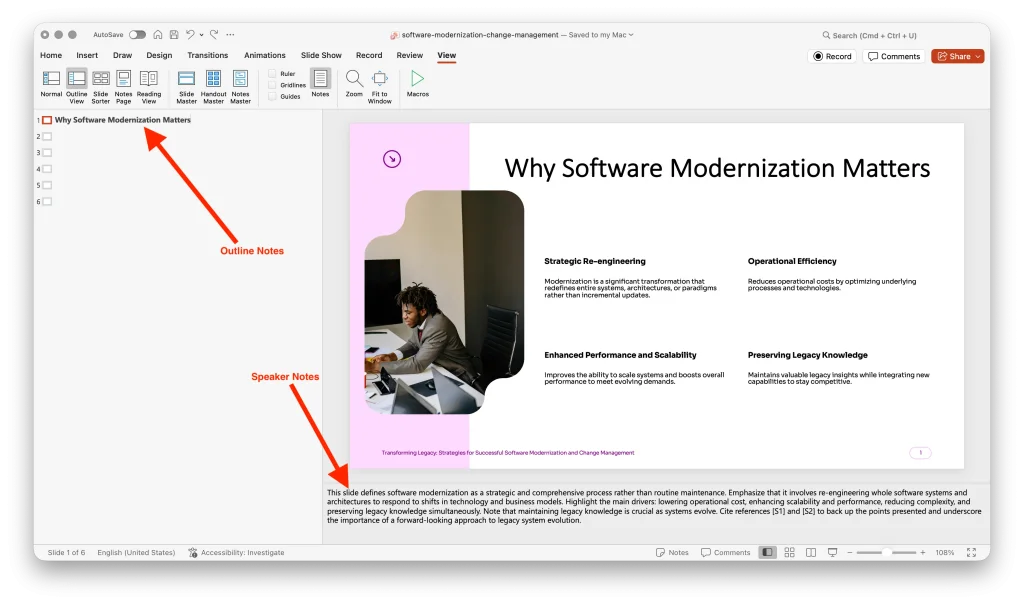
The catch: Outline view only shows text typed into title and content placeholders. Anything in a text box, table, chart, SmartArt graphic, or image simply doesn’t appear. For a text-heavy lecture deck that’s fine; for a data-heavy business deck you’ll be missing half the story.
3. Print or export Notes Pages
If the presenter wrote speaker notes, Notes Pages give you each slide as an image with its notes underneath.
- Go to File > Print.
- Under the layout setting (where it says “Full Page Slides”), choose Notes Pages.
- Print to paper, or choose “Save as PDF” as the printer to get a digital copy.
This is the classic format for rehearsing a talk or following along during someone else’s. It obviously depends on the speaker notes existing in the first place; if the notes fields are empty, you’ll get a page per slide with a lot of white space.
4. Create handouts in Word
For a classroom or training session, PowerPoint can push your deck into a Word document formatted as a handout, with space for the audience to write. Handouts are often the quickest first step when you are building a training program from material you already have.
- In PowerPoint for Windows, go to File > Export > Create Handouts.
- Pick a layout: notes next to slides, blank lines next to slides, notes below slides, or outline only.
- Choose “Paste link” if you want the Word document to update when the deck changes, then click OK.
Two caveats: this feature only exists in PowerPoint for Windows (on a Mac, use the Notes Pages method above instead), and like Outline view it works from slide thumbnails and placeholders, so it’s a formatting tool rather than a way to extract content.
Getting a full transcript of a presentation
“Transcript” can mean two things here. If you want a text version of everything written on the slides, the AI method in option 1 is the reliable route: ask for a slide-by-slide breakdown and you’ll get the content of each slide in order, including what’s shown in charts and tables. Copying text manually slide by slide works too, but for a 40-slide deck it’s an afternoon you won’t get back.
If you want a transcript of the talk itself (the words spoken while presenting), record the session with an AI meeting notetaker. We cover those tools, and how to turn their transcripts back into slides, in our guide to automatically turning meeting notes into a presentation.
Frequently asked questions
How do I turn a PowerPoint into study notes?
Upload the deck to a PowerPoint summarizer and ask for study notes. You’ll get structured notes that cover the slides, the visuals, and the speaker notes, which you can then paste into your note-taking app or flashcard tool.
Can I turn a PowerPoint into a Word document?
Yes. On Windows, use File > Export > Create Handouts to send slides and notes to Word. For plain text, copy from Outline view. For a readable summary rather than raw text, use the AI route.
Why is slide text missing when I copy from Outline view?
Outline view only reads title and body placeholders. Text boxes, tables, charts, and SmartArt are invisible to it. That’s the main reason to use an AI summarizer for decks that weren’t built strictly from standard layouts.
Can I do the reverse and turn notes into a presentation?
Yes, and it’s even easier. Upload your notes to SlideSpeak’s AI presentation generator and it builds the deck for you. Here’s the full guide to turning meeting notes into a presentation.
Conclusion
PowerPoint’s built-in options (Outline view, Notes Pages, and Word handouts) are fine when the deck is text-based and the formatting matters more than the content. When you actually need the information out of the slides (study notes, a transcript, or a summary of a deck someone else made), AI gets you there in one upload.
Try the free PowerPoint summarizer and turn your next deck into notes in seconds.


