

How to Make AI Follow Your Design and Brand Guidelines for Slides (2026 Guide)
Written by

Published on
On this page
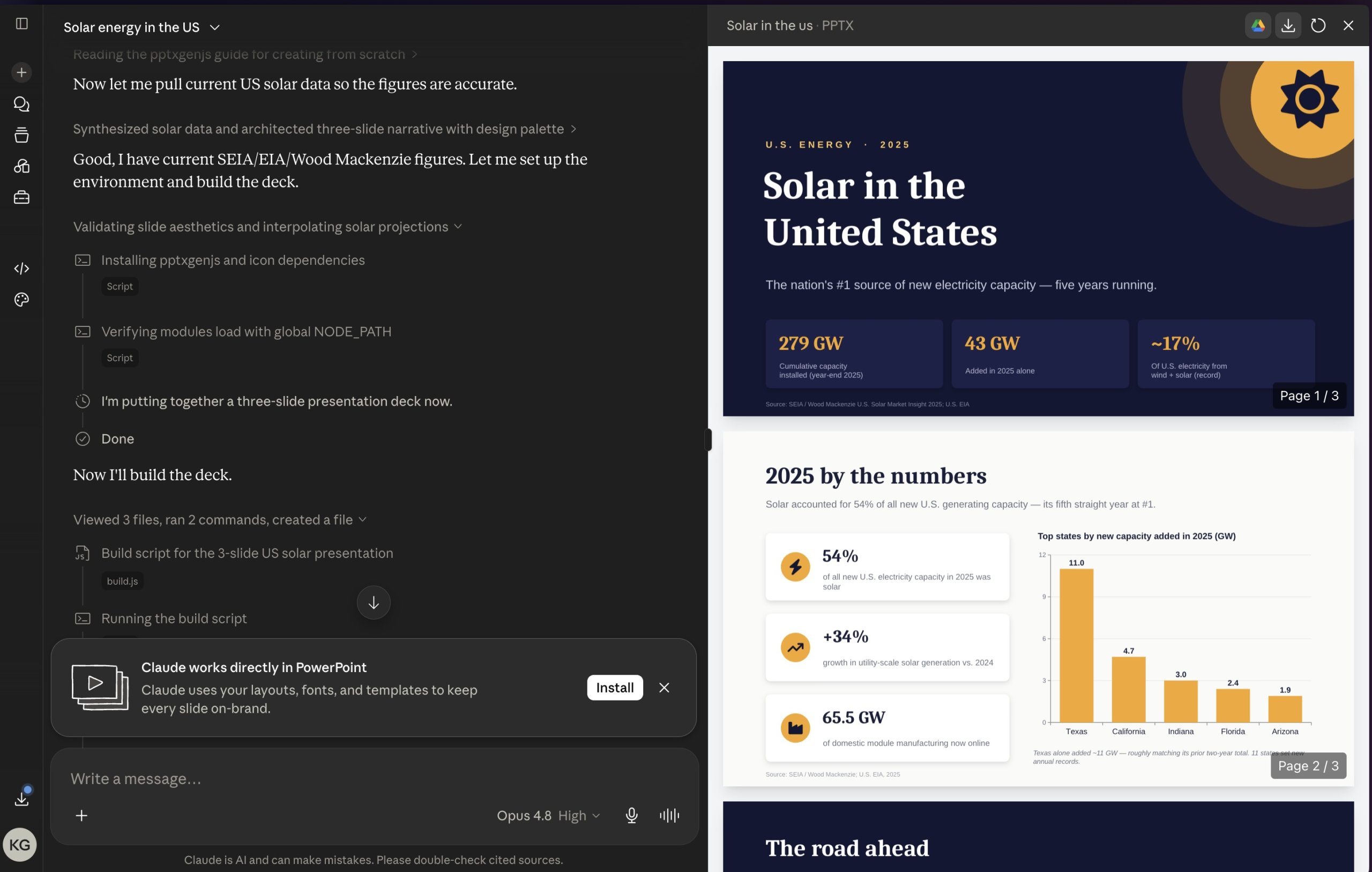
You ask Claude or ChatGPT to generate a deck about Q3 results. It comes back beautifully designed. Wrong fonts, generic stock photos, blue when your brand is green, and icons in a style your brand book explicitly bans. Now you’re spending two hours fixing what the AI was supposed to do in 60 seconds.
If this is your reality, you’re not alone. Most AI tools are great at generating slides and terrible at following your brand. This guide walks through every credible way to fix it.
The Five Approaches at a Glance
Here are the five options we’ll cover, in the order we’ll go through them:
- Prompt the AI with your brand details. Tell Claude or ChatGPT your fonts and colors in plain language. Quickest, least reliable. Drifts after a few slides.
- Connect a Brand Context MCP. A live endpoint that exposes your brand (logos, colors, fonts, icons, layouts) to Claude, Codex, Cursor, and any AI agent on demand. Best fit if you’ve standardized on AI agents.
- Use SlideSpeak with a branded template. Upload your PPTX or POTX once. Every generated deck inherits your master slides, theme colors, fonts, and logo placements. Editable PowerPoint out.
- Use Claude Design. Anthropic’s visual tool inside Claude. Beautiful editorial output. No persistent brand library.
- Upload your PPTX to a generic AI tool. Popular but unreliable. Most tools butcher the layouts and only transfer surface styling.
The short recommendation, if you don’t want to read further: combine Option 2 (Brand Context MCP) with Option 3 (SlideSpeak branded template). One feeds your AI agents; the other generates clean editable PPTX. The rest of this guide explains why.
Why Generic AI Tools Ignore Your Brand
The default behavior of most AI slide generators is to pick from a built-in template library. You type a topic, the model picks a template that “looks nice”, and you get a polished deck, one that looks nothing like your company’s.
Three reasons this happens:
- No access to your brand assets. The AI doesn’t know your fonts, colors, or logos exist. It defaults to web-safe fonts (Inter, Roboto), generic blues and grays, and stock imagery.
- No knowledge of your design rules. Your brand book lives in a PDF or Figma file. The model can’t read it unless you wire it in.
- Templates are baked in, not configurable. Most tools let you pick a theme but not enforce one. You get the model’s interpretation of “professional”, not yours.
Why This Is a Must-Have for Big Corporations
For a one-person startup, an off-brand AI deck is annoying. For a Fortune 500, it’s a non-starter.
Big companies invest millions in brand systems. Logo usage rules, color palettes down to the hex, typography hierarchies, photography direction, do-and-don’t examples, even “logo misuse” sections. The output is a brand guideline document that everyone in the company is expected to follow, every time.
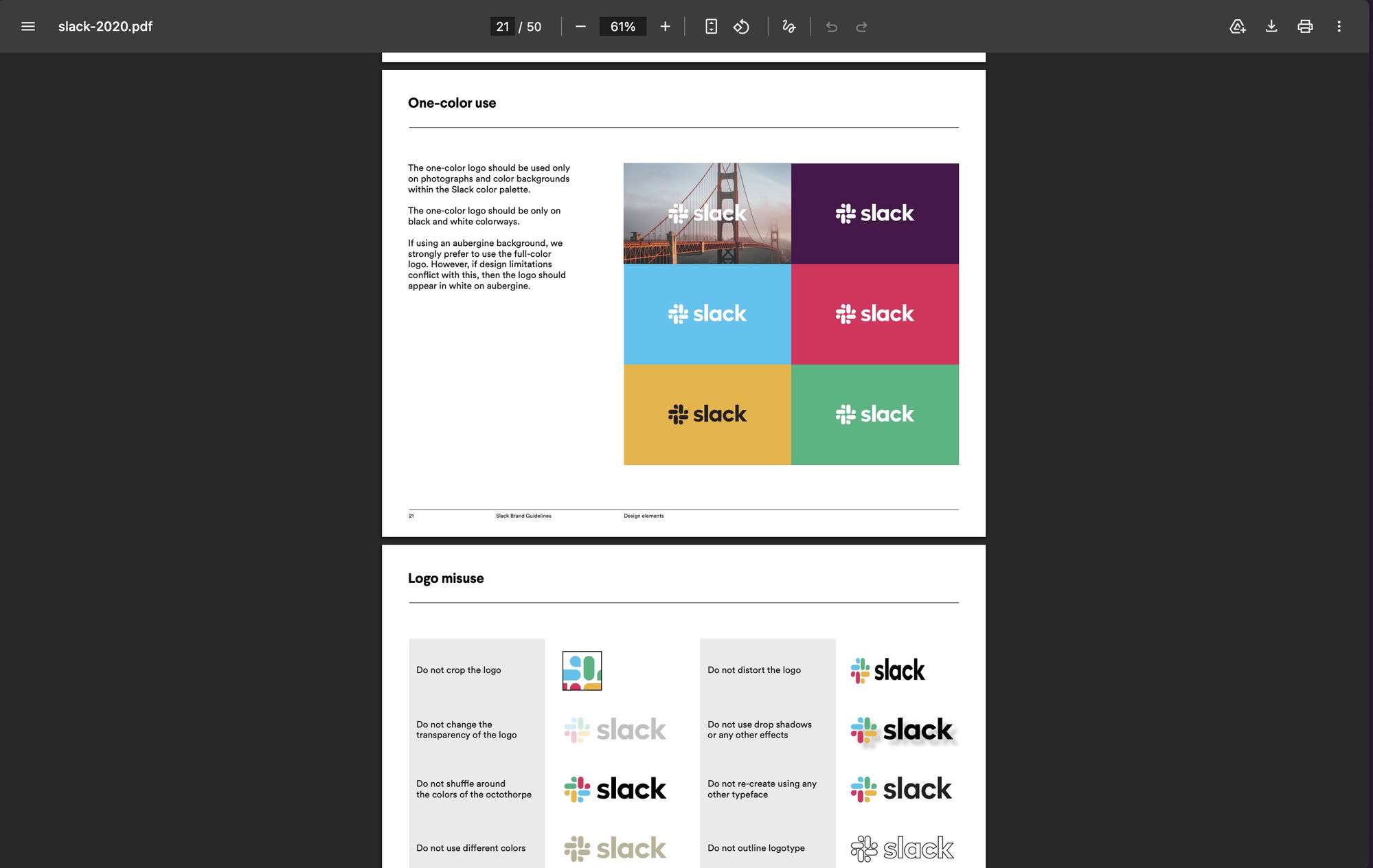
Want to see how other companies do it? Creative Soup keeps a roundup of downloadable brand guideline PDFs from Shopify, Slack, The North Face, and other well-known brands. Flip through a few and the pattern is obvious: every serious brand defines exactly how its logo, colors, typography, and imagery can be used, and where the lines are.
When AI enters the picture, the bar doesn’t drop. If anything, it gets stricter. An AI tool that ships off-brand decks at scale doesn’t just create design debt. It creates legal, compliance, and brand-integrity risk. Marketing teams, brand councils, and procurement teams will block tools that can’t demonstrate brand control.
That’s why brand compliance for AI presentations isn’t a nice-to-have for enterprise. It’s a procurement checkbox. Any AI deck-generation tool that wants to be deployed at a large company has to answer one question first: can it follow our brand guidelines, every time, across every team?
Option 1: Prompt the AI With Your Brand Details
The simplest approach: tell the model what to use, in plain language.
“Use the font Inter for headings and Source Sans for body. Primary color #0066FF. Avoid orange accents. Use minimalist line icons, no filled shapes. Imagery should be moody, editorial photography. No stock photos with people pointing at laptops.”
What you get: a stylish deck that vaguely points at your brand for a few slides, then drifts. Claude and ChatGPT can’t pull your actual logo file, won’t reliably apply your colors to every element, and have no way to enforce icon style consistency across 15 slides.
Useful for a one-off prototype. A non-starter for ongoing work where every deck needs to look like it came from your company.
Option 2: Connect a Brand Context MCP to Claude or Your Agents
If you’ve standardized on Claude, Claude Code, Codex, Cursor, or custom AI agents for design work, the answer isn’t a one-off template upload. It’s wiring those agents into your brand permanently.
A Brand Context MCP is a Model Context Protocol server that exposes your real brand (logos, colors, fonts, imagery, icons, and approved slide layouts) as an endpoint any AI agent can read on demand. Set it up once. Every agent on your team connects to the same source of truth.
SlideSpeak Onbrand is that MCP. Once connected:
- Claude can fetch your brand kit (colors, typography, logos) when generating slides.
- Codex, Cursor, and your own agents read from the same brand kit, not their own guesses.
- Approved slide layouts and icon libraries are available to every agent, not invented per prompt.
- You don’t repeat your brand rules in every conversation. The agent looks them up.
This is the option to pick if you’ve already built workflows around Claude or another AI agent and want brand compliance enforced by infrastructure rather than by reviewers. It’s also the only option that scales across multiple AI tools and multiple teams without duplication.
For the broader landscape of Design MCP servers behind this option (Figma MCP, zeroheight MCP, Paper.design, plus where brand portals fit in), see Best Design MCP Servers in 2026.
Option 3: Use SlideSpeak With a Branded Template
If you want a single tool that generates editable PowerPoint files from your branded template, SlideSpeak is built around that workflow. The branded template feature lets you upload a .pptx or .potx and treats it as the design system, not a styling hint.
- Your master slides become the layout system. Generated slides actually use them.
- Theme colors, heading and body fonts, and logo placements stay intact.
- Output is real, editable PowerPoint, not HTML or a screenshot. Open it in PowerPoint or Google Slides and everything is editable.
- Generation is fast: a full deck in under a minute, not multiple minutes per attempt.
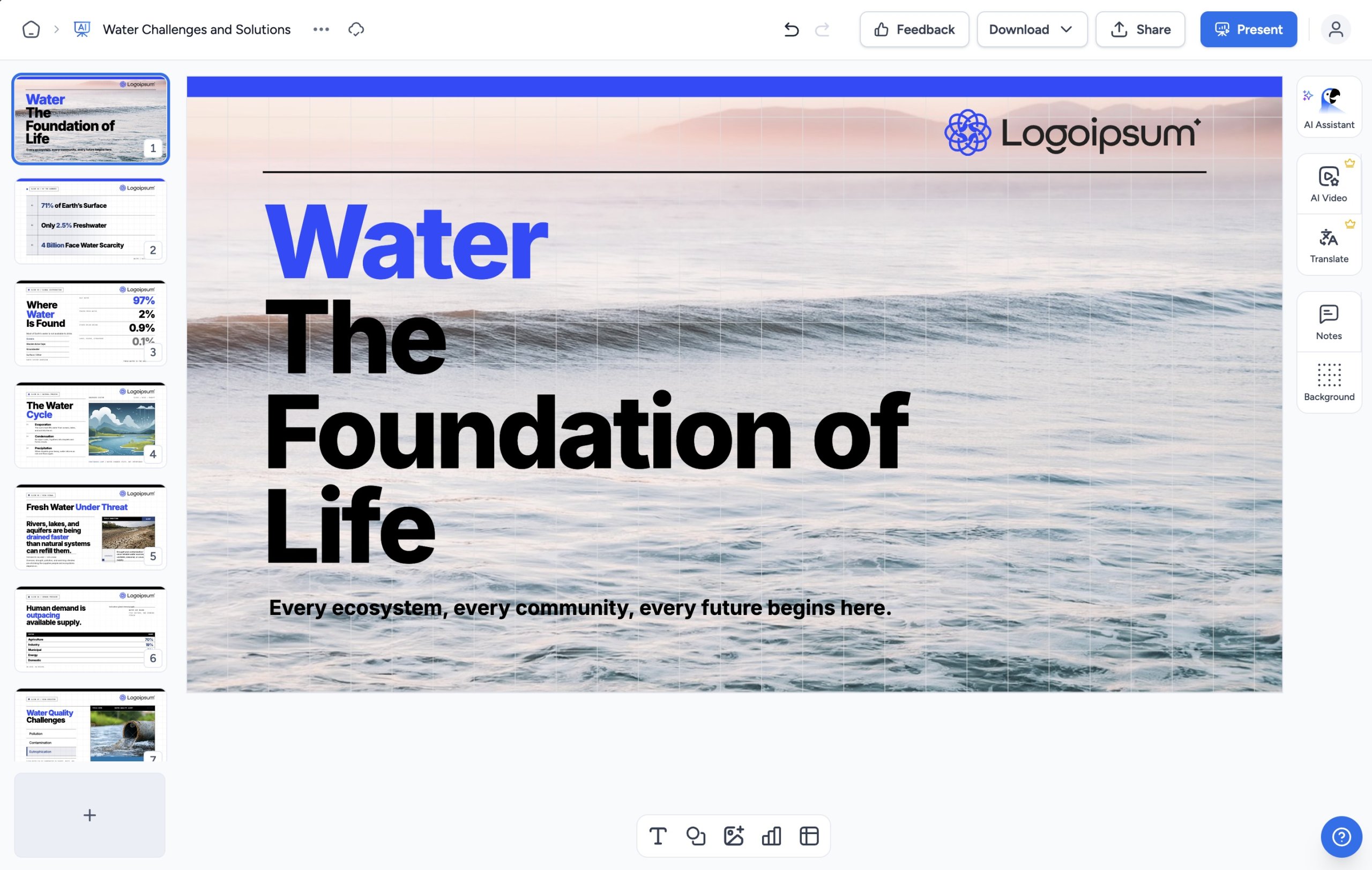
For teams that have a clean PPTX template and want a single tool that respects it, this is the cleanest path. You upload once, then every deck inherits the brand.
Option 4: Use Claude Design
Claude Design is Anthropic’s visual creation tool, built directly into Claude. It produces genuinely beautiful presentations with custom typography and editorial-style layouts. A real step up over plain prompting if aesthetics matter more than brand consistency.
The catch: Claude Design has no proper place to manage your design assets. You can describe your brand in the conversation and Claude will even render a design-system view for you, but it lives inside that one conversation. There’s no persistent brand library, no asset store, no shared source of truth that future decks (or other people on your team) can pull from.
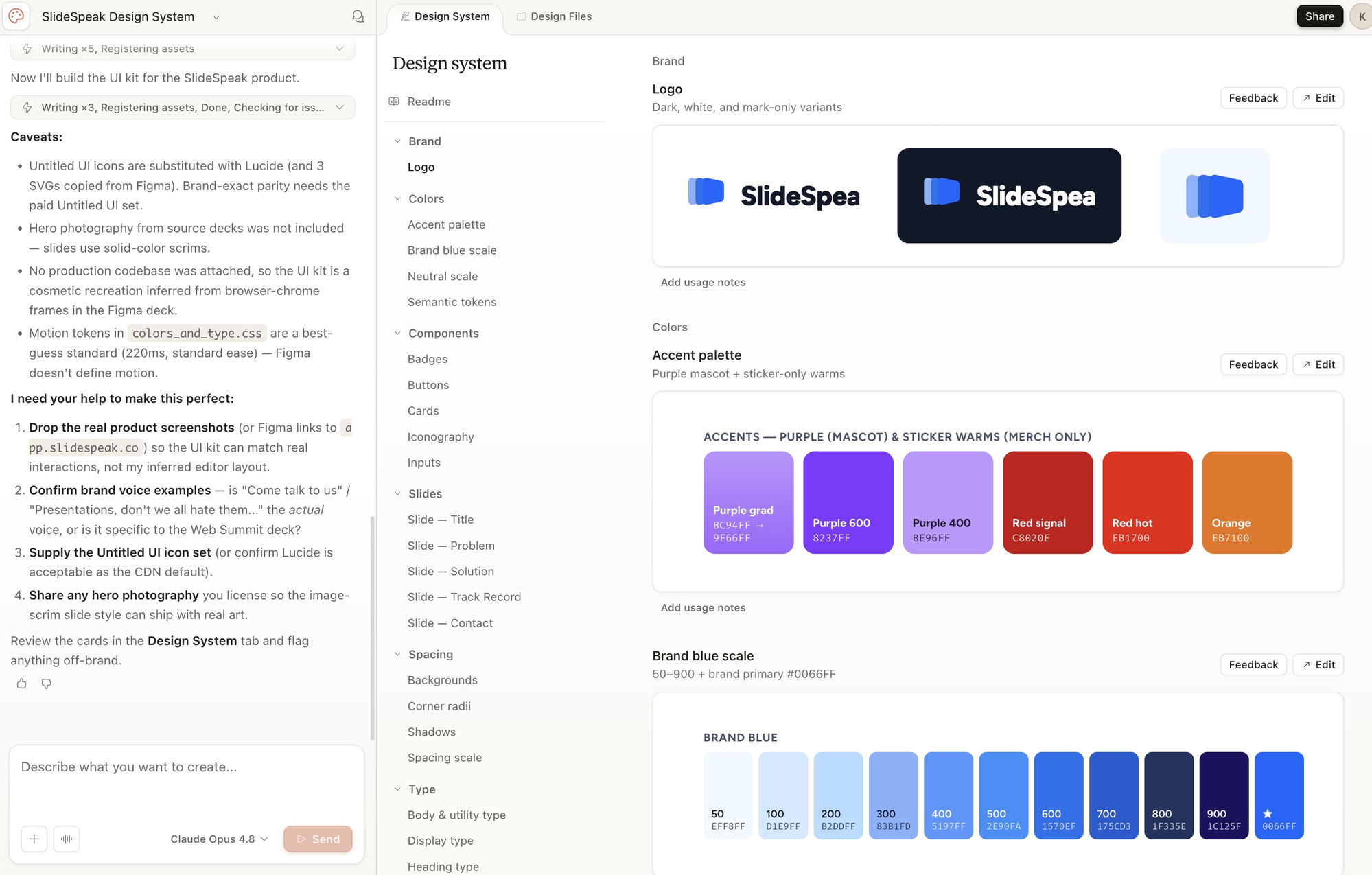
Result: Claude Design works for editorial, one-off presentations where aesthetic freedom is a feature. It struggles when you need brand consistency across multiple decks, multiple authors, and multiple weeks.
Option 5: Upload Your PPTX to a Generic AI Tool
Most professional teams already have a PowerPoint template (.pptx or .potx) that encodes the brand: master slides, theme colors, fonts, logo placements, footer styling. Many AI tools now claim to support custom templates as a feature.
In practice, this is where things tend to break:
- The tool butchers your slides. Text overflows placeholders. Image areas get ignored. Custom layouts collapse into generic ones. What was a clean two-column layout in your template becomes a wall of bullet points.
- Only the surface transfers. Most “template support” means the tool copied your colors and fonts. Master slides, icon library, imagery style, chart styling, footer rules: usually ignored.
- Full brand guidelines don’t fit in a PPTX. Your real brand is colors plus fonts plus logos plus icon style plus imagery rules plus tone. A template captures part of that. The rest is still missing.
The template approach is the right idea. Most generic tools execute it badly, which is why Options 2 and 3 exist as purpose-built alternatives.
Bonus: No Clean Template? Extract One First
Options 2, 3, and 5 all assume you have a brand to point the AI at. What if you don’t, just an old PowerPoint, a brand PDF, or a website that captures the look you want?
SlideSpeak’s extract brand guidelines tool reads an existing asset and pulls out the brand system automatically: fonts in use, color palette, logo, imagery style. The output is a structured brand kit you can feed into SlideSpeak directly, or use to populate the Onbrand MCP.
Use this when:
- Your “brand guidelines” only exist as a deck someone made three years ago.
- You’re working with a client and only have their website to go on.
- You want to onboard a new brand quickly without rebuilding everything from scratch.
What “Follows My Design” Actually Means: The Checklist
When you say “make sure AI follows my design”, you’re really asking for a list of constraints. Here’s the full checklist most teams care about:
- Typography. Heading font, body font, weights, sizes, line-height, tracking.
- Color palette. Primary, secondary, accents, backgrounds, semantic colors (success, warning, error). Exact hex codes.
- Logo usage. Which version, placement rules, clear space, when to use mono vs. color.
- Imagery style. Photography mood (editorial, documentary, lifestyle), illustration style, no stock-cliché shots.
- Iconography. Line vs. filled, weight, corner radius, color rules.
- Layout system. Grid, padding, slide proportions, recurring layouts (title, content, data, conclusion).
- Charts and data viz. Brand colors applied to chart series, font for axis labels, gridline style.
- Footer and metadata. Page numbers, confidentiality marks, presenter name, date format.
Any AI tool that claims to be “on-brand” but can’t enforce most of these isn’t really on-brand. It’s just styled.
Which Option Should You Pick?
| Your situation | Best option |
|---|---|
| One-off deck, brand is loose | Option 1: prompt Claude or ChatGPT |
| You’ve standardized on Claude, Codex, or another AI agent for design work | Option 2: Brand Context MCP (SlideSpeak Onbrand) |
| You have a PPTX template and want a generator that actually respects it | Option 3: SlideSpeak with branded template |
| You want beautiful, editorial visuals and brand doesn’t matter | Option 4: Claude Design |
| You’re locked into a generic AI tool with template support | Option 5: PPTX upload (expect manual cleanup) |
| You don’t have a clean brand kit yet | Bonus: extract guidelines first, then go to 2 or 3 |
Most professional teams end up using Option 2 plus Option 3: the Onbrand MCP so every AI agent (Claude, Codex, Cursor, internal agents) inherits the same brand truth, and SlideSpeak with a branded template for direct deck generation.
Common Mistakes That Break Brand Compliance
- Trusting “use my brand colors” in a prompt. The model will apply your primary color to the title slide and revert to defaults by slide 5. Bind colors to the template or MCP, not the prompt.
- Using a “template” that’s actually just one styled slide. AI tools need master slides, not example slides. A real template has reusable layouts.
- Generating then editing. You’ll spend more time fixing brand drift than generating. Set up the brand once, generate cleanly, edit content, not styling.
- Ignoring icons and imagery. Most brand compliance failures aren’t about colors. They’re about icons in the wrong style and stock photos that scream “AI made this”. Constrain both explicitly.
Frequently Asked Questions
Can ChatGPT or Claude follow my brand for slides?
Out of the box, not reliably. They’ll respect colors and fonts in a prompt for a few slides, then drift. Connect them to a Brand Context MCP like SlideSpeak Onbrand and they can pull your brand on every generation.
Does Claude Design support brand guidelines?
Not in any persistent way. You can describe your brand in the conversation, but Claude Design has no brand library or asset store. Visual choices are made by Claude per request, not by your guidelines.
Do I need a PowerPoint template to use AI for branded slides?
Helpful, not required. If you don’t have one, extract guidelines from an existing deck or website using SlideSpeak’s brand guidelines extractor, then feed those into SlideSpeak or the Onbrand MCP.
What’s the difference between a branded template and a Brand Context MCP?
A template is a file (PPTX or POTX) that defines layouts and styling. An MCP is a live endpoint that exposes your brand to AI agents. Templates work for direct generation in tools like SlideSpeak. MCPs work for agent-driven workflows in Claude, Codex, Cursor, and custom agents. Many teams use both.
How do I make AI generate slides with my company’s icons?
Two options: include the icon library in your branded template, or connect a Brand Context MCP that exposes your approved icons. Prompt-based icon control is unreliable.
Can I enforce brand compliance across multiple AI tools?
That’s exactly what an MCP is for. Connect Claude, Cursor, Codex, custom agents, and SlideSpeak to one Brand Context MCP and every tool inherits the same brand truth.
The Bottom Line
Making AI follow your design isn’t a prompting problem. It’s a wiring problem. You need to give the AI a place to read your brand from, and you need to use a tool that respects what it finds.
The fastest path: connect SlideSpeak Onbrand as a Brand Context MCP for every AI agent your team uses, and upload your branded template to SlideSpeak for direct deck generation. Set it up once. From then on, your brand is something the AI reads, not something it guesses at.
Generic AI slides are easy. On-brand AI slides are a system. Build the system once.


