

How to Create Presentations with Claude Design (2026 Guide)
Written by

Published on
On this page
Anthropic just launched Claude Design — a new visual creation tool built directly into Claude. It lets you design presentations, posters, and other visual assets using AI, all within the Claude interface. If you’ve been looking for a way to create presentations with Claude, this is the most native option yet.
But here’s the thing: Claude Design is brand new, and it comes with some real limitations — especially if you need editable PowerPoint files, custom branded templates, or fast turnaround. That’s where SlideSpeak comes in as a powerful alternative.
In this guide, we’ll walk through exactly how to use Claude Design to create presentations, then show you how SlideSpeak delivers a faster, more customizable experience — especially for professional and branded decks.
What Is Claude Design?
Claude Design is a new feature from Anthropic Labs that adds visual design capabilities directly into the Claude interface. Instead of just generating text, Claude can now create visual outputs — including presentations, infographics, and design layouts — rendered as HTML files you can view, share, and export.
It’s part of Anthropic’s push to make Claude more than a chatbot. Design sits alongside Code and Artifacts in Claude’s sidebar, giving you a dedicated space for visual creation.
How to Create a Presentation with Claude Design (Step-by-Step)
Here’s exactly how to find and use Claude Design to build a presentation from scratch.
Step 1: Open Claude Design
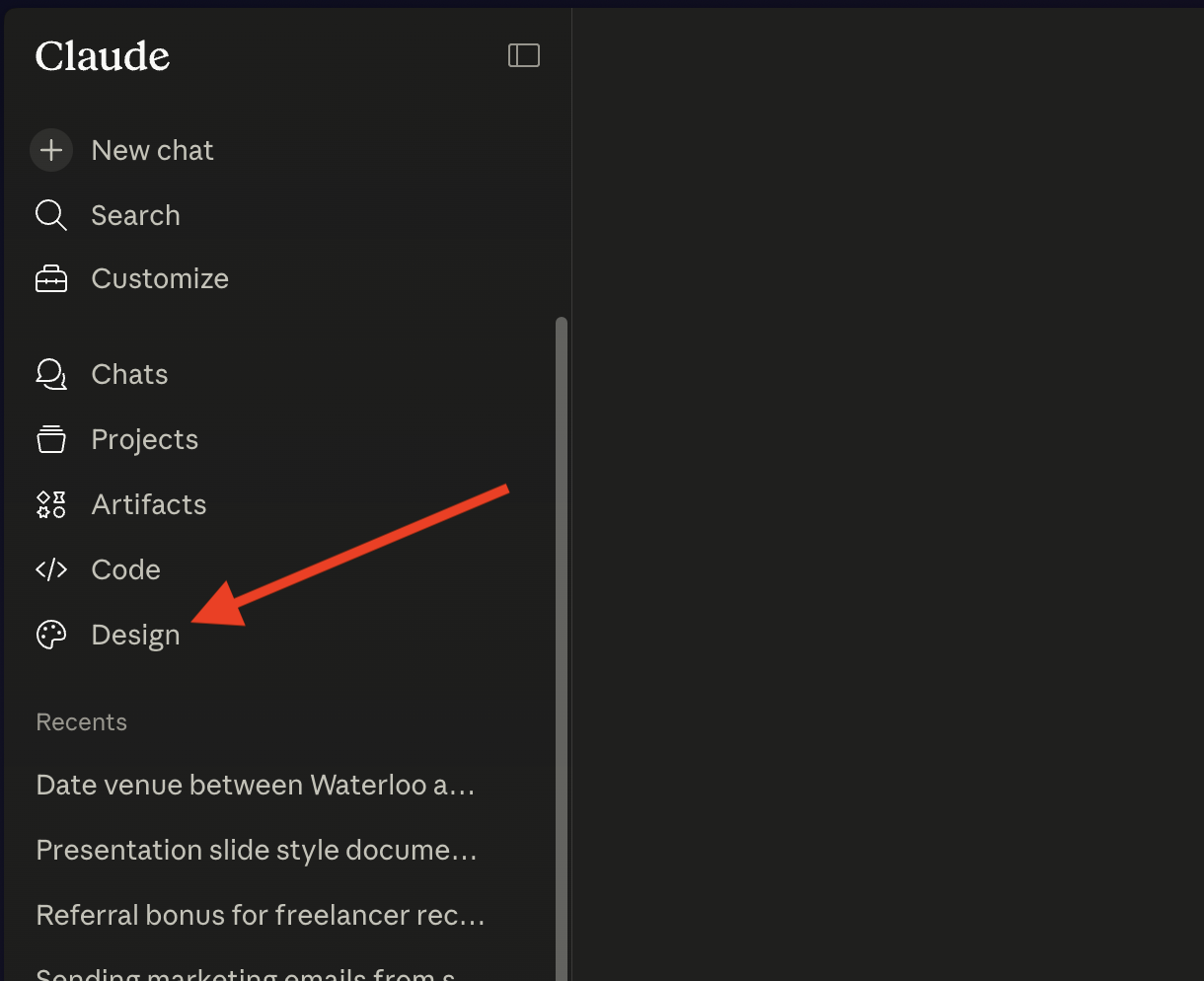
Log into claude.ai and look at the left sidebar. You’ll see a list of options: Chats, Projects, Artifacts, Code, and — the new one — Design. Click on it.
Step 2: Create a New Presentation
Once you’re in the Design section, click “Create new presentation” (or describe what you want in the prompt field). Tell Claude what your presentation should be about — for example, “A presentation about Prague” or “Q2 sales report for the marketing team.”
Claude will start working on your request. But before it builds anything, it will ask you a series of clarifying questions.
Step 3: Answer Claude’s Questions
This is where Claude Design differs from most AI presentation tools. Instead of immediately generating slides, Claude asks you detailed questions about your presentation:
- What’s the angle? — Travel guide, historical overview, business pitch, etc.
- Who’s the audience? — Students, colleagues, prospective visitors, etc.
- How long should the talk be? — A slider from 3 to 30 minutes
- Tone? — Warm and narrative, crisp and editorial, academic, playful
- Visual direction? — Editorial, moody, minimalist, etc.
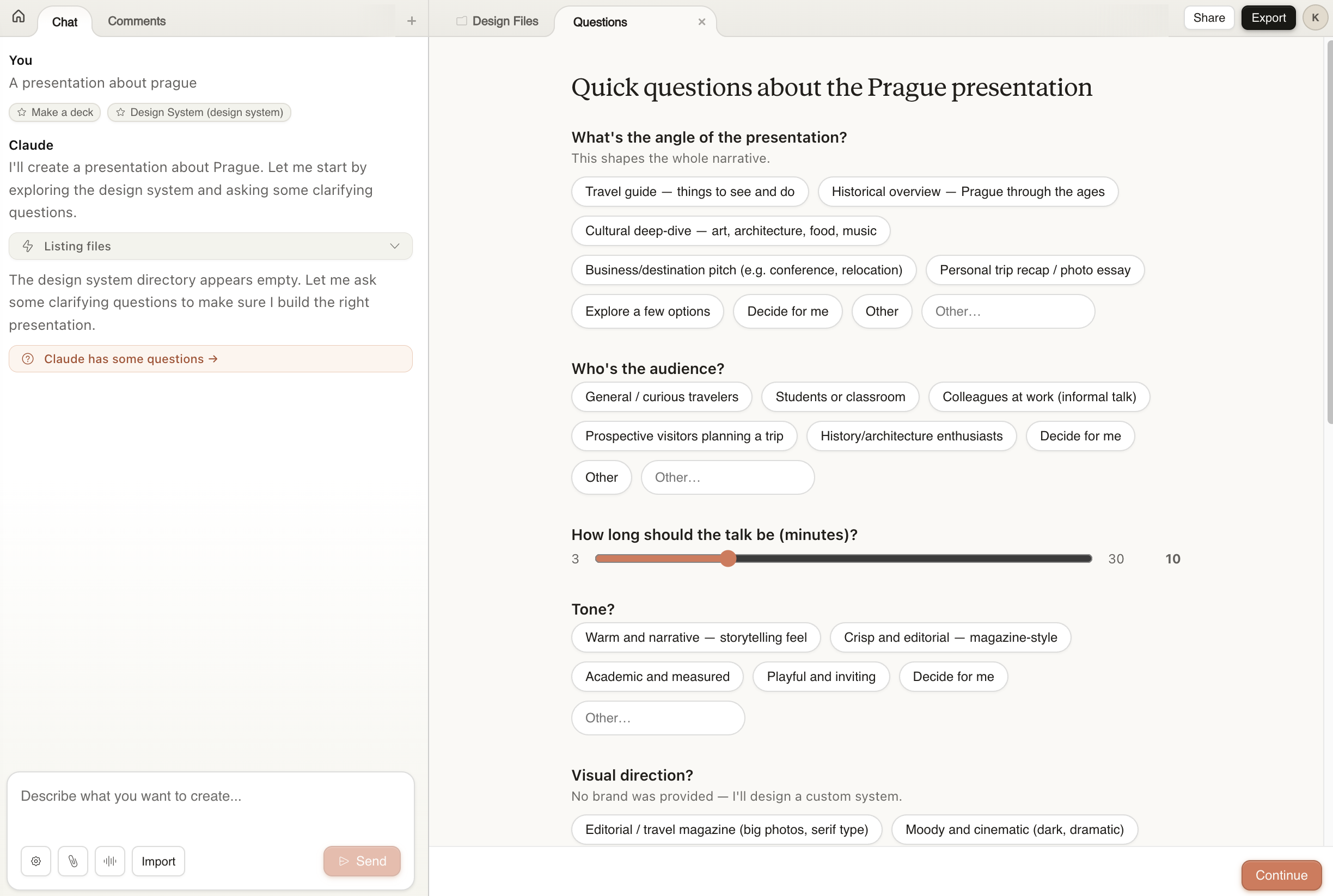
This questionnaire approach ensures Claude understands exactly what you want. The downside? It takes quite some time. Between answering questions, waiting for Claude to process, and the actual generation, you’re looking at several minutes before you see any slides.
Want something faster? SlideSpeak generates complete, editable presentations in under a minute — skip ahead to the SlideSpeak section if speed matters to you.
Step 4: Wait for Generation
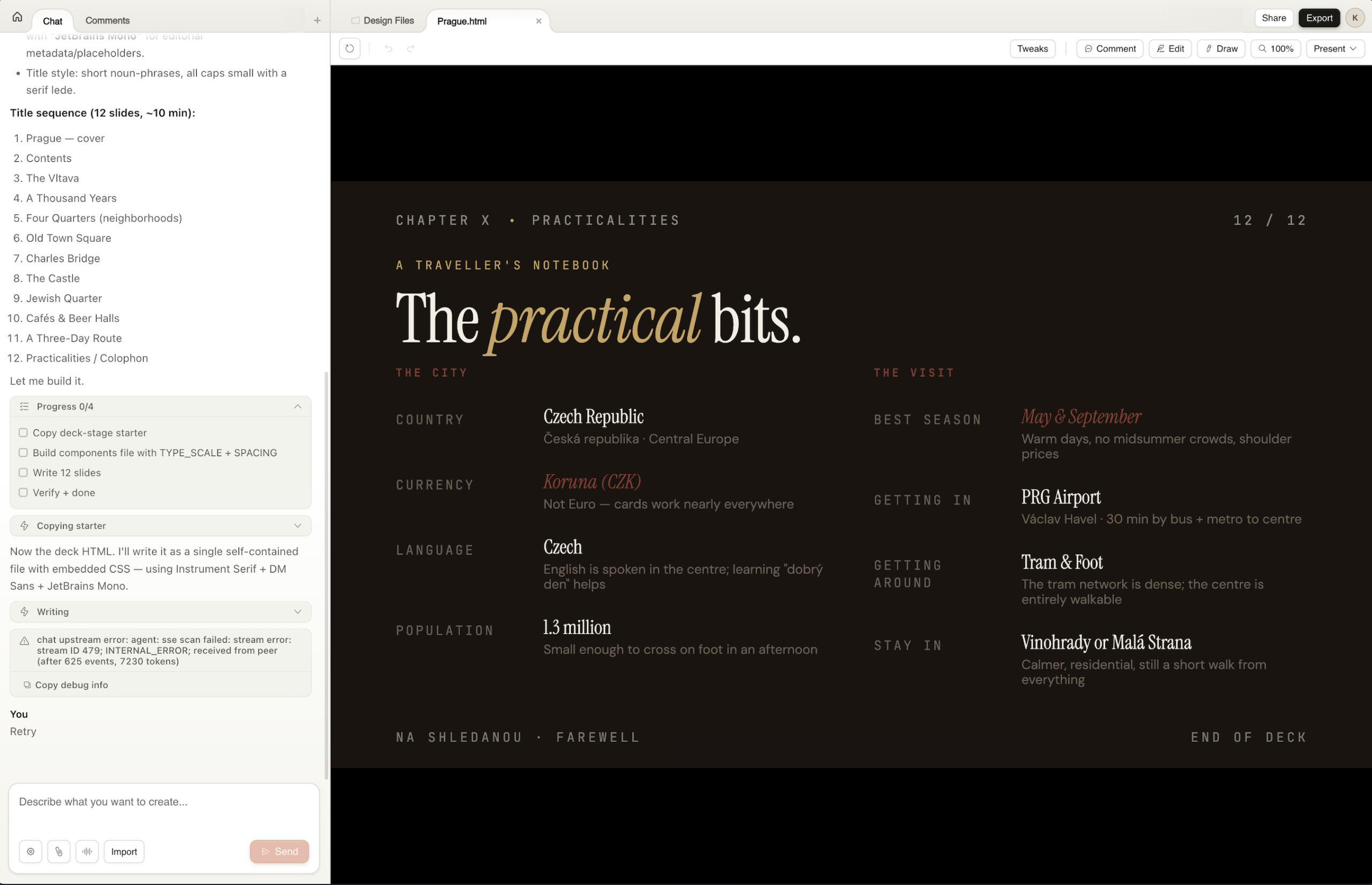
After answering all the questions, Claude starts building your presentation. It creates an HTML-based slide deck with custom typography, layouts, and styling. You can watch the progress in the left panel as Claude works through each step.
The generation process is thorough but slow — expect to wait a few minutes for a full deck. Claude Design builds each slide as a self-contained HTML file with embedded CSS, which means the visual quality can be quite high.
Step 5: Review and Tweak
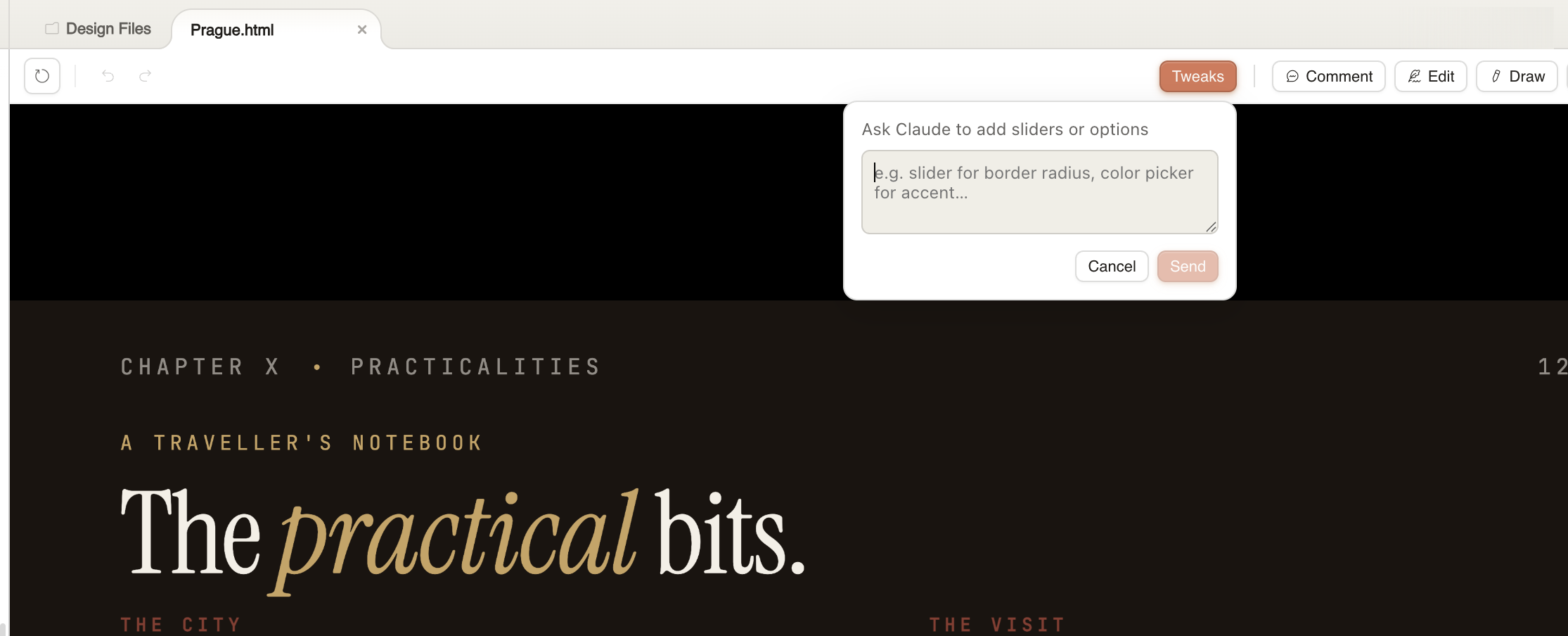
Once generated, you can view your presentation in the Design Files panel. Claude Design includes editing tools like Comment, Edit, Draw, and a Tweaks button that lets you ask Claude to make adjustments — like changing colors, adding sliders, or modifying the layout.
Claude Design: What You Should Know
Claude Design is impressive for a first release, but there are some important limitations to be aware of:
- HTML output only — Presentations are rendered as HTML files, not PowerPoint (.pptx) or Google Slides. You can’t open them in your usual presentation software without conversion.
- Limited editability — While the Tweaks and Edit tools exist, you’re mostly working through Claude to make changes. There’s no drag-and-drop slide editor.
- No custom templates — You can’t upload your company’s branded PowerPoint template and have Claude Design use it. The visual direction is determined by Claude’s design choices.
- Slow generation — The question-and-answer flow plus generation time means you’re waiting several minutes for a complete deck.
- No real-time collaboration — You can share the output, but there’s no collaborative editing like Google Slides or SlideSpeak.
For quick, beautiful one-off visual presentations, Claude Design works well. But for professional workflows that require branded templates, editable PowerPoint output, and fast iteration — you’ll want something purpose-built.
Want to stay inside Claude but still create on-brand slides? SlideSpeak now offers a Brand Context MCP server that gives Claude (and any other AI agent) direct access to your logos, colors, fonts, and approved slide layouts — so anything Claude generates follows your brand guidelines automatically. More on that below.
SlideSpeak: A Faster, More Customizable Alternative
SlideSpeak is a dedicated AI presentation generator that’s built specifically for creating professional slide decks. It’s powered by Claude (among other models) and is designed to solve the exact problems that Claude Design struggles with: speed, editability, and brand consistency.
Here’s what makes SlideSpeak different:
Custom Branded Templates
This is SlideSpeak’s killer feature. You can upload your own branded PowerPoint template and SlideSpeak will generate presentations that match your company’s exact design system — your fonts, colors, layouts, and logo placements. Every slide looks like it was designed by your marketing team.
Claude Design doesn’t support custom templates at all. If brand consistency matters to your organization, this alone makes SlideSpeak the better choice.
Brand Context MCP — Bring Your Brand Into Claude (and Any AI Agent)
If you’d rather keep building inside Claude, Claude Code, Cursor, or Codex, SlideSpeak now offers a Brand Context MCP server called SlideSpeak Onbrand. It exposes your real brand — logos, colors, fonts, imagery, icons, and approved slide layouts — as a Model Context Protocol endpoint that any AI agent can read.
Once you connect the MCP, Claude can fetch your brand kit on demand and generate slides that comply with your brand guidelines — no manual styling, no off-brand colors, no generic fonts picked by the model. It’s the missing piece that lets Claude Design (and every other agent) actually produce work that looks like it belongs to your company.
One endpoint, governed by you, read by every agent on your team. Learn more about SlideSpeak Onbrand →
Fully Editable PowerPoint Output
SlideSpeak generates real .pptx files — not HTML. Every element is fully editable in PowerPoint or Google Slides. Move text boxes, resize images, change fonts, add animations — it’s a real presentation file, not a screenshot or static render.
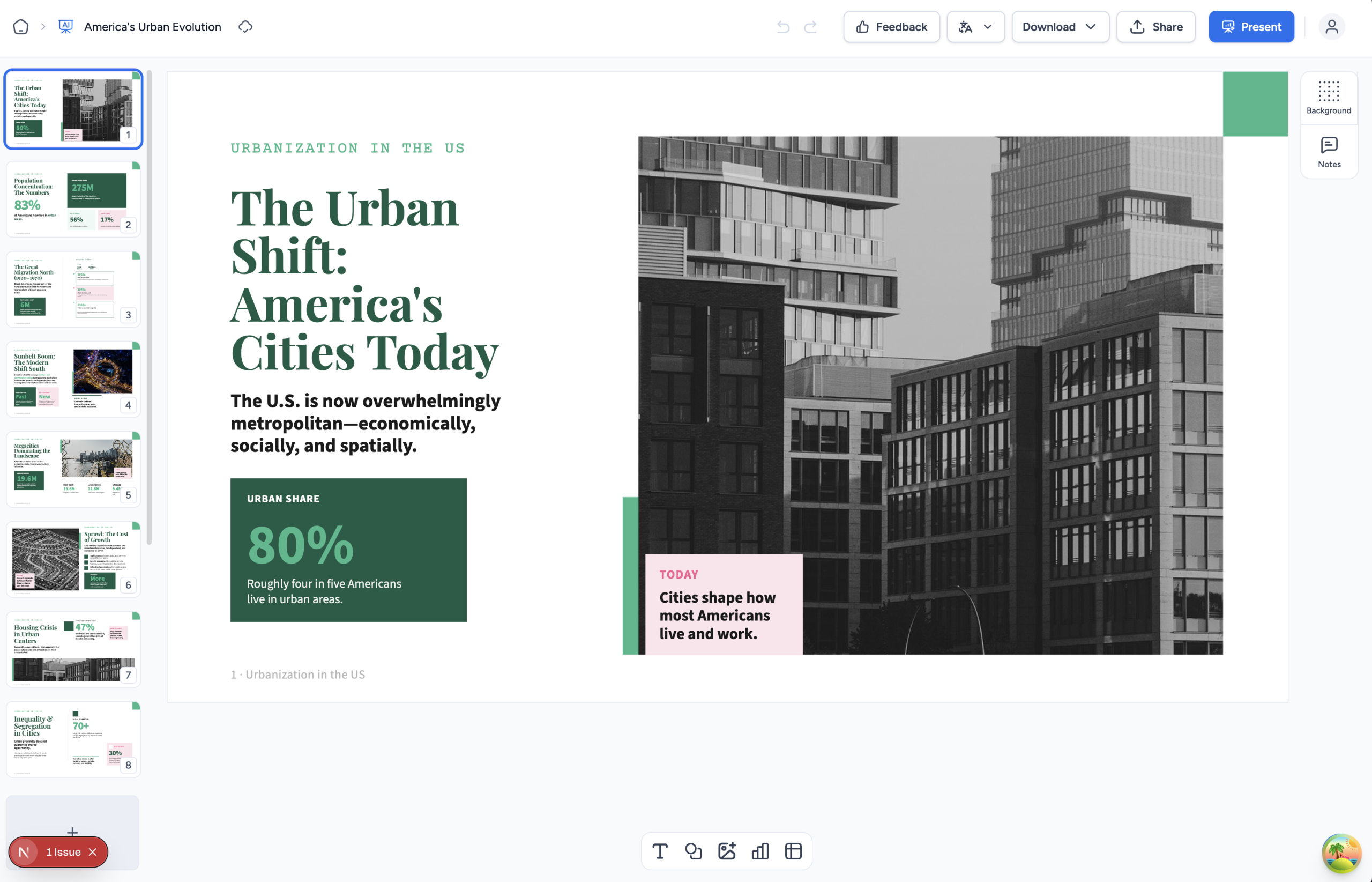
AI Assistant for Real-Time Editing
SlideSpeak includes an AI assistant called Charles that helps you edit your slides after generation. Need to add an image, make text more concise, or suggest a better title? Just ask. You can also change templates, adjust branding, modify layouts, and add speaker notes — all within the editor.

Speed
SlideSpeak generates a complete presentation in under 60 seconds. No lengthy questionnaires, no multi-minute wait times. Type your topic, pick a template (or upload your own), and get a finished deck almost immediately.
Claude Design vs. SlideSpeak: Side-by-Side Comparison
| Feature | Claude Design | SlideSpeak |
|---|---|---|
| Output format | HTML | PowerPoint (.pptx) |
| Custom branded templates | Not supported | Full support — upload your own |
| Editability | Limited (via Claude prompts) | Fully editable in PowerPoint/Google Slides |
| Generation speed | Several minutes | Under 60 seconds |
| AI editing assistant | Tweaks button | Full AI assistant (Charles) |
| Download as PowerPoint | No (HTML export) | Yes — native .pptx |
| Brand consistency | AI-chosen styling | Matches your exact brand guidelines |
| Brand context for AI agents (MCP) | Not available | Yes, via SlideSpeak Onbrand |
| Pricing | Requires Claude Pro/Max | Free tier available |
When to Use Which
Use Claude Design when:
- You want a visually unique, editorial-style presentation
- You’re already in Claude and want to stay in one tool
- You don’t need PowerPoint format output
- You have time for the question-and-answer flow
Use SlideSpeak when:
- You need editable PowerPoint files
- You have a branded template that must be used
- Speed matters — you need a deck in under a minute
- You want pixel-perfect control over every element
- You’re building presentations for a team or client
Use SlideSpeak Onbrand when:
- You want to keep building presentations inside Claude, Claude Code, Cursor, or Codex
- Your slides have to follow company brand guidelines (logos, colors, fonts, approved layouts)
- You want every AI agent on your team pulling from one governed brand source instead of guessing
Final Thoughts
Claude Design is an exciting first step from Anthropic into visual creation. The presentations it generates are genuinely beautiful — the typography, layout choices, and attention to visual hierarchy are impressive. But for most professional use cases, the HTML-only output, lack of template support, and slow generation time make it hard to recommend over a purpose-built tool.
SlideSpeak fills that gap. It’s faster, produces fully editable PowerPoint files, supports custom branded templates, and includes an AI assistant for post-generation editing. If you’re creating presentations regularly — for work, school, or clients — it’s the more practical choice. And if you’d rather stay inside Claude, SlideSpeak Onbrand connects your brand guidelines to Claude Design itself, so the decks it generates actually look like your company made them.
Try both and see which fits your workflow. Claude Design is free to experiment with if you have a Claude account, and SlideSpeak offers a free tier to get started. Want to compare more options first? See our roundup of the best Claude Design alternatives.


