

How to Make a Presentation With AI (Using AI Agents)
Written by

Published on
On this page
Make a presentation with AI by letting an AI agent build it
Most people still make slides the slow way. They open an editor, drop in a title, fight with layout, and repeat that for every slide. The fastest way to make a presentation with AI is to hand the work to an AI agent. You describe the deck you want in plain language, and the AI agent does the building.
On its own, an AI agent is good at the thinking part of a presentation. It can research a topic, outline the story, and write the words for each slide. Ask most agents to actually produce the deck and they hand back an HTML version, a set of slides that render in a web browser. That is great for a quick preview, but it is not a branded file you can open in PowerPoint and present from.
This is where SlideSpeak comes in. Connect SlideSpeak to your agent and that same prompt turns into a finished deck instead of an HTML preview.
What is an AI agent
An AI agent is more than a chat box. It can take an instruction, plan a few steps, call external tools, and report back with a result. Instead of only answering questions, it does work on your behalf. For presentations, that means an agent can read your source material, decide how to structure the slides, build the deck as HTML, and hand back the finished result, all in one conversation.
When you want more than an HTML preview, the Model Context Protocol, or MCP, is what connects an agent to a tool that produces real decks. MCP is a shared standard that lets agents plug into tools like SlideSpeak the same way. Connect a SlideSpeak MCP once and any MCP-compatible agent can turn that same prompt into an on-brand or native PowerPoint deck.
How the workflow looks
The pattern is the same no matter which agent you use.
- Describe the presentation you want, or point the agent at a document, a folder, or a topic to research.
- The agent plans the structure, writes the content for each slide, and lays out the deck.
- The agent builds the slides as HTML, a presentation that renders right in your browser, and hands you the result to preview.
No browser tabs, no copy and paste, no manual slide building. You stay in one place and the agent handles the rest.
Here is what that looks like in practice. Give an agent a prompt like this one.
Create a 6-slide presentation on the Q1 financial report for Uber. Look up the internet for information and report and use for creating the presentation.
From that single line the agent researches the topic, pulls the numbers it needs, writes the content for each slide, and lays out the deck. Here are four slides from the deck it generated, exactly as they came back.
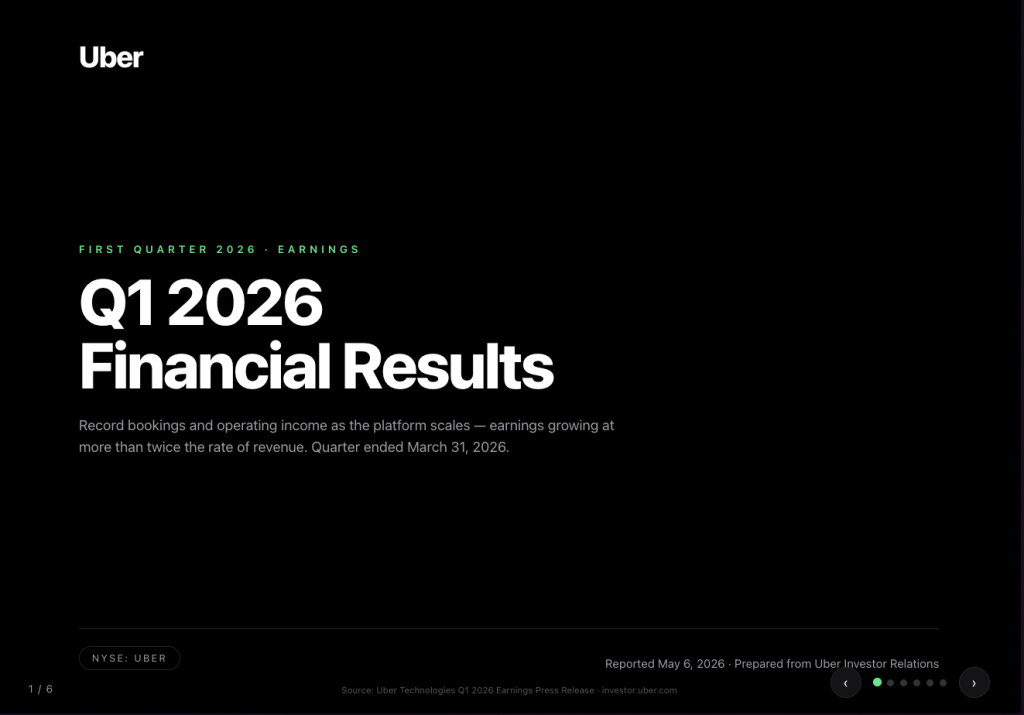
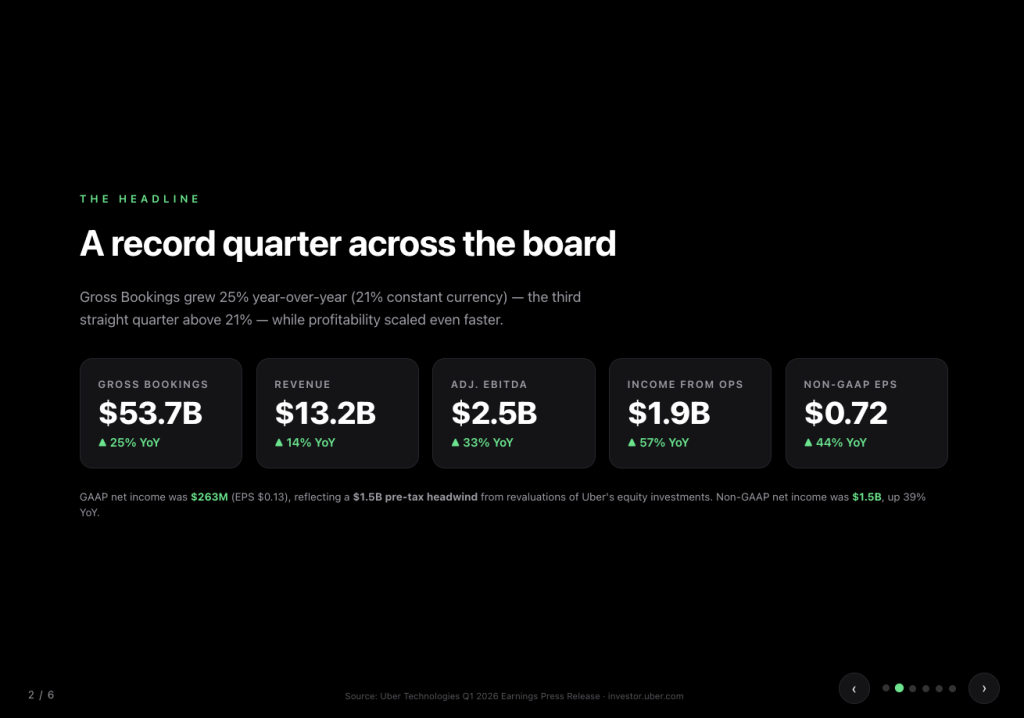
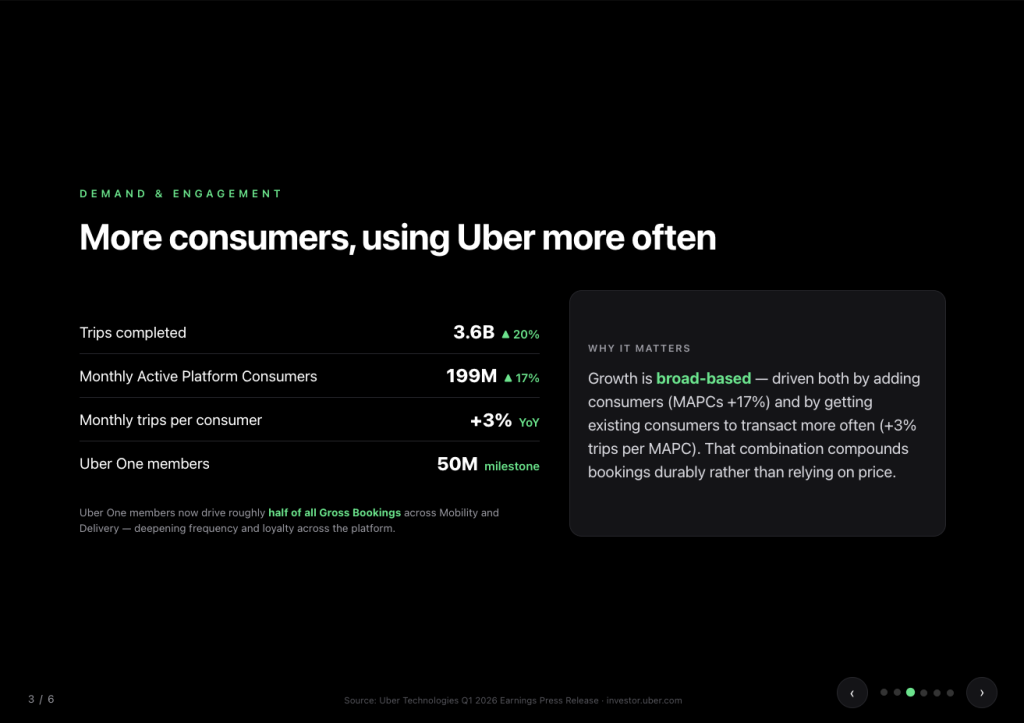
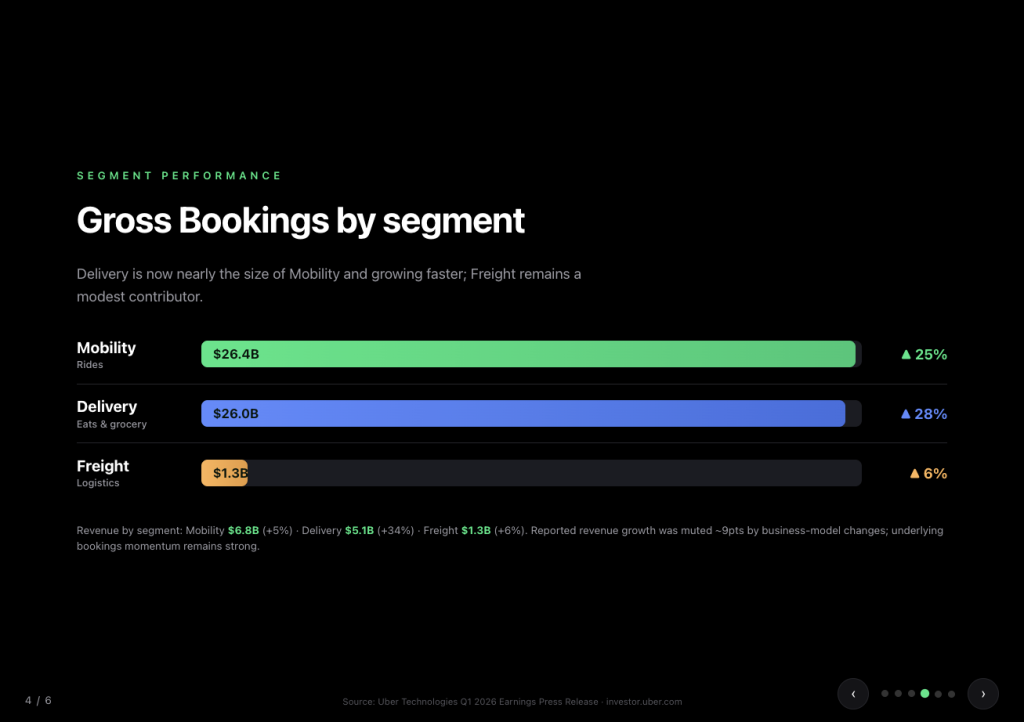
The slides above use the agent’s own design. When the look has to match your brand instead, the SlideSpeak OnBrand MCP is one option. It applies your colors, fonts, and templates so every deck the agent builds looks like it came from your team.
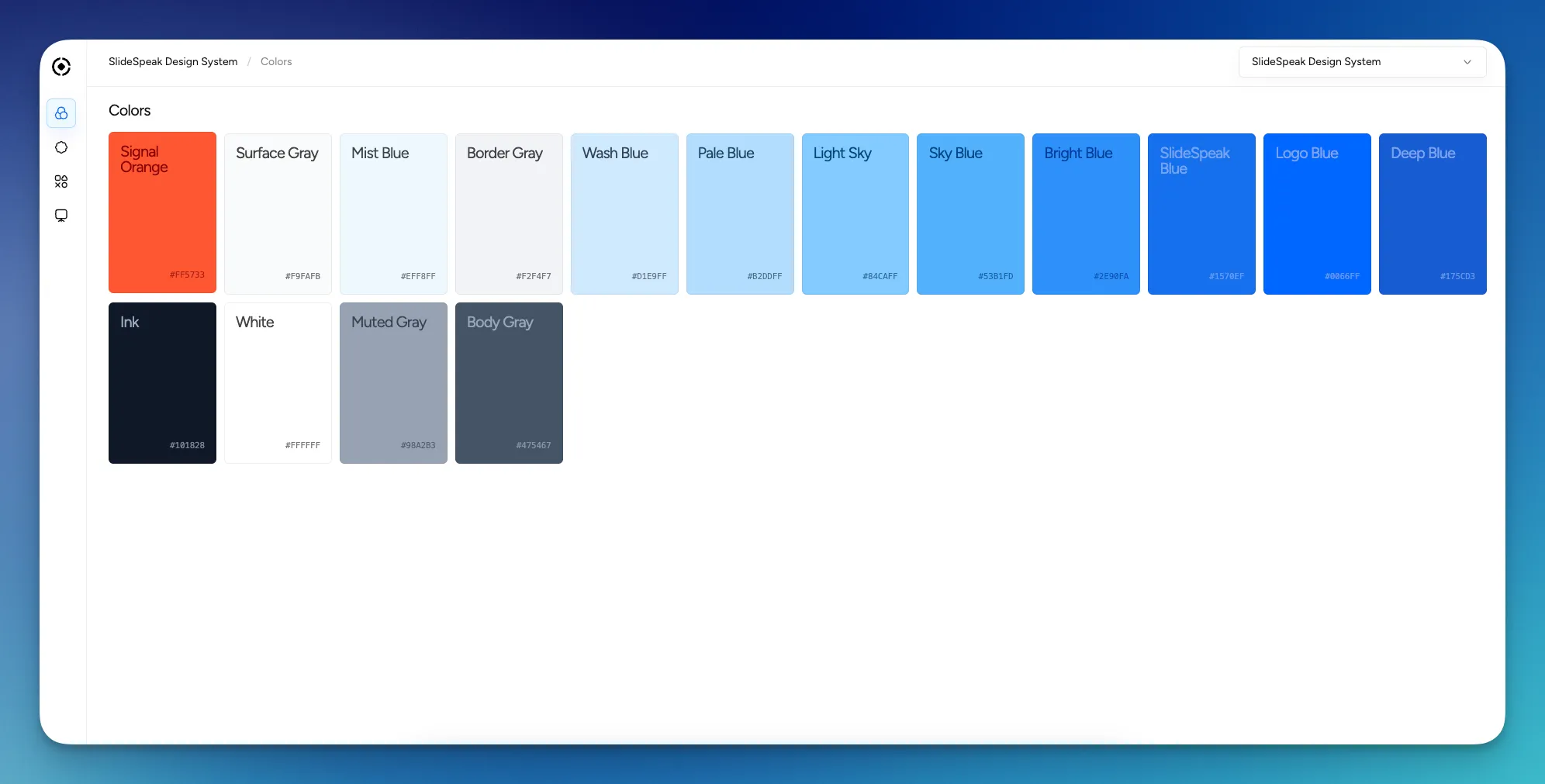
By default an agent hands back HTML, which is perfect for a quick preview but not a file you can open in PowerPoint. When you want a native PPTX you can edit and present, the SlideSpeak MCP server is another option. It is the official connector for the SlideSpeak API, so the agent calls SlideSpeak instead of building HTML and hands you a download link for the finished PowerPoint file. The server runs as a hosted remote endpoint at mcp.slidespeak.co, so there is nothing to install, and a Docker image is available if you prefer to self-host.
AI agents you can use today
The deck above was built with Claude Code, but the same prompt works across any of these agents. Each follows the same MCP pattern, so pick the one that fits how you already work. Each comes with a guide to get you started.
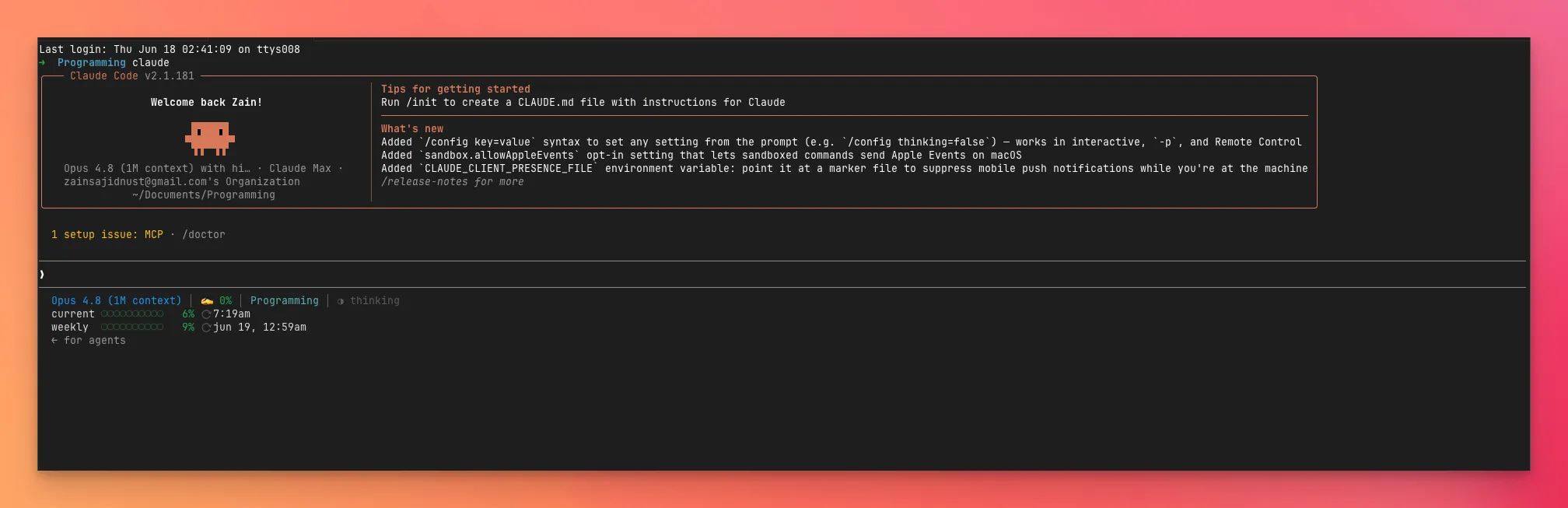
Claude Code
Claude Code is Anthropic’s agentic coding tool that runs in your terminal. It already has access to your local files, your data, and your git history, so it can turn any of that into a deck without leaving the command line. One command connects it to SlideSpeak. Read the full walkthrough in Build presentations with Claude Code and SlideSpeak.
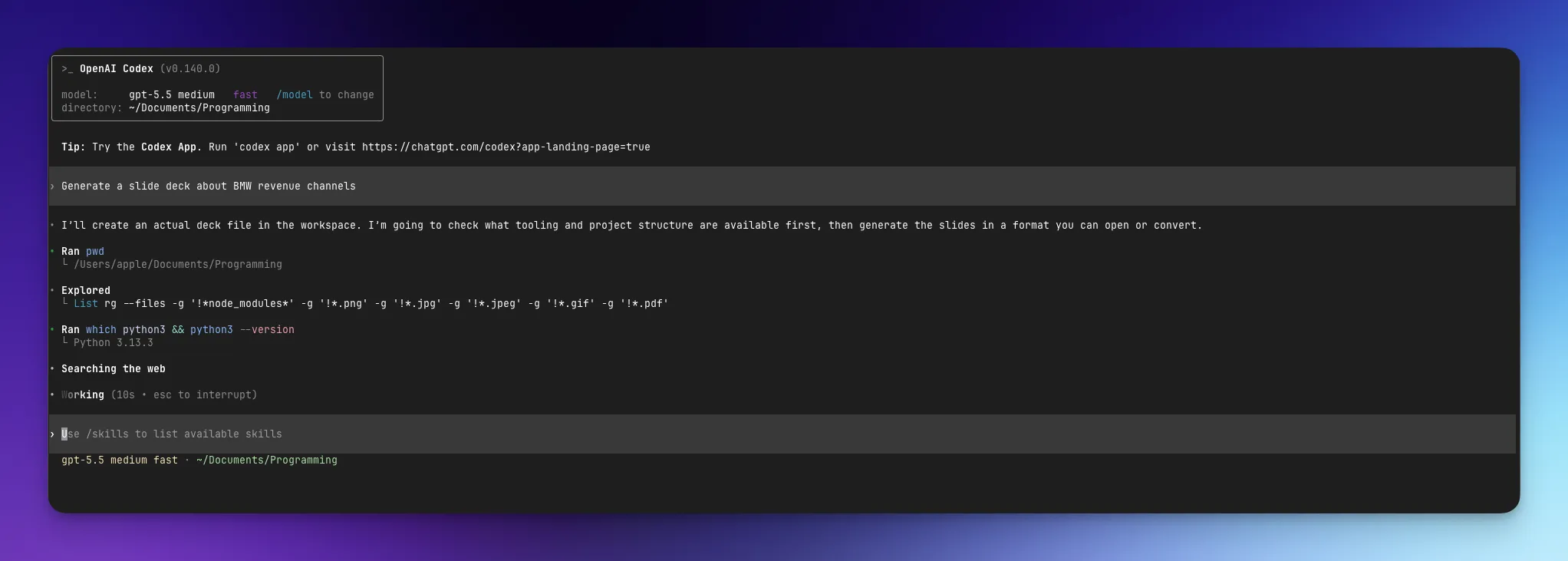
Codex
Codex is another terminal-based coding agent, and the setup follows the same MCP pattern. Add the SlideSpeak server, drop in your API key, and ask Codex to build slides from a prompt or a file. The step-by-step setup lives in Build presentations with Codex and SlideSpeak.
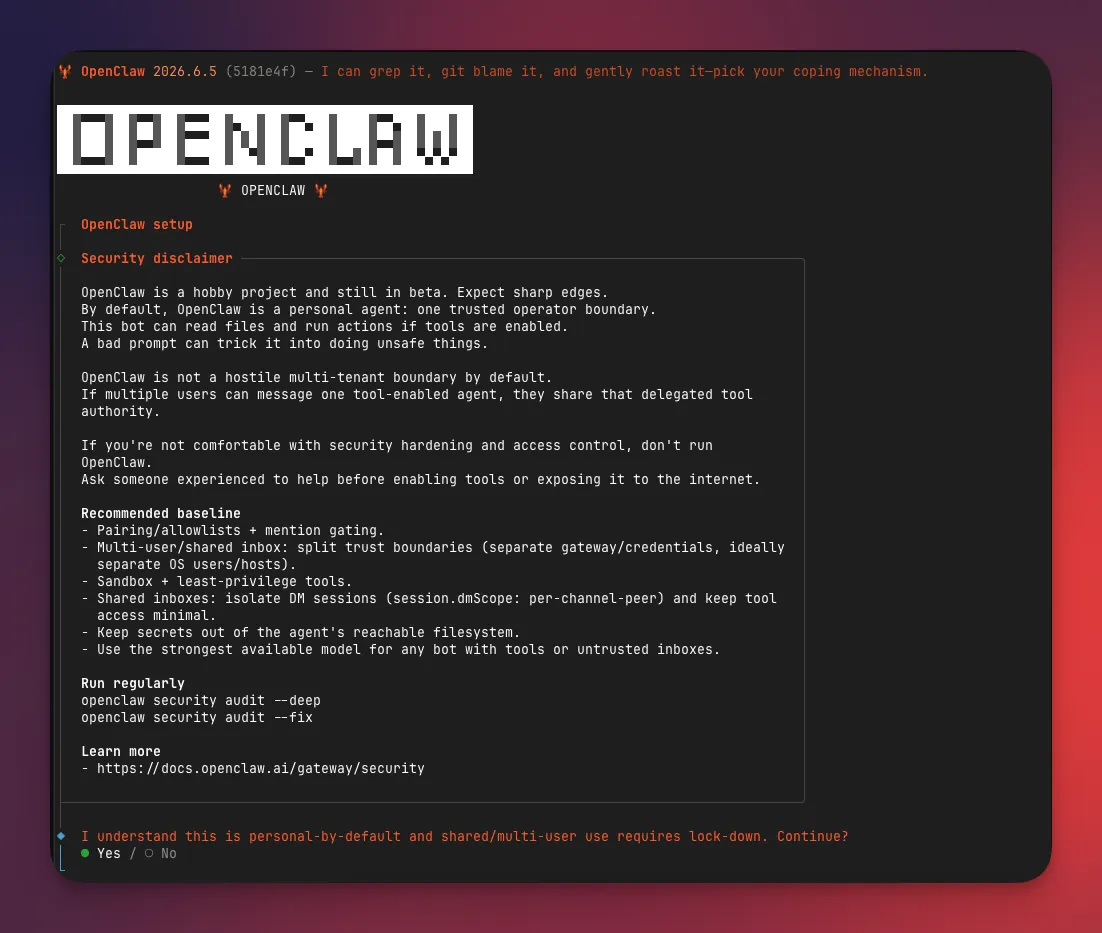
OpenClaw
OpenClaw is a locally run personal assistant that connects to messaging apps like WhatsApp, Telegram, and Discord. With SlideSpeak connected, you can ask it to research a topic, build a presentation from what it finds, and send back the finished file, all inside a single chat. See How to use SlideSpeak MCP with OpenClaw.
Hermes agent
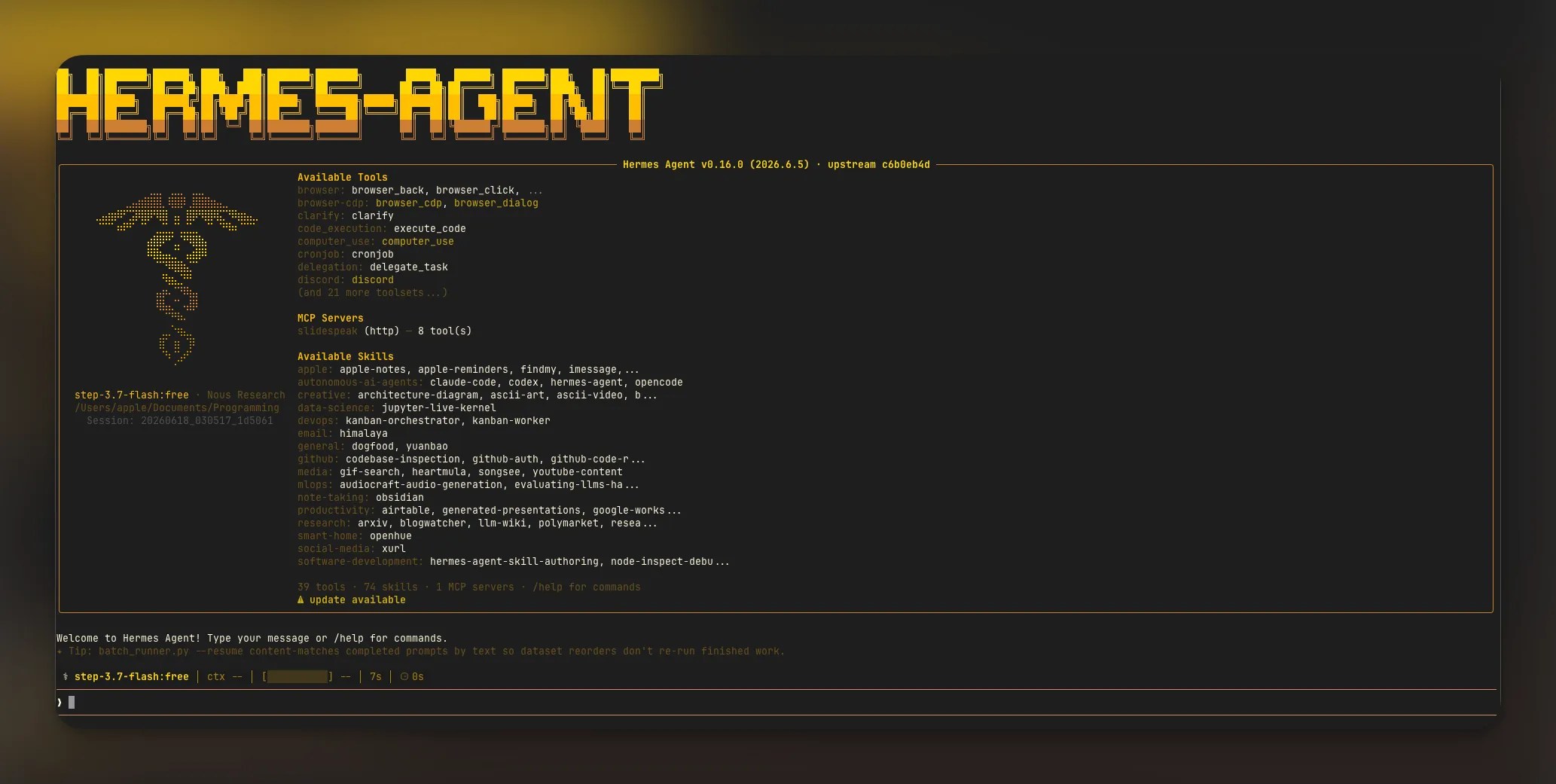
Hermes is an open-source agent from Nous Research that runs the same core across a CLI, a TUI, a desktop app, and around twenty messaging platforms. Connect it through MCP, describe the deck you want in plain language, and Hermes calls SlideSpeak to generate and download it for you. More detail is in the Hermes agent guide.
Tips for better results
A good prompt makes a better deck. A few things that help.
- Say how many slides you want and who the audience is.
- Point the agent at a real source when you have one, like a PDF, a spreadsheet, or a set of notes. Grounded decks beat invented ones.
- Ask the agent to apply a SlideSpeak template so the design stays on brand.
- Review the first pass and ask for edits in the same conversation. Agents iterate well when you tell them exactly what to change.
Conclusion
AI agents turn presentation making into a conversation. You bring the idea or the source material, the AI agent brings the structure, and SlideSpeak brings the design. Pick the AI agent that fits how you already work, connect it once, and let it make the presentation for you.
Frequently asked questions
Yes. API access requires a SlideSpeak subscription, and the MCP server authenticates with your SlideSpeak API key. You can generate the key from your account settings after you sign up.
Any MCP-compatible agent can connect. This post covers Claude Code, Codex, OpenClaw, and the Hermes agent, and the same setup pattern works for other MCP clients too.
It comes down to the output you want. Most AI agents make presentations as HTML by default, which renders in a browser. The SlideSpeak OnBrand MCP gives you decks that match your brand, with your colors, fonts, and templates applied. The SlideSpeak MCP gives you a native PowerPoint file you can open and edit in PowerPoint, Keynote, or Google Slides.
With the SlideSpeak MCP you get a download link for a native PowerPoint file, themed and ready to present or edit further. With the OnBrand MCP you get a finished deck that already follows your brand.
Not really. Agents like OpenClaw and Hermes work through chat and messaging apps. Claude Code and Codex run in a terminal, but once they are connected you only need plain language to ask for a deck.
Any MCP-compatible agent can connect. This post covers Claude Code, Codex, OpenClaw, and the Hermes agent, and the same setup pattern works for other MCP clients too.
No. The SlideSpeak MCP server is available as a hosted remote endpoint at mcp.slidespeak.co, so there is nothing to run locally. A Docker image and local setup are available if you prefer to self-host.


