

How to use SlideSpeak MCP with OpenClaw
Written by

Published on
On this page
What is OpenClaw
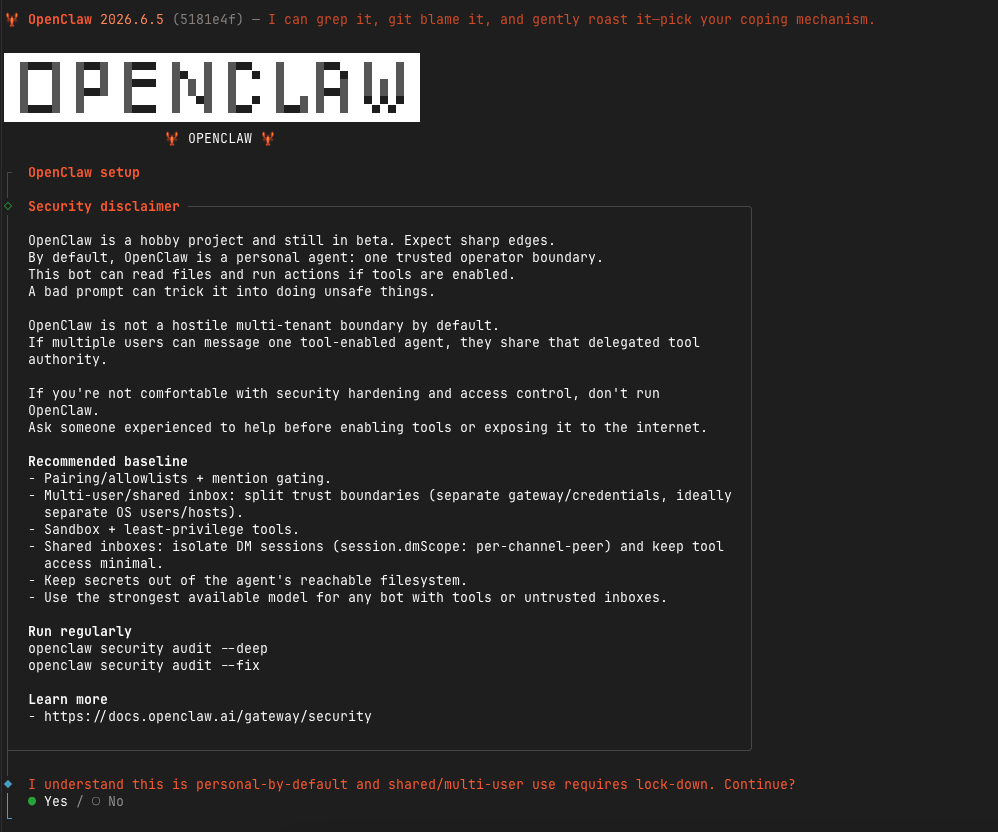
OpenClaw is a personal AI assistant that runs locally on your own computer. It started out as Clawdbot and has grown into a popular way to run a private assistant in 2026.
Instead of living inside one app, OpenClaw connects to the chat tools you already use. You can talk to it from WhatsApp, Telegram, Discord, Slack, or Signal, on your phone or your desktop. We go deeper on the assistant itself in our OpenClaw presentations guide.
Why people like it
- Runs locally, so your data stays on your machine and not in someone else’s cloud
- Remembers context, including your past conversations and your preferences
- Takes action, so it can browse the web, manage files, and run tasks for you
- Extensible, through skills and through external tools connected over MCP
What is the SlideSpeak MCP server
MCP, the Model Context Protocol, is an open standard that lets an AI assistant talk to outside tools in a consistent way.
The SlideSpeak MCP server is one of those tools, which we first introduced for presentations. It exposes SlideSpeak’s presentation engine so OpenClaw can call it directly. Once it is connected, OpenClaw can generate decks and send you the finished files without you ever opening the SlideSpeak website.
The workflow we will build
You research a topic online, then turn what you find into a presentation, all in one chat.
- Ask OpenClaw to research a topic. It uses its browser to gather the key facts.
- Ask it to build a presentation from those findings. OpenClaw passes the content to the SlideSpeak MCP server.
- SlideSpeak generates the deck, and OpenClaw sends you the finished file.
Everything happens in one conversation, with no switching tabs or copying and pasting.
Step 1. Set up OpenClaw
Before you connect SlideSpeak, you need OpenClaw running on your own machine. The official OpenClaw getting started guide covers every step in detail, so follow it for the exact commands. Here is what the setup involves at a high level.
Install OpenClaw
OpenClaw runs on macOS, Windows, and Linux. You install it by following the installer in the getting started guide, then run a short onboarding flow that sets up the basics.
Add a model and a web search key
OpenClaw needs an AI model to think with, so you add an API key from your provider during onboarding. To let it look things up online, you also add an API key for web search. Web search powers the research step in this workflow.
Connect your chat apps
Finally, connect the chat apps you want to use, such as WhatsApp, Telegram, or Discord. From this point on you can message OpenClaw from your phone or desktop and it will reply.
With OpenClaw installed and able to search the web, you are ready to connect SlideSpeak.
Step 2. Connect the SlideSpeak MCP server
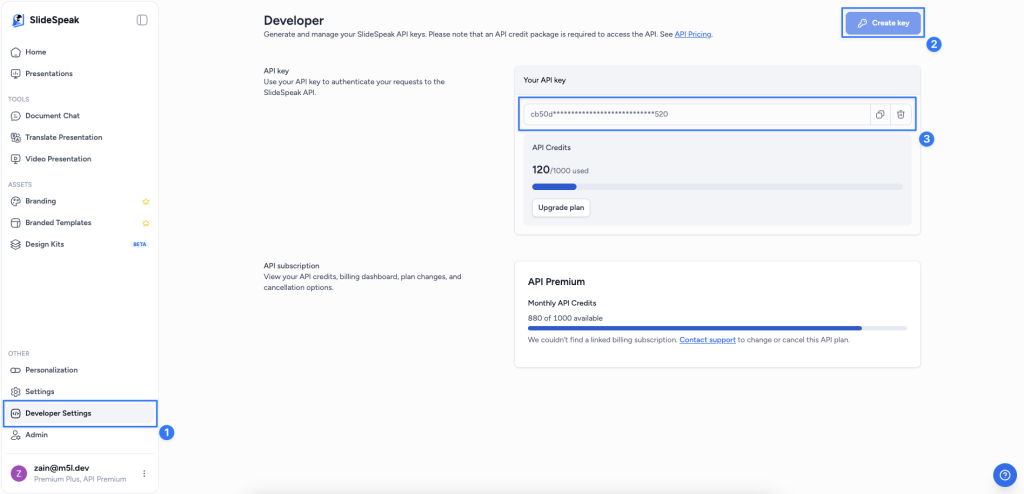
Now you point OpenClaw at SlideSpeak. This takes two steps. Get an API key, then add the server to your OpenClaw configuration.
Get your SlideSpeak API key
Create an API key from the SlideSpeak API page. You will paste it into the config in the next step, so have it ready.
Add the server to OpenClaw
Run this in your terminal, replacing the placeholder with the key you just created.
openclaw mcp add slidespeak \
  --transport streamable-http \
  --url https://mcp.slidespeak.co/mcp \
  --header "Authorization=Bearer YOUR_SLIDESPEAK_API_KEY" \
  --timeout 300 \
  --connect-timeout 30
If you would rather run the server yourself, the slidespeak-mcp repository documents a Docker option and a local development setup.
Test the connection
Probe the server to confirm OpenClaw can reach it.
openclaw mcp probe slidespeak
Reload the MCP runtime
Reload so OpenClaw picks up the new server.
openclaw mcp reload
Once it reloads, OpenClaw can see the SlideSpeak tools and is ready to build presentations on request.
Step 3. Research a topic and build the deck
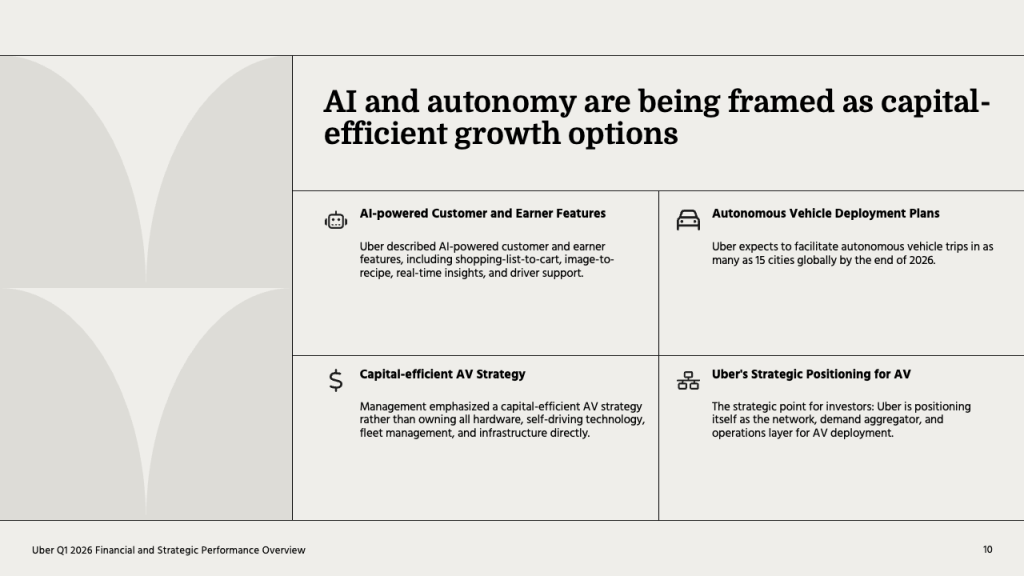
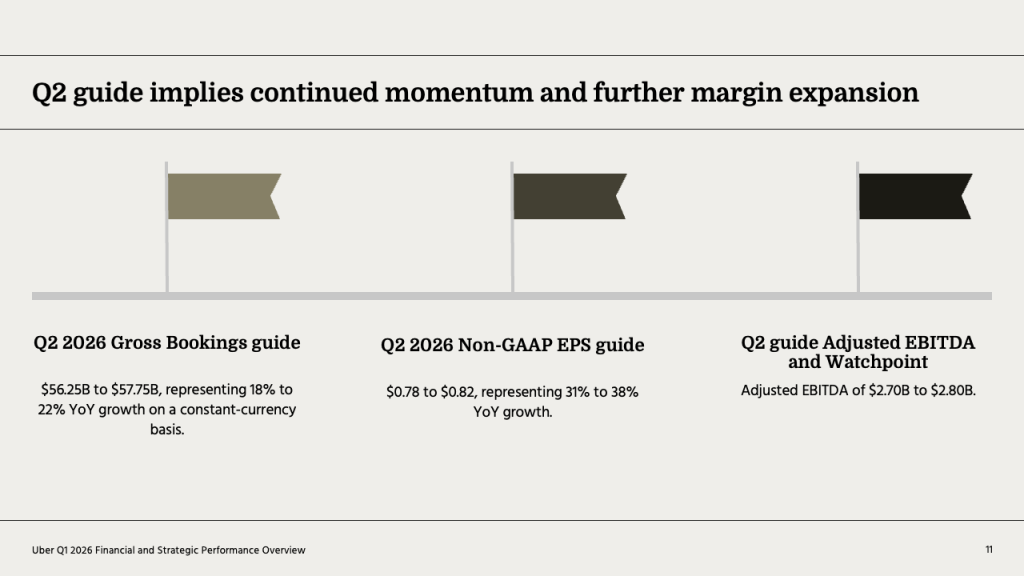
Everything is connected now, so you can run the whole workflow in a single conversation. In our example we asked OpenClaw to look up Uber’s financial report for the first quarter of 2026, then turn the findings into a presentation.
Ask OpenClaw to research the topic
Send a message asking it to research the topic. OpenClaw uses its web search to gather the key numbers and details.
Research Uber’s Q1 2026 financial report online and pull out the key numbers, including revenue, growth, and the main highlights from the quarter.
OpenClaw browses the web, reads through the results, and comes back with a summary of what it found.
Turn the findings into a presentation
Once you are happy with the research, ask OpenClaw to build the deck. It passes the findings to the SlideSpeak MCP server, which generates the slides for you.
Now create a presentation from those findings using SlideSpeak. Keep it to around 8 slides with a clear summary of the quarter.
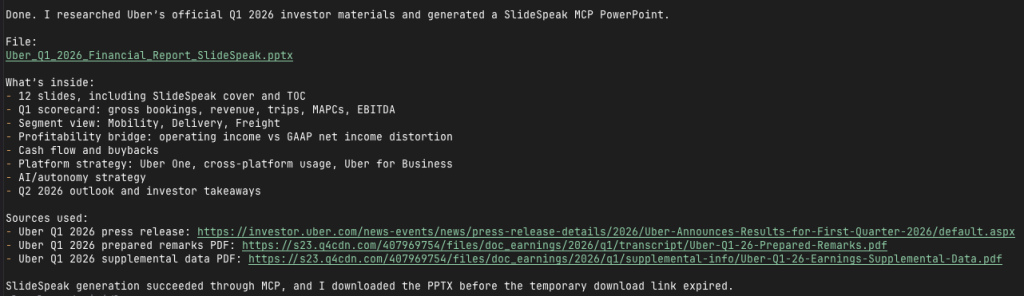
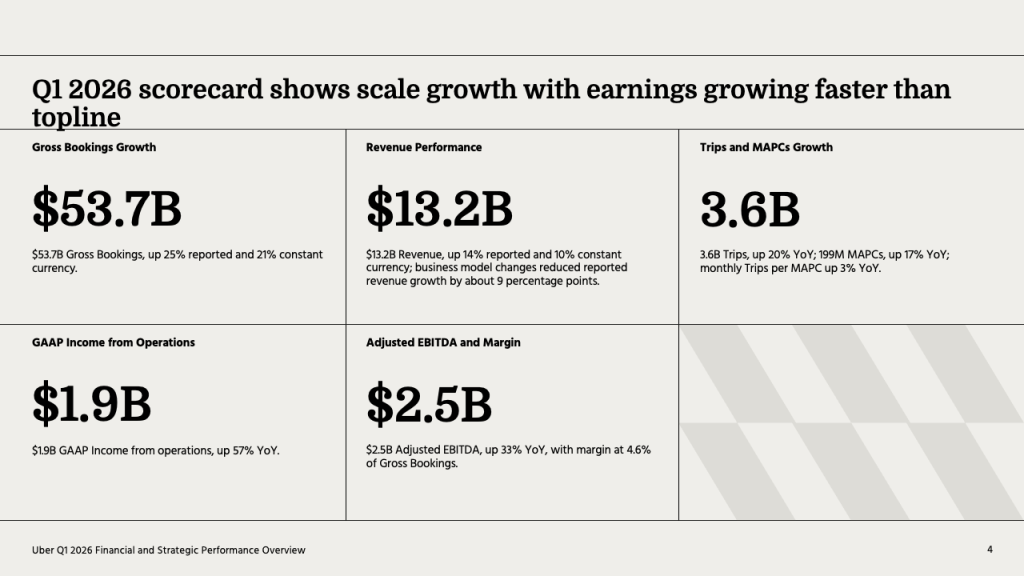
A few moments later, OpenClaw replies with a finished presentation, and you can preview the generated slides in the screenshots below.
You can download it and open it in PowerPoint or Google Slides, or ask OpenClaw to refine any slide right there in the chat.

More ways to use this workflow
The Uber example is just one idea. Once OpenClaw can research and SlideSpeak can build, you can point the same workflow at most topics.
- Research this week’s biggest tech news and turn it into a 5 slide team briefing
- Research a competitor and build a side by side comparison deck
- Summarize a long PDF report into a clean set of slides
- Create a quick lesson deck on any topic you are learning
The more specific your request, the better the result, so tell OpenClaw what to focus on and how many slides you want.
Get started with your workflow
If you would like help setting up your own workflow, the SlideSpeak team is happy to help. Reach out at support@slidespeak.co and we will get you up and running.


