
11 Best Canva Alternatives in 2026
Written by

Published on
On this page
Canva alternatives are design tools that replace some part of what Canva does: decks, social graphics, print files, photo editing, or brand assets. In this post I compare eleven of them on features, best use case, and pricing.
Canva is six products sharing a login.
Most people never finish switching because they hunt for one tool that does all six, and no such tool exists. The Canva alternatives worth your time each replace one part of what you’re trying to leave.
So this list is sorted by that. Figure out which job you’re replacing, and skip to it.
But first, the full list of Canva alternatives:
| Tool | Replaces | Best for | Price |
|---|---|---|---|
| Google Slides | Decks | Quitting Canva today at no cost | Free |
| Gamma | Decks | Blank page to deck in minutes | Paid tiers vary |
| SlideSpeak | Decks | Documents you already have, turned into decks | $29/mo |
| Beautiful.ai | Decks | Non-designers making client-facing decks | $12/mo annual |
| Pitch | Decks | Teams building one deck together | ~$11/mo |
| Prezi | Decks | Presentations where the structure is the point | ~$5/mo |
| Adobe Express | Graphics, video | Liking how Canva works, not what it costs | ~$12/mo |
| VistaCreate | Graphics, print | Social posts and print from one file | ~$11/mo |
| Figma | Design | Outgrowing templates entirely | $16/editor |
| Photopea | Photo editing | Photo editing Canva can’t do | Free |
| Visme | Data, infographics | Reports where the numbers are the content | $12.25/mo |
Let’s dive right in!
11 best Canva alternatives
These Canva alternatives are ordered by which Canva job you’re replacing, not by which tool is best overall. Presentations come first, because that’s the job Canva is weakest at.
Within each group, tools also run from most general to most specific.
Disclosure before we start: SlideSpeak is our product.
1. Google Slides + Gemini
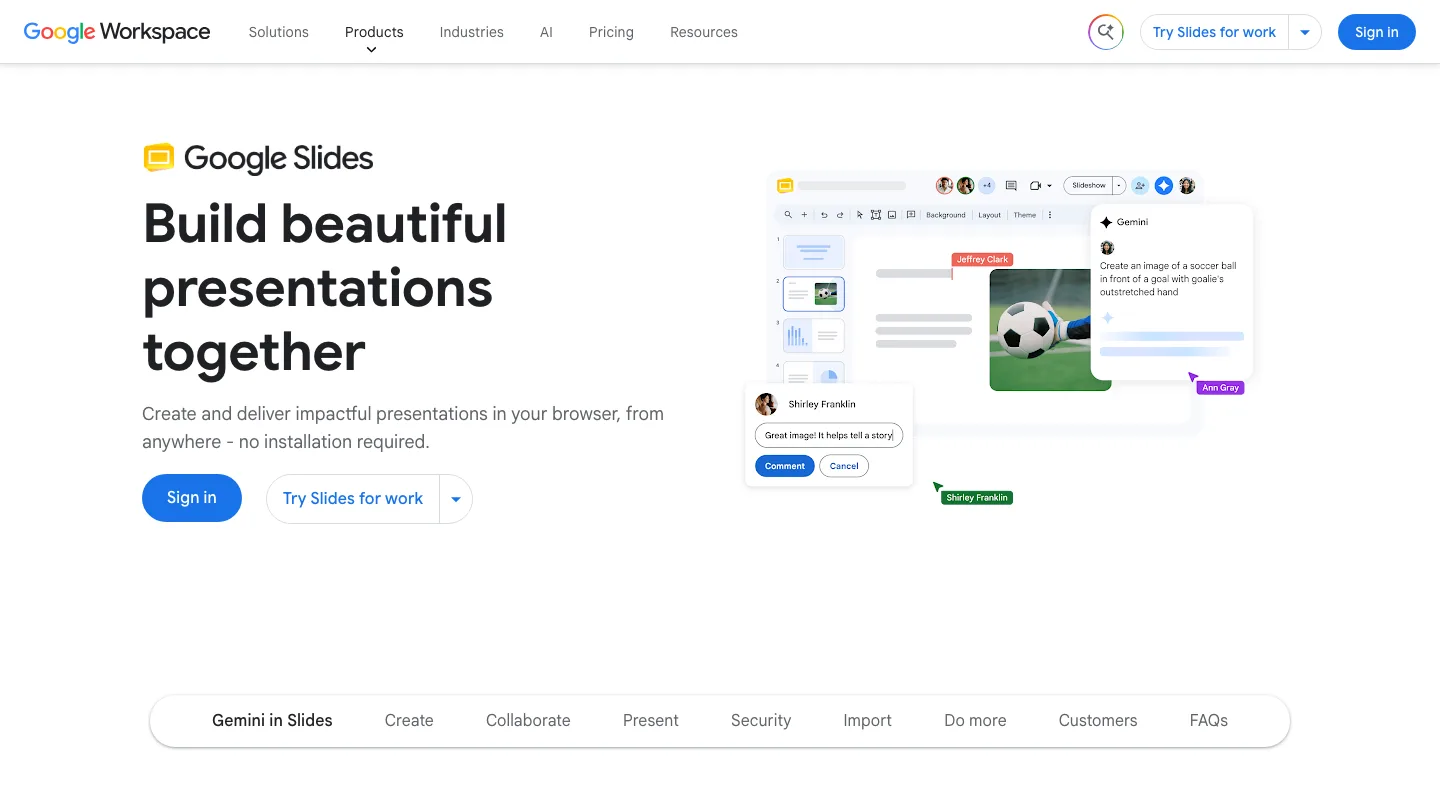
A free, collaborative presentation tool that most people already have an account for.
Best for: anyone with a Google account who wants to stop paying for Canva.
I’m putting Google Slides first because it’s free and you almost certainly already have it. If your Canva use amounts to a deck every few weeks shared with three people, Slides does that job at zero cost, and the sharing model is better than Canva’s.
Top feature: real-time collaboration with no seat math and no upgrade prompt when a fourth person opens the file.
- Works everywhere, including offline through Chrome
- Exports to PowerPoint and PDF without a watermark
- Gemini can draft slide content and generate images inside the editor
Pros: Free for personal accounts. No lock-in, since everything exports cleanly. Nothing to learn if you’ve used Slides before.
Cons: The templates are plain, and no amount of AI fixes that. Google ties Gemini’s presentation features to paid Workspace plans, so a free account won’t get them.
Pricing: Free with a Google account. Gemini features come with Workspace Business plans, which start around $14 per user per month.
2. Gamma
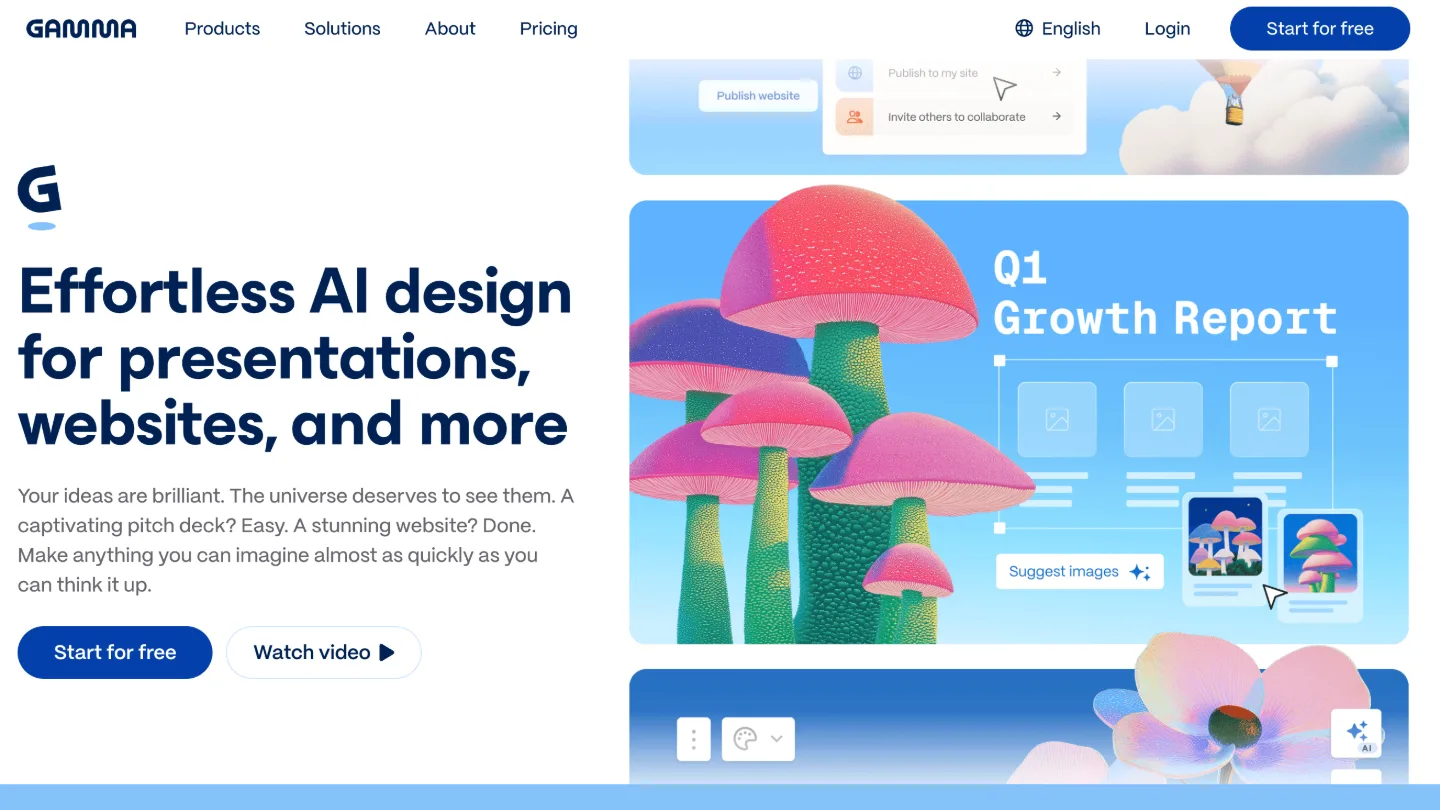
Generates presentations, documents, and simple websites from a text prompt.
Instead of fixed slides, it uses a card-based canvas, so decks scroll and expand like web pages.
Best for: getting from a blank page to something presentable in ten minutes.
Gamma‘s default themes look modern in a way Canva’s deck templates mostly don’t. So you describe what you want, it builds the structure, and you edit from there.
Top feature: the card model, which means you’re never fighting a slide boundary to fit your content.
- Imports from PDF and PowerPoint
- Exports to PDF, PPTX, PNG, and Google Slides
- Embeds live content (video, charts, iframes) inside cards
Pros: Fastest blank-page-to-draft of anything here. The free plan includes export, which is rare. Good-looking defaults out of the box. For a closer look at how the two stack up, see our Gamma vs Canva comparison.
Cons: The free plan puts Gamma branding on your work, and removing it is the main reason to upgrade to Plus. The card-based canvas is also a web format first, which takes adjusting to if you think in fixed slides.
Pricing: Free tier with 10 slides per prompt. Paid tiers add larger generations, branding removal, and custom fonts.
3. SlideSpeak
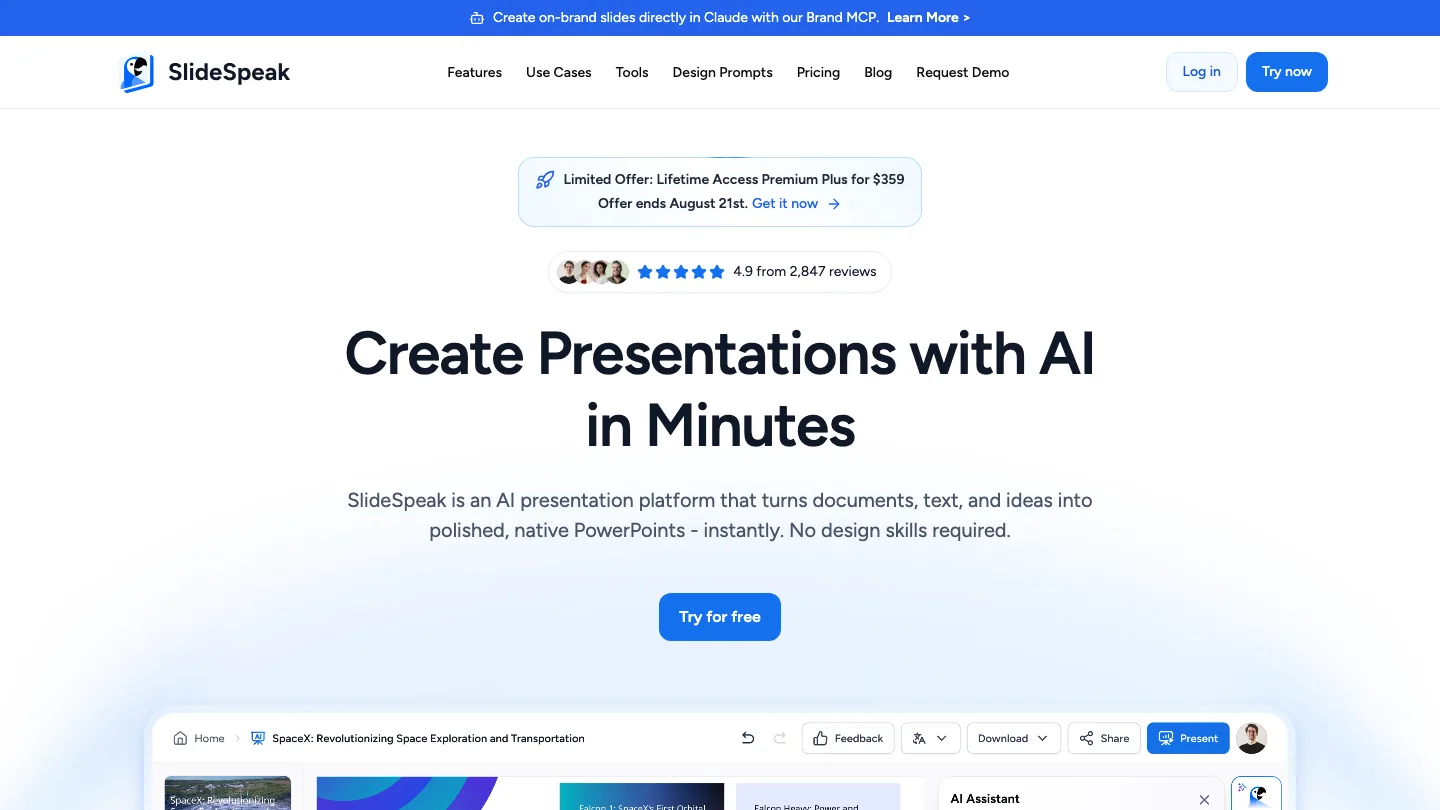
Turns documents you already have, like Word files, PDFs and existing PowerPoints, into editable presentations.
Best for: people whose content already exists and needs to become a deck.
Gamma, for example, is best when you’re starting from nothing but an idea.
SlideSpeak is built for the opposite situation. You have a 30-page report, a proposal, or last quarter’s deck, and you need it to become slides without retyping it. Upload the file, and it structures the content into a deck you can edit.
Top feature: document-to-deck conversion that keeps the source material’s actual content instead of generating fresh copy that approximates it.
- Exports to PowerPoint and PDF with no watermark on any plan
- Brand kits (logos, colors, fonts) applied across a whole deck
- Chat with an uploaded document before turning it into slides
Pros: PowerPoint-native output, so the deck opens correctly for whoever you send it to. No watermarks anywhere. Handles long source documents rather than short prompts.
Cons: You can’t export at all on the free plan. Sharing online works, but downloading requires Premium. It’s also the wrong tool entirely for print files or photo editing.
Pricing: Free plan with no export. Premium $29/month unlocks PowerPoint and PDF export.
4. Beautiful.ai
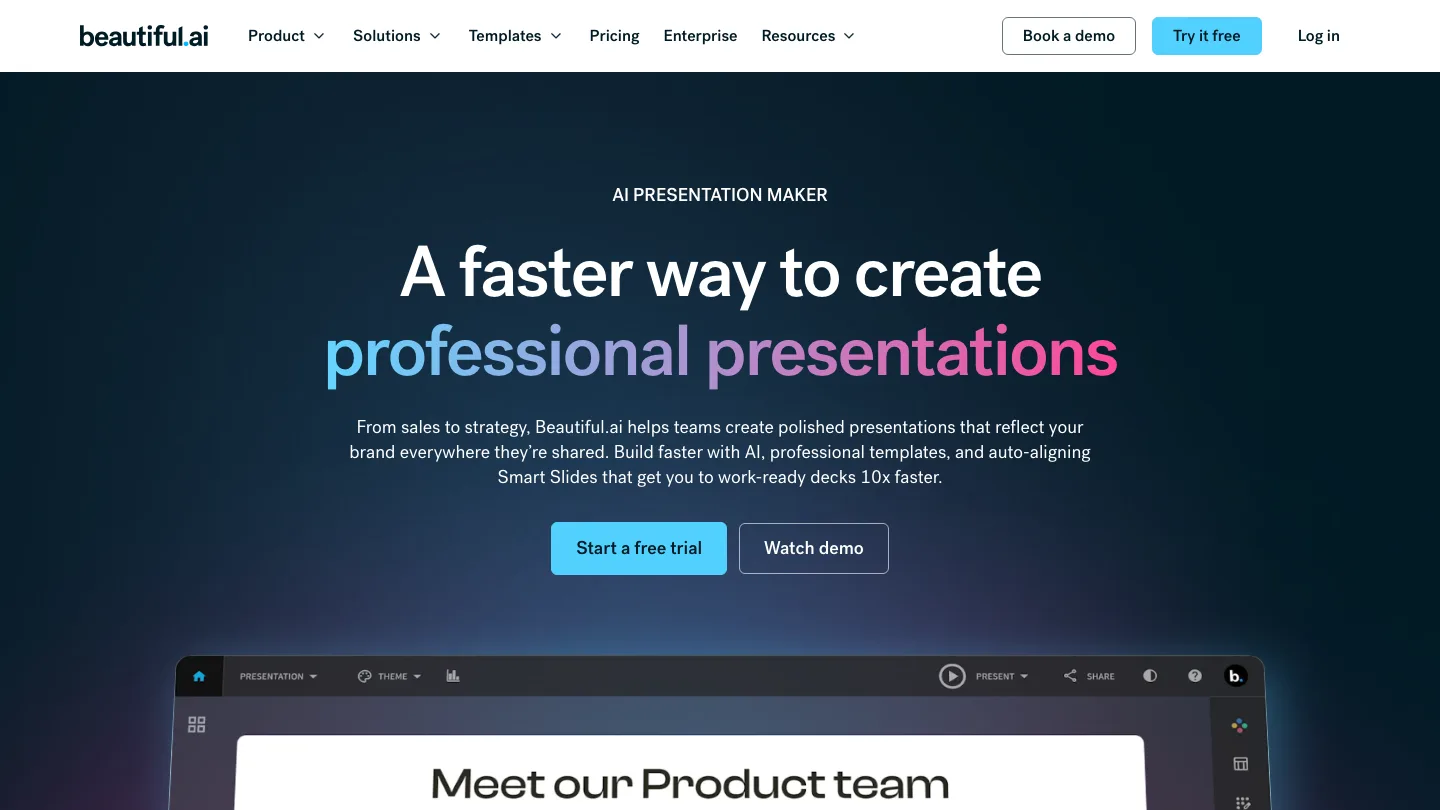
Builds slides from templates that enforce layout rules instead of giving you a blank canvas.
Best for: teams where non-designers make decks that go to clients.
Beautiful.ai is the answer to the brand-continuity problem from earlier, at least for presentations. The mechanism, specifically, is constraint. You cannot drag a logo off-center or pick an off-brand color, because the templates don’t allow it.
That’s frustrating if you’re a designer, though a relief if you’re managing fifteen people who aren’t.
Top feature: smart slide templates that re-lay themselves out as content changes, so a deck can’t drift off-brand while people edit it.
- Shared team workspace with locked brand themes
- Deck analytics showing who viewed and how far they got
- PowerPoint and PDF export
Pros: The most reliable way to keep decks consistent across a team. Genuinely good default designs.
Cons: No free plan at all, only a 14-day trial that requires a card up front. The same constraints that keep you on-brand make it a bad fit for anything creative or unusual.
Pricing: Pro from $12/month billed annually. Team plans run $40 to $50 per user per month. We go deeper on the trade-offs in our Beautiful.ai vs Canva comparison.
5. Pitch
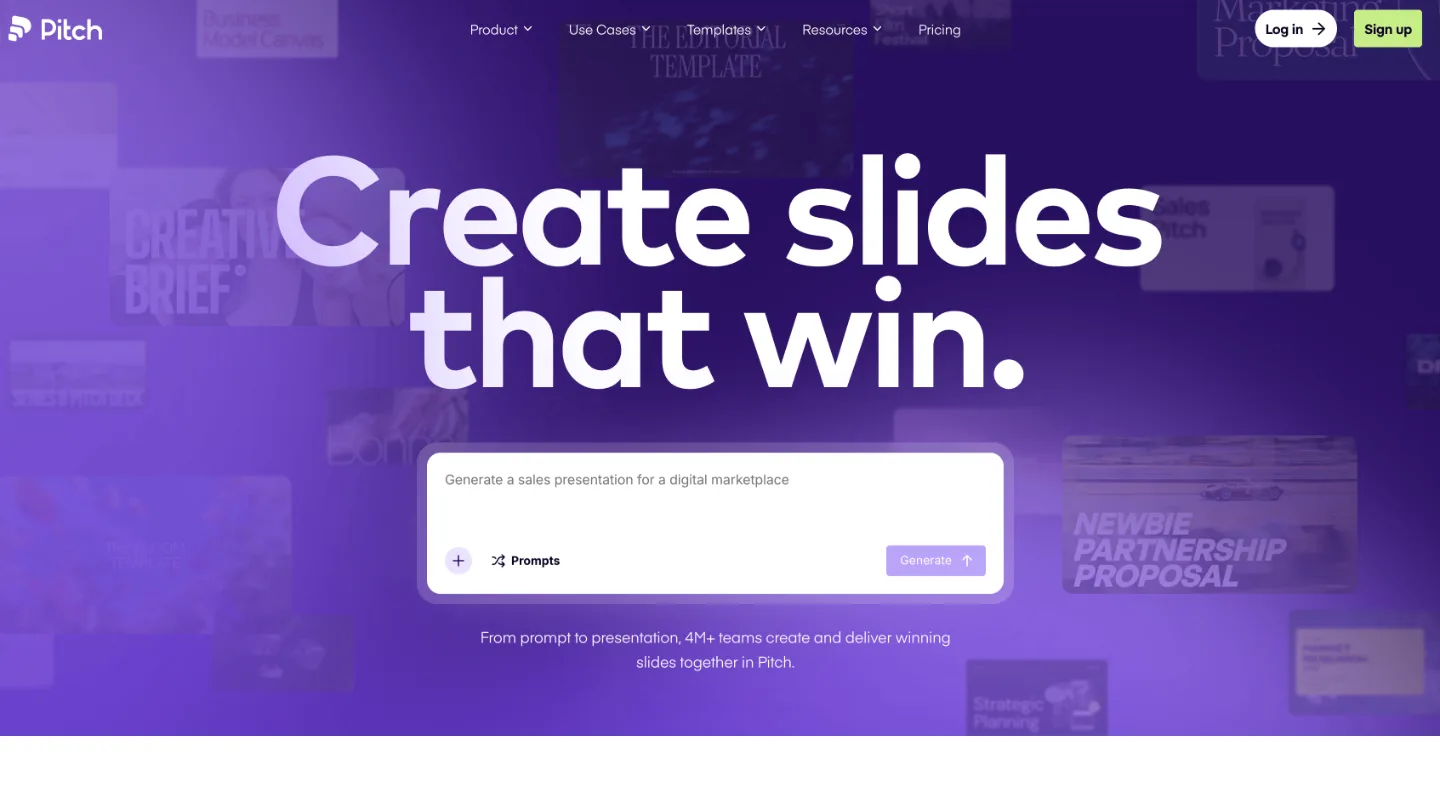
A presentation tool built around collaborative workflow rather than solo editing.
So you assign slides to people, track them to completion, and then see how they landed after you send them.
Best for: sales and marketing teams where several people contribute to one deck.
Both Pitch and Google Slides say “collaboration,” and they mean different things by it. Slides, for instance, gives you simultaneous editing. Pitch adds the layer around it: you assign a slide to a colleague, track whether it’s done, and see what happened to the deck after you sent it.
Top feature: per-slide assignment and status, so a ten-person deck doesn’t need a spreadsheet to manage it.
- Shared workspaces with locked brand templates
- Analytics on shared links, down to time spent per slide
- Guest access for people outside your team
Pros: The best team workflow of any tool here. Free plan is generous, with unlimited presentations and up to five seats.
Cons: Overkill if you’re one person making a deck.
Pricing: Free for up to five seats. Plus around $11/month, Team $16, Business $22. See our Canva vs Pitch comparison for how the two handle team decks.
6. Prezi
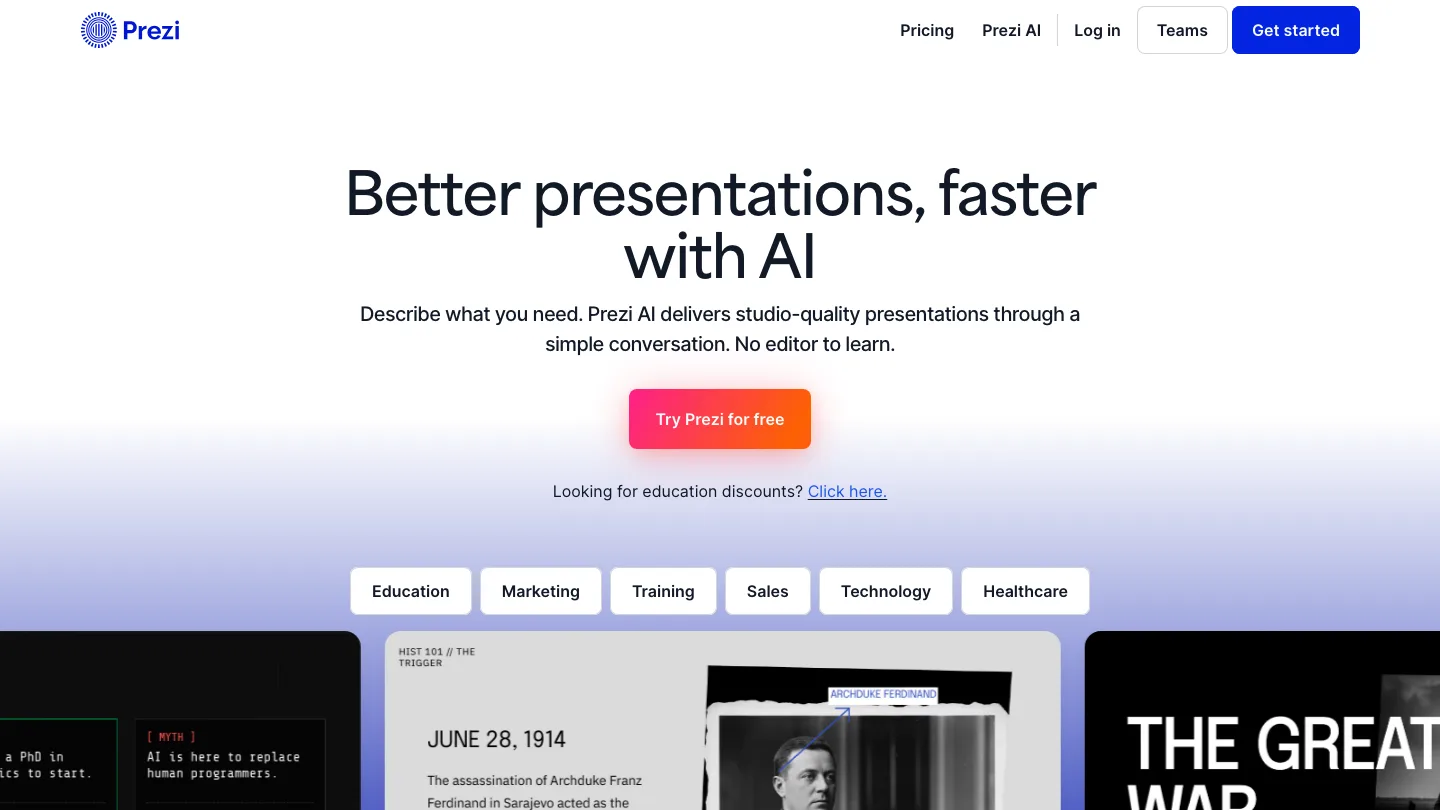
Presents on a single zooming canvas rather than a sequence of slides.
Instead of clicking forward, you move around a map of your content, though that takes a moment to get used to.
Best for: presentations where the structure is the point, showing how parts relate to a whole.
Prezi is the only different format on this list. Everything else competes on templates, whereas Prezi competes on the shape of the presentation itself.
It’s now one platform covering presentations, videos, and infographics, rather than the separate Prezi Design and Prezi Present products you may remember.
Top feature: the zooming canvas, which shows context and detail in one continuous move rather than two disconnected slides.
- PowerPoint converter for existing decks
- Presenter view, voice-over recording, and presentation recording
- Infographics and video in the same subscription
Pros: Nothing else here will make your presentation feel different. Strong for teaching and any content with a spatial structure.
Cons: A real learning curve, and the motion actively annoys some audiences. PDF export requires the Plus tier, so the entry-level Standard plan doesn’t include it.
Pricing: Free Basic plan. Standard around $5/month, Plus $16, Premium $27, all billed annually.
7. Adobe Express
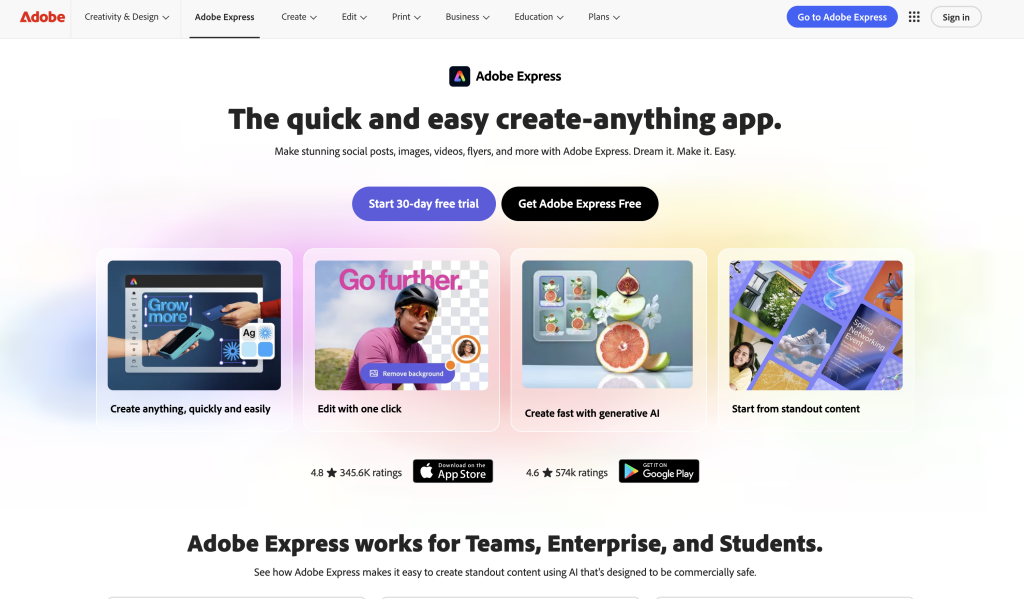
The closest thing to a straight Canva replacement.
Likewise, it uses the same drag-and-drop model, the same template-first workflow, and the same range of output types.
Best for: people who like how Canva works but not what it costs.
Adobe Express is the one to pick if you want to change tools without changing habits. It covers social graphics, video, PDFs, and now document-to-presentation generation, which puts it up against the tools above.
Top feature: the paid Adobe Stock library, which carries 350M+ assets against Canva Pro’s 141M+.
- Exports to JPEG, PNG, PDF, GIF, and PPT with no watermark on free
- Background removal, resizing, and PDF tools as one-click actions
- Social scheduling built in
Pros: The free tier is usable on its own and doesn’t watermark. The deepest stock photo library of anything here once you pay. Integrates with Photoshop and Illustrator if you have them.
Cons: Slower to work in than Canva for the same task. This comes up constantly from people who’ve used both, and it’s the main reason switchers switch back. Brand kits aren’t on the free plan, and the free asset library is smaller than Canva’s.
Pricing: Free plan available. Premium around $12/month. Our Canva vs Adobe Express comparison covers the workflow differences in more detail.
8. VistaCreate
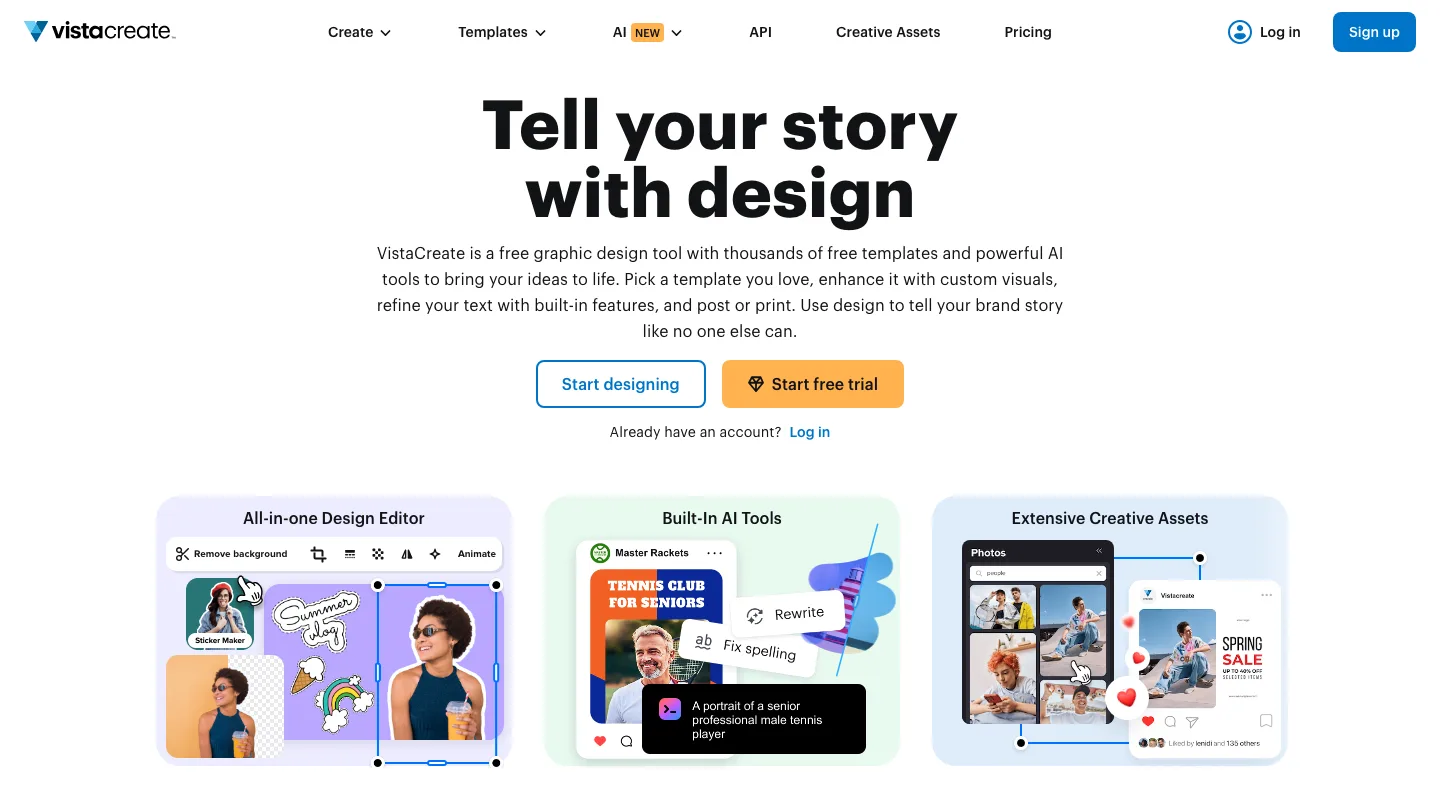
A template-based graphics tool with a direct path to physical printing.
Best for: small businesses making social posts and print materials from the same file.
VistaCreate enables physical printing through its sibling brand, VistaPrint. That connection is therefore the reason to pick it over the alternatives. Canva’s print output is a common complaint. VistaCreate sits inside a printing business, and the handoff from design to printed object is the part they’ve solved.
Top feature: designing and ordering printed materials without leaving for a separate print service.
- 100,000+ templates and a million-plus stock assets
- Brand kit included on the free plan
- One-click resizing across social formats
Pros: Free plan includes a brand kit, which is rare. Strong for print. Simple enough to learn in an afternoon.
Cons: Weaker than Canva for anything beyond social and print. As one long-time user put it, it’s a good option if you’re only doing social media posts. Template quality is inconsistent.
Pricing: Free Starter plan. Pro around $11/month for up to 10 seats.
9. Figma
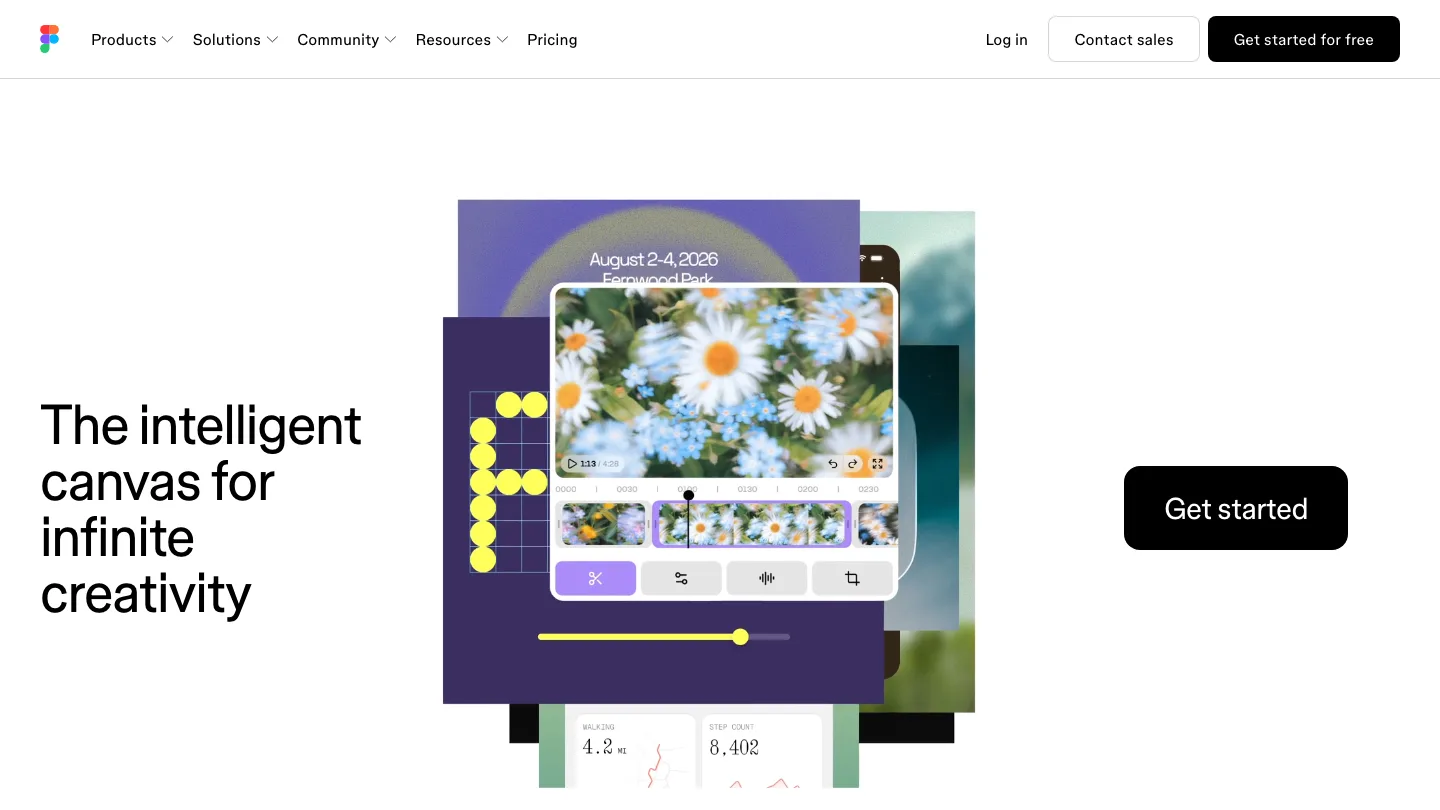
A professional design tool for interfaces, and increasingly for everything else visual.
It has no templates in the Canva sense, so instead you build from primitives.
Best for: anyone who has outgrown templates and keeps hitting walls in Canva.
Plenty of frustrated Canva users don’t want a better Canva. Rather, they want the ceiling removed. Figma has no ceiling, and no hand-holding either.
Top feature: components and auto-layout. Build a thing once, reuse it everywhere, change it in one place.
- Free plan with unlimited drafts
- Enormous community library of free templates and plugins
- FigJam for whiteboarding included
Pros: The free tier does real work. The skill transfers to actual design jobs. Multiplayer editing that Canva still hasn’t matched.
Cons: Steep learning curve, and it’s the wrong answer if you want to make a birthday flyer in five minutes. Not built for print production.
Pricing: Free Starter plan. Professional $16 per full editor per month.
10. Photopea
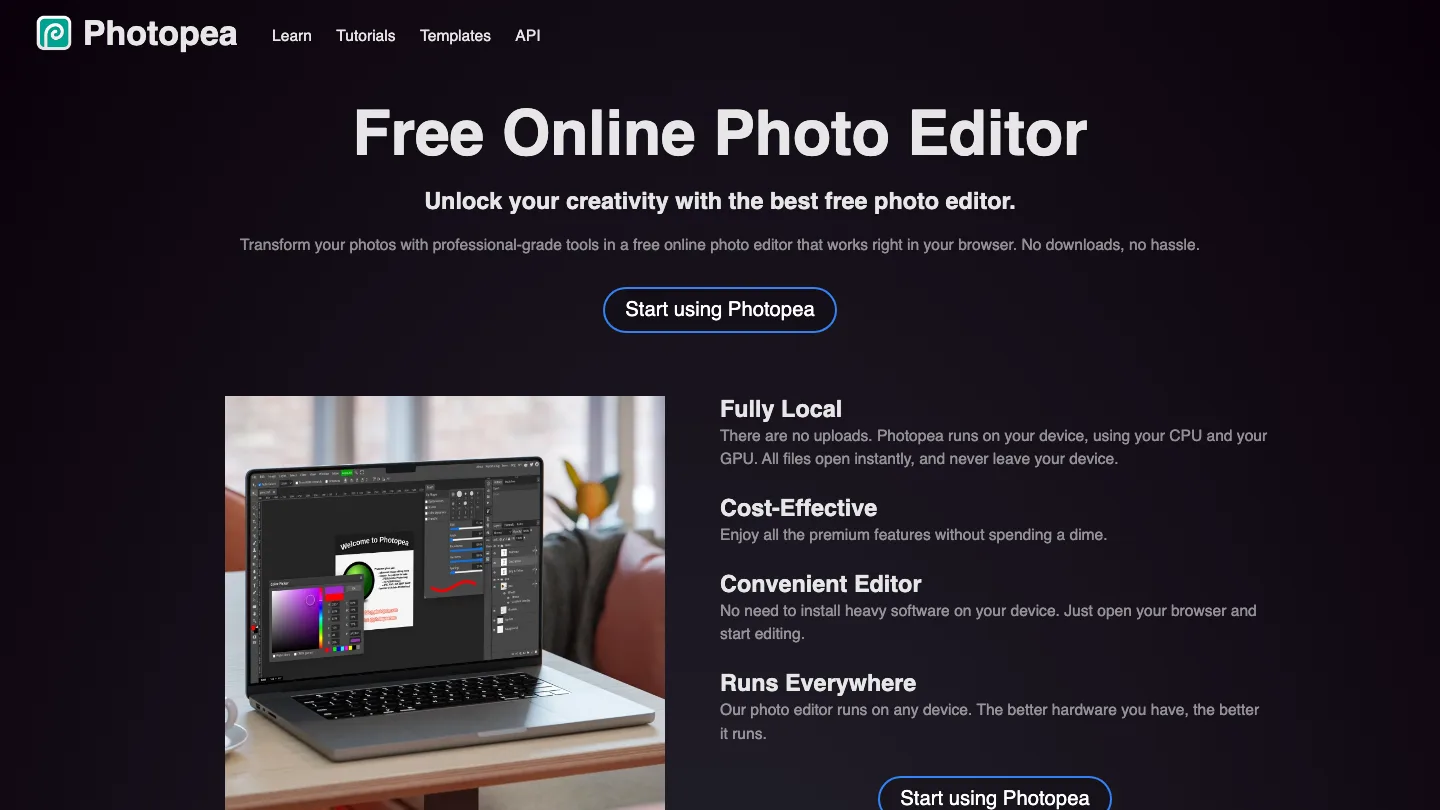
A full Photoshop-style image editor that runs in a browser tab.
Notably, it opens PSD files with layers intact.
Best for: the photo editing Canva can’t do, at no cost.
Photopea covers the real image editing Canva can’t do (masks, layers, curves, proper retouching), and it costs nothing. No account, no install, no trial. It’s the single best free-tool recommendation on this list.
Top feature: full PSD support, so you can open and edit Photoshop files from a designer without owning Photoshop.
- Opens PSD, AI, XD, Sketch, Figma, PDF, and RAW camera files
- Familiar Photoshop-style interface and keyboard shortcuts
- Works offline once loaded
Pros: Free, with no meaningful feature restrictions. Opens almost any design file format. Nothing to install.
Cons: Ad-supported unless you pay to remove them. The interface is Photoshop’s, which means it’s dense and unfriendly to beginners.
Pricing: Free. An optional paid tier removes ads.
11. Visme
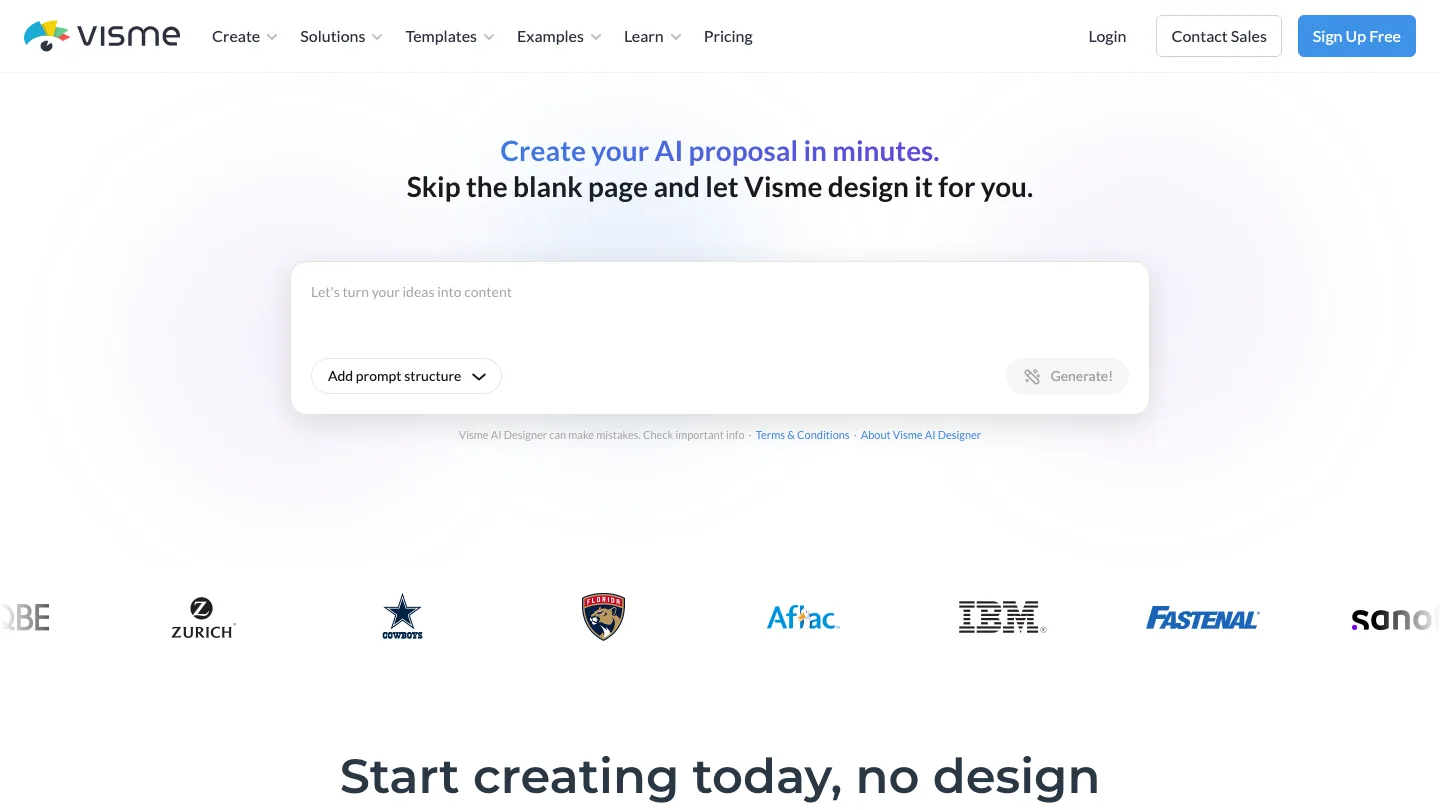
Turns data into charts, infographics, and reports.
It handles presentations and social graphics too, although data visualization is where it’s strongest.
Best for: reports and decks where the numbers are the content.
If your Canva frustration is that charts are an afterthought, this is the fix. Visme‘s chart and infographic library is deeper than anything else here.
Top feature: the chart and infographic library, which covers types most design tools don’t offer at all.
- Large infographic and report template library
- Brand kit and analytics on paid plans
- Interactive elements like clickable hotspots and pop-ups
Pros: Best data visualization here by some distance. Strong template library for reports.
Cons: The free plan puts Visme branding on published content and restricts downloads to JPG, PNG, and PDF. PPTX and video exports need a paid plan. The interface is busier than Canva’s.
Pricing: Free Basic plan. Starter $12.25/month, Pro $24.75/month, both billed annually. If Visme is on your shortlist, we’ve also written up the best Visme alternatives.
What is the best alternative to Canva?
There is no single best Canva alternative, because Canva does six different jobs and the right replacement depends on which one you’re leaving.
If you’re making slide decks, the answer is a presentation tool. If you’re making Instagram posts, it’s a graphics tool.
Here’s the short version:
- Google Slides + Gemini: best for a free replacement you already own
- Gamma: best for building a deck from a prompt
- SlideSpeak: best for turning documents you already have into decks
- Beautiful.ai: best for keeping every deck on-brand without a designer
- Pitch: best for decks a team builds together
- Prezi: best for decks that move instead of advance
- Adobe Express: best for a like-for-like Canva swap
- VistaCreate: best for free social graphics and print-ready files
- Figma: best for design work Canva was never built for
- Photopea: best for photo editing without a subscription
- Visme: best for data-heavy visuals and infographics
Why people leave Canva
Price is the trigger. Canva Pro has gone up repeatedly, and it costs noticeably more than it used to, especially if you pay monthly instead of annually.
However, the complaint I hear most often is that you can’t justify the price if you open the app twice a month.
The other reasons:
- Templates that everyone else is also using.
- Print output that doesn’t survive contact with a commercial printer
- A free tier that caps you at one brand kit with three colors.
One customer I spoke with, a marketing lead at a small company, had stopped using Canva for almost everything. Her decks were made elsewhere, and her social posts too.
She was still paying for Canva every month for one reason: it was the only place her brand colors, fonts, and logos lived in a form her whole team could reach. She told me she’d happily pay the same money to a different tool that held her brand together properly.
That’s the real switching cost, and templates have nothing to do with it. So before you pick anything, find out where your brand assets live and what it takes to move them.
How we compared these tools
I judged these Canva alternatives on five criteria:
- What job it replaces. Decks, graphics, print, photos, or data.
- What it costs, at the tier where the tool is usable, not the headline price.
- What the free tier gives you in practice, which is often less than the pricing page implies.
- Whether you can bring your brand with you. Colors, fonts, logos, and whether the free tier lets you keep them.
Frequently asked questions
What should I use instead of Canva for presentations?
The best Canva alternative for presentations depends on where your content starts.
Not all Canva alternatives make decks, so start by narrowing to the ones that do. Starting from a blank page? Use Gamma. For a document you already wrote, SlideSpeak turns it into slides. Meanwhile, if you want something free that you already have, use Google Slides.
Finally, when a whole team is editing the deck, use Pitch. We’ve also compared Canva and Google Slides side by side if you want the detail on that one.
Is there a free Canva alternative?
Yes, and several of the best Canva alternatives cost nothing. Google Slides, Photopea, and Figma all have free plans with no watermark and no meaningful catch.
Adobe Express and VistaCreate have free tiers that cover most of what Canva Free does. Be careful with Gamma and Visme, though. Both are free to use, but both add their own branding to your work unless you upgrade.
Which Canva alternatives don’t watermark your exports?
Google Slides, Photopea, Figma, Adobe Express, and Pitch all let you export without branding on their free plans. Gamma and Visme add their own branding unless you pay. SlideSpeak doesn’t watermark on any plan, but exporting requires a paid plan. Beautiful.ai has no free plan to compare.
Is there a Google alternative to Canva?
Google doesn’t make a direct Canva competitor, but between Google Slides for presentations, Google Drawings for simple graphics, and Gemini for image generation, most of Canva’s core jobs have a Google equivalent. The gap is templates. Google has nothing comparable to Canva’s library.
Are there open-source Canva alternatives?
Yes, there are free open-source alternatives to Canva. They include GIMP for photo editing, Inkscape for vector graphics, Krita for illustration, Scribus for print layout, and Penpot for interface design. All are powerful, and none is as easy as Canva. They’re separate specialized tools rather than one integrated product.
Who is Canva’s biggest competitor?
Adobe Express, by a distance. It’s the closest match on features, workflow, and audience, and it’s backed by the one company with a comparable asset library.
For presentations specifically, though, the strongest challengers are AI-first tools like Gamma rather than traditional design software.
Wrapping up…
Pick your Canva alternative by the job, not by the ranking.
One thing to do before you start, because it determines whether the switch sticks: export your brand assets. Colors as hex codes, fonts as files, logos as SVGs.
Most people discover halfway through a migration that their brand only exists inside Canva. Consequently, rebuilding it from screenshots is what sends them back.
And be realistic about running two tools. Canva’s genuine advantage is breadth: one login covering six jobs, and nothing here replaces all six. The honest outcome for most people is a deck tool plus a graphics tool. That’s often still cheaper than what they were paying, and better at both jobs.
Did we miss your favorite tool? Let us know and we’ll add it to the list!


