

Wondering how credits work in SlideSpeak? Whether you’re creating presentations, generating AI videos or translating slides, credits power every AI feature.
Note: If you’re looking for information on the SlideSpeak API credits, see this help article.
This guide explains how many credits each plan includes, how different features use credits, and how you can purchase additional credits whenever you need them.
AI Credits
First, let’s look at the credits included with each SlideSpeak plan.
Every SlideSpeak subscription includes AI credits that you can use across supported features.
| Plan | Monthly Credits |
|---|---|
| Free | 100 credits (one-time) |
| Premium | 1,000 credits per month |
| Premium Plus | 2,500 credits per month |
Keep in mind:
- Paid plans automatically refresh your credits at the start of each month.
- However, unused monthly credits do not roll over to the following month.
- Credits refresh on a monthly basis, based on when you signed up for your subscription. If you’ve signed up on January 14th then your credits will reset on February 14th.
What consumes AI Credits?
Next, let’s see how different features consume credits.
| Feature | Credit Usage |
|---|---|
| Generate Presentation | 1 credit per slide |
| Generate Advanced Presentation | 5 credits per slide |
| AI Video | 5 credits per slide |
| Translate Presentation | 1 credit per slide |
| AI Assistant | 1 credit per message |
| Upload files | Free |
| Generate outlines | Free |
| Editing presentation slides | Free |
| Adding images (including AI images) | Free |
| Duplicate presentations | Free |
Example
For example, imagine you generate a 20-slide presentation.
- Generate the presentation → 20 credits
- Translate the presentation → 20 credits
- Generate an AI video → 100 credits
As a result, you’ll use 140 credits in total.
Need More Credits?
If you need additional credits, Premium, Premium Plus and Lifetime users can purchase one-time credit bundles at any time.
| Credits | Price | Cost per Credit |
|---|---|---|
| 500 | $10 | $0.020 |
| 2,000 | $30 | $0.015 (Save 25%) |
| 5,000 | $50 | $0.010 (Save 50%) |
These top-up credits offer several benefits:
- They get added on top of your monthly allowance.
- You can use them for every feature that consumes AI credits.
- They remain valid for 12 months from the purchase date and transfer over to the next month if unused.
Checking Your Credit Balance
Web App
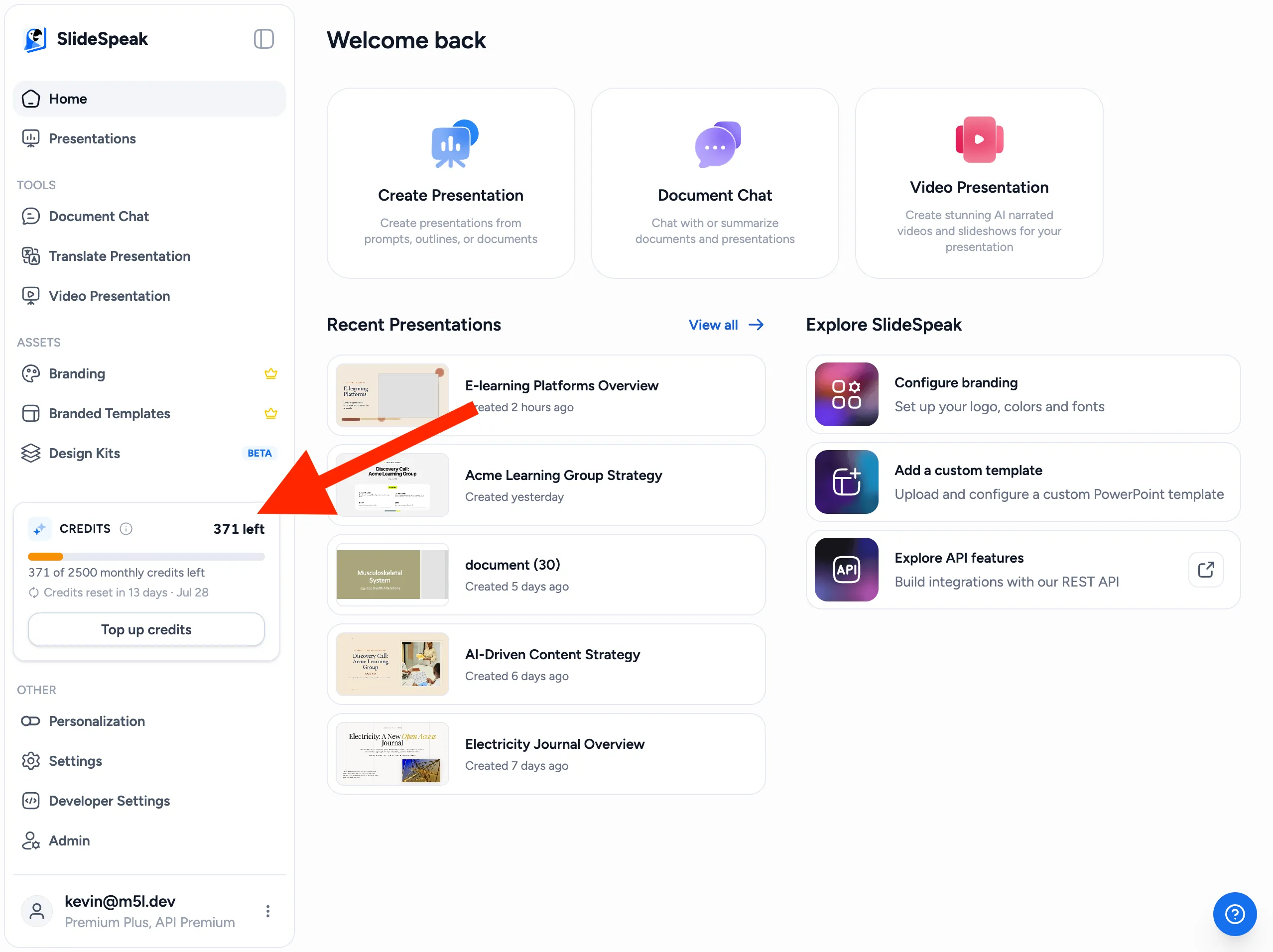
You can always see your remaining credits directly in your SlideSpeak dashboard. The Credits panel in the bottom-left corner shows your current balance, your monthly allowance, and the date your credits reset. The balance updates automatically whenever you use an AI feature.
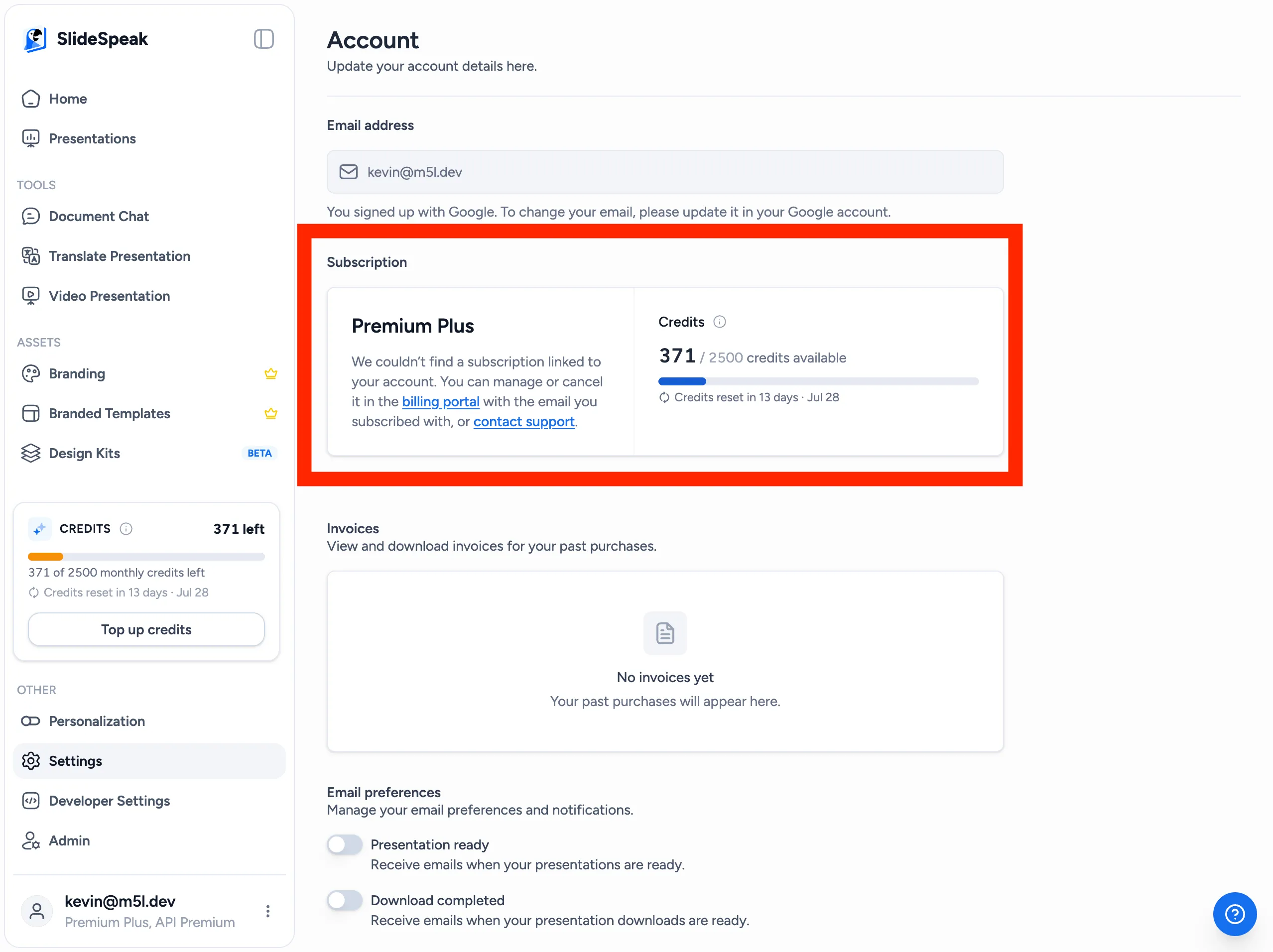
You can also find your credit balance in your account settings under Subscription.
API
Similarly, you can check your API credit balance under Developer Settings in the left-hand sidebar. See How SlideSpeak API Credits Work for details.
If you run out of API credits, simply purchase additional credits before generating more slides.
Frequently Asked Questions
Do AI credits roll over?
No. Your monthly credits refresh at the beginning of each billing cycle. Therefore, unused monthly credits do not carry over. Only purchased top-up credits roll over to your next month’s allowance.
Do purchased top-up credits expire?
Yes. However, they remain valid for 12 months after you purchase them.
Can I use AI credits with the API?
No. AI credits and API credits are separate credit systems, so you cannot use one for the other.
What happens if I run out of credits?
Wait until your next billing cycle or purchase additional credits if you’re on Premium, Premium Plus or Lifetime.
Need more help?
If you have any questions or need assistance, feel free to contact our support team at support@slidespeak.co