


Captions and subtitles make your AI video presentations easier to follow, more accessible, and far more likely to be watched all the way through. When you generate a video from your presentation in SlideSpeak, you can turn on captions in the final step. SlideSpeak then transcribes the narration and adds synced on-screen subtitles to every scene, so viewers can read along even with the sound off.
Captions help in a lot of situations. They support viewers who are deaf or hard of hearing, they let people watch on mute in an office or on public transport, and they give search engines and social platforms readable text to index. Whether you call them captions, subtitles, or closed captions, here is how to add them.
Step 1. Open the video panel and create a video
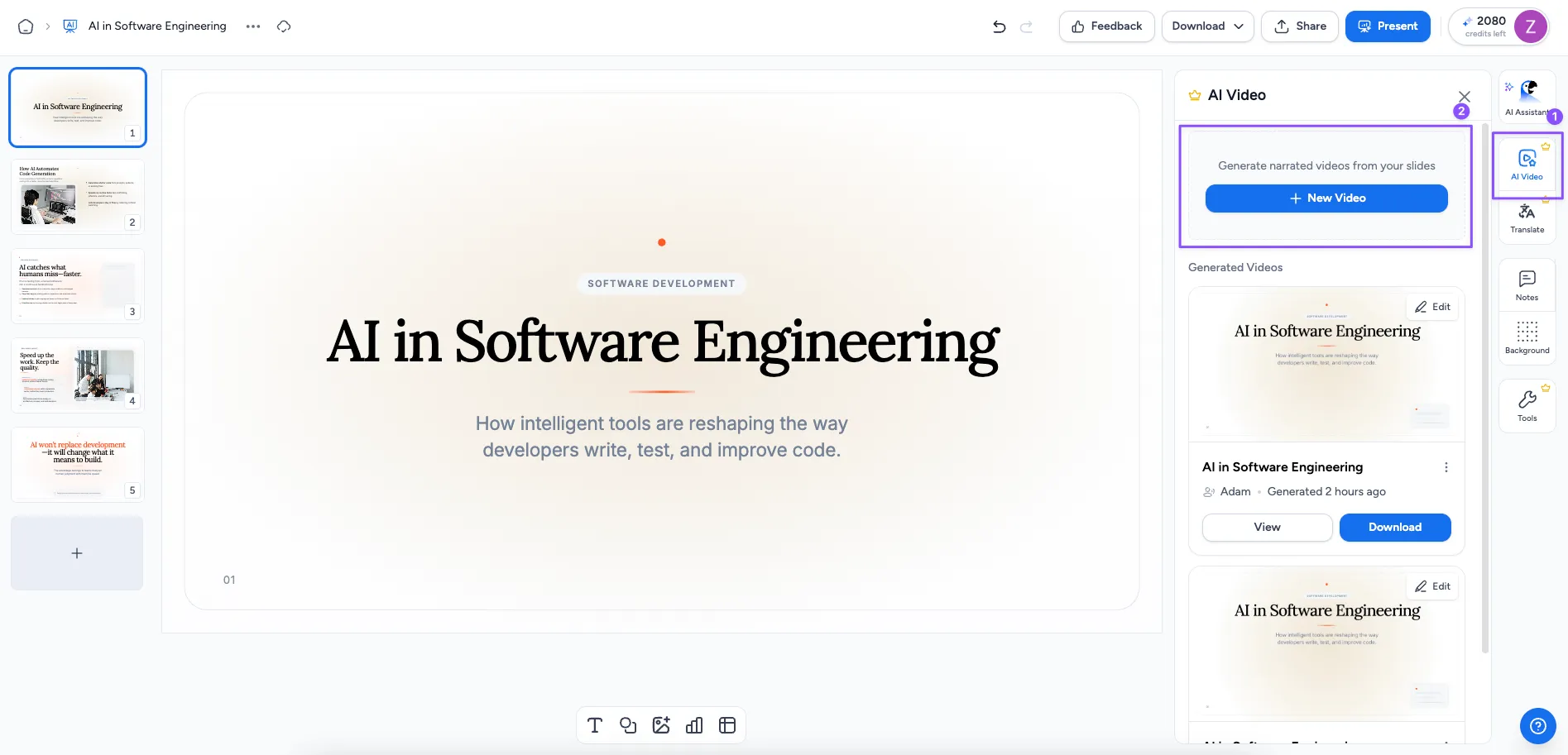
Open your presentation in the SlideSpeak editor and open the video panel from the side bar. This is where you turn a set of slides into a narrated AI video presentation. Click Create new video to start from scratch, or open an existing video to make changes to one you generated earlier.
Step 2. Generate the narration
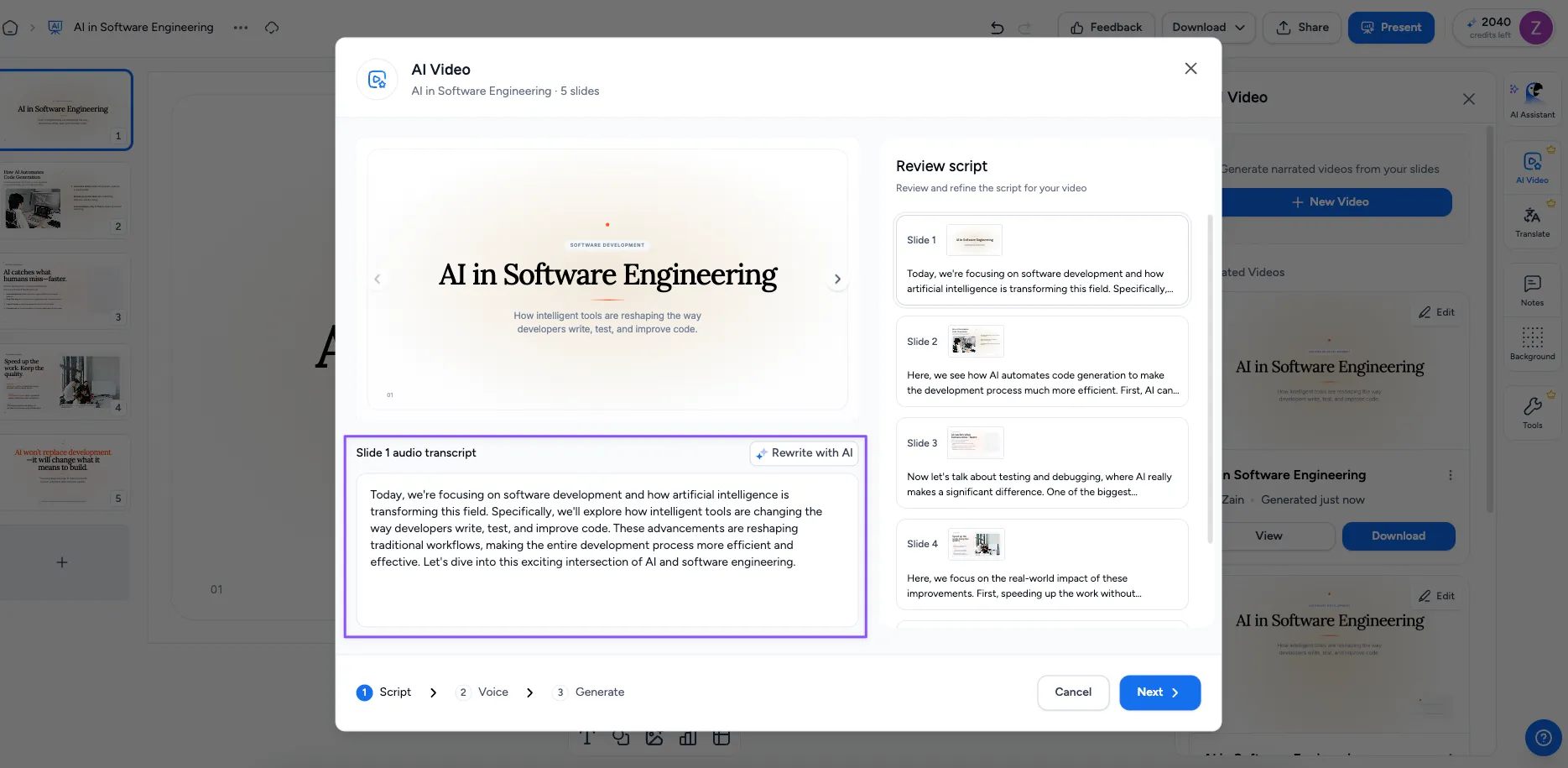
Generate the narration for your video. SlideSpeak writes a voiceover script from your slides, which becomes the spoken audio and, in the next steps, the text for your captions. Review the narration and tweak the wording if you want.
Step 3. Choose a voice
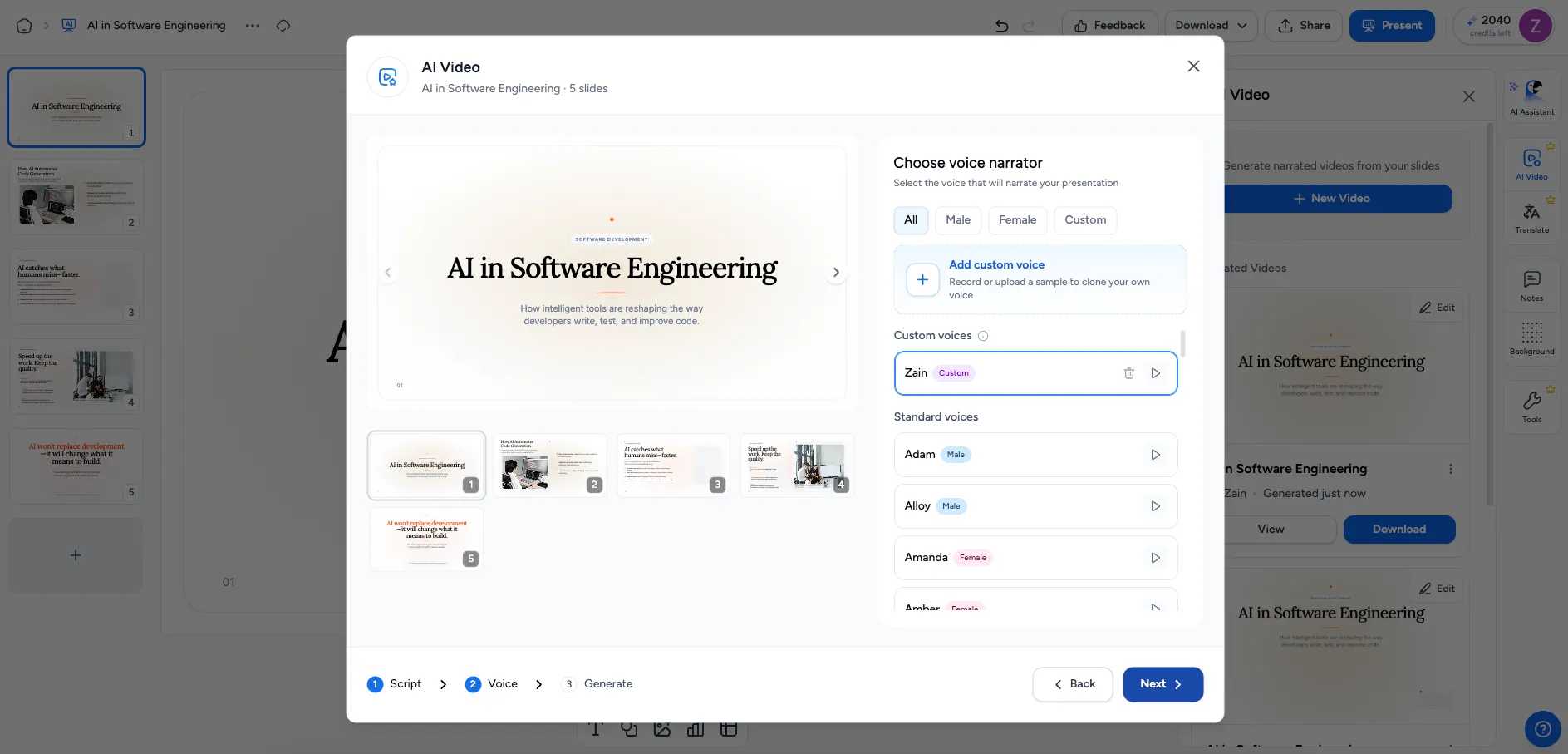
Pick the voice that reads your narration. Choose the one that best fits your presentation and audience.
Step 4. Turn on captions and generate
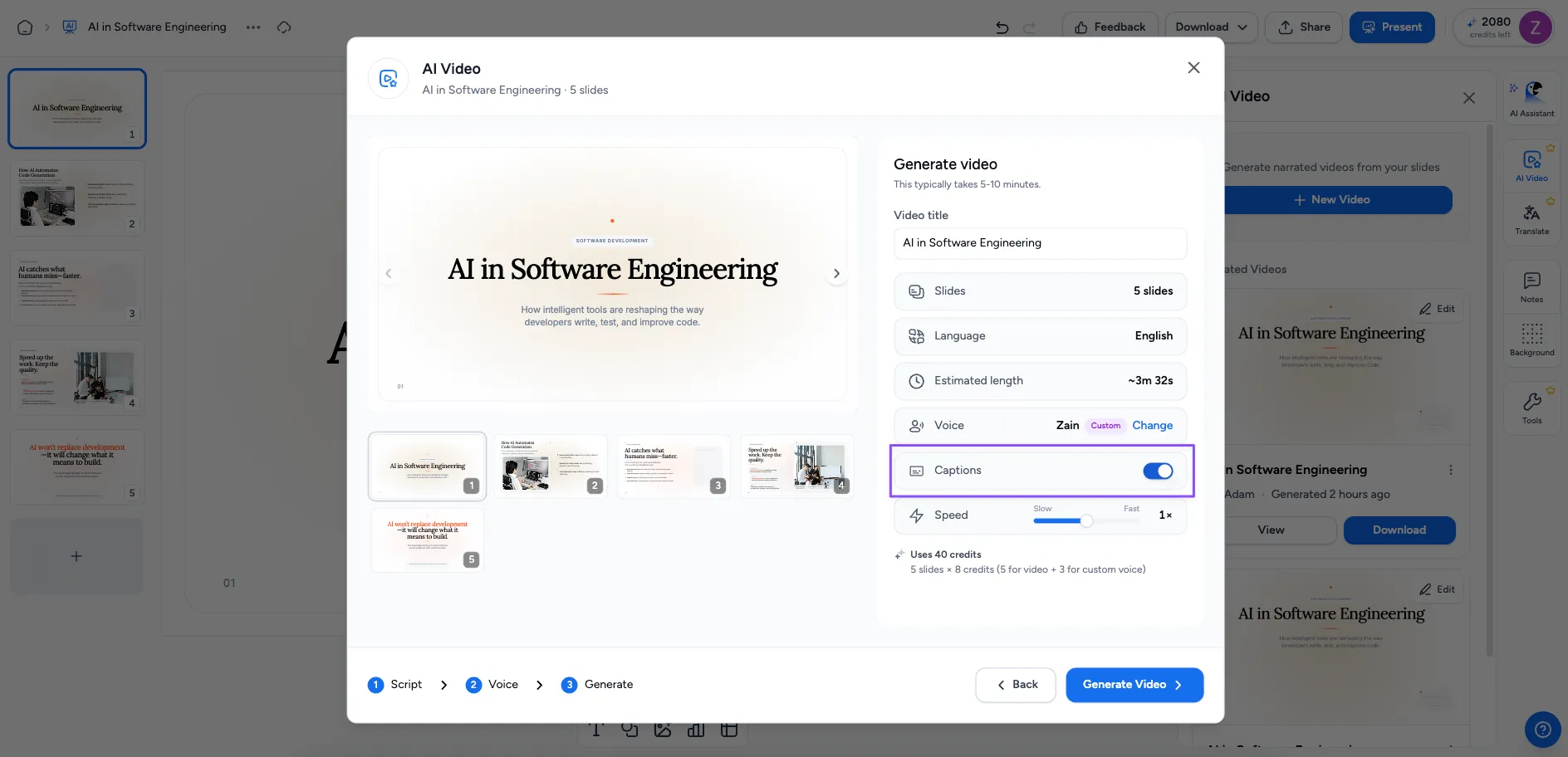
In the final step, toggle Captions on. Then click Generate. SlideSpeak renders your video with synced subtitles added to every scene automatically, so you do not have to type or time anything by hand.
That’s it
Your AI video presentation is generated with clear, synced captions built in. Auto-generated subtitles save you the work of transcribing by hand, and captions mean everyone can follow along, sound on or off. Well-captioned videos are more accessible, hold attention longer, and get discovered more often.
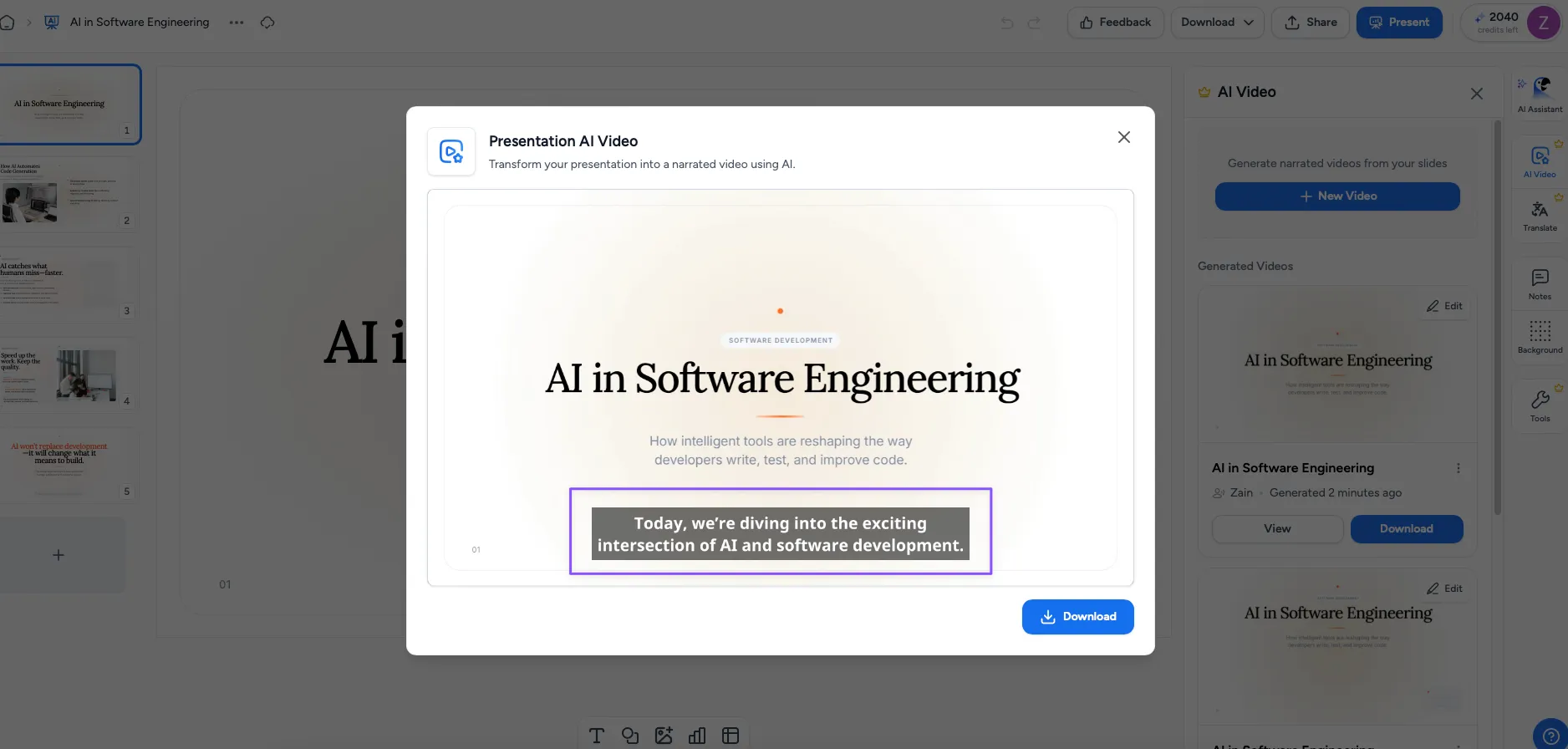
Captions in your language
Your captions follow the language of your presentation, so you can add subtitles in most popular languages including English, Spanish, French, German, Portuguese, Italian, Dutch, Hindi, Chinese, Japanese, and many more. Generate your video in the language you need and the captions match automatically.
Need more help?
If you have any questions or need assistance, feel free to contact our support team at support@slidespeak.co