


The playback speed of an AI video presentation sets the pace of the narration and the scenes. A slower speed gives your audience more time to absorb each point, while a faster speed keeps things snappy and shortens the total run time. When you generate a video from your presentation in SlideSpeak, you can set the playback speed in the final step, and SlideSpeak renders the whole video at the pace you pick.
Adjusting the speed is useful in a lot of situations. Slow it down for training material, tutorials, or non-native audiences who need a moment to follow along. Speed it up for quick product demos, social clips, or recaps where a tighter pace holds attention. Here is how to change the playback speed of your video.
Step 1. Open the video panel and create a video
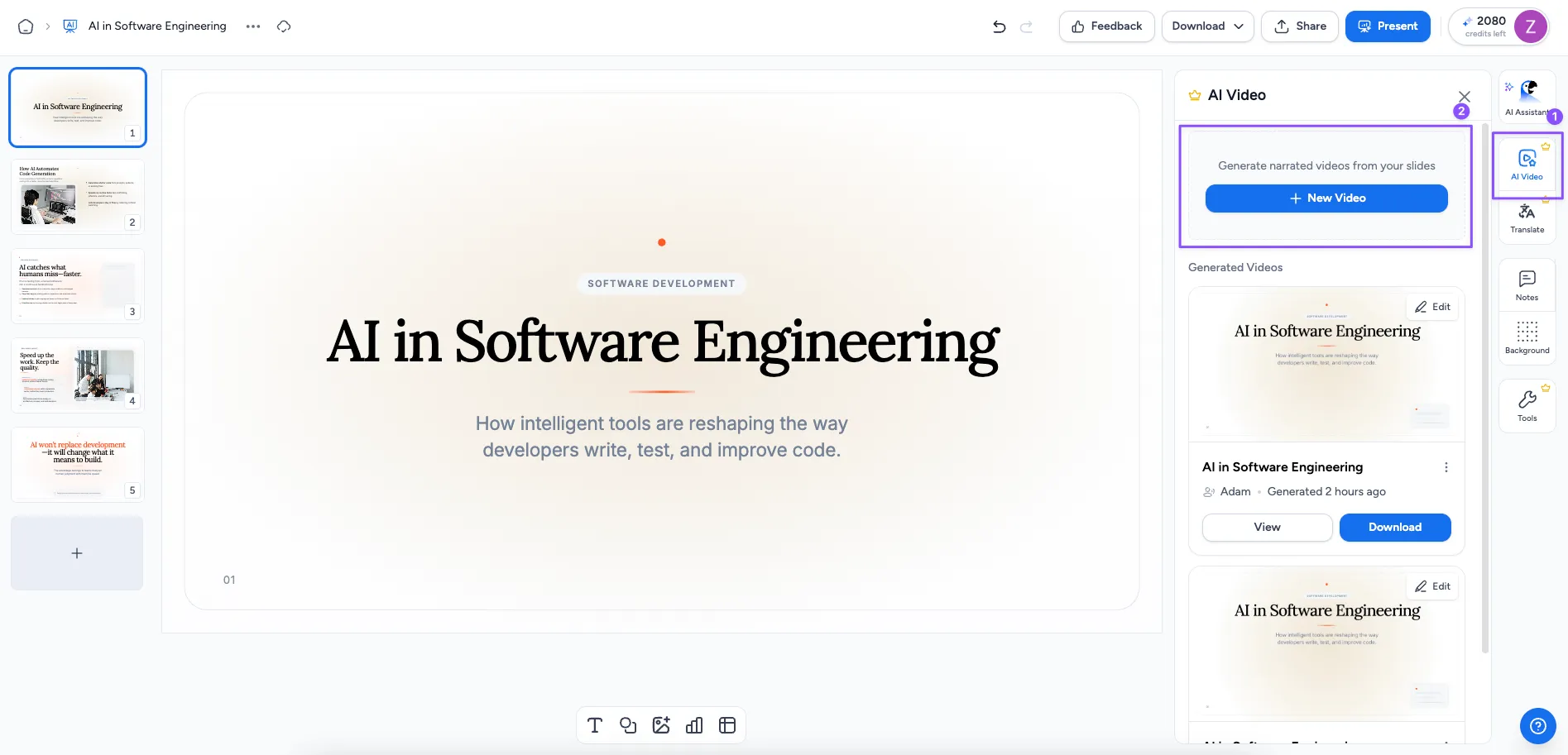
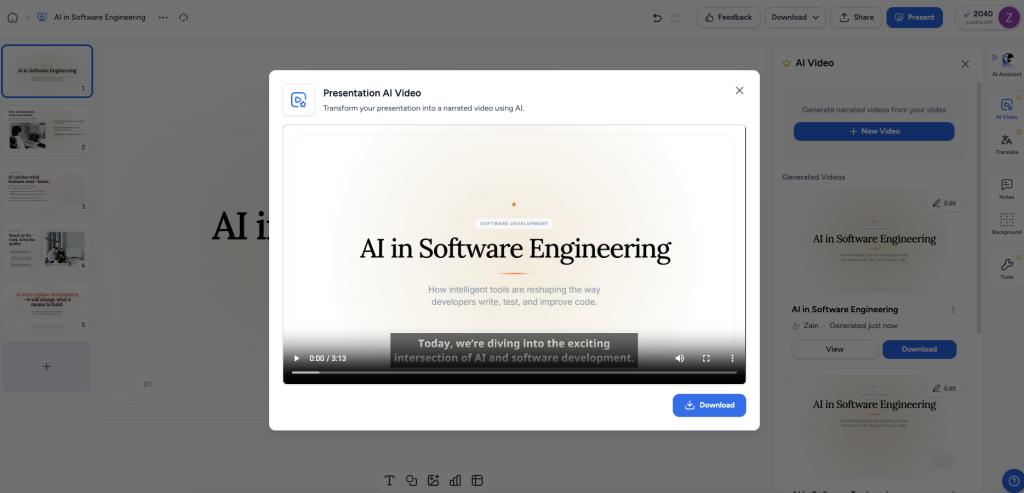
Open your presentation in the SlideSpeak editor and open the video panel from the side bar. This is where you turn a set of slides into a narrated AI video presentation. Click Create new video to start from scratch, or open an existing video to make changes to one you generated earlier.
Step 2. Generate the narration
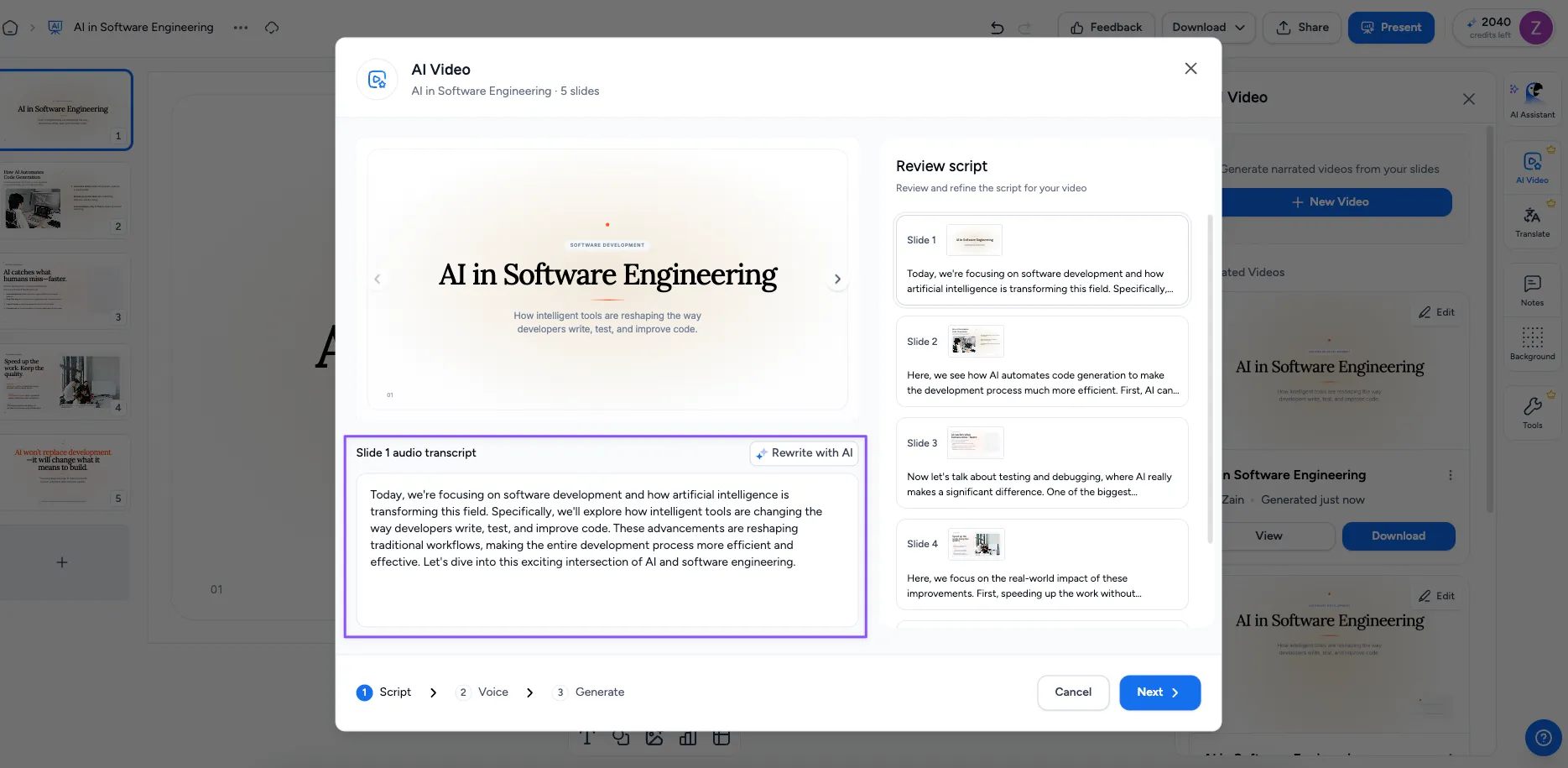
Generate the narration for your video. SlideSpeak writes a voiceover script from your slides, which becomes the spoken audio for each scene. Review the narration and tweak the wording if you want.
Step 3. Choose a voice
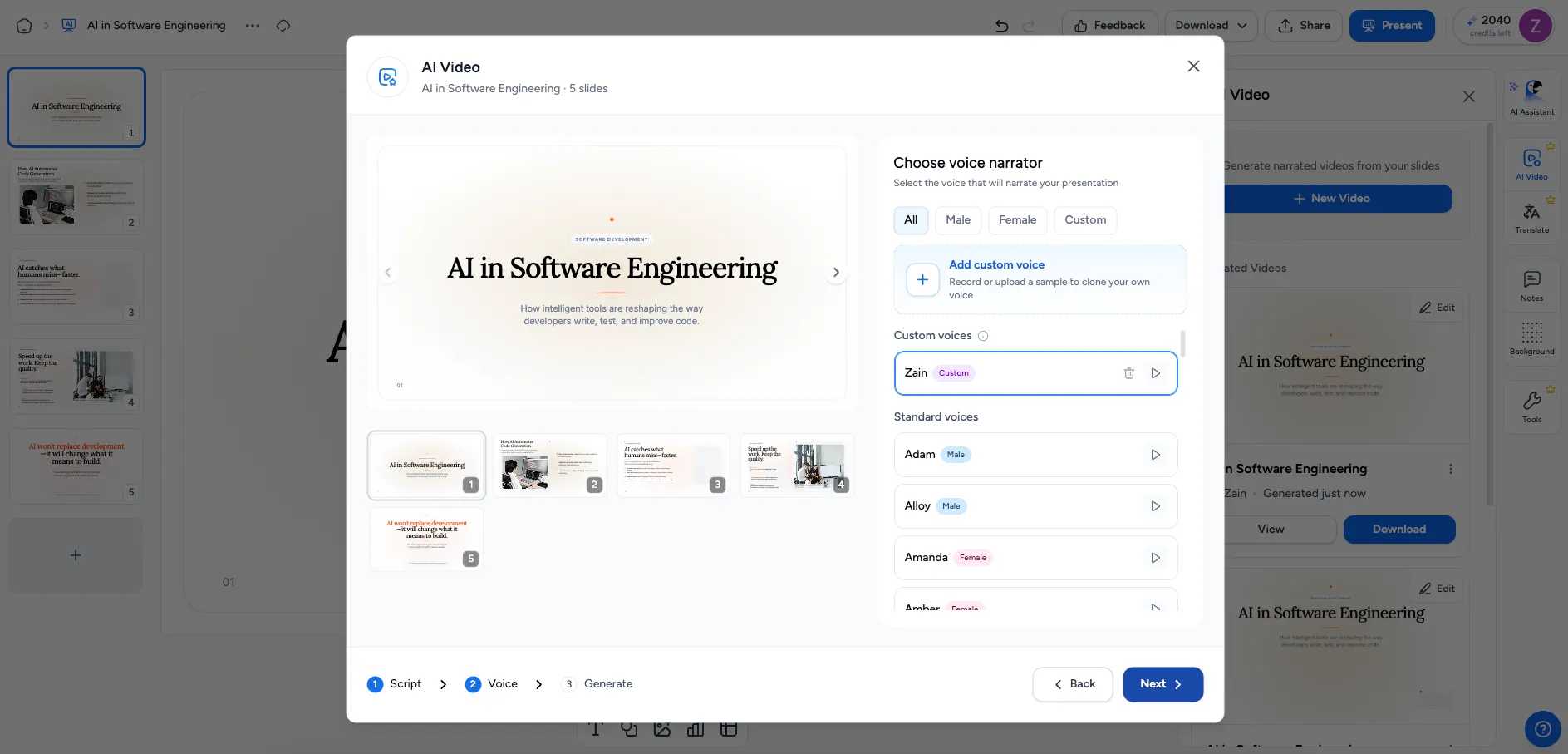
Pick the voice that reads your narration. Choose the one that best fits your presentation and audience.
Step 4. Set the playback speed and generate
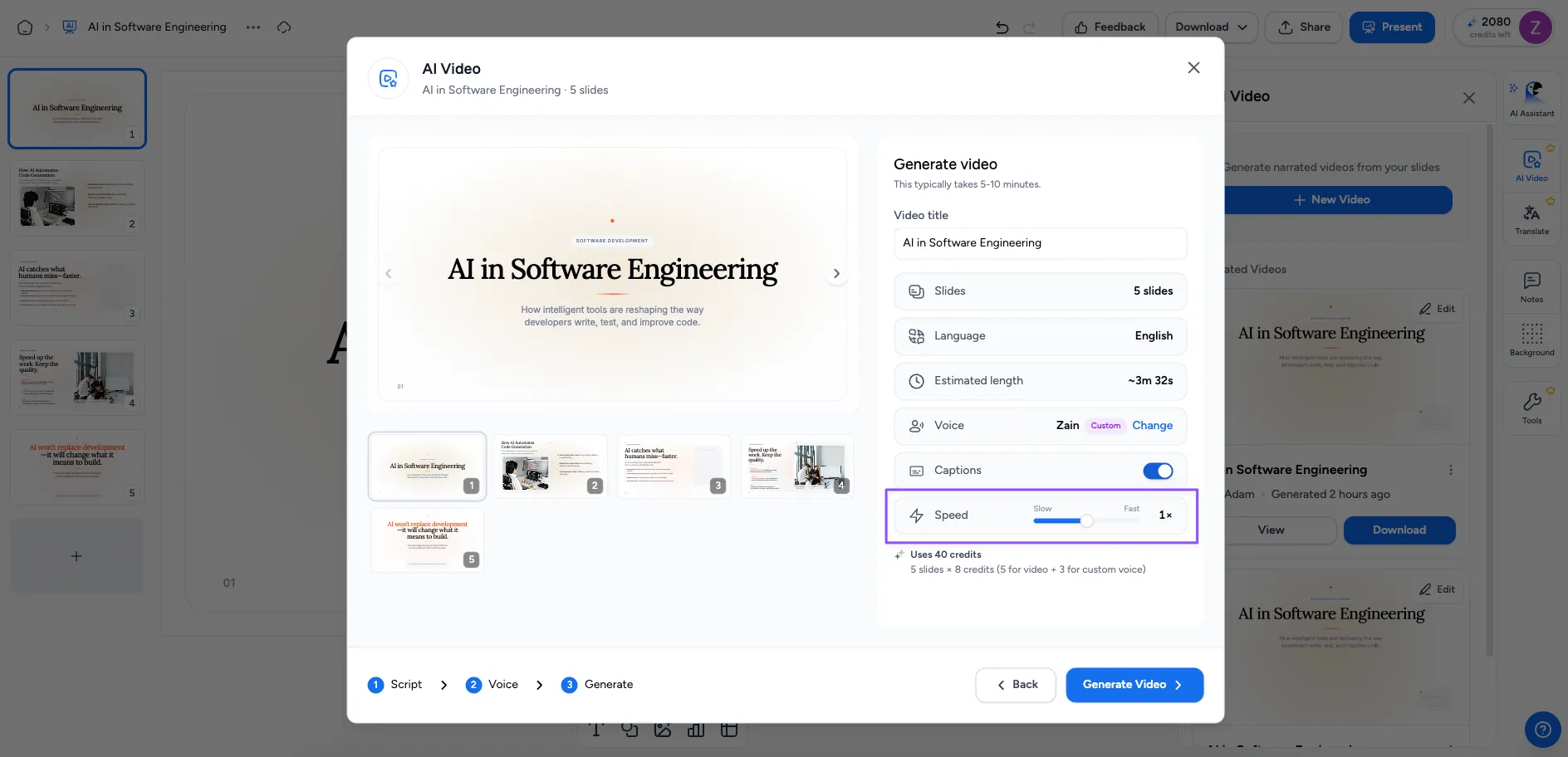
In the final step, set the playback speed for your video. Choose a slower pace to give viewers more time on each point, or a faster pace to shorten the run time and keep things moving. Then click Generate, and SlideSpeak renders the whole video at the speed you picked.
That’s it
Your AI video presentation is generated at the pace you chose. Slow it down for training and tutorials, or speed it up for demos and social clips. You can always open the video again and generate a new version at a different speed if you want to fine-tune the timing.
Need more help?
If you have any questions or need assistance, feel free to contact our support team at support@slidespeak.co