

Custom voices let your AI video presentations speak with your own cloned voice, and the tone setting controls how that voice delivers the narration. An excited tone brings energy to a product launch, while a calmer tone suits training material or a formal report. When you generate a video from your presentation in SlideSpeak, you can pick the tone for your custom voice in the voice step, and SlideSpeak renders the whole narration in that style.
Changing the tone is useful whenever the same voice needs to fit different content. Your voice clone can sound upbeat in a marketing demo one day and measured in an onboarding walkthrough the next, without recording anything new. Here is how to change the tone of your custom voice.
Step 1. Open the video panel and create a video
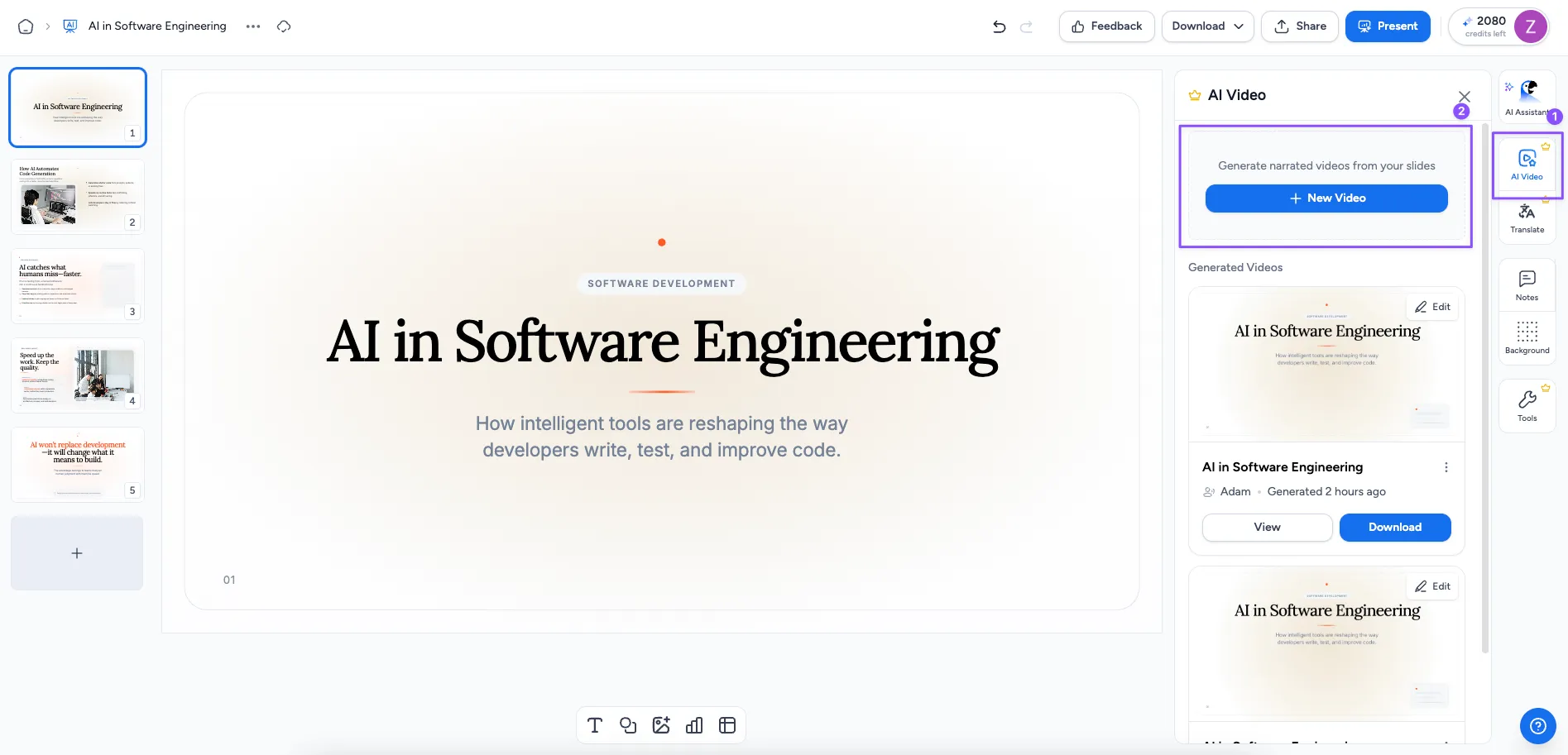
Open your presentation in the SlideSpeak editor and open the video panel from the side bar. This is where you turn a set of slides into a narrated AI video presentation. Click Create new video to start from scratch, or open an existing video to make changes to one you generated earlier.
Step 2. Generate the narration
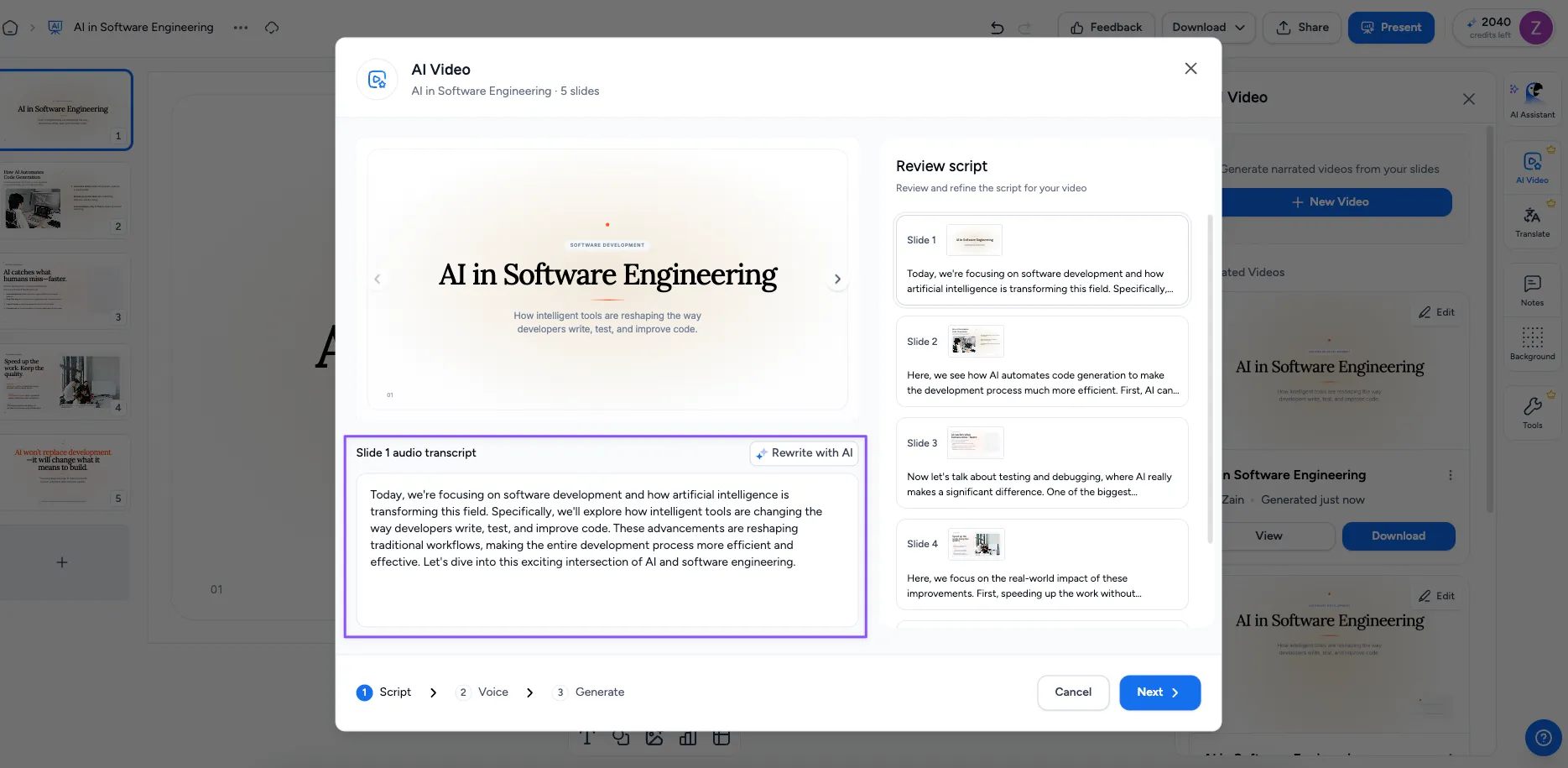
Generate the narration for your video. SlideSpeak writes a voiceover script from your slides, which becomes the spoken audio for each scene. Review the narration and tweak the wording if you want.
Step 3. Select your custom voice and pick a tone
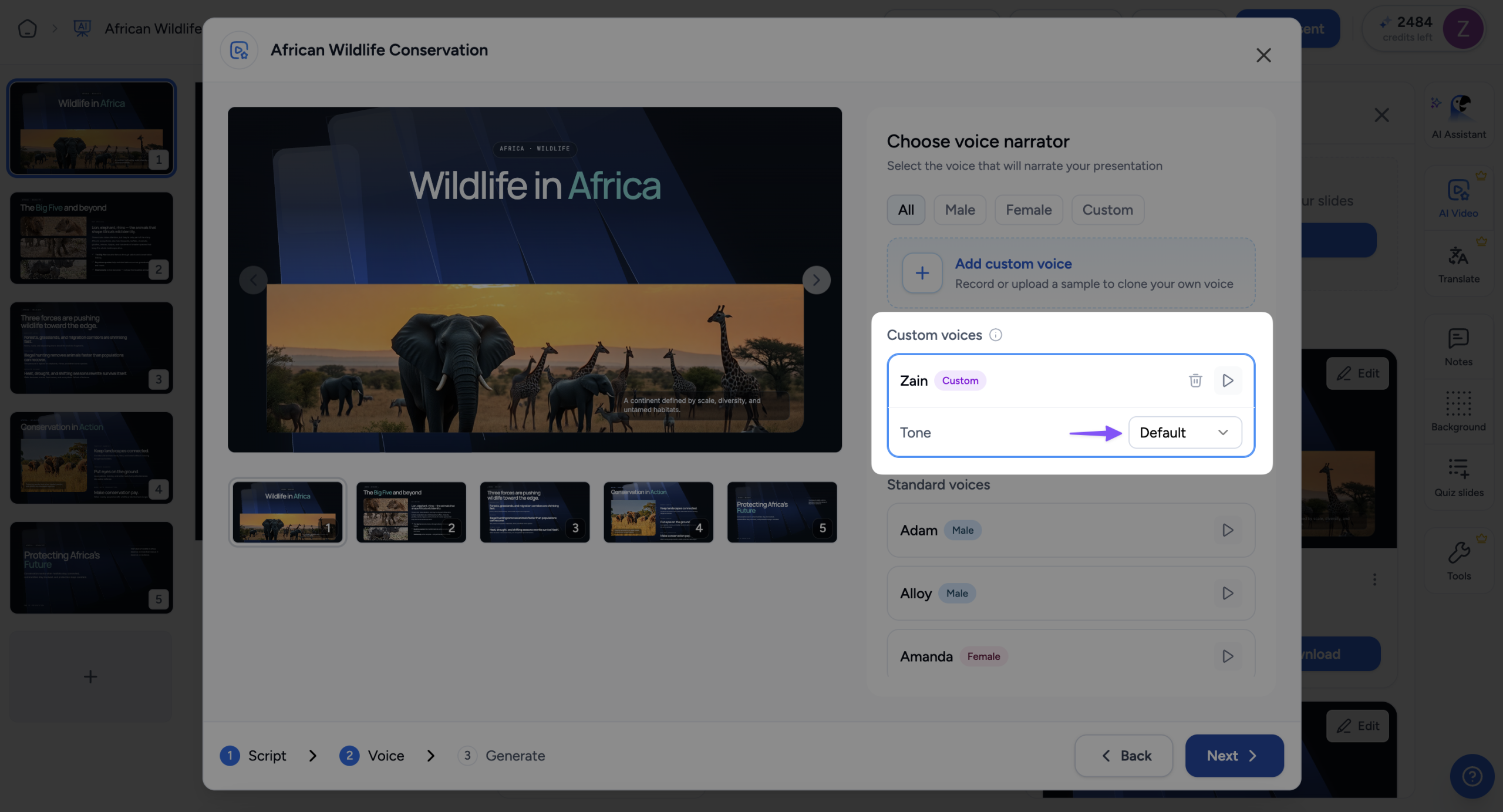
In the voice step, find your custom voice under Custom voices and select it. If you have not created a custom voice yet, click Add custom voice to record or upload a sample first. Our guide on creating an AI video presentation with your own voice walks you through it.
When your custom voice is selected, a Tone dropdown appears on the voice card. Open it and pick the delivery style you want, for example Excited for an energetic, upbeat narration. The tone applies to the whole video, so every scene is spoken in the same style.
Step 4. Generate your video
Continue to the final step and click Generate. SlideSpeak renders your video with your custom voice narrating in the tone you picked.
That’s it
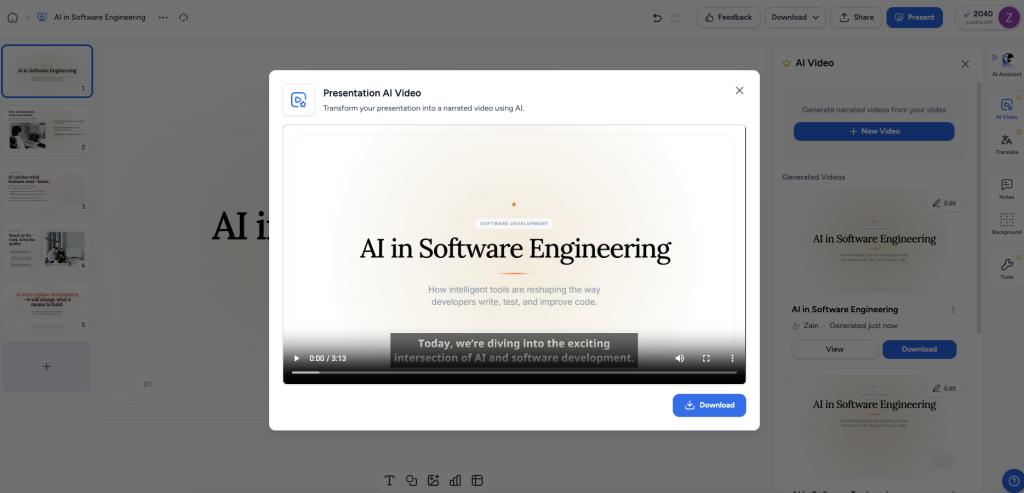
Your AI video presentation is generated with your own voice speaking in the tone you chose. If the delivery does not feel right, open the video again, pick a different tone, and generate a new version. The same voice clone can cover everything from lively product demos to calm step-by-step tutorials.
Need more help?
If you have any questions or need assistance, feel free to contact our support team at support@slidespeak.co