

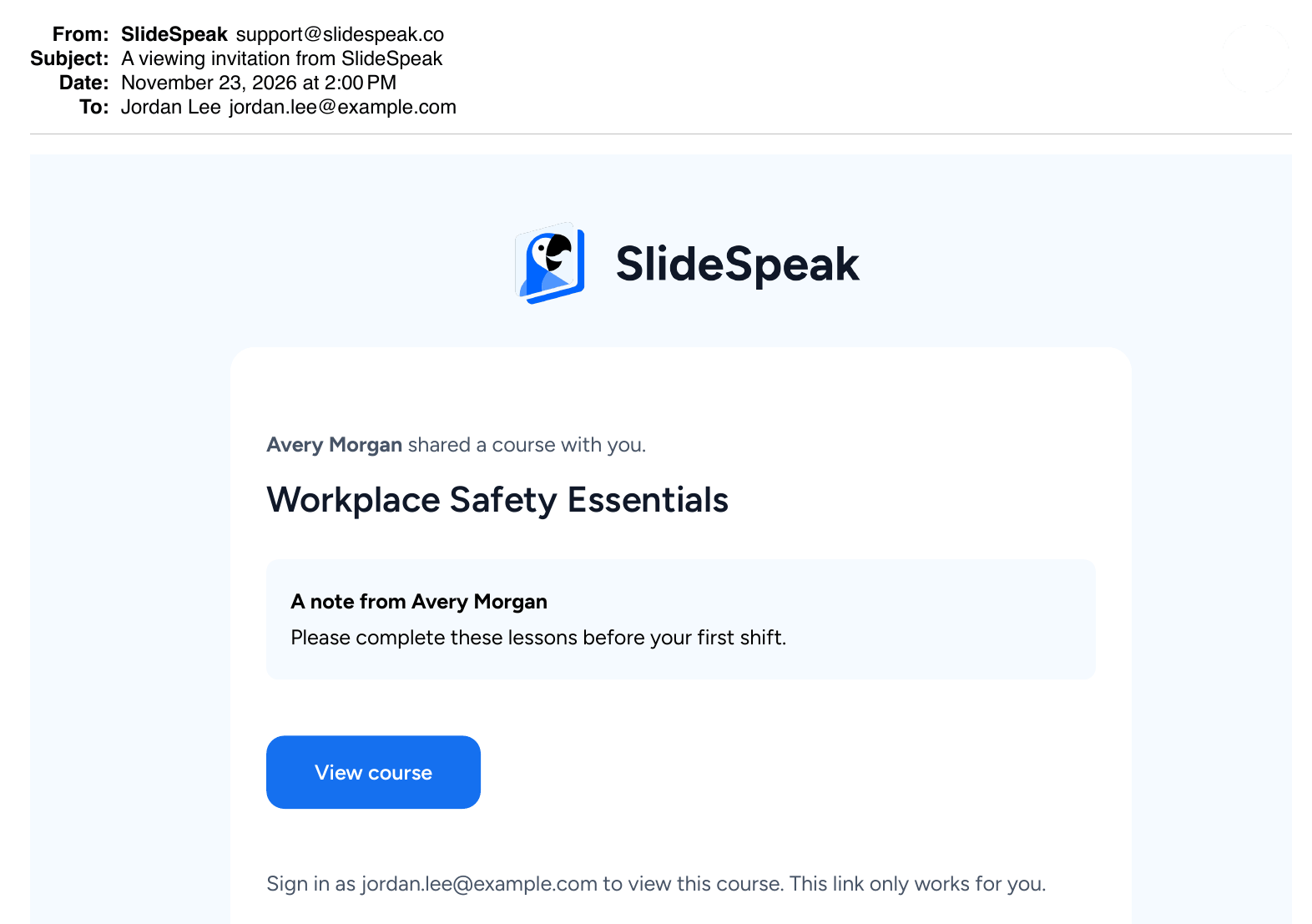
Select View course in your invitation email. If the course outline opens, choose View deck beside a lesson to begin. If you see a welcome screen, sign in with the email address shown there.
Find the invitation email
Search your inbox for A viewing invitation from SlideSpeak, sent by SlideSpeak (support@slidespeak.co). Check your spam or promotions folder if you can’t find it.
Read the line under View course. If it says Sign in as followed by your address, use that account. If it says No SlideSpeak account needed, you can open the course without signing in.
Sign in with the invited email address
Check the address under Invitation for. Choose Sign in to start if you have an account. If you’re signed in with a different address, choose Switch account.

Create an account by email
- Select Create your free account. Check the prefilled email address and select Continue.
- In that inbox, open Here is your SlideSpeak login code. The code is valid for 15 minutes. If you need a new one, select Resend Code in SlideSpeak.
- Enter the code in Login Code and select Confirm. Your course outline opens.
If the course still won’t open
You may see This course isn’t available to you when you open a link the owner sent you directly.
- Signed out? Select Sign in and use the address the owner invited.
- Different address on screen? Choose Use another account to switch.
- Already using the invited address? Sign out, sign back in and reopen the course link. If you still can’t get in, ask the owner to check your address on the course’s People list.
If someone forwarded an invite-only email to you, ask the owner to invite your address. If you can open the course but a lesson has no View deck button, ask whether its slides are ready.
Need more help?
If you have any questions or need assistance, feel free to contact our support team at support@slidespeak.co