

Once you have more than a handful of decks, folders keep them tidy. You can put folders inside folders, drag presentations into them, and rename or remove them at any time. This article also shows how to duplicate a whole presentation and how to copy slides from one deck into another.
Before you start
- Folders, duplicating and copying slides are free on every plan.
- Each library has its own folders: your presentations, your uploaded documents (in Document Chat), your translated presentations and your video presentations. A folder you make in one doesn't show up in the others.
- Your presentations are under Presentation in the left sidebar, in the list called My presentations.
Step 1: Create a folder
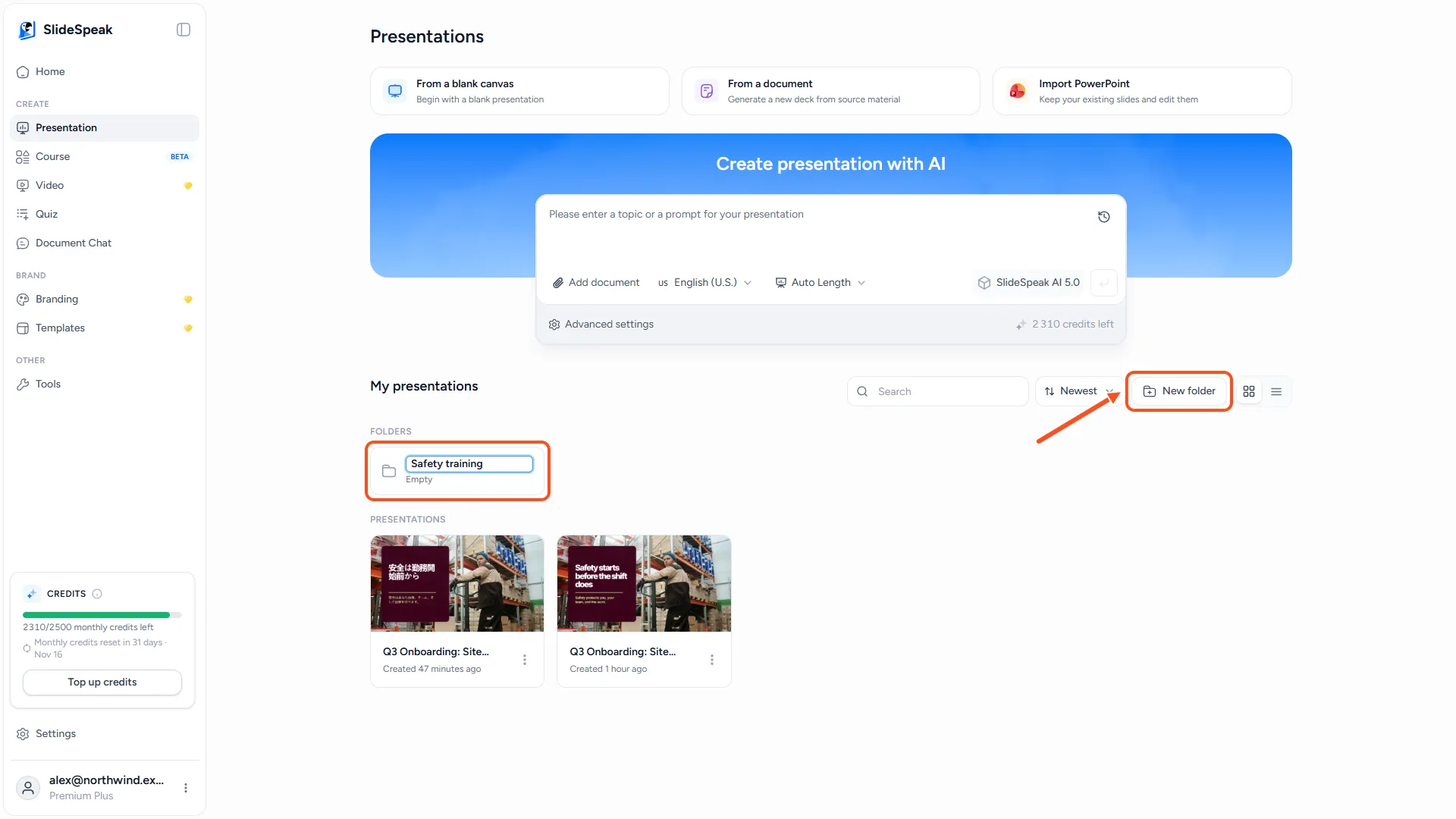
Click Presentation in the left sidebar and scroll to My presentations. Click New folder next to the search box. A folder called Untitled folder appears with its name ready to edit. Type a name and press Enter.
To make a subfolder, open a folder and click New folder again. You can nest folders as deep as you like. The path at the top of the list shows where you are, and you can click any part of it to go back up.
Step 2: Move presentations into a folder
There are two ways:
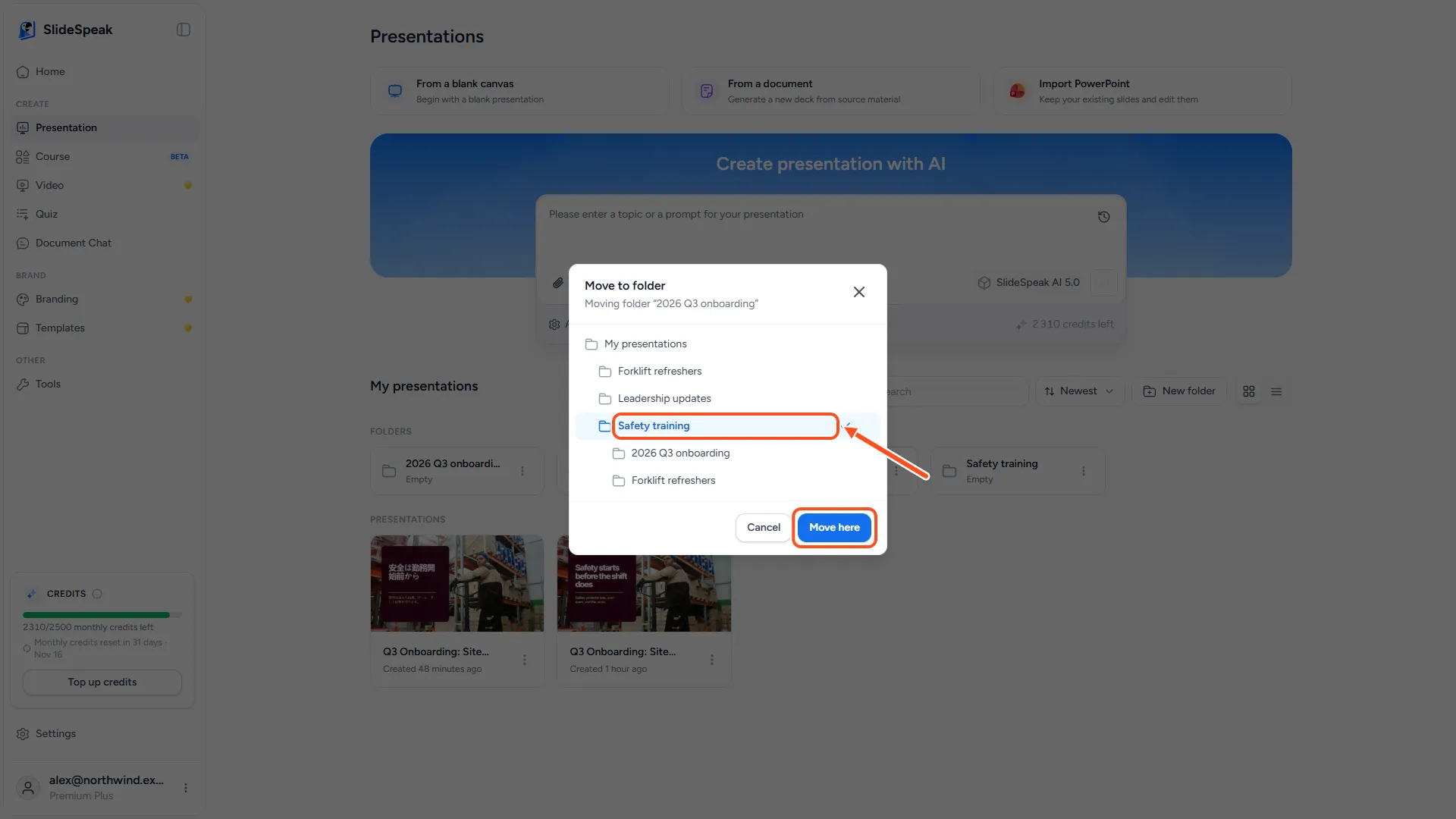
- Drag and drop: drag a presentation card onto a folder.
- Menu: click the ⋯ menu on a presentation card, choose Move to folder, pick the folder, and click Move here. You can also make a new folder from this window.
To move several presentations at once, tick the checkbox on each card first, then drag them together.
Step 3: Rename, move or remove a folder
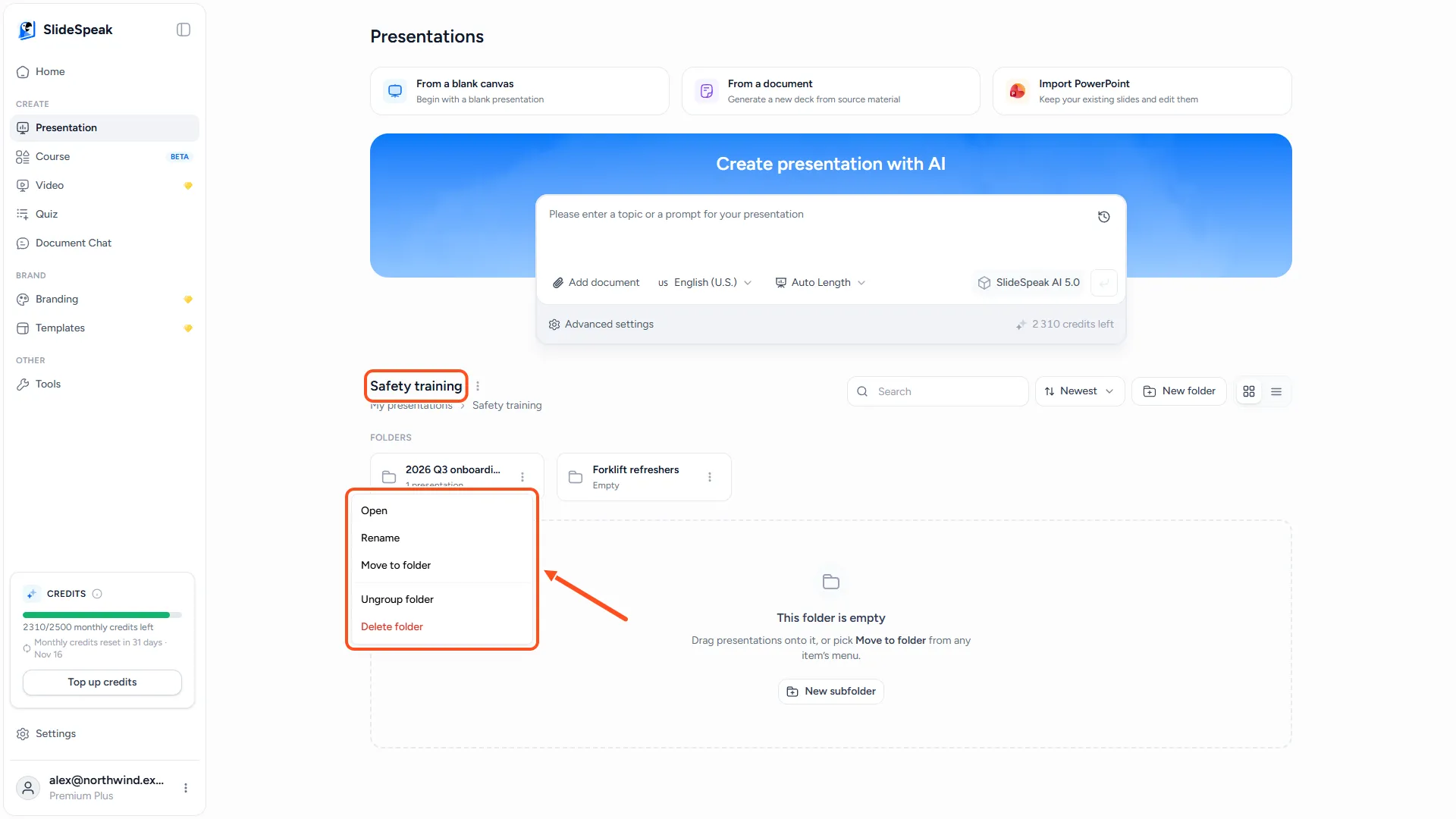
Click the ⋯ menu on a folder to see its actions:
- Rename: change the folder's name.
- Move to folder: put the whole folder, with everything in it, inside another folder.
- Ungroup folder: remove the folder but keep everything in it. Its presentations and subfolders move up one level.
- Delete folder: delete the folder and everything inside it. This can't be undone. SlideSpeak shows how many items and subfolders it will delete, and offers Ungroup instead if you only want to drop the folder.
Step 4: Duplicate a presentation
A copy is useful when you want to reuse a deck for a new audience, or keep the original before big changes.
- From the library: click the ⋯ menu on a presentation card and choose Duplicate.
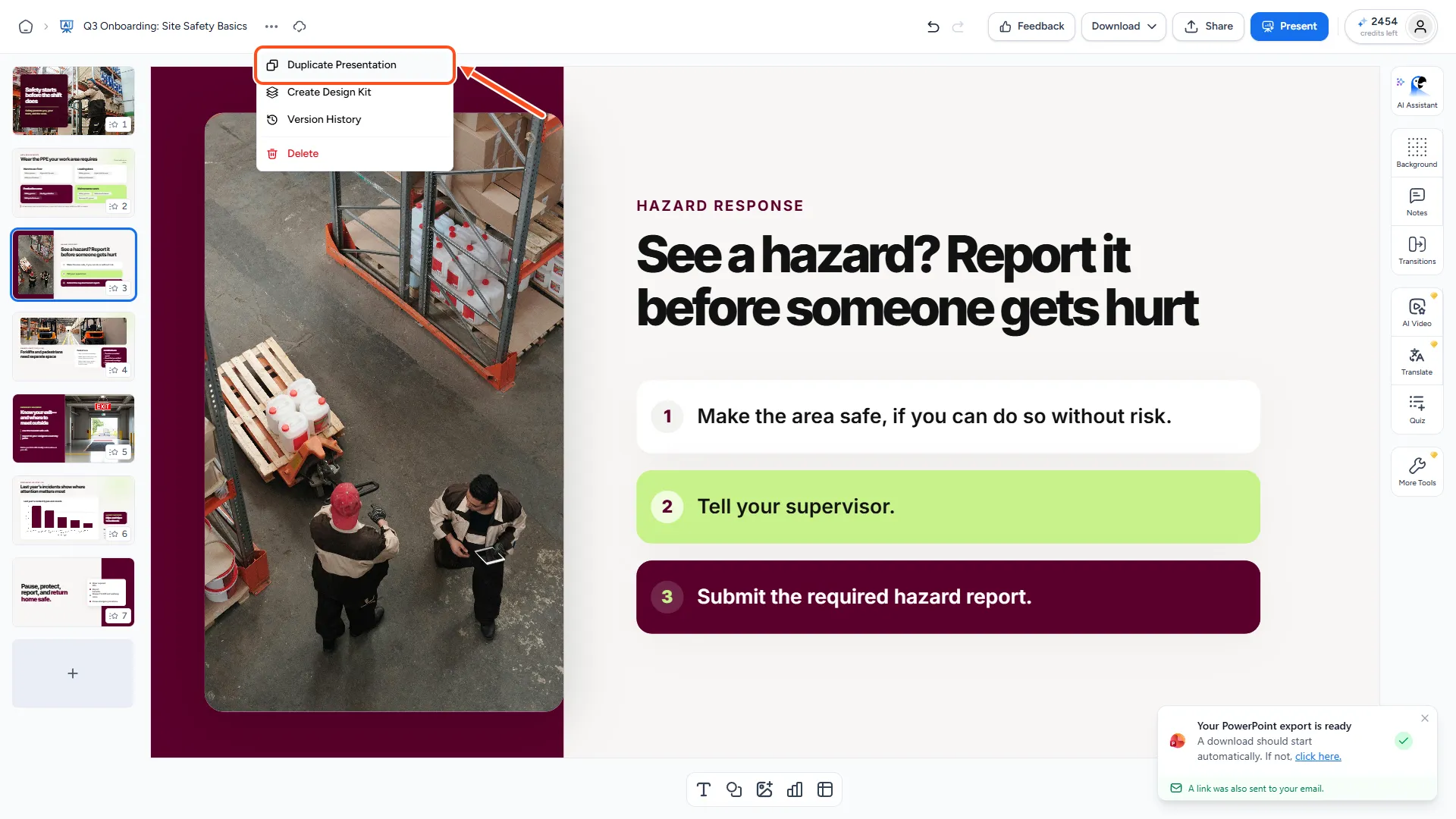
- From the editor: click the ⋯ menu next to the presentation name at the top left and choose Duplicate Presentation.
SlideSpeak makes a copy called "Copy of" followed by the original name, and opens it in the editor. If someone shares a presentation with Anyone with the link, you can open it and duplicate it to get your own copy to edit.
Step 5: Copy slides into another presentation
- Open the presentation that has the slides you want.
- In the slide list on the left, right-click a slide and choose Copy. To copy several slides, hold Shift or Ctrl (Cmd on Mac) and click them first.
- Open the other presentation.
- Right-click the slide you want the copies to follow and choose Paste. The slides are added right after it.
You can also use the keyboard: Ctrl+C and Ctrl+V (Cmd+C and Cmd+V on Mac). Cut works the same way, but removes the slides from the first deck. To make a copy of a slide inside the same deck, right-click it and choose Duplicate, or press Ctrl+D (Cmd+D).
Pasted slides take on the transition of the deck you paste them into. They keep their own content and styling, so if the two decks use different designs, check the pasted slides and adjust them.

Troubleshooting
- My folder is not in the Translate page or Document Chat. Each library has its own folders. Create the folder in the library where you need it.
- I can't find a presentation. Use the search box above the library, or check inside your folders. Presentations other people shared with you are under Shared with me: click the My presentations heading to switch.
- Paste doesn't add any slides. Copy the slides again, then paste. You need edit access to the presentation you paste into.
- I deleted a folder by mistake. Deleting a folder can't be undone. Next time, use Ungroup folder if you only want to remove the folder itself.
Need more help?
If you have any questions or need assistance, feel free to contact our support team at support@slidespeak.co