

Once SlideSpeak has turned your slides into an AI video presentation, you can share that video with a public link. Anyone with the link can watch it in their browser, so there's no need to download the file or upload it to a separate video hosting platform. Below, we'll walk through both ways to open your video and how to make it public.
Step 1: Open your video
There are two ways to get to a finished video:
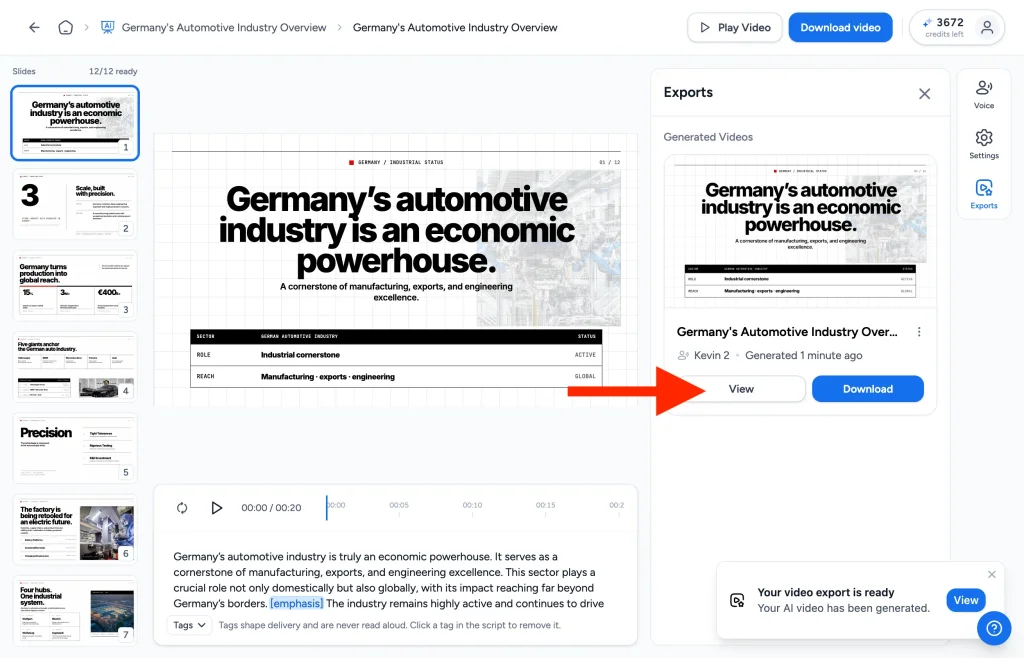
- Right after it's generated: a notification pops up in the bottom-right corner saying "Your video export is ready". Click View.
- Anytime later: open your presentation, click Exports in the right-hand side panel, and click View on the video you want to share.
Step 2: Click Share
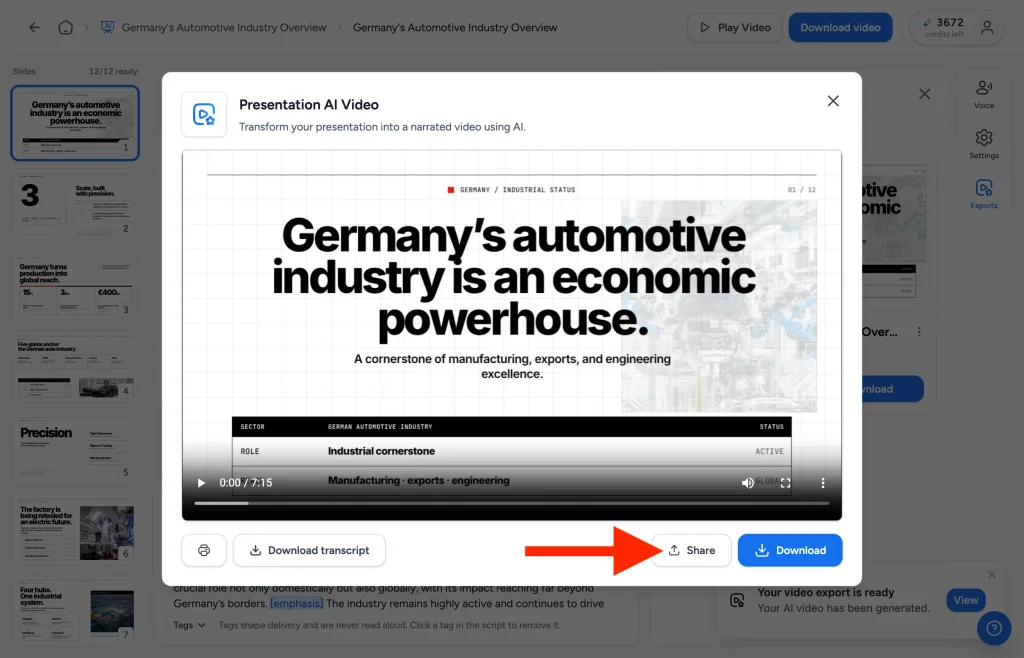
The video opens in a preview window where you can watch it one more time. Below the player, click Share, right next to the Download button.
Step 3: Make your AI video presentation public
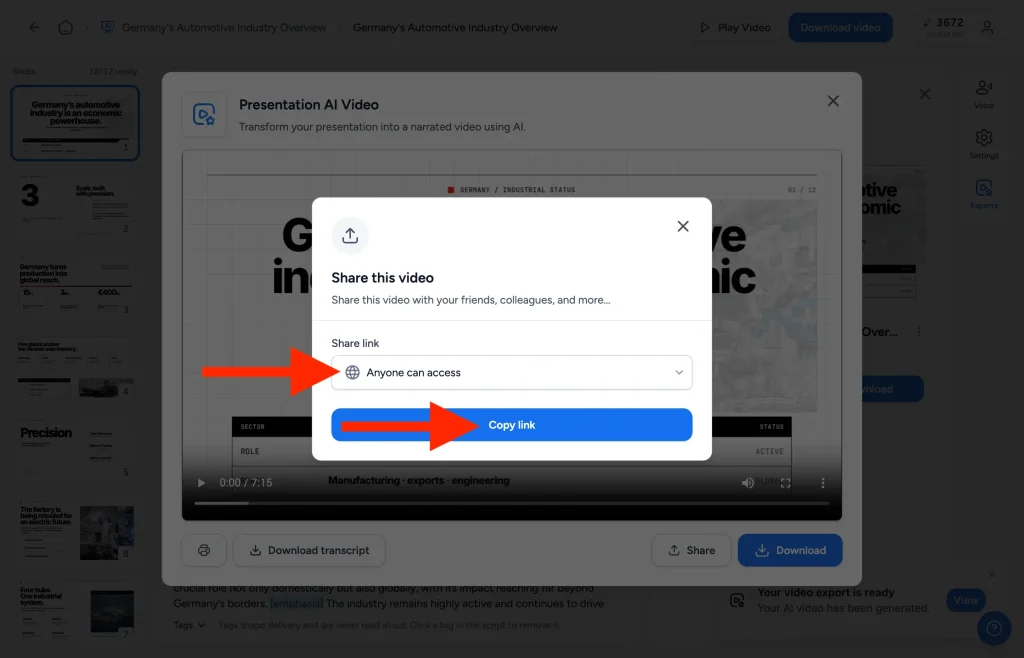
In the share dialog, set the Share link dropdown to Anyone can access. Then click Copy link, and the public link lands on your clipboard, ready to paste anywhere. You can reopen this dialog at any time to change who can access the video.
What your viewers see
Anyone who opens the link lands on a clean SlideSpeak video page. The video plays directly in the browser, so viewers don't need a SlideSpeak account, and they can't edit your presentation or see anything else in your workspace.

Use the link in your LMS
Because the link is public, it works anywhere a URL works. For example, you can paste it into Canvas, Moodle, Blackboard, or any other learning management system, and students can watch the video without extra logins. In Canvas, you can add the link as an external URL module item so it sits right inside your course modules.
In other words, SlideSpeak hosts the video for you. Therefore, you don't need a separate video platform like Echo360 or Panopto just to get a lecture recording in front of your students. Afterwards, if you want to check understanding, you can also export a quiz from the same presentation to Canvas or Schoology.
That's it!
Open your video, click Share, set it to Anyone can access, and copy the link. Before you share an AI video presentation with a class, you can also add captions or narrate it with your own cloned voice. And if you'd rather send a file instead of a link, the same window has a Download button for the MP4.
Need more help?
If you have any questions or need assistance, feel free to contact our support team at support@slidespeak.co