

Use version history to return a presentation to an earlier state after you edit slides, switch templates, or make changes with AI. SlideSpeak creates recovery points while you work, so you can restore the whole presentation from one place.
Before you start
Version history requires a paid plan. Free accounts do not record presentation versions.
| Plan | Version history |
|---|---|
| Free | Not available |
| Premium | 30 days |
| Premium Plus | 90 days |
| Lifetime | 90 days |
Open version history
- Sign in at app.slidespeak.co.
- Open Presentations, then choose a presentation from My presentations.
- Find the presentation name in the top-left corner of the editor.
- Click the three-dot menu beside the presentation name.
- Select Version History from the menu.
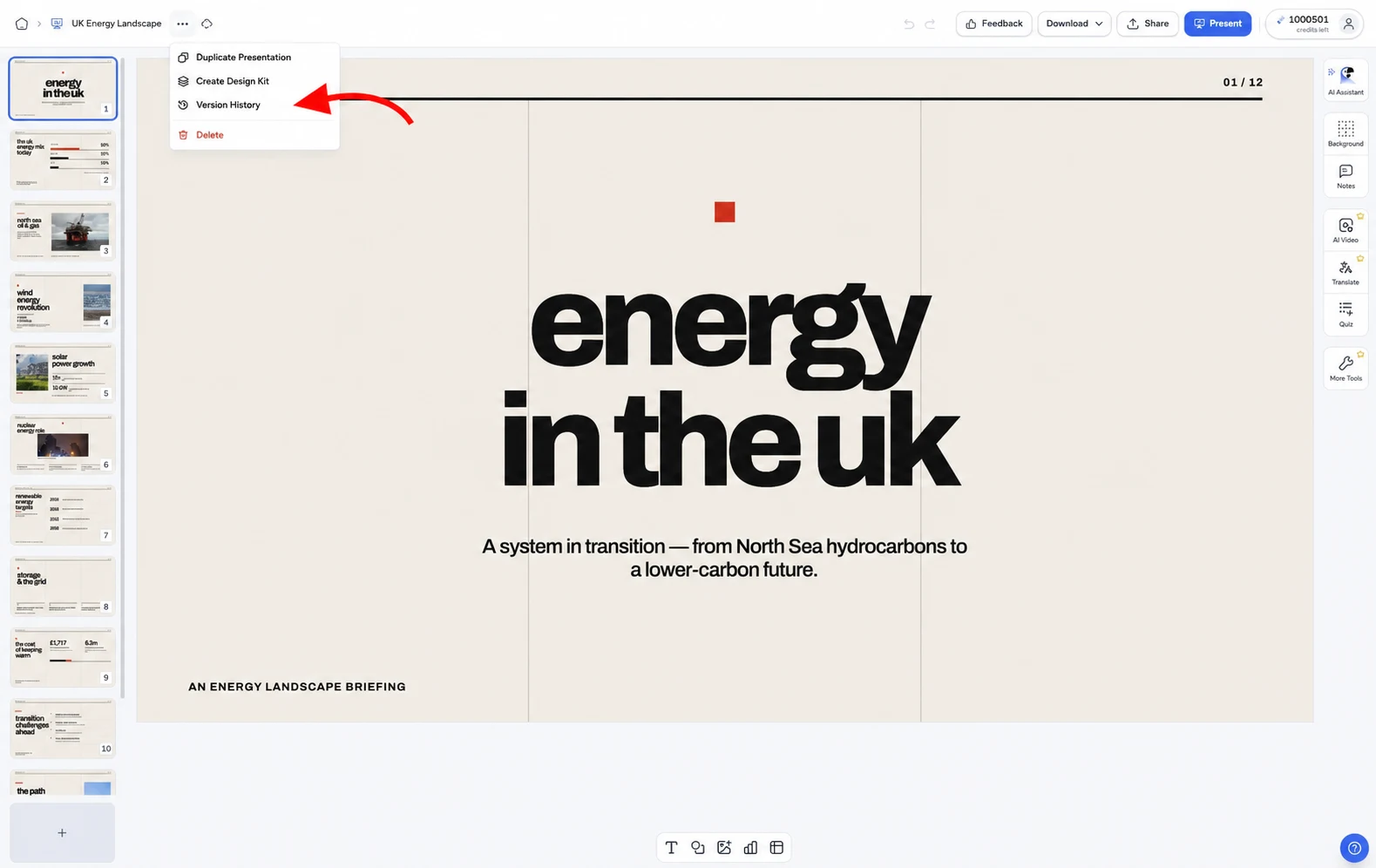
Open the three-dot menu beside the presentation name, then click Version History.
SlideSpeak opens the Version History panel on the right side of the editor. The panel lists the current presentation and each version your plan still keeps. Use the date and time on each entry to find the version you need.
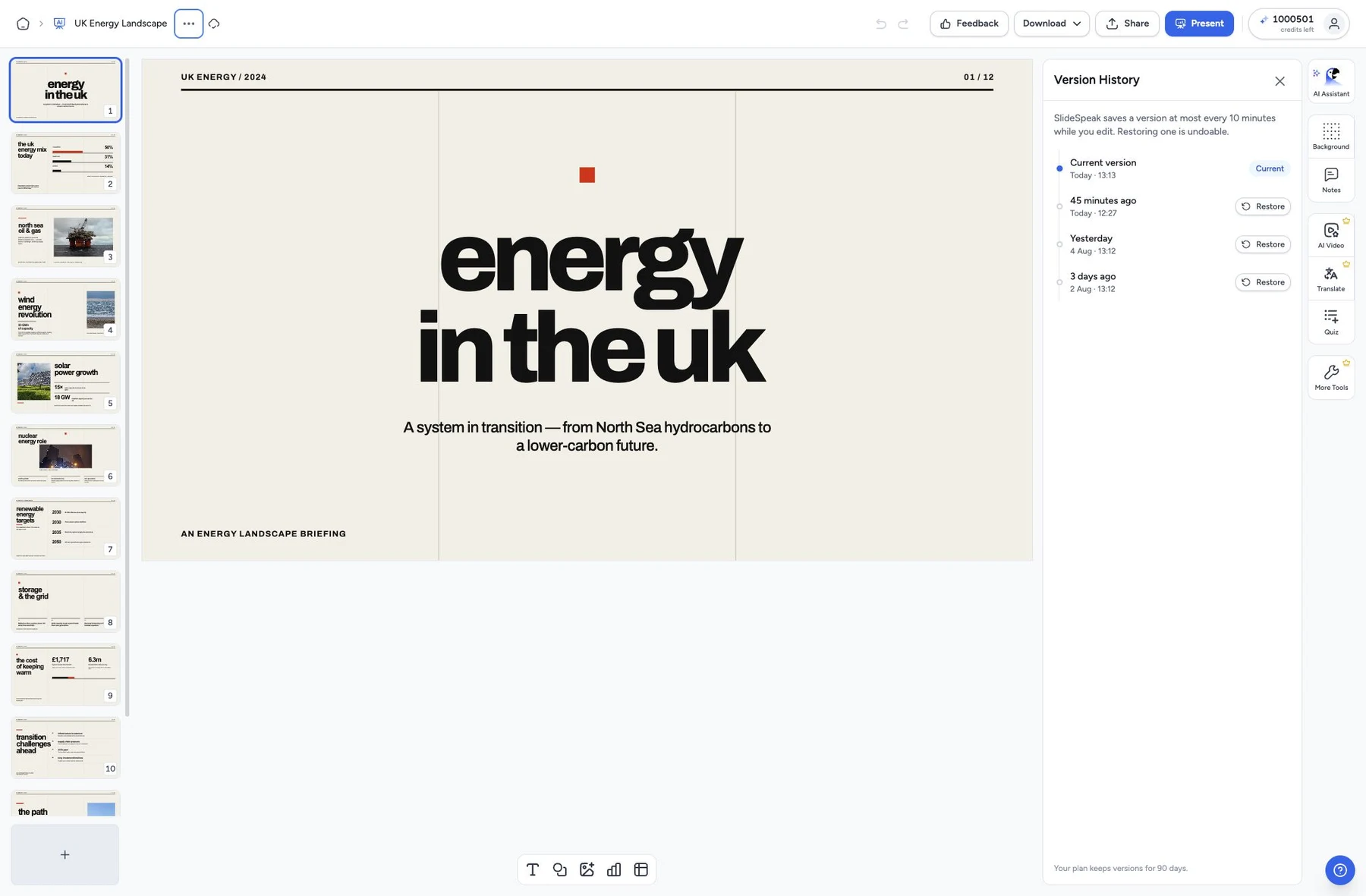
The panel shows each saved version with its date and time. Click Restore beside the version you want.
Restore an earlier version
- Find the date and time you want in the Version History panel.
- Click Restore beside that version.
- Check the restored slides in the editor.
SlideSpeak restores the whole presentation, including its slides, content, and design. It keeps the version you replaced, so you can recover it again. You can also click Undo during the same editing session to bring the newer version back.
How SlideSpeak saves versions
SlideSpeak creates a version at most once every 10 minutes while you edit. It also creates a recovery point before changes that affect the whole presentation, such as switching the template or restoring another version.
Version history records points in time rather than every individual edit. Use the editor's Undo and Redo controls for recent changes within your current editing session.
Version History is missing or empty
Check the following if you cannot find the menu option or an earlier version:
- You use the Free plan: Free accounts do not include version history. SlideSpeak starts recording versions after you upgrade to Premium, Premium Plus, or Lifetime.
- The presentation is new: The panel stays empty until you make and save changes.
- The version is too old: Premium keeps versions for 30 days. Premium Plus and Lifetime keep them for 90 days.
- You upgraded from Free: SlideSpeak cannot restore changes you made before the upgrade.
Need more help?
If you have any questions or need assistance, feel free to contact our support team at support@slidespeak.co