

If your microphone is not working when you record a voice sample in SlideSpeak, you’ll usually see one of two errors: “Couldn’t start recording” or “Microphone access was denied”. In almost every case, the cause is a permission or device issue on your computer, and it only takes a minute to fix. Below, we’ll go through the fixes in order, starting with the most common one.
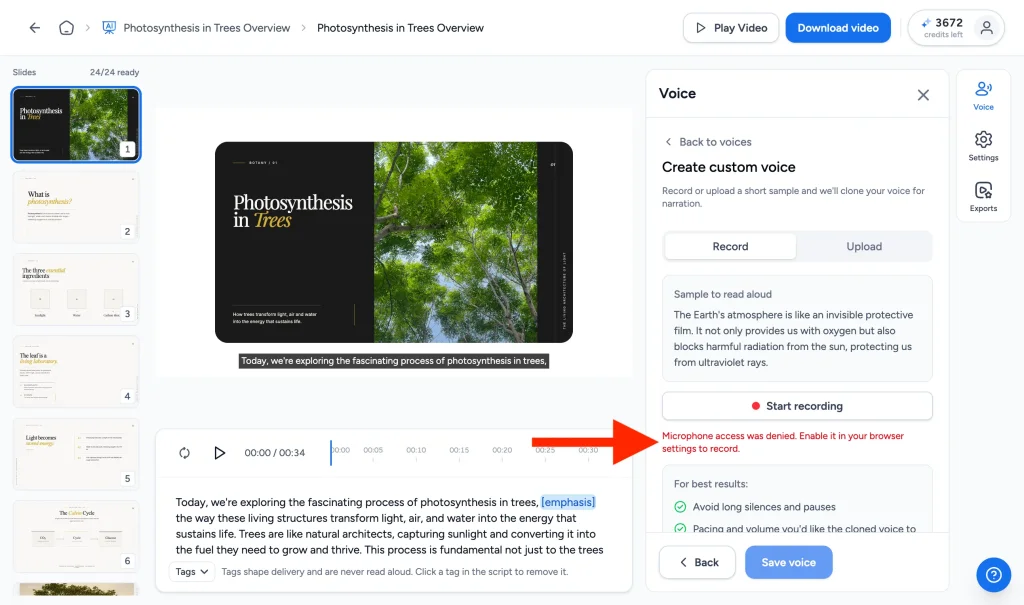
Allow microphone access in your browser
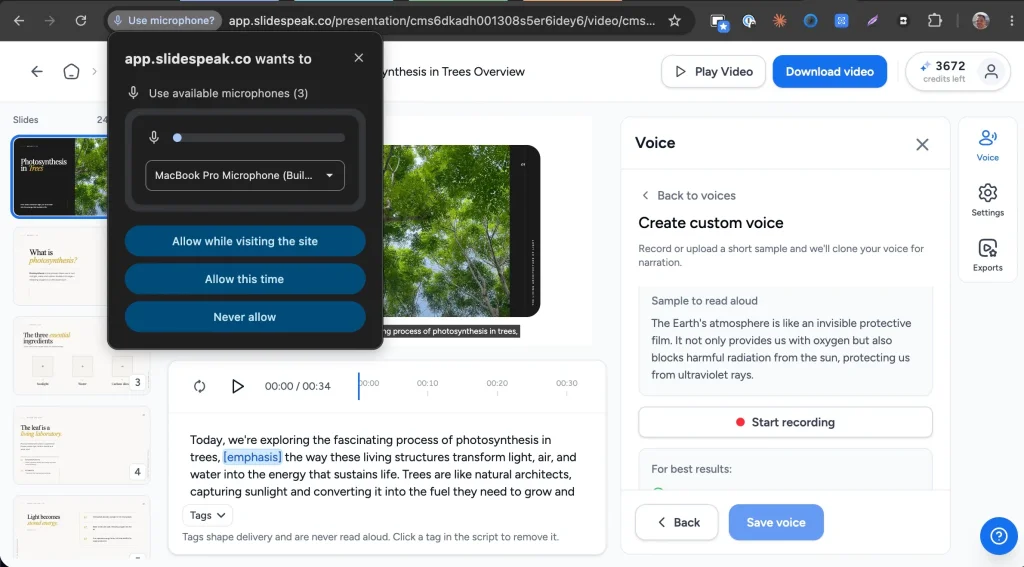
When you click Start recording for the first time, your browser asks for permission to use the microphone. In Chrome, the prompt appears next to the address bar. Choose Allow while visiting the site and the recording starts right away.
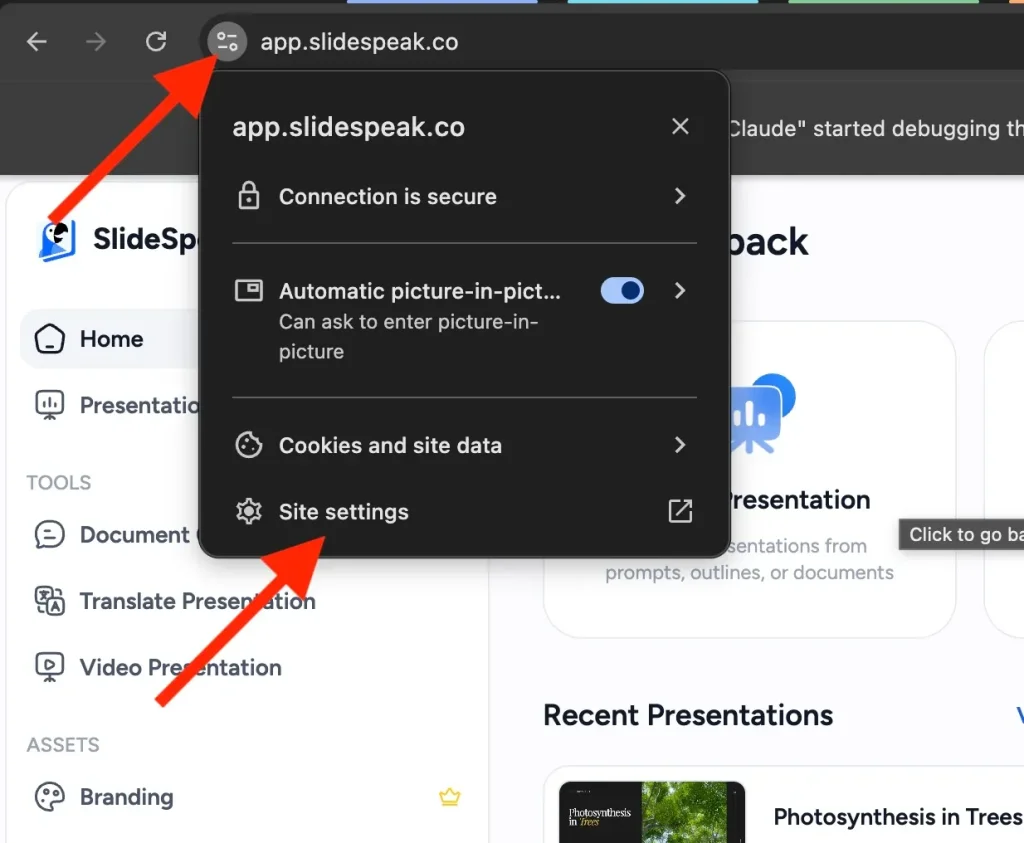
If the prompt was dismissed or blocked earlier, Chrome won’t ask again, so SlideSpeak can’t hear anything. However, you can allow the microphone manually. First, click the icon to the left of the address bar and choose Site settings.
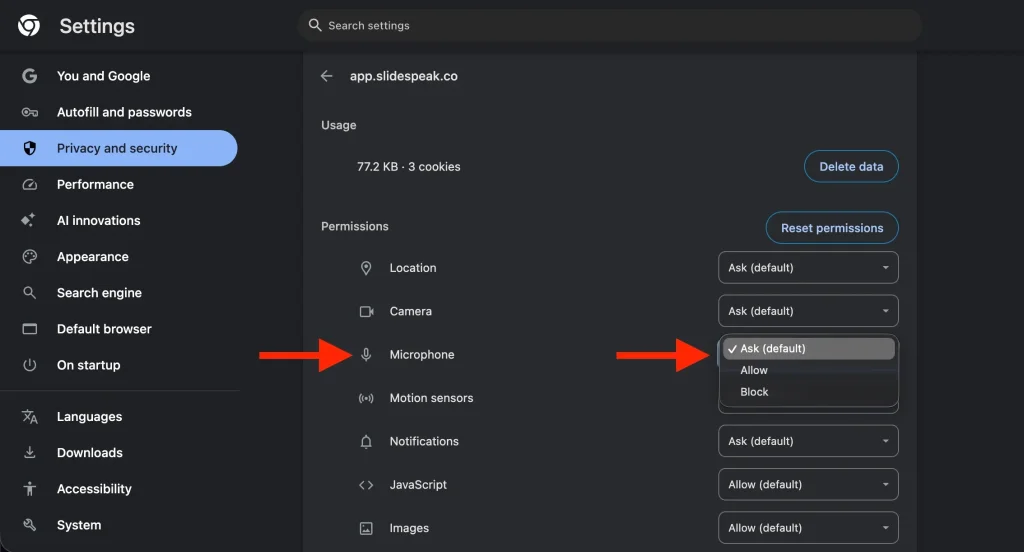
Next, find Microphone in the permissions list and set it to Allow. Then go back to SlideSpeak, reload the page, and click Start recording again. Google’s guide on using your camera and microphone in Chrome covers this step by step.
Using another browser? The steps are almost the same:
- Edge: click the padlock icon in the address bar, set Microphone to Allow, and reload the page.
- Safari: open Safari → Settings → Websites → Microphone and set slidespeak.co to Allow.
- Firefox: click the permissions icon in the address bar, remove the microphone block, and click Start recording again.
Check your operating system’s microphone privacy settings
This is the step most people miss. Your operating system has its own microphone privacy setting, separate from the browser. If it blocks your browser, SlideSpeak shows the generic “Couldn’t start recording” error, because the browser itself can’t see the microphone at all.
- macOS: open System Settings → Privacy & Security → Microphone and turn on the toggle for your browser. Then quit and reopen the browser. Apple explains this in Control access to your microphone on Mac.
- Windows: open Settings → Privacy & security → Microphone and turn on both Microphone access and Let apps access your microphone. Microsoft’s guide to microphone app permissions in Windows shows where to find these toggles.
Close other apps that are using the microphone
Video call and recording apps can lock your microphone. For example, Zoom, Microsoft Teams, Google Meet, or OBS may still hold on to it after a meeting ends. Close those apps (or leave the call), then try recording again. If that doesn’t help, restart your browser to release the device.
Make sure a microphone is connected
Finally, check that your computer actually has a working microphone. This sounds obvious, but it’s a frequent cause on desktop PCs and with wireless headsets. A Bluetooth headset that has gone to sleep, or an unplugged USB microphone, leaves the browser with no input device. To test it, open your system’s sound settings, speak, and watch whether the input level moves.
Microphone still not working? Upload a recording instead
If you can’t get the microphone to work right now, you don’t have to record in the browser at all. Instead, switch to the Upload tab in the same dialog and upload an MP3, WAV, or M4A file of up to 3 MB. For instance, you can record a short sample with the voice recorder app on your phone and upload that. Afterwards, continue as usual with our guide on creating an AI video presentation with your own voice.
That’s it!
In short: allow the microphone in your browser, check your operating system’s privacy settings, close apps that hold on to the microphone, and confirm a working input device. If recording still fails after all of these steps, reach out to us through the support chat and we’ll take a look together.
Need more help?
If you have any questions or need assistance, feel free to contact our support team at support@slidespeak.co