

How to Automatically Turn Meeting Notes into a Presentation with AI
Written by

Published on
On this page
Yes, AI can turn your meeting notes into a presentation. In fact, if you set it up once, you never have to do it by hand again: an AI notetaker like Granola, Fathom, or Fireflies captures the meeting, and SlideSpeak turns the transcript or summary into a finished PowerPoint in your own template. Connect the two with Zapier or n8n, and the deck simply appears after the call ends.
In this guide we’ll cover the whole workflow: which AI meeting notetakers to use, how to turn their output into slides manually in about two minutes, how to automate the entire thing, and what teams (especially sales teams) are actually doing with it.
The short answer
- Record the meeting with an AI notetaker (Granola, Fathom, or Fireflies). It produces a transcript and a structured summary.
- Feed the notes to SlideSpeak, either by uploading the transcript or by wiring the two tools together with Zapier, n8n, or the API.
- Get a deck in your own PowerPoint template, ready to send or present. The manual version takes about two minutes. The automated version takes zero.
Step 1: Record the meeting with an AI notetaker
The days of typing notes during a call are over. AI meeting notetakers join (or silently listen to) your meetings, transcribe everything, and produce a structured summary the moment the call ends. These three cover most needs, and each one has the automation hooks we’ll use later.
Granola: the bot-free notepad
Granola is the notetaker everyone’s been talking about, and its biggest selling point is that there is no bot. It runs on your computer and captures audio directly from your device, so participants never see a “Notetaker has joined” message or have to approve anything in a waiting room. You jot quick bullets during the call, and Granola enriches them with context from the transcript afterwards.
For our purposes, the important part is what happens after the meeting: Granola has native HubSpot, Slack, and Notion integrations, and on the Business plan ($14 per user per month) it connects to Zapier. Its Zapier triggers (“Note Added to Granola Folder” and “Note Shared to Zapier”) send along the meeting title, attendees, your notes, a Markdown summary, and the full transcript. That payload is everything we need to build slides.
Fathom: the best free option
Fathom takes the opposite approach: a visible bot joins your Zoom, Meet, or Teams call, records it, and delivers a summary within about 30 seconds of hanging up. It has the most generous free tier in the category (unlimited recording, transcription, and AI summaries) and the highest G2 rating among meeting notetakers. If you want to try this workflow without spending anything, start here.
On the automation side, Fathom’s Zapier app offers six triggers, including “New Transcript” and “New AI Summary”, which fire as soon as your meeting is processed.
Fireflies: built for sales teams
Fireflies is the pick for revenue teams. It transcribes in 60+ languages, layers conversation intelligence on top (talk time, sentiment, topic tracking), and syncs with every major CRM. Its Zapier trigger (“New Meeting”) fires whenever a meeting with a transcript is ready, and unlike the others it also offers its own API and webhooks if you want to skip Zapier entirely.
Otter.ai, which we recommended in an earlier version of this article, is still a solid choice for live collaborative captions. But for automating what happens after the meeting, these three have the strongest hooks.
| Tool | Best for | Meeting bot? | Free plan | Automation hooks |
|---|---|---|---|---|
| Granola | Back-to-back calls, no bot in the room | No, records on-device | Yes, limited note history | Zapier (paid plans), HubSpot, Slack, Notion |
| Fathom | Starting free | Yes | Unlimited recording and summaries | Zapier (6 triggers) |
| Fireflies | Sales teams, multilingual calls | Yes | 800 minutes of storage | Zapier, webhooks, own API, CRM sync |
The manual way: transcript to deck in two minutes
If you only need this occasionally, the manual route is quick.
Step 1: Export your notes
Grab the summary or full transcript from your notetaker. All three tools above let you copy the summary or download the transcript as a text or Word file. The AI summary is usually the better input: it’s already structured into topics, decisions, and action items.
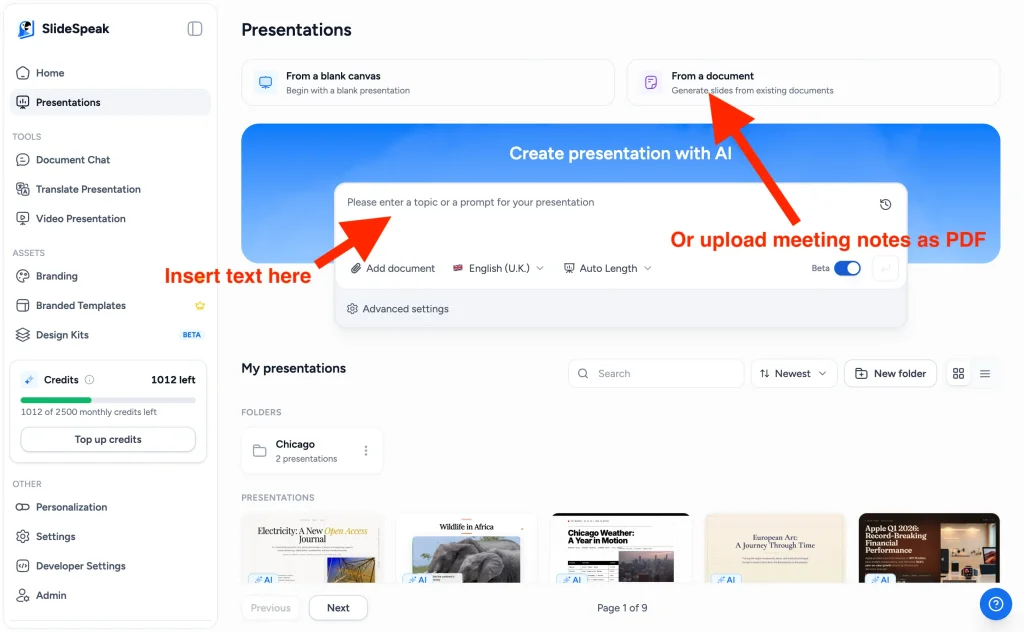
Step 2: Upload to SlideSpeak
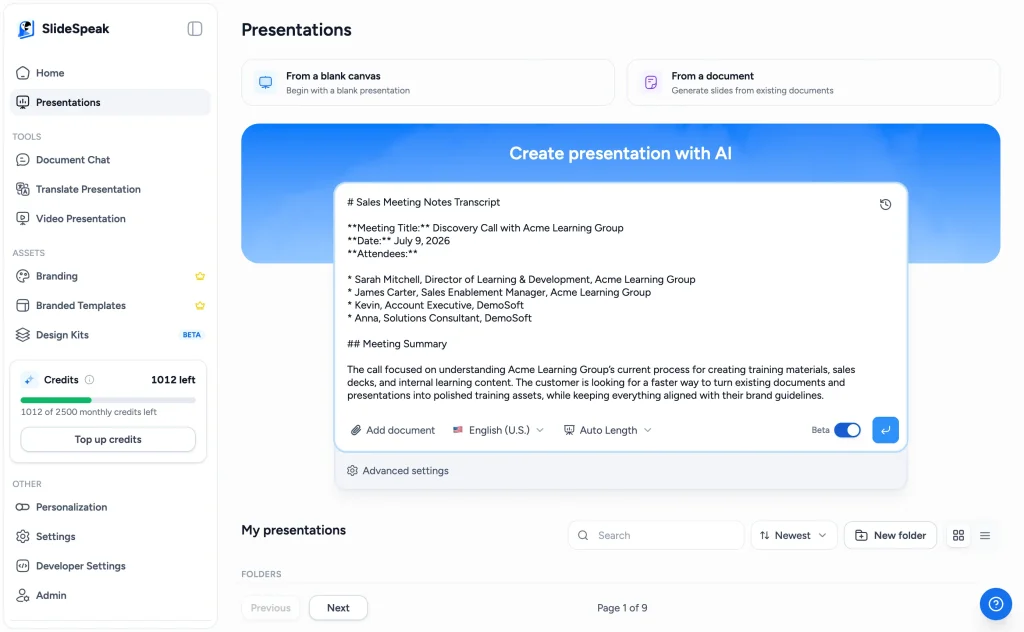
Log in at app.slidespeak.co and upload your notes (PDF, Word, or plain text all work). You can chat with the document first to pull out key points, or go straight to generating a presentation.
Step 3: Pick your template and generate
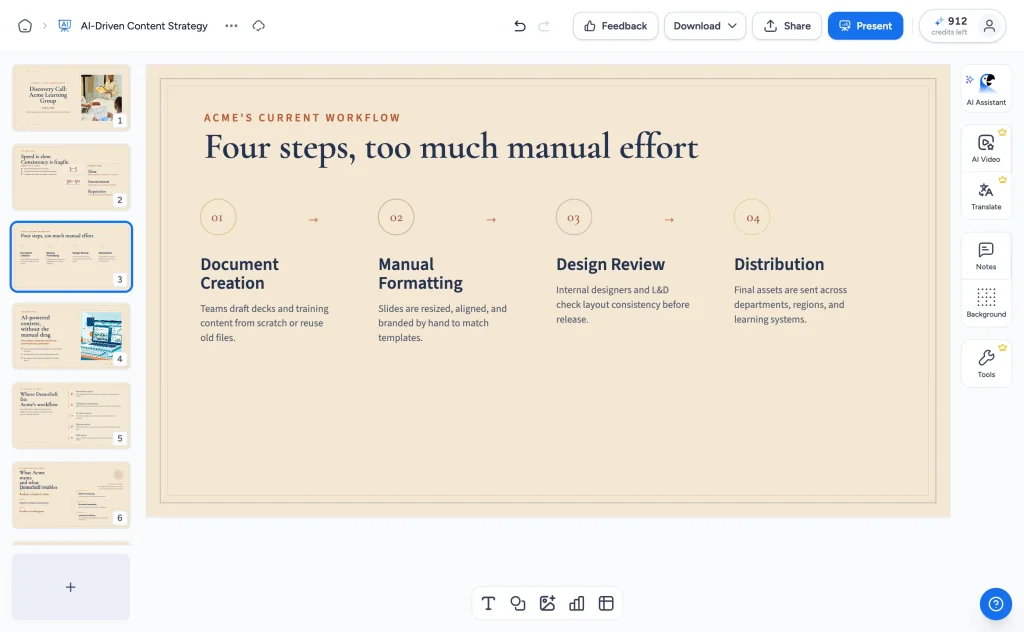
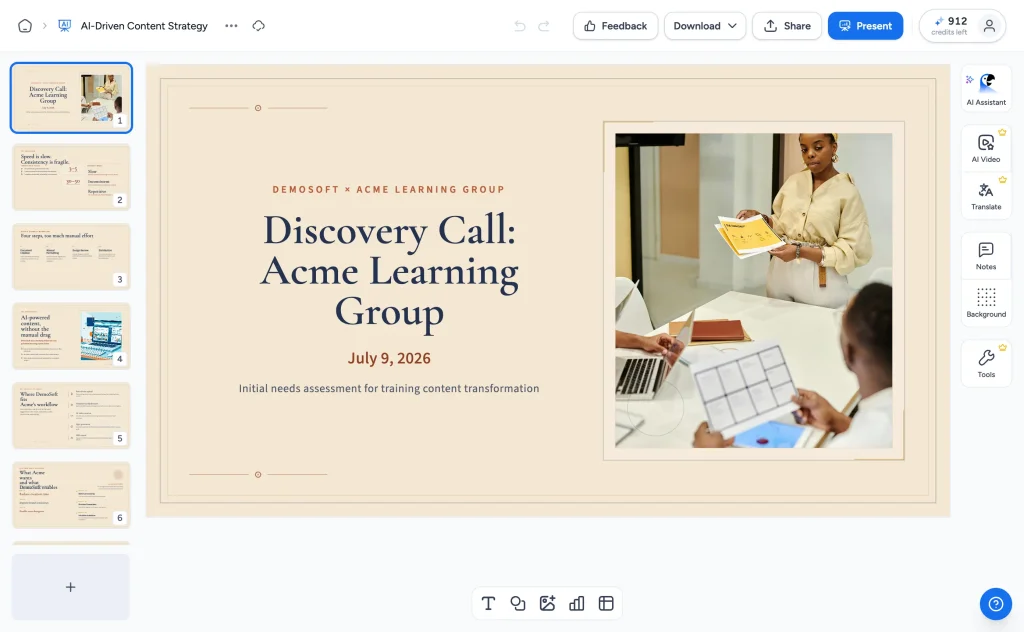
This is the step that separates a real workflow from a ChatGPT experiment: SlideSpeak generates the deck in your own PowerPoint template, so the follow-up you send looks like your company made it, not a robot. Review the outline, generate, and download as PPTX or PDF.
The automatic way: meeting ends, deck appears
Here’s where it gets interesting. Because the notetakers have triggers and SlideSpeak has a Zapier app and an API, you can remove yourself from the loop entirely.
Option A: Zapier (no code)
A three-step Zap does the whole job:
- Trigger: Granola’s “Note Added to Granola Folder” (for example, a folder called “Client calls”), Fathom’s “New AI Summary”, or Fireflies’ “New Meeting”.
- Action: SlideSpeak’s “Generate Presentation”. Map the meeting summary into the content field, set the number of slides, and choose your template.
- Delivery: Add a Gmail, Outlook, or Slack step so the finished deck lands in your inbox or your team channel.
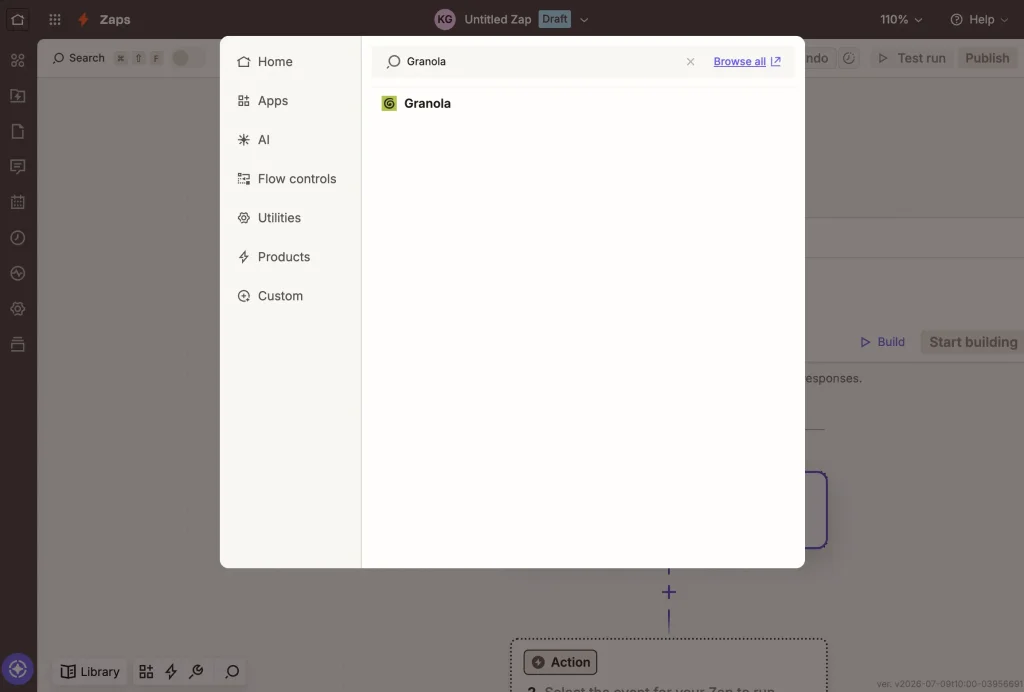
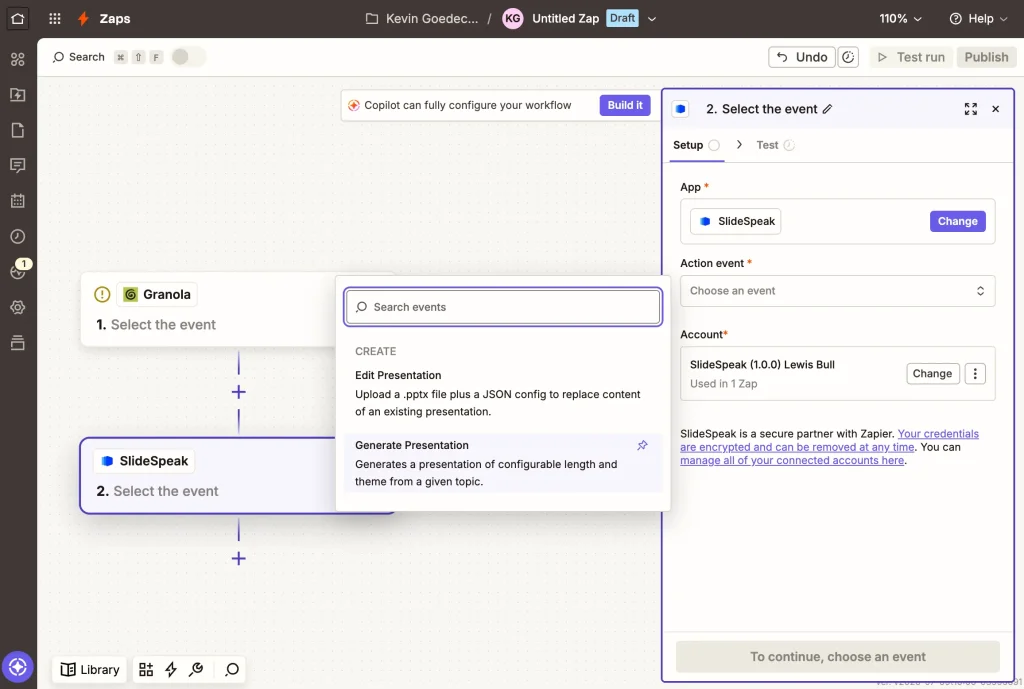
We walked through the SlideSpeak side of Zapier in more detail in our guide to automating reports and presentations with Zapier.
Option B: n8n
There’s no dedicated SlideSpeak node in n8n yet, but you don’t need one. Use a webhook or the Fireflies trigger to catch the transcript, then call the SlideSpeak API from an HTTP Request node:
POST https://api.slidespeak.co/api/v1/presentation/generate
X-API-Key: YOUR_API_KEY

{
  "plain_text": "{{ $json.meeting_summary }}",
  "template": "your-branded-template-id",
  "tone": "professional",
  "length": 8,
  "custom_user_instructions": "Structure the deck as a client follow-up: recap, challenges, proposed solution, next steps."
}
The response gives you a task ID to poll (or set run_sync to true), and the finished file URL can be emailed, posted to Slack, or attached to a CRM record in the next node. The template parameter accepts your branded template ID, so every generated deck comes out in company branding.
Option C: the API directly
If you’re a developer, skip the middleman: the SlideSpeak API accepts plain text, uploaded documents, or a pre-built outline, and returns a finished PowerPoint. The API docs cover authentication and all parameters.
What teams actually use this for
Sales: the follow-up deck that sends itself
This is the strongest use case we’ve seen. The rep finishes a discovery call, and within the hour the prospect has a short, branded recap deck in their inbox: their situation, their challenges in their own words, how the product addresses each one, pricing, and next steps. No competitor is following up that fast, and the rep did nothing.
The trick is enforcing a fixed structure so every follow-up deck looks the same. Pass instructions like these through SlideSpeak’s custom instructions field (in the app, in Zapier, or via custom_user_instructions in the API):
Create a follow-up presentation for this sales call transcript.
Use exactly this structure:
Slide 1: Recap of the customer's current situation and goals
Slide 2: The challenges they described, in their own words
Slide 3: How our product addresses each challenge
Slide 4: Pricing and packages discussed on the call
Slide 5: Agreed next steps, with owners and dates
Keep it under 8 slides and write from the customer's perspective.
Combine that with the sales_pitch tone and your company template, and the stack practically runs itself: Fireflies records the call, HubSpot logs it, SlideSpeak builds the deck, and Zapier emails it.
Beyond sales
- Agencies and client services: the weekly client sync becomes a status deck in the agency’s template, automatically, every week.
- Consultants: discovery workshops and stakeholder interviews turn into findings readouts without a night of slide assembly.
- Customer success: a quarter’s worth of call notes becomes the first draft of the QBR deck.
- Internal reporting: leadership syncs and all-hands meetings turn into update slides for the people who weren’t in the room.
- Research and teaching: user interview transcripts become insight decks for stakeholders, and lecture recordings become teaching slides.
Why not just paste the transcript into ChatGPT?
You can, and you’ll get a decent text outline. But then you’re copying that outline into PowerPoint slide by slide, fixing the layout, and applying your company template by hand. ChatGPT also can’t be triggered by your notetaker, so you’re back to doing this manually after every call. A dedicated AI presentation generator gives you an actual PPTX file, in your actual template, from a workflow that runs without you.
Frequently asked questions
Can AI turn my meeting notes into a presentation?
Yes. Upload your notes or transcript to SlideSpeak and it generates a finished PowerPoint, including layout, structure, and your own template. With Zapier or n8n you can automate the whole chain so it happens after every meeting without any manual steps.
What’s the best AI tool for turning meeting notes into a presentation automatically?
It’s a combination: an AI notetaker to capture the meeting (Granola if you don’t want a bot in the call, Fathom if you want the best free plan, Fireflies for sales teams) plus SlideSpeak to turn the output into slides. Connected through Zapier, the pair works as one tool.
How do I turn notes into slides for free?
Record the meeting with Fathom’s free plan, copy the AI summary, and paste it into SlideSpeak’s AI presentation generator. You can generate and preview a deck without paying anything.
Can I do the reverse and turn a PowerPoint into notes?
Yes. SlideSpeak also works in the other direction: upload a presentation and get a summary, study notes, or a text version of the slides. Try the free PowerPoint summarizer, or read our full guide on how to turn a PowerPoint into notes, handouts, or a transcript.
Conclusion
Turning meeting notes into a presentation used to be a listicle of manual tricks. In 2026 it’s a pipeline: an AI notetaker on the call, SlideSpeak on the other end, and Zapier or n8n in between. Set it up once for the meetings that matter (sales calls, client syncs, weekly reporting) and the deck is simply there when you need it.
Try SlideSpeak now or read the API docs to build your own automation.


