

6 Ways to Generate a Quiz with AI from Word Documents
Written by

Published on
On this page
Imagine if you could create a quiz from a Word document with AI in just a few clicks. Sounds like magic but with innovative AI tools, this is actually already possible today 🤯 AI tools allow you to make your quiz, assessment or test more interactive and bring your education materials to life, offering a more revolutionized learning approach. Teachers, professors, tutors and other professionals in education use quizzes and tests on a regular basis to test the knowledge of their students. Oftentimes the content those quizzes are based on already exists in some form or shape. Word documents (DOCX), PDF or PowerPoint (PPT) presentations already contain a lot of information… So wouldn’t it be nice if you could simply generate a quiz from the content of a Word document for example?
Get ready to explore six game-changing tools that will turn your content into engaging quizzes with AI. As an example we will in particular dig into how you can generate quizzes with AI from a Word document.
So let’s get started…
By the way… Looking to create a multiple choice quiz from a PDF? Check out our guide on how to generate multiple choice questions from a PDF with AI.
Standout Features of the Top Tools used to Generate Quizzes with AI from Word
SlideSpeak
- Built-in Quiz Generator: Turn any presentation into a multiple-choice, true/false or mixed quiz.
- Document support: Create presentations (and quizzes) from Word, PDF and PowerPoint files.
- Quiz editor: Edit questions manually, improve them with AI, or add new ones.
- PDF export: Download the quiz, a separate answer sheet for grading, or both in one file.
Free: Yes, the free plan includes 100 credits at sign-up.
Paid Subscription: Starts at $29 per month
ChatGPT
- Context Retention: Retains conversation context for natural, coherent discussions.
- Multi-Modal Input: Understands text and images for richer interactions.
Free: Yes, including file uploads (currently limited to 3 per day).
Paid Subscription: Starts at $20 per month
Revisely’s AI Quiz Generator
- Multiple Input Types: Generate quizzes from documents, pasted text, images or videos.
- AI-Generated Questions: AI creates diverse, relevant questions automatically.
- Interactive Player: Take the quiz right in the browser with instant feedback.
Free: Yes, with a limited number of free quizzes.
Paid Subscription: Starts at $6.99 per month
Quizgecko
- Full Study Suite: Turns documents into quizzes, flashcards, study notes and even podcasts.
- Export Everywhere: Exports quizzes to Moodle, Canvas, Blackboard, QTI, CSV, PDF and more.
- Question Variety: Includes multiple-choice, true/false, and open-ended questions.
Free: Yes, limited free plan.
Paid Subscription: Starts at $16 per month (cheaper on yearly billing)
Wayground (formerly Quizizz)
- Tool Integration: Connects with Google Classroom, Google Drive and Microsoft Teams.
- Classroom Ready: Assign quizzes as live games or homework with auto-grading and feedback.
- Standards Aligned: Create assessments from documents, prompts, links or curriculum standards.
Free: Yes, generous free plan for individual teachers.
Paid Subscription: Individual plans start at around $5 per month, school plans are custom
Quizlet
- AI Study Sets: Upload Word, PDF or PowerPoint files and let AI create a study set in seconds.
- Learn and Test Modes: Automatically quizzes you with multiple-choice questions based on your material.
- Huge Library: Millions of existing study sets and practice tests to build on.
Free: Yes, with usage caps on Learn and Test modes.
Paid Subscription: Quizlet Plus starts at $7.99 per month (or $35.99 per year)
The Best Tools to Generate a Quiz with AI from Word
Method 1: SlideSpeak
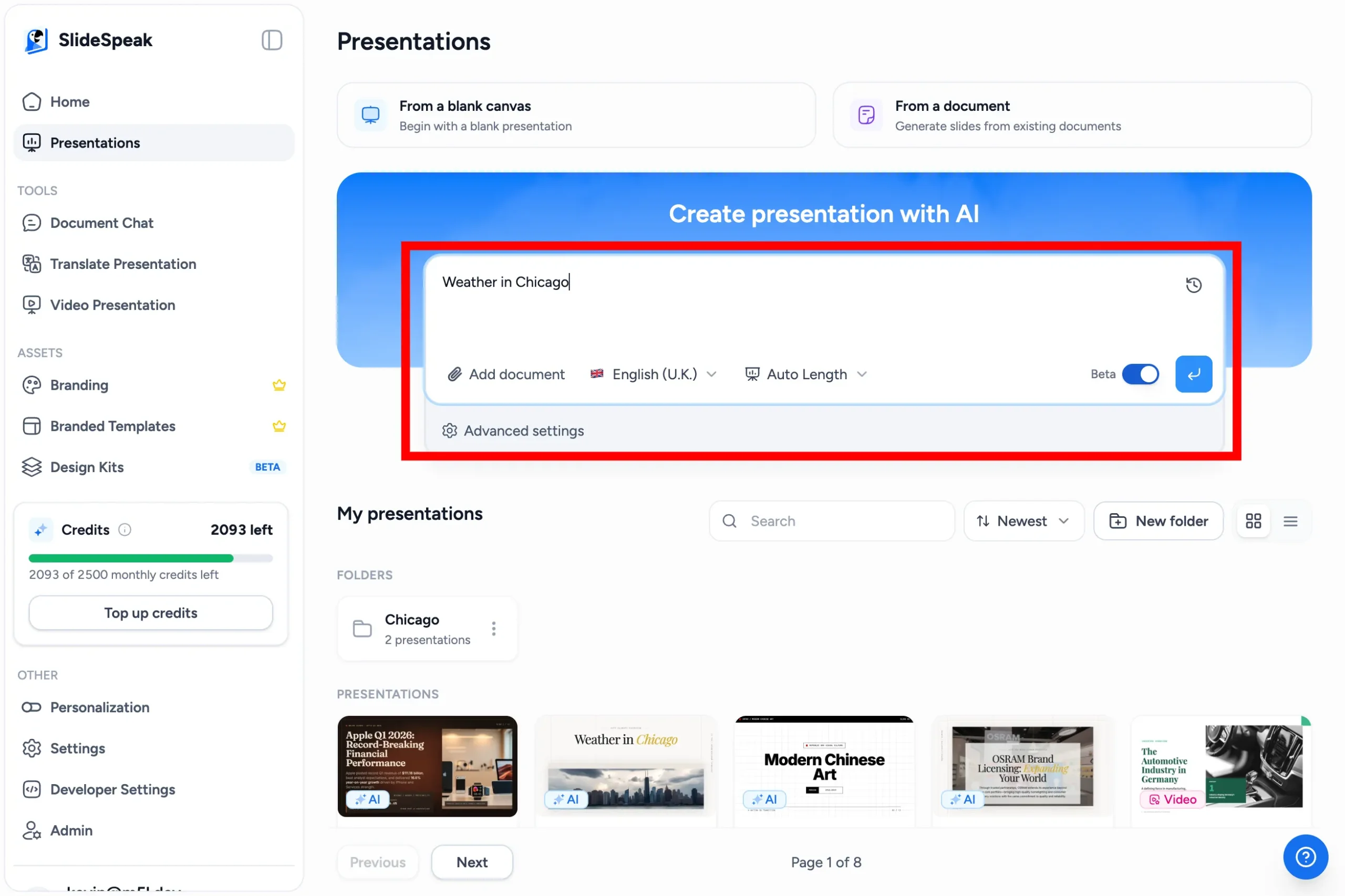
SlideSpeak now comes with a built-in Quiz Generator that turns any presentation into a ready-to-use quiz in just a few clicks. You can generate multiple-choice (MCQ) questions, true/false questions, or a mix of both, edit them manually or with AI, and download the finished quiz as a PDF, with an optional answer sheet for grading.
To create a quiz from a Word document, you simply upload your document and let SlideSpeak generate a presentation from it first. From there, the Quiz Generator takes over. The whole process takes only a few minutes.
How It Works
Let’s see how SlideSpeak can create a quiz from a Word document.
- Open or Create a Presentation:
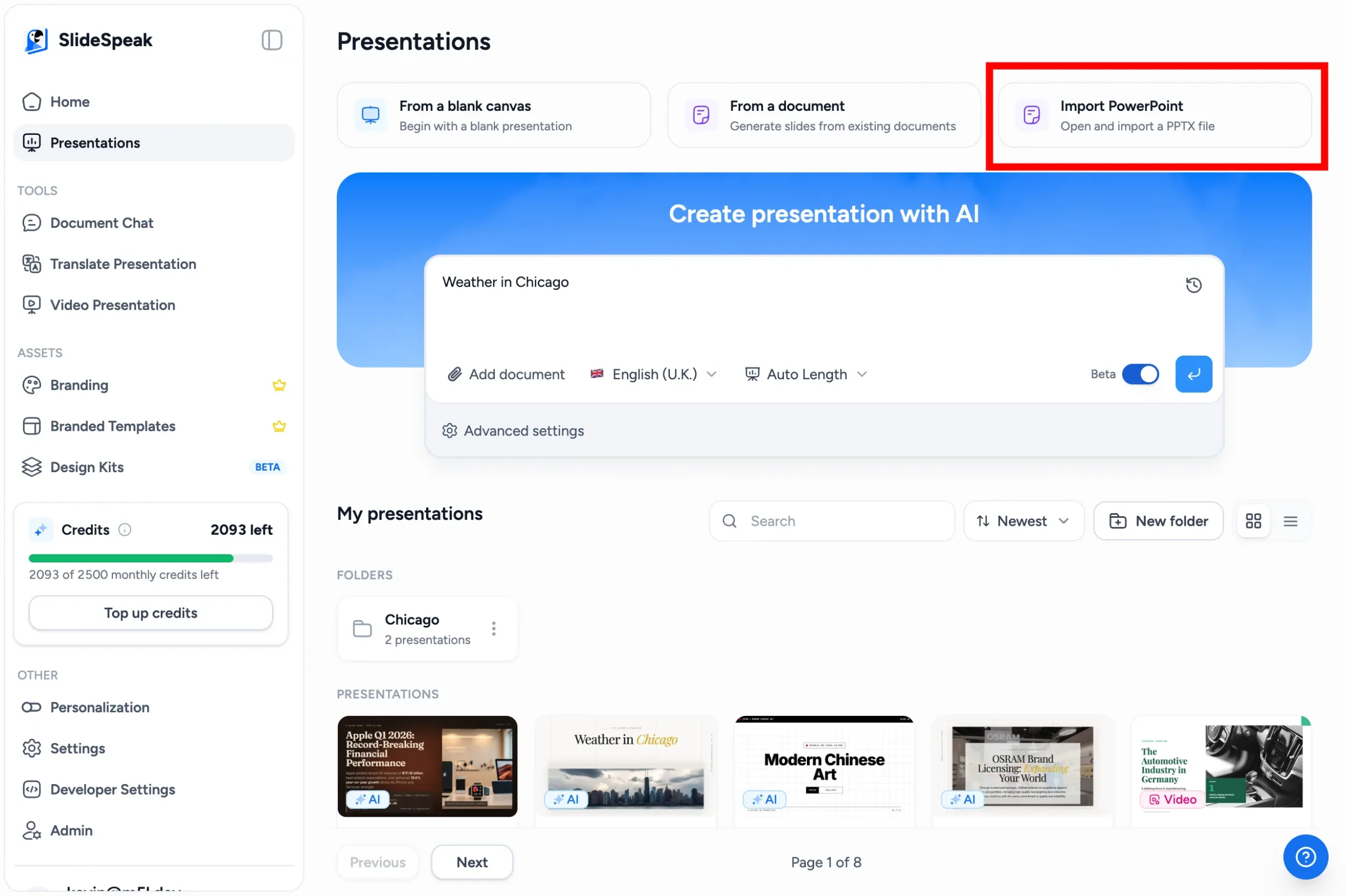
Go to app.slidespeak.co and click “Create Presentation”. Upload your Word document to base the presentation on it (you can also enter a prompt instead), review the generated outline, and pick a template. If you already have a PowerPoint file, you can click “Import PowerPoint” instead and it will open directly in the SlideSpeak editor.
- Generate the Quiz:
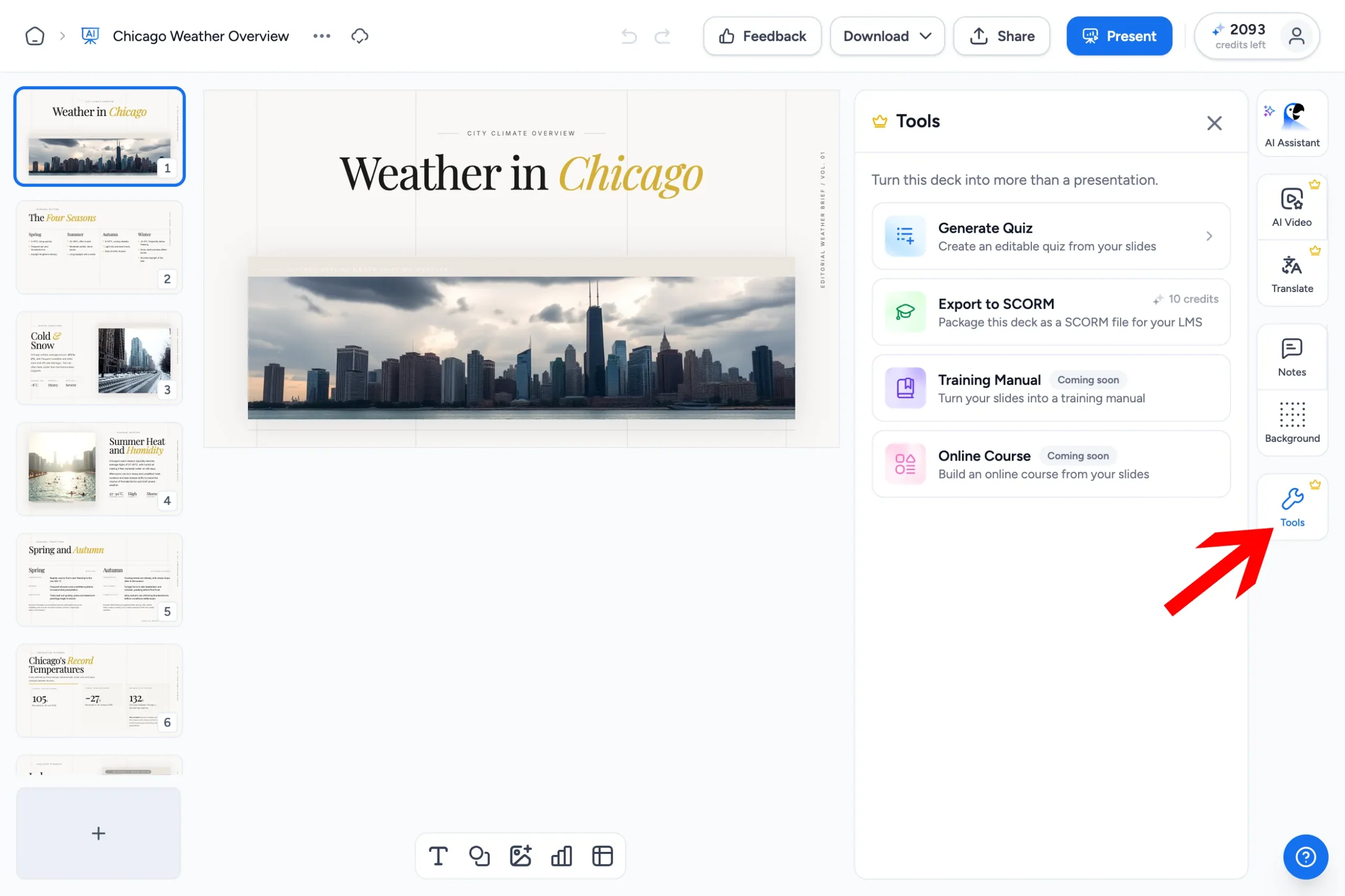
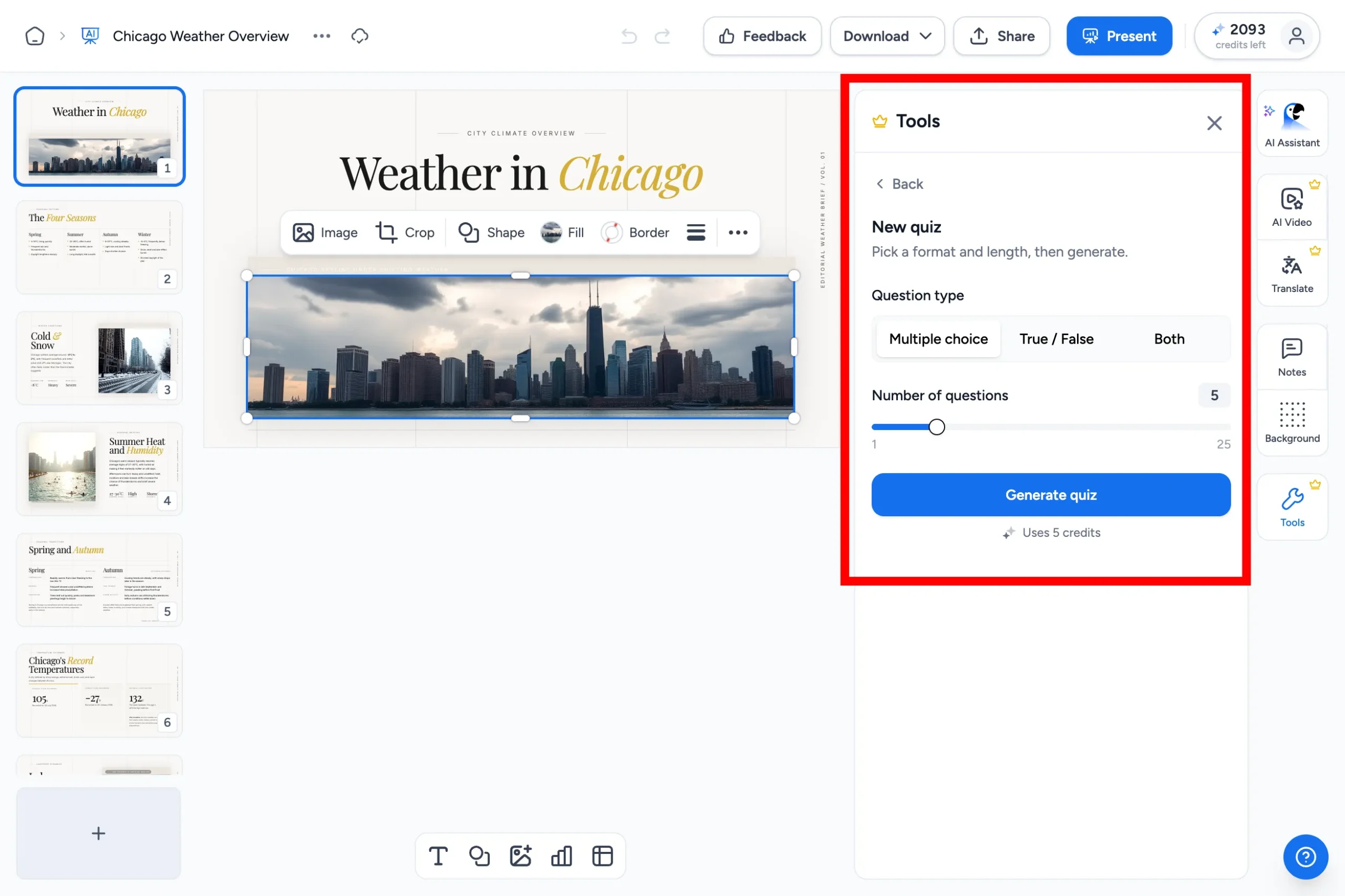
With your presentation open in the SlideSpeak editor, click “Tools” in the right-hand side panel and select “Generate Quiz”. Before generating, you can pick the question type (multiple choice, true/false, or both) and use the slider to choose anywhere from 1 to 25 questions.
- Review and Edit:
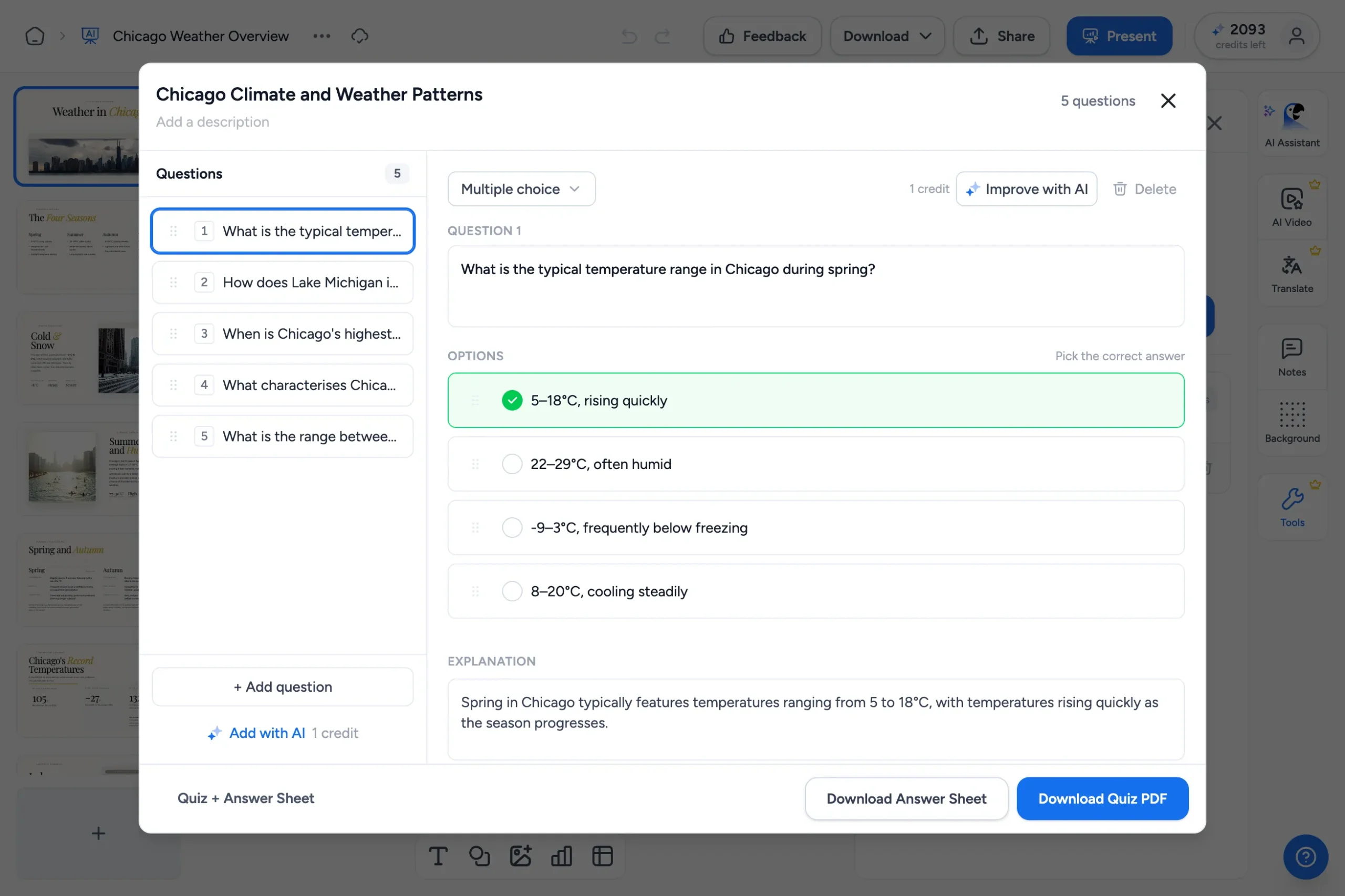
Your quiz opens right inside the SlideSpeak editor, where you can refine every question and answer. Change the question text, edit the answer options, pick the correct answer, or update the explanation. You can also rewrite a question with AI for better wording or difficulty, add a blank question with “+ Add question”, let AI write new ones with “Add with AI”, or delete any question you don’t need.
- Download Your Quiz:
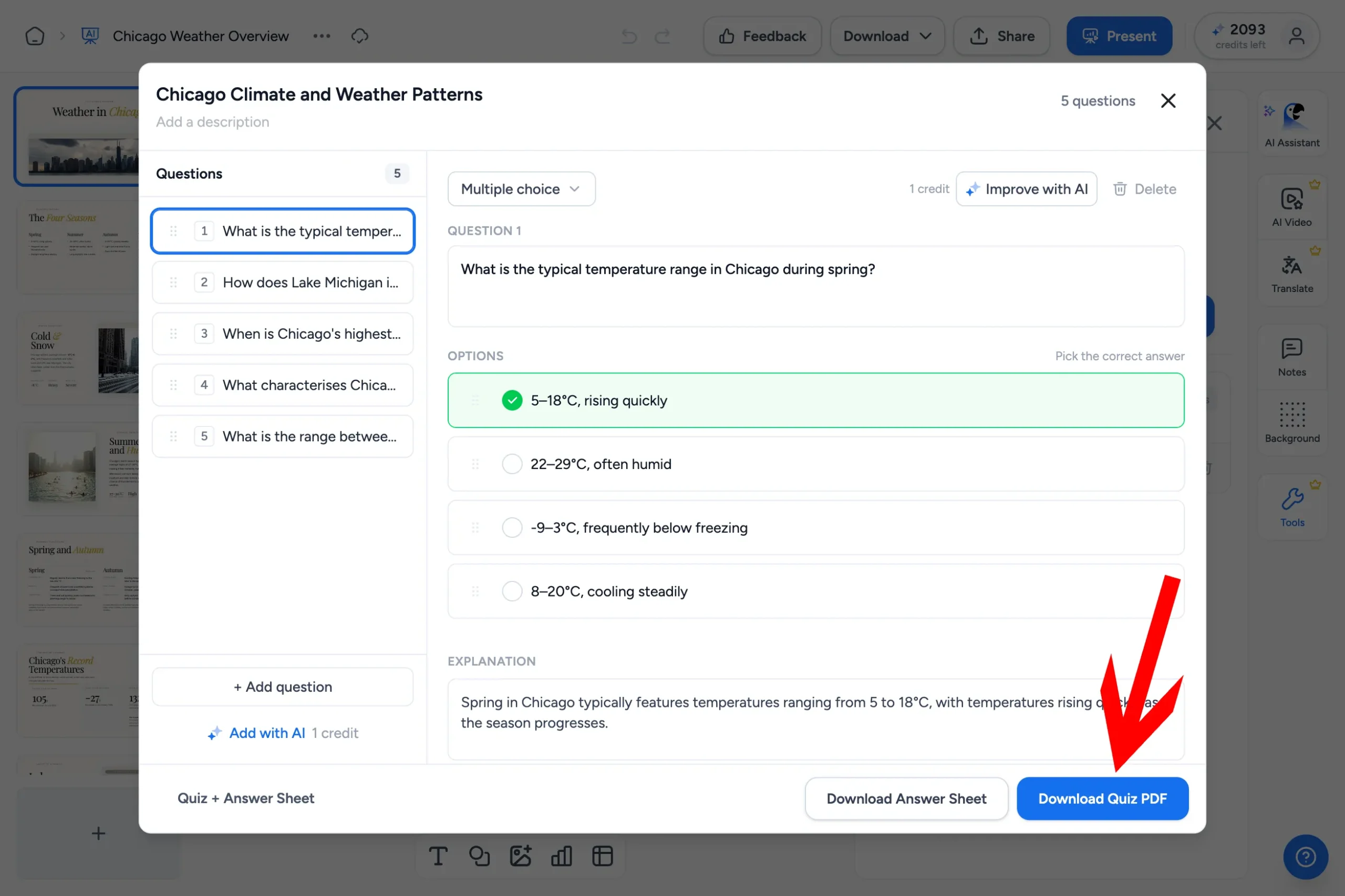
When you’re happy with the quiz, download it as a PDF: “Download Quiz PDF” gives you a clean, ready-to-share version of the questions, “Download Answer Sheet” gives you a separate answer key for grading, and “Quiz + Answer Sheet” downloads both together in one file. For a full walkthrough, check out our help article on creating a quiz from a presentation.
Importing Quiz Questions into an LMS
Once you have generated your quiz questions, you can bring them into Learning Management Systems (LMS) like Moodle or Canvas LMS. SlideSpeak exports your quiz as a PDF, so you can either share that directly with students or copy the questions into an LMS-compatible format. Both platforms support importing questions in specific formats to streamline the process.
Moodle
- Prepare Your Questions: Convert your quiz questions into a Moodle-compatible format such as GIFT or Aiken (a quick way is to paste the questions from your quiz PDF into a converter or ask an AI chatbot to reformat them).
- Access Moodle: Log in to your Moodle account and navigate to the course where you want to add the quiz.
- Import Questions:
- Go to the course administration menu and select “Question bank” and then “Import.”
- Choose the appropriate format (e.g., GIFT format).
- Upload your file and follow the prompts to complete the import.
- Add Questions to Quiz: Once imported, you can add the questions from the question bank to a quiz.
Canvas LMS
- Prepare Your Questions: Format your questions to be compatible with Canvas. Canvas supports QTI (Question and Test Interoperability) format.
- Access Canvas: Log in to your Canvas account and navigate to the course where you want to add the quiz.
- Import Questions:
- Go to “Settings” in the course navigation menu.
- Select “Import Course Content.”
- Choose “QTI .zip file” from the Content Type drop-down menu.
- Upload your file and follow the prompts to complete the import.
- Create Quiz: Once imported, go to the “Quizzes” section and create a new quiz or add the questions to an existing one.
Why Choose SlideSpeak?
- Save Time: It streamlines the quiz creation process, saving educators valuable time and effort.
- Full Control: The built-in quiz editor lets you fine-tune every question manually or with AI before sharing.
- Ready to Print: The PDF export with a separate answer sheet makes grading easy, no extra formatting needed.
- Security: All data is stored fully encrypted and is not shared with any third parties.
Method 2: ChatGPT
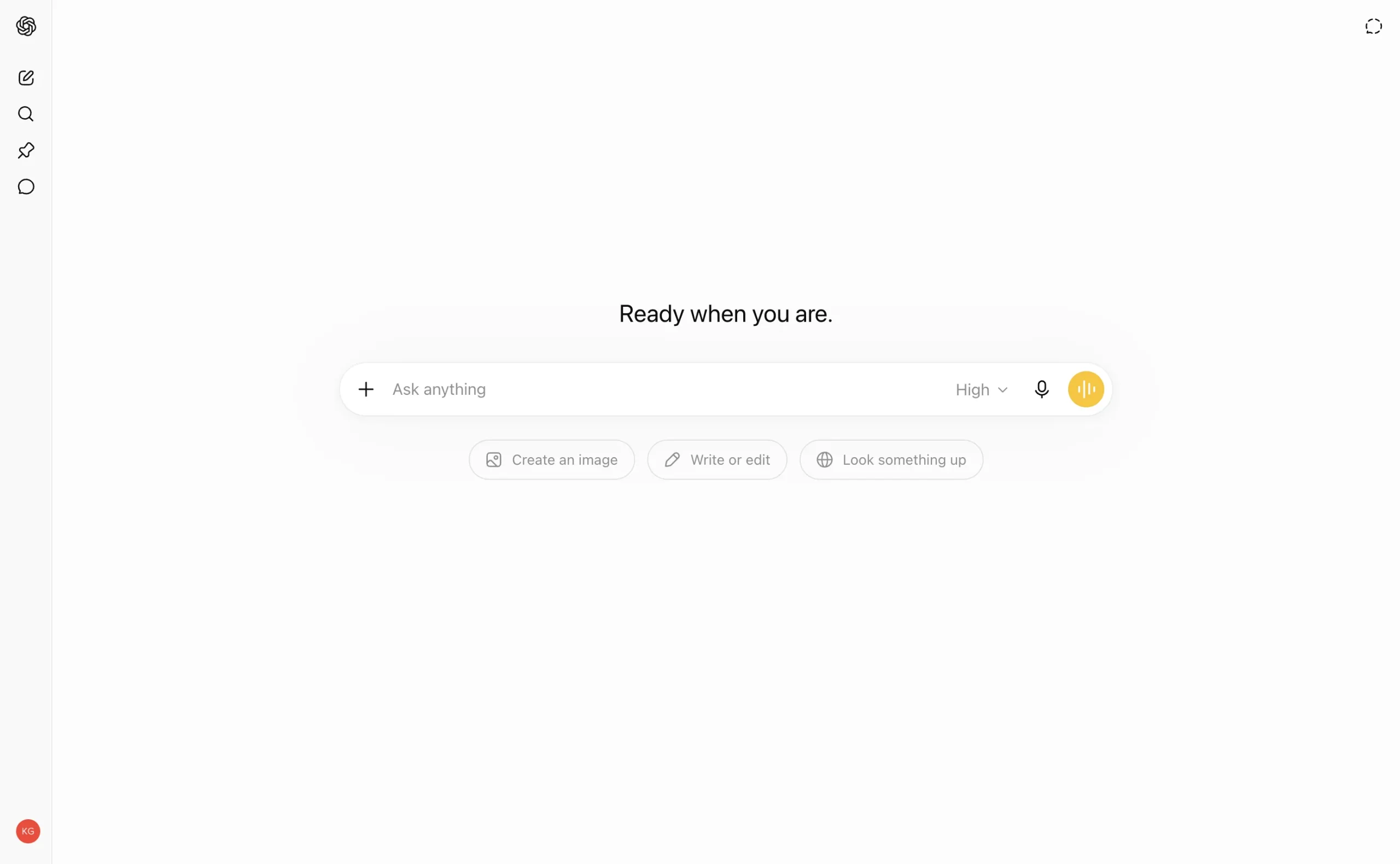
Developed by OpenAI, ChatGPT is still one of the most powerful AI assistants for many different tasks, including the ability to create quizzes from documents and text. With its advanced AI language models (the latest being GPT-5), ChatGPT can easily produce quiz questions directly from your Word document.
Globally, hundreds of millions of users rely on ChatGPT across various domains, particularly in education and beyond. Free users can also upload files, currently limited to a few uploads per day. That means you do NOT have to pay for ChatGPT to upload Word or PDF documents.
It’s worth mentioning that ChatGPT focuses on the text of your documents. Images that are embedded in Word, PDF or other documents may be ignored (see here).
How It Works
- Upload Your Document:
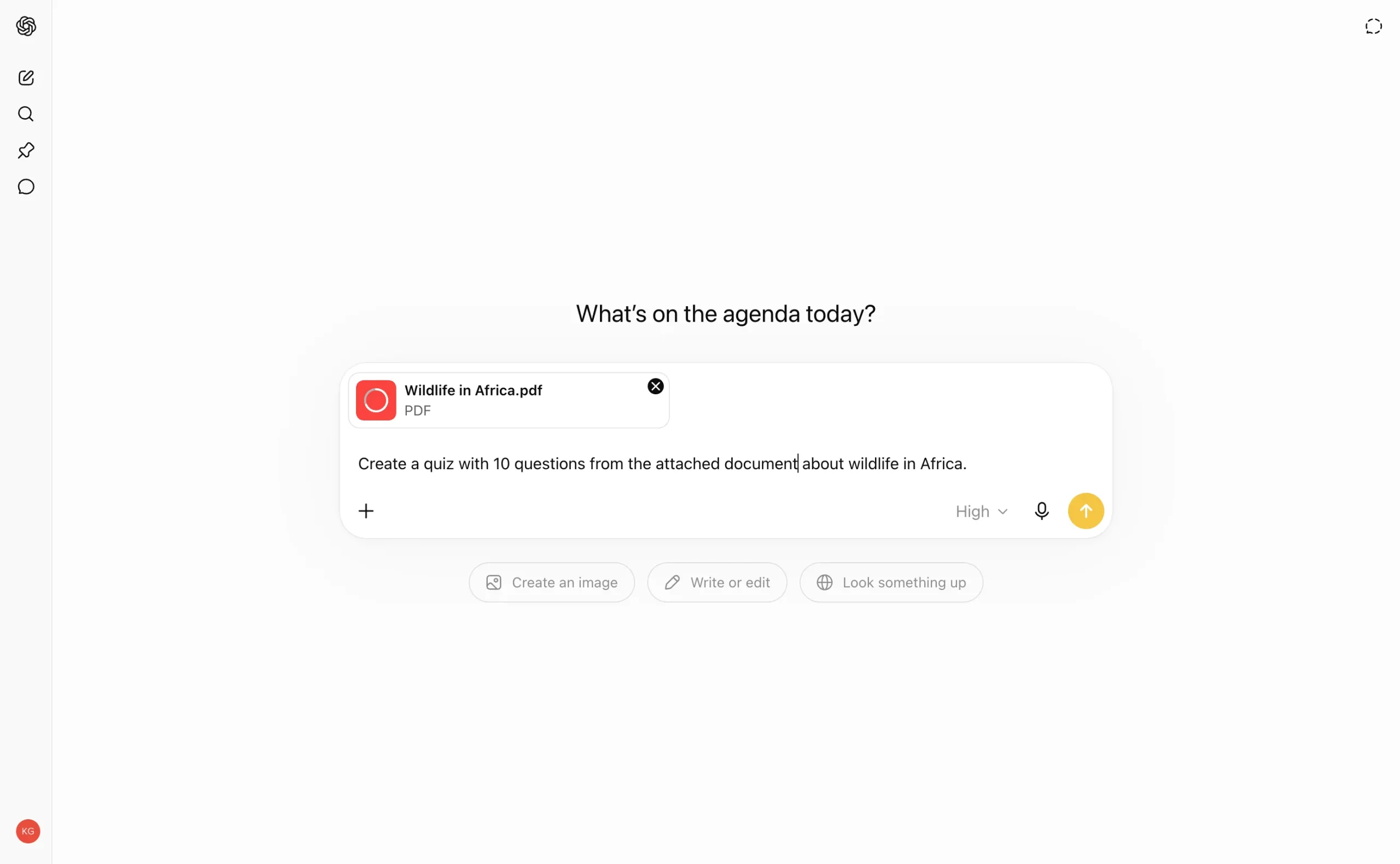
Begin by attaching your Word document containing the content for quiz creation. Click the “+” button in the chat box to upload it.
- Interact with the Tool
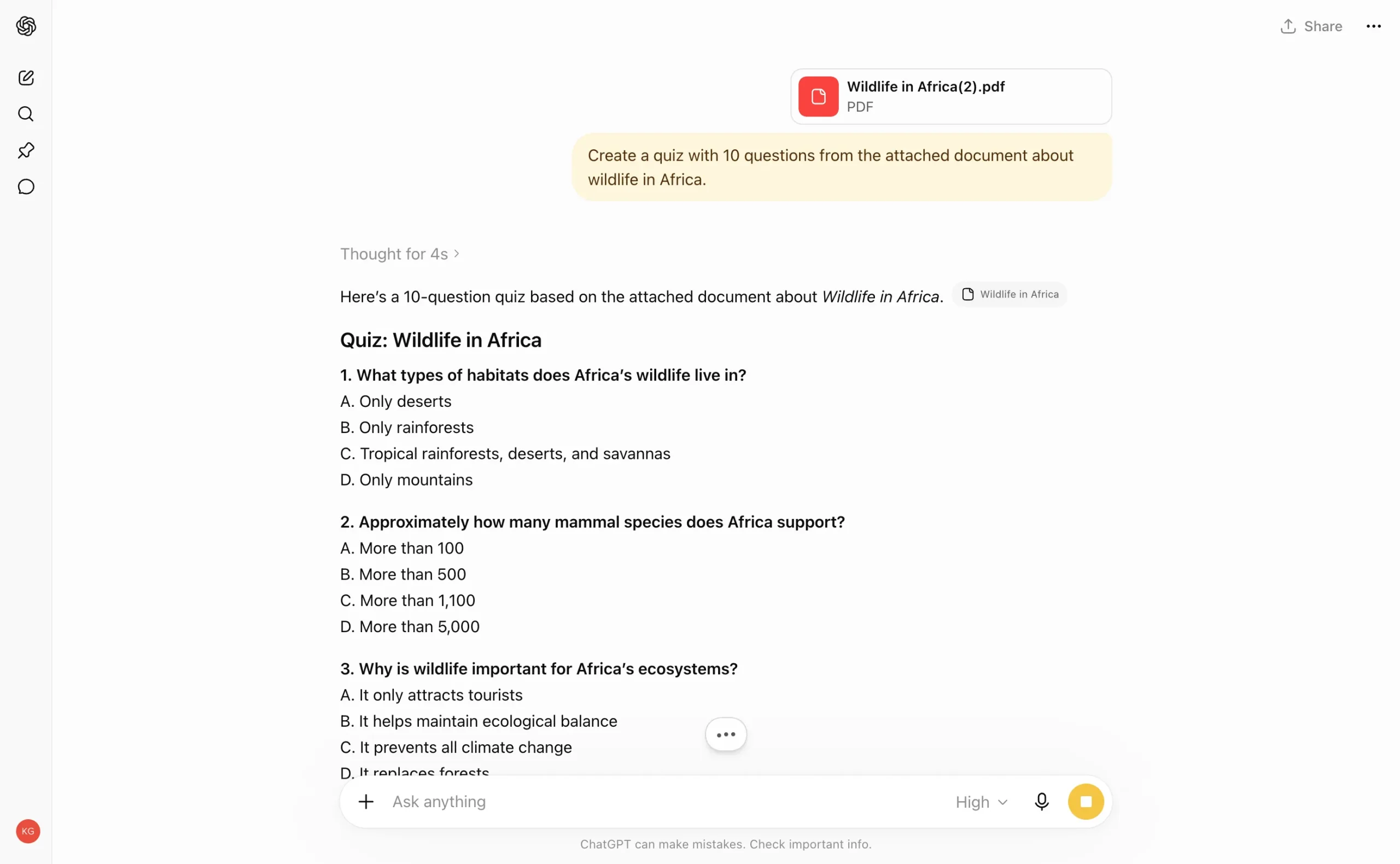
After your document has been uploaded, you can start to interact with the tool. For example, you can instruct ChatGPT to generate questions like, “Create a quiz with 10 questions from the attached document about wildlife in Africa.”
- Review and Copy
Once generated, review the quiz questions for accuracy and relevance. For any changes, simply interact with the tool. When all the quizzes are correct and match your standard, you can simply copy the content and paste it into your educational material.
Why Choose ChatGPT?
- Flexibility: Tailor quiz questions to suit different learning levels and topics through interactive prompts.
- Reliability: Benefit from ChatGPT’s robust language understanding capabilities, ensuring high-quality quiz content.
- User-Friendly: Enjoy a simple, easy-to-use interface that makes the quiz creation process accessible to all.
Method 3: Revisely’s AI Quiz Generator
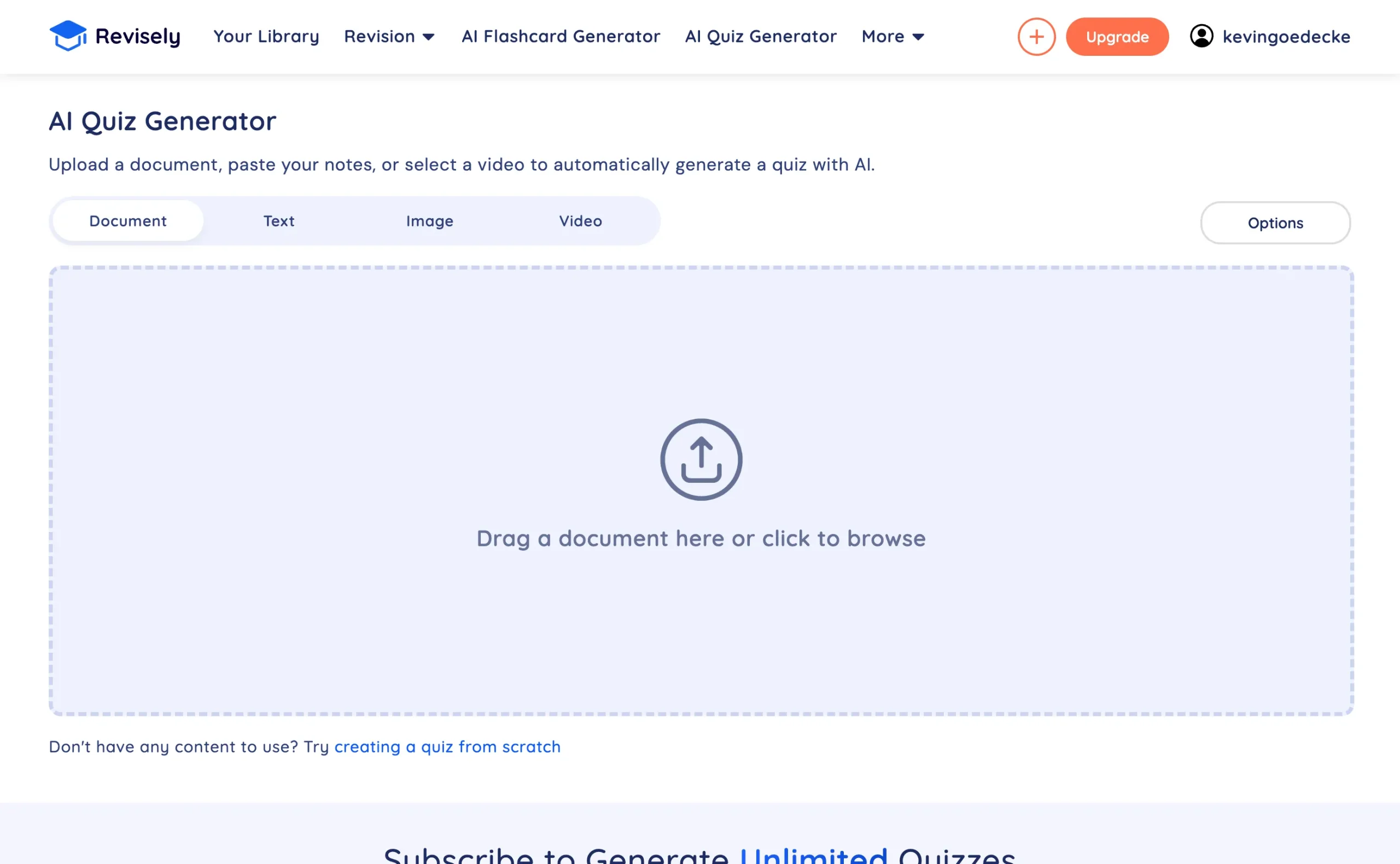
Revisely is a comprehensive learning platform designed for students and professionals, offering many resources for traditional academic subjects, especially beneficial for GCSE, AS, and A-Level exam preparation. The platform features specialized AI Flashcard and Quiz Generators to enhance understanding in various fields.
With a simple, distraction-free layout, its AI Quiz Generator can create quizzes from documents, pasted notes, images and even videos. Revisely transforms textbooks into interactive quizzes, promoting smarter and more effective learning.
How It Works
- Upload Your Document:
Open the AI Quiz Generator, select the “Document” tab and simply drag your Word document into the tool or click to browse your files.
- Select Pages and Options
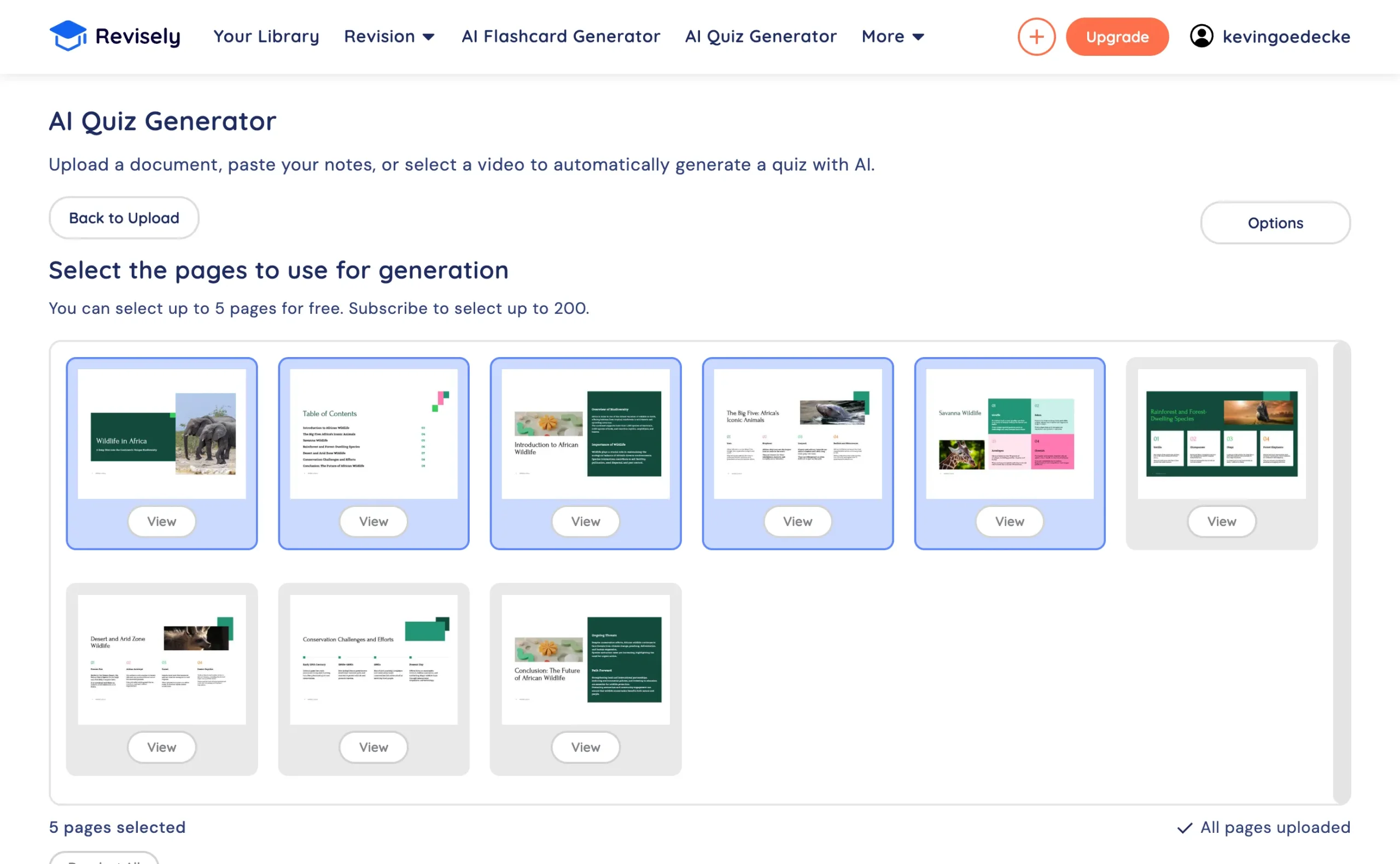
Once the document has been uploaded, select the pages you want the quiz to be based on. On the free plan you can select up to 5 pages, subscribers can select up to 200. Via the “Options” button you can also adjust the language, question type and number of questions.
- Take or Share the Quiz
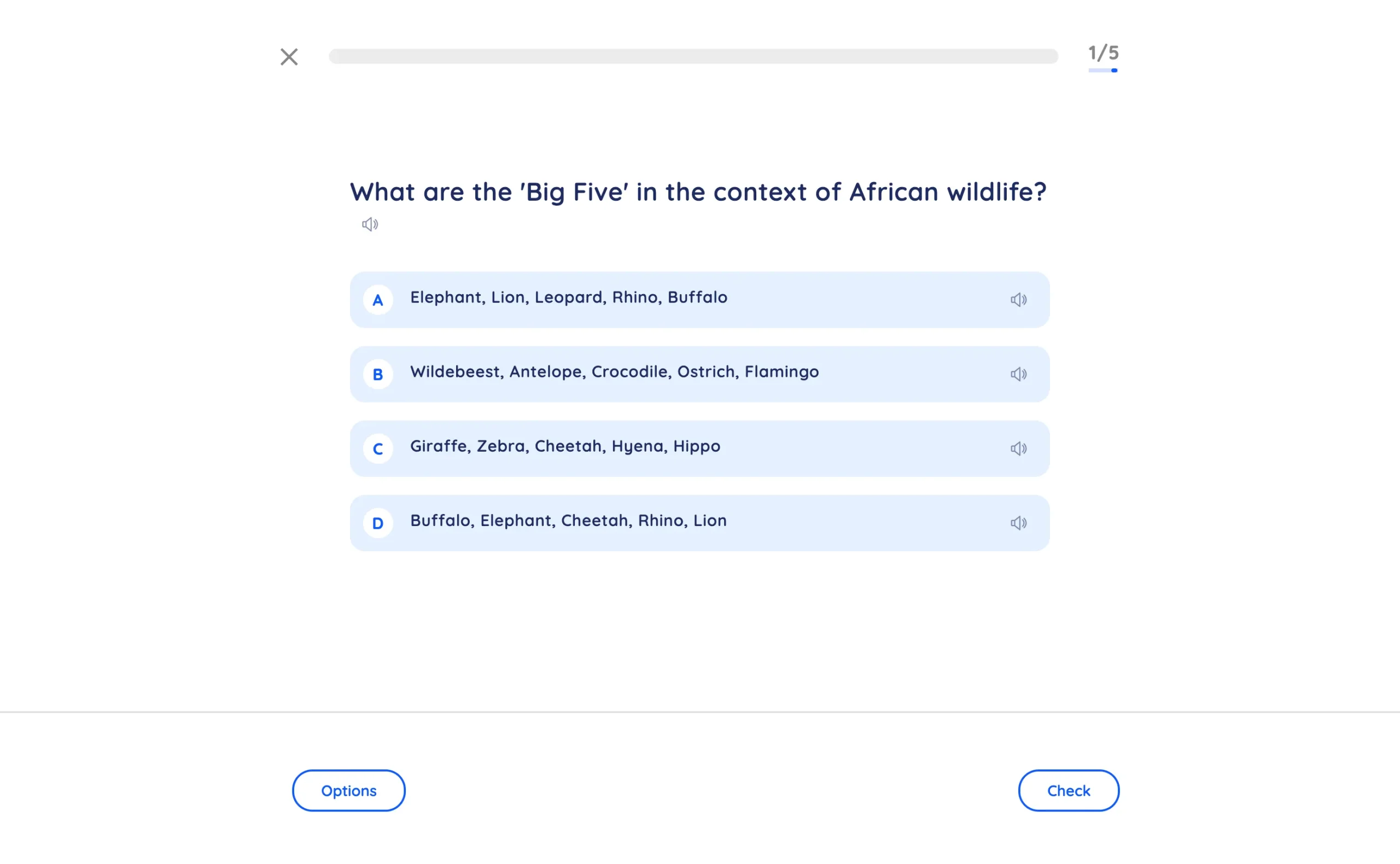
From your choices, Revisely will produce an interactive multiple-choice quiz that you can take directly in the browser, save to your library, or copy into your educational material.
Why Choose Revisely?
- Reliability: Revisely’s advanced AI abilities generate high-quality, accurate quizzes from your material.
- Interactive: Quizzes can be taken right in the browser with instant feedback.
- User-Friendly: Enjoy a simple, distraction-free interface that makes the quiz creation process straightforward and accessible.
Method 4: Quizgecko
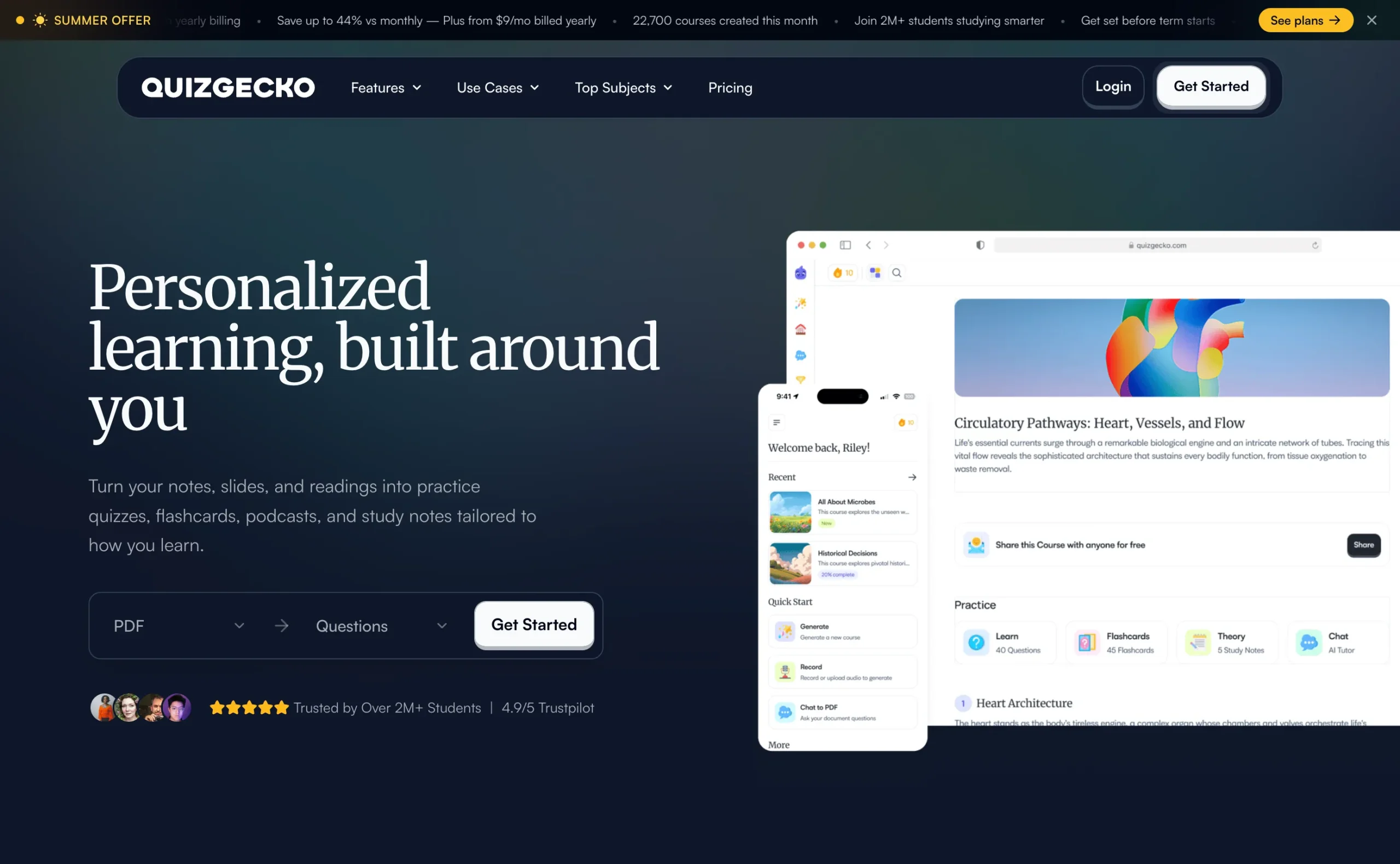
Quizgecko is a user-friendly AI tool designed to quickly convert your Word documents into engaging quizzes, in any language! It has grown into a full study platform that turns your content into courses with practice questions, flashcards, study notes and even podcasts.
Quizgecko excels at extracting key information from your content, ensuring the generated questions are relevant and accurate. This tool also allows for easy customization, enabling you to tailor the quizzes to your specific needs.
How It Works
- Upload Your Document:
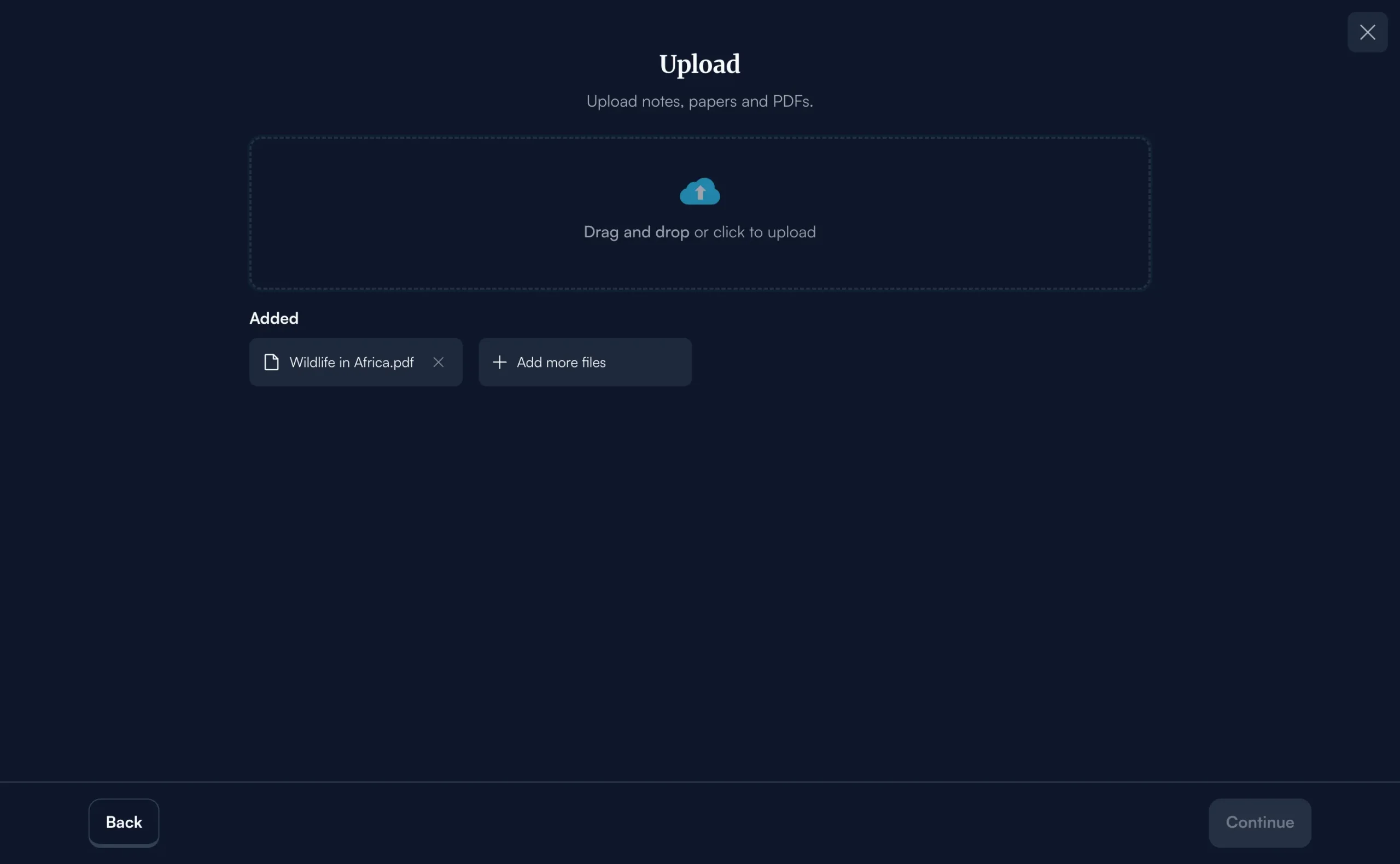
Click “Generate” and choose “Upload” to add your Word document to Quizgecko’s platform. You can also generate from Google Drive files, links, YouTube videos, recorded audio or plain text.
- Configure and Generate:
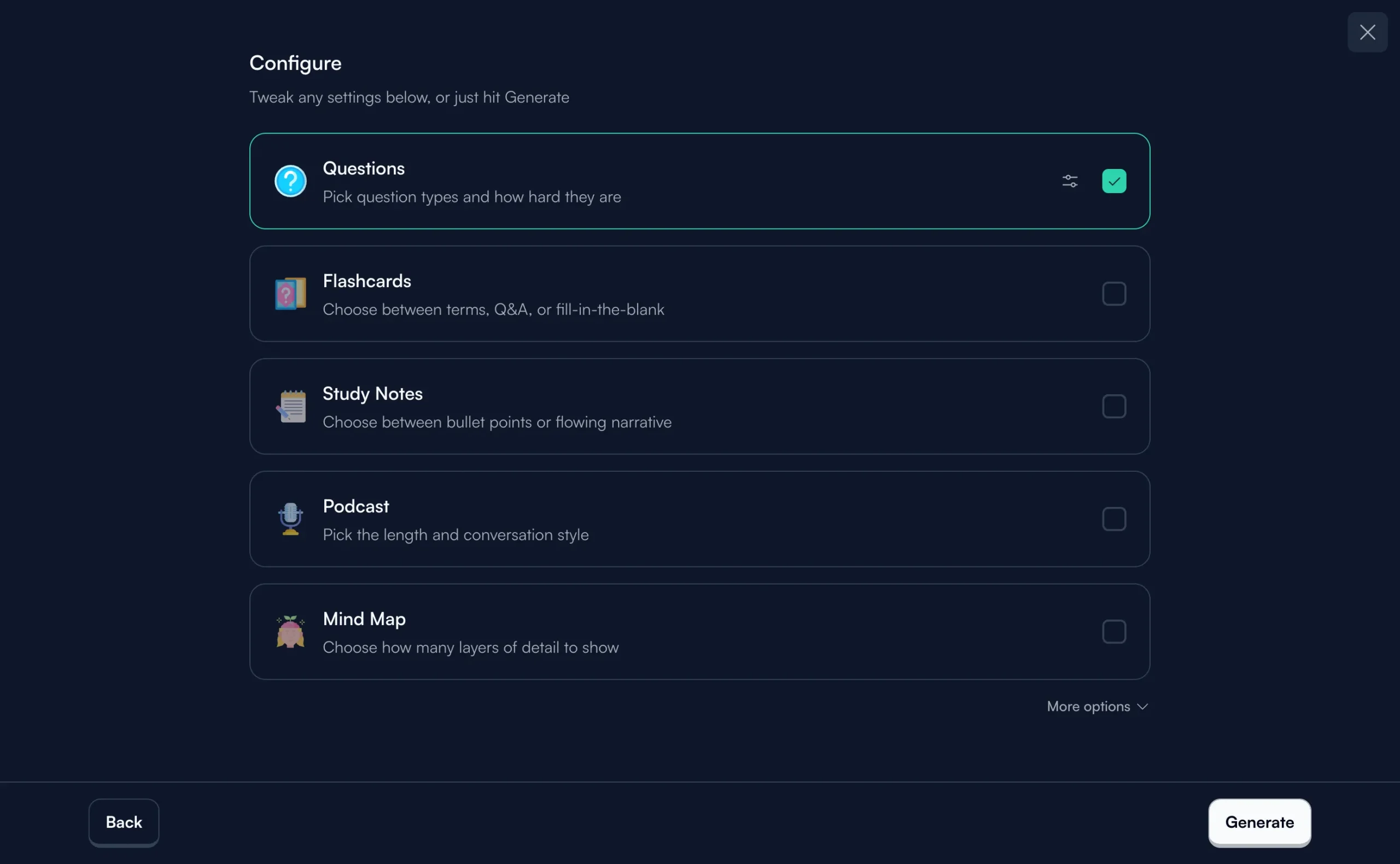
Once your document is uploaded, choose what Quizgecko should generate. Select “Questions” and pick the question types and difficulty, you can also add flashcards, study notes or a podcast in the same run. Then hit “Generate”.
- Take, Customize or Export:
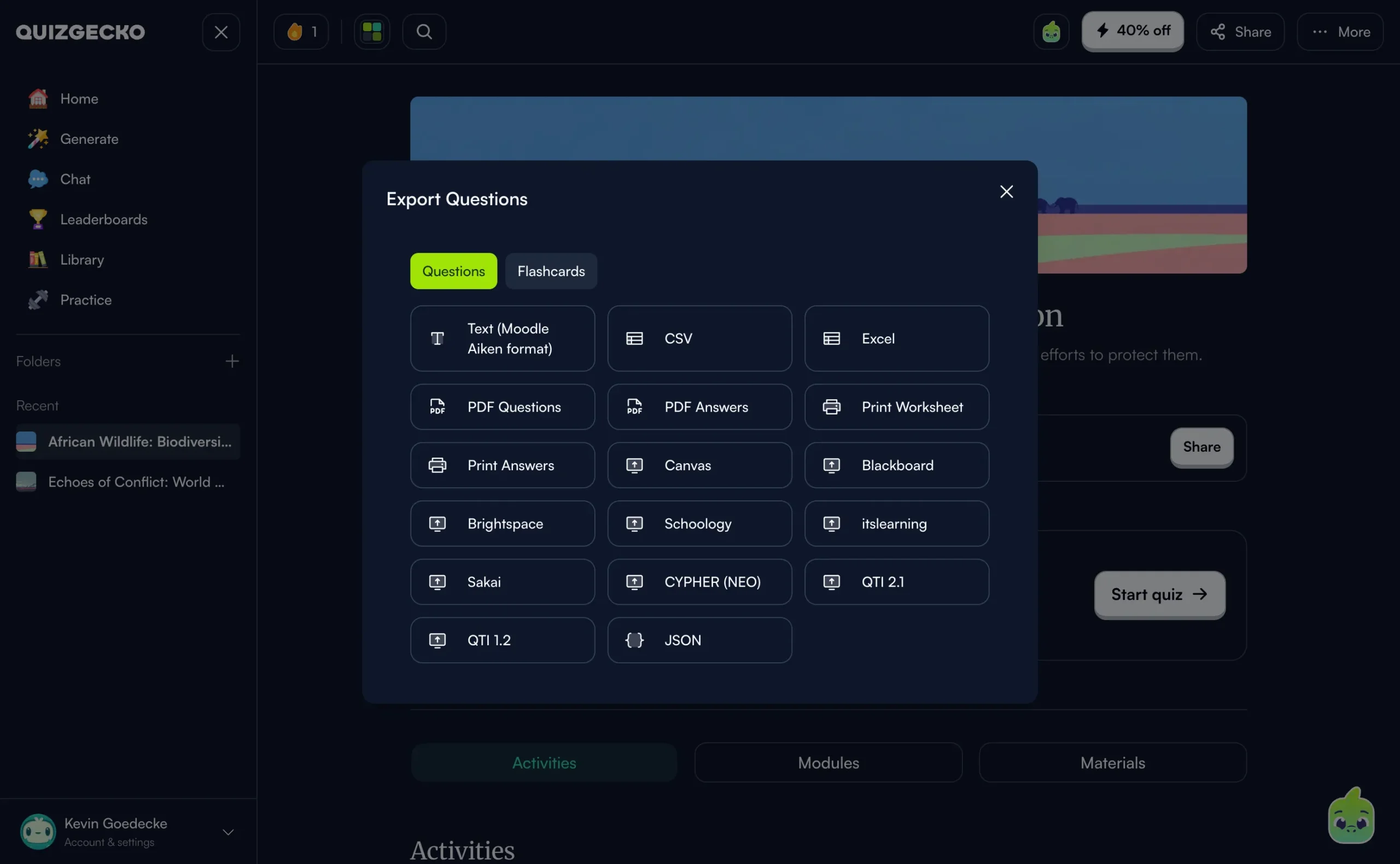
After the questions are generated, you can start the quiz right away, review and edit the questions, or export them. The export options are excellent for educators: Moodle (Aiken format), Canvas, Blackboard, Brightspace, Schoology, Sakai, QTI, CSV, Excel, PDF and printable worksheets.
Why Choose Quizgecko?
- Speed: Quickly generates quizzes from your documents, saving you time.
- LMS Exports: Exports directly to Moodle, Canvas, Blackboard, QTI and many other formats.
- User-Friendly: Offers an intuitive interface for a seamless quiz creation experience.
Method 5: Wayground (formerly Quizizz)
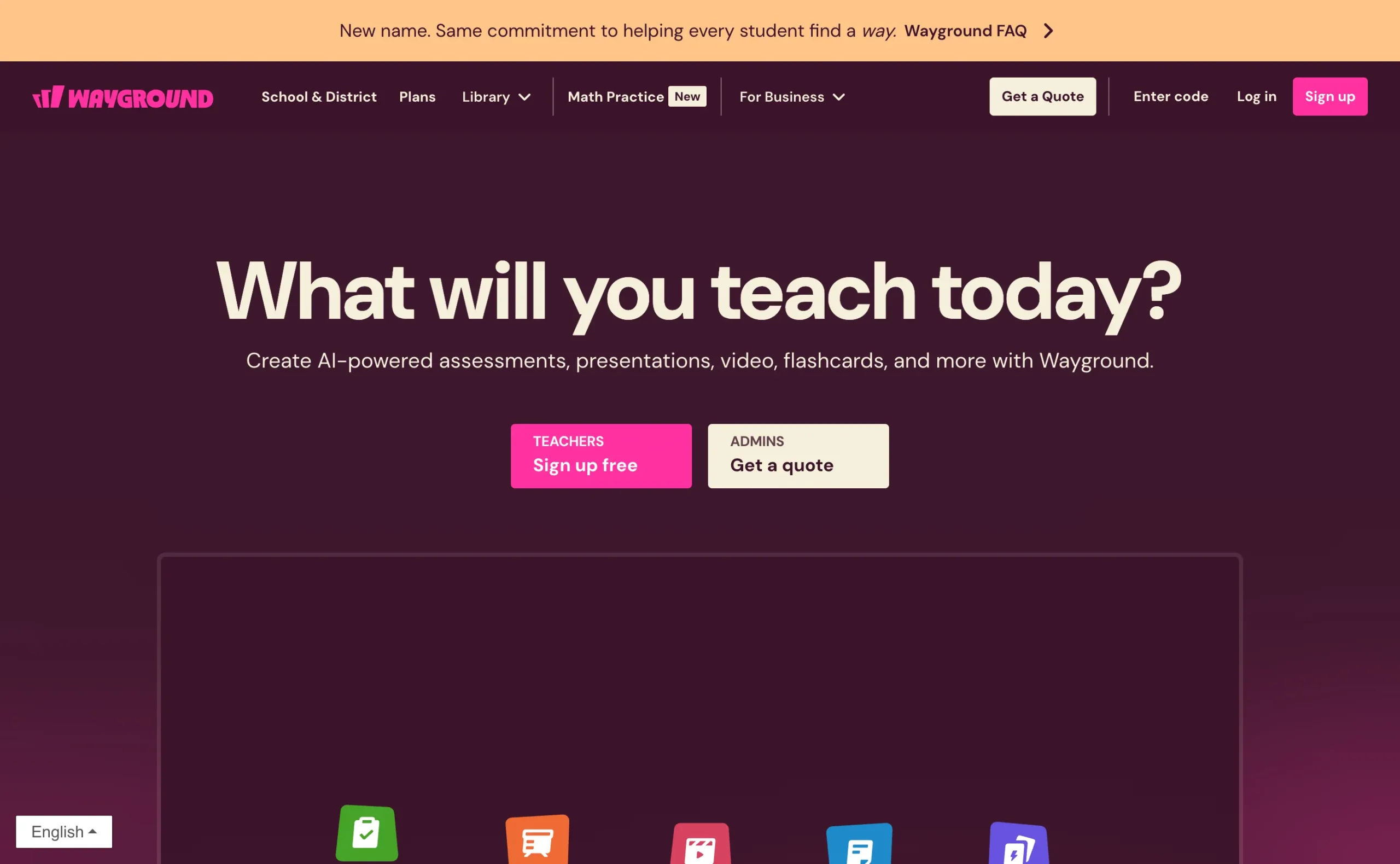
Quizizz rebranded to Wayground in 2025, but the core idea is the same: it is ideal for educators who want to save time and focus on teaching, as it eliminates the repetitive work involved in quiz creation. Wayground can generate quizzes from various content sources, including documents, websites, videos, and prompts, making it a versatile choice for creating comprehensive assessments.
With Wayground, you can create quizzes in minutes by simply uploading a file, entering a prompt, or pasting a link to a webpage or YouTube video. The AI quickly generates questions based on the content provided, allowing you to customize and enhance the quiz as needed.
How It Works
- Upload Your Content:
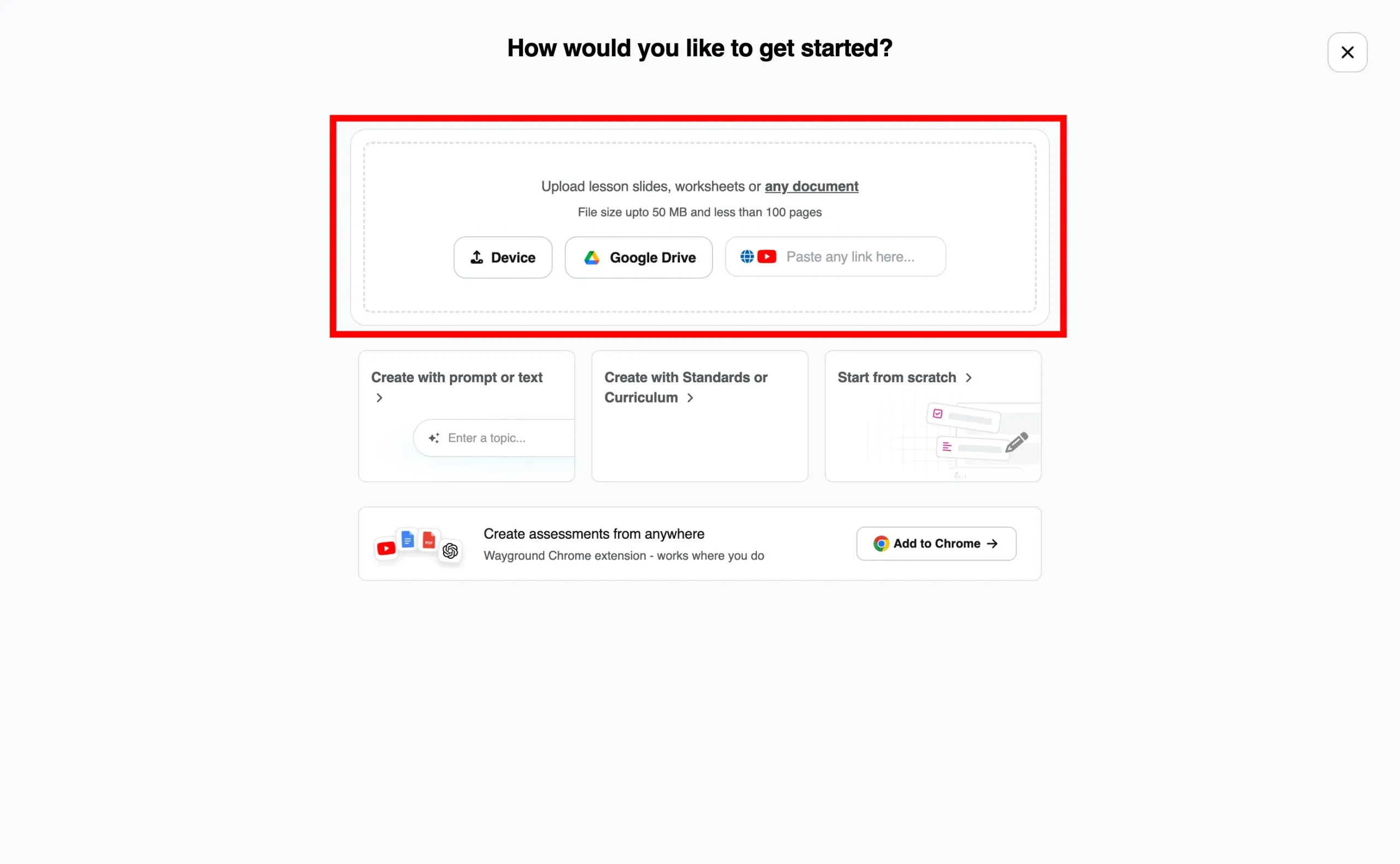
Start by uploading your Word document or any supported file (up to 50 MB and less than 100 pages) from your device or Google Drive. Alternatively, you can enter a prompt, paste a web page link, or even use a YouTube video URL, mind blowing huh?
- Customize Your Assessment
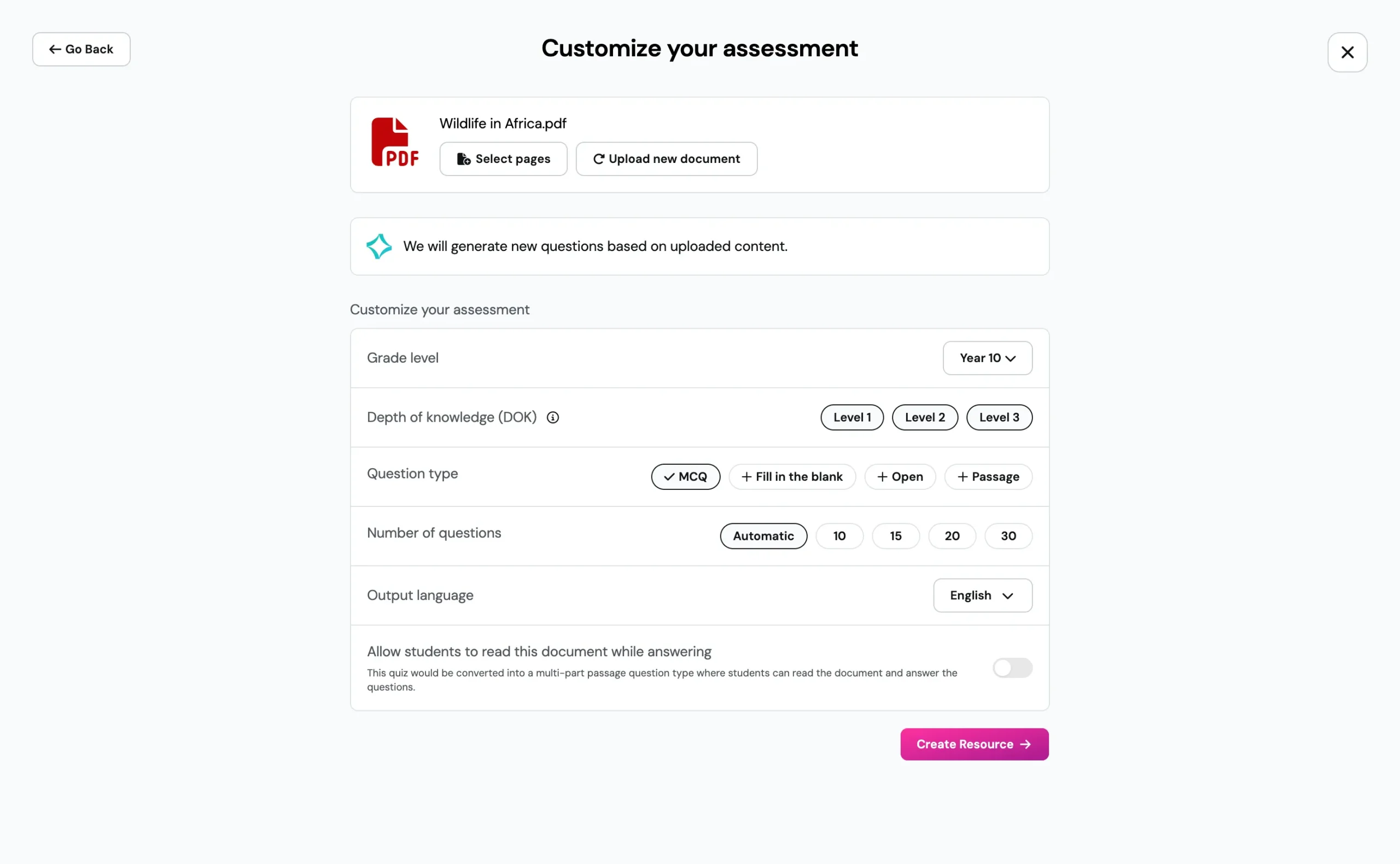
Wayground will analyze the uploaded content and let you customize the assessment before generating: choose the grade level, depth of knowledge, question types (multiple-choice, fill in the blank, open-ended or passage), the number of questions and the output language.
- Finalize and Use:
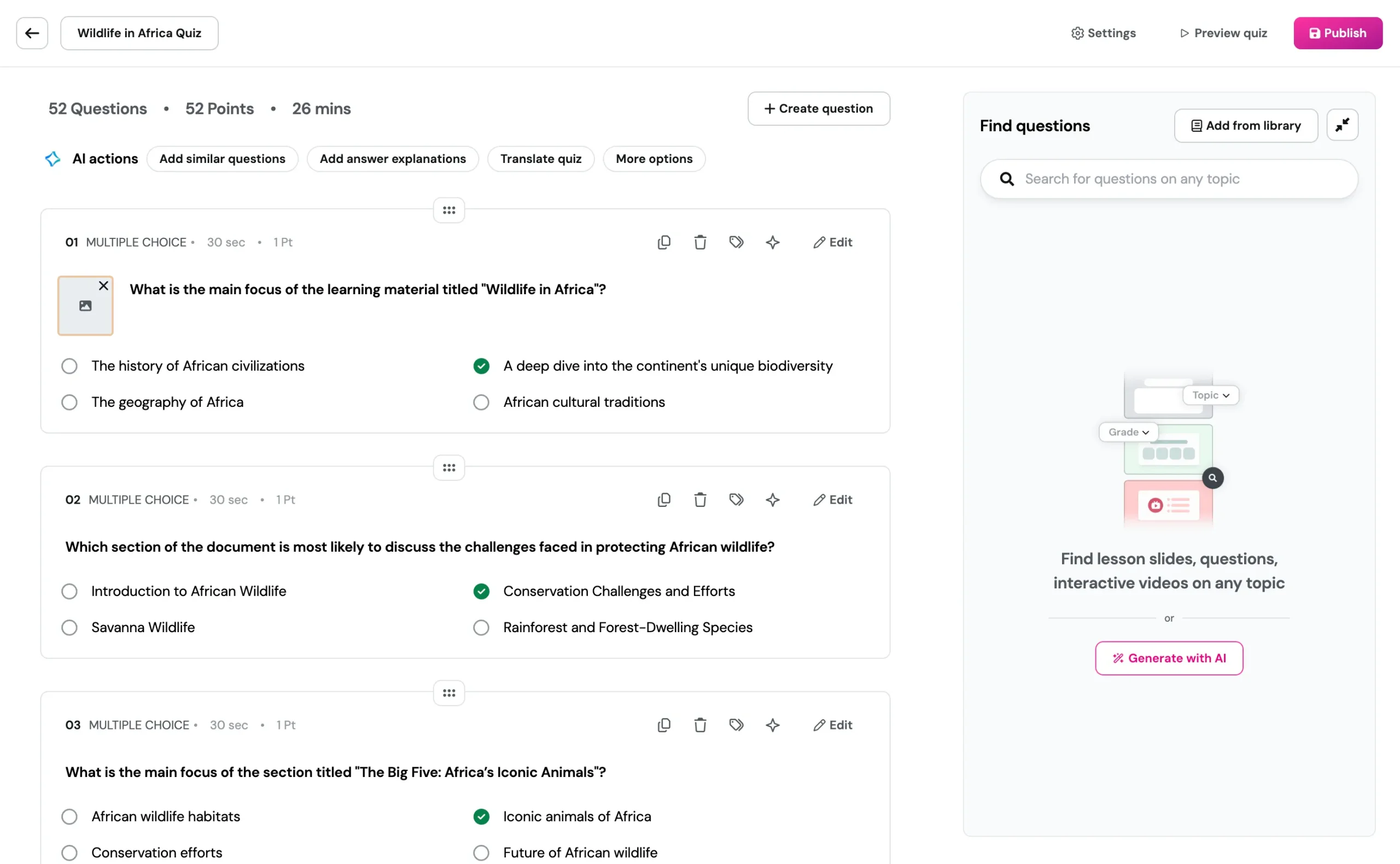
Review the questions and make any necessary adjustments. You can modify question text, change question types, add or delete answer options, and use AI actions like “Add similar questions”, “Add answer explanations” or “Translate quiz”. Once you are satisfied, publish the quiz and assign it as a live game or homework.
Why Choose Wayground?
- Versatility: Generates quizzes from multiple content sources, including documents, websites, videos, and prompts.
- Customization: Allows for extensive customization of quiz questions.
- Classroom Ready: Live games, homework mode and auto-grading make it easy to use with students right away.
Method 6: Quizlet
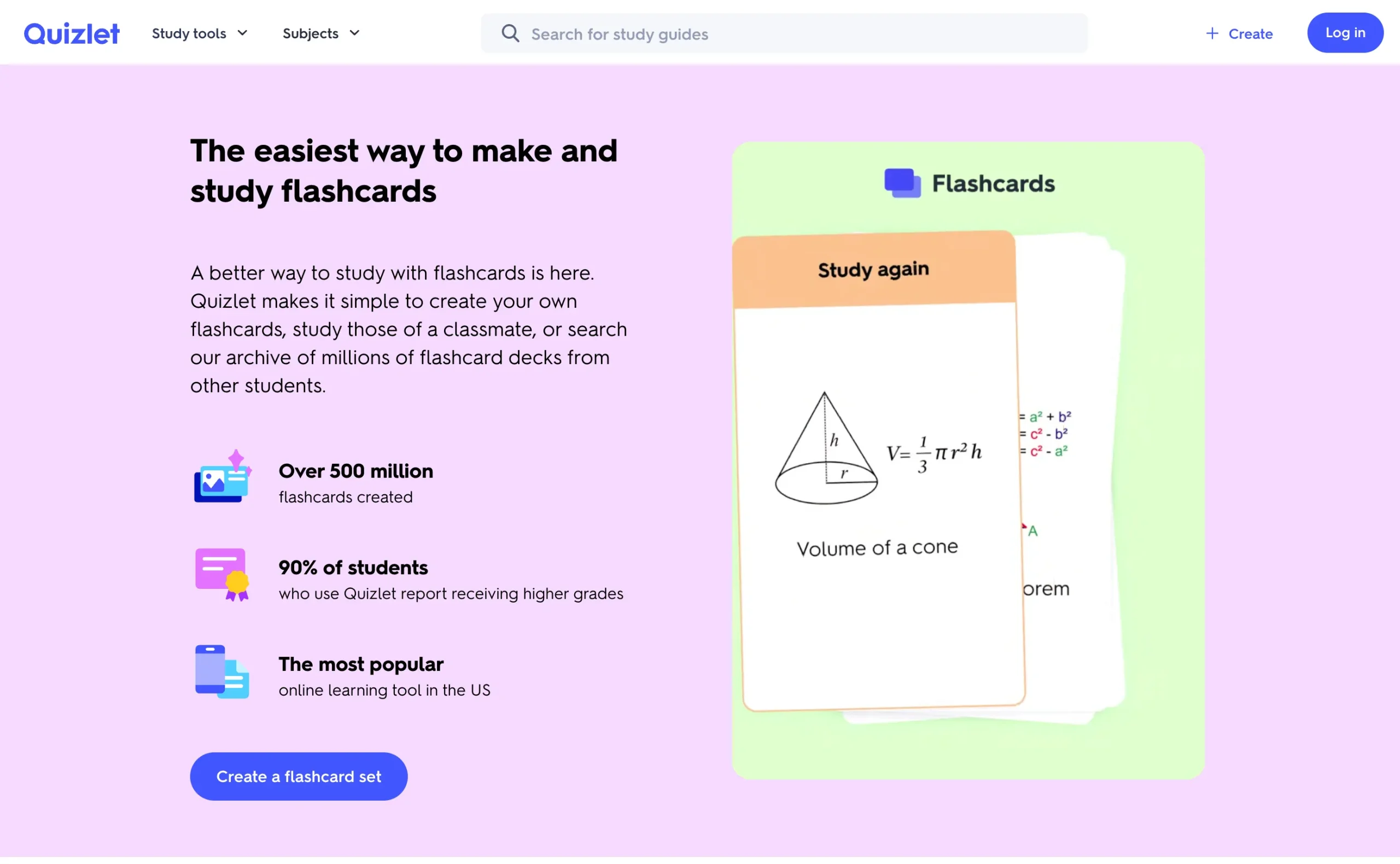
Quizlet is one of the most popular study platforms in the world, and its AI features make it a great option for turning a Word document into a quiz you can practice with. Upload your document and Quizlet’s AI creates a study set from it. From there, the Learn and Test modes automatically quiz you with multiple-choice questions based on your material.
This approach is especially useful for students: instead of handing out a quiz, you build a self-study set that keeps generating new question rounds until the material sticks.
How It Works
- Upload Your Document:
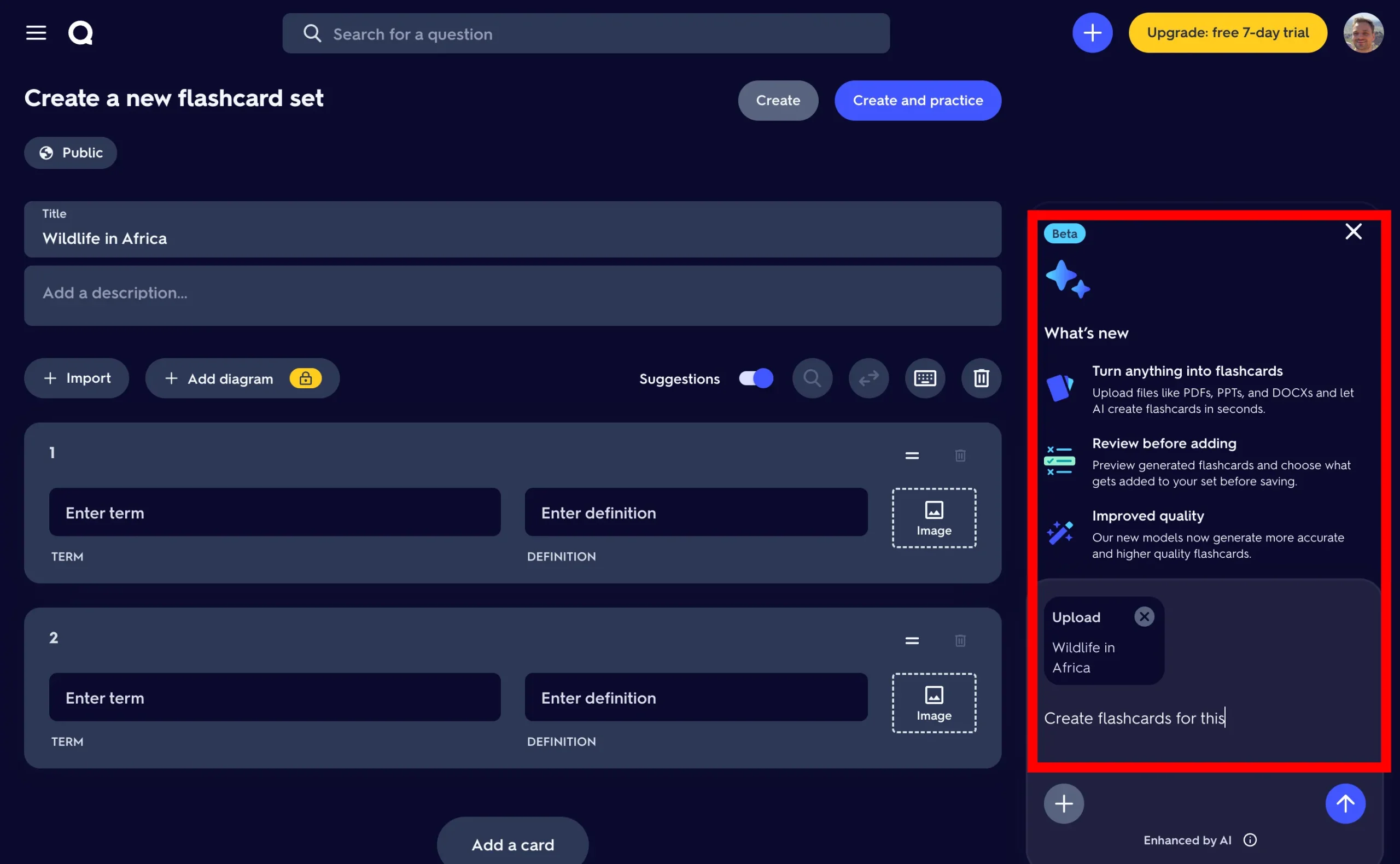
Create a new set and use the AI assistant to upload your Word document (PDFs and PowerPoints work too). Then simply ask it to create questions or cards from the uploaded content.
- Review the Generated Cards:
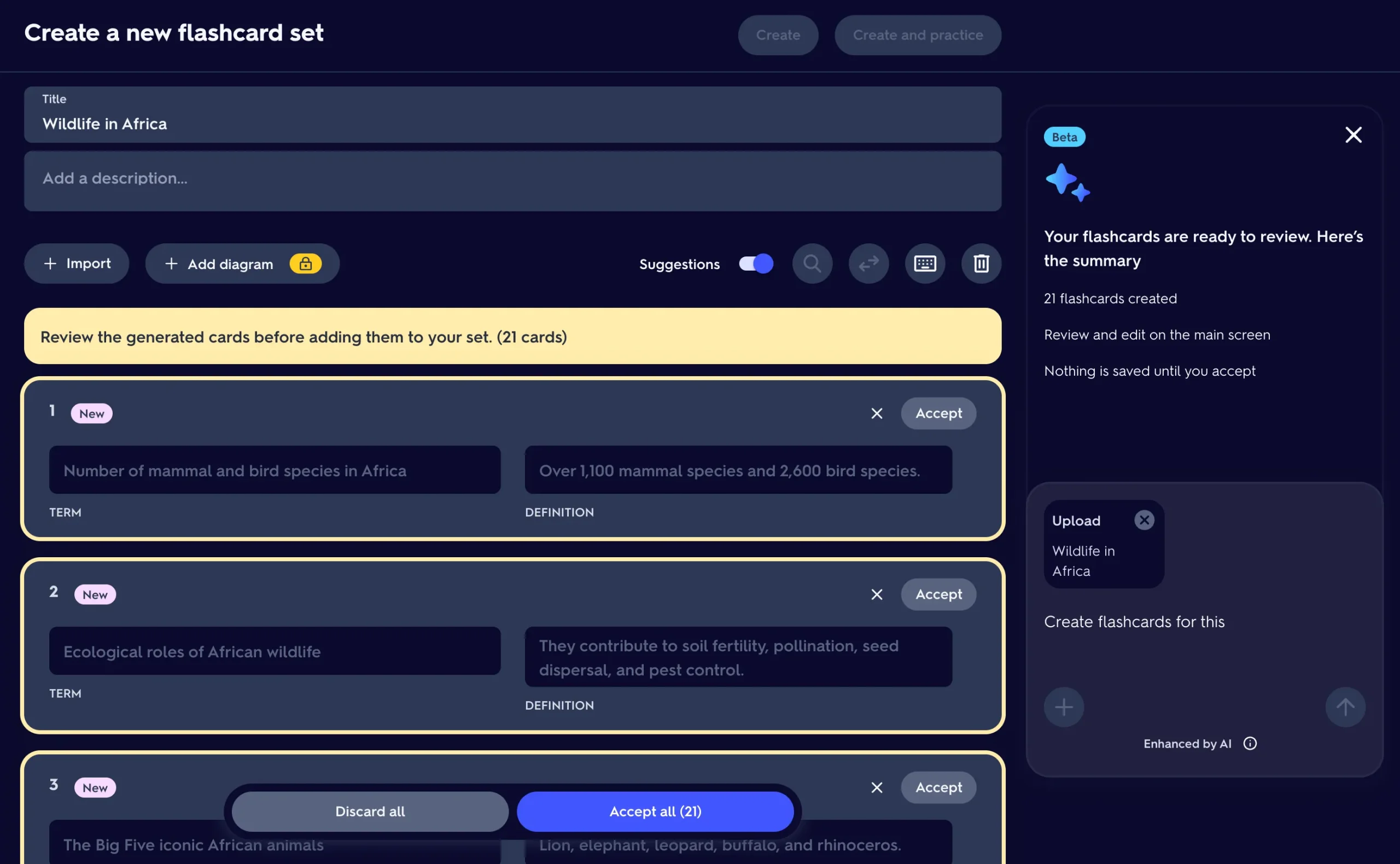
Quizlet generates the cards and lets you review each one before it is added to your set. Accept the good ones, discard the rest, and edit anything that needs a tweak. Nothing is saved until you accept.
- Practice with Learn or Test Mode:
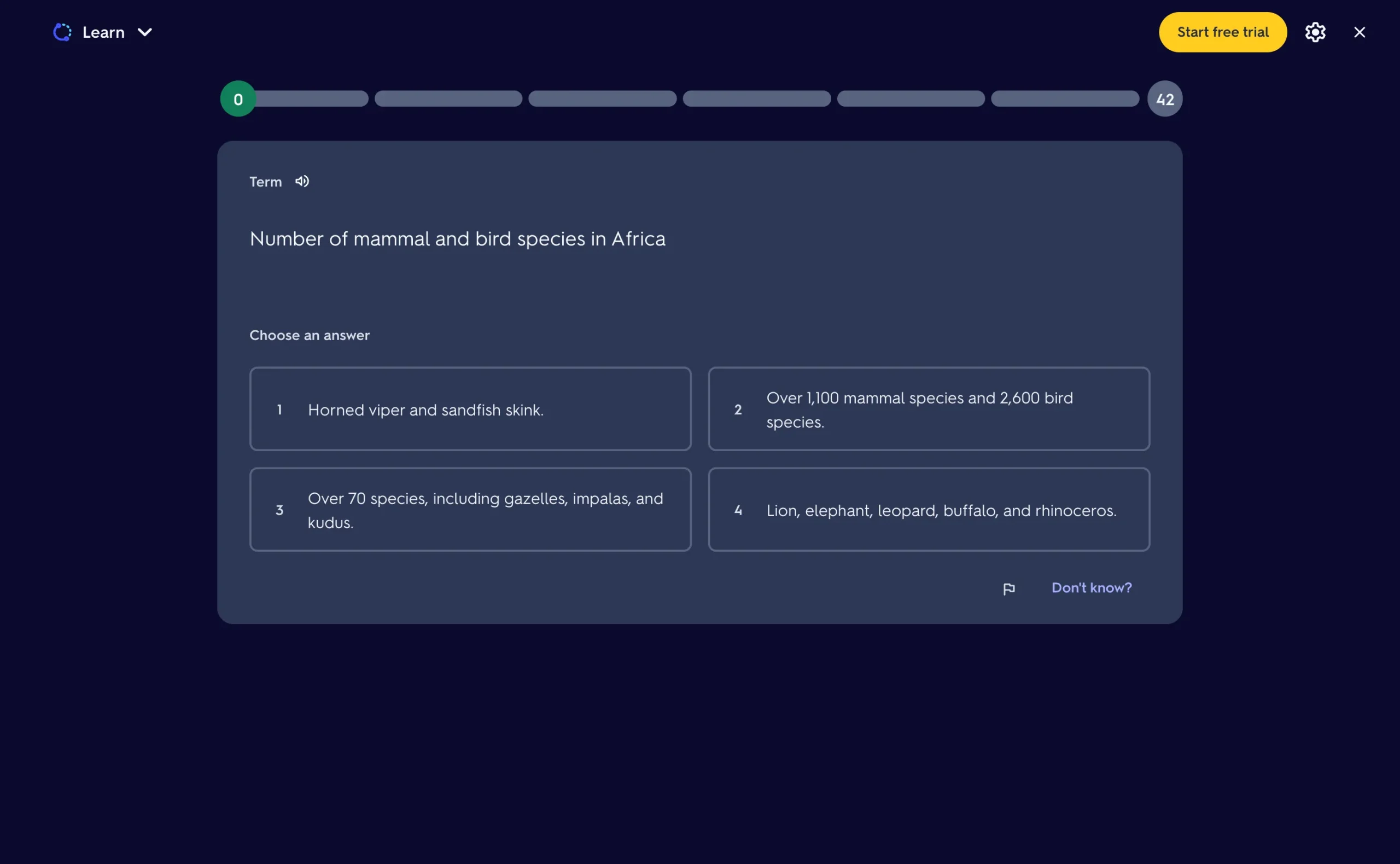
Open your set in Learn or Test mode and Quizlet turns it into a multiple-choice quiz automatically. Test mode even mixes question formats (multiple-choice, true/false and written answers) to create a full practice exam from your Word document.
Why Choose Quizlet?
- Self-Study Focus: Learn mode keeps quizzing you until you master the material.
- Review Before Adding: You approve every AI-generated card before it lands in your set.
- Huge Library: Millions of existing study sets and practice tests to complement your own material.
Frequently Asked Questions
- How can AI be used to generate quizzes?
AI can automate quiz creation by analyzing text, identifying key concepts, and generating questions automatically. Tools like SlideSpeak and ChatGPT use advanced AI algorithms to streamline this process, making quiz creation faster.
- How to convert documents into quizzes with ChatGPT?
Using ChatGPT for quiz creation involves uploading a Word document and interacting with the AI through text prompts. ChatGPT then uses its language model to generate various types of quiz questions based on the content provided, allowing for customization and refinement.
- What is the best tool to generate quiz with AI from Word?
Among the top choices for generating questions from text are SlideSpeak, with its built-in Quiz Generator that produces an editable quiz with a downloadable answer sheet, and Quizgecko, which excels in quick and accurate quiz generation with a user-friendly interface.
- What benefits are there to using an AI tool like Wayground to create quizzes?
AI-driven platforms like Wayground (formerly Quizizz) enhance the quiz creation process by automating the extraction of key information from documents, generating diverse question types (such as multiple-choice, fill in the blank, and open-ended questions), which saves you time and effort. You benefit from these AI tools due to their ability to quickly create engaging quizzes, automate question generation, and provide insightful analytics to track learning outcomes.
- How can you create a quiz with AI for an LMS?
You can create a quiz for your LMS by using a tool like SlideSpeak or Quizgecko. With SlideSpeak, generate the quiz from your presentation and download it as a PDF with an answer sheet. With Quizgecko, you can export your questions directly in LMS-compatible formats such as Moodle (Aiken), Canvas, Blackboard or QTI. Then log in to your LMS, navigate to the quiz creation section, and use the import function to upload your quiz file. Configure the quiz settings, including time limits, question order, and scoring rules, and publish the quiz.
After publishing, preview the quiz to ensure everything is functioning correctly and make any necessary adjustments. Monitor student performance once they take the quiz to ensure it meets your educational objectives.
- Can AI generate quizzes in Moodle?
Yes, AI can generate quizzes for Moodle. You can use AI tools like SlideSpeak, ChatGPT or Quizgecko to create quiz questions from your content. Once generated, export or convert the questions into a Moodle-compatible format, such as GIFT or Aiken, and import them into Moodle’s question bank. From there, you can add the questions to your quizzes within Moodle.
- Are there any e-learning platforms with AI capabilities?
Yes, several e-learning platforms have AI capabilities to enhance quiz and assessment creation. For example, Wayground (formerly Quizizz) automatically generates quizzes by analyzing content from sources like Word documents and presentations, streamlining the quiz creation process for educators. Feedback and analytics are provided in real-time, enabling educators to track student progress and identify areas needing improvement, while students receive immediate feedback on their quiz responses. Wayground also incorporates gamification elements such as points and leaderboards to engage students, making learning interactive and enjoyable.
Final Thoughts
Transforming your Word documents into engaging quizzes is now easier than ever with the power of AI. These innovative tools offer an easy way to generate interactive assessments that make learning fun and effective. By leveraging AI, you can save time, enhance the quality of your quizzes, and provide a more dynamic learning experience for your audience.


