

SlideSpeak can turn any presentation into a ready-to-use quiz in just a few clicks. It generates multiple-choice and true/false questions from your slides, lets you edit them manually or with AI, and gives you several ways to use the result: download it as a PDF with an optional answer sheet, insert it into your deck, run it live, or export it to your LMS.
This guide covers both ways to get started: creating a brand-new presentation with AI, or importing one you already have.
Step 1: Open or create a presentation
You have two options: generate a new presentation with AI, or import an existing one. Either way, the goal is to get your presentation open in the SlideSpeak editor.
Option A: Create a new presentation with AI
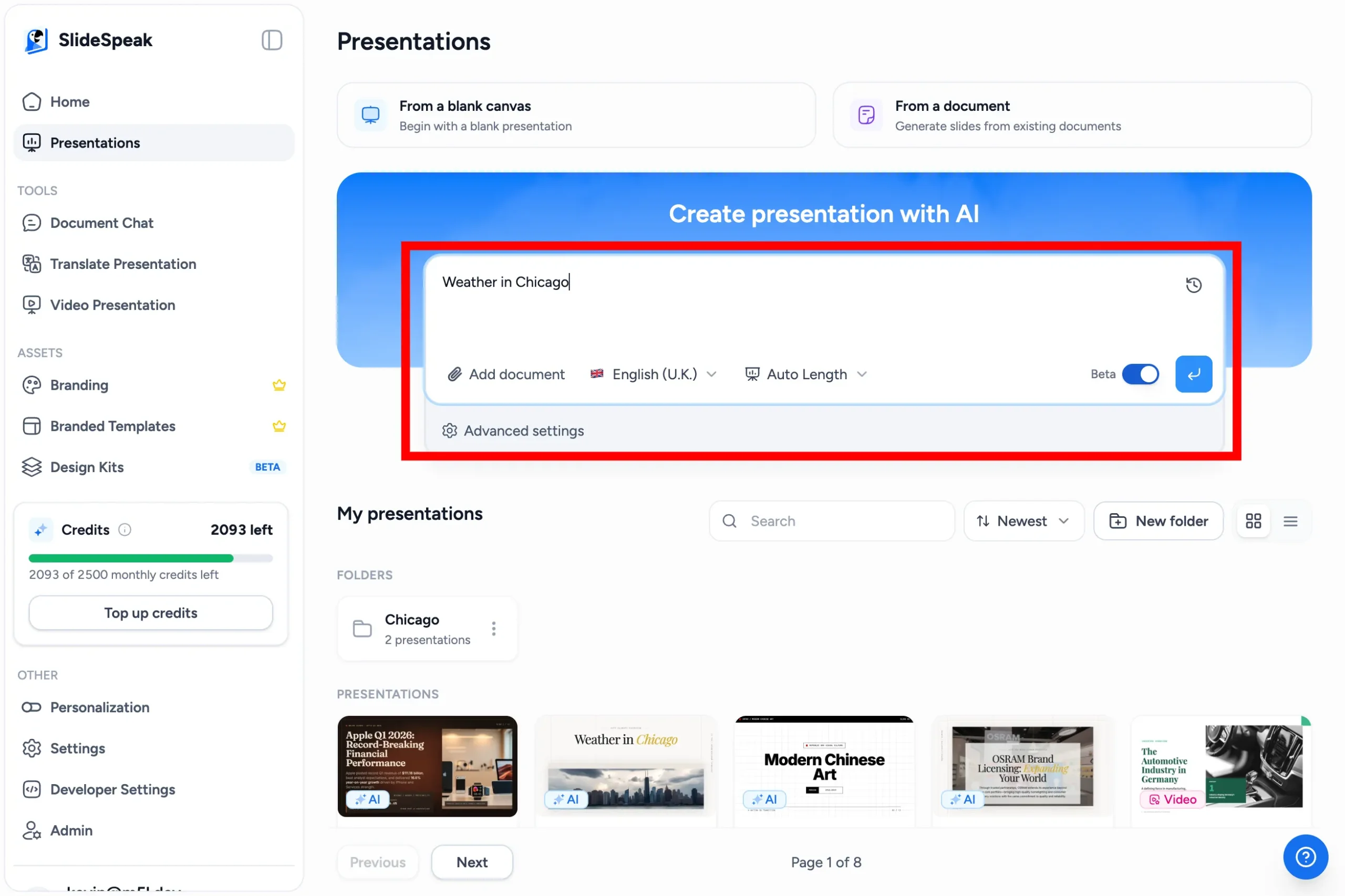
- Go to app.slidespeak.co and click Create Presentation.
- Enter a prompt describing your topic, or upload a document to base the presentation on.
- Review the generated outline and confirm it.
- Choose a template.
- Wait a moment while SlideSpeak generates your presentation.
Option B: Import an existing presentation
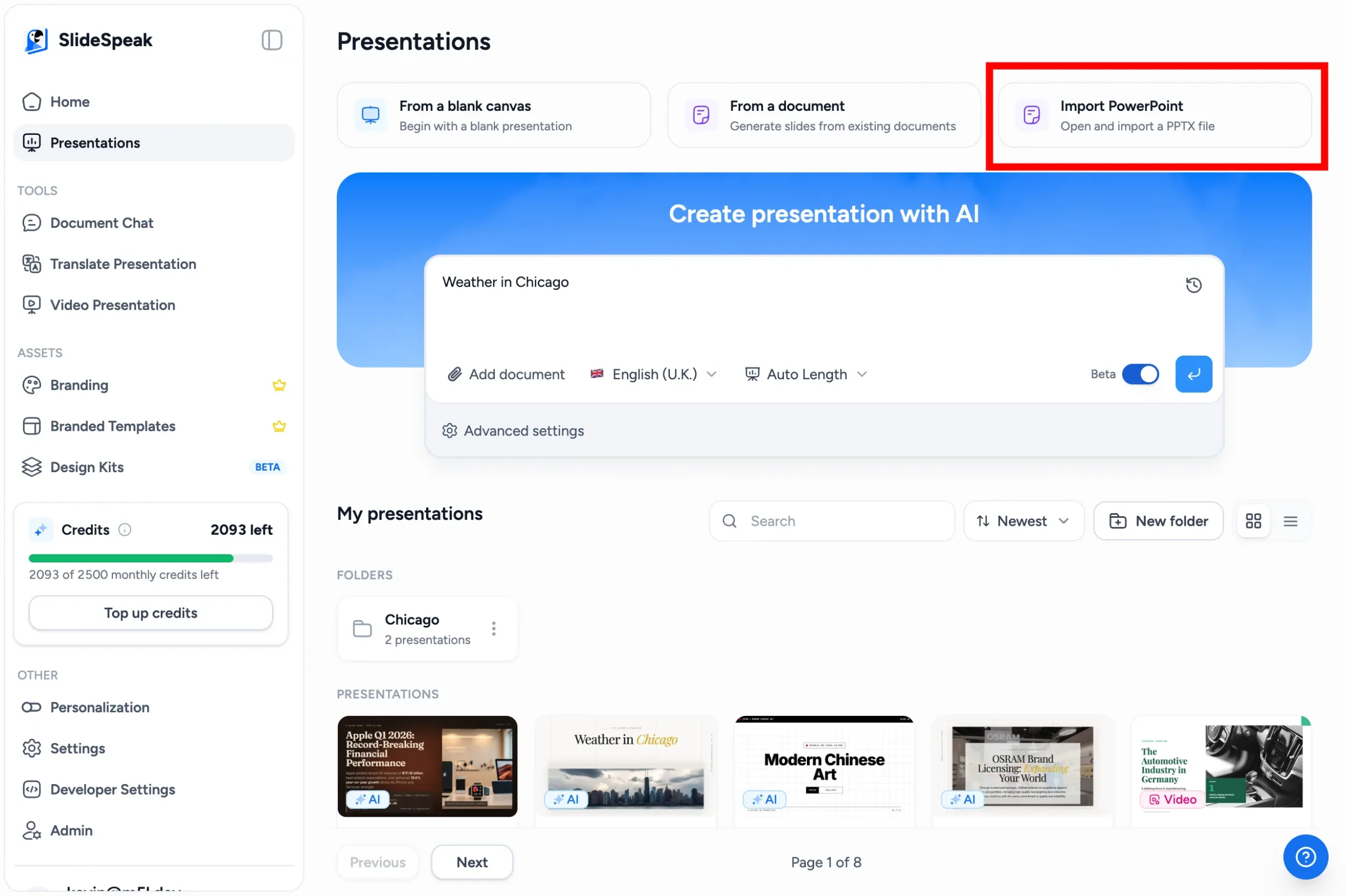
If you already have a presentation, click Import PowerPoint on the Presentations page and select your PPTX file. It will open directly in the SlideSpeak editor, ready for the next step.
Step 2: Open the Quiz panel
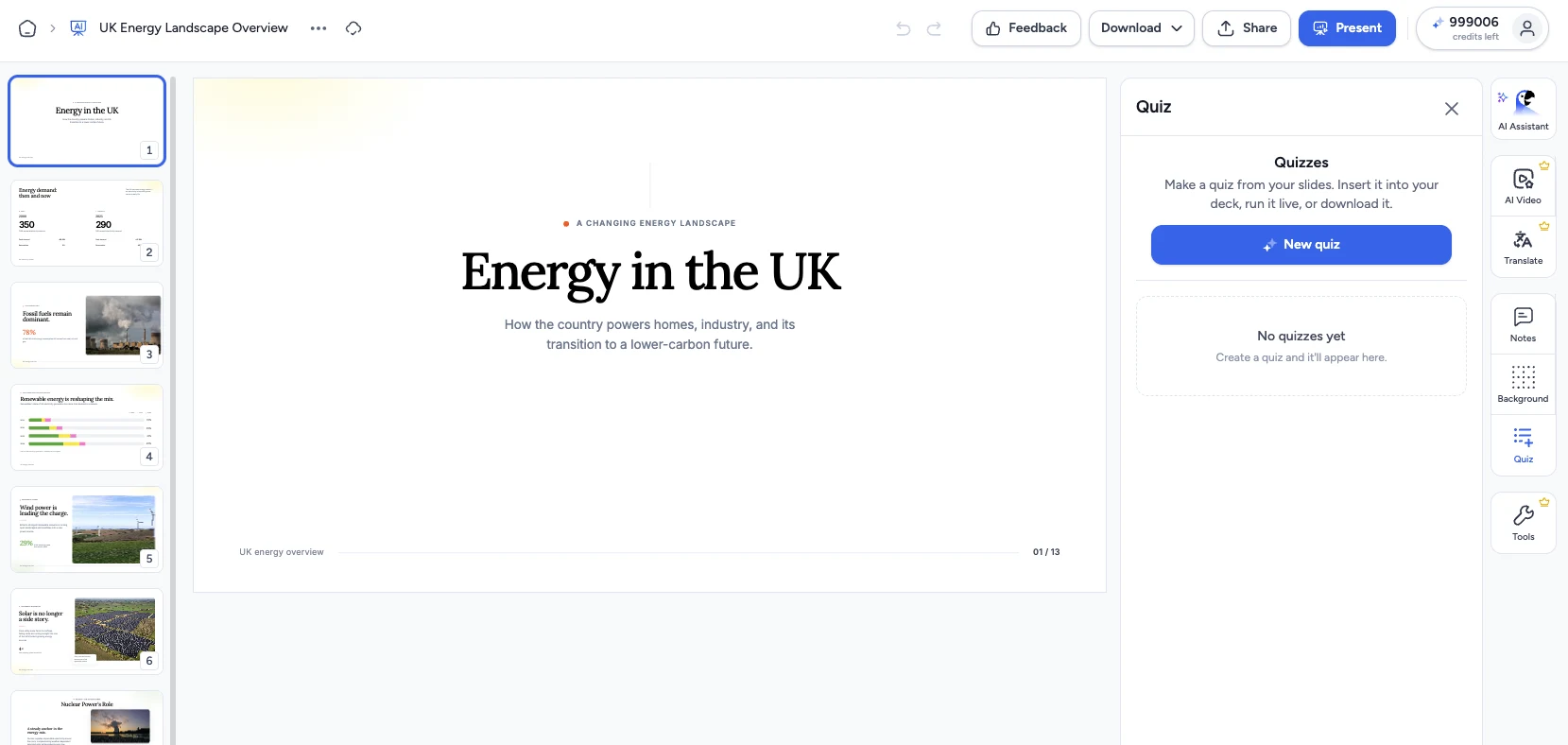
With your presentation open in the SlideSpeak editor, click Quiz in the right-hand side panel, then click New quiz. Quizzes you create later show up in this panel, each with its own Download menu.
Step 3: Choose the number of questions
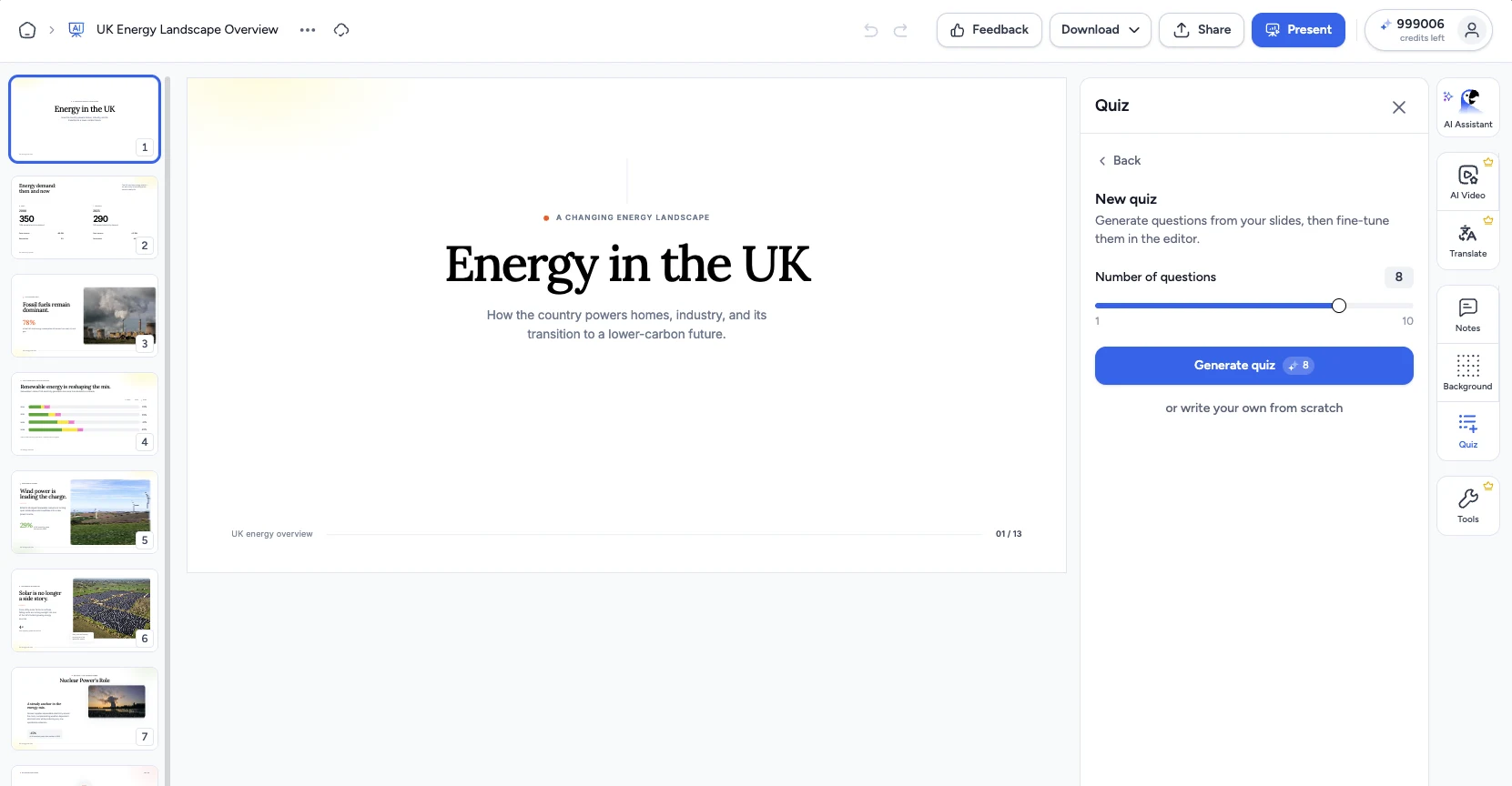
Use the slider to pick how many questions you want, from 1 to 10, then click Generate quiz. Generating costs 1 credit per question, and the button shows the total before you commit. SlideSpeak decides the mix of multiple-choice and true/false questions based on your slides; you can change any question’s type afterwards in the editor.
Prefer to build the quiz yourself? Click or write your own from scratch to start with an empty quiz instead.
Step 4: Review and edit your quiz
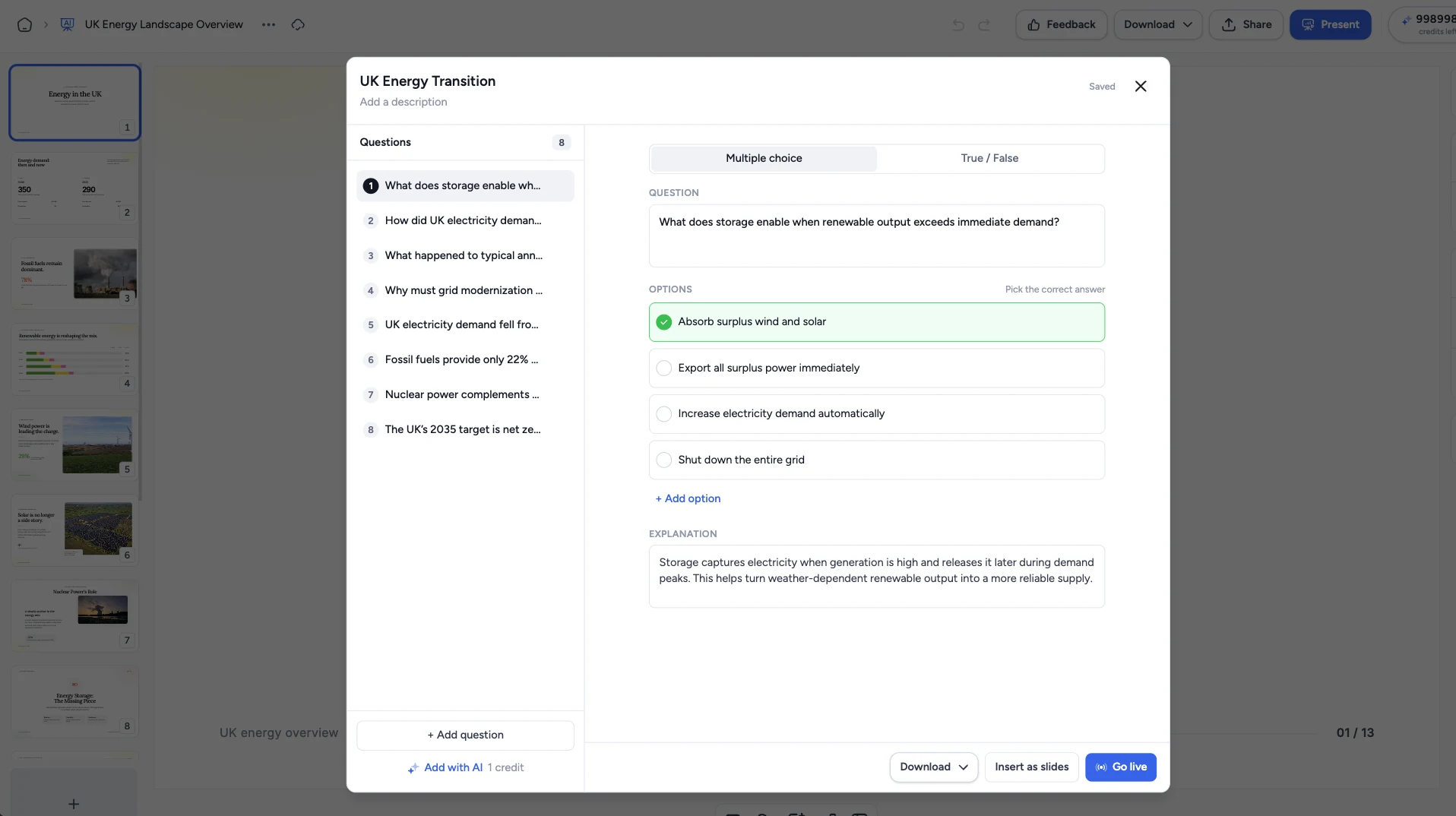
Your quiz opens right inside the SlideSpeak editor, where you can refine every question and answer:
- Edit manually: change the question text, edit the answer options, pick the correct answer, or update the explanation.
- Switch the question type: flip any question between Multiple choice and True / False with the tabs above it.
- Add questions: add a blank question with + Add question, or let AI write a new one with Add with AI (1 credit per question).
- Delete: remove any question you don’t need.
Step 5: Download or share your quiz
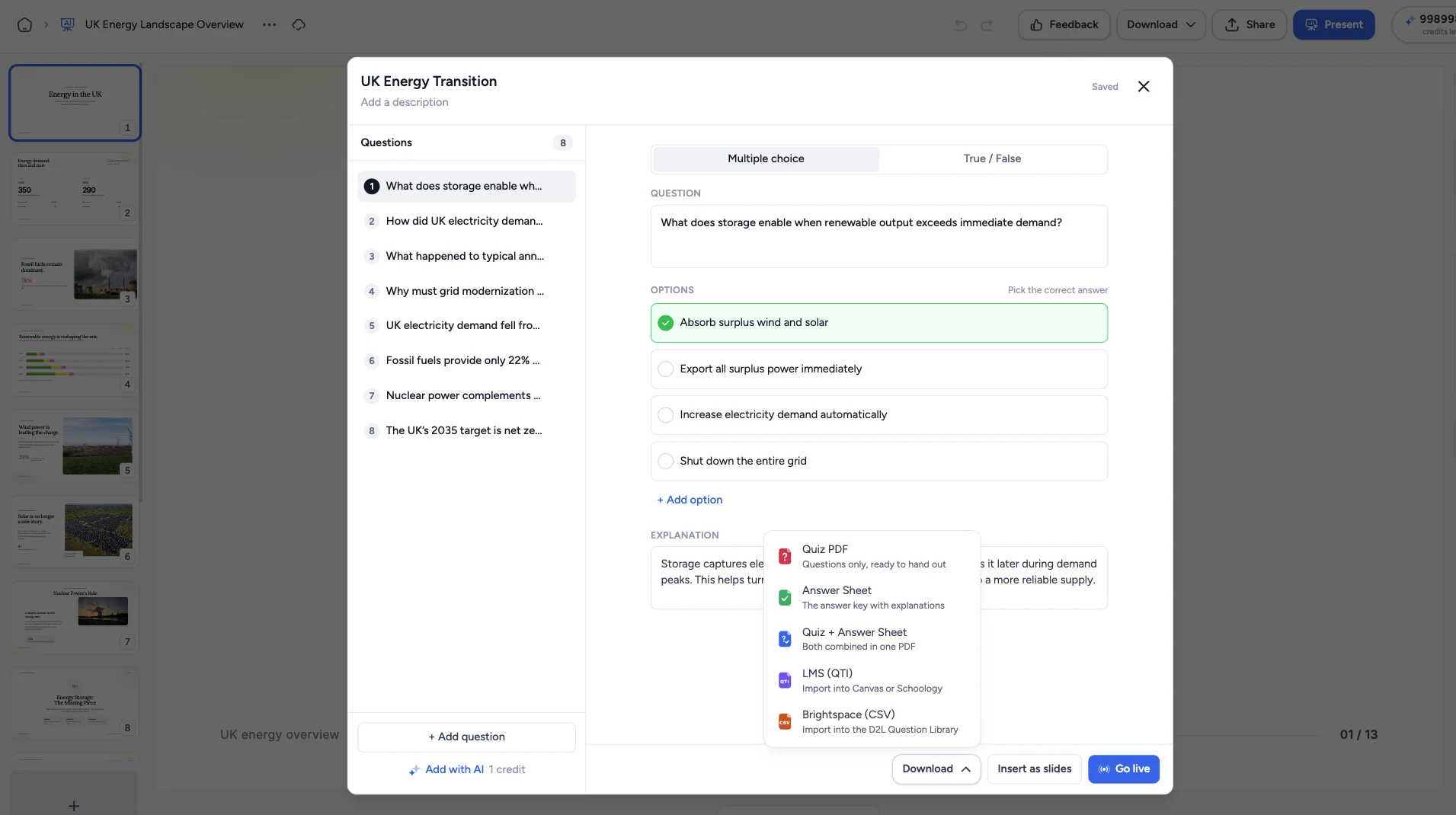
When you’re happy with the quiz, click Download at the bottom of the quiz editor (the quiz card in the Quiz panel has the same menu) and pick a format:
- Quiz PDF: the questions only, ready to hand out.
- Answer Sheet: the answer key with explanations, for grading.
- Quiz + Answer Sheet: both combined in one PDF.
- LMS (QTI): a QTI package for Canvas or Schoology. See how to export a quiz as QTI.
- Brightspace (CSV): a CSV for the D2L Question Library. See how to import a quiz into D2L Brightspace.
Not ready to leave the editor? You can also click Insert as slides to add the quiz to your deck, or Go live to run it as a live quiz your audience answers in real time.
That’s it!
You’ve turned your presentation into a ready-to-use quiz. Whether you built the deck from scratch with AI or imported an existing one, you can generate the questions, fine-tune them, and hand the quiz out as a PDF, run it live, or import it straight into your LMS.
Need more help?
If you have any questions or need assistance, feel free to contact our support team at support@slidespeak.co