

The 5 Best AI Flashcard Generators Compared (2026): Quizlet, Revisely & More
Written by

Published on
On this page
Looking for the best AI flashcard generator? In this guide (updated for 2026) we compare five popular AI flashcard tools (Anki, SlideSpeak, Revisely, Quizlet, and ChatGPT) side by side, so you can find the fastest way to turn your notes, PDFs, and PowerPoint slides into flashcards automatically. You’ll find a quick comparison table, step-by-step guides for every tool, and answers to common questions like “Is Revisely good?” and “What are the best Quizlet alternatives?”
Why flashcards are so useful
Before diving into the tools, it’s worth revisiting why flashcards remain one of the most powerful study aids. Flashcards are excellent for active recall, a practice where you actively stimulate your memory during the learning process. This method contrasts with passive review (like reading or listening), which is less effective for memory retention. When combined with spaced repetition, a technique where review sessions are spaced out over time, flashcards can dramatically improve long-term retention of information.
However, creating flashcards manually can be time-consuming, especially for complex subjects or large volumes of material. This is where AI comes in, automating the process and allowing you to focus on what matters most: learning.
The 5 tools we will analyze today will be:
These tools will differ in price, creation style and use case. We have included these tools so that everybody can take value from this article and identify which AI flashcard generator is best for them.
AI flashcard tools compared
If you just want the short answer, here is how the five AI flashcard generators compare at a glance:
| Tool | Best for | AI flashcard generation | Input formats | Spaced repetition | Free plan |
|---|---|---|---|---|---|
| Anki | Long-term retention and daily review | No (hosts cards generated elsewhere) | Manual entry, CSV and deck imports | Yes (FSRS scheduler) | Free on desktop and web |
| SlideSpeak | Turning documents and slides into flashcards | Yes | PDF, Word, PowerPoint | No (export to Anki or Quizlet) | Yes, including a free flashcard tool |
| Revisely | Converting notes and PDFs into ready-made decks | Yes | PDF, Word, images, handwritten notes | Built-in study mode | Limited free plan |
| Quizlet | All-in-one studying, games and sharing | Yes (Magic Notes, requires Quizlet Plus) | Text, notes, documents | Adaptive “Learn” mode | Yes, but AI features need Plus |
| ChatGPT | Custom flashcards for niche or advanced topics | Yes (via prompts) | Text and file uploads | No | Yes |
The main differences between AI flashcard tools come down to four things: whether the AI actually writes the flashcards for you, which input formats you can upload (notes, PDFs, PowerPoints), whether the tool also helps you review with spaced repetition, and how much of that sits behind a paywall. We break each one down below.
We will conclude by looking at incorporating flashcards into your Learning Management System (LMS).
1. Anki: Hosting your AI flashcards
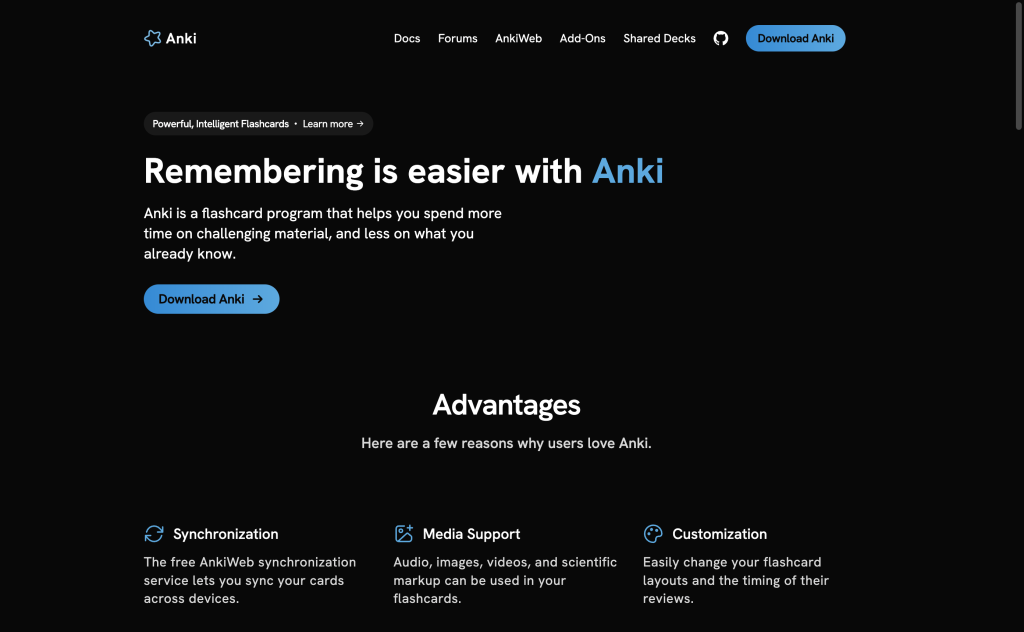
Anki is a powerful flashcard tool known for its implementation of spaced repetition, a learning technique that schedules flashcard reviews at intervals optimized for long-term memory retention. Although Anki is not AI-powered in itself, it can be combined with AI tools for generating flashcards, making it a versatile tool for both students and educators. Recent versions of Anki also ship with FSRS, a smarter spaced repetition scheduler that adapts review intervals to how well you actually remember each card.
Anki also comes with AnkiWeb, a free companion service that syncs your decks across devices and lets you study straight from the browser, so you can review on any computer or phone without installing anything. AnkiWeb also hosts a large library of shared decks created by other learners, which you can download and study for free.
Step-by-Step Guide:
Step 1: Download and install Anki
Visit the Anki website, download the application for your operating system (Windows, Mac, Linux, or mobile), and install it. After installation, launch Anki to begin.
Step 2: Create a new deck
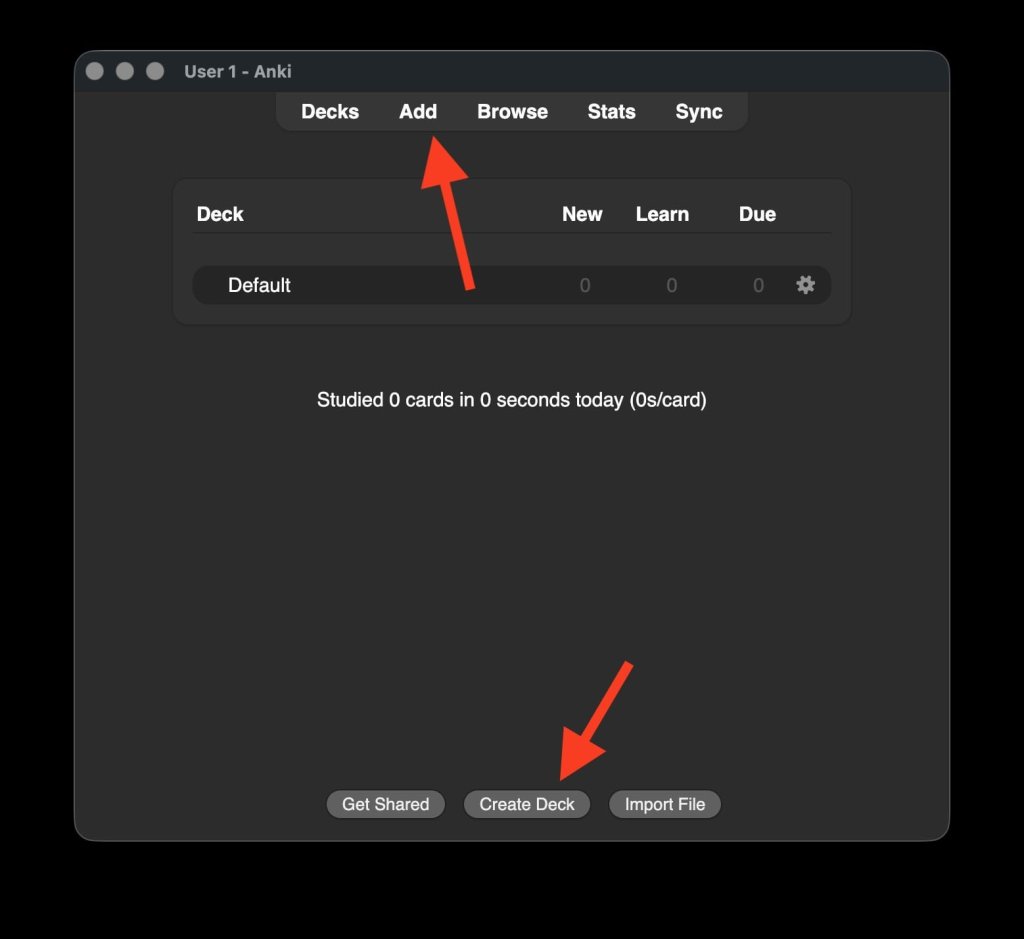
In Anki, decks are collections of flashcards. Click on “Create Deck” to start a new set of flashcards. Name your deck according to the subject or topic you’re studying (e.g., “Biology 101” or “French Vocabulary”).
Click on “Add” to create new flashcards.
Step 3: Enter your content
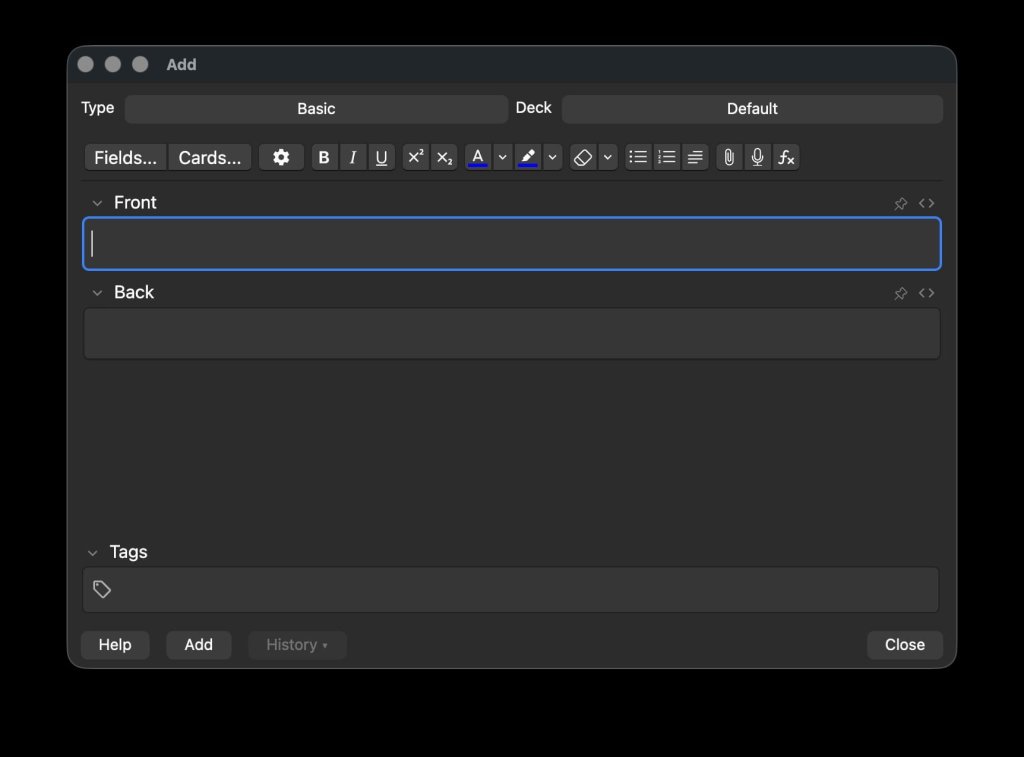
Enter the question in the front field and the answer in the back field. Anki allows you to add additional information, such as images, audio, or context notes, which can be very helpful for complex subjects.
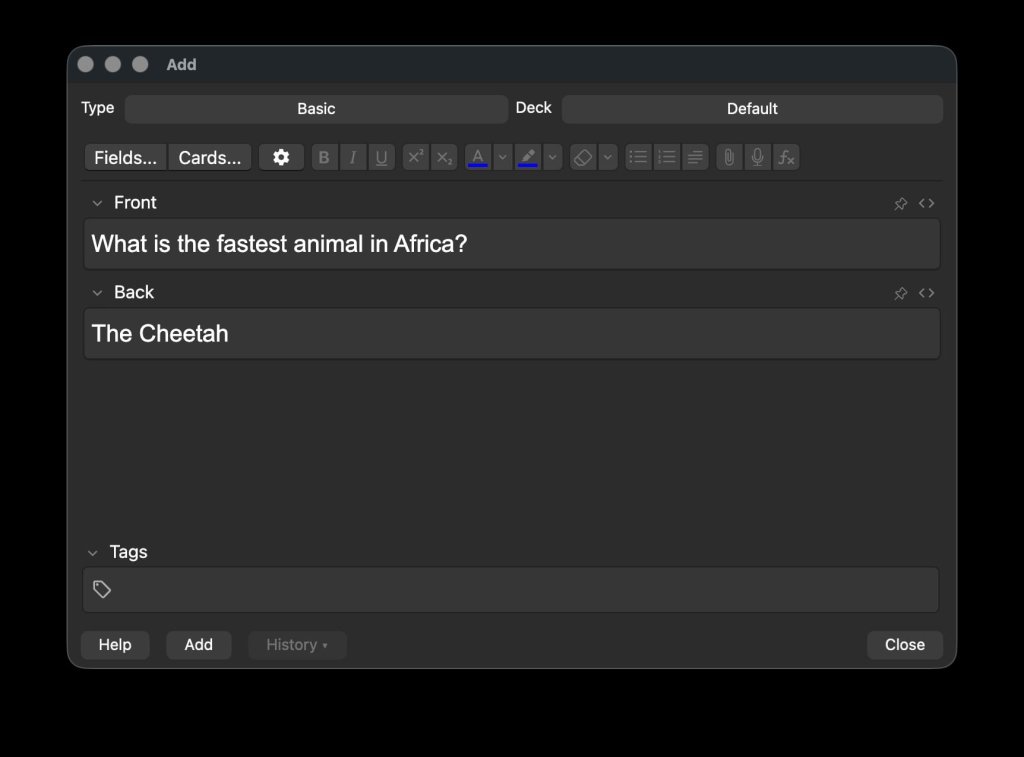
Using AI-Generated Questions: If you’ve used an AI tool like SlideSpeak to generate questions, you can copy and paste these directly into Anki. This saves time and ensures your revision flashcards are aligned with your study materials.
Step 4: Customize flashcards
Anki offers extensive customization options. You can create different types of flashcards (e.g., cloze deletions for fill-in-the-blank questions), add tags for organization, and even customize the appearance of cards. For language learning, you can integrate audio files to practice pronunciation.You should customize your flashcards to suit your preferred revision style and needs.
Step 5: Set up spaced repetition
Anki automatically schedules reviews based on how well you remember each flashcard. Cards you find easy will appear less frequently, while those you struggle with will appear more often. This system is key to Anki’s effectiveness in promoting long-term retention.
Step 6: Review regularly
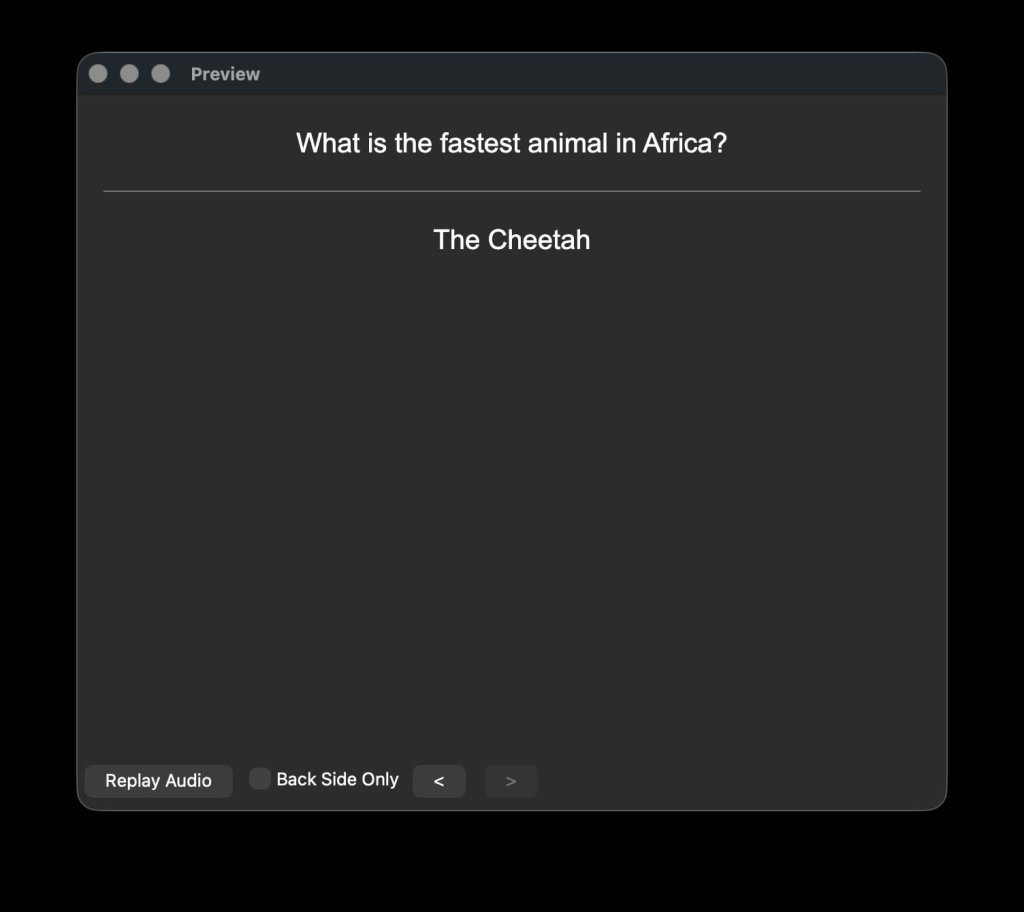
To get the most out of Anki, consistency is crucial. Spend a few minutes each day reviewing your AI flashcards according to Anki’s schedule. This daily practice reinforces learning and helps ensure that information is transferred to your long-term memory.
Step 7: Monitor your progress
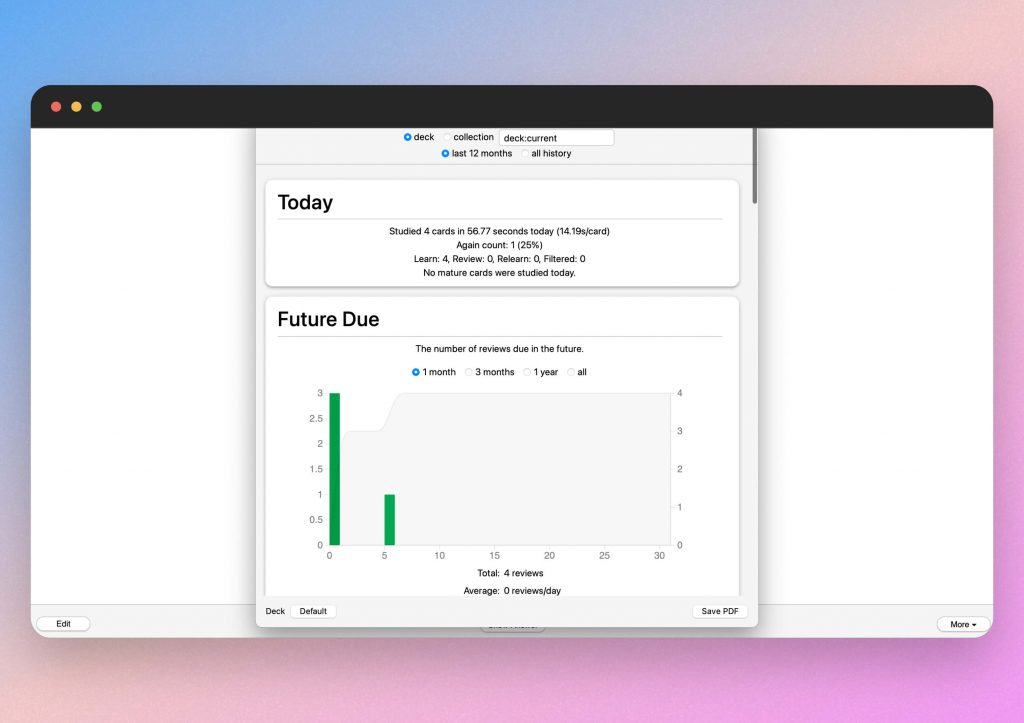
Anki tracks your progress and provides detailed statistics on your performance. You can see how many cards you’ve reviewed, your success rate, and how well you’re retaining information over time. Use this data to adjust your study habits as needed.
2. SlideSpeak: Effortless flashcard creation from documents
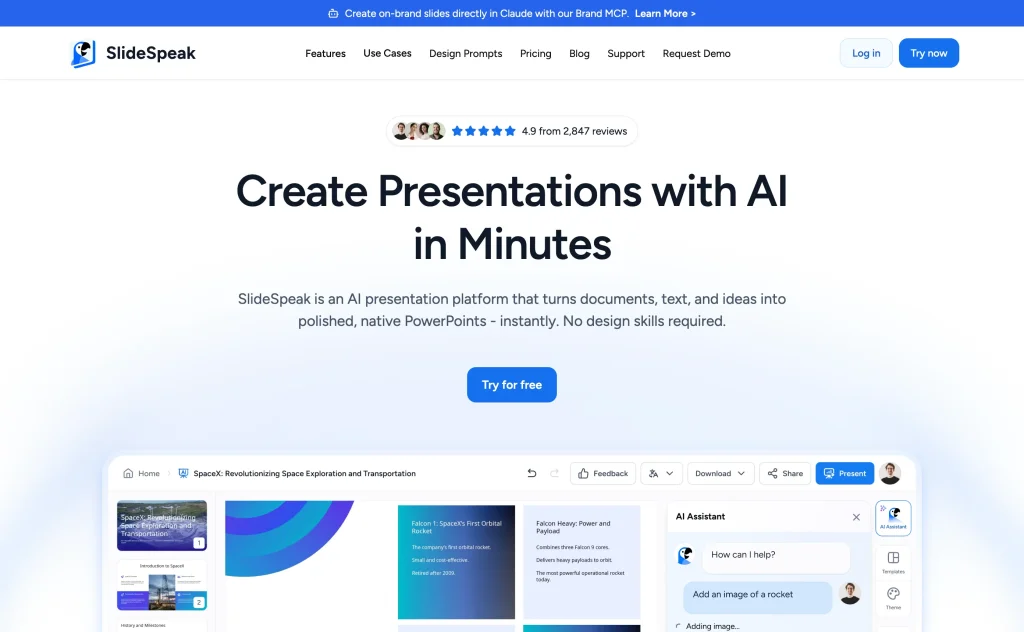
SlideSpeak is an AI-powered tool that turns your existing documents into a ready-made flashcard deck. Whether you have a lecture PDF, a PowerPoint presentation, or notes from a textbook, you simply attach the file, tell the AI how many flashcards you want, and SlideSpeak generates a deck of question and answer slides that you can study, present, or export.
Try SlideSpeak for free today.
SlideSpeak also offers dedicated free tools to create flashcards from a PowerPoint or from a PDF. And if you prefer testing yourself in quiz format, there are matching free tools to create a quiz from a PDF, from a PowerPoint, or from a Word document.
Step-by-Step Guide:
Step 1: Access the SlideSpeak web app
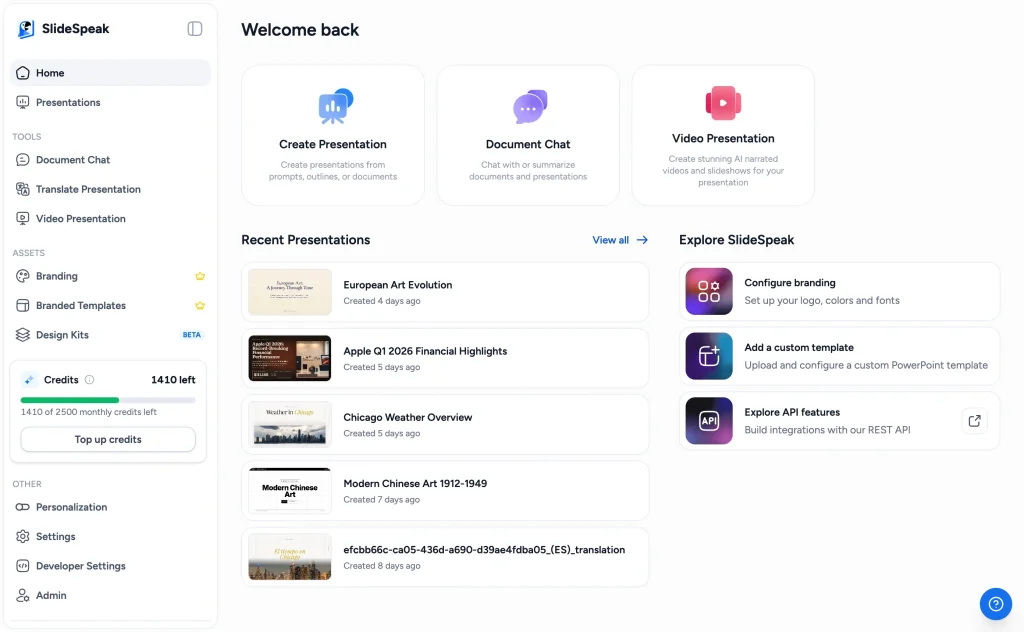
Go to the SlideSpeak app and log in (you can create an account for free). You will land on the dashboard, which gives you quick access to Create Presentation, Document Chat, and your recent decks.
Step 2: Attach your document and ask for flashcards
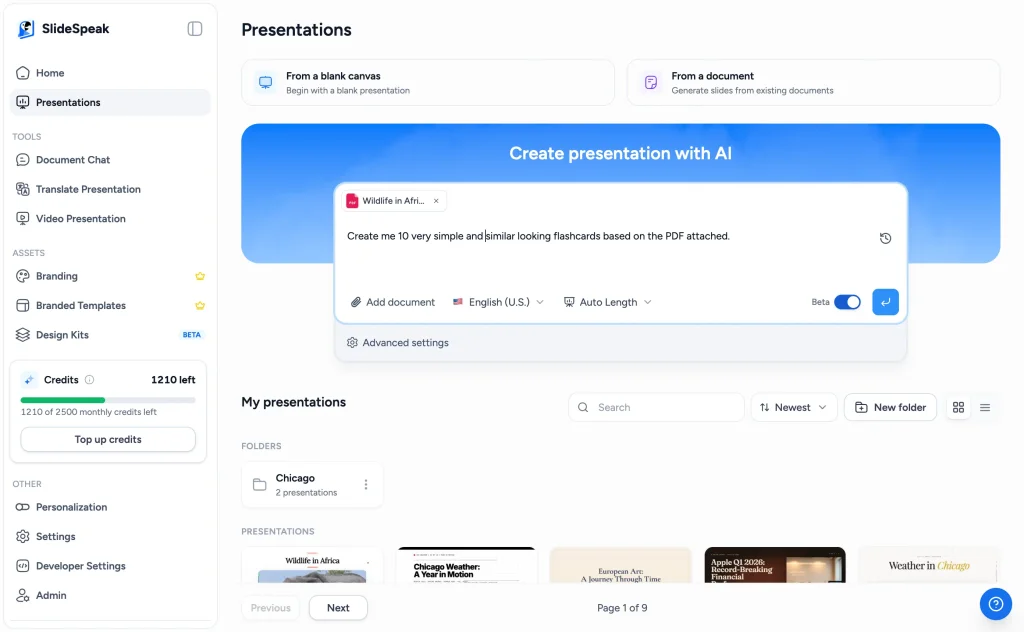
Click on “Create Presentation” and attach the file you want to turn into flashcards. SlideSpeak supports a wide range of formats, including PDFs, Word documents, and PowerPoint presentations.
Then type what you want, for example: “Create me 10 very simple and similar looking flashcards based on the PDF attached.” You can specify the number of cards and the topics you wish to be tested on, which really helps you target your revision and learning objectives.
Step 3: Let the AI generate your deck
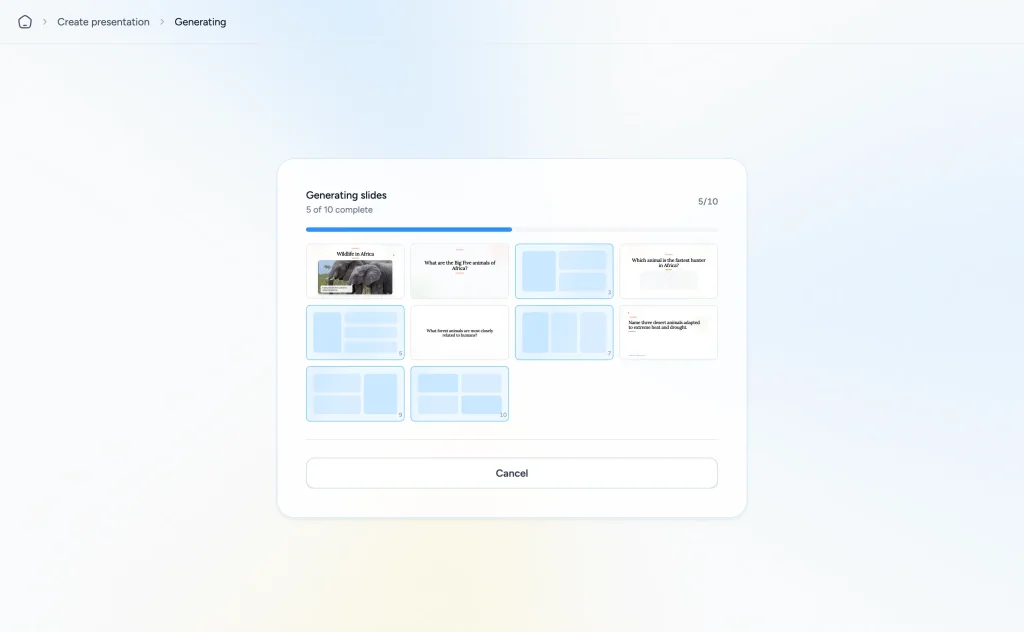
SlideSpeak reads your document and generates the flashcards slide by slide. You can watch the progress as each card is created; a 10-card deck is usually ready in about a minute.
Step 4: Review and edit your flashcards
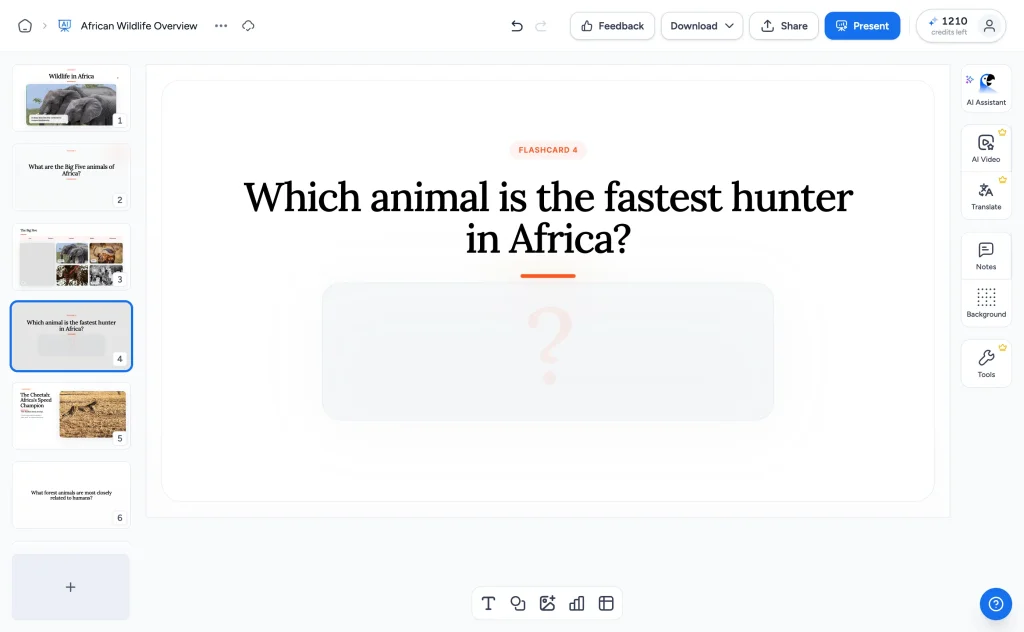
Each flashcard consists of a question slide followed by an answer slide, so you can quiz yourself before revealing the solution.
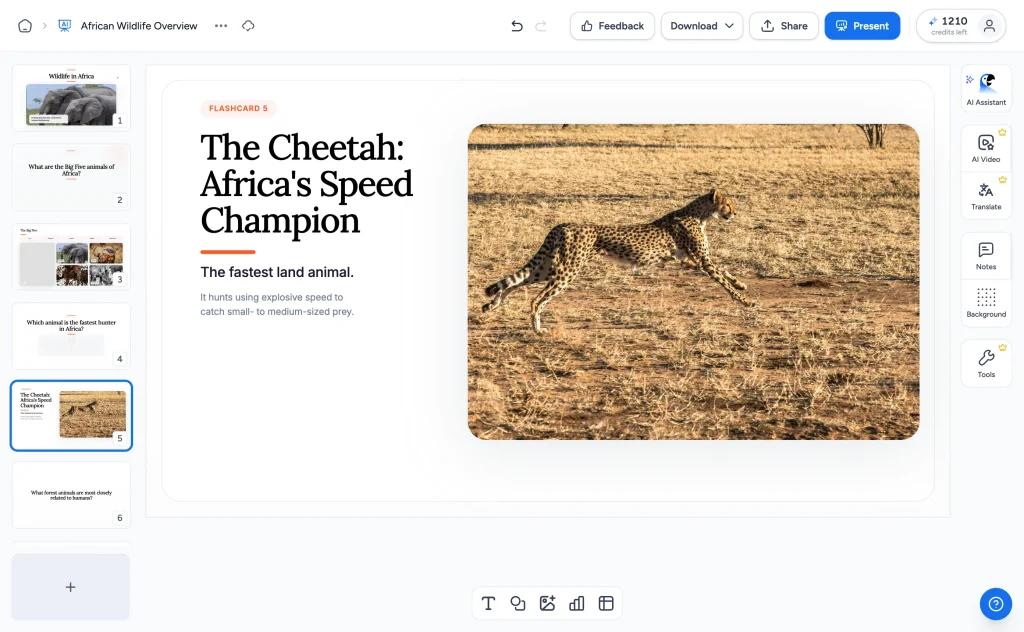
Open the deck in the editor to tweak the wording, add images, or restyle the cards. If the questions are too basic, ask the built-in AI assistant to make them more challenging or to focus on a specific section of your material.
Step 5: Study, present, or export
When you are happy with the deck, use Present mode to flip through the cards full screen, download the deck as a PowerPoint or PDF, or share it with classmates via a link. If you prefer reviewing in Anki or Quizlet, you can copy the questions and answers across in seconds.
Step 6: Refining the Process
To improve the relevance of the flashcards, you can break down larger documents into smaller sections before uploading. This allows the AI to focus on more specific content, generating more targeted questions.
For example if you know you have a large file on Biology, consider splitting it into subsections like ecology and microbiology.
Why SlideSpeak stands out:
SlideSpeak is particularly useful for students and educators dealing with large volumes of material, such as lecture slides or lengthy textbooks. It automates the entire flashcard workflow, turning dense information into a polished, ready-to-study deck in one step.
Unlike most tools in this list, SlideSpeak gives you a visual deck you can present or export rather than a plain list of questions. It also pairs well with Anki or Quizlet: let the AI write the flashcards from your documents, then review them in the app you already use.
3. Revisely: Streamlined flashcard creation for effective revision
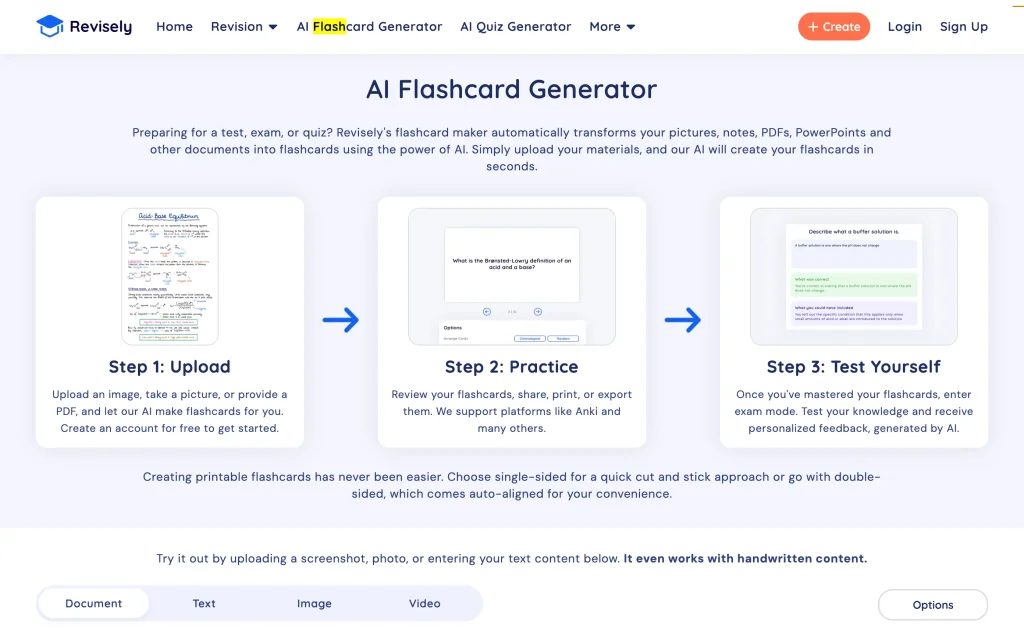
Revisely is an AI-powered platform designed to simplify the creation of revision materials, including flashcards. It offers a streamlined process where you can upload your study notes, and the AI will generate flashcard questions based on the content. Revisely is particularly suited for students who want to maximize their revision time by focusing on key concepts and information.
Step-by-Step Guide:
Step 1: Sign up and log in to Revisely
Visit the Revisely website and create an account. Depending on your needs, you might select a subscription plan that includes the features most relevant to you. Then open the AI Flashcard Generator from the top navigation.
Step 2: Upload your study notes
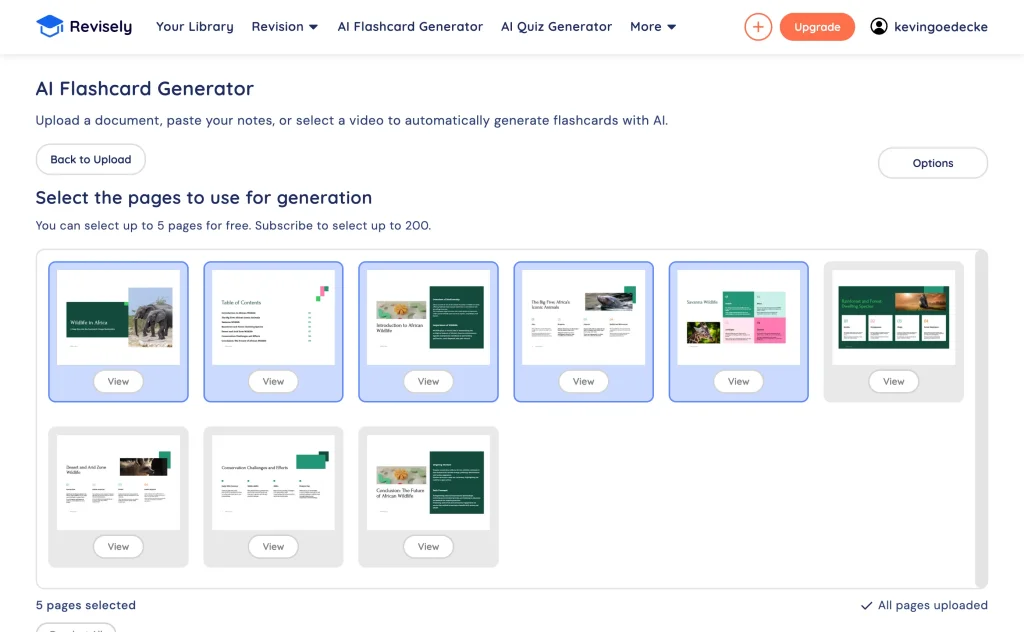
Upload the notes or documents you want to convert into flashcards. Revisely supports various formats, including PDFs, Word documents, and even scanned handwritten notes.
Once your file is uploaded, you select which pages the AI should use for generation. On the free plan you can select up to 5 pages, while a subscription raises the limit to 200 pages.
Step 3: Choose your options and generate
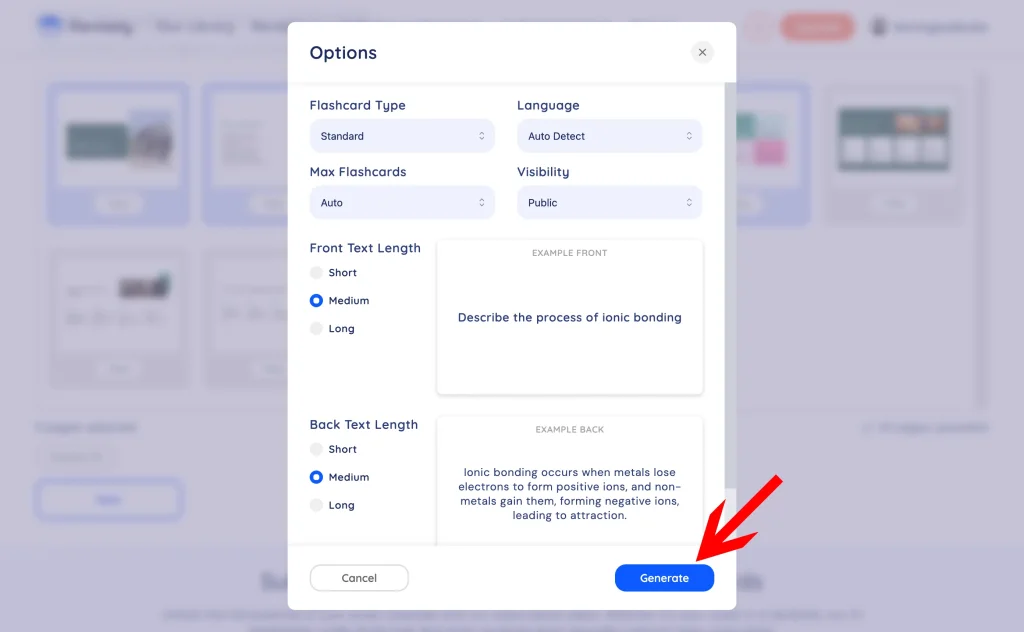
Before generating, open the Options dialog to customize your deck. You can choose the flashcard type, the language, the maximum number of cards, and how long the text on the front and back of each card should be. Once you’re happy, click on the “Generate” button. The AI will analyze your pages and write question and answer pairs that encapsulate the key points.
Step 4: Review and edit the flashcards
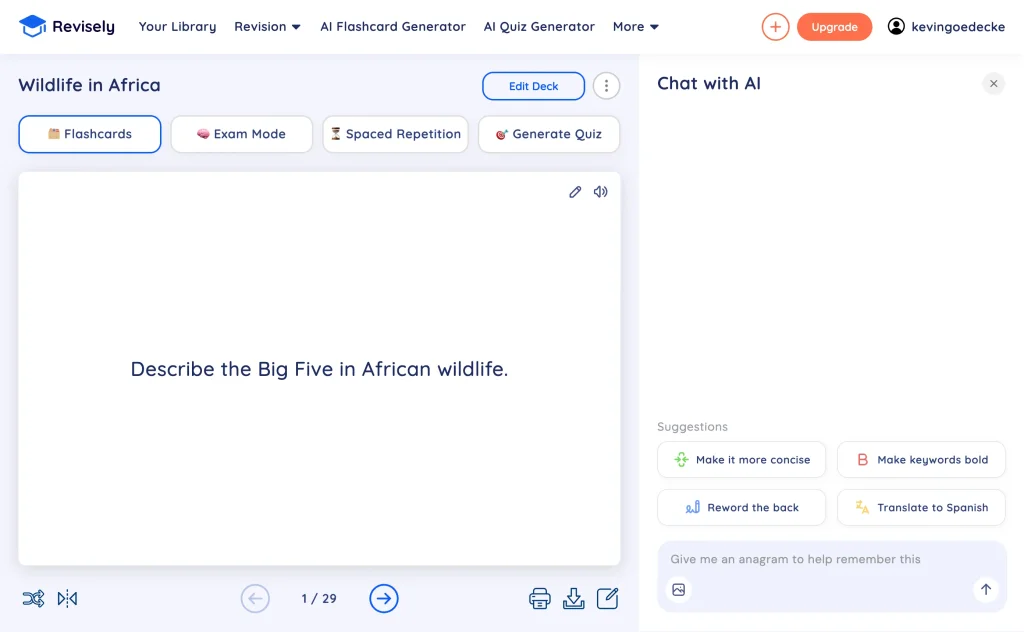
Revisely presents the generated deck so you can flip through each card. Use the built-in “Chat with AI” panel to refine cards without editing them by hand: make them more concise, bold the keywords, reword the back, or even translate the deck into another language.
If the questions are not aligned with your study goals, you can provide feedback to the AI, which will refine its suggestions based on your input.
Step 5: Organize and categorize
Revisely allows you to organize your flashcards into different decks or categories based on topics, difficulty levels, or any other criteria you choose. This organization makes it easier to focus on specific areas during your revision sessions.
Step 6: Integrated study sessions
Revisely includes built-in study tools that allow you to review your flashcards directly on the platform, including an Exam Mode and a Spaced Repetition mode that schedules reviews at optimal intervals to enhance retention. You can even generate a quiz from the same deck.
Step 7: Track your progress
Revisely offers progress tracking features that let you monitor your performance over time. This data can help you identify areas where you need more focus, allowing you to adjust your study strategy accordingly.
Why Revisely stands out:
Revisely’s strength lies in its ability to quickly convert your study notes into flashcards, making it a time-saver for students who want to focus on revision rather than flashcard creation. The platform’s integration of spaced repetition and progress tracking also makes it a comprehensive tool for managing your study sessions effectively. Educators can benefit from Revisely’s ability to create structured revision materials for students, ensuring that they are focusing on the most important aspects of the curriculum.
When compared to Anki, we found Revisely to be the superior platform because it also produced AI generated flashcards whereas you must input the content yourself to Anki so it mainly focuses on helping you revise as opposed to creating the flashcards.
You can also export Revisely flashcards to other formats like PDF, CSV and even to Anki themselves.
Is Revisely good? Our verdict
If you want to go straight from notes to a ready-made deck with minimal setup, Revisely is one of the fastest AI flashcard generators available. It is especially strong at reading PDFs, photos, and even handwritten notes. The main trade-offs are that the free plan is quite limited (uploads are capped at 5 pages) and that power users may miss the fine-grained scheduling control of Anki. For GCSE, A-level, and university students who mainly want their flashcards created for them, Revisely is a solid choice; if long-term retention is your priority, generate your cards in Revisely and export them to Anki.
4. Quizlet: Versatile learning with a global community
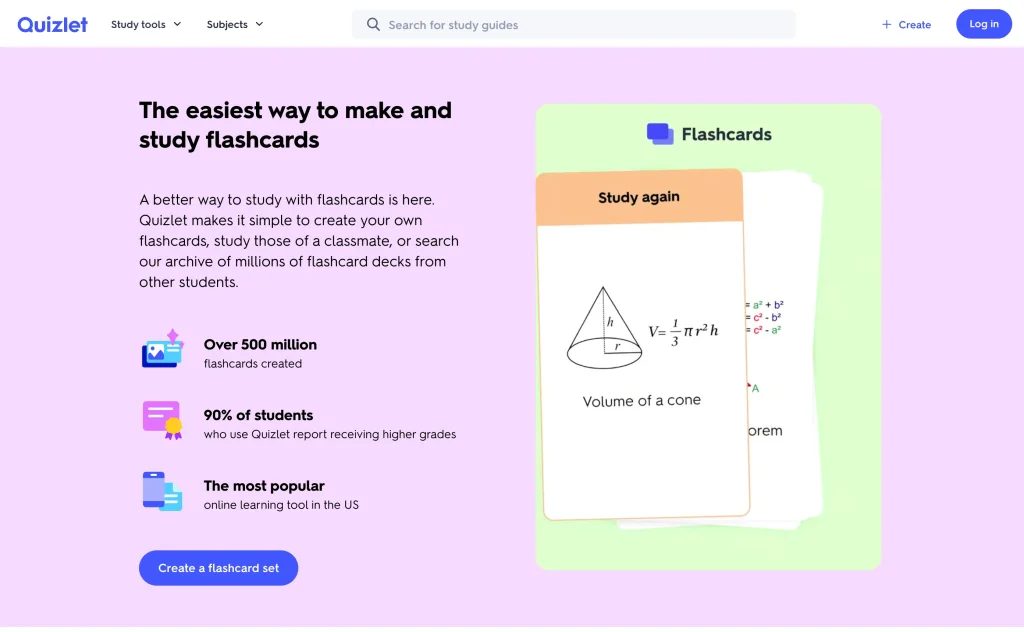
Quizlet is a popular learning platform that goes beyond simple flashcard creation. It offers a range of study tools, including flashcards, games, and practice tests, all designed to enhance your learning experience. Quizlet is particularly beneficial for both students and educators who want to create, share, and collaborate on study materials. With its large user base, you can access millions of study sets created by others, making it easy to find resources for nearly any subject.
Quizlet is also now a full AI flashcard generator in its own right: its Magic Notes feature turns pasted or uploaded notes into flashcards, practice tests, and study guides automatically, and the Q-Chat AI tutor can quiz you on your material. Keep in mind that most of Quizlet’s AI features require a Quizlet Plus subscription (around $36 per year), while creating flashcards manually stays free.
Visit the Quizlet website and create your flashcards now.
Step-by-step guide:
Step 1: Sign up for Quizlet
Visit the Quizlet website and create an account. Quizlet offers both free and premium plans, so choose the one that best fits your needs. The premium plan includes additional features like offline access, advanced study modes, and the AI generation features.
Step 2: Create a set or search the library
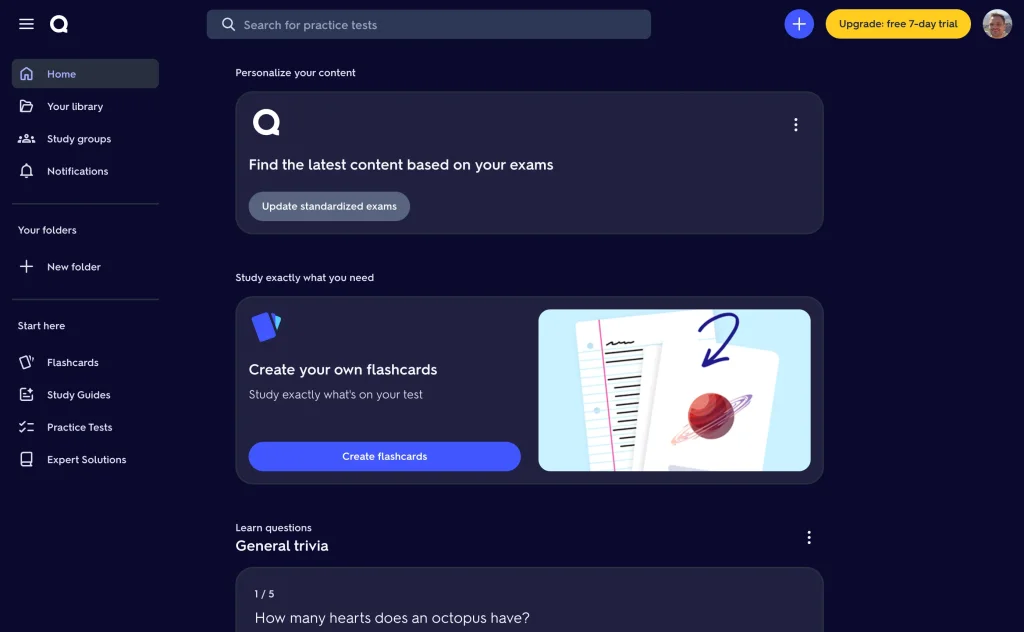
From your dashboard, click on “Create your own flashcards” (or the “+” button) to start a new set. Alternatively, use the search bar to find study sets created by other users. This is a great way to save time and access high-quality content on a variety of subjects.
Step 3: Let the AI create your flashcards
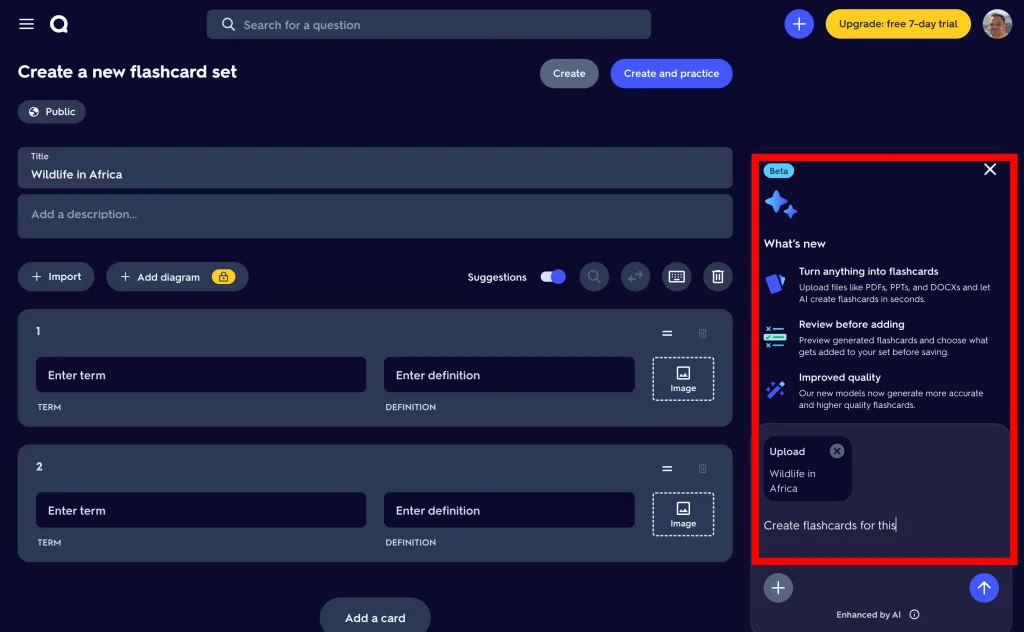
Inside the set editor, Quizlet’s AI assistant can turn almost anything into flashcards: upload a file like a PDF, PowerPoint, or Word document and prompt it with “Create flashcards for this”. The assistant reads your material and drafts term and definition pairs in seconds.
You can also enter your terms and definitions manually or import data from your own files if you prefer the classic workflow.
Step 4: Review before adding
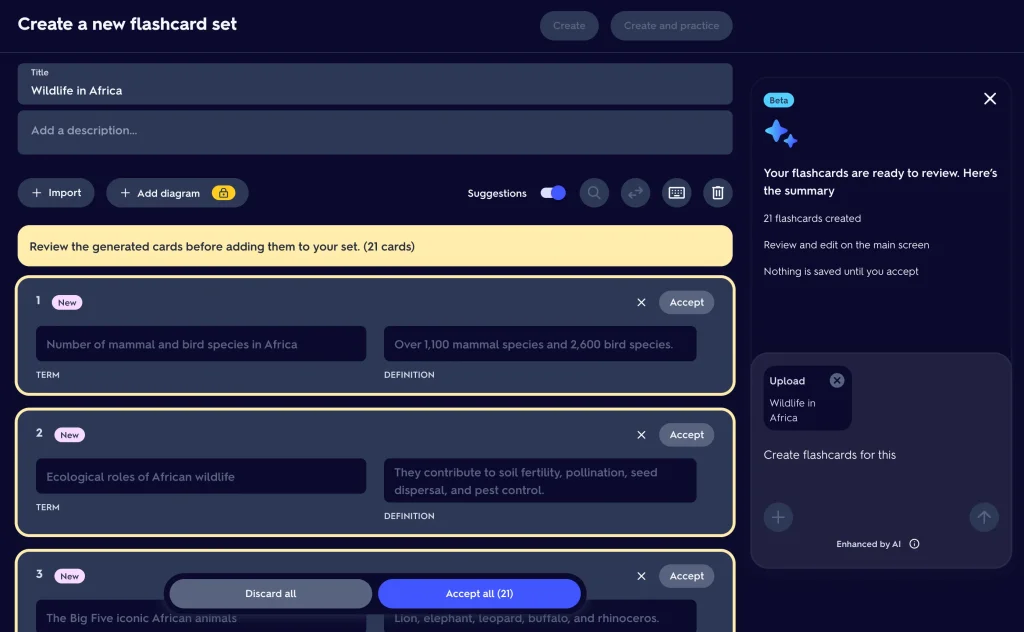
Nothing is saved until you accept it. Each generated card is marked as new, and you can accept or discard cards one by one, or hit “Accept all” to add the whole batch to your set. Afterwards, customize your cards with images, audio, or diagrams to suit your study style.
Step 5: Adaptive learning
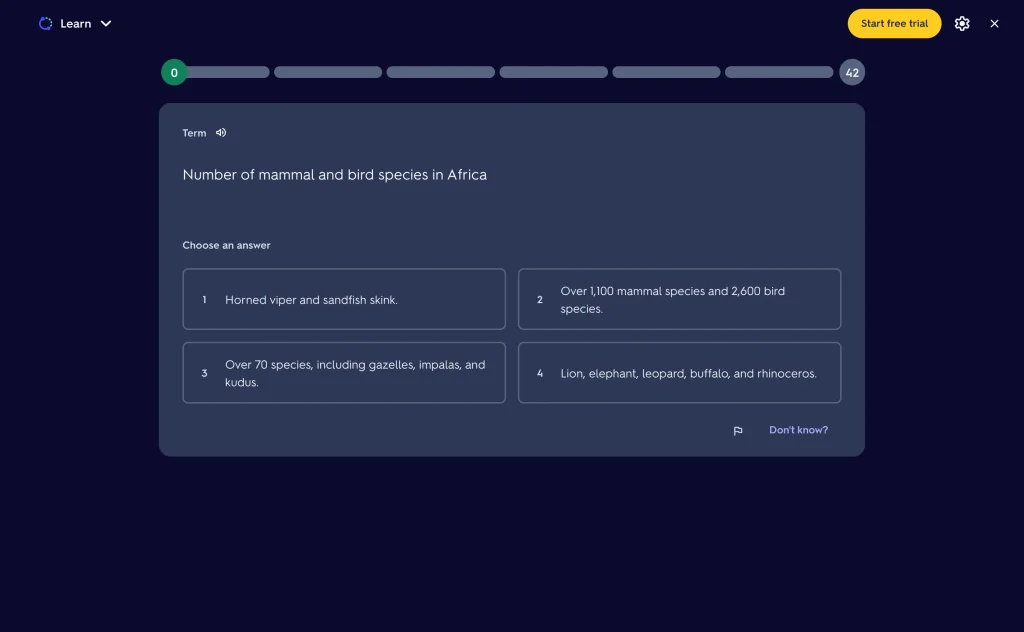
Quizlet’s “Learn” mode turns your flashcards into multiple-choice questions and uses an adaptive algorithm to track your progress and focus on the concepts that need more attention. This feature helps you prioritize weaker areas and ensures that you spend your study time effectively.
Step 6: Use analytics to improve
Quizlet provides progress tracking, showing you which terms you’ve mastered and which ones you need to review further. This data helps you focus your study sessions and track your improvement over time. Premium users get access to more detailed analytics, including insights into accuracy and study patterns.
Step 7: Collaborate and share
Quizlet’s collaboration features allow you to share your study sets with classmates, friends, or students. You can also join or create study groups where members can collaborate on shared sets. This is particularly useful for group projects or class-wide study sessions.
Educators can create classes on Quizlet and invite students to join. This allows teachers to monitor student progress and ensure everyone is on track.
Why Quizlet stands out:
Quizlet is a versatile learning tool that combines ease of use with powerful features like adaptive learning and analytics. Its collaborative capabilities make it an excellent choice for both individual learners and educators looking to engage students more effectively. The vast library of user-generated content means you’re never starting from scratch, and the platform’s customization options allow you to tailor your study experience to your specific needs. Whether you’re studying for exams, teaching a class, or simply trying to learn something new, Quizlet offers a comprehensive solution for all your learning needs.
The best Quizlet alternatives
Searching for a Quizlet alternative? The most common reasons to switch are that Quizlet’s AI generation sits behind the Plus paywall, or that you want true spaced repetition instead of the adaptive “Learn” mode. Depending on what you’re missing, here is where to look:
- Anki: the best free Quizlet alternative for serious long-term revision, thanks to its FSRS spaced repetition scheduler.
- Revisely: the closest like-for-like alternative if you mainly want AI-generated flashcards from notes, PDFs, and handwritten material.
- SlideSpeak: best if your material is in PowerPoint, Word, or PDF form and you want free AI-generated flashcards without a subscription.
- ChatGPT: best for niche or advanced subjects where you want full control over the style and difficulty of the questions.
5. ChatGPT: Tailored Flashcards for Deep Learning
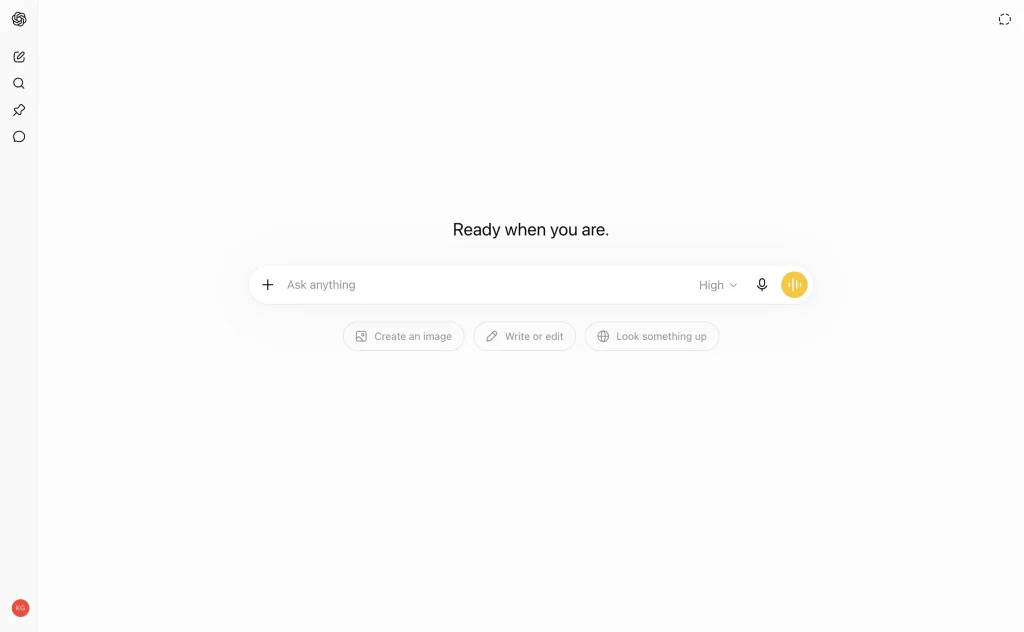
ChatGPT, powered by OpenAI, is the most well known AI tool in the world. ChatGPT allows for a high degree of customization, enabling you to create flashcards that are specifically tailored to your learning objectives. Whether you’re studying complex topics or need to generate questions for a niche subject, ChatGPT can help. Since we first published this guide, ChatGPT has added file uploads and a dedicated study mode that quizzes you step by step instead of just handing you answers. Both make it even better for flashcard creation.
The key is the prompt you use to produce the information. We recommend you be as specific as possible by rephrasing your prompt based on the content ChatGPT produces and your revision needs.
Use ChatGPT to make your revision flashcards.
Step-by-Step Guide:
Step 1: Access ChatGPT
Go to the OpenAI website and log in to access ChatGPT. Depending on your needs, you may choose a subscription plan that provides access to more advanced features.
Step 2: Prepare your study material
Gather the text or content you want to convert into flashcards. This could include lecture notes, textbook excerpts, or any other educational material. For best results, organize the content into clear sections or bullet points.
Step 3: Start a conversation with ChatGPT
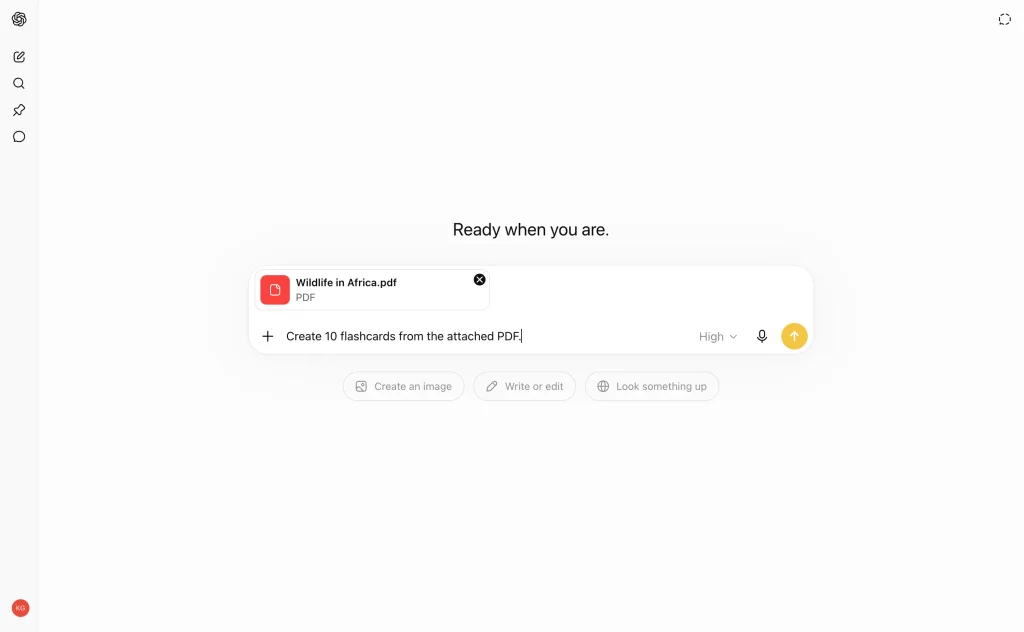
Begin by attaching a section of your study material into the chat.
Then you can prompt ChatGPT with a command like, “Create 10 flashcard questions and answers.”
You can specify the type of questions you want (e.g., multiple-choice, true/false, short answer) or ask for questions that focus on specific areas or concepts.
You can also upload a document and ask the AI to produce questions based on the content inside the document
Step 4: Review and customize the questions
ChatGPT will generate a set of questions and answers based on your input. Review these questions to ensure they meet your study needs. If necessary, refine the questions by asking ChatGPT to adjust the difficulty level, focus on different aspects of the material, or create more detailed questions.
For example, you can say, “Please make these questions more challenging” or “Focus on the definitions in this text.”
Step 5: Using ChatGPT for complex subjects
For more complex or niche topics, you can guide ChatGPT to focus on specific concepts or theories that are central to your study. This makes ChatGPT particularly valuable for graduate-level courses or specialized fields where standard flashcards might not be available.
Step 6: Copy the flashcards to your preferred system
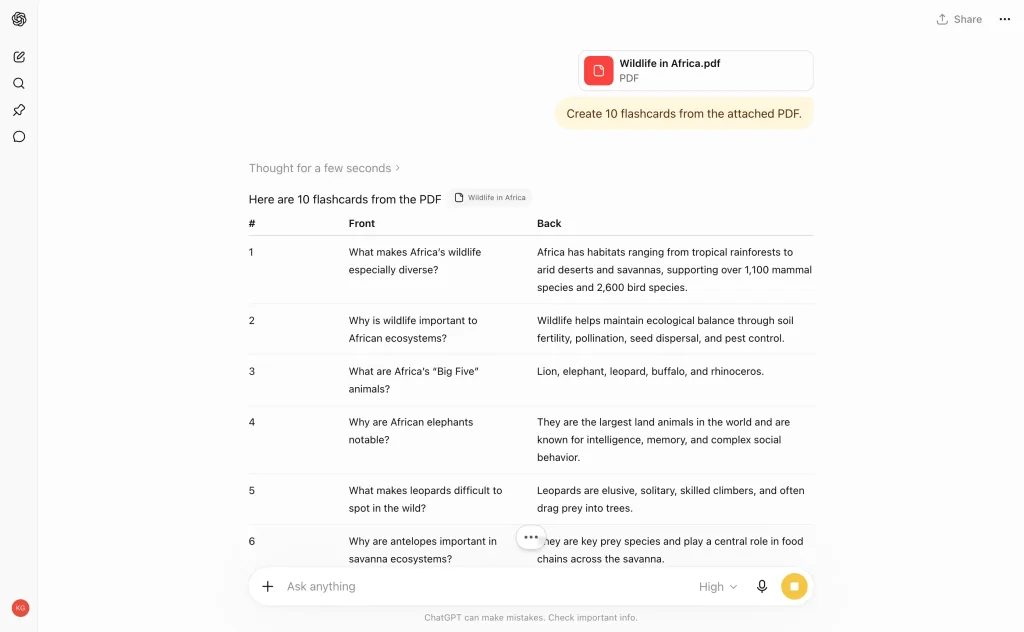
Once you’re satisfied with the generated questions, copy them into your flashcard system, such as Anki, Quizlet, or even a simple document for manual review.
If you’re using Anki, you can create a new deck or add these questions to an existing one.
Why ChatGPT Stands Out:
ChatGPT offers unparalleled flexibility in generating flashcards that are customized to your specific needs. Its ability to create tailored questions makes it ideal for advanced learners who require more than just surface-level recall. Additionally, educators can use ChatGPT to generate discussion prompts, exam questions, and more, making it a versatile tool for a wide range of educational applications.
BONUS: Using flashcards in a Learning Management System (LMS) like Moodle
Flashcards are a powerful study tool that, when integrated into Learning Management Systems (LMS) like Moodle, can greatly enhance both teaching and learning experiences. Here’s how students and educators can effectively use flashcards within an LMS.
1. How to create flashcards in Moodle
For Educators:
Quiz Module: Use Moodle’s Quiz module to create flashcard-like activities. Input questions and answers to simulate flashcards, offering instant feedback to students.
External Tool Integration: Embed external flashcard tools like Quizlet or H5P into Moodle. These tools can be integrated using plugins or iframes, allowing for multimedia flashcards directly within the course.
Glossary Tool: Repurpose the Glossary activity to create terms and definitions, which students can use as flashcards for self-testing.
For Students:
Self-Created Flashcards: Students can use Moodle’s Wiki or Database modules to create personal flashcards or contribute to a shared class resource.
Embedded Flashcards: Access and study flashcards embedded by educators directly within Moodle, enhancing study sessions with interactive content.
2. Collaborative learning with flashcards
For Educators:
Group Activities: Assign students to create flashcard sets on specific topics, then share with the class for collaborative learning.
Gamification: Create competitive quizzes or flashcard challenges, using Moodle’s gamification features to motivate students.
For Students:
Peer Learning: Collaborate with classmates to create and share flashcards through Moodle’s forums or chat modules.
Study Groups: Organize virtual study sessions using flashcards, facilitated through Moodle’s video conferencing tools.
3. Tracking Progress and Assessment
For Educators:
Monitor Usage: Track student interaction with flashcards to identify who might need additional support.
Formative Assessments: Use flashcard-based quizzes as formative assessments, contributing to participation grades or providing extra credit.
For Students:
Self-Assessment: Regularly use flashcards to gauge understanding and track improvement through Moodle’s progress tracking features.
Exam Preparation: Utilize randomized flashcard quizzes to prepare for exams, mimicking varied question scenarios.
4. Improving engagement with multimedia flashcards
For Educators:
Multimedia Elements: Create engaging flashcards using Moodle’s H5P plugin, incorporating images, audio, and videos to cater to different learning styles.
Interactive Content:** Develop interactive flashcards within Moodle that encourage deeper engagement, such as scenarios or branching activities.
For Students:
Active Learning: Engage with multimedia flashcards that incorporate audio or visual elements to reinforce learning in an interactive way.
Personalized Study: Customize flashcard study sessions within Moodle to align with personal learning preferences, ensuring more effective revision.
Overall: Using flashcards in the LMS
Incorporating flashcards into Moodle or any LMS enhances the learning experience by providing interactive, personalized, and collaborative study tools. For educators, it offers a method to engage students and track their progress effectively. For students, it presents an adaptable and efficient way to reinforce key concepts and prepare for assessments.
FAQ: AI flashcard generators
What tool converts notes into flashcards automatically?
Any of the tools in this guide except Anki can turn notes into flashcards automatically. Upload or paste your notes into Revisely, Quizlet’s Magic Notes (Plus required), or SlideSpeak, or paste them into ChatGPT with a prompt like “turn these notes into 20 flashcards.” The AI reads the material and writes question-and-answer pairs for you, so you just review and edit the results.
What is the best AI flashcard generator?
It depends on where your study material lives. For notes, PDFs, and handwritten material, Revisely is the strongest dedicated option. If your material is in PowerPoint, Word, or PDF documents, SlideSpeak generates flashcards for free. Quizlet is the best all-in-one platform if you don’t mind paying for Plus, and ChatGPT is the most flexible for niche subjects. For actually memorizing the cards long term, pair any of them with Anki.
Is Revisely good?
Yes. Revisely is one of the best dedicated AI flashcard generators, particularly for PDFs and handwritten notes, and it includes a built-in study mode. Its free plan is limited, so heavy users should expect to pay for a subscription. See our full Revisely verdict above.
What are the best Quizlet alternatives?
The best Quizlet alternatives are Anki (free, with true spaced repetition), Revisely (AI flashcard generation from notes and PDFs), SlideSpeak (free AI flashcards from documents and slides), and ChatGPT (fully custom flashcards). See our breakdown of Quizlet alternatives above for which one fits your situation.
Can Quizlet create flashcards with AI?
Yes. Quizlet’s Magic Notes feature automatically turns your notes into flashcards, practice tests, and study guides, and the Q-Chat AI tutor can quiz you on the material. Both features require a Quizlet Plus subscription; creating flashcards manually remains free.
Can I turn a PDF into flashcards?
Yes. Revisely and SlideSpeak both accept PDF uploads and generate flashcards from the content, and Quizlet’s Magic Notes can work from uploaded notes as well. SlideSpeak has a free Create Flashcards from PDF tool, and if you’d rather test yourself in quiz form, the free quiz generator for PDFs creates practice questions from the same file.
Can I turn a PowerPoint into flashcards?
Yes. This is one of the fastest workflows on this list. Attach your .pptx file in the SlideSpeak app and ask for flashcards, and the AI generates a deck of question and answer slides that you can study directly or import into Anki or Quizlet. There is also a dedicated free Create Flashcards from PowerPoint tool.
Conclusion: Empowering your revision with AI-powered flashcards
Incorporating AI into your flashcard creation process can significantly enhance both the efficiency and effectiveness of your study routine. Here’s a quick recap to help you choose the right tool for your needs:
Anki
Anki excels in managing your revision through its spaced repetition, ensuring long-term retention of information. Whilst it is not a generative AI tool itself, it makes for a versatile and highly customizable revision platform.
SlideSpeak
SlideSpeak is perfect for quickly generating flashcards from existing lecture notes or study materials, making it ideal for students who need to create study aids on the fly.
Revisely
Revisely streamlines the entire revision process, from flashcard creation to review, making it a one-stop solution for effective study sessions.
Quizlet
Quizlet provides adaptive learning and detailed analytics, offering a personalized learning experience that is particularly beneficial for educators and institutions.
ChatGPT
ChatGPT offers flexibility in generating detailed, tailored flashcards, making it a great choice for complex or niche subjects.
By leveraging these AI-powered tools, students can optimize their revision strategies, and educators can create more effective and engaging learning materials. These materials can sit inside an LMS like Moodle and allow you to track and monitor your revision progress.
Whether you’re preparing for exams, teaching a course, or simply looking to improve your knowledge retention, these tools provide innovative and powerful ways to make flashcards more effective and easier to create.


