
4 Ways to Share a PowerPoint File as a Link
Written by

Published on
On this page
Want to share a PowerPoint file as a link instead of a bulky email attachment? Good call. A link is faster to send, always up to date, and opens on any device without PowerPoint installed. In this guide, we compare four free ways to turn your .pptx into a shareable URL: SlideSpeak’s free share tool, PowerPoint for the web, Google Slides, and SlideShare. All four take only a few minutes. However, they differ in privacy, sign-up requirements, and how faithfully they render your slides, so it pays to pick the right one.
Why share a PowerPoint as a link instead of an attachment?
Email attachments come with three recurring headaches. First, size limits: Gmail and Outlook both cap attachments around 25 MB, and a deck with images or video blows past that quickly. Second, version chaos: once you email a file, every recipient has their own copy, and nobody knows which one is current. Third, software: your recipient needs PowerPoint (or a compatible app) to open the file at all.
A share link fixes all three. The presentation lives in one place, the link never gets too big for an inbox, and viewers open it in their browser on any device. With that in mind, here are the four best ways to do it.
1. SlideSpeak’s free share tool: a PPT link in seconds, no sign-up
The quickest way to share a PowerPoint file as a link is SlideSpeak’s free share PowerPoint online tool. There is no account, no install, and no watermark. Here is how it works:
- Open the share tool in your browser.
- Drag and drop your .pptx file (up to 100 MB).
- Copy the generated link and send it to anyone.
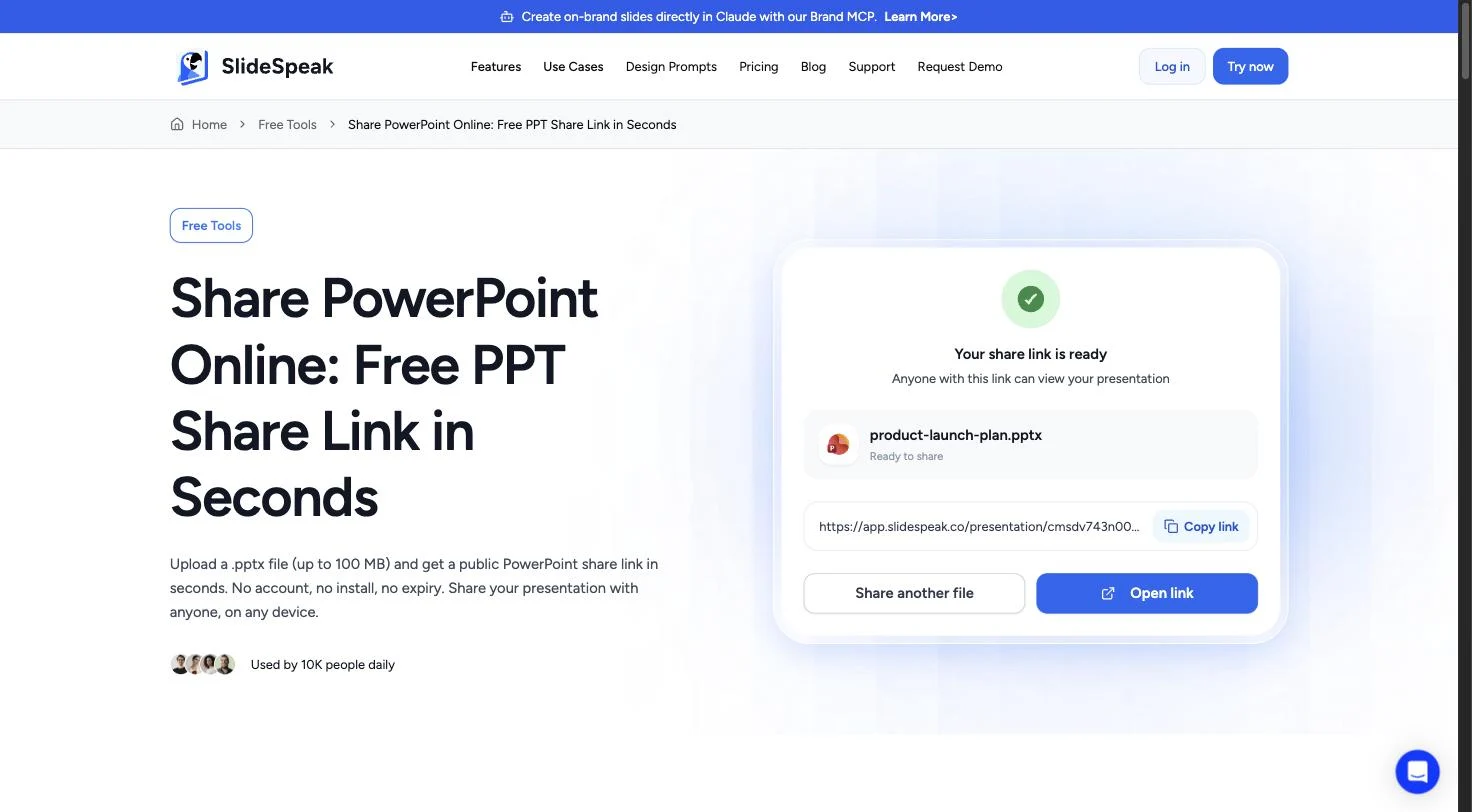
Recipients view your slides in their browser with the original fonts, layouts, and images intact. In addition, the link is view-only, so nobody can change your file, and it does not expire. Search engines never index the page, which means only people with the exact URL can open it.
Best for: quickly sending a deck to a client, recruiter, or colleague without making them sign in to anything.
Limitations: the link is view-only. If you need live co-editing, use one of the next two options instead.
2. PowerPoint for the web: share a link from Microsoft 365
If you already use a Microsoft account, PowerPoint for the web is the official route. It is free with any personal Microsoft account, and your file is stored in OneDrive. Follow these steps:
- Go to PowerPoint for the web and sign in.
- Upload your presentation or open an existing one.
- Click Share in the top-right corner, then Copy link.
- Choose the permission level, for example “Anyone with the link” with viewing or editing rights.
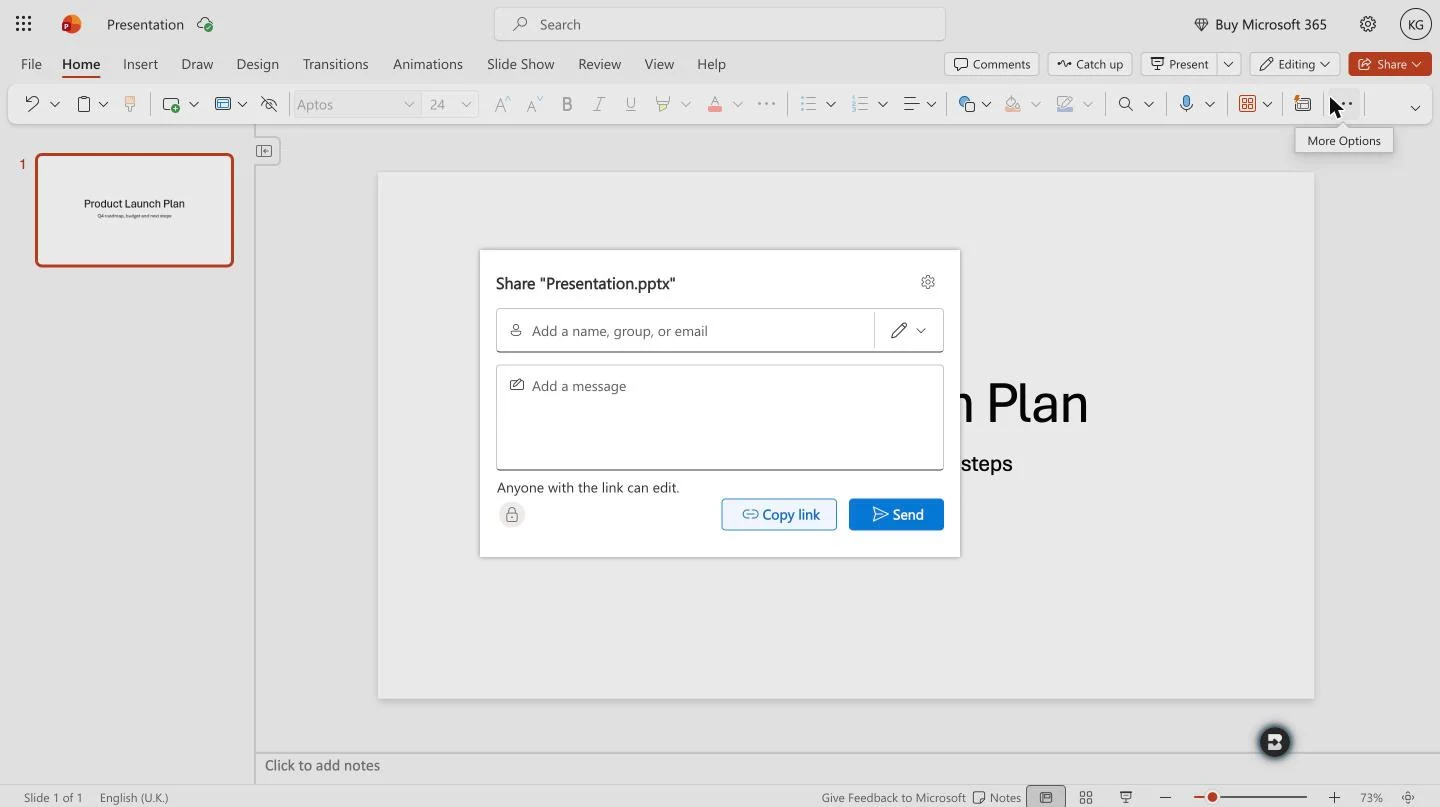
Microsoft documents the permission options in detail in its guide to sharing a presentation in PowerPoint. The big advantage here is collaboration: several people can edit the same deck at the same time, and the rendering is native PowerPoint.
Best for: teams already on Microsoft 365 that need co-editing, comments, and version history.
Limitations: you need a Microsoft account, and the permission settings are easy to get wrong. Moreover, company tenants often restrict external sharing, so links can fail for outside recipients.
3. Google Slides: share your PowerPoint from Google Drive
Google Slides can open .pptx files directly, which makes it a solid option for anyone in the Google ecosystem. To get a share link:
- Upload your .pptx to Google Drive and open it with Google Slides.
- Click Share, then set “General access” to Anyone with the link as Viewer.
- Copy the link and send it out.
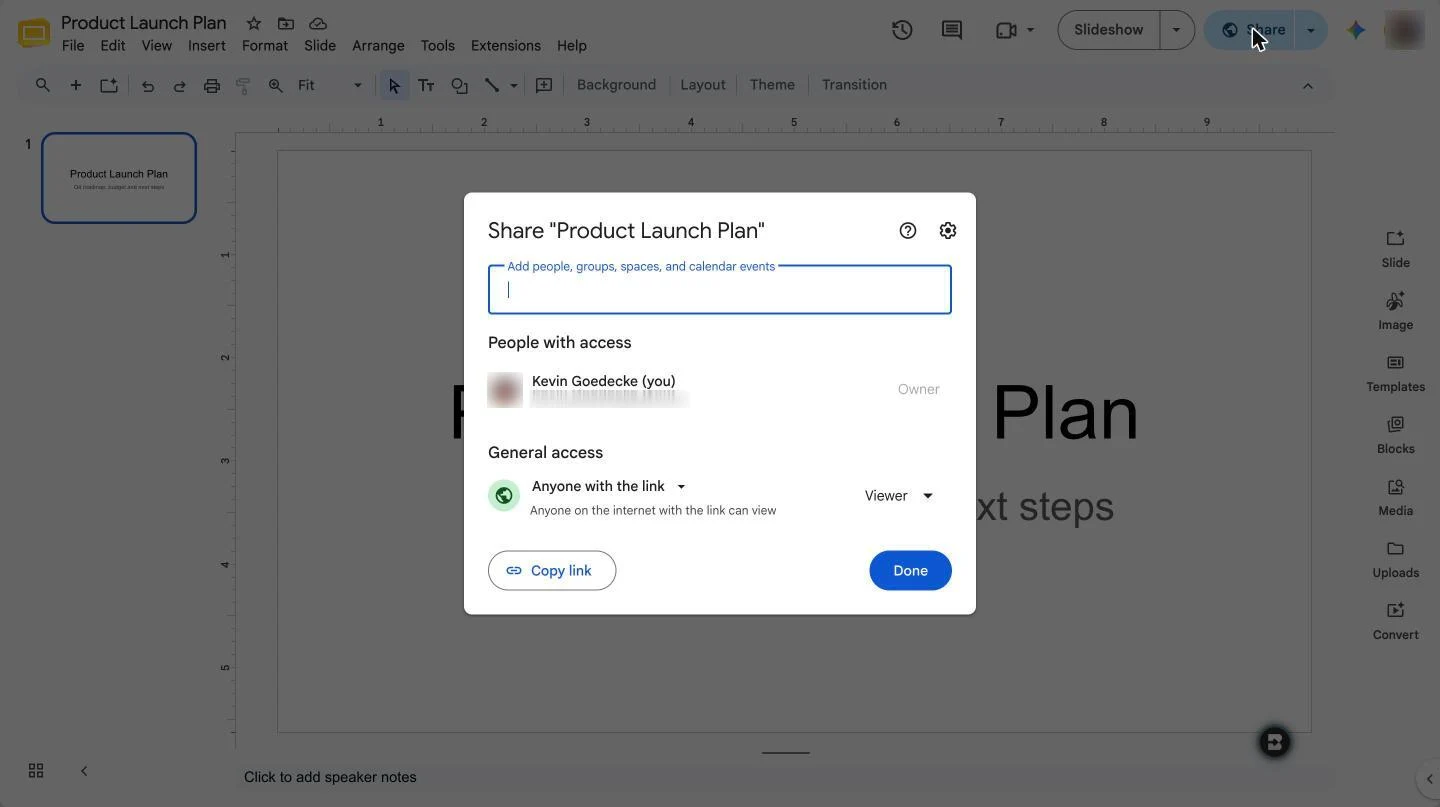
Google explains the access levels in its help article on sharing files from Google Drive. For a read-only version you can embed in a website, you can also use File > Share > Publish to web.
One caveat: Google Slides converts your PowerPoint on import, so custom fonts, animations, and complex layouts can shift. If you plan to keep working in Google’s editor anyway, our free PowerPoint to Google Slides converter handles the conversion for you.
Best for: Google Workspace teams that want commenting and co-editing without Microsoft accounts.
Limitations: conversion can change your design, and you need a Google account to upload the file.
4. SlideShare: publish your deck to a public audience
SlideShare is the oldest presentation sharing site on the web, now owned by Scribd. You upload your deck, and it becomes a public page with its own URL that you can share anywhere. Uploading requires a free account, as described in Scribd’s upload guide.
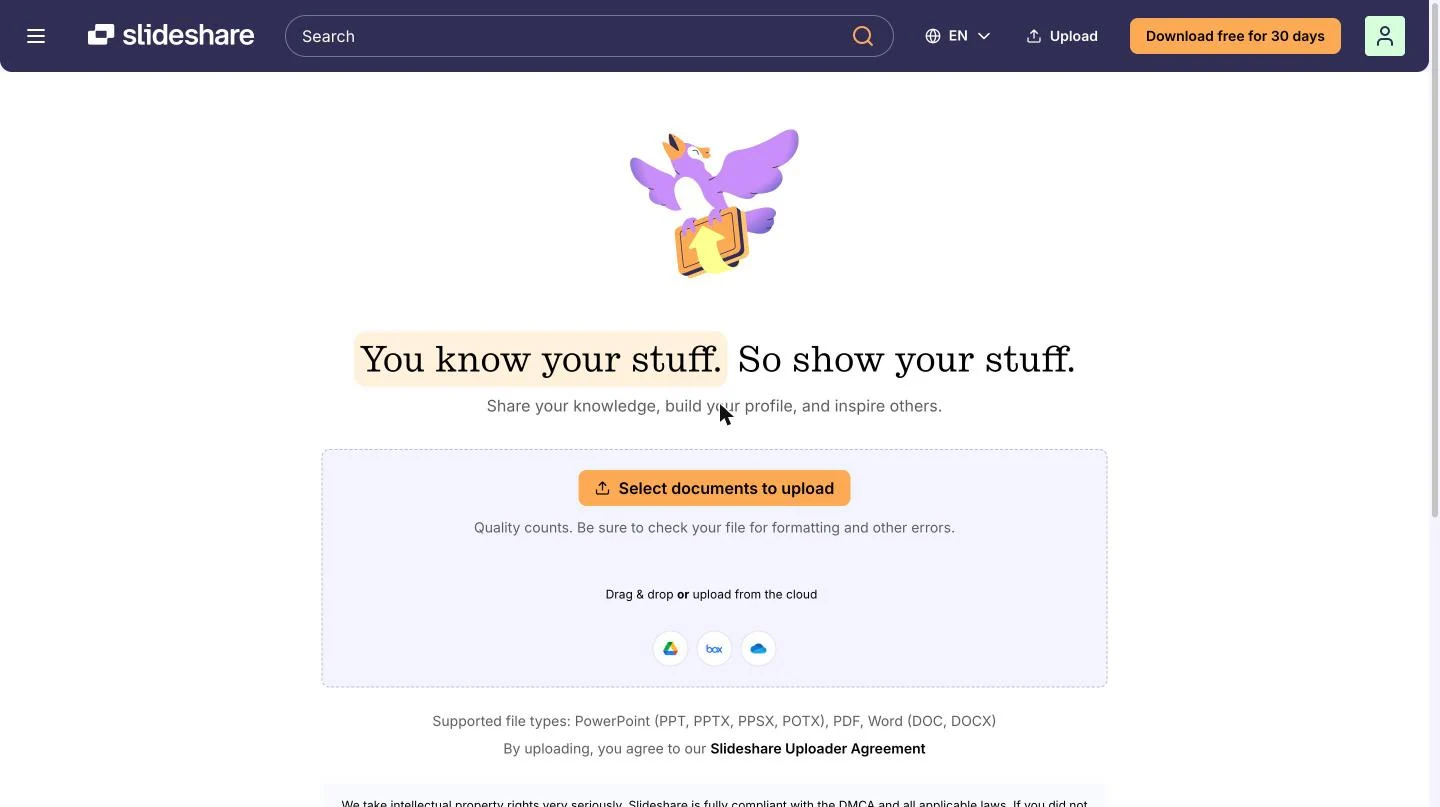
SlideShare is a different animal from the other three methods. Instead of a private link, you get a public, searchable page. Consequently, it works well for marketing content, conference talks, and thought-leadership decks that you want strangers to find. It is the wrong choice for anything confidential.
Best for: public reach, backlinks, and evergreen marketing decks.
Limitations: your slides become static images on a public page, viewers see ads, and private sharing requires a paid plan.
Comparison: which way to share a PowerPoint link is best?
| Method | Sign-up needed | Privacy | Layout fidelity | Best for |
|---|---|---|---|---|
| SlideSpeak free tool | None | Unlisted, view-only link | Original PowerPoint rendering | Fast, private sharing |
| PowerPoint for the web | Microsoft account | Granular permissions | Native | Microsoft 365 teams, co-editing |
| Google Slides | Google account | Granular permissions | Converted, may shift | Google Workspace teams |
| SlideShare | Scribd account | Public by default | Static slide images | Marketing reach |
In short, the best way to share a PowerPoint file as a link depends on what happens after you hit send. For a one-off “here is the deck” moment, SlideSpeak’s tool is the fastest because it skips accounts entirely. For ongoing collaboration, stay inside PowerPoint for the web or Google Slides. For public visibility, SlideShare is the only one of the four built for discovery.
Frequently asked questions
Does a PowerPoint share link expire?
It depends on the method. SlideSpeak share links do not expire. OneDrive and Google Drive links keep working until you change the file’s sharing settings or delete it. SlideShare pages stay up as long as your account exists.
Can people edit my presentation through the link?
Only if you let them. SlideSpeak and SlideShare links are always view-only. In PowerPoint for the web and Google Slides, you choose between viewing, commenting, and editing rights when you create the link, so double-check the setting before sending it.
What if my PowerPoint file is too large to upload?
SlideSpeak’s share tool accepts files up to 100 MB, which is four times what most email providers allow as an attachment. If your deck is bigger than that, run it through our free PowerPoint compressor first. It shrinks images and media without visibly reducing quality.
Start sharing your PowerPoint as a link
You no longer need to email heavy attachments or chase file versions. Pick the method that matches your situation, and your deck becomes a single URL that works on every device. Ready to try the fastest option? Upload your deck to the free share PowerPoint online tool and get your link in seconds.


