

Best PDF Translator Tools in 2026: Free AI Options Tested
Written by

Published on
On this page
Tools like Google Translate have made it super easy over the last few years to translate text into any given language. But the best PDF translator has to do more than translate a sentence or paragraph.
A common use case for a translator tool is to translate an entire document, such as a PDF or a Word document, into a language.
The real-world use cases for this range from converting a PDF research paper from Spanish to English to a financial report from English to German. LLM-based AI tools like ChatGPT and Claude do an excellent job not just translating text word by word, but also retaining document context while keeping the structure clear and understandable.
ChatGPT and other AI chatbots now include built-in file uploads, so even free users can upload PDFs, Word documents, and other files (currently up to 3 files per day on ChatGPT’s free plan), making them practical to use as a PDF translator. Limits and capabilities still depend on your plan and the specific model you choose.
To help you get a good overview of the different options out there, we’ve put together a list of the top AI-powered PDF translator tools. Some of them help translate and preserve your document’s formatting.
So let’s take a quick look at them.
A quick overview: Best AI PDF translator tools
| Tools | Languages | Free Limit | Formatting | OCR/Scanned | Best for | Speed |
|---|---|---|---|---|---|---|
| SlideSpeak | 141 languages | Unlimited free | ★★★★★ (Perfect) | Yes | Professional docs, slides | Seconds |
| DeepL | 100+ languages | 3 file translations per month (5 MB max) | ★★★★ | Yes | Academic, fluent prose | 2 minutes |
| Google Translate | 249 languages and dialects | Unlimited | ★★ | No | Quick understanding | Instant |
| DocTranslator | 120+ languages | None ($2 trial, then from $14.99/mo) | ★★★★ | Built-in OCR | Scanned docs | 1 minute |
| ChatGPT | Most major languages | 3 files/day for free users | ★★★ (manual fix) | Via prompt | Custom tone & nuance | Varies |
Testing of Each Tool
For this article, each of the five AI tools was tested with a test PDF document. The document included various text formats to assess the accuracy and efficiency of each AI translator. All translations tested were from English to Spanish.
SlideSpeak
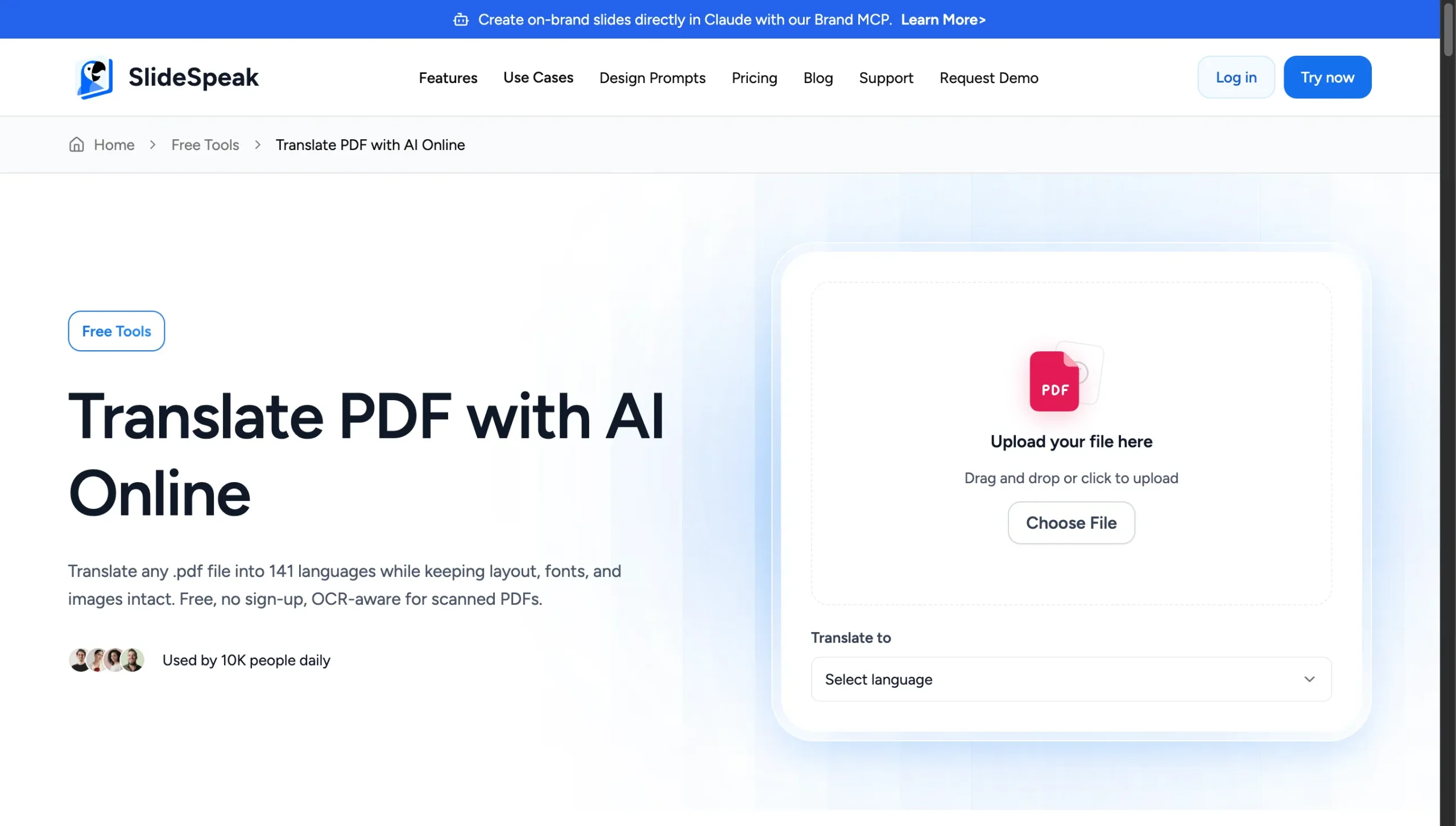
SlideSpeak is considered one of the best PDF translators in 2026 mainly because it focuses on preserving design, handling complex PDFs, and offering high‑quality AI translation in many languages while still being easy to use and affordable.
Here are three key points:
- It preserves your original layout (design, fonts, tables, visuals) so the translated PDF closely matches the source.
- It supports 141 languages and is powered by advanced AI (ChatGPT plus Microsoft Azure) for higher‑quality translations.
- It offers secure, private handling of files (encrypted, temporarily stored, then deleted) and lets you download a fully editable translated PDF.
The translation process
Go to Translate PDF with AI and upload your PDF.
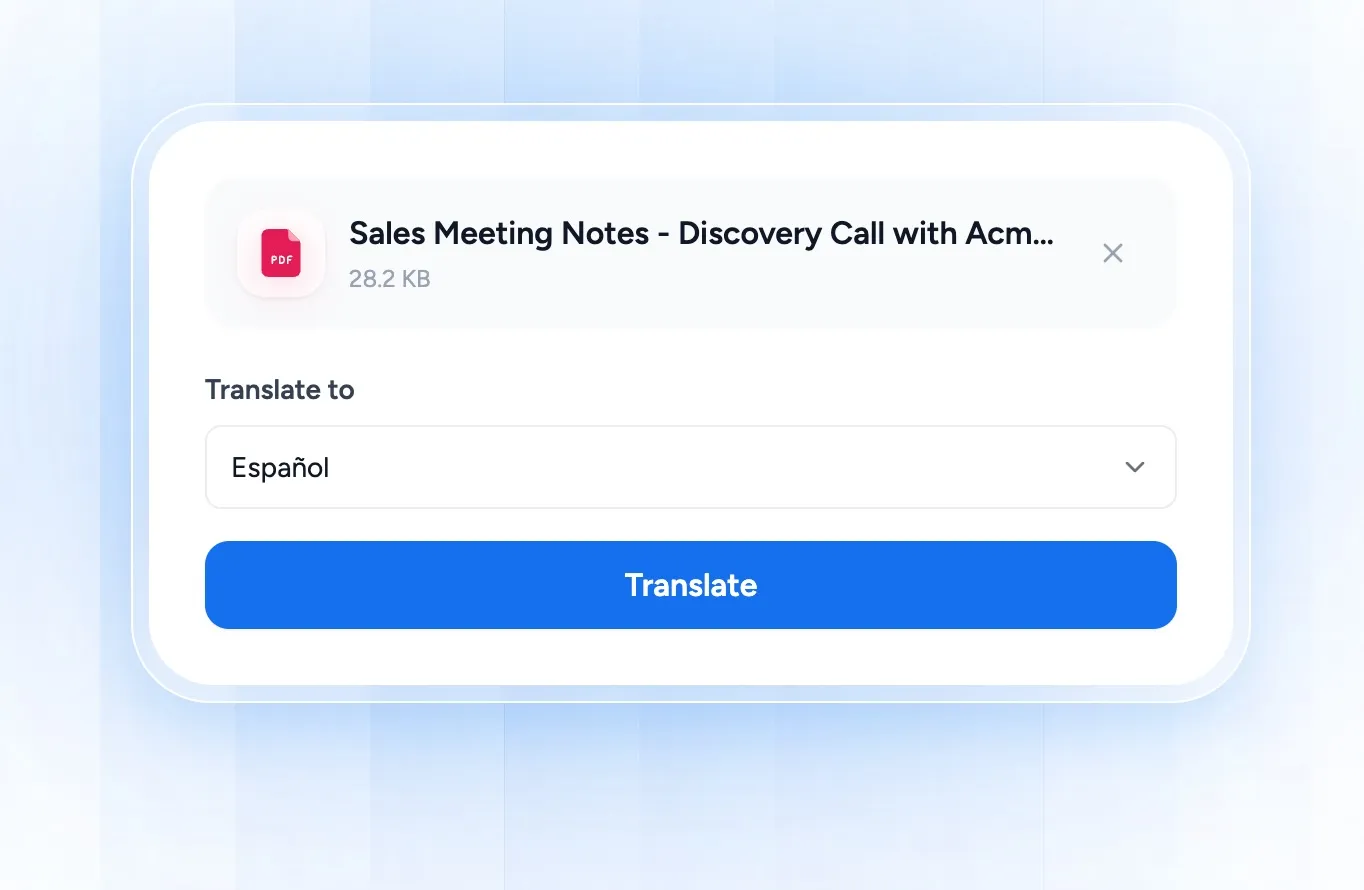
Choose target language (141 options). SlideSpeak’s AI PDF translator supports 141 languages, including major ones such as English, Spanish, Arabic, Chinese, Portuguese, Japanese, and more. This broad coverage makes it suitable for global teams and international content.
The service uses a combination of ChatGPT and Microsoft Azure translation/AI under the hood, which gives it high‑quality, nuanced translations compared to simple rule‑based tools. This is especially useful for business, educational, and professional documents where tone and nuance matter.
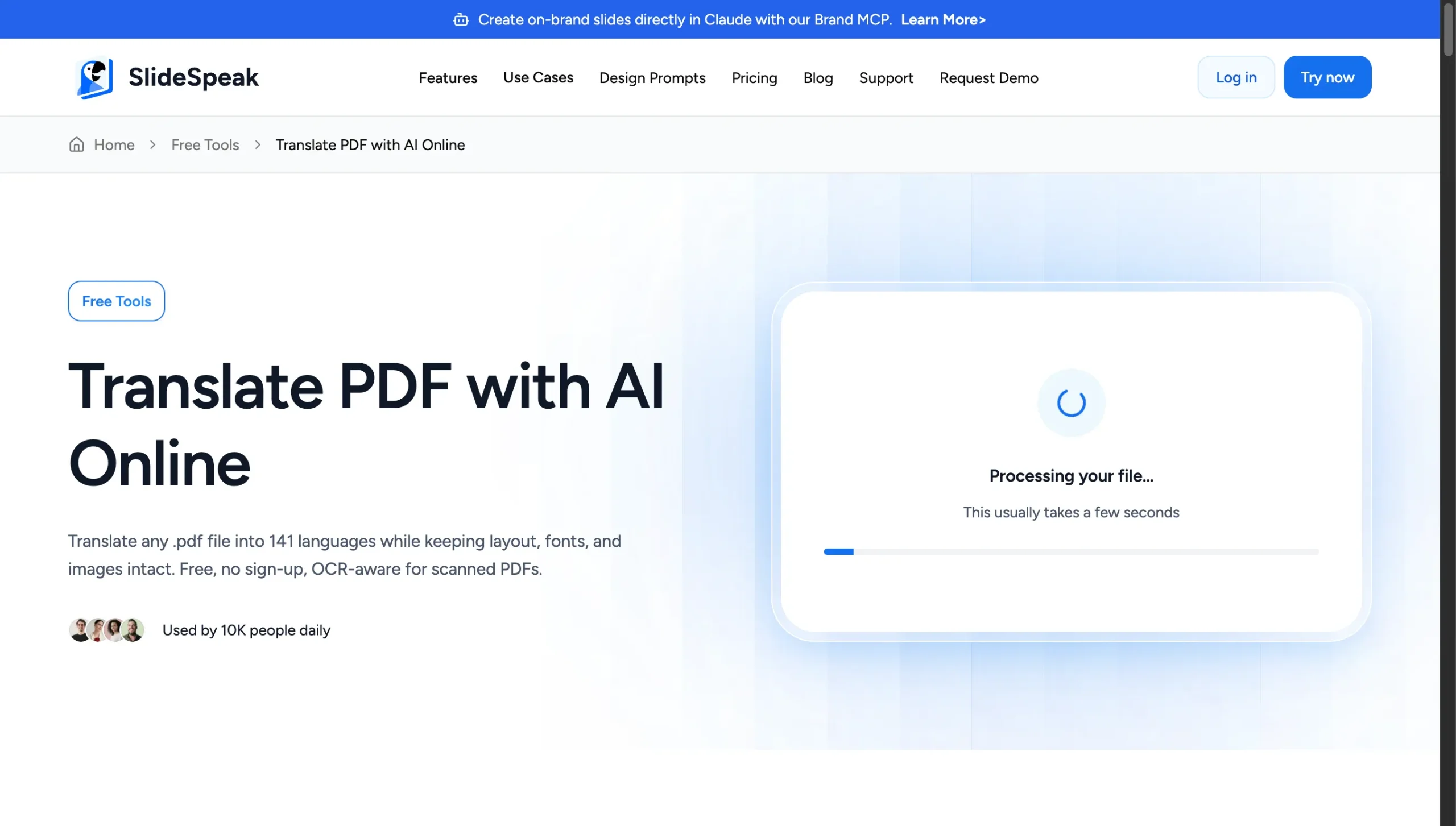
Click Translate → Download editable PDF instantly. SlideSpeak’s broader platform includes OCR and long‑document handling, letting it work with image‑based, non‑searchable, or 100+ page PDFs, which many basic web translators struggle with. That makes it much more practical for real‑world reports, contracts, and presentations
Pros: Perfect formatting, super fast, free forever, works on presentations too.
Cons: None for most users.
Because it combines layout‑safe translation, broad language support, OCR/long‑document capability, and a document‑centric interface powered by modern LLMs, many reviewers position SlideSpeak as one of the top dedicated PDF translators in 2026.
Pro tip: Ideal if you also need to turn the translated PDF into slides.
ChatGPT
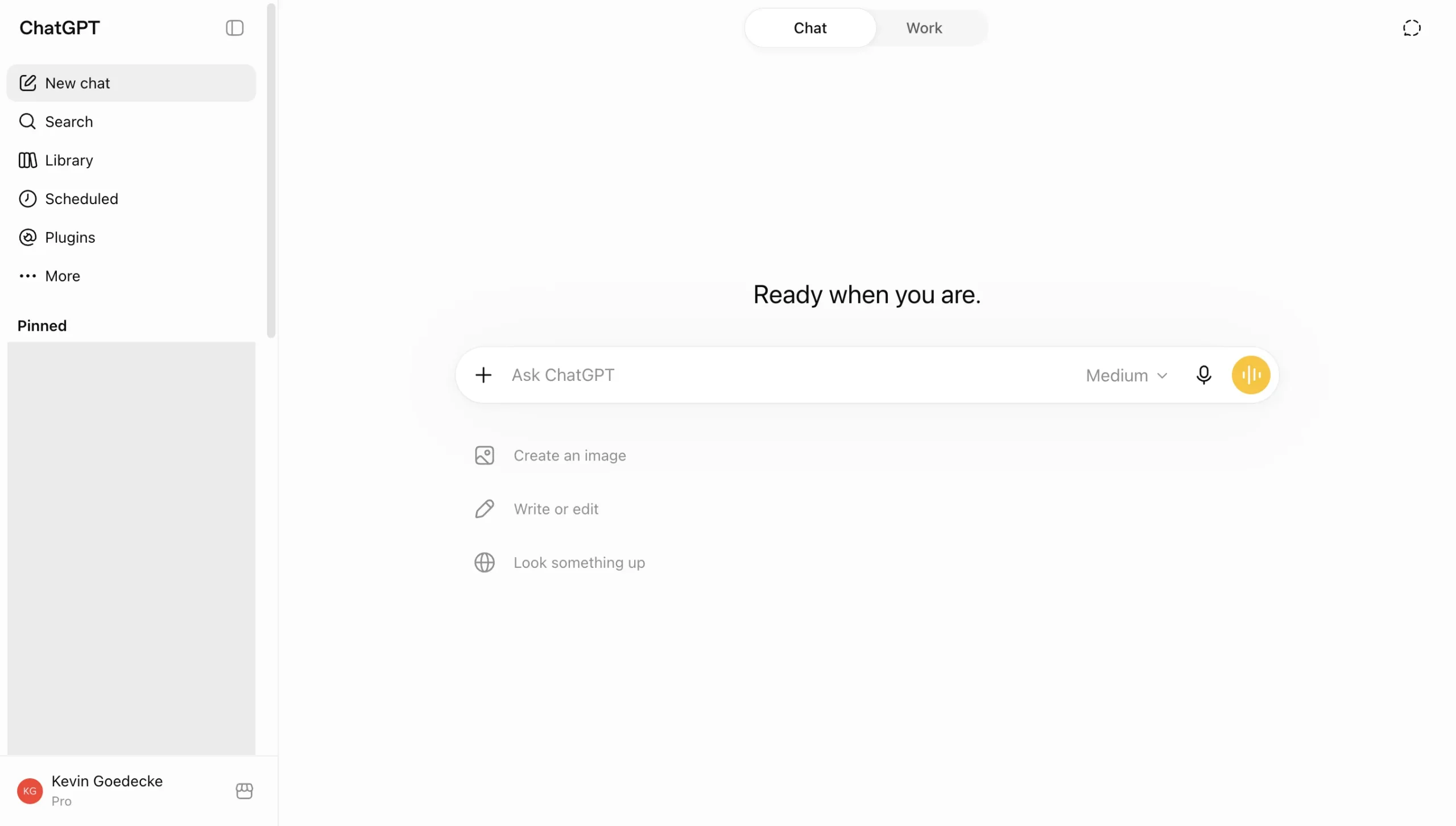
TLDR: ChatGPT is a great tool to translate PDFs that aren’t super long.
ChatGPT offers a unique and flexible approach to PDF translation. While ChatGPT isn’t an AI PDF translator in itself, it can translate text from PDFs and maintain context awareness, making it suitable for complex and nuanced documents. Free users can upload up to 3 files per day, while paid plans support larger files and higher limits.
Another way to translate text with ChatGPT is to copy & paste it into ChatGPT and ask it to translate.
Important limits to keep in mind
- Layout and formatting: ChatGPT usually does not preserve the exact original layout (columns, complex tables, design); you often need to paste the translated text into Word/Docs and re‑export as PDF if design matters.
- File size, page count, and plan limits: Free users have relatively low daily file limits and may hit size/length ceilings faster; Plus/Team/Enterprise plans support larger, more complex PDFs with faster processing.
- Scanned or image‑only PDFs: Text‑based PDFs work best; image‑only scans may need OCR or a vision‑enabled model/workflow to extract text accurately before translation.
The translation process
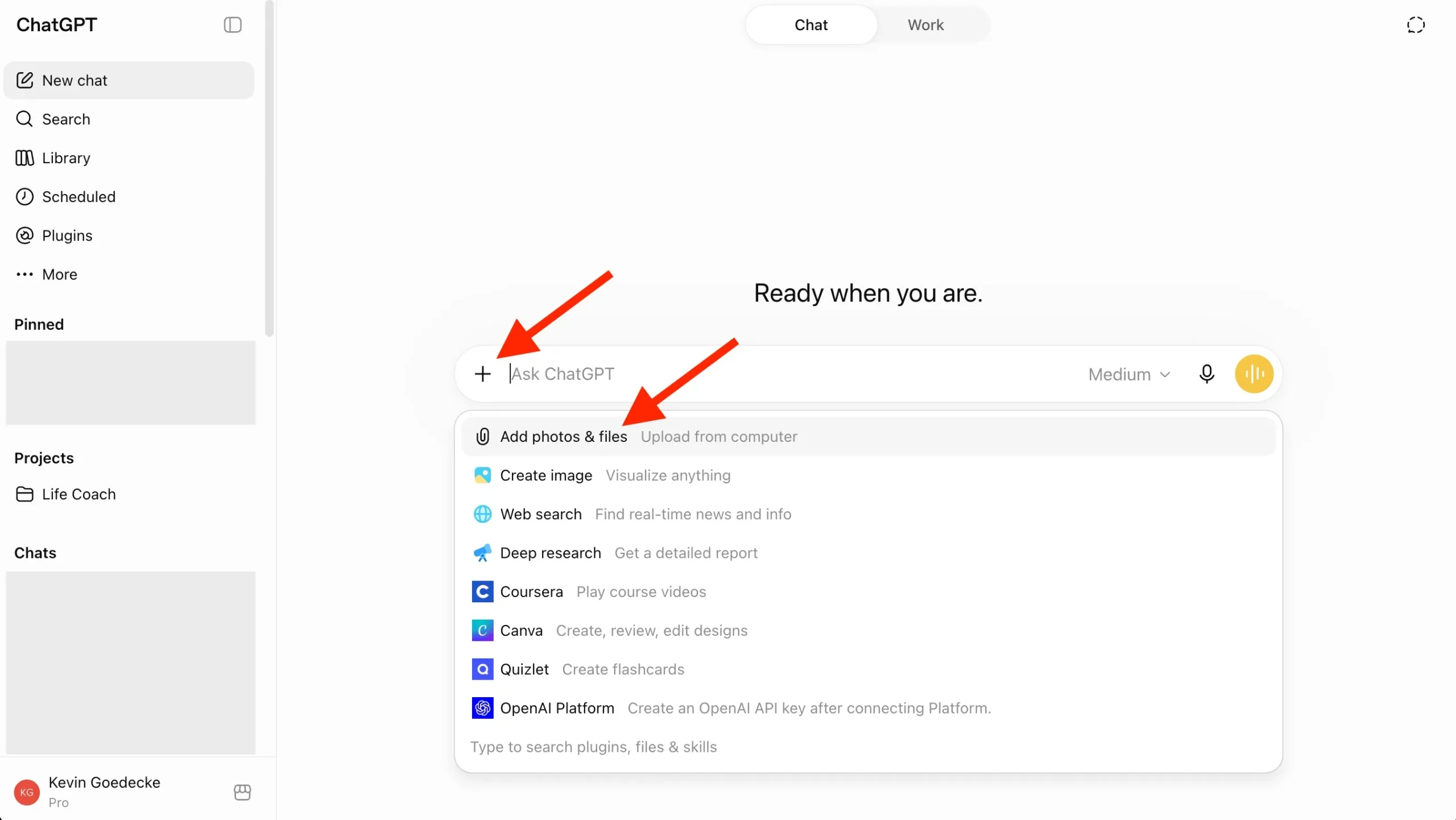
You can either copy and paste the text into the tool or use the upload function to extract the text from the PDF. Simply click the + icon and choose “Add photos & files” to upload your document. Then prompt the tool to translate the text into your specified target language, and receive the translated text.
Example of prompt:
“Translate the attached PDF document from English to Spanish (Spain) while keeping the original tone.”
or
“Translate the text word by word of the attached PDF file to German”
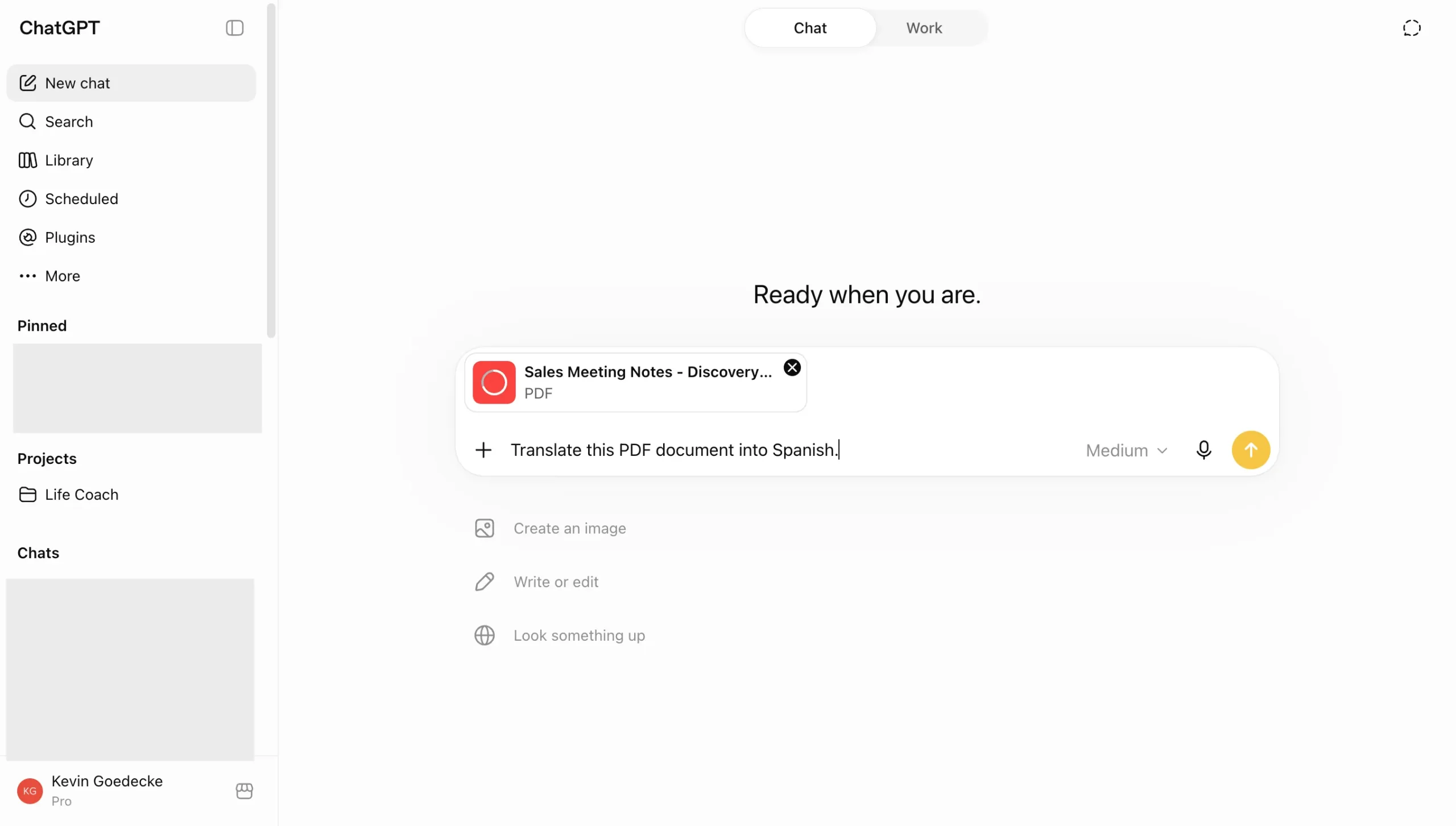
The result
ChatGPT provides context-aware translations, ensuring high accuracy for nuanced documents. Keep in mind that the tool outputs text in the most basic form. So you need to manually format elements such as font, size and spacing and then save the file as PDF using Google Docs or another text editor.
Important tips:
Give clear translation instructions up front
Tell ChatGPT exactly what you want: source and target language, tone (“formal”, “for general audience”), and scope (“translate everything”, or “only sections 2 and 3, excluding tables”). This reduces errors and back‑and‑forth.
Work in sections for long or complex PDFs
For big reports or documents with tables, ask ChatGPT to translate in chunks (e.g., chapter by chapter) and to keep headings and numbering. This improves accuracy, reduces context loss, and makes it easier to rebuild the layout afterward.
Always run a quick quality check
After translation, ask ChatGPT to “scan this translation for obvious errors, mistranslated technical terms, and consistency of key terminology” and then manually spot‑check a few paragraphs yourself. This combination catches most issues that matter in real use.
Pros:
- Highly accurate, context-aware translations
- Flexible input options for various text types
- Advanced AI understanding for complex documents
Cons:
- Manual formatting may be needed post-translation
- Not a direct PDF-to-PDF translation tool, you need to later save the text as PDF yourself
- File size limits in size and length of the document (see list here for ChatGPT context window limits)
DeepL AI PDF Translator
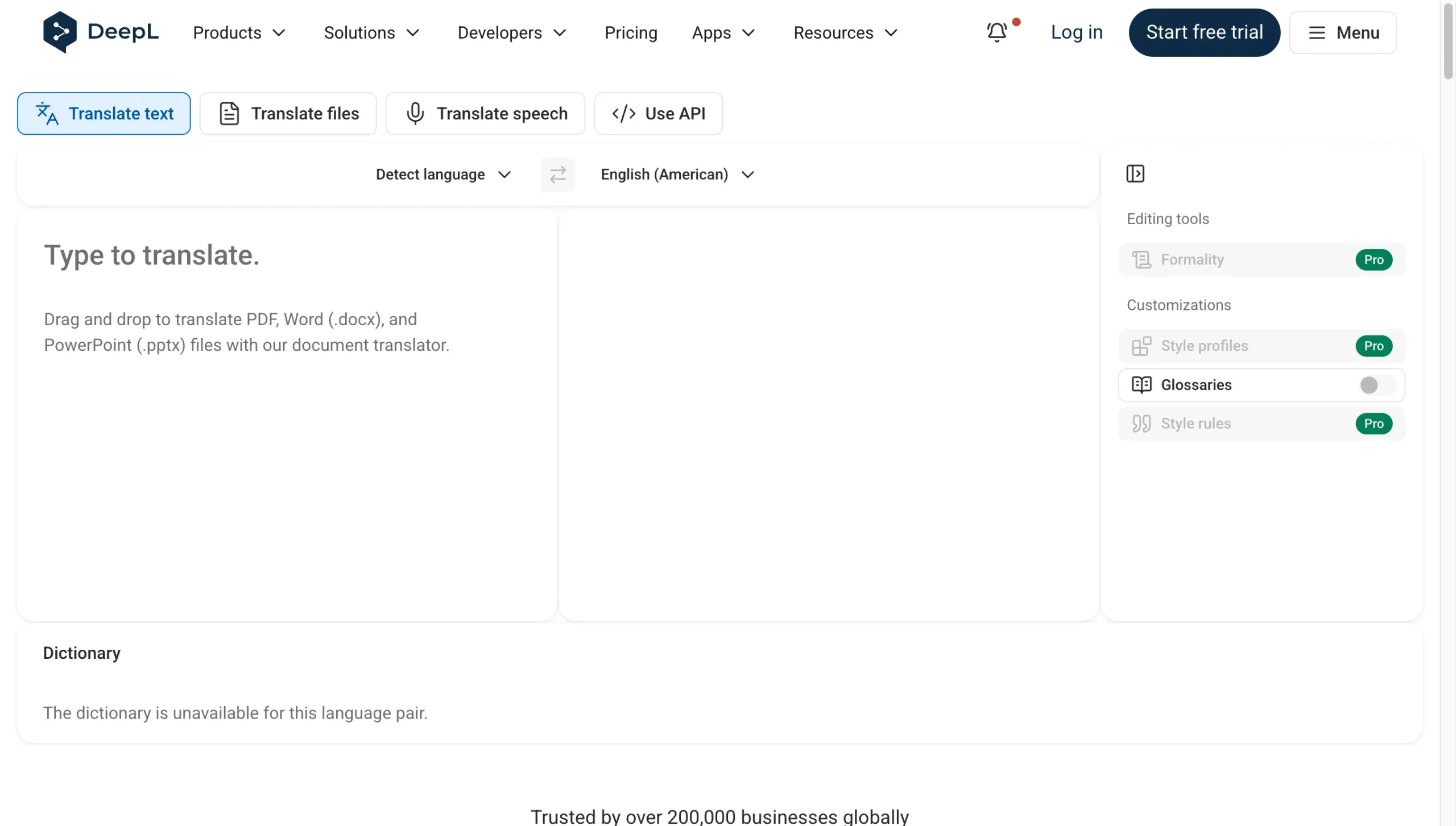
DeepL PDF Translator uses advanced neural networks to deliver highly accurate translations. Recently, DeepL has expanded its language support and improved the preservation of document formatting, a key issue for many users. The tool’s ability to handle detailed translations and large file sizes remains a strong point, making it ideal for professional use. DeepL now supports document translation into 100+ languages, with 36 of them available on its latest-generation language model. On the free plan, you can translate up to 3 files per month (5 MB each).
Here’re a few things to remember about DeepL
- It delivers superior fluency and nuance, especially for European languages and general content, outperforming many rivals in natural-sounding results while preserving original formatting like layouts and design.
- Supports 100+ languages with direct PDF upload (plus DOCX, PPTX, etc.), bulk processing for multiple files or languages at once, and Pro features like glossaries for consistent terminology.
- Offers enterprise-grade security (GDPR-compliant, files deleted post-translation) and works seamlessly across web, desktop, and mobile for quick drag-and-drop workflows.
The conversion process
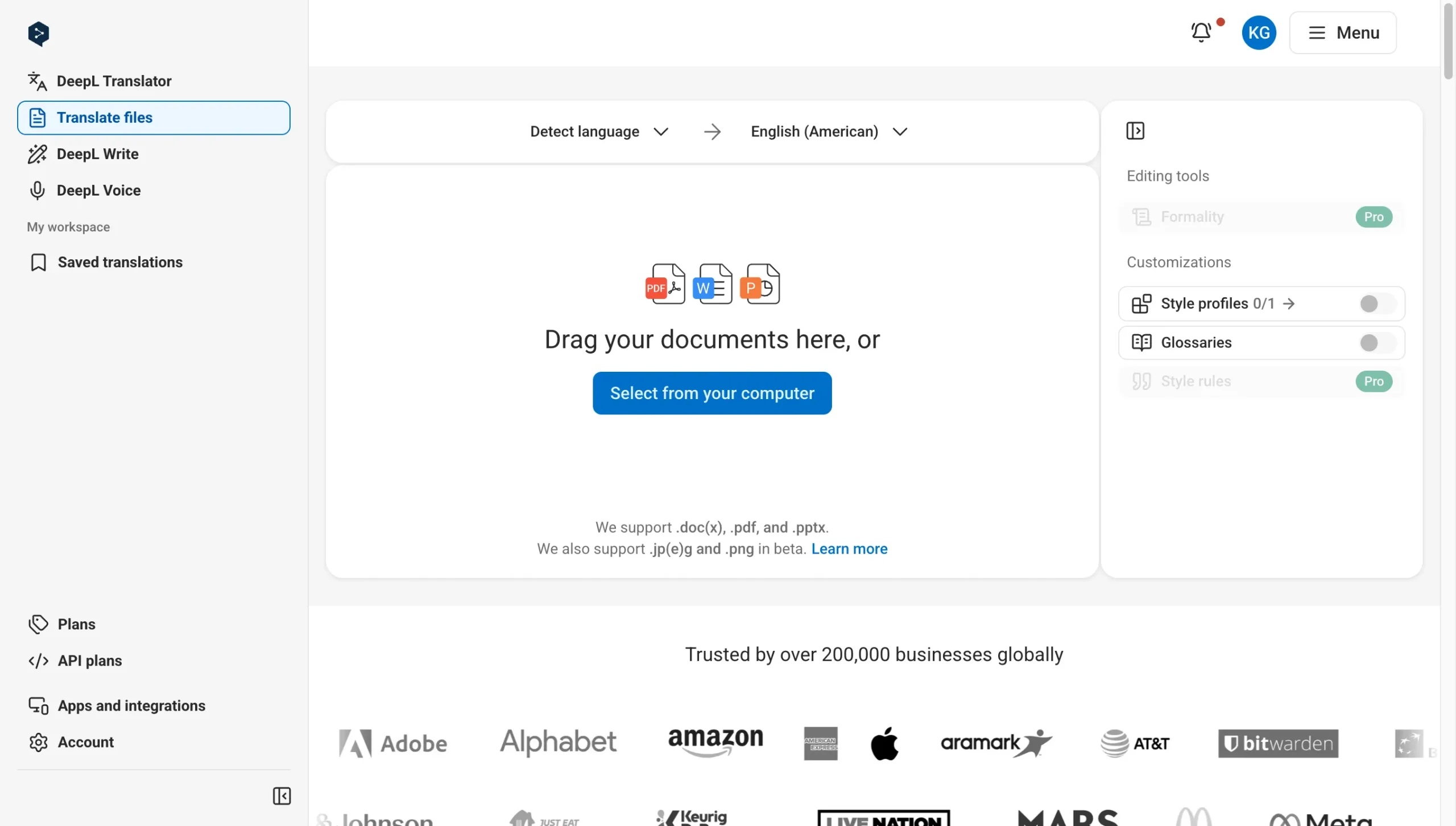
First, click on the “Translate Files” button. You will then be navigated to a page where you can create a free DeepL account. The tool allows you to create a free account with your email.
Once your account has been created, you can upload your PDF. DeepL will automatically detect the original language of the document. Choose from a list of languages to translate the document.
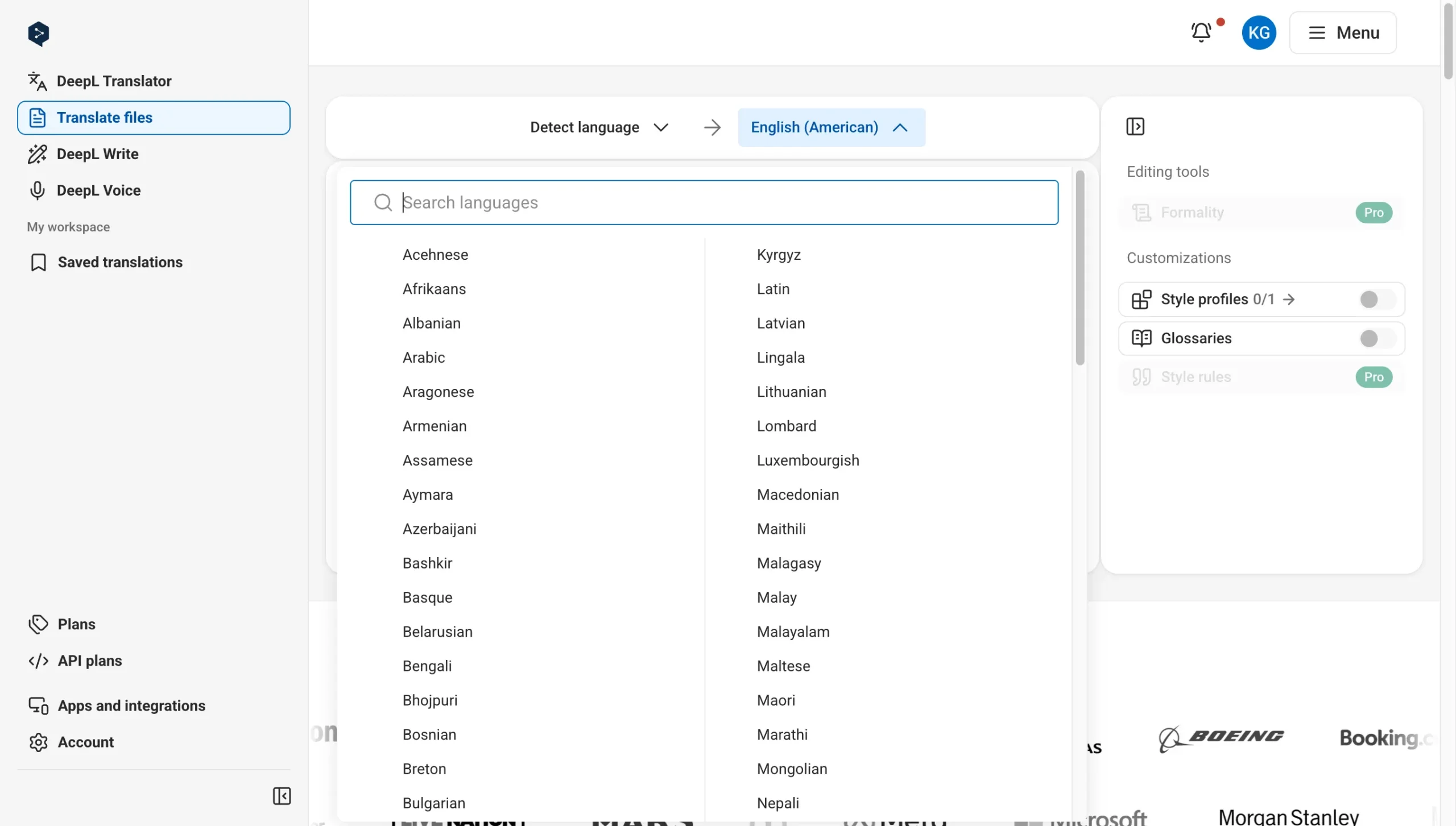
After the translation process, the new PDF document will be downloaded automatically.
The result
DeepL’s translations are contextually accurate, retaining the nuances of the original text. However, the formatting of the translated document is slightly different compared to the original. DeepL also adds a branded DeepL header to the document. Overall, the file has limited permissions and the text can only be copied and not edited.
Important tips:
- Use glossaries for consistency
On Pro plans, create custom glossaries beforehand to lock in specific terms (like brand names or technical jargon), ensuring uniform translation across the entire PDF. - Preprocess scanned PDFs
For image-based or low-quality scans, run OCR first (e.g., via Adobe Acrobat) to extract clean text, as DeepL’s built-in OCR works best on high-quality inputs. - Test complex layouts separately
Try a sample page first with multi-column or table-heavy sections, since formatting preservation can vary, so adjust by simplifying the source PDF if needed.
Pros:
- Supports 100+ languages for documents
- Process is fast and efficient
Cons:
- Does not retain correct formatting
- Adds header to translated document
- Free version has limited permissions
DocTranslator
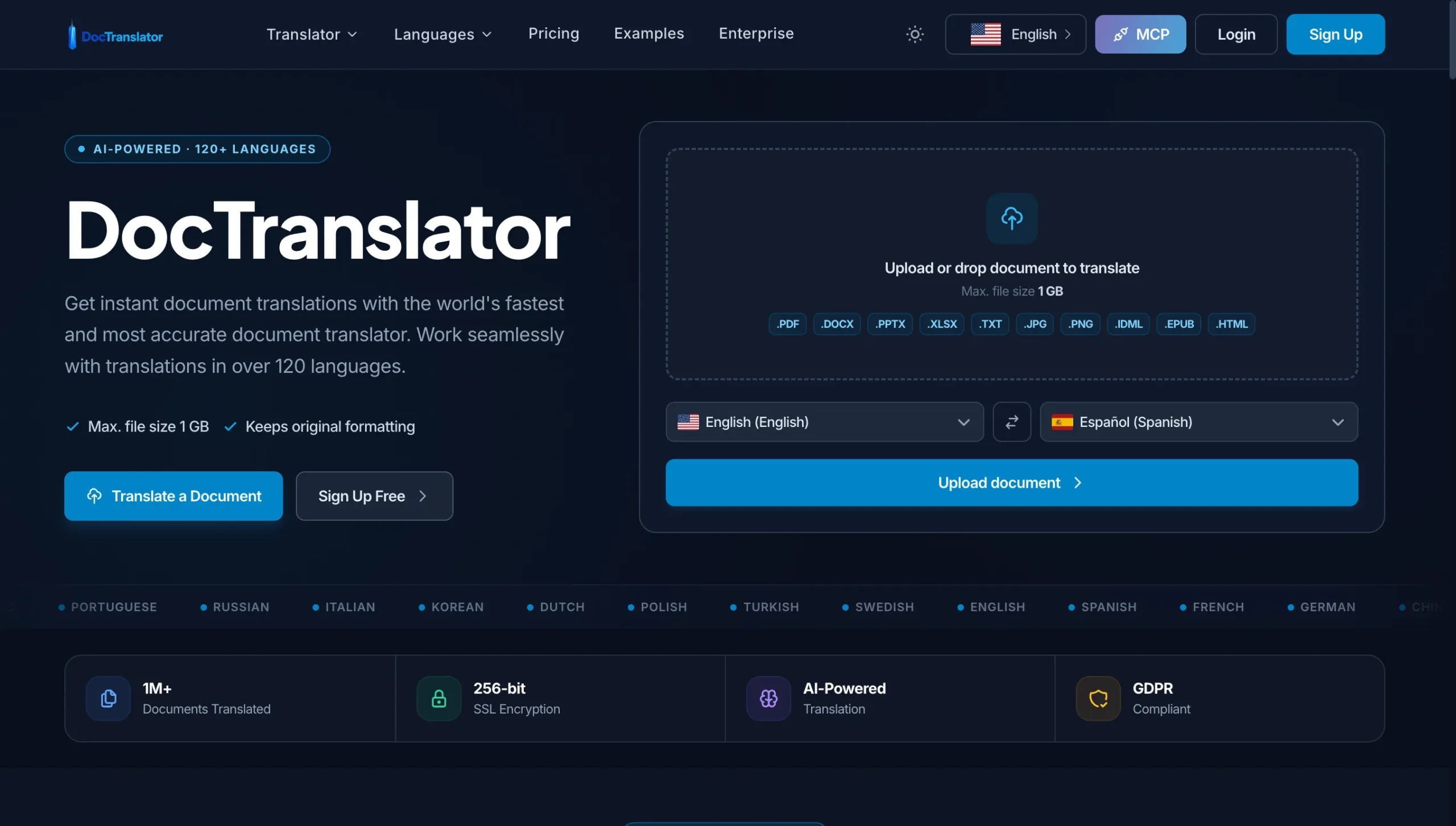
DocTranslator ranks among the top PDF translators in 2026 due to its exceptional layout preservation across complex documents, support for massive files (up to 1GB or 5,000 pages on higher plans), and AI-powered accuracy using top engines like GPT. One important change: DocTranslator no longer offers a free plan. Pricing starts with a $2 seven-day trial (10 pages), then $14.99 per month for 100 pages, or $135 per year.
The conversion process
You’ll be asked to sign up for an account.
Once you have an account, you can simply drag and drop it into the form, let the online translator detect the original language, select a target language, and click “Translate.”
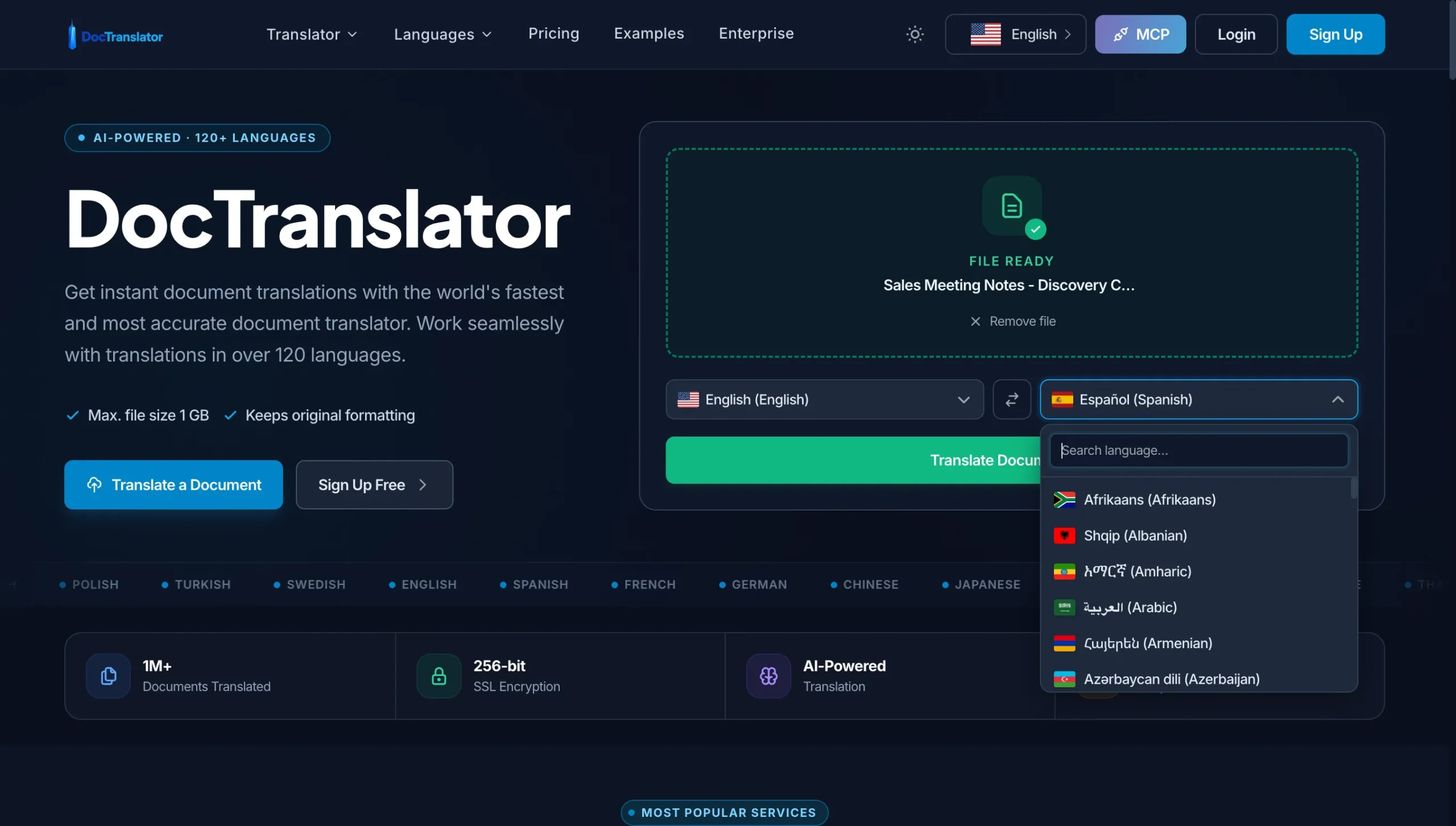
If you have a scanned document, you need to convert it to a Word file first using the PDF to Word Converter, which supports scanned PDFs, PNGs, and JPGs. The translated document will retain its original layout.
Here’re a few things to keep in mind:
- Layout and format preservation
Maintains original design, fonts, tables, and structure for PDFs, DOCX, PPTX, XLSX, and more (even images via OCR), avoiding the reformatting issues common in general translators. - Extensive language and file support
Handles 120+ languages with formats including PDF, Word, Excel, PowerPoint, CSV, IDML, TXT, JPG/PNG; the entry plan covers 100 pages per month, and higher tiers go to 1GB/5,000 pages. - Simple, secure workflow
Drag-and-drop interface with automatic language detection, 256-bit SSL encryption, GDPR compliance, and batch processing for efficiency.
The result
The translated document keeps its basic layout, and translation itself takes around a minute for a typical PDF. DocTranslator adds a header to the output file, and complex formats may still need a few manual adjustments afterwards.
Important tips
- Start with the $2 trial
Before committing to a subscription, use the seven-day trial (10 pages) to check layout fidelity and accuracy on complex sections like tables or images. - OCR scanned PDFs first
For image-based scans, pre-convert using their built-in tools or external OCR, as AI translation works best on extracted text for higher precision. - Pick the right tier for volume work
The $14.99 entry plan covers 100 pages per month; upgrade to higher tiers for bigger files (up to 1GB), more pages, and team access if handling frequent or large professional documents.
Pros:
- Broad range of language options
- Maintains basic formatting
- Handles very large files (up to 1GB / 5,000 pages)
Cons:
- No free plan: $2 trial, then paid from $14.99/month
- Requires sign-up before translating
- Adds header to translated document
- May require post-translation adjustments for complex formats
Google Translate
Google Translate offers a very mature and proven tool to translate text. What many users don’t know is that Google Translate can also be used to translate PDF, Word (docx), and even PowerPoint (pptx) files. Since its big 2024 expansion, Google Translate supports 249 languages and language varieties, powered by neural machine translation and Google’s AI models. This makes it a very good free tool to translate entire PDF files to a different language.
The conversion process
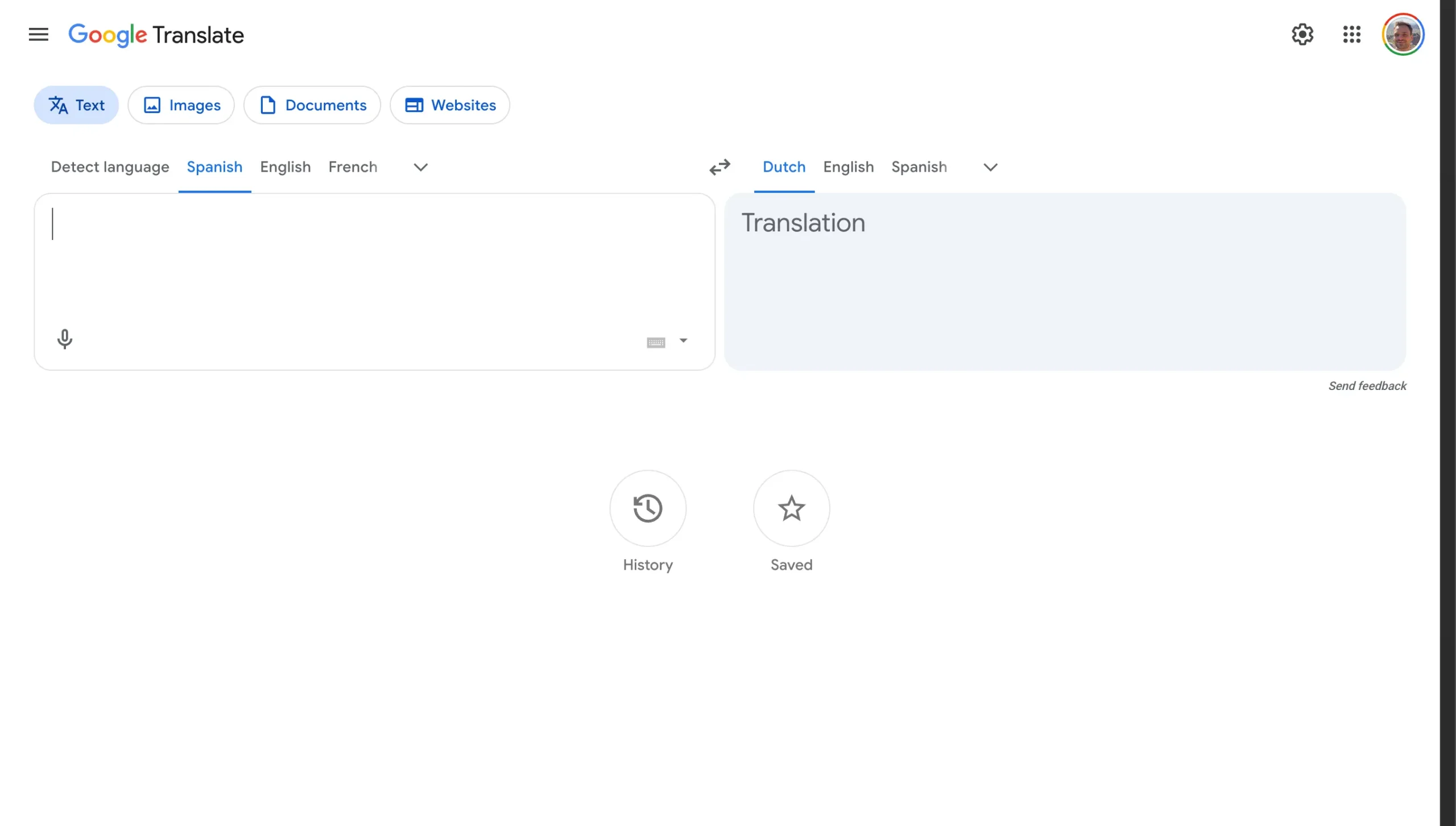
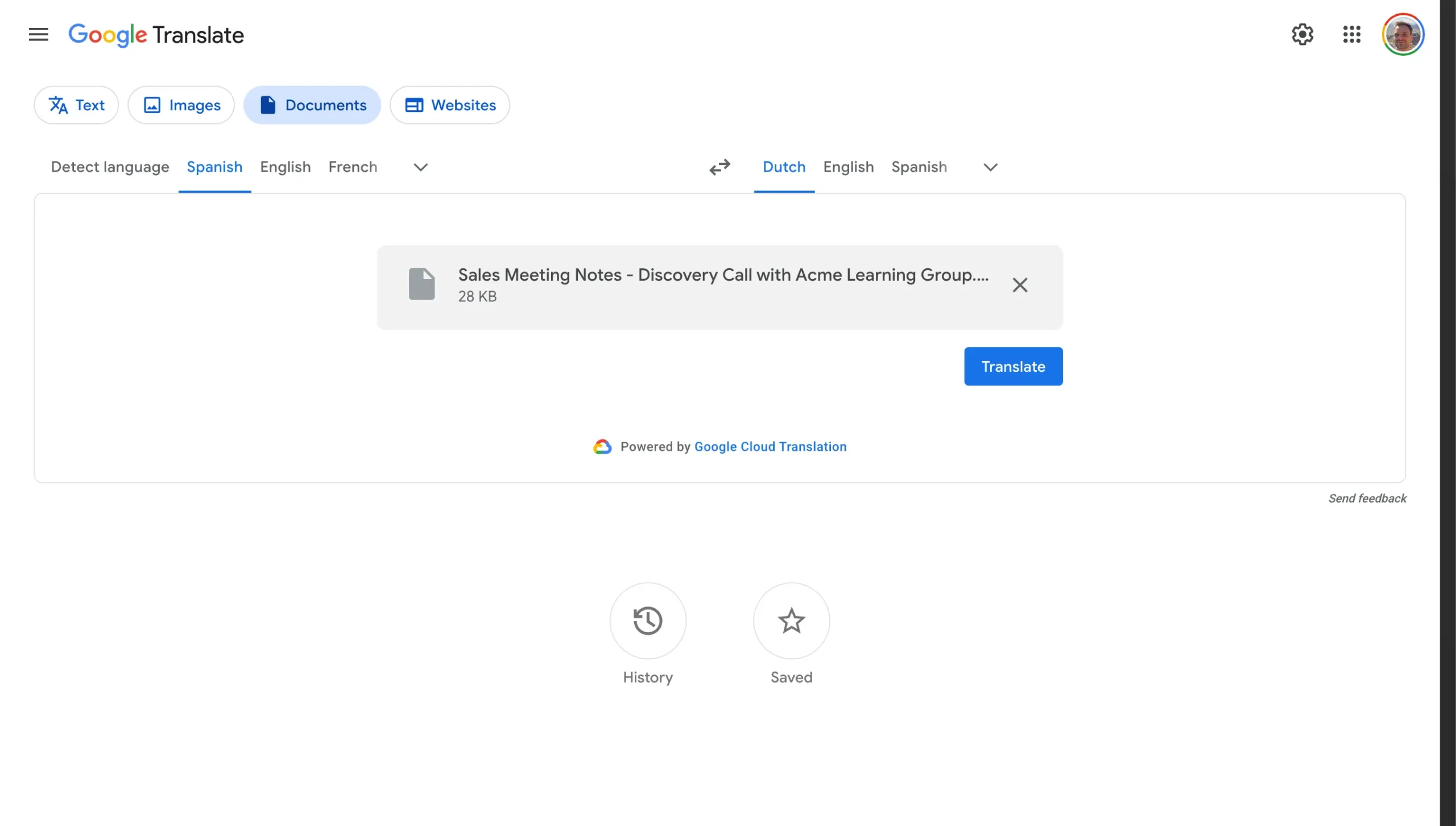
Open Google Translate and switch to the “Documents” tab. Here, you can upload your PDF and choose your target language. Translation takes just a few seconds, whereafter you can download the new, translated document.
Key information:
Direct PDF upload with limits
Web interface supports PDFs up to 10 MB and ~300 pages; outputs translated text or basic PDF, auto-detects languages from 249 options.
Google Drive workflow
Upload PDF to Drive, open as Google Docs, then use Tools → Translate document; preserves more editability and exports back to PDF easily.
No OCR for scanned PDFs
Works on text-based PDFs only; scanned/image PDFs require prior OCR (e.g., Adobe), and complex layouts often reflow without preserving design.
The result
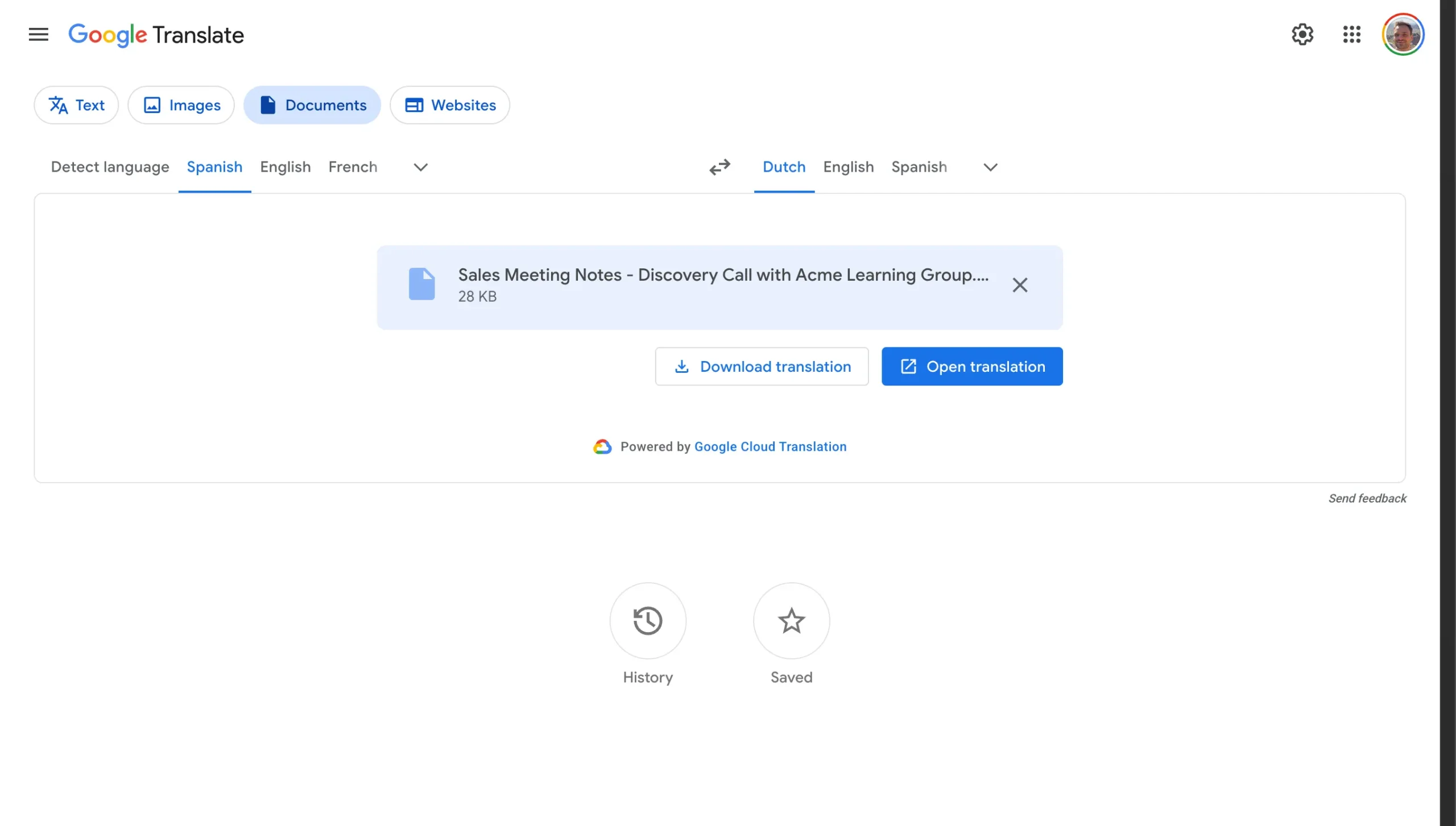
While the translation of the text is accurate, the formatting of the document is slightly different compared to the original. Google Translate also adds a text header to the document. Overall, the file has limited permissions and the text can only be copied and not edited.
Important tips:
- Use the Google Docs route for editable output: upload your PDF to Google Drive, open it as a Google Doc, and use Tools → Translate document. You keep an editable copy and can export it back to PDF.
- Check the layout afterwards: the downloaded PDF has limited permissions, so if you need to edit the translated document, the Google Docs route is the better option.
Pros:
- Completely free with no sign-up required
- Supports 249 languages and language varieties
Cons:
- No OCR, so scanned PDFs need to be converted first
- Formatting is slightly different
- Adds header to document
- 10 MB file size limit for PDFs
Which PDF translator keeps formatting and layout intact?
If you’re translating a technical manual, a data sheet, a contract, or anything with tables, diagrams, or multi-column layouts, formatting preservation matters just as much as translation accuracy. A perfectly translated manual is useless if the step numbers, warning boxes, and figure references end up in the wrong place.
Based on our testing, here’s how the five tools compare on layout fidelity:
- SlideSpeak rebuilds the original layout (fonts, tables, visuals) and gives you an editable PDF, which makes it the strongest option for technical documents where the design has to survive translation.
- DocTranslator also retains layout well across PDFs, Word, Excel, and PowerPoint files, including scanned documents via its built-in OCR.
- DeepL keeps the basic structure but shifts some formatting, adds a branded header, and locks the free output against editing.
- Google Translate and ChatGPT reflow the content as plain text, so you’ll need to rebuild the layout manually in Word or Google Docs afterwards.
A practical tip for technical documents: run your most complex page (the one with the densest table or diagram) through the tool first. If that page survives, the rest of the document will too.
What is the best PDF translator for business documents?
For business use, the ranking shifts slightly, because reliability and security start to matter more than raw translation quality. Four things to look for:
- Security and data handling: SlideSpeak encrypts files and deletes them after processing, and DeepL is GDPR-compliant with files deleted post-translation. For confidential contracts or financial reports, avoid tools that don’t state a clear deletion policy.
- Terminology consistency: if your documents use specific product names or legal terms, DeepL Pro’s glossaries let you lock in translations so the same term is rendered identically across every document.
- Volume and file size: DocTranslator’s Pro plan handles files up to 1GB or 5,000 pages with batch processing, which is useful for translating documentation libraries or archives.
- Editable deliverables: if the translated document needs review or further editing before it goes out, SlideSpeak’s editable PDF output saves a rebuild step that DeepL and Google Translate would force on you.
What about the big PDF software names? Tools like Adobe Acrobat and SmallPDF are best known for editing, converting, and signing PDFs. For translation specifically, the dedicated tools in this list deliver noticeably better results, so it’s worth using a purpose-built translator even if you already pay for a PDF suite.
Conclusion
The accessibility and efficiency of AI PDF translator tools have transformed how we manage multilingual documents. These top tools cater to a variety of needs, ranging from professional-grade translations to quick and easy solutions, all while ensuring high-quality results and preserving document formatting. With features such as secure online environments, extensive language support, and user-friendly interfaces, these tools are invaluable for anyone requiring reliable PDF translations.
If formatting matters most to you, the best PDF translator to start with is SlideSpeak’s free PDF translator: it takes seconds, keeps your layout intact, and there’s nothing to install.
FAQs about AI PDF translator tools and processes
Yes, if you pick the right tool. SlideSpeak encrypts files in transit and deletes them after processing, and DeepL is GDPR-compliant with files deleted post-translation. Before uploading confidential documents, check that the tool states a clear encryption and deletion policy.
SlideSpeak and DocTranslator lead for design fidelity; ChatGPT/DeepL/Google reflow text, so rebuild in Word/Docs afterward for professional results.
Advanced AI translators like DeepL can effectively translate complex documents, maintaining formatting and accurately translating text.
SlideSpeak and DocTranslator have built-in OCR; ChatGPT (vision models) works okay; DeepL/Google need pre-OCR via Adobe or Drive.
It depends on what matters most. For PDFs where layout has to survive, SlideSpeak is the strongest option. For fluent prose in European languages, DeepL leads. For custom tone and nuance, ChatGPT gives you the most control via prompting.
The process of translating Word documents with AI is very similar to translating PDF documents. Several AI-powered tools are capable of translating Word documents while maintaining formatting.
Translating PowerPoint documents can be a slightly more complex process. SlideSpeak is an excellent tool that allows you to translate your original presentation and download it again in PowerPoint format.


