

Top 6 Free AI Presentation Makers in 2026
Written by

Published on
On this page
Creating a presentation can feel like a chore, especially when you’re juggling tight deadlines or staring at a blank slide deck. Things are simpler when you use an AI presentation tool, however, there are a lot of tools out there.
We re-tested some of those tools in March 2026. Some are as generous as they used to be. Others have moved key features behind a paywall or replaced unlimited use with a one-time credit bucket that runs dry fast.
This article will show you what you actually get for free.
This update also adds Gemini’s slide generation feature, which launched in late 2025 and is genuinely worth knowing about if you are already familiar with Google Workspace.
Here’s a quick comparison of 6 AI presentation tools
| Tool | Credits/limit | Ease of use | Best for | Unique feature | Watermark free | Paywall |
|---|---|---|---|---|---|---|
| Presentations.AI | Free plan | Smart formatting for consistency | Business Pitches | Text-to-presentation generation | No | Limited slides on free |
| SlideSpeak | Free plan | 9/10 | Academic Projects | Redesign existing presentation | Yes | None for basic use |
| Gamma | 400 credits (once) | 9/10 | Personal Portfolios | Smart formatting for consistency | No | Credits don’t refresh on free |
| Visme | AI credits limited | 7/10 | Marketing Reports | Extensive design asset library | No | 5 project cap; 100MB storage |
| Pitch | 100 credits (once) | 8/10 | Built-in analytics for engagement | Smart formatting for consisitancy | No | Credits don’t refresh on free |
| Gemini | Unlimited (Canvas) | 7/10 | Designing and creating professional-looking images | Conclusion for main messaging | Yes | Full Slides AI needs paid plan |
Table of contents
In this guide, we’ll introduce you to the top 6 free AI presentation makers of 2026. You’ll learn what each tool does best, how to use them step by step, and which use cases they’re most suited for. Whether you’re building an investor pitch, academic presentation, or team update, there’s something here for everyone. Here is a comparison of all the AI presentation makers we will be exploring in this post.
AI Presentation Maker #1: Presentations.AI
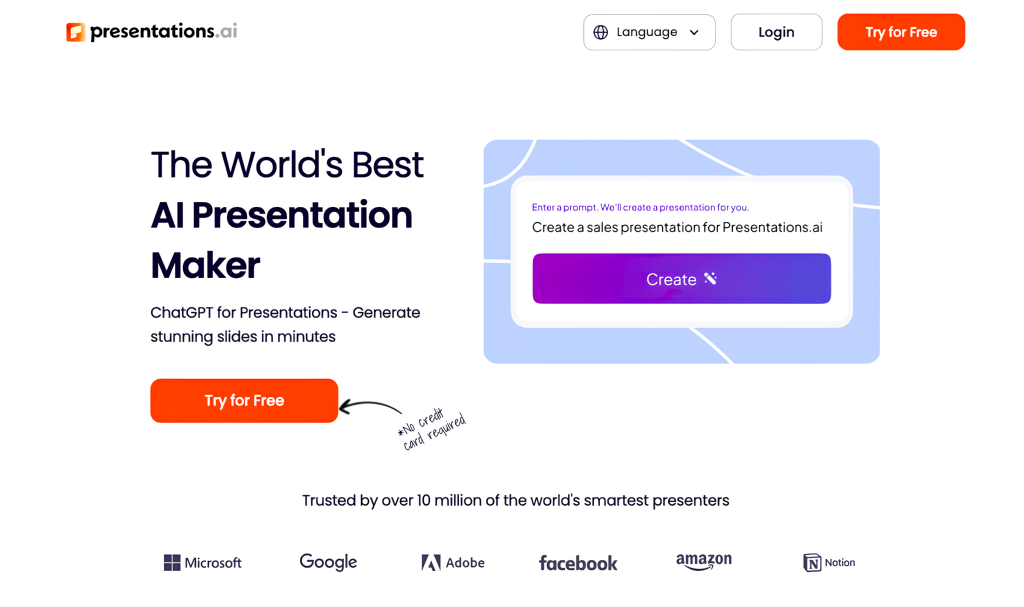
Best for: Rapid corporate-style decks. Business users who need professional-looking slides from a text prompt with minimal setup.
Presentations.AI generates a full deck from a text prompt. The free plan gets you started without a credit card. You enter your topic, choose your slide count, and the AI drafts an outline you can review and edit before the final deck is built.
Important: Presentations.AI treats uploaded documents (PDFs, Word files) as supporting context rather than the primary source. It does not extract and restructure your document content the way SlideSpeak does. If you are building from scratch from a topic prompt, it works well. If you have existing content you want converted, you may find it less accurate.
The design output is clean and corporate. Color customization at the outline stage lets you match brand colors before generation. The ‘Share & Export’ button in the top right gets you a downloadable file.
How to create an AI presentation with Presentations.AI
Presentations.AI requires an initial prompt to begin the creation process. You can attach supporting content like PDF’s + Word Documents but it will not explicitly base the presentation content off the supporting document.
The same applies for website URL’s.
If you want a presentation creating from a document then you must import your content in your dashboard.
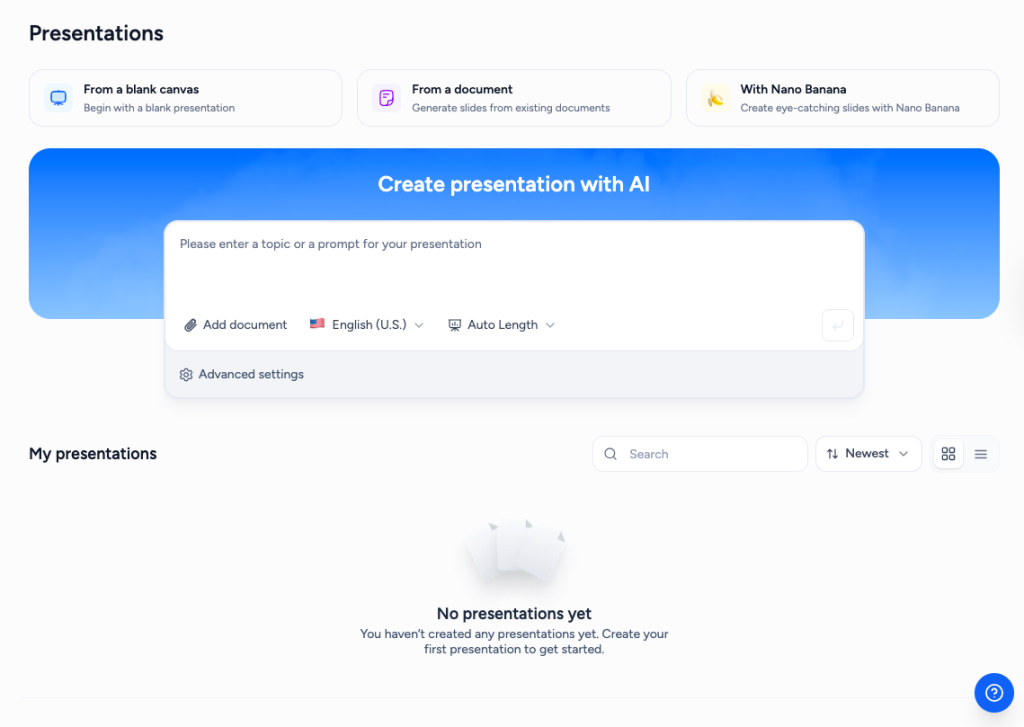
You should go ahead and type in your presentation prompt and adjust the customization options that presentations.AI offers. In this example, we will create a presentation on the Role of Technology in Education and it will be around 10 slides long.
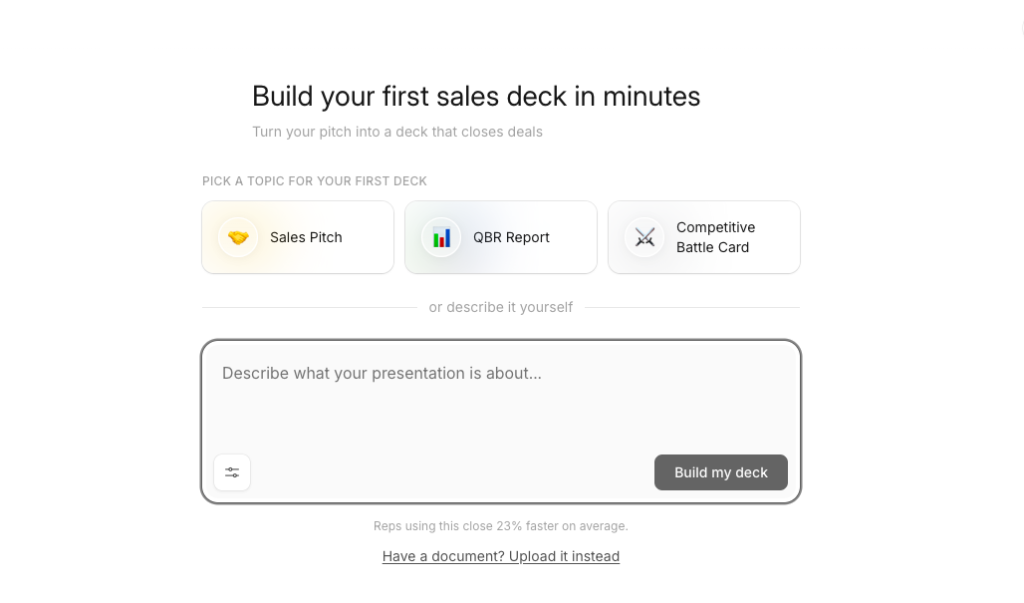
The AI will then create an outline of your slides with details on what information will be on each slide. This is useful because you can verify that the information will be useful to your presentation. If not you can edit it and steer the AI in the correct direction.
In this next step you can also edit your brand colors so that the presentation is consistent with company colors for example.
The presentation will then be generated and you can begin editing the slides.
You can add elements like shapes and images by using the “Elements” button on the right hand side of the screen. The button will be in the editing panel.
Once you’re happy, you can share your PowerPoint by exporting the file. You can do this by clicking on the “Share & Export” button in the top right corner, it is bright blue so you can’t miss it.
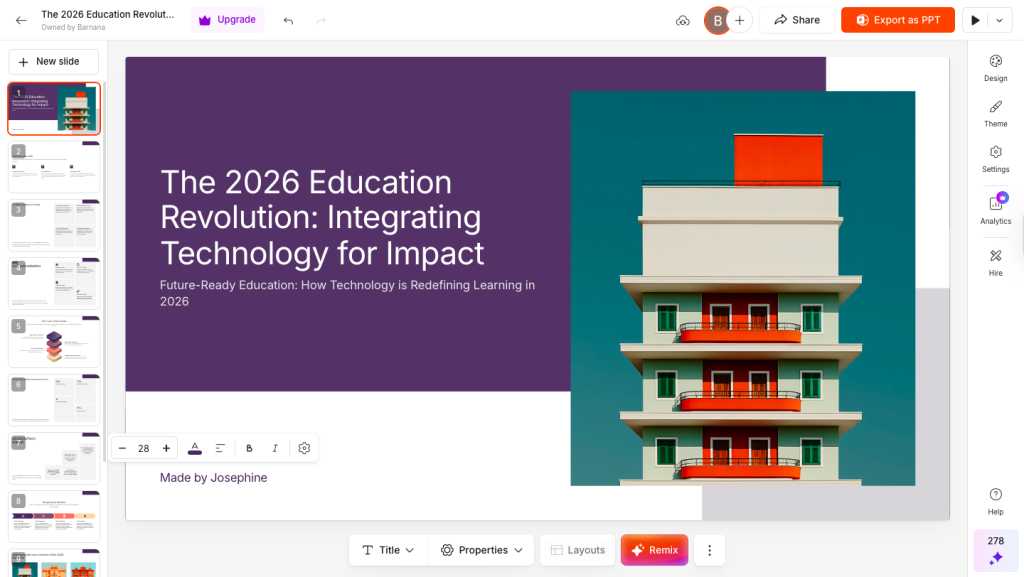
This quick guide on how to create a free AI presentation with presentations.AI should set you up for success and let you create and download your presentation in a matter of minutes. But if you want to focus on having the AI do most of the heavy lifting, then I’d recommend the next tool very highly.
Try presentations.ai for yourself here.
- Free plan gives you: AI-generated presentations from prompts, outline review step, color customization, export to file.
- Watch out for: Uploaded documents are used as loose context rather than extracted content. Limited customization compared to more design-focused tools.
AI Presentation Maker #2: SlideSpeak
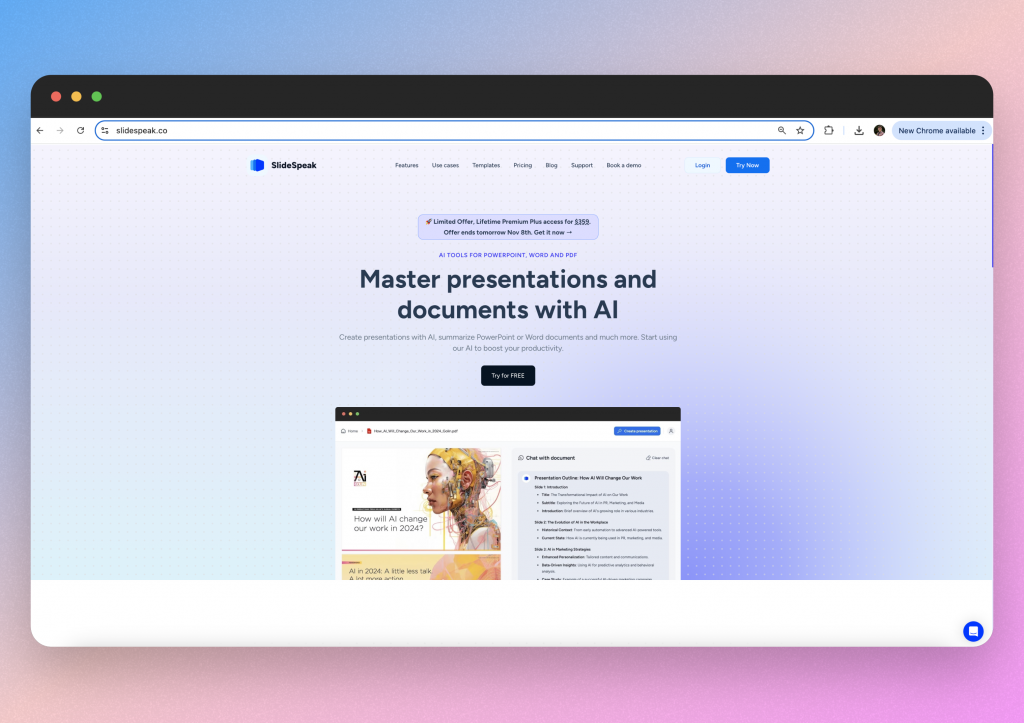
Best for: Students and professionals who need to turn a document or topic into a PowerPoint fast, without design skills. Most generous free tier.
SlideSpeak is built around a specific workflow that most other tools do not offer on the free plan: you bring a source — a PDF, Word document, Excel sheet, or website — and SlideSpeak turns it into a presentation. You get a downloadable .pptx file with no watermark and no credits to burn through.
The free plan does not impose a one-time credit bucket or a project cap. You can generate presentations without hitting a wall, then edit them in PowerPoint or Google Slides afterward. It is the only tool on this list where the free tier genuinely works for ongoing, day-to-day use without friction.
During our March 2026 test, we uploaded a 12-page research PDF and had a clean, structured 10-slide deck in under 30 seconds. The outline was accurate, the content was drawn from the source, and the download was a fully editable .pptx file.
How to create an AI presentation with SlideSpeak
Uniquely, SlideSpeak allows users to redesign existing presentations by simply taking the existing content and inserting it into one of their templates or your own. But for this example, you can decide if you would like to create your presentation from a topic or an uploaded file. In this case, we will create a presentation from a document.
You can upload a variety of files, including Excel, documents, PDF’s and PowerPoints.
Simply select the desired file that you have saved locally and upload it to your SlideSpeak account. The file will then be stored in your account.
The AI will then analyze the file and ask you how you wish to customize the presentation. To name a few examples, you can modify the;
- Number of slides
- Language of presentation
- Tone of voice
The AI will then generate an outline of the presentation it will create. This is a great way to check if the presentation will cover the topics you wish to use. By having this check in place, SlideSpeak ensures the user can produce content that they want, rather than what the AI wants. Something that sets SlideSpeak apart from some of the other tools on this list.
Once you’re happy, click “Generate” and the presentation will be created in under 30 seconds.
Users are then presented with a preview of the presentation. You can edit images, text and font size within SlideSpeak. All other modifications are possible by downloading the presentation as a PPTX file and editing with the Microsoft PowerPoint app.
You can do this by clicking on the “Download” button in the top right corner.
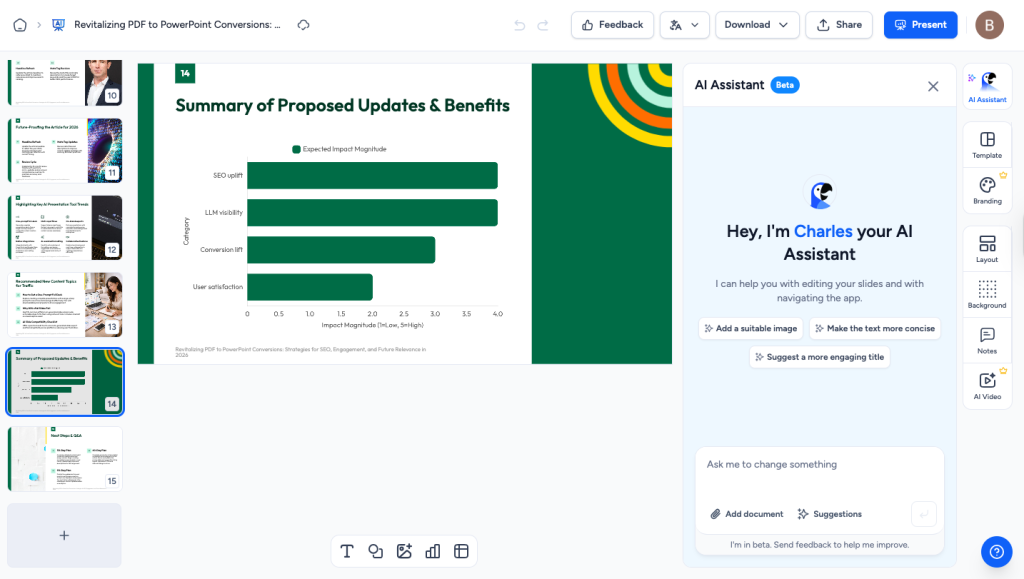
So as far as AI presentation makers go, SlideSpeak is the best for leveraging AI to extract key information from your files. This means you make the presentation much quicker.
Try SlideSpeak AI for yourself here.
- Free plan gives you: Presentation generation from prompts and documents, .pptx download, no watermark, no time-limited trial.
- Upgrade for: higher-volume generation, branded templates, advanced customization, and API access for teams.
AI Presentation Maker #3: Gamma
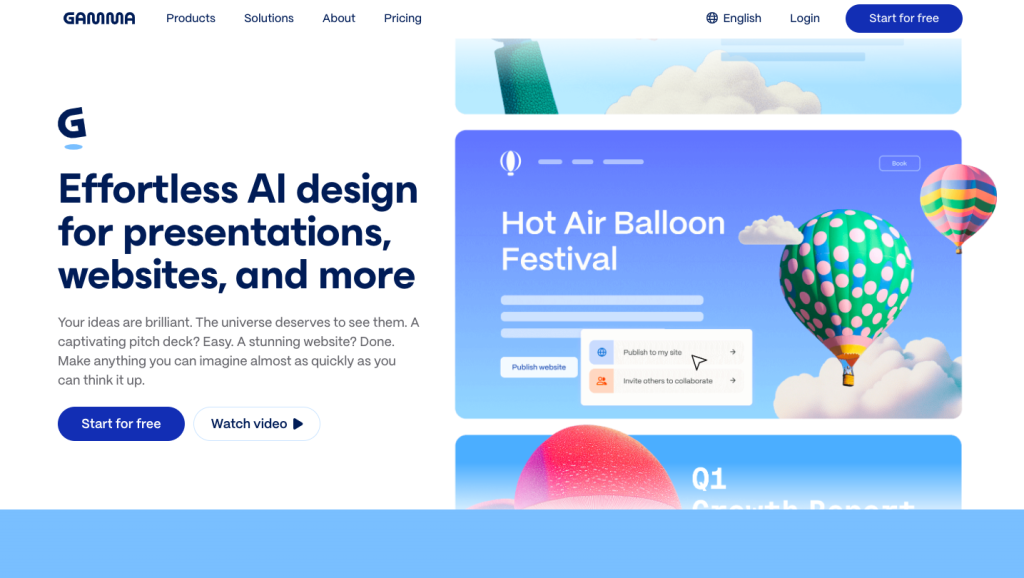
Best for: People who want visually polished output fast and only need to make a few presentations.
Gamma’s free plan gives you 400 AI credits when you sign up. That’s a one-time allowance; credits do not refresh. Once they’re gone, you can still view and manually edit existing presentations, but you cannot generate new ones without upgrading or earning more credits through referrals (200 per referral).
On the credit math: creating one presentation costs 40 credits, adding a card costs 5, and an AI image costs 10. So your 400 credits translate to roughly 5 to 10 full presentations before the well runs dry.
The quality of those presentations is genuinely impressive.
Gamma produces modern, web-style decks with strong visual layouts. The catch is that all free exports carry Gamma branding, and custom fonts and brand kits are locked behind the Plus plan ($8/month).
For students or anyone who needs an occasional stunning deck and does not mind the watermark, Gamma’s free tier is a solid option. For regular or professional use, you will hit the credit wall faster than you’d expect.
How to create an AI presentation with Gamma
Gamma simplifies the process of creating visually appealing presentations. With an easy-to-use interface, users can quickly design slides.
The speed in achieving a presentation design is a big factor in its popularity.
To begin, describe what it is you’d like to create. If it’s a presentation, the prompt “Presentation on managing change in the workplace” would be an example.
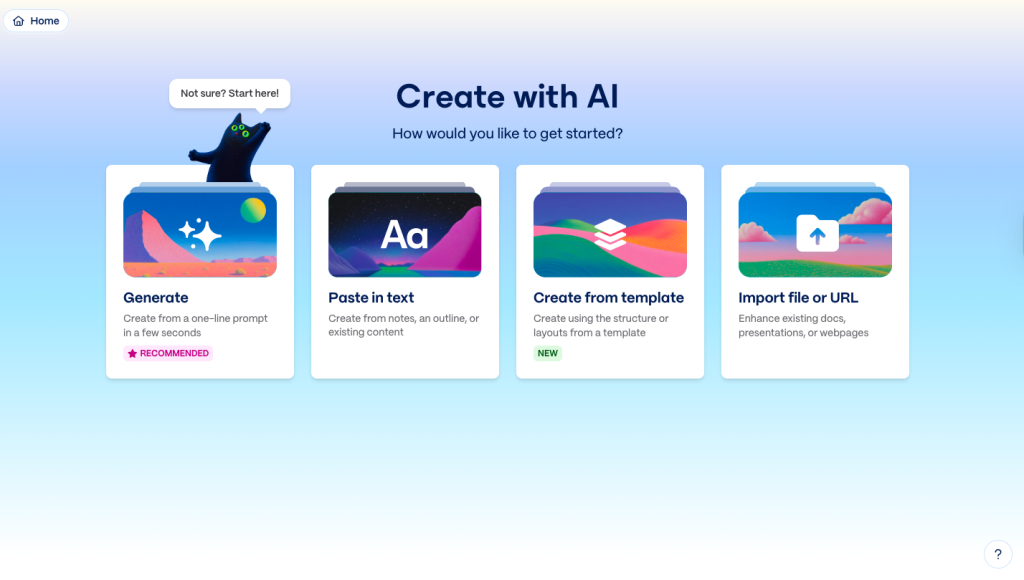
We recommend you to browse through Gamma’s library of pre-designed templates before you begin and mark your favorites. This will help you reach that professional presentation feel. In terms of AI presentation makers, Gamma probably has the best designs.
Alternatively, you can select a theme in the next window and Gamma will assign you a template. You can then customize your presentation by adjusting the amount of text each slide should have. This is very similar to SlideSpeak.
Gamma AI will then produce your presentation. As a heads up- they call slides “cards” so if you get asked to add a card, then it is just code for adding a new slide.
Then it’s up to you to edit the presentation as you see fit. The platform offers drag-and-drop functionality, along with a variety of design elements, so it is easy to add or delete stuff- even if you are not very technologically advanced. We really like the ability to add infographics like charts & graphs.
You can edit text directly on the cards and then use the editing bar on the right hand side for adjusting other elements.
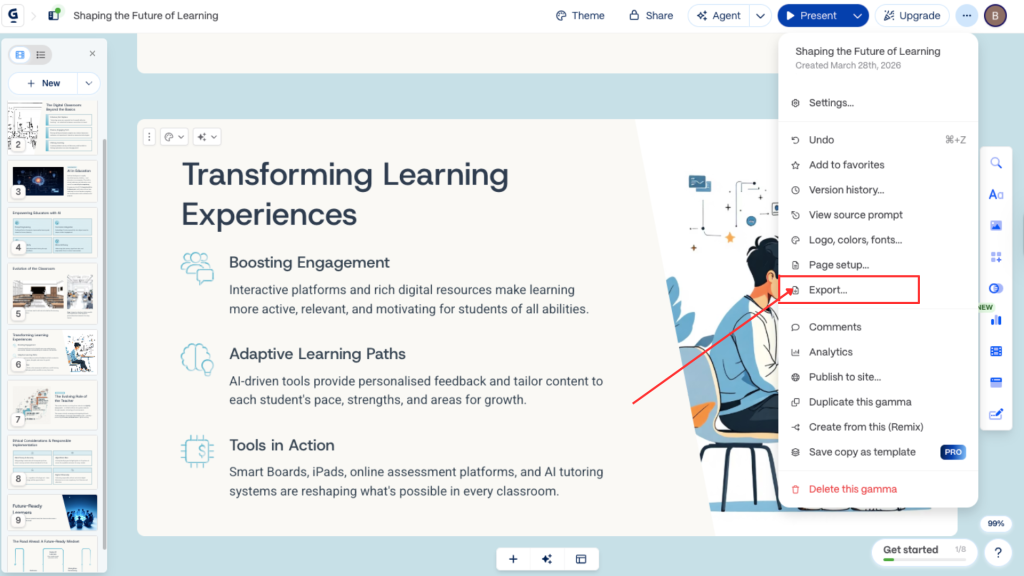
To download your presentation, click the 3 dots in the top right corner and then select “Export”.
Try Gamma for yourself here.
- Free plan gives you: 400 one-time AI credits, PDF and PPTX export, 10 cards per presentation, basic image generation.
- Watch out for: Credits do not refresh. Free exports carry Gamma branding.
AI Presentation Maker #4: Visme
Best for: Visual content creators who also need infographics, reports, and social graphics, not just presentations.
Note: Free access is limited and paywall can appear quickly.
We need to be honest about Visme’s free tier in 2026. It is real, but it is the most restrictive on this list. Free accounts are capped at 5 projects and 100MB of storage. AI features run on a credit system with a limited monthly allowance. Exports on the free plan carry a Visme watermark, and downloading in formats beyond JPG requires upgrading.
App Store reviews from 2025 include users reporting that storage limits stopped them mid-project, with no path forward except upgrading.
That said, Visme can be on the slightly expensive side. If you need infographics, reports, social media content, and interactive presentations all from one platform, it is worth the paid plan. The AI designer works well, the template library is extensive, and data visualization tools are a standout. Just do not go in expecting the same free latitude as the tools above.
How to create an AI presentation with Visme
You can chat with the Visme AI Designer to describe the presentation you want to create. The AI will give you some suggestions which can be quite useful- especially if you have a bit of writer’s block.
This easy first step is why we love Visme! Once you’ve finalised your prompt/topic, Visme will ask you to select a theme.
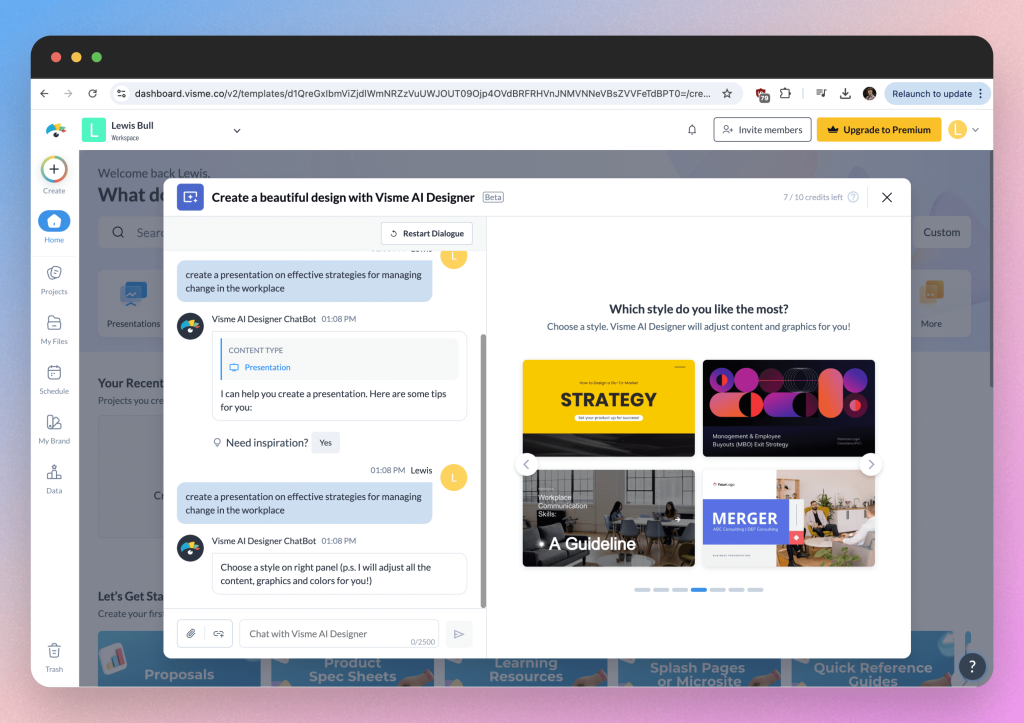
Whilst you can create a blank presentation and add your own designs, we recommend using one of Visme’s themes.
You can do this by browsing through Visme’s extensive library of presentation styles after you have given it the presentation prompt. These are varied by style and purposes such as business, education, creative, etc. Select the theme that best suits your needs.
Once you have selected your theme, the AI will create your presentation and present you with the first draft.
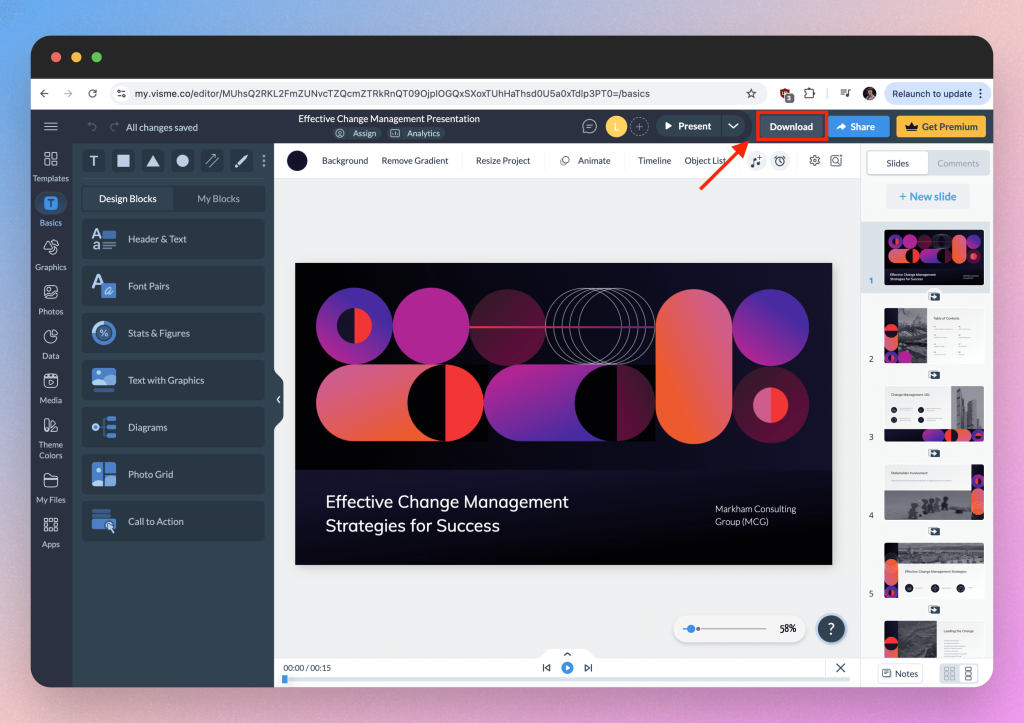
Just like Gamma, you can click on any text box to edit the content. You can change the font, size, color, and style using the text editing tools. You can also prompt the AI to create additional text for your presentation.
Use the left-hand toolbar to add images, icons, shapes, and other media. You can upload your own images or use Visme’s library of stock photos and icons.
If you need to present data, you can add charts, graphs, and tables. Visme offers customizable data widgets that can be easily edited to fit your data.
Just hit the “Download” button in the top right to download your presentation in the required format.
BIG NEWS: Visme also recently launched the ability to change the font of your entire project in just one click. Check out their feature release article here.
Try Visme for yourself here.
- Free plan gives you: 5 projects, 100MB storage, limited AI credits, JPG download, basic templates.
- Watch out for: Storage limits can cut you off mid-project. Watermark on all free exports. PPTX and unbranded PDF require a paid plan.
AI Presentation Maker #5: Pitch
Best for: Small teams and startup founders who need polished pitch decks with real-time collaboration.
Pitch’s free plan is genuinely generous for the core product: up to 5 workspace members, unlimited presentations, 100+ templates, and 10GB of storage.
On the AI side, free accounts get 100 one-time AI credits, similar to Gamma’s model. They do not refresh. Once you have used them, AI generation is paused until you upgrade. Paid plans include monthly refreshing credits.
The templates are a genuine highlight, professionally designed, clean, and flexible. Free plan exports include Pitch branding on PDFs and shared links, but PPTX export is available on the free plan. If you need to hand off a file to someone who only uses PowerPoint, that works without paying.
Pitch also launched Pitch 2.0 with audience analytics (now available on all plans, including free) and Continuity animations. If you are building a pitch deck and want clean design without a design background, this is one of the strongest free options.
How to create an AI presentation with Pitch
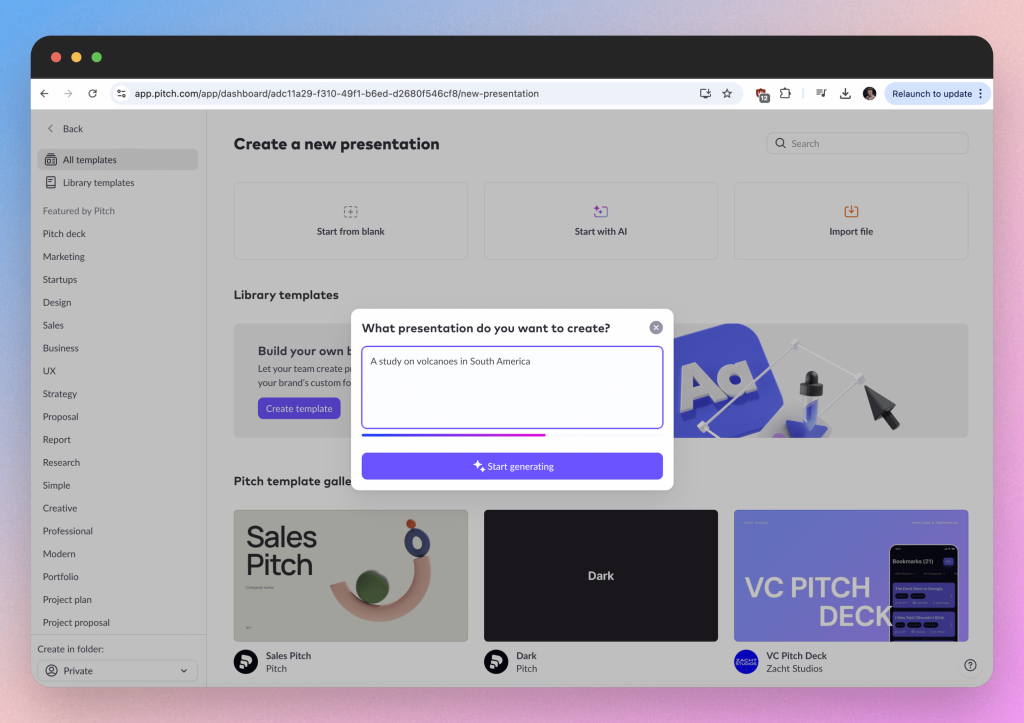
Let’s assume you use the text prompt to begin. There is a character limit for this so keep your presentation description to essential information only.
To be honest, there isn’t lots of customization with Pitch so we recommend adding lots of detail to the prompt e..g audience and tone of language.
Once you’re happy, click the “Start generating” button to proceed to the next step.
In the next window you can edit the font and color of your presentation. That’s not tons of customization but you can edit the content in the final window thankfully.
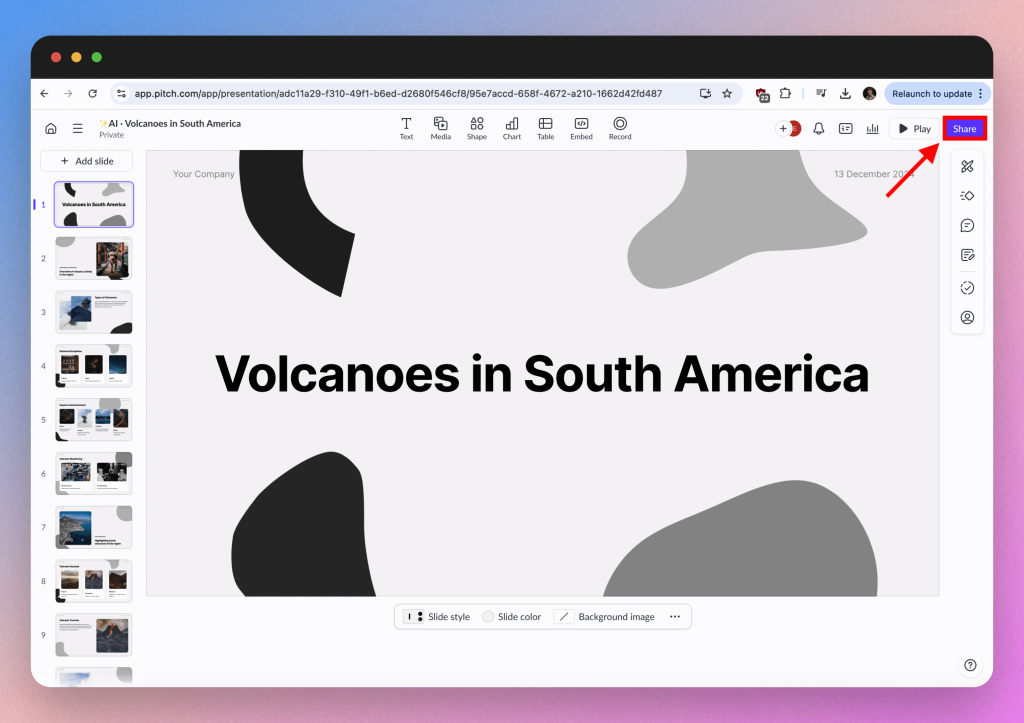
To edit the slides, you can do it directly on the canvas by just clicking on the text or image for example. Otherwise, you will find lots of customization option in the editing toolbar on the right hand side.
You can also edit some core features of the slide at the bottom of the window e.g. the slide color or background image.
If you’re happy with the slide, look for the “Share” button in the top right and download the file to your device.
Try Pitch for yourself here.
- Free plan gives you: 5 members, unlimited presentations, 100 AI credits (one-time), PPTX export, 100+ templates, 10GB storage, presentation analytics.
- Watch out for: AI credits are one-time and do not refresh. Branding appears on shared links and PDF exports. Advanced analytics and pitch rooms require a paid plan.
AI Presentation Maker #5: Gemini
Start by opening your web browser and going to gemini.google.com. If you already use Gmail or YouTube, you have a Google account — just sign in with that. Once you are in, look for the Tools button at the very bottom of the chat box and click it. From the menu that appears, select Canvas. Think of Canvas as a special workspace where Gemini can build things for you, rather than just chat.
Now tell Gemini what you want. Type something like “Create a presentation on the water cycle with 8 slides” — the more detail you give, the better the result. If you have notes, a document, or a file saved in Google Drive, you can attach that too, and Gemini will use it as source material instead of making everything up from scratch.
Once Gemini finishes building your deck, you will see a preview of all the slides. Take a moment to look through them and check that the content makes sense. When you are happy, click Export to Google Slides. This sends the whole presentation straight into Google Slides, which works just like PowerPoint — you can change the text, swap images, adjust colors, and make it your own from there.
How to create an AI presentation with Gemini
Go to Gemini prompt box, and select ‘Canvas’. Think of Canvas as a special workspace where Gemini can build things for you, rather than just chat.
Now tell Gemini what you want. The more detail you give, the better the result. If you have notes, a document, or a file saved in Google Drive, you can attach that too, and Gemini will use it as source material instead of making everything up from scratch.
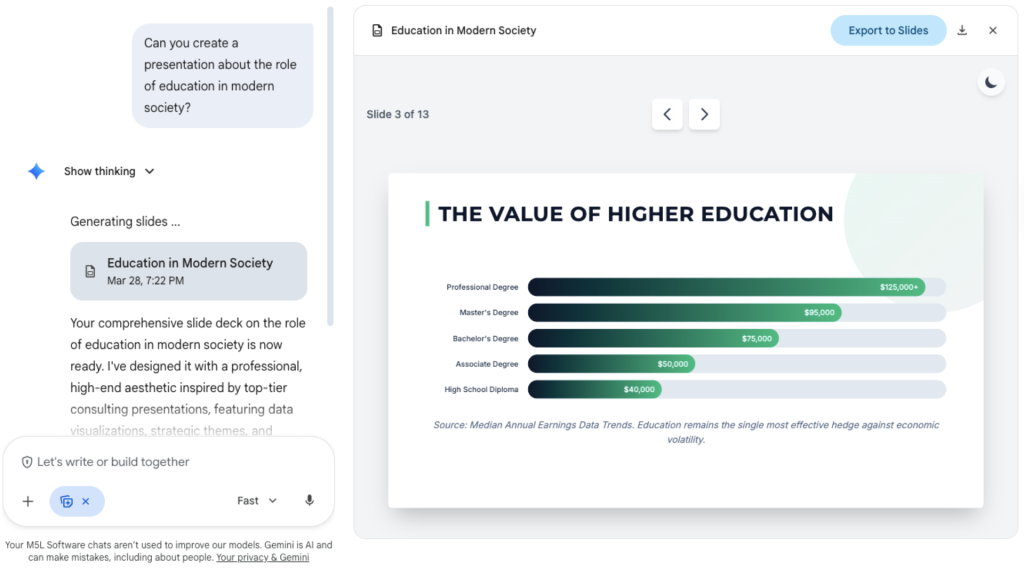
Once Gemini finishes building your deck, you will see a preview of all the slides. Take a moment to look through them and check that the content makes sense.
When you are happy, click Export to Google Slides. This sends the whole presentation straight into Google Slides, which works just like PowerPoint — you can change the text, swap images, adjust colors, and make it your own from there.
- Free plan gives you: Full presentation generation in Gemini Canvas (free Google account), export to Google Slides, slide-by-slide editing in Slides.
- Watch out for: The AI assistant inside Slides itself (Ask Gemini panel) requires a paid plan. Canvas full-deck generation quality varies — outputs may need significant editing.
Conclusion
Got a business pitch to finish or a portfolio to impress with? These AI tools take the hassle out of creating presentations, making them easier and more dynamic. Try out their free features, see how they work, and pick the one that matches your style. You can hit the ground running in 2025 with these free AI presentation makers.
For a deeper dive into each of these tools and to find the perfect match for your presentation needs, visit their respective websites:


