

Stock photos rarely look like your company. With an image library and an icon library in your brand, SlideSpeak uses your own photos and icons when it generates a presentation. The AI picks the image or icon that fits each slide.
Before you start
- You need Premium Plus or Lifetime. Image and icon libraries are part of brands, which aren't included in the Free or Premium plans.
- Where it lives: click Branding in the left sidebar, open a brand, then click Images or Icons. Each brand has its own libraries.
- File limits:
| Library | File types | Max size per file | Files per bulk upload |
|---|---|---|---|
| Images | PNG, JPG or WEBP | 3 MB | 25 |
| Icons | SVG, single color | 256 KB | 25 |
New to brands? Start with how to set up your brand kit.
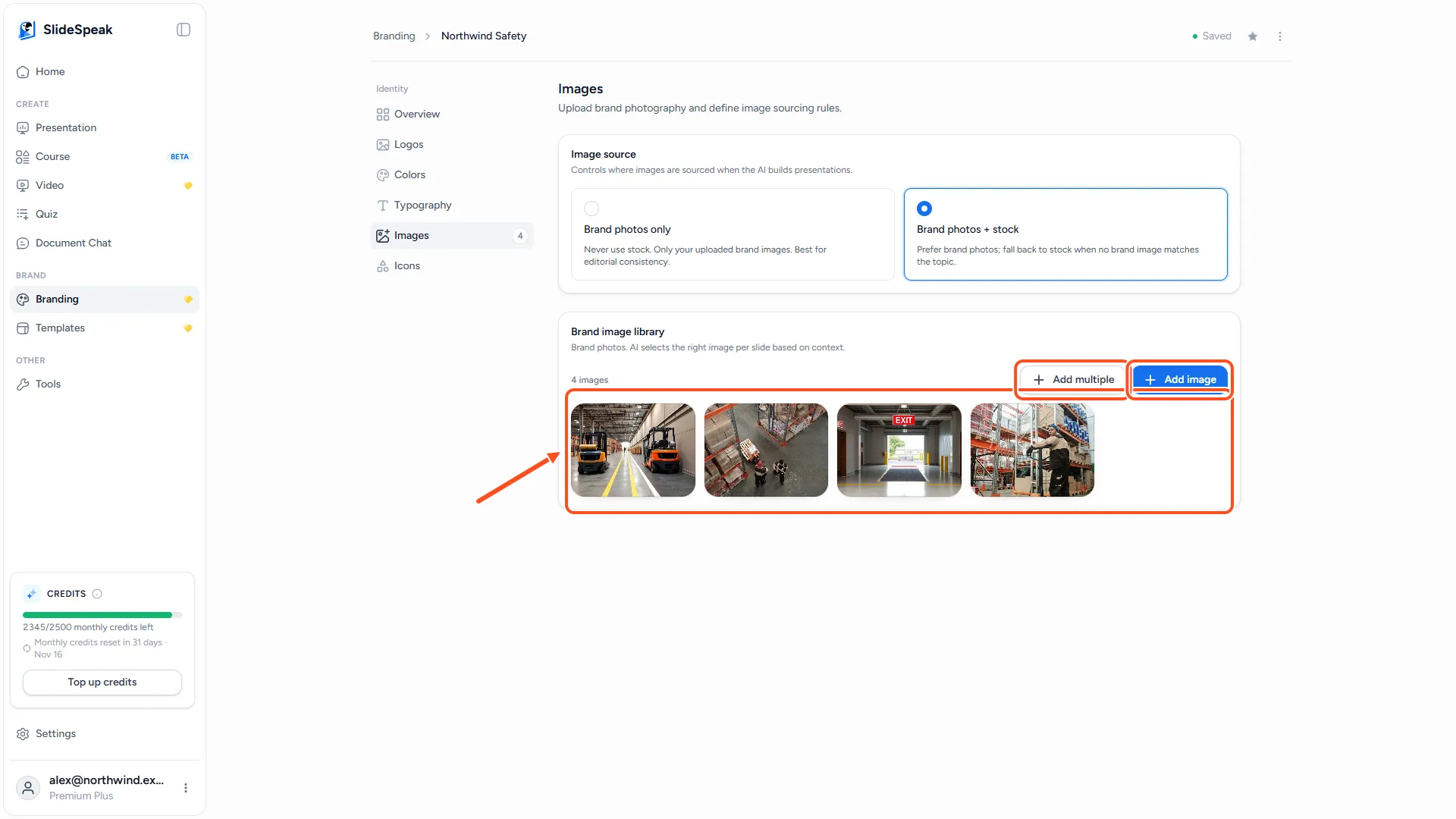
Step 1: Upload your brand images
- Open your brand and click Images.
- Click Add image to upload one image. To upload up to 25 at once, click Add multiple, add your files, then click Upload images.
The count next to Images in the brand menu shows how many images the library holds. If some files fail in a bulk upload, click Retry failed to try them again.
Upload photos you would be happy to see on any slide: team photos, products, offices, customers at work. The AI chooses an image for each slide based on its content.
Step 2: Choose where images come from
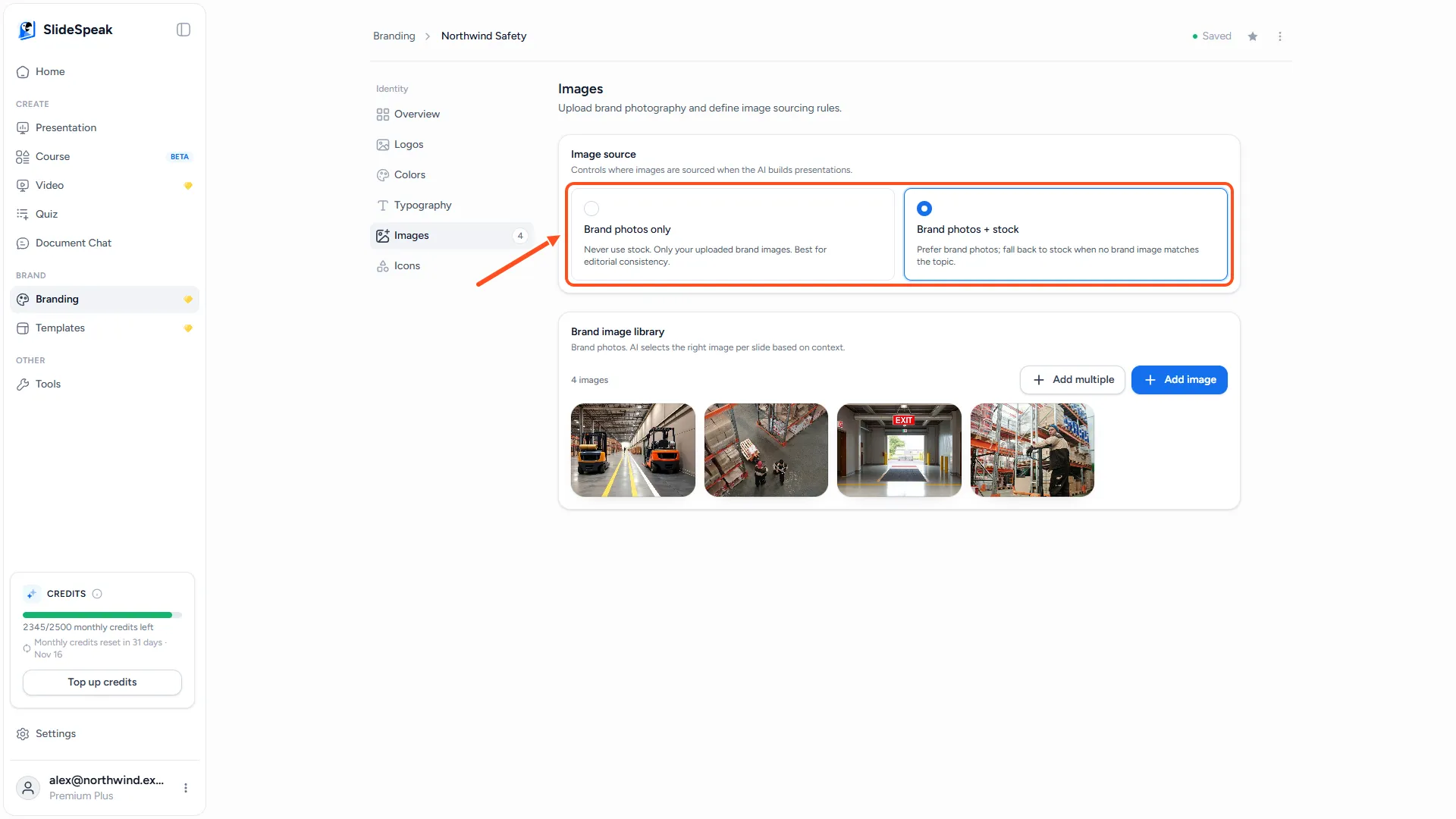
Under Image source, pick one option:
- Brand photos + stock (the default): SlideSpeak prefers your photos. When none of them fits a slide's topic, it uses a stock image.
- Brand photos only: SlideSpeak never uses stock images, only your uploaded photos. You need at least one image in the library to choose this.
If you delete every image while Brand photos only is selected, SlideSpeak switches back to Brand photos + stock and tells you so.
Step 3: Upload your brand icons
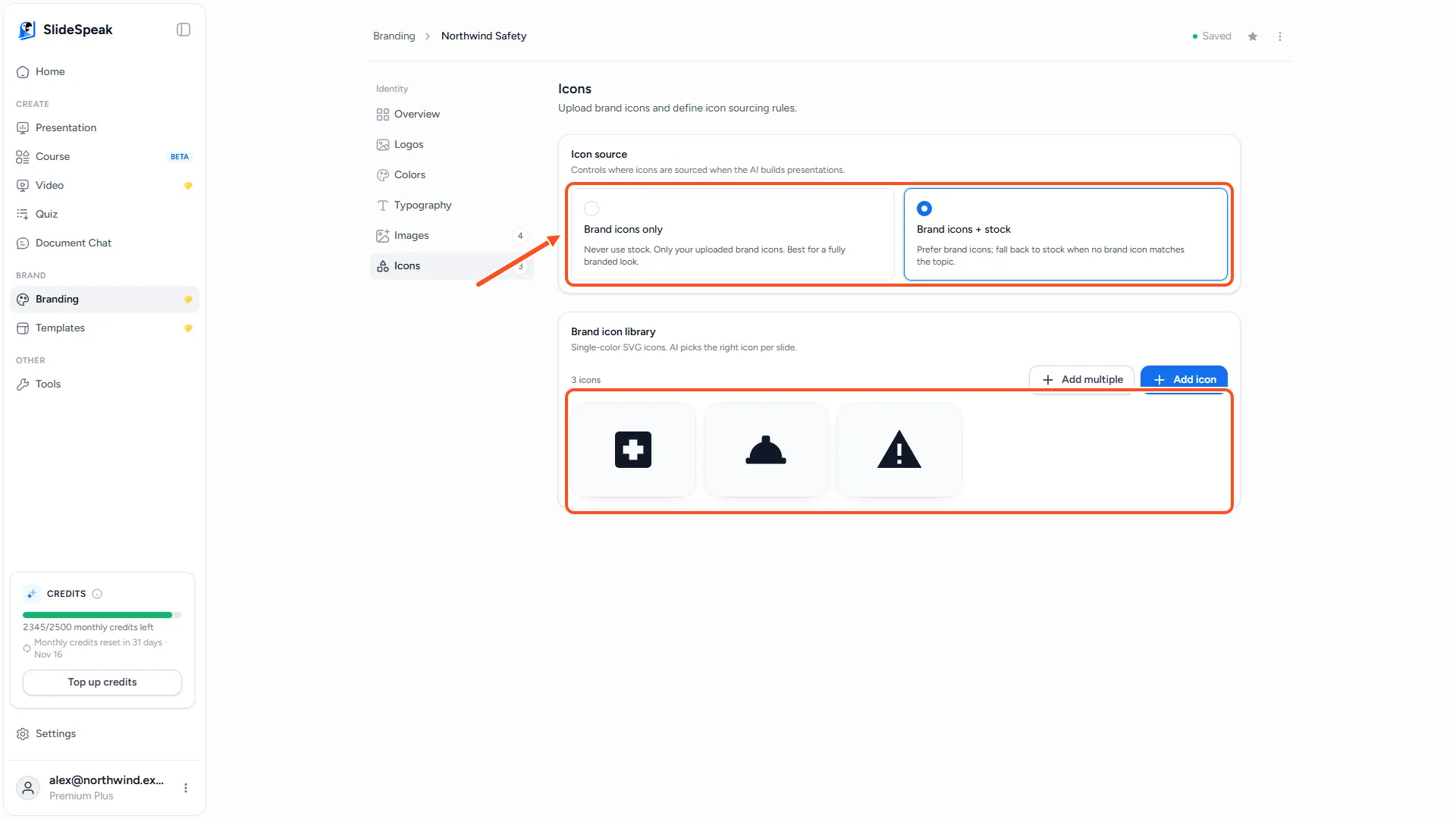
- Click Icons.
- Click Add icon, or click Add multiple to upload up to 25 at once, then click Upload icons.
- Under Icon source, choose Brand icons + stock (your icons first, stock icons when none fits) or Brand icons only (never stock icons).
Icons must be simple, single-color SVG symbols. Multicolor marks and SVG files with complex effects don't work as icons. Upload those as your logo or as brand images instead.
Step 4: Create a presentation with your brand
- Click Presentation in the left sidebar.
- Below the prompt box, click Advanced settings and check that your brand is selected under Branding.
- Create your presentation as usual.
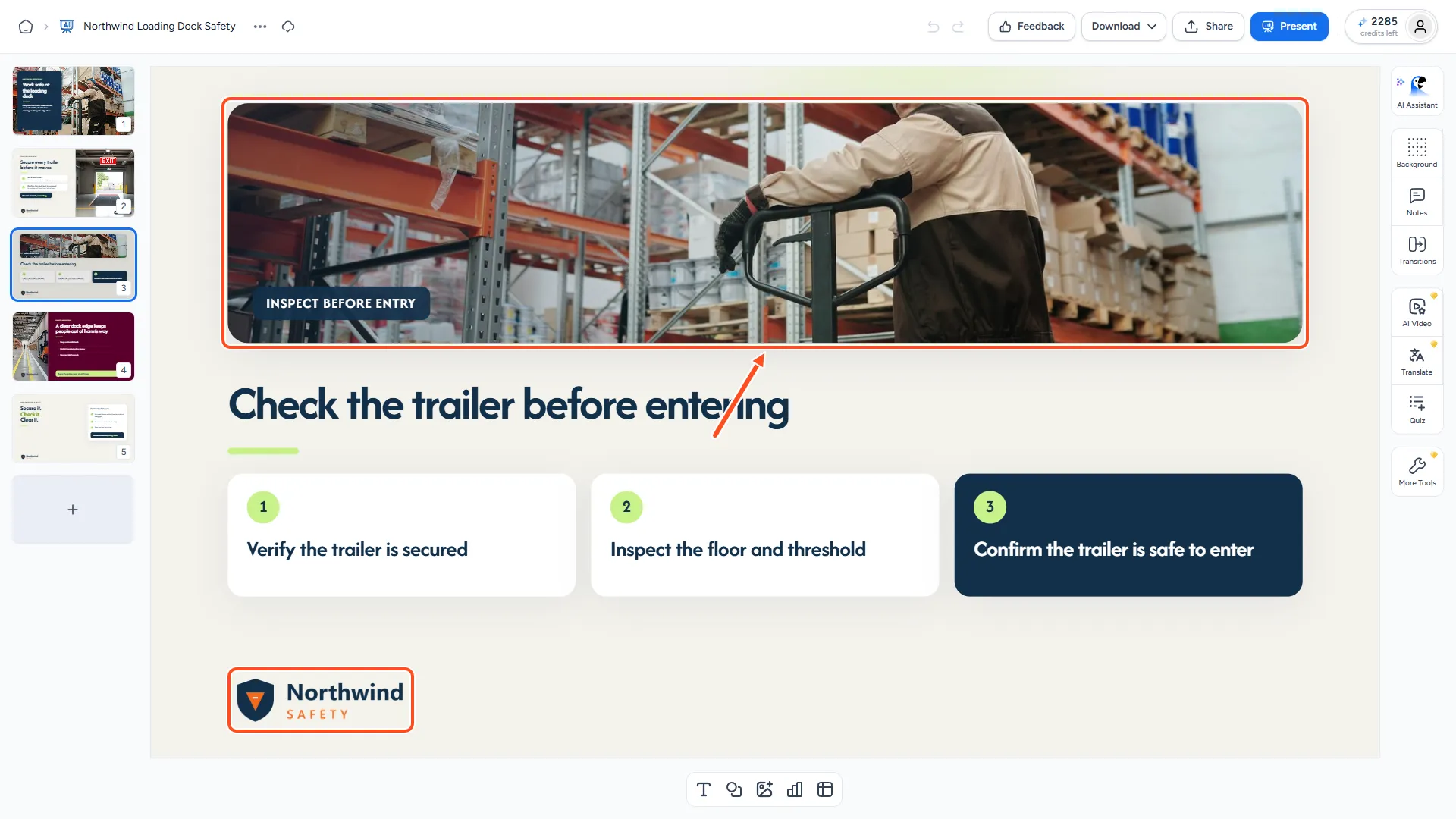
SlideSpeak picks images and icons from your brand's libraries, following the source options you chose.
Remove an image or icon
Hover over the image or icon in the library and click the delete button. Then confirm with Delete. This can't be undone.
Troubleshooting
- "Image file must be smaller than 3 MB." Compress the image or export it at a smaller size, then upload it again.
- "Only PNG, JPG and WEBP images are supported." Save the image in one of these formats first. Use the icon library for SVG files.
- "Only SVG icons are supported." The icon library only takes SVG files. Upload PNG icons to the image library instead.
- "Icon file must be smaller than 256 KB." or "SVG file is invalid". Simplify the SVG: one color, no embedded images, no filters or effects. Most icon tools can export a plain, single-color SVG.
- "You can upload up to 25 files at a time." Split your files into batches of 25.
- I can't select Brand photos only or Brand icons only. Upload at least one image or icon to that library first.
- My presentation still has stock images. Check that your brand was selected in Advanced settings. With Brand photos + stock, SlideSpeak uses stock images when none of your photos fits a slide. Choose Brand photos only to stop that.
Need more help?
If you have any questions or need assistance, feel free to contact our support team at support@slidespeak.co