

Many teams open every deck with the same company overview, or close it with the same contact slide. With reusable sections, you build those slides once. SlideSpeak then adds them to the beginning or end of a new presentation, exactly as you saved them. The AI doesn't rewrite or restyle them.
Before you start
- You need SlideSpeak AI 5.0. Reusable sections are only offered when you create a presentation with SlideSpeak AI 5.0. There is no extra plan requirement.
- Setting up sections is free. Creating or importing a section doesn't use credits.
- Where it lives: the Reusable sections page. You reach it from the Advanced settings below the prompt box on the Presentation page (see Step 1).
Choose SlideSpeak AI 5.0
- Click Presentation in the left sidebar.
- In the prompt box, click the model button next to the presentation length. It shows SlideSpeak AI 4.0 or SlideSpeak AI 5.0 (on small screens just 4.0 or 5.0).
- Choose SlideSpeak AI 5.0.
SlideSpeak remembers your choice for your next presentations. If you don't see the model button, SlideSpeak AI 5.0 isn't available on your account yet. Read more about the differences between SlideSpeak 4.0 and 5.0.
Step 1: Open the Reusable sections page
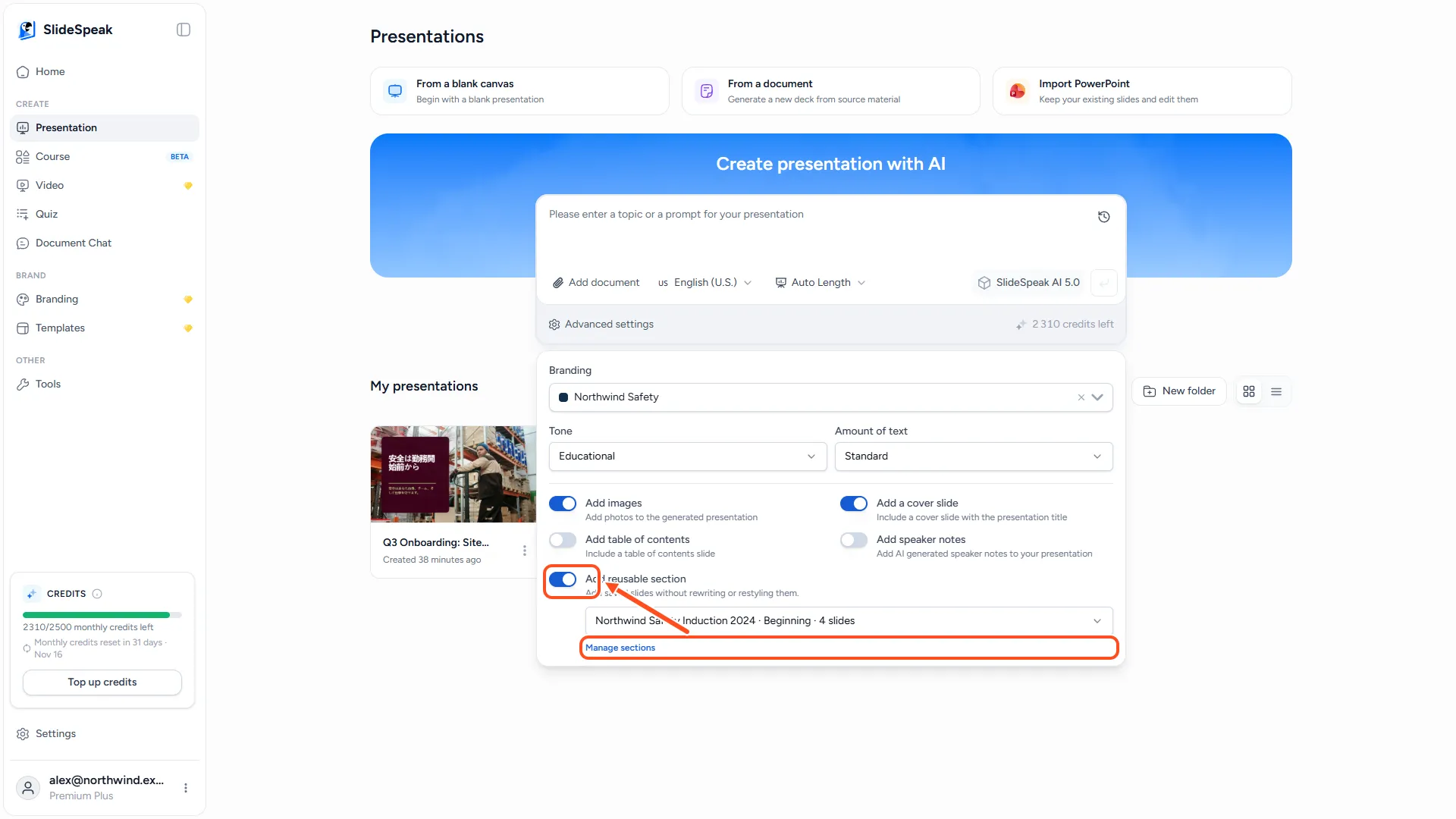
- On the Presentation page, click Advanced settings below the prompt box.
- Turn on Add reusable section.
- Click Manage sections.
On a phone, you can also open Settings and tap Reusable sections.
Step 2: Create a section
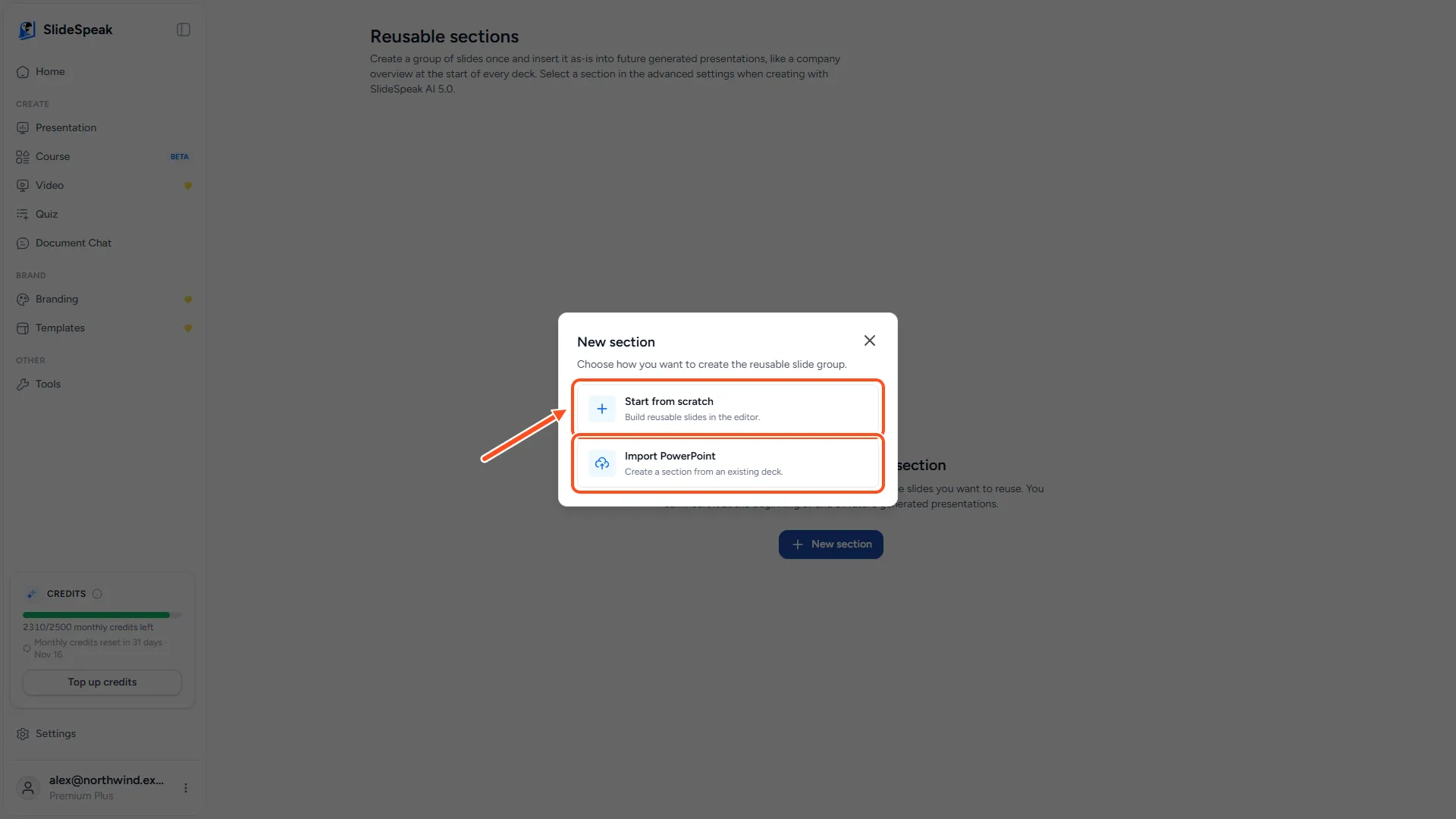
- Click New section.
- Choose how to start:
- Start from scratch opens an empty section, called Untitled section, in the editor. Add and design the slides there.
- Import PowerPoint lets you pick a .pptx file. SlideSpeak imports it and opens it in the editor.
- In the editor, keep only the slides you want to reuse. Delete the rest.
Changes in the editor save automatically. When you are done, go back to the Reusable sections page.
Step 3: Choose where the section goes
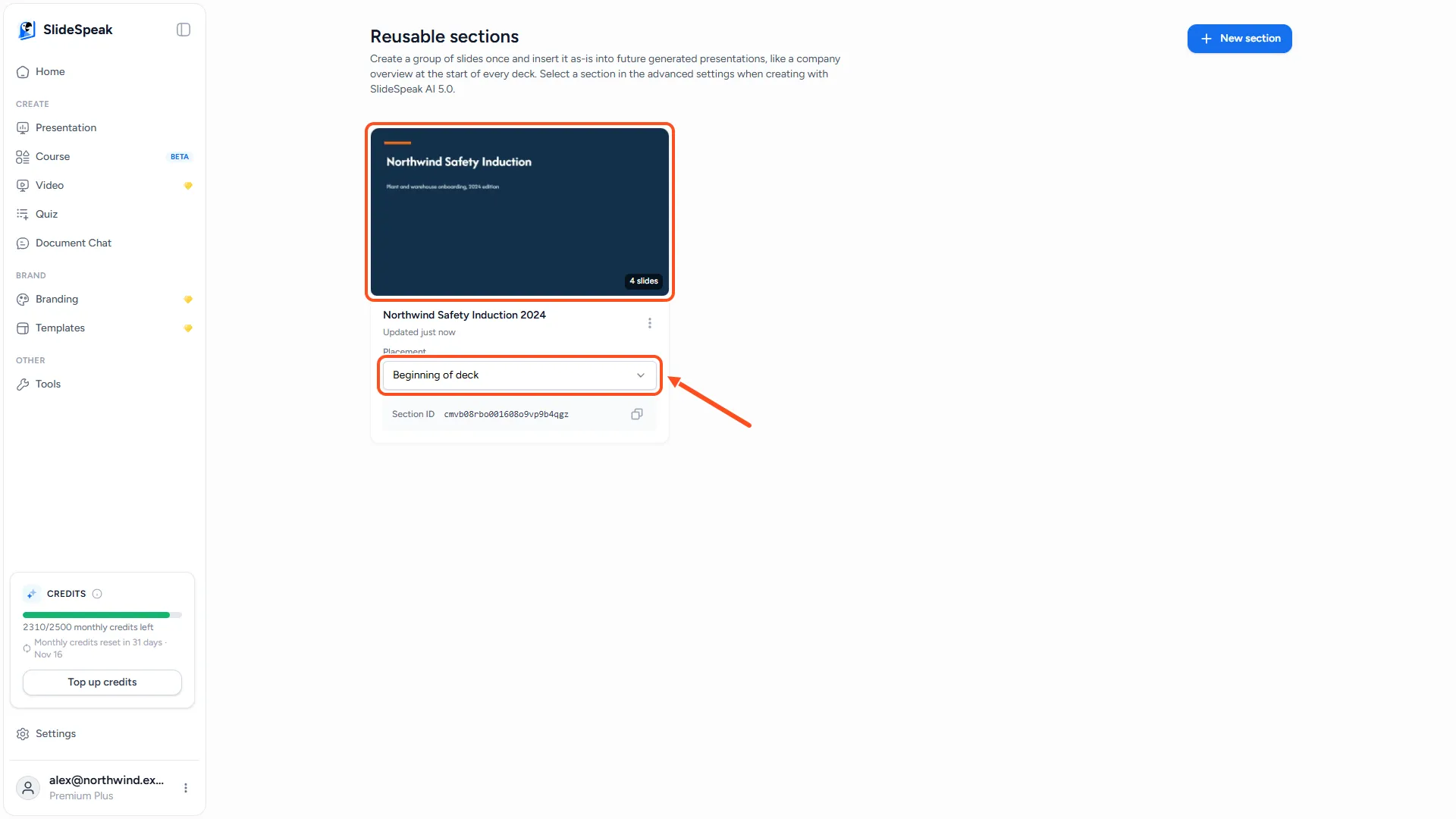
Each section has its own card on the Reusable sections page. It shows a preview, the number of slides and when you last updated it.
- Under Placement, choose Beginning of deck or End of deck. New sections start at the beginning.
- To rename the section, click the three-dot menu on its card and choose Rename.
To change the slides later, click the card or choose Open editor in the same menu.
Step 4: Add the section to a new presentation
- On the Presentation page, make sure SlideSpeak AI 5.0 is selected.
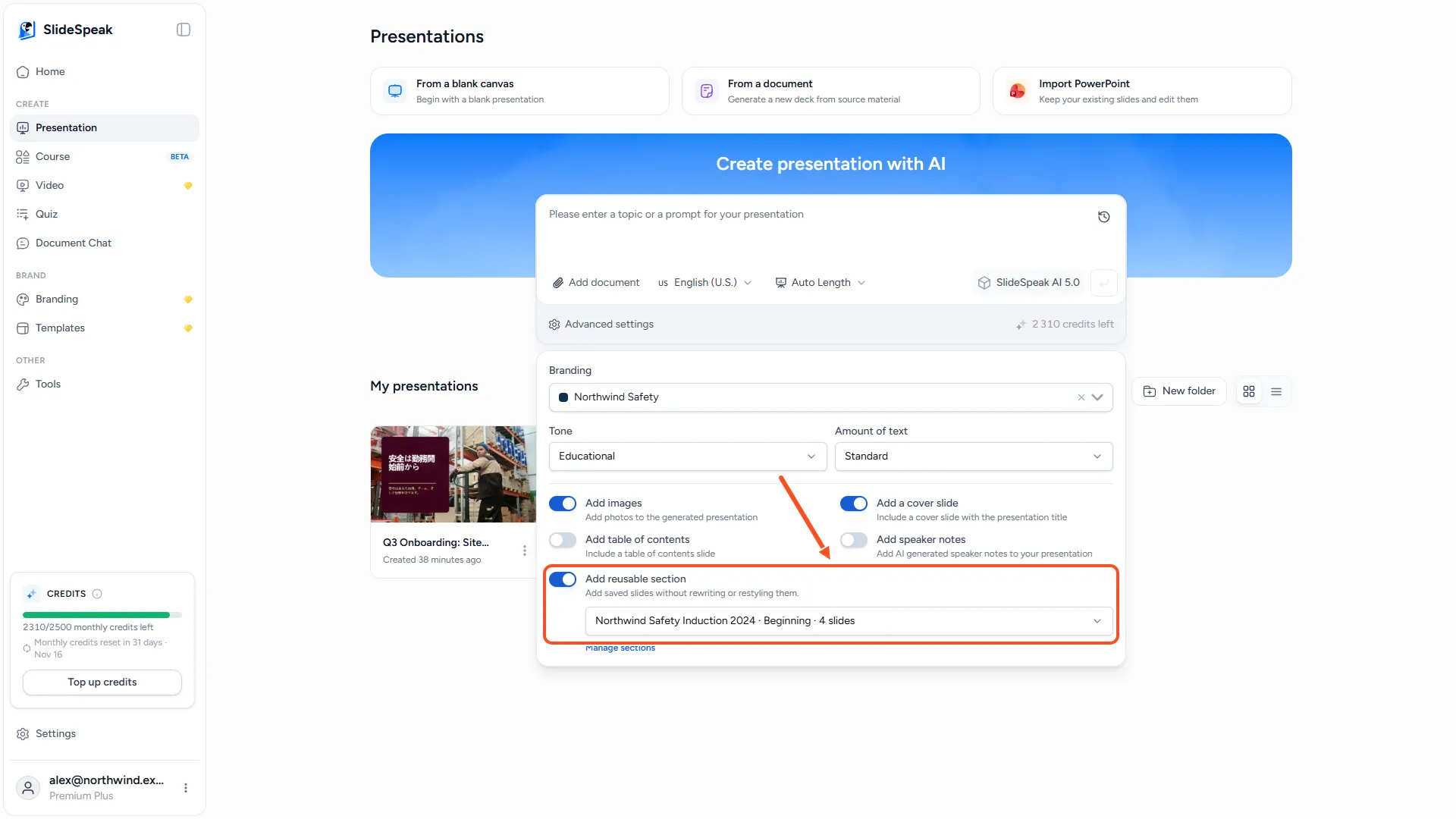
- Click Advanced settings and turn on Add reusable section. SlideSpeak selects your first section.
- To use a different section, click the field and pick it. Each entry shows the name, the placement and the slide count, for example Company overview · Beginning · 3 slides.
- Type your topic and create the presentation as usual.
The section's slides count toward the presentation length. For example, if you ask for 10 slides and your section has 3, SlideSpeak generates 7 new slides and adds your 3. If the section is as long as the presentation or longer, SlideSpeak asks you to increase the length first.
What happens after you use a section
- SlideSpeak adds a copy of the section's slides to the new presentation. You can edit them there like any other slide.
- Changing a section later doesn't change presentations you already made with it.
- Deleting a section (three-dot menu → Delete) only stops it from being added to new presentations. Presentations that already used it keep their slides.
- You can add one section per presentation.
Using the SlideSpeak API? Each card shows a Section ID that you can copy.
Troubleshooting
- I don't see Add reusable section. You are creating with SlideSpeak AI 4.0. Switch to SlideSpeak AI 5.0 in the prompt box.
- "No reusable sections yet." You haven't created a section. Click Manage sections and create one.
- "This section has 3 slides. Increase the presentation length above 3 so there is room for at least one generated slide." Choose a longer presentation, or use a shorter section.
- "Failed to import the PowerPoint file." Check that the file is a .pptx file that opens in PowerPoint, then try again.
Need more help?
If you have any questions or need assistance, feel free to contact our support team at support@slidespeak.co