

Document Chat lets you ask questions about a long document instead of reading all of it. You upload a file, ask in plain words, and SlideSpeak answers from that document only. Each answer shows the pages it came from, so you can check it yourself.
Before you start
- Plan: Document Chat is available on every plan, including Free. Chatting does not use credits. Free accounts use a smaller AI model, so answers on paid plans can be more detailed.
- File types: PDF, Word (.docx and .doc), PowerPoint (.pptx and .ppt), Excel (.xlsx), and plain text (.txt and .md).
- File size: up to 50 MB on the Free plan, and up to 1 GB on paid plans.
- One document per chat: each chat belongs to one document. To ask about another file, upload it separately.
Step 1: Open Document Chat
Sign in at app.slidespeak.co. Then click Document Chat in the left sidebar, under Create. You can also click the Chat with a Document card on your home screen.
On your phone, open the Tools tab at the bottom of the screen and choose Document Chat.
Step 2: Upload your document
Drag your file onto Upload your document here, or click Choose file and pick it from your computer. Upload one file at a time.
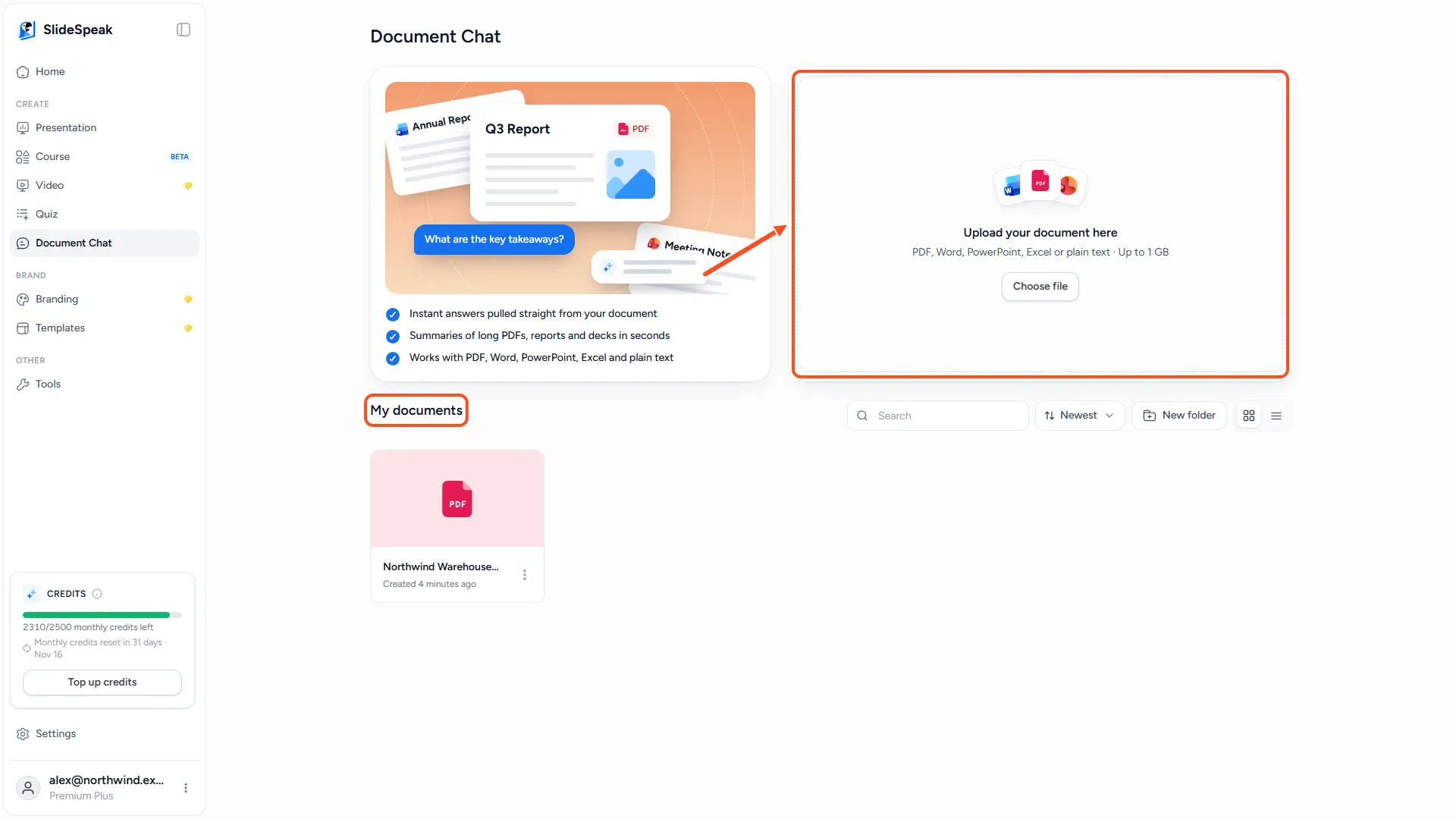
SlideSpeak opens the document as soon as the upload finishes. While it reads the file, you see Preparing your document. Large files take longer.
Every document you upload is saved under My documents on the Document Chat page. Click one to pick up its chat where you left off.
Step 3: Ask a question
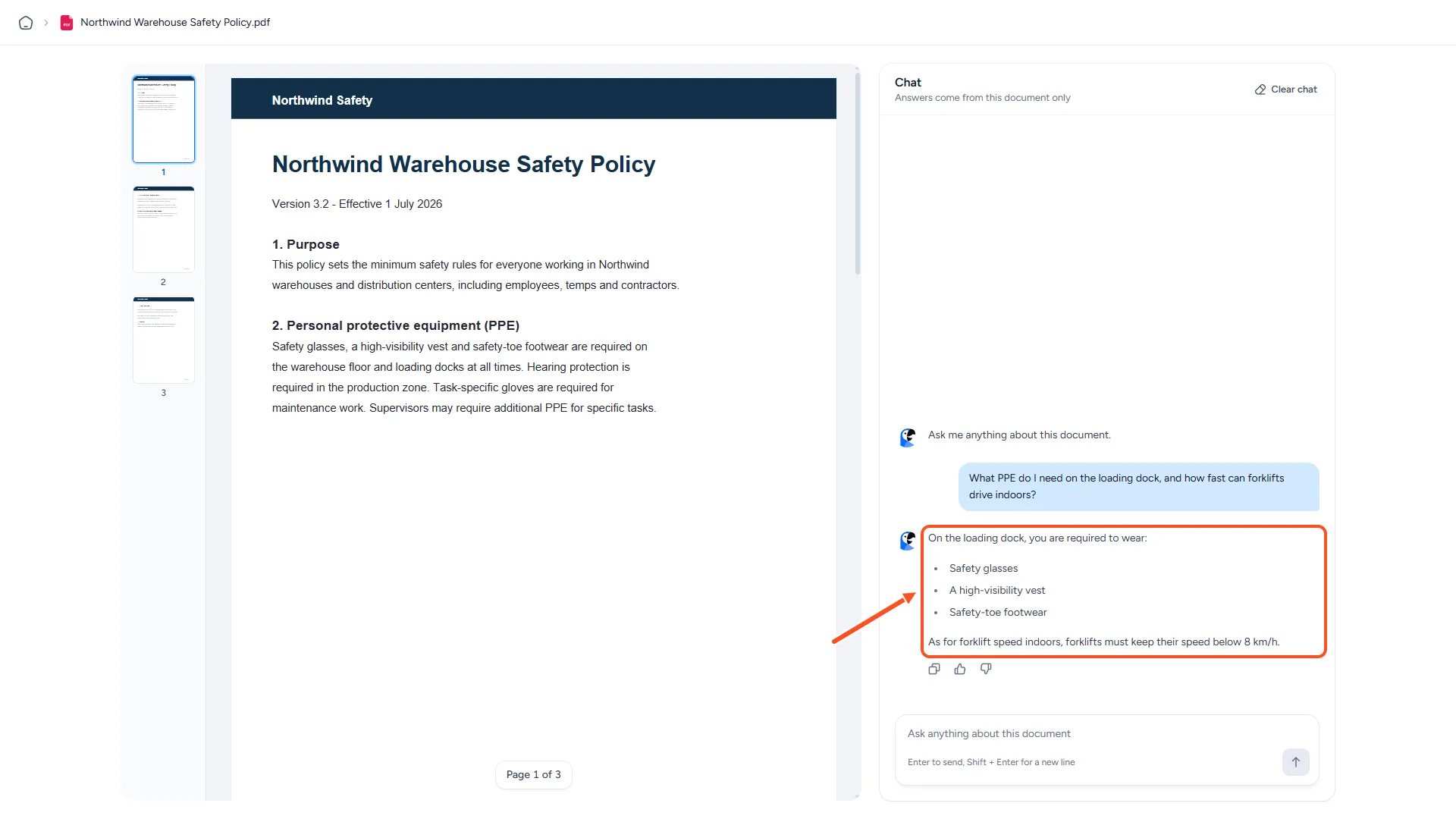
The document appears on the left and the chat on the right. Type your question in Ask anything about this document and press Enter to send it. Press Shift + Enter for a new line.
Not sure where to start? Before your first message, SlideSpeak offers three suggestions you can click:
- Summarize this document for me
- Generate a bullet point summary
- What are the key takeaways
Ask follow-up questions as you would with a colleague, for example "What does section 4 say about deadlines?" or "List every price mentioned, with its page."
On your phone, the document and the chat share one screen. Use the Chat and Document toggle at the top to switch between them.
Step 4: Check the sources
Below an answer, Sources lists the pages it is based on, for example p. 3 and p. 7. Click a page number and the document viewer jumps to that page, so you can read the original passage.
SlideSpeak only lists pages that closely match the answer. If an answer shows no sources, treat it with more care and check the document yourself.
Step 5: Copy or rate an answer
Under the latest answer you find three buttons:
- Copy answer copies the text so you can paste it into an email or another document.
- Good answer and Bad answer tell us how well it worked. After you rate, you can add a short comment. This helps us improve the answers.
To start over, click Clear chat at the top of the chat. This permanently deletes the conversation for that document, but keeps the document itself.
Step 6: Turn the chat into a presentation
When you want slides, ask for them in the chat, for example "Create a presentation from this document." SlideSpeak recognises the request and shows two buttons:
- Create presentation opens the presentation creator with your document attached. Your conversation goes along as extra context, so points you discussed can shape the deck. Choose the length, language and other settings, then generate as usual.
- No, thanks answers your message as a normal question instead.
Creating the presentation uses credits like any other presentation. See how credits work in SlideSpeak.
If your document is a PowerPoint, you can also ask for speaker notes. SlideSpeak then offers an Add speaker notes button. Speaker notes need a paid plan.
Troubleshooting
- "Document processing failed". SlideSpeak could not read the file. Upload it again. If it keeps failing, save it as a PDF and try that.
- "The file type you are trying to upload is not supported by SlideSpeak". Check that the file is one of the types listed above. Zip files and images are not supported.
- "The document you are trying to upload is too big". Free accounts can upload files up to 50 MB. Split the document, or upgrade for files up to 1 GB.
- The answer says it cannot find something. Document Chat only uses the uploaded document. It does not search the web. Try naming the section or the exact term used in the document.
Need more help?
If you have any questions or need assistance, feel free to contact our support team at support@slidespeak.co