

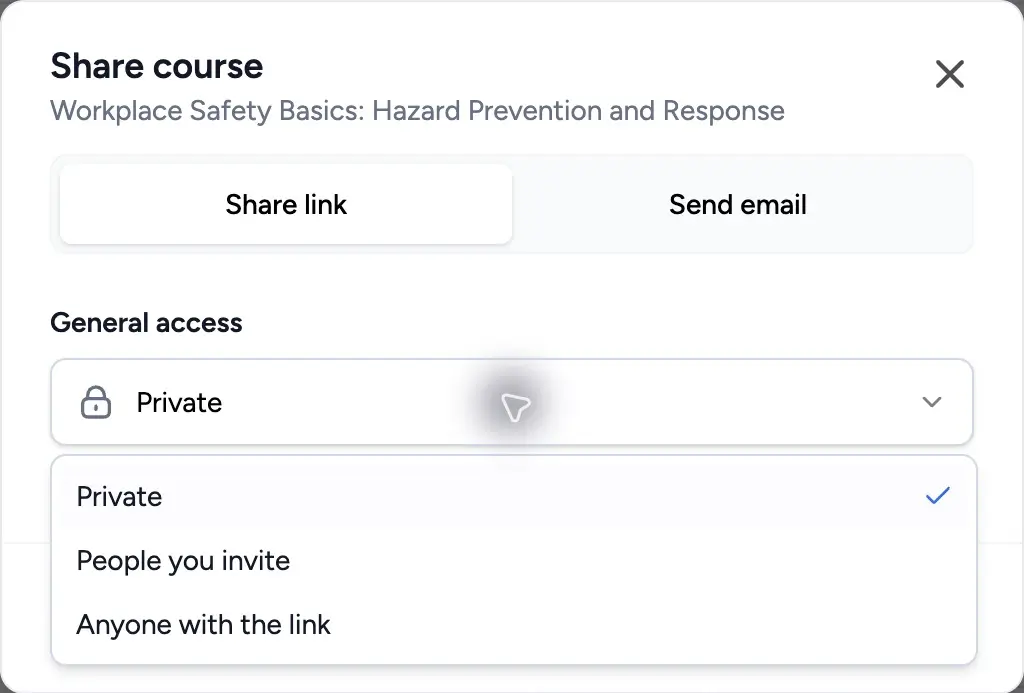
Open Share in the course editor, then Share link. Under General access, choose who can open the course. If you’ve shared a lesson separately, check who can still open its link before you confirm.
Before you start
- Use a course you own or can manage in your active team workspace.
- Each learner you invite needs a SlideSpeak account with a verified email at the invited address. They can create a free account from the invitation.
Choose who can open the course
| General access | Who can open the course |
|---|---|
| Private | You and the people in your workspace. Use this while you prepare the course or to pause access for outside learners. |
| People you invite | You, your workspace and the learners you add by email. Each learner signs in with the invited address. |
| Anyone with the link | Anyone who gets the link can open the course and its lessons without an account, and they can forward it. |
If you switch from People you invite to Anyone with the link, select Make public to confirm. For an invite-only course, add your learners. Choose Copy link to share a public or invite-only course. Forwarding an invite-only link won’t give another learner access.
Decide what happens to existing lesson links
When you choose Private or People you invite, you may see a list of lessons that people can already open separately. For example, a lesson might contain a deck you shared last month or a quiz you linked from your LMS.
- Review the list for Public link, Shared video, Shared quiz and people added directly to a deck.
- If you see Also make lesson links private, it starts switched on. Leave it on to close all the listed public deck, video and quiz links, including copies you shared elsewhere. Turn it off if those links need to keep working.
- Select Apply change. Learners who have access to the course can still open lessons through the course.
To close the public links later, return to Share link and choose Make lesson links private. People you added directly to a deck keep their access. To change it, select Manage people beside that lesson.
If SlideSpeak saves the course setting but can’t close the lesson links, select Try again. Check the list before sharing the course.
What happens to people I already invited?
Switching to Private keeps your invitation list. When you switch back to People you invite, everyone still on the list regains access. To exclude one learner while others keep access, remove them from the course.
Need more help?
If you have any questions or need assistance, feel free to contact our support team at support@slidespeak.co