

Use People you invite when you want each learner to sign in with a specific email address. You can send an invitation as you add someone or give them the course link yourself.
Before you start
- Use a course you own or can manage in your active team workspace.
- To send invitation emails, your own SlideSpeak email address must be verified. Without it, you can still add learners and send them the course link yourself.
- Learners sign in with the address you invite, so use the one they’ll use for SlideSpeak.
Add learners and send the invitation
- Open your course, click Share and open Share link. Under General access, choose People you invite. If you see a warning about previously shared lessons, review the lesson links before applying the change.
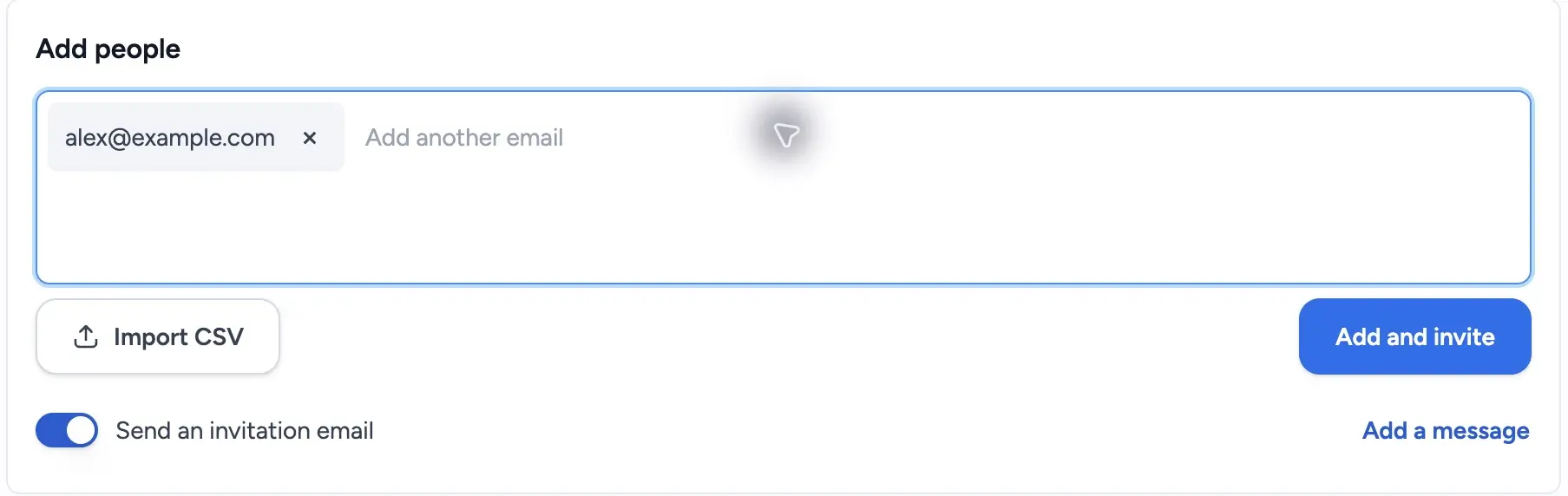
- Under Invite people, enter the email addresses your learners will use to sign in. You can add up to 500 people at a time. For a class list, choose Manage to open the People page and use Import CSV.
- Leave Send an invitation email on to notify learners. Choose Add a message if you want to include a note, such as which lesson to start with.
- Click Invite, or Add and invite on the People page. If you turn email off, click Add or Add people instead. Use Copy link in the share dialog to give those learners the course address.
Import a class list
Export just the email addresses of the learners you want to invite, one per line. A header is optional. SlideSpeak reads addresses from every column, so remove any parent, teacher or other contact addresses first.
On the People page, select Import CSV and choose your .csv or .txt file. Check the addresses before you click Add and invite. Duplicate addresses appear once.
If you reach your email limit, SlideSpeak can still add people to the course. Check People before importing the same list again. Filter by Needs an invite to find learners you can contact later.
Help a learner open the course
Share the learner guide to opening a course invitation in your class chat, LMS or a separate email. SlideSpeak removes links and email addresses from the invitation’s optional message.
Check who opened the course
In Share, open Share link and choose Manage under Invite people. Search for a learner by email or filter the list.
| What you want to know | Where to look |
|---|---|
| Who opened the course? | Filter by Viewed. This counts visits using an invitation. Opening the public course or visiting as a workspace member doesn’t count. A learner can appear here before finishing a lesson. |
| Who hasn’t opened the course since I invited them? | Invited, not viewed includes invitations in progress and delivered invitations. Invite delivered means the learner’s mail server accepted the email. |
| Who still needs an email? | Choose Needs an invite. Select the people you want to contact, then choose Send invitation. |
| Why can’t someone be emailed? | Can’t be emailed includes bounced addresses and people who opted out. Check the spelling of a bounced address with the learner. Someone who opted out can still use the course link if their address is on the list. |
Remove a learner
On People, open the menu next to their email and choose Remove access. Confirm Remove access. To remove several people, select their rows first.
Removing the learner closes their invite-only access right away. If they’re also in your workspace or have separate access to a lesson deck, review that access separately. When a course is public, anyone who has its link can still open it.
Need more help?
If you have any questions or need assistance, feel free to contact our support team at support@slidespeak.co