

Charles is the AI assistant inside the SlideSpeak editor. You tell Charles what to change in plain words, such as "make the text on this slide shorter" or "add a conclusion slide at the end", and Charles edits the slides for you. You can compare the result with your original before you keep it.
Before you start
- Charles works on every plan, including Free.
- Each message you send costs 1 credit. Free accounts start with 100 one-time credits. Premium includes 1,000 credits a month, and Premium Plus and Lifetime include 2,500. See how credits work in SlideSpeak.
- Only the owner of a presentation sees Charles. If someone shared a deck with you, ask them to make the change, or duplicate the deck first.
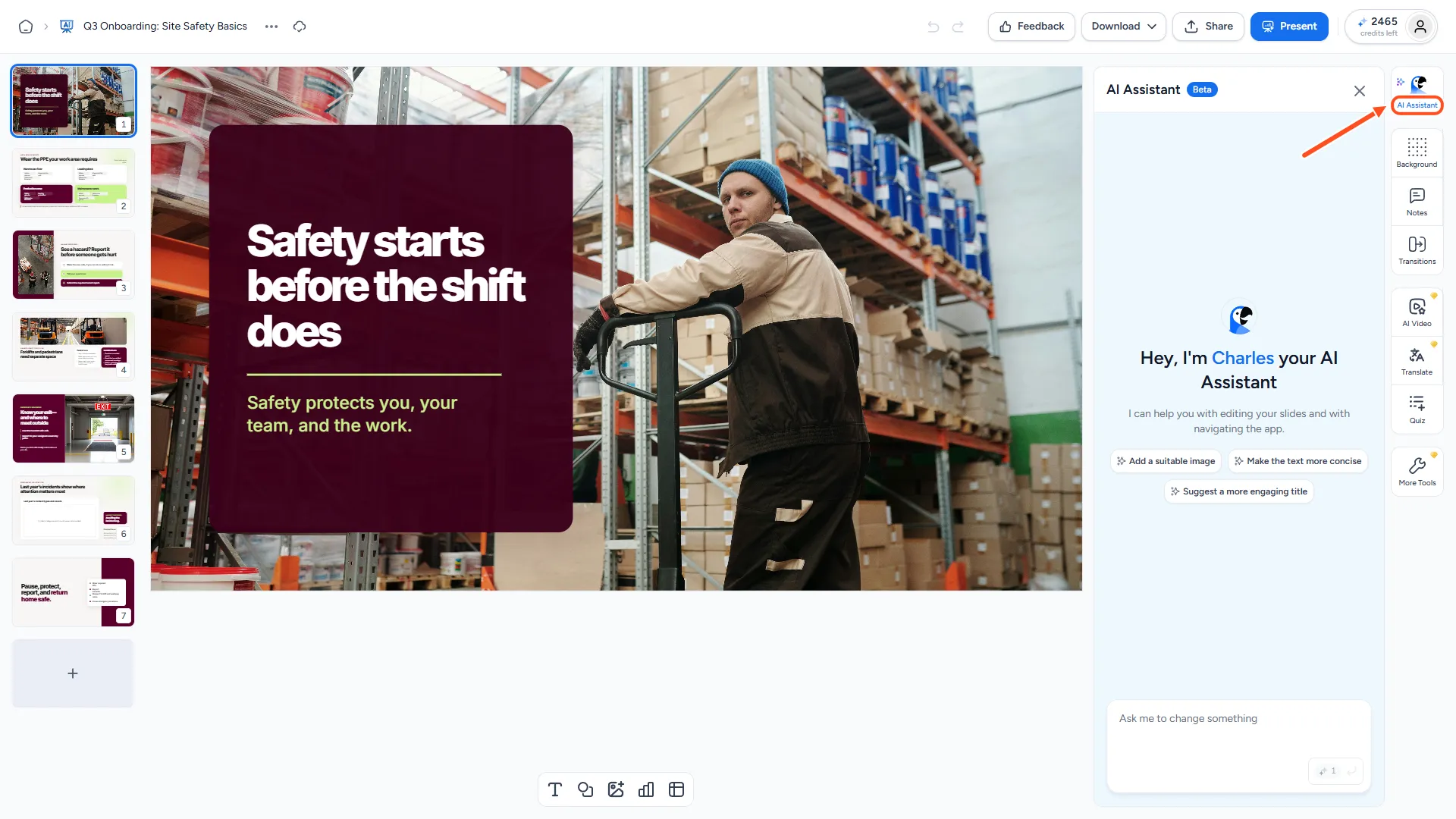
- Charles lives in the icon rail on the right side of the editor, under AI Assistant. The panel carries a Beta label.
Step 1: Open the AI Assistant panel
Open your presentation in the SlideSpeak editor. Then click AI Assistant at the top of the icon rail on the right.
The panel opens with "Hey, I'm Charles your AI Assistant" and a few starter ideas, such as Add a suitable image, Make the text more concise and Suggest a more engaging title. Click one to send it straight away.
Step 2: Ask for a change
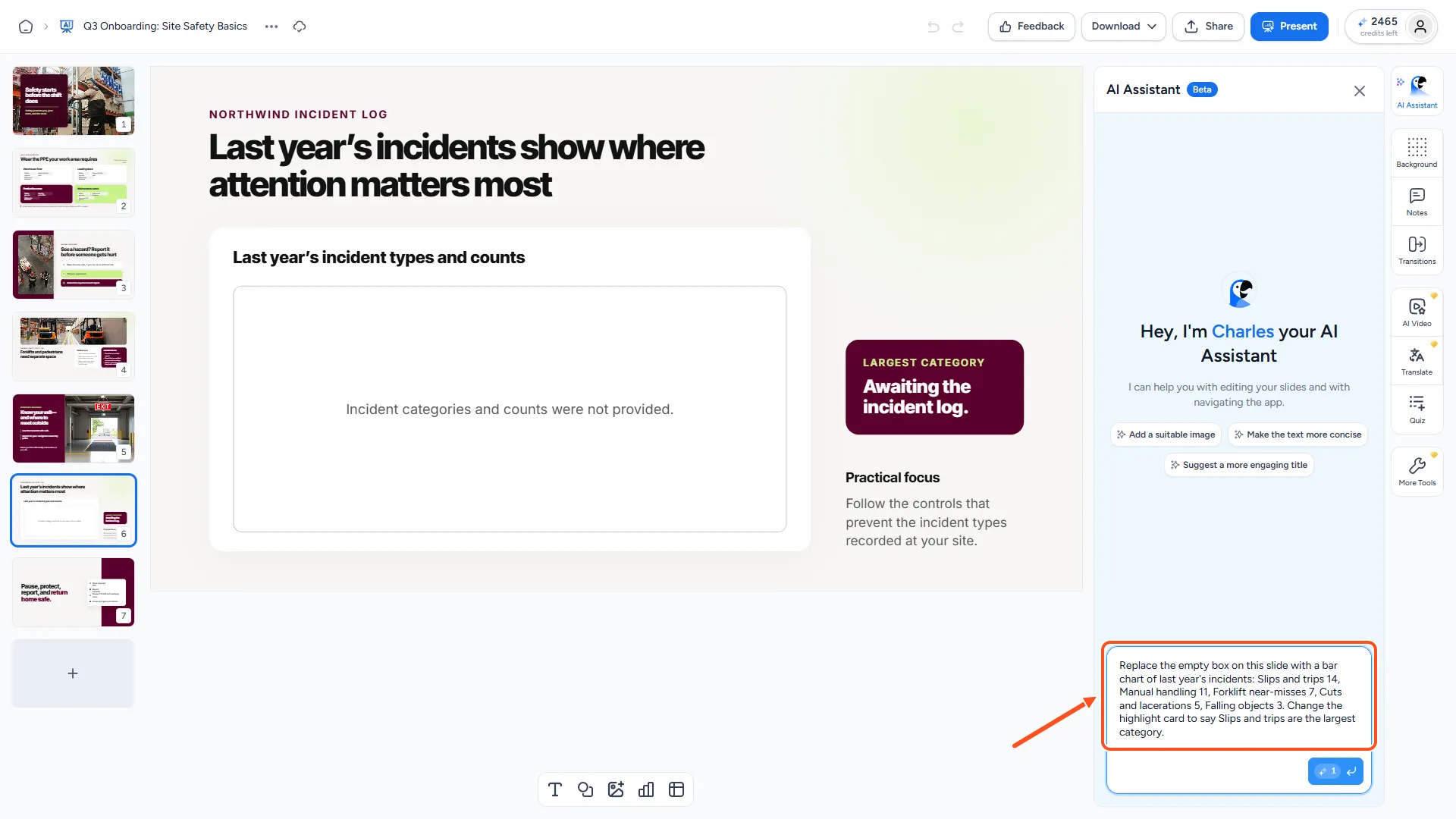
Select the slide you want to work on in the slide list. Then type your request in the box that says Ask me to change something and press Enter, or click Send. The send button shows the cost: 1 credit.
Be specific. Name the slide or the part you mean, and say what you want instead. For example:
- "Make the text on this slide more concise."
- "Replace the image on slide 3 with a photo of a construction site."
- "Add a conclusion slide at the end."
- "Add a table of contents at the start."
- "Split this slide into two slides."
- "Move the pricing slide after the team slide."
- "Delete slide 5."
- "Use icons to highlight the key points."
Charles can rewrite and shorten text, change titles, add, replace or remove images and other elements, and add, move or delete slides. You can also ask how to do something in SlideSpeak.
Step 3: Review the result and keep it
While Charles works, the panel shows the progress and the slides update in the editor as each change lands. If you change your mind, click the stop button in the message box.
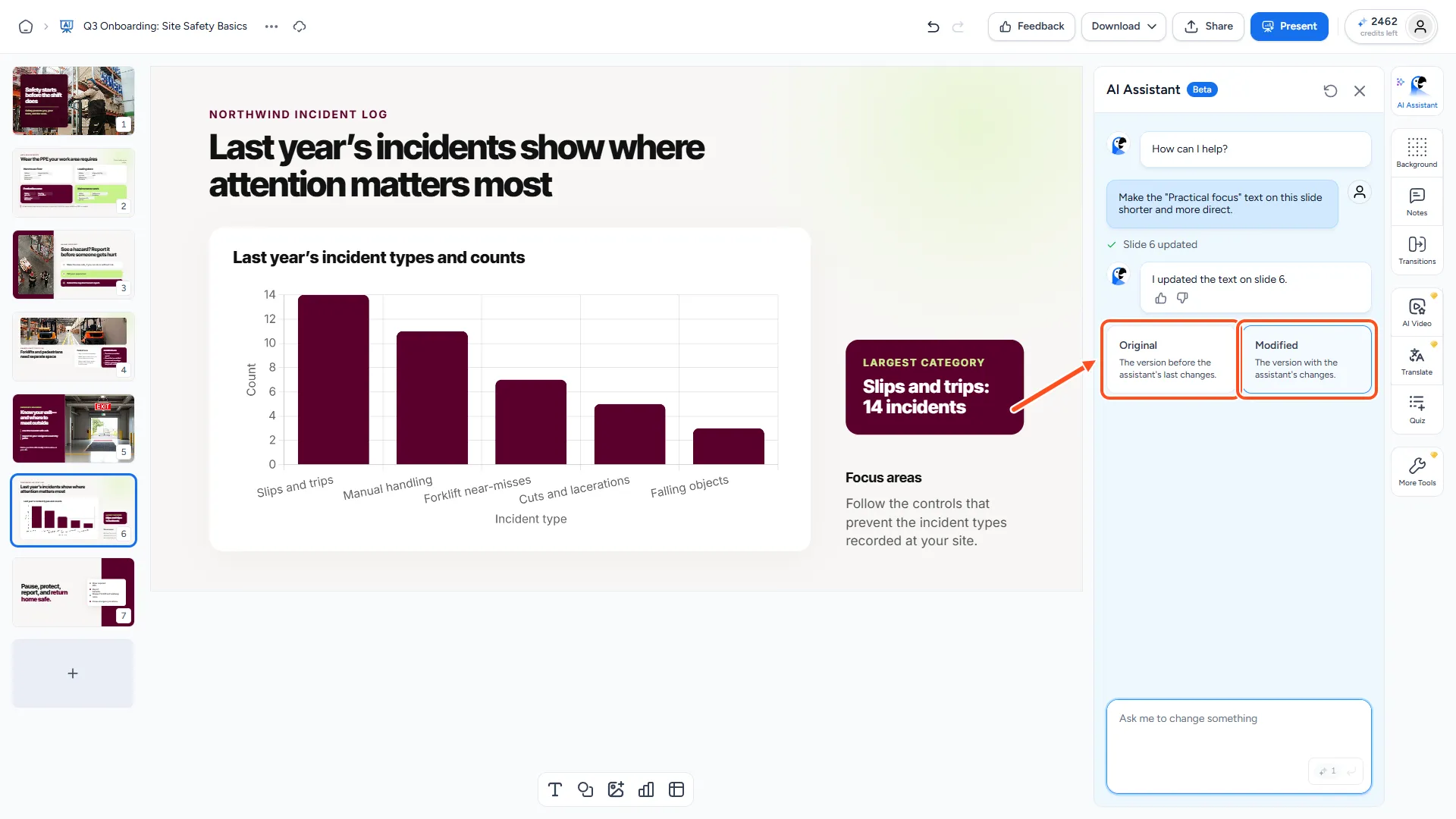
When the work is done, Charles replies with a short summary of what changed.
Under Charles's latest reply, use the Original and Modified buttons to switch between your slides before and after the change. Leave Modified selected to keep the edit, or pick Original to go back.
You can also use Undo in the top bar of the editor, like any other change.
To start a fresh conversation, click the Clear chat messages button at the top of the panel.
Troubleshooting
- The message box is greyed out and says "You're out of credits." Each message costs 1 credit. Click the button in the notice to get more credits or upgrade your plan.
- I don't see "AI Assistant" in the icon rail. You are not the owner of this presentation. Charles only appears for the owner.
- Charles changed the wrong slide. Click Original to undo it, then select the right slide and name it in your request, for example "on slide 4".
Need more help?
If you have any questions or need assistance, feel free to contact our support team at support@slidespeak.co