

If you always create presentations in the same language and style, you don't have to set them up every time. Save your defaults once in Personalization, and every new presentation starts with them. To repeat a presentation you made before, pick its prompt from your prompt history instead of typing it again.
Before you start
- Plan: Personalization and prompt history are available on every plan, including Free.
- Where it lives: Settings → Personalization.
Step 1: Open Personalization
Sign in at app.slidespeak.co. Click Settings at the bottom of the left sidebar, then click Personalization in the settings menu. You can also open the menu under your profile picture and choose Account Settings.
On your phone, tap the Account tab, then tap Personalization under Settings.
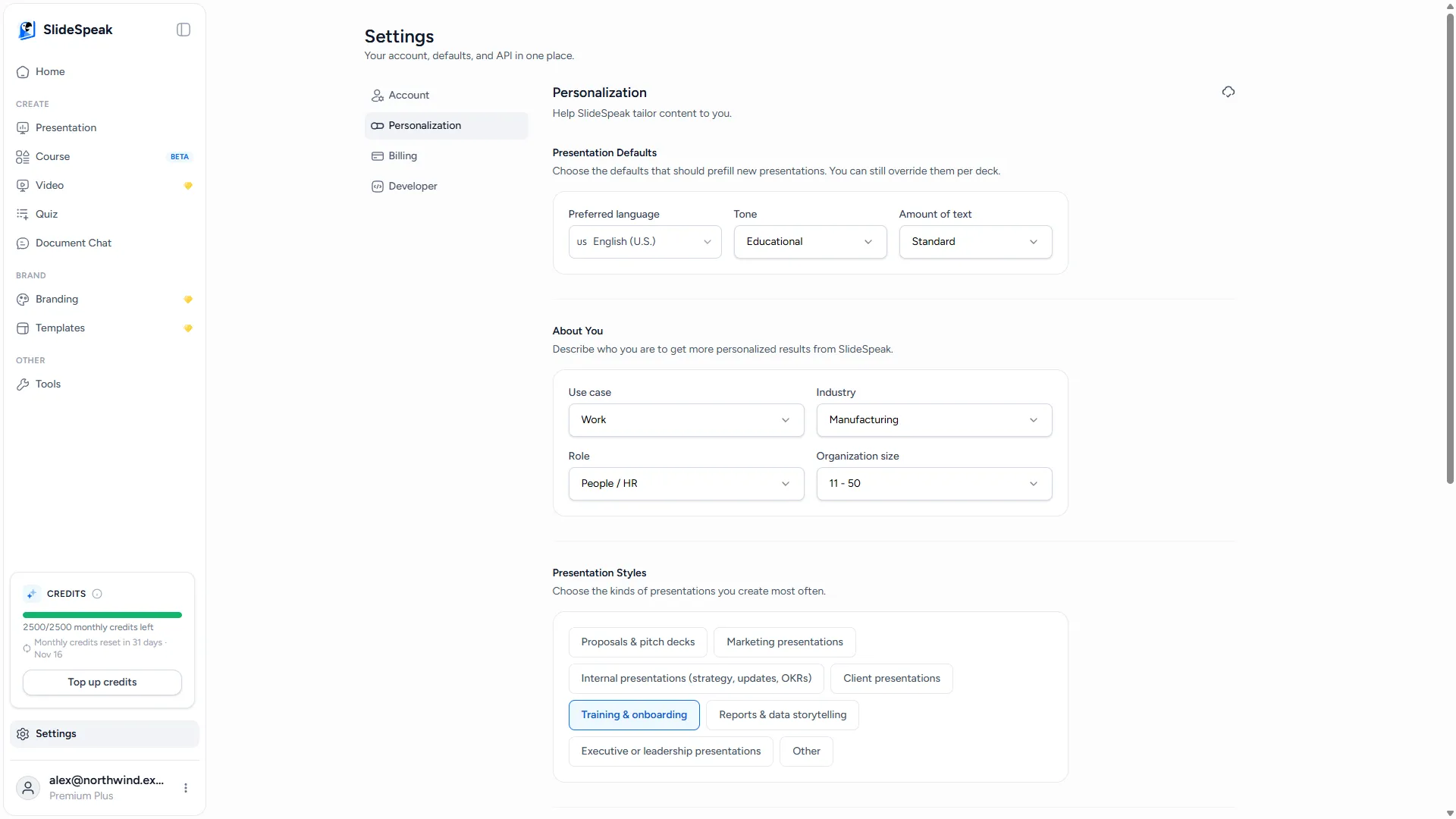
Step 2: Set your presentation defaults
Under Presentation Defaults, choose the settings every new presentation should start with:
- Preferred language: the language your presentations are written in. The default is English. SlideSpeak can write presentations in many languages; see what languages SlideSpeak supports.
- Tone: Unspecified, Casual, Professional, Funny, Educational or Sales Pitch. The default is Unspecified.
- Amount of text: Concise, Standard or Text heavy. The default is Standard.
There is no save button. SlideSpeak saves each change automatically, and the icon at the top of the page shows All changes saved when it is done.
Your defaults fill in the create form for each new presentation, with both SlideSpeak AI 4.0 and SlideSpeak AI 5.0. They are a starting point, not a rule. To change them for one presentation, open Advanced settings under the prompt box and pick another Tone or Amount of text, or choose another Presentation language.
Good to know: if you type your prompt or attach a document in another language, SlideSpeak may detect it and switch the presentation language to match. Check the language before you generate.
Step 3: Tell us about you (optional)
Under About You, choose your Use case: Personal Use, Work or Education. Depending on your choice, SlideSpeak asks a few more questions, such as your Industry, Role and Organization size for work, or whether you are a student or an educator.
Then, under Presentation Styles, pick the kind of presentation you create most often, for example Proposals & pitch decks or Lecture slides. The list depends on your use case.
If you answered these questions when you signed up, SlideSpeak fills them in for you. You can change them here at any time. Unlike the presentation defaults above, these answers do not change the settings of new presentations.
Step 4: Reuse a prompt from your history
SlideSpeak keeps the prompts you used to create presentations and videos, together with their settings. To reuse one:
- Click Presentation (or Video) in the left sidebar.
- Click the clock icon, Prompt history, in the top right corner of the prompt box. It appears after you have created your first presentation.
- Scroll through your prompts, or type in Search your prompts… to find one.
- Click a prompt.
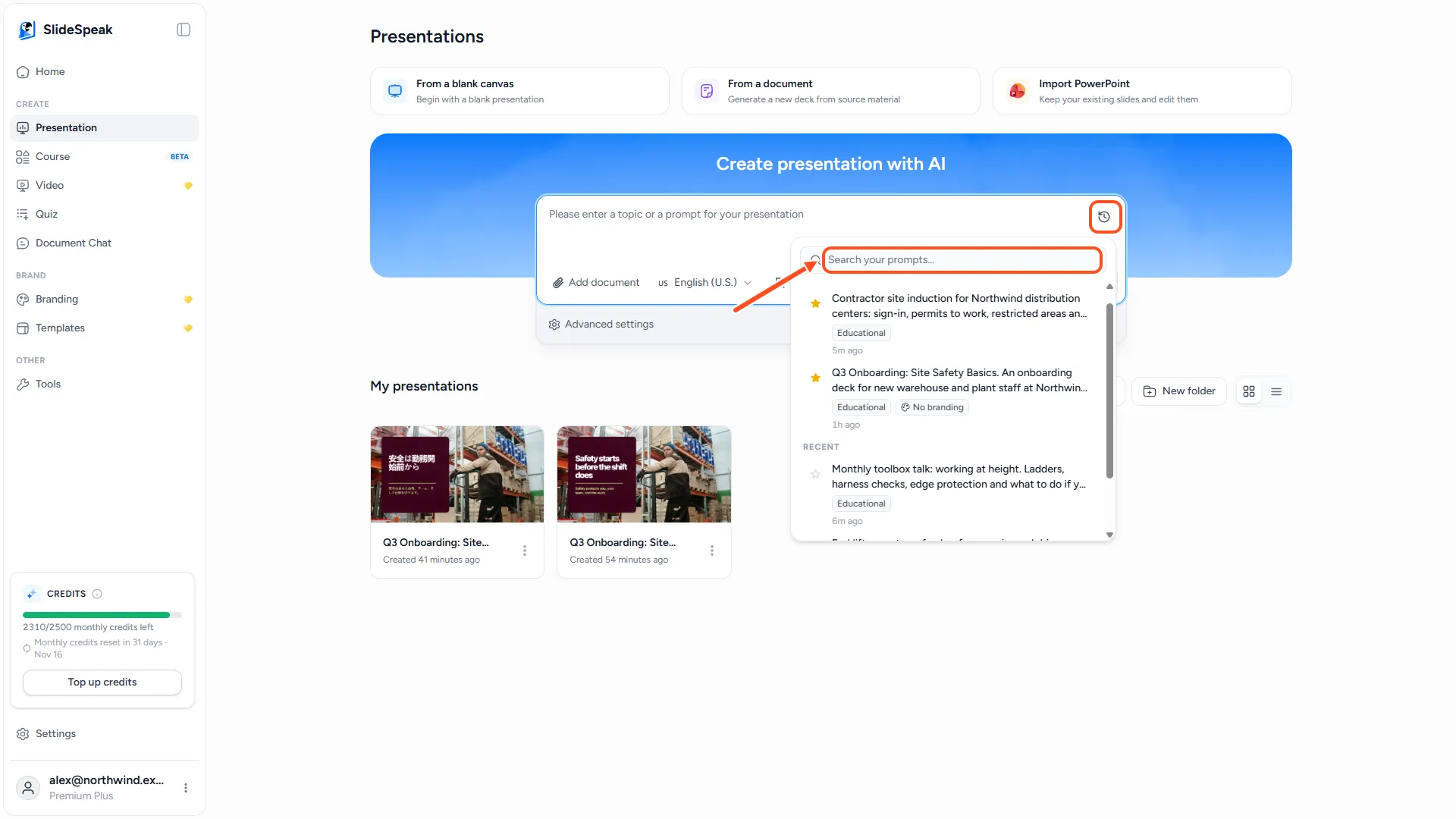
SlideSpeak fills in the prompt box with that prompt and its settings: language, length, tone, amount of text, speaker notes, branding and reusable section. It does not generate anything yet, so you can change the prompt first. Attached documents are not added back; attach them again if you need them.
To keep a prompt at the top of the list, click its star (Add to favorites). Favourite prompts appear under Favorites, above your Recent prompts. Click the star again to remove it.
Troubleshooting
- My new presentation does not use my defaults. Check the language: SlideSpeak may have switched it to match the language of your prompt or document. Also check Advanced settings, in case you changed the tone or amount of text for this presentation.
- I don't see the prompt history icon. It appears only after you have created at least one presentation or video from the prompt box.
- I can't find an old prompt. Prompt history shows your 200 most recent prompts. Identical prompts with the same settings appear once.
Need more help?
If you have any questions or need assistance, feel free to contact our support team at support@slidespeak.co