

Generate PowerPoint with AI from any Word document
Written by

Published on
On this page
TLDR: Go here to start using SlideSpeak directly to turn your Word document into a presentation with AI.
SlideSpeak lets you generate PowerPoint presentations from any Word document. It uses the latest AI technology to analyze the content of your document and design professional slides for you.
In this post, we’ll walk through how to use this feature step-by-step. Soon you’ll be creating stunning presentations with just a few clicks!
Microsoft itself has released a bunch of content around its AI Copilot feature. In a recent video they talked about how AI is going to change the way we all work with PowerPoint, you can check it out here.
Quick note: if you’re looking for a guide to turn PDFs into stunning PowerPoints, check out our latest post: How to convert PDFs to PowerPoint with AI
How generating PowerPoint with SlideSpeak works
Here is an overview of how SlideSpeak can turn your Word content into a PowerPoint presentation:
- Open SlideSpeak: Go to https://app.slidespeak.co
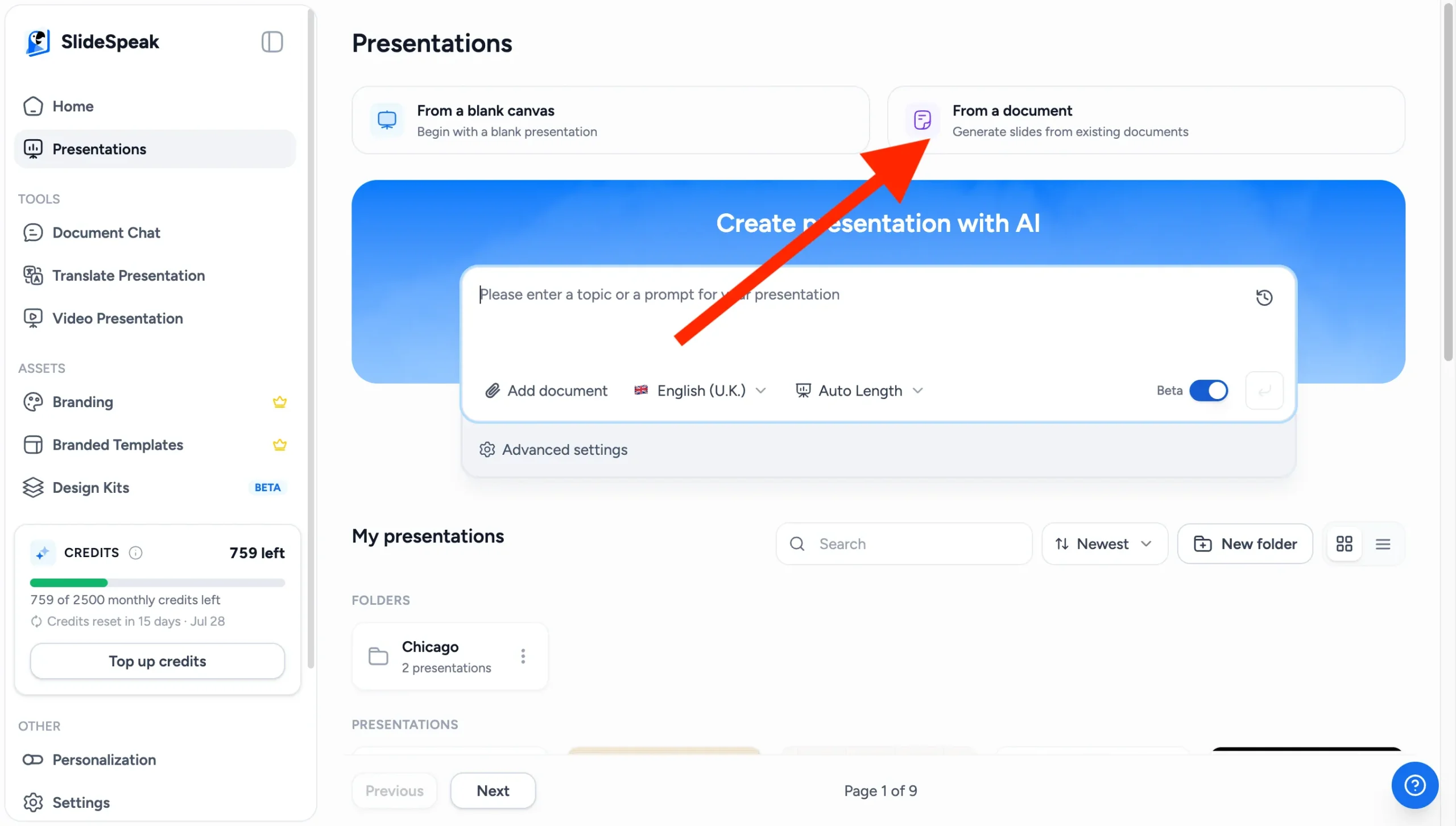
- Generate Presentation: Select “From a document” to start creating the PowerPoint.
- Upload Word document: Upload your Word file (.doc or .docx). PDF, PowerPoint, Excel, and plain text files work too.
- AI Generates Slides: SlideSpeak’s AI will analyze the document and design slides based on the content. This may take a few minutes.
- Preview & Download: View a preview of the generated presentation and download the PowerPoint file.
Here’s a more detailed step-by-step tutorial:
Let’s go through this process step-by-step to see just how easy it is to create a PowerPoint presentation with SlideSpeak’s AI.
Step 1: Open SlideSpeak
Head over to the SlideSpeak App, log in, and select “From a document”. Then upload your Word document.
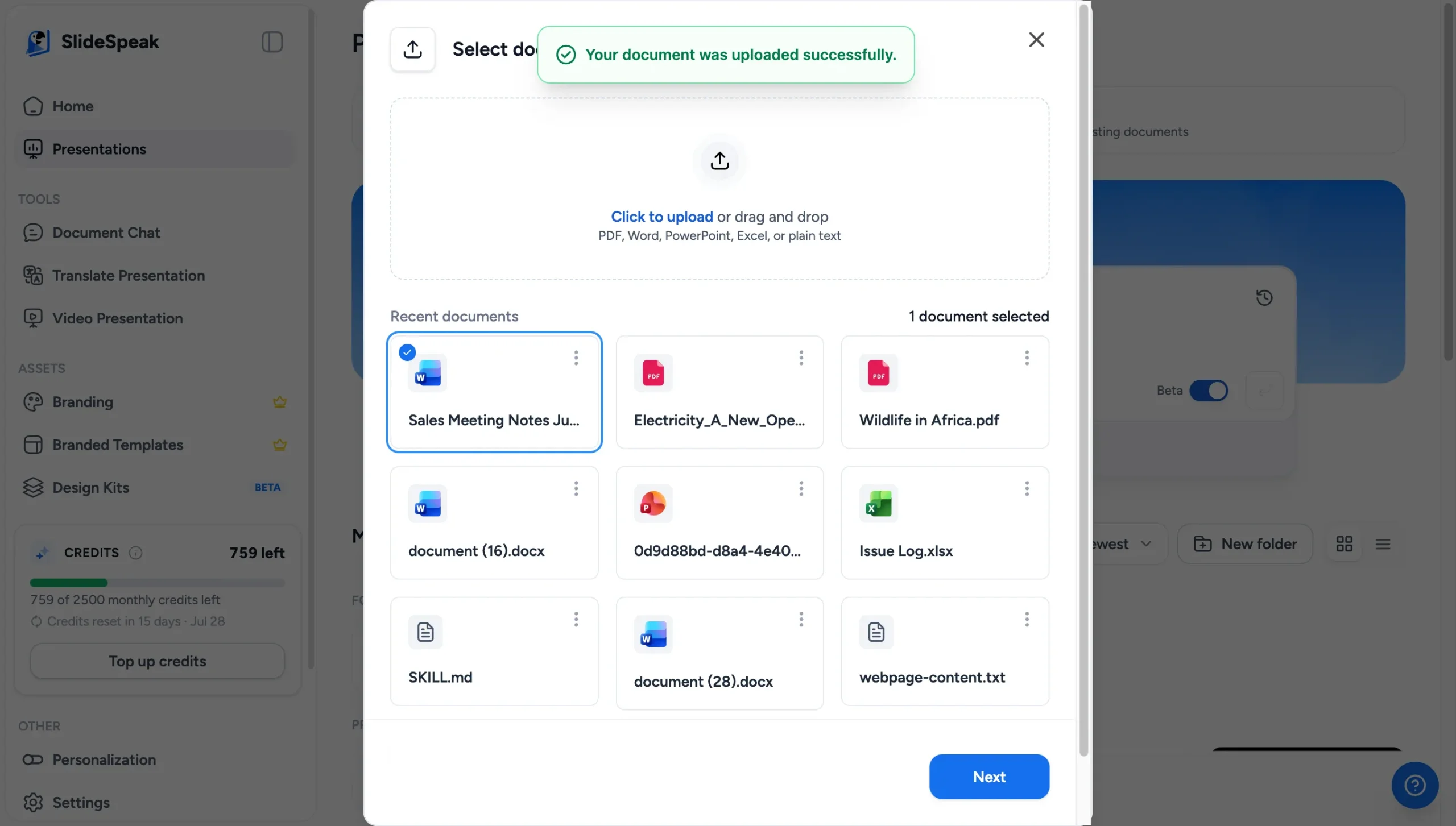
Now simply upload your Word document. SlideSpeak supports .doc and .docx files, and you can also upload PDF, PowerPoint, Excel, or plain text files.
Step 2: Specify the topic of your presentation
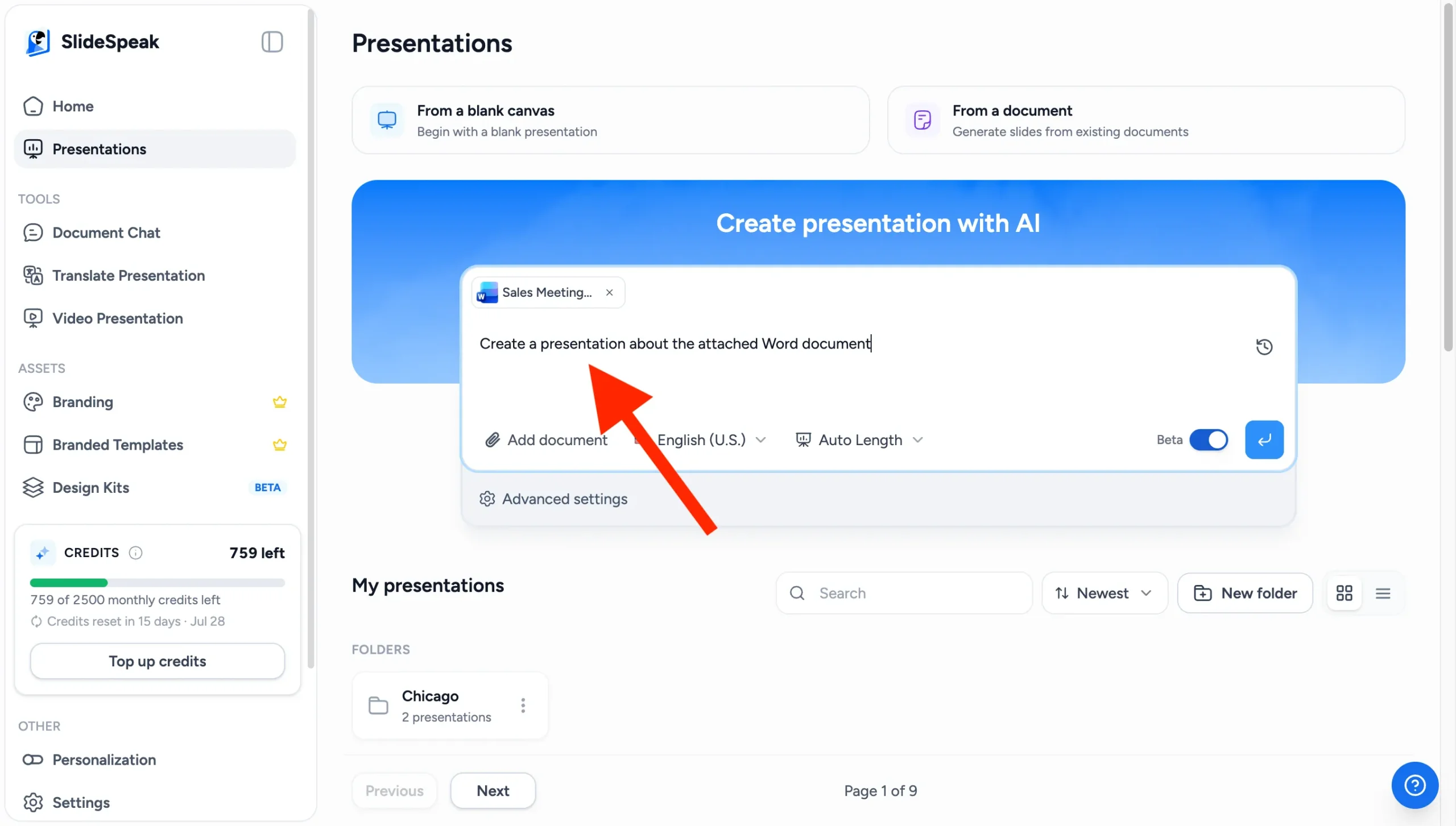
Now you can specify what exactly you want the presentation to be about. This can be about any topic in your Word document, or if you want to cover the entire document then simply write something like:
“Create a presentation about the attached Word document”
“Summarize the attached report into a 10-slide client presentation”
Step 3: Adjust the presentation settings
Via the prompt bar and the “Advanced settings” panel you can now adjust the settings for your presentation. By adjusting the settings you can tell the AI:
- How many slides you want in your presentation
- The tone of your presentation (professional, educational, …)
- If you want to add AI images to your presentation
- The language of your presentation
- … and many more
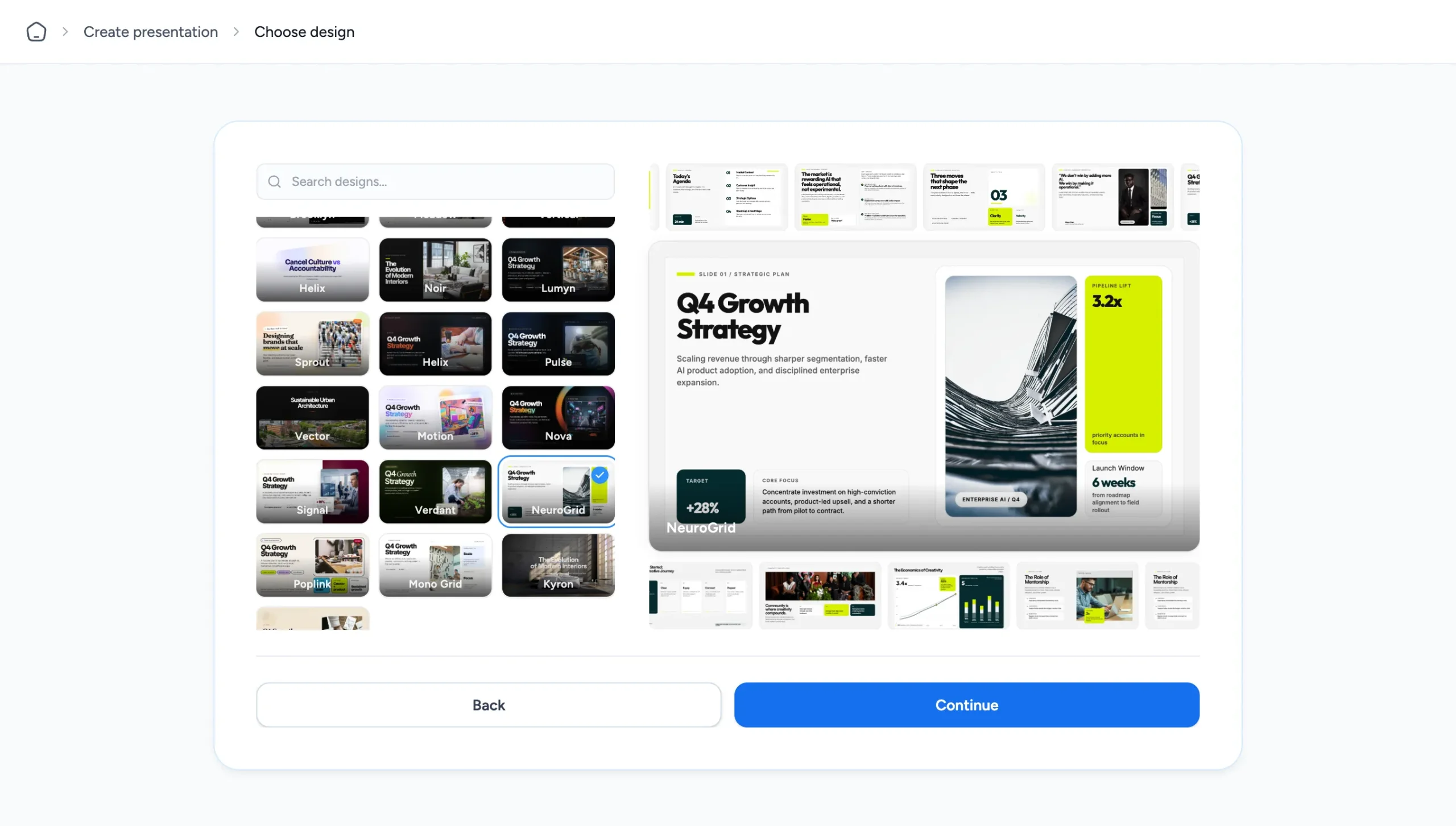
Now you only have to select the presentation template and the AI will generate the presentation outline for you!
Step 4: Review the presentation outline
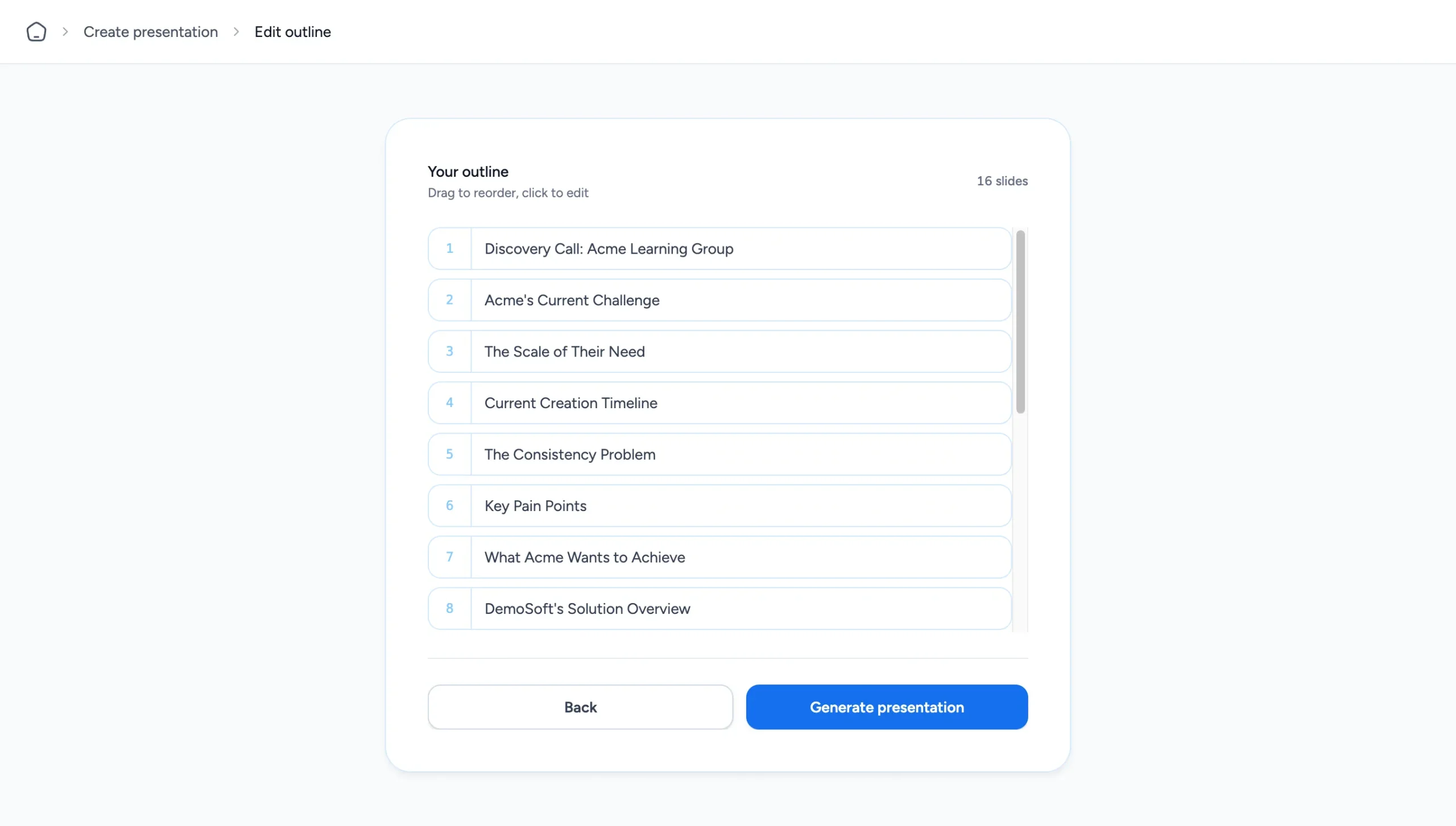
In this step you will see the presentation outline the AI has generated for your presentation. The outline represents the content each presentation slide will contain and its title. You can simply adjust the outline to your liking.
Step 5: Generate the Presentation
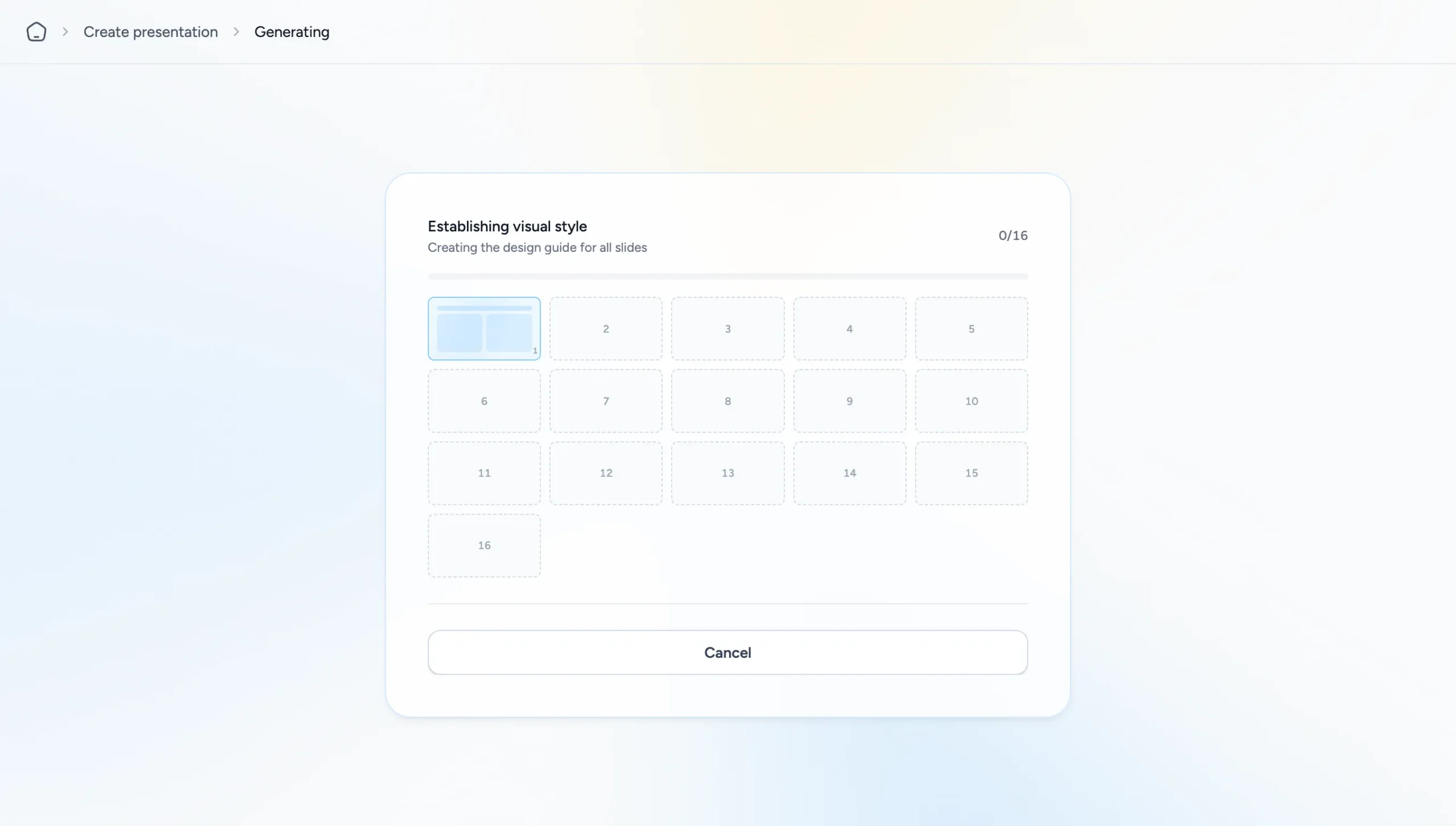
Once you’re ready, click the “Generate presentation” button at the bottom. This will start the AI presentation generation.
SlideSpeak’s AI technology gets to work analyzing your document and automatically designing professional PowerPoint slides. This may take a few minutes depending on the length of your document. You’ll see a progress view that keeps you updated on the status. Sit back and let the AI do the heavy lifting!
Step 6: Your AI Generated Slides are ready
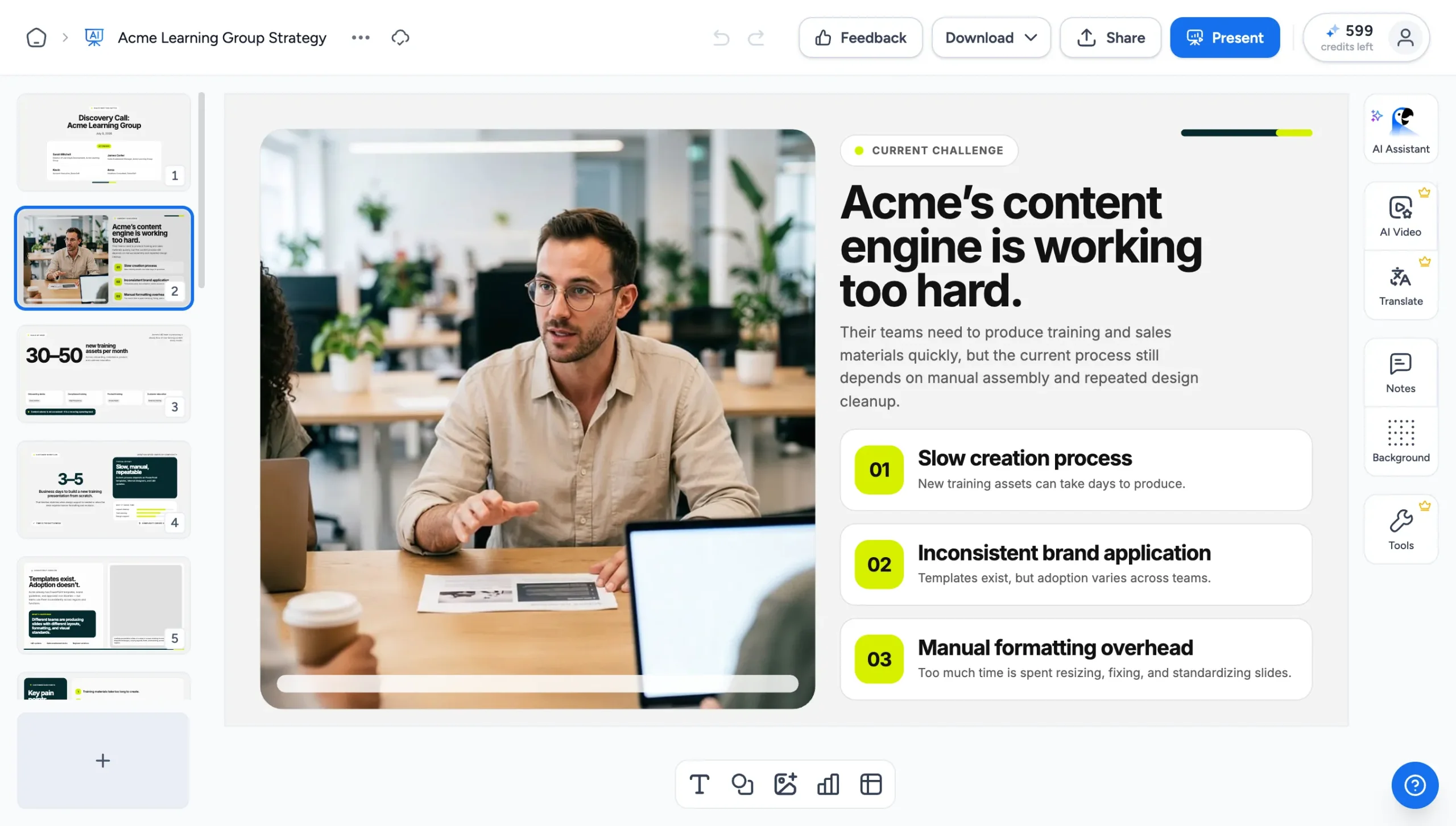
You can flip through them to see how the AI extracted key points from your document and created stunning slides. If you’d like to make any tweaks, you can edit the slides here.
The editor now also allows you to make adjustments to the generated presentation. You can move around elements, change text, or even adjust the presentation template all together.
If you want to make adjustments using the AI assistant, you will find it in the right hand panel.
Step 7: Download as PowerPoint, PDF, or Google Slides
That’s all the time it took to generate a presentation from your Word document. Incredible, right?
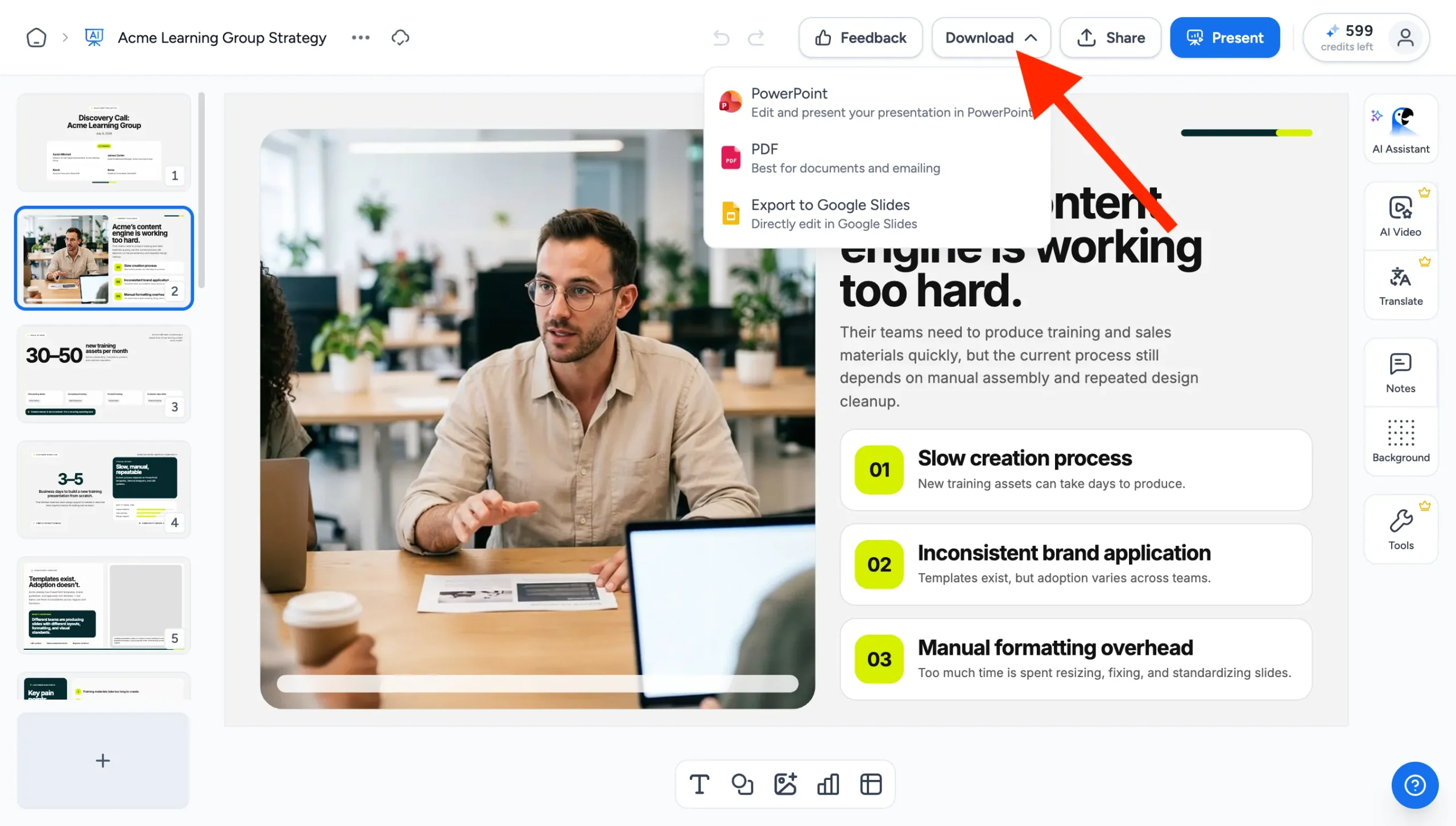
You can now download and export your presentation as PowerPoint (PPTX) or PDF, or export it directly to Google Slides, all via the Download button in the top right.
When you’re satisfied, click the download button to save the PowerPoint file to your computer.
Note: Downloading the full PowerPoint file is currently only available for paid SlideSpeak plans. On our free plan you can preview the slides online and download as images.
And that’s it! In just a few easy steps, SlideSpeak has turned your Word document into a professional, on-brand PowerPoint presentation thanks to the power of AI.
Conclusion
Generating PowerPoint slides from Word documents is a gamechanger for creating presentations quickly and easily. SlideSpeak makes it simple to upload your content and let advanced AI design the perfect slides for you.
With SlideSpeak, you can instantly convert your existing content into presentation decks that look fantastic. No more starting from scratch or wrestling with slide layouts in PowerPoint!
Try out generating AI-powered presentations from your Word files today with SlideSpeak!
FAQs
What file formats can you generate a presentation from?
SlideSpeak supports generating PowerPoint presentations from Word documents (DOC and DOCX), PDFs, existing PowerPoint files, Excel spreadsheets, and plain text files. Simply upload one of these file types to have our AI technology design slides based on the content. Also check out our other blog post about how to create PowerPoint presentations from a PDF.
Do you also support generating presentations for Google Slides?
Yes. Once your presentation is generated, click the Download button in the top right and choose “Export to Google Slides”. You can also download the PowerPoint file and import it manually into Google Slides via File > Import.
Are there any other designs for the generated presentations?
Yes, SlideSpeak includes a large library of professional design templates. You pick one in the “Choose design” step before the outline is generated. On paid plans you can also create branded templates that match your company’s design, or upload your own PowerPoint template.
Can you directly generate PowerPoint presentations with ChatGPT?
Not really. ChatGPT can draft slide content and even produce a basic PPTX file, but it doesn’t design polished, presentation-ready decks. SlideSpeak uses AI technology purpose-built for generating designed PowerPoint presentations from documents.
How long does it take to generate a presentation?
The time it takes to generate a PowerPoint presentation depends on the length of your uploaded Word/PDF document. For a 10-15 page document, expect it to take around 2-3 minutes. Longer documents with 50+ pages could take 5 minutes to generate slides. You’ll see a progress view after clicking the generate button so you know the status.
For a quick summary of your documents you can also just use our AI summary feature, check it out here.
What elements from my document will be converted into slides?
Our AI will analyze headings, text paragraphs, images, tables, and lists in your document. It identifies key points, summaries, and data to structure into individual slides with appropriate text, bullet points and visuals. The goal is to capture all the important information and structure it effectively for a presentation.


