
How to Create a Training Video from PowerPoint with AI
Written by

Published on
On this page
The fastest way to create a training video from PowerPoint is to let AI do the narration. Upload your deck, and the AI writes a script from your slides, reads it with a natural voice, and exports a finished video. No recording booth, no editing timeline.
In this guide, we cover the manual way, the AI way step by step, and how to add a quiz so you can prove people actually watched.
Why turn a PowerPoint into a training video?
A deck needs a presenter. A video does not. That single difference solves most training logistics: new hires can watch onboarding on day one, field crews can rewatch a procedure on their phone, and every viewer hears the same explanation instead of whichever version the presenter remembered that day. It is also the cheapest way to build an employee training program out of decks you already own.
Videos also plug into learning management systems. Export a SCORM package, and your LMS tracks who completed the training. For compliance topics like safety, that record matters as much as the training itself.
The manual way: PowerPoint’s built-in export
PowerPoint can export a video on its own. You record narration slide by slide, set timings, and use File > Export to produce an MP4. Microsoft documents the process in its guide to turning a presentation into a video.
It works, but the cost is your own voice and time. You narrate every slide yourself, re-record every mistake, and start over when the content changes. There is no script help, no translation, and no quiz. For a one-off video that may be fine. For a training library, it does not scale.
How to create a training video from PowerPoint with AI
With SlideSpeak’s AI video generator for presentations, the whole process takes minutes. Here is the workflow.
Step 1: Upload your PowerPoint
Upload your PPTX, PPT, Google Slides, or PDF file. The AI reads every slide, including the structure and key points, and prepares a narration script for the whole deck. Your design, diagrams, and branding stay untouched.
Step 2: Review the narration script
The AI writes one narration block per slide. Read through them, edit any line, or regenerate sections you want phrased differently. This is the moment to match your company’s terminology, since whatever the script says is what the voice will say.
Step 3: Pick a voice, or clone your own
Choose from more than 50 natural AI voices across 20+ languages. Alternatively, record a short sample and clone your own voice, so the training sounds like it comes from your team rather than a text-to-speech engine.
Step 4: Generate and preview the video
SlideSpeak syncs the voiceover to each slide with smooth transitions. Preview the result, tweak any narration that runs long, and regenerate just those parts. Updates later work the same way: change the slide, regenerate, done.
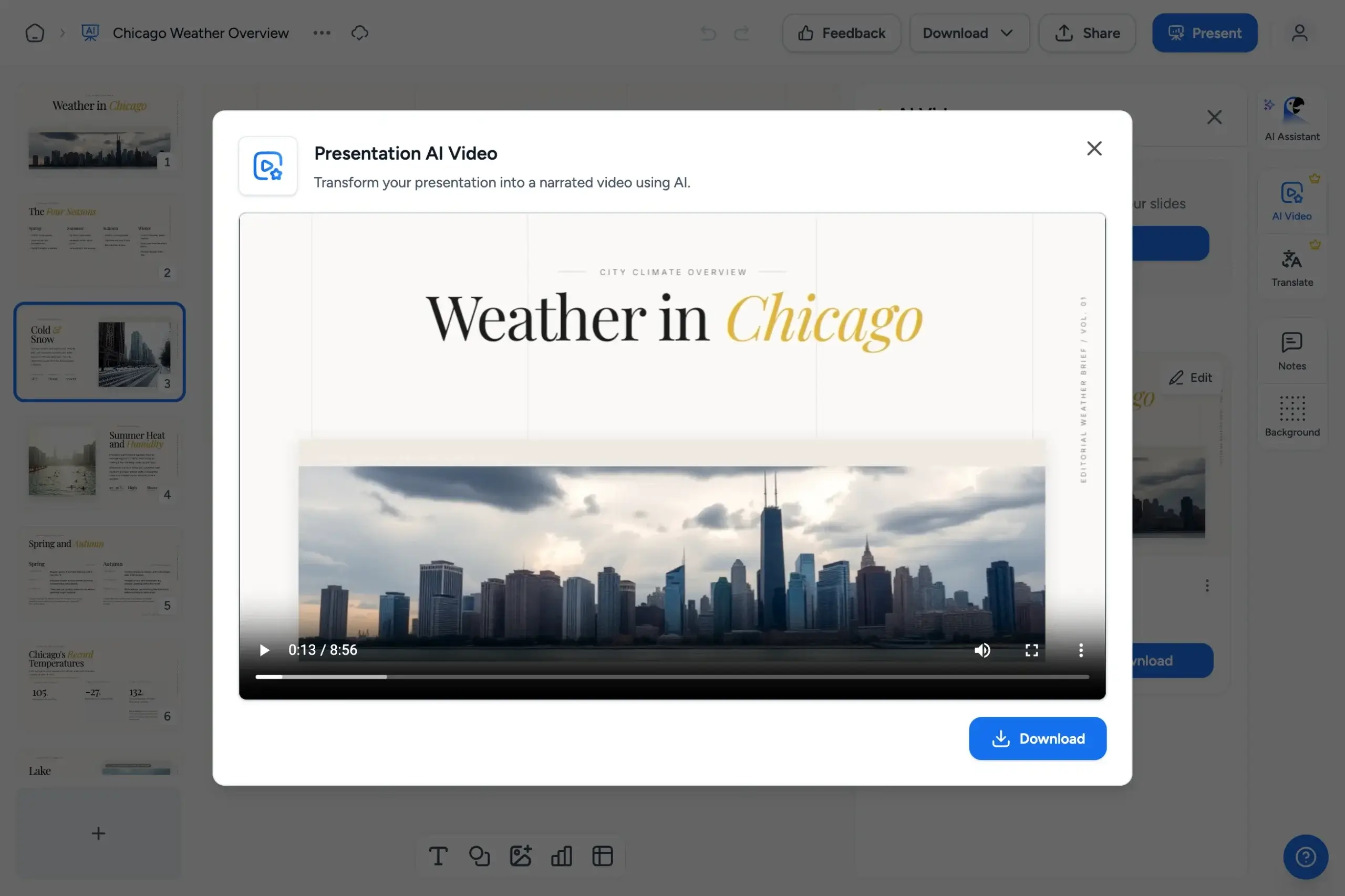
Step 5: Export as MP4, link, or SCORM
Download the finished training video as an HD MP4, share it with a link, or export a SCORM package for LMS platforms like Moodle, Canvas, or Blackboard. That last option is what makes completions trackable for compliance.
Add a quiz to check understanding
A training video proves delivery. A quiz proves comprehension. SlideSpeak can generate a quiz from the same PowerPoint, so the questions match the material exactly. Export the quiz in QTI format and your LMS can score it alongside the video.
Example: safety training videos
Safety teams are the heaviest users of this workflow. Construction and industrial companies convert toolbox talks and site induction decks into narrated videos, add quizzes, and translate the slides for multilingual crews. OSHA expects training in a language workers understand, and translated video training makes that practical. See how it works on the SlideSpeak safety training page.
Tips for a better training video from PowerPoint
- One idea per slide. Narration follows slides, so dense slides produce long monologues. Split them.
- Front-load the point. State the rule first, then the reasons. Viewers skim videos just like documents.
- Keep it under ten minutes. Several short videos beat one long one, especially for procedure training.
- End with the quiz. Announce it at the start. Completion rates improve when viewers know a check is coming.
Frequently asked questions
Can I create a training video from PowerPoint for free?
PowerPoint’s built-in export is free if you record the narration yourself. SlideSpeak has a free plan to try the AI workflow; the video generator is part of the Premium plan at $29 per month, or $24.65 per month billed annually.
Does the video keep my slide design?
Yes. Each slide becomes a video scene with your layout, diagrams, and branding intact. You do not need to rebuild anything in a video editor.
Can I make the same training video in multiple languages?
Yes. Translate the deck into more than 100 languages, then generate narrated videos with AI voices in over 20 languages. One approved deck becomes consistent training for every crew.
Your deck is already the script
You do not need a video team to build video training. The deck you present today contains everything the video needs, and AI handles the narration, timing, and export. Try SlideSpeak’s presentation-to-video generator and turn your next PowerPoint into a training video in minutes.


