

Transitions decide how one slide gives way to the next when you present. You pick one effect for the whole presentation, set how fast it plays, and choose whether slides move on when you click or on a timer. Then you click Present and show your deck full screen.
Before you start
- Transitions and present mode are free on every plan, including Free.
- To change transitions, you need to be able to edit the presentation. That means you own it, or the owner invited you as an Editor.
- Anyone who can open the presentation can present it.
- You find transitions in the icon rail on the right side of the editor.
Step 1: Open the Transitions panel and pick an effect
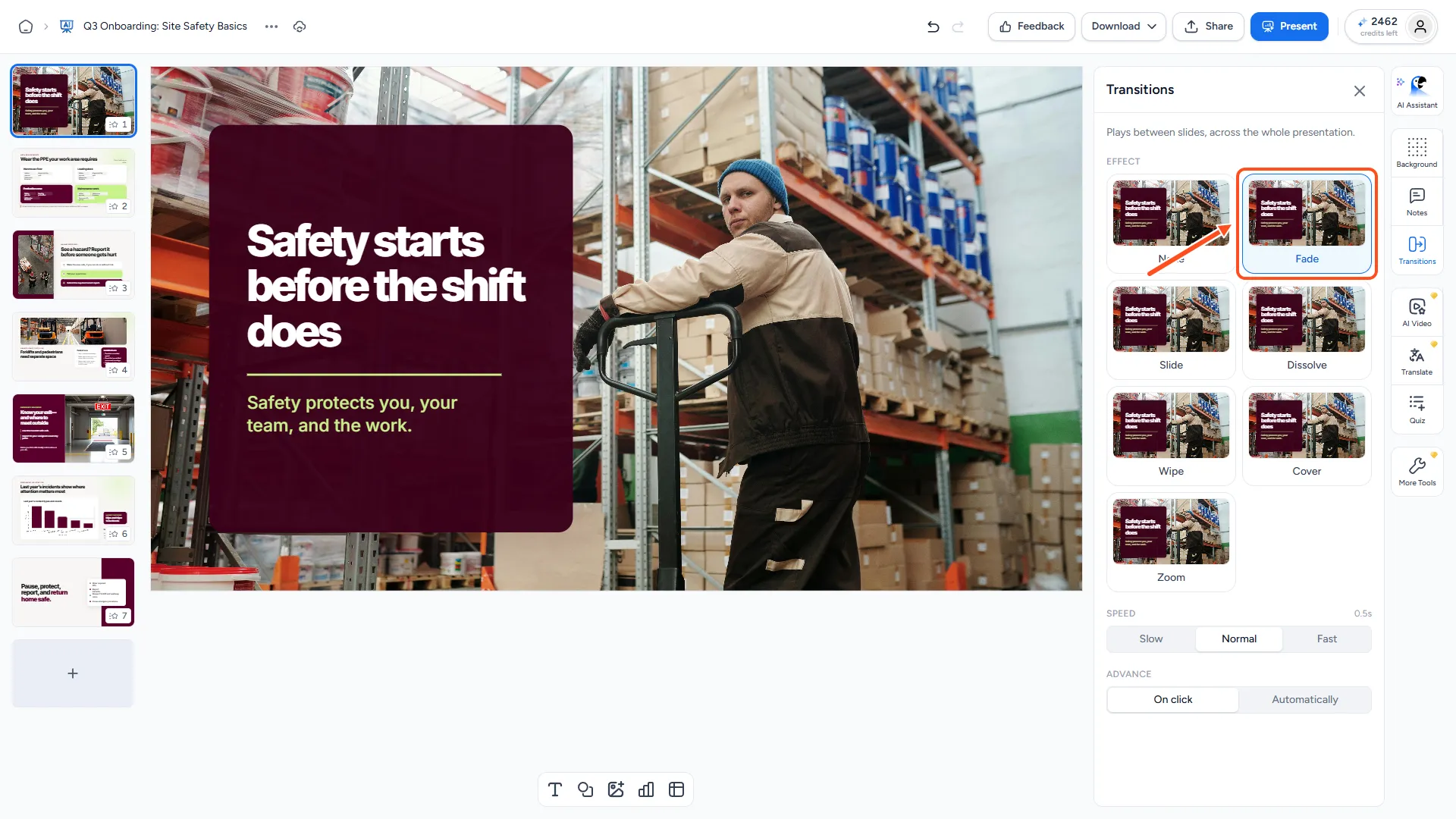
Open your presentation in the SlideSpeak editor. Then click Transitions in the icon rail on the right.
The panel says "Plays between slides, across the whole presentation." One transition applies to every slide, so you only set it once.
Under Effect, click one of the cards:
- None: slides change instantly.
- Fade
- Slide
- Dissolve
- Wipe
- Cover
- Zoom
Each card plays a short preview using your own slides, so you can see the effect before you pick it. Your choice applies to the whole deck right away.
Step 2: Set the speed, direction and advance
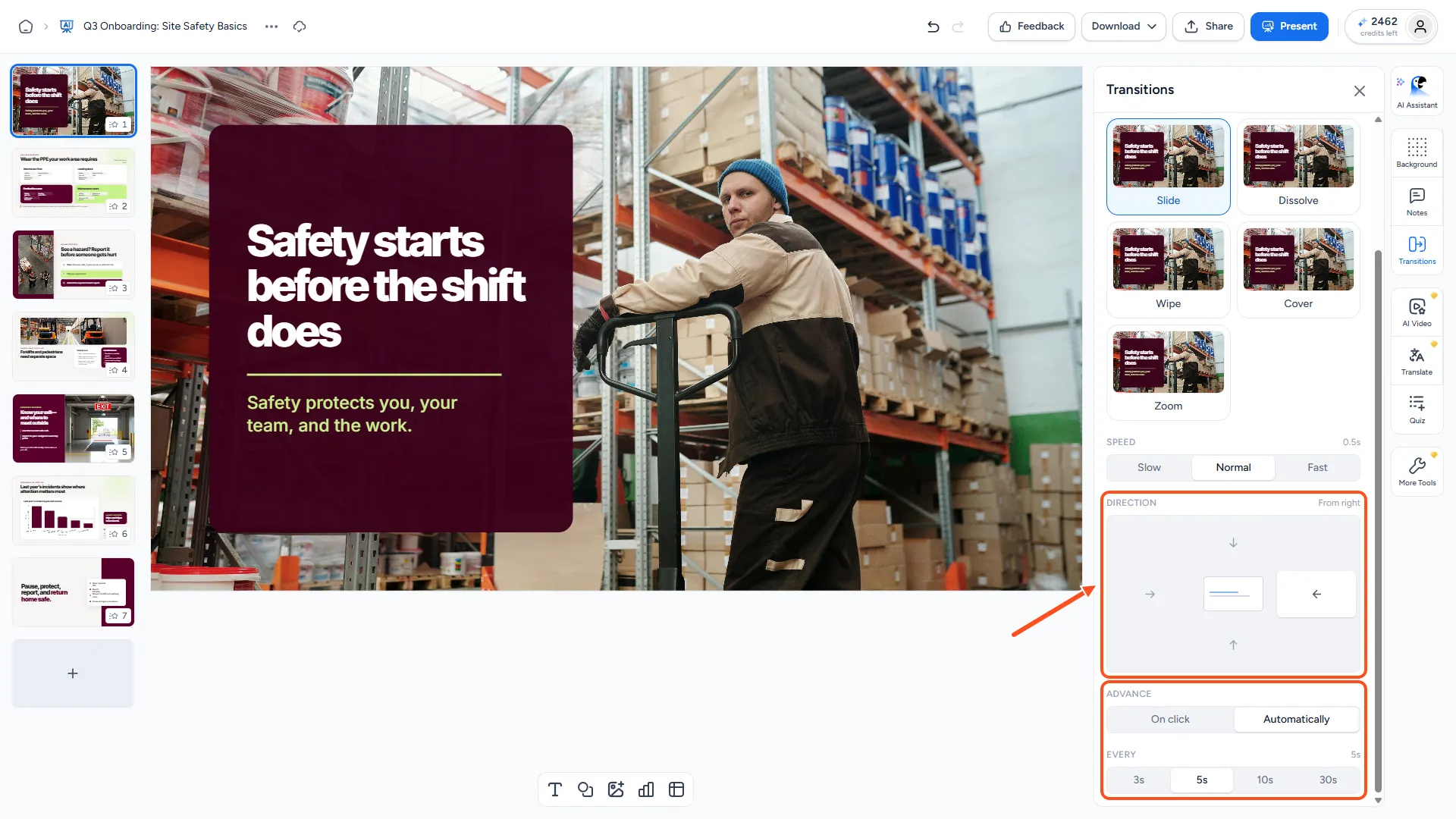
Once you pick an effect other than None, more settings appear.
- Speed: choose Slow (0.8 seconds), Normal (0.5 seconds) or Fast (0.3 seconds).
- Direction: only for Slide, Wipe and Cover. Click an arrow to choose where the next slide comes in from: from right, from left, from bottom or from top.
Under Advance, choose how slides move on:
- On click: the next slide appears when you click an arrow or press the right arrow key. This is the default.
- Automatically: slides move on by themselves. Under Every, pick 3s, 5s, 10s or 30s.
Automatic advance is handy for a deck that runs on its own, for example on a screen at an event. It stops on the last slide; it does not start over from the beginning.
Step 3: Present your slides
Select the slide you want to start from in the slide list. Then click Present in the top right corner of the editor.
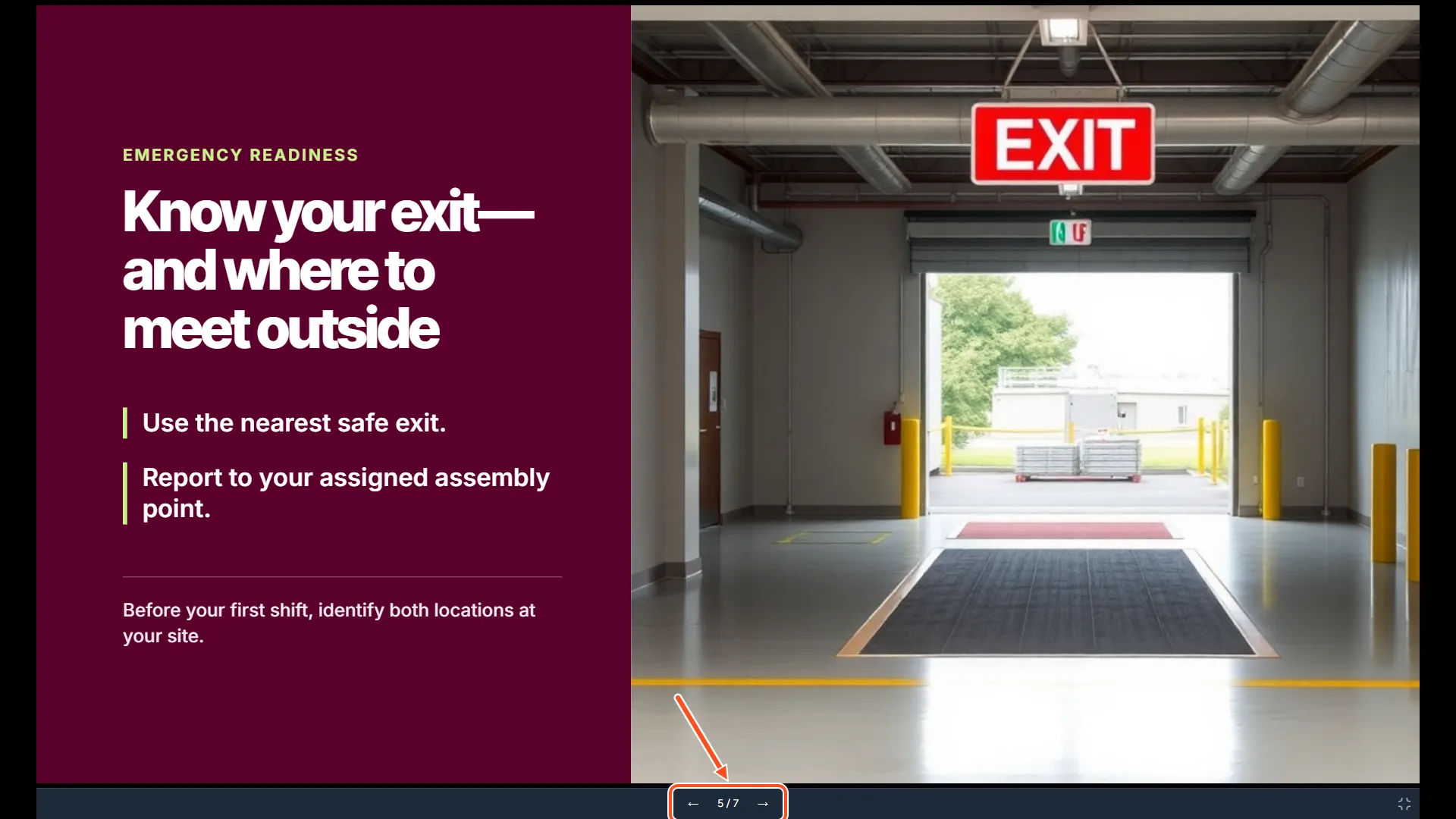
SlideSpeak opens your deck full screen and plays your transition between slides. To control it:
- Press the right arrow key to go forward and the left arrow key to go back. You can also use the arrows in the bar at the bottom of the screen, which also shows the slide number.
- Press Esc, or click the minimize button in the bottom right corner, to leave present mode.
On a phone, present mode shows large arrow buttons on screen. Turn your phone sideways for the full-screen view.
Do transitions work in PowerPoint?
Yes. When you download your presentation as PowerPoint, SlideSpeak includes the transition and the automatic advance timing. See how to download your presentation as PowerPoint or PDF.
If you uploaded a PowerPoint that used effects SlideSpeak does not offer, SlideSpeak swaps them for the closest match. The Transitions panel tells you which slides it changed, for example "2 slides used effects we simplified on import".
Troubleshooting
- The panel says "Slides use different transitions." This happens with some uploaded PowerPoint files. Pick one effect to apply it to all slides. The same applies to "Slides advance at different times."
- I don't see the Transitions button. You can view the presentation but not edit it. Ask the owner to invite you as an Editor. See how to invite someone to view or edit a presentation.
- Present mode did not go full screen. Your browser may have blocked full screen. Click Present again, or use your browser's own full-screen shortcut.
Need more help?
If you have any questions or need assistance, feel free to contact our support team at support@slidespeak.co