

You can invite colleagues, clients or students to a presentation by email. Viewers can open and present it. Editors can also change the slides. One person edits at a time, so changes never clash.
Before you start
- Any plan works. Inviting people is free on every plan, including Free.
- You must own the presentation. Only the person who created the presentation can invite others and change their access.
- Invitees need a SlideSpeak account with the same email address. If they don't have an account yet, they can create a free one with the email you invited.
- Where it lives: open the presentation and click Share in the top-right corner of the editor.
Step 1: Add people by email
- Open the presentation and click Share in the top-right corner.
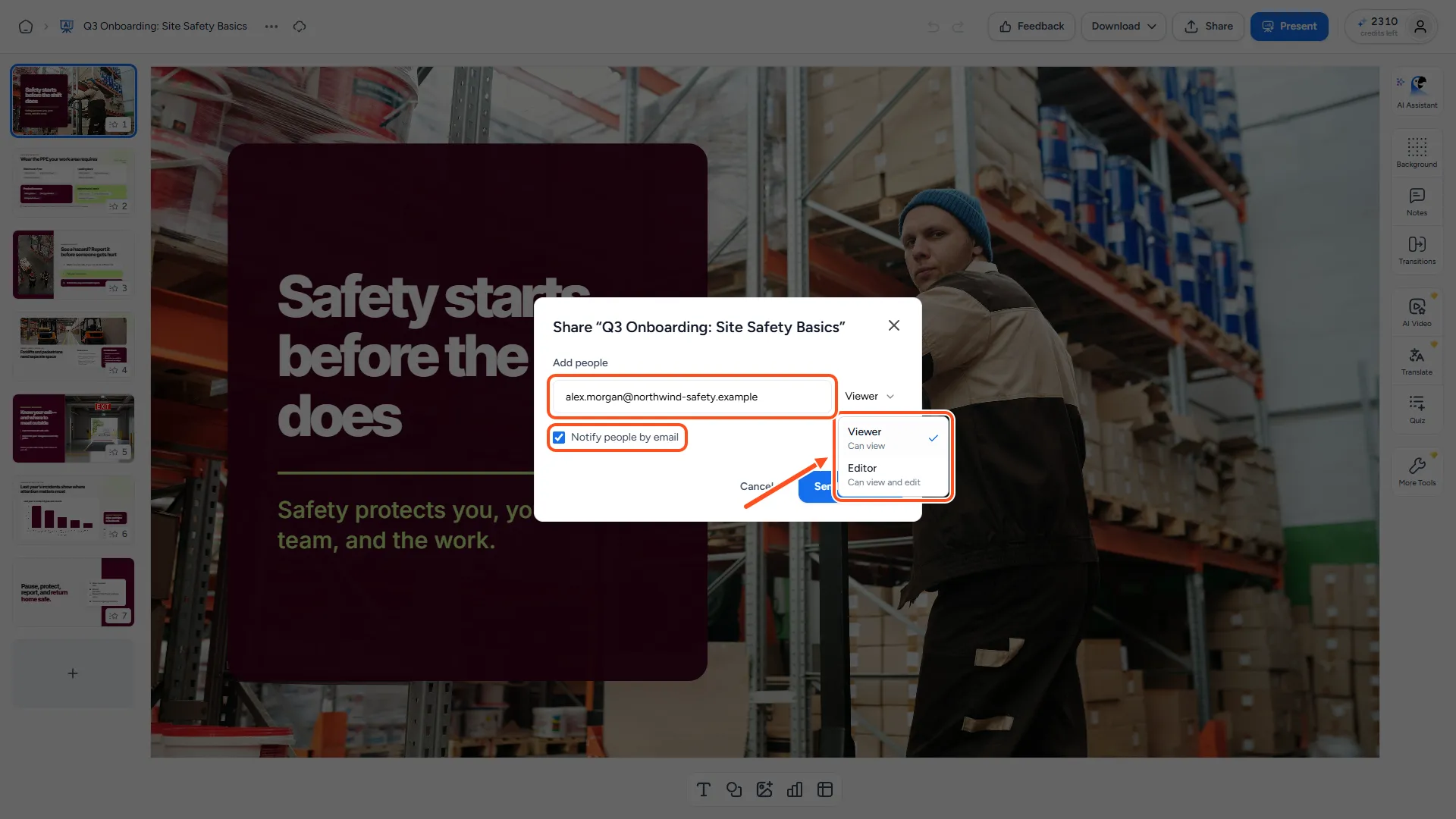
- Under Add people, type the person's email address.
- Next to the email, pick a role:
- Viewer (Can view): opens and presents the presentation, but can't change it.
- Editor (Can view and edit): can also edit the slides.
- Leave Notify people by email on to send them an invitation email. Turn it off if you'd rather send them the link yourself.
- Click Send invitation. If you turned the email off, the button says Share instead.
Add one email at a time. Repeat the steps for everyone you want to invite.
Step 2: What the people you invite see
The invitation email has an Open presentation button. The person signs in, or creates a SlideSpeak account, with the email address you invited, and the presentation opens.
They can also find it later on their dashboard. Above their presentations, they switch from My presentations to Shared with me to see everything others have shared with them. A blue dot shows when something new was shared.
In the editor's top bar they see a View only or Editing label, so they always know what they can do. Viewers and Editors can click Present to show the slides. Only you, as the owner, can download, share, rename or delete the presentation.
Step 3: Change or remove someone's access
- Click Share in the editor.
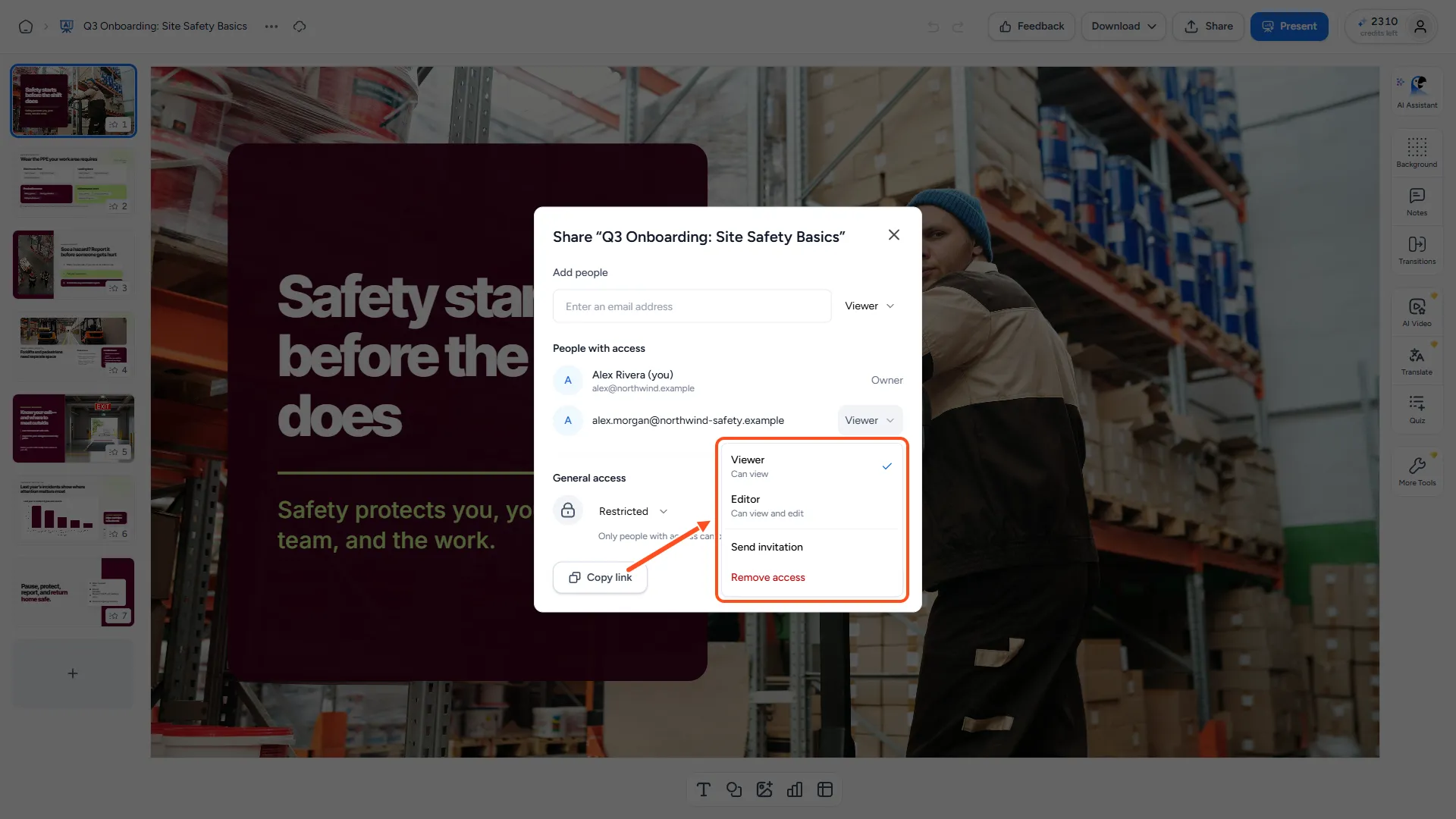
- Under People with access, click the role next to the person's email.
- Choose one of these:
- Viewer or Editor to change their role.
- Send invitation or Resend invitation to email them again.
- Remove access to take away their access straight away.
If someone has the presentation open when you remove them or change them to Viewer, they can no longer save changes.
Editing at the same time: one editor at a time
Only one person can edit a shared presentation at a time. This counts both you and your invited Editors.
When someone else is already editing, you see a message such as:
Alex is editing. You can view now and edit automatically when they finish.
You can look through the slides while you wait. As soon as the other person closes the presentation, SlideSpeak loads their latest changes and you can start editing, with no need to reload. This usually takes about 20 seconds after they leave.
Changes are not shown live while someone else edits. You see their work when it's your turn.
Troubleshooting
- The person I invited sees "not found" or a sign-in page. They're probably signed in with a different email address. Ask them to sign in with exactly the email you invited, or invite the email they use for SlideSpeak.
- "Access was granted, but the email could not be sent." The person already has access. Open their role menu and choose Send invitation to try the email again, or send them the presentation link yourself.
- "Editing is paused while we check your connection and access." SlideSpeak couldn't confirm your editing turn, often because the connection dropped. Your changes stay in the tab. Once you're back online, editing continues. If the owner removed your access, you can't edit any more.
- I don't see Add people in the Share dialog. Presentations in a team workspace are shared with everyone in the organization and can only be shared with a link. See How do I create a team workspace?
- I want anyone to open it without an invitation. Use a share link instead: How do I share a presentation with a link?
Need more help?
If you have any questions or need assistance, feel free to contact our support team at support@slidespeak.co