

When your deck is ready, you can take it out of SlideSpeak in three ways: as an editable PowerPoint file, as a PDF, or as a copy in your Google Drive that opens in Google Slides. All three start from the Download button in the editor.
Before you start
- Downloading and exporting need a Premium, Premium Plus or Lifetime plan.
- Exception: decks you translated with the Translate tool can be downloaded on every plan, including Free. See how to translate a presentation.
- PowerPoint, PDF and Google Slides downloads don't cost credits. An LMS package costs 10 credits.
- Only the owner of a presentation sees the Download button. If someone shared a deck with you, ask them for a copy.
Step 1: Open the Download menu and choose a format
Open your presentation in the SlideSpeak editor. Click Download in the top right corner, next to Share and Present.
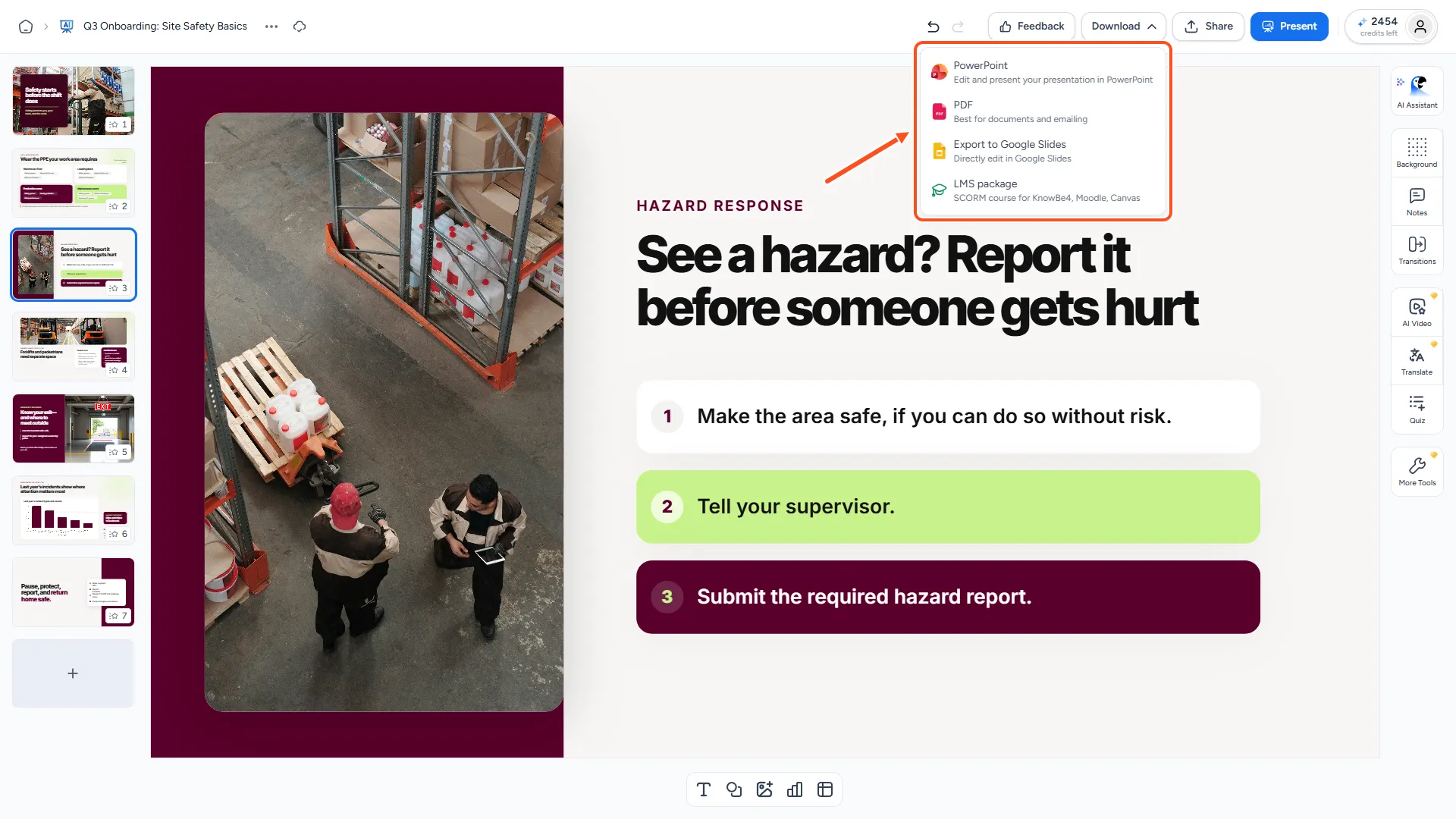
Pick the option that fits what you want to do next:
| Option | What you get | Best for |
|---|---|---|
| PowerPoint | An editable .pptx file | Editing in PowerPoint, presenting offline, sharing with people who use Office |
| A .pdf file | Emailing, printing, handouts. People can read it but not edit it | |
| Export to Google Slides | A copy in your Google Drive | Editing and presenting in Google Slides with your team |
| LMS package | A SCORM course | Uploading to a learning platform. See how to export a SCORM package for your LMS |
Step 2: Wait for the file
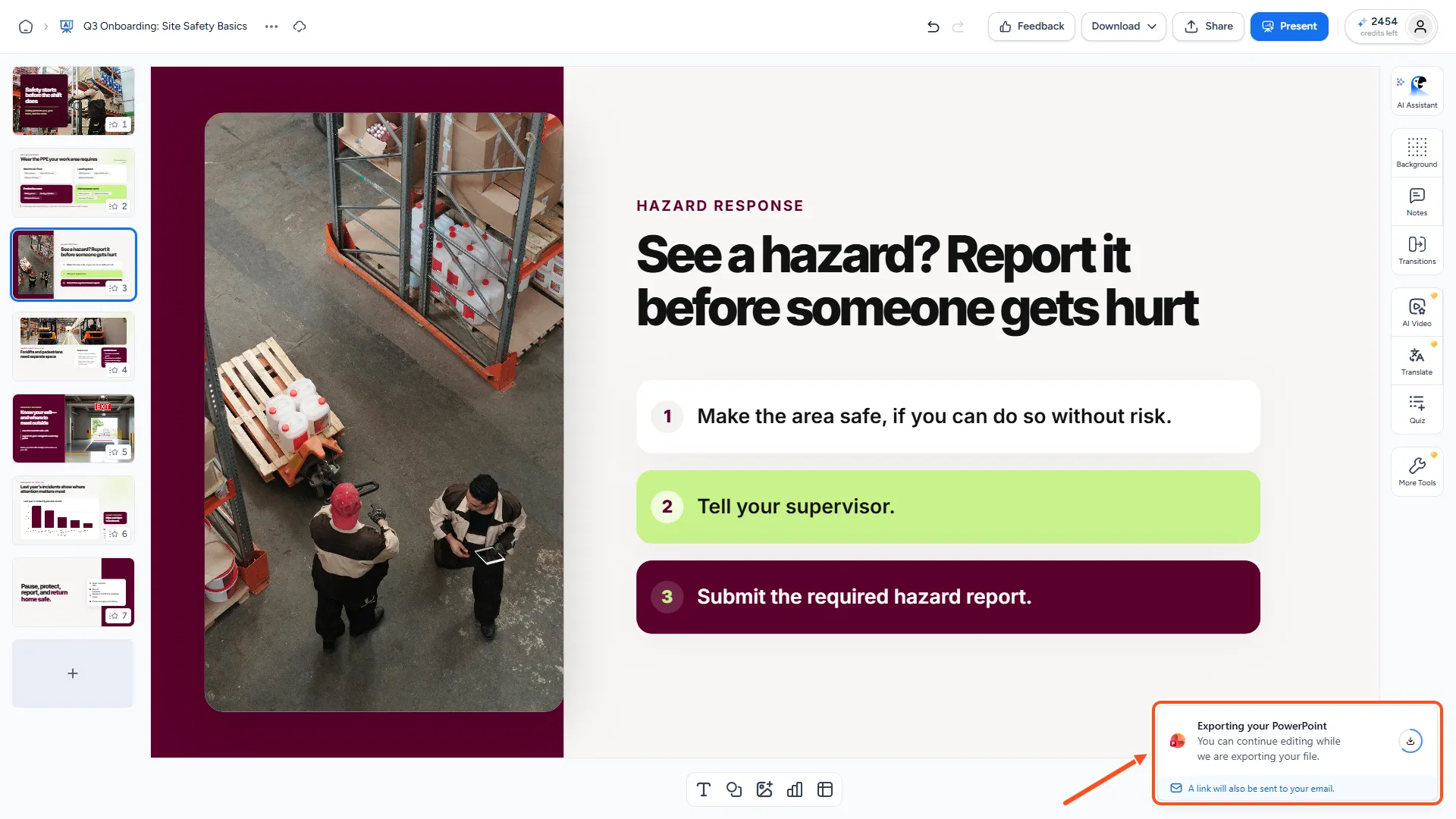
SlideSpeak builds the file and shows its progress on screen. Larger decks take a little longer.
- PowerPoint and PDF: the file downloads to your computer when it's ready. It's named after your presentation, for example "Q3 Onboarding.pptx".
- Google Slides: the first time, SlideSpeak asks you to connect your Google account so it can save to your Google Drive. After that, the deck opens in a new tab in Google Slides.
What's included in the PowerPoint file
- Every slide, with editable text, shapes, images, tables and charts.
- Your speaker notes, so you can use PowerPoint's Presenter View. See how to generate speaker notes with AI.
- Your slide transitions and automatic advance timing. See how to add slide transitions.
Fonts that aren't installed on your computer may look different in PowerPoint. Install the fonts your deck uses, or choose standard fonts before downloading.
Downloading an AI video? See how to download your AI video instead.
Troubleshooting
- The menu asks me to upgrade. You're on the Free plan. Upgrade to Premium, Premium Plus or Lifetime to download. Decks made with the Translate tool are the exception.
- I don't see the Download button. You aren't the owner of this presentation. Ask the owner to download it, or to share it with Anyone with the link so you can duplicate it into your own account.
- "Failed to connect to Google Drive. Please try again." The Google sign-in was closed or declined. Click Export to Google Slides again and allow access.
- The download failed. The progress message lets you try again. If it keeps failing, contact us with the presentation's link.
Need more help?
If you have any questions or need assistance, feel free to contact our support team at support@slidespeak.co