

Shape animations decide how the things on a slide appear and disappear while you present. You give a text box, image, shape, chart or table an Enter effect, an Exit effect or both, and put the animations in steps. Each time you move forward in present mode, the next step plays.

Before you start
- Shape animations are free on every plan, including Free.
- To add animations, you need to be able to edit the presentation. That means you own it, or the owner invited you as an Editor.
- You find animations in the Animation panel, in the icon rail on the right side of the editor. The same panel holds the slide transition settings.
- Animations belong to one slide. Each slide has its own list.
Step 1: Open the Animation panel and select a shape
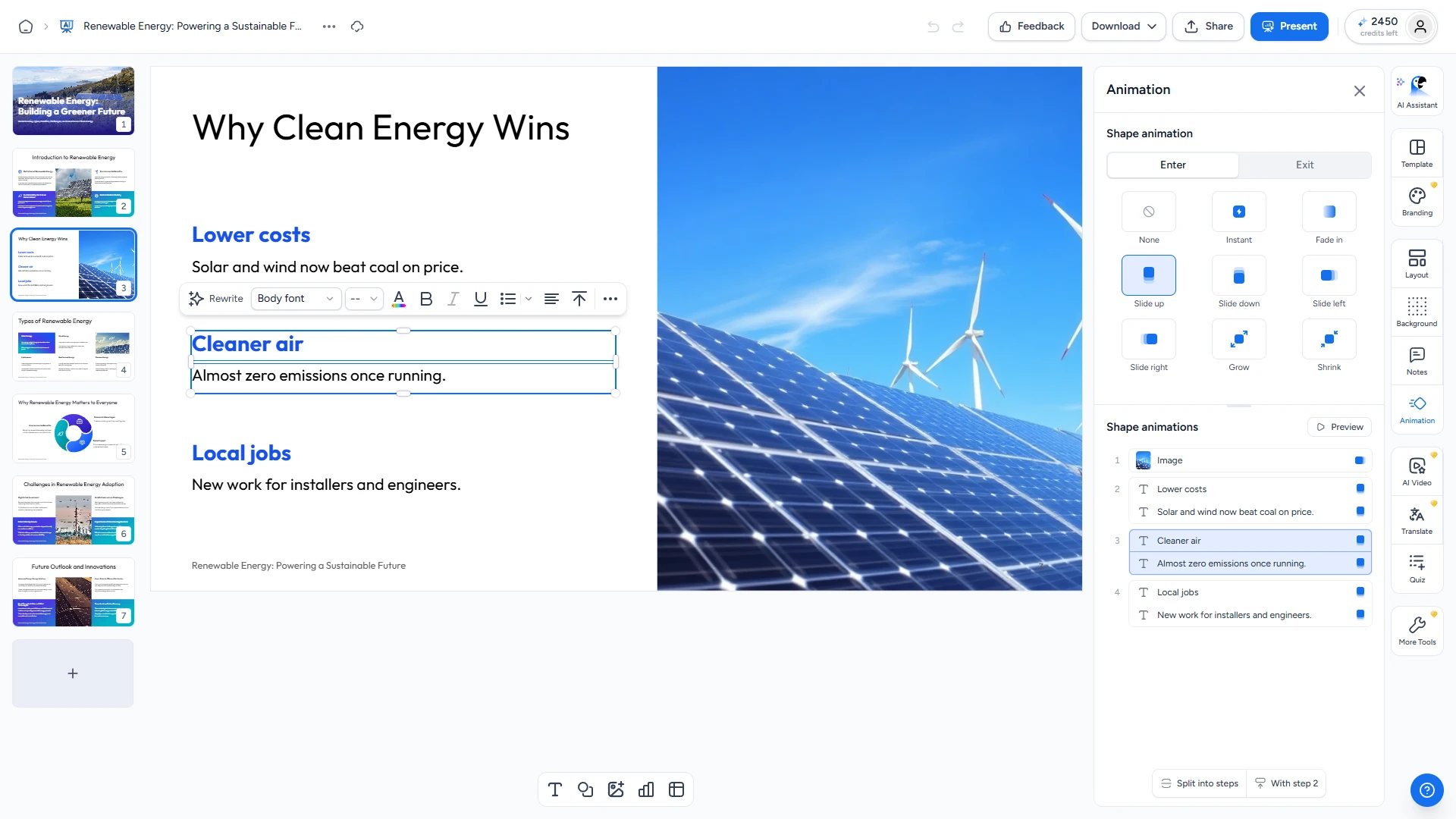
Open your presentation in the SlideSpeak editor and go to the slide you want to animate. Then click Animation in the icon rail on the right.
With nothing selected, the top of the panel shows the Slide transition settings. Click a shape on the slide, and the top of the panel switches to Shape animation.
You can select several shapes at once by holding Shift while you click them. A group animates as one piece. To animate its shapes separately, ungroup it first.
Step 2: Pick an Enter or Exit effect
Under Shape animation, choose the Enter tab to decide how the shape appears, or the Exit tab to decide how it disappears. Then click one of the effects:
- None: no animation. Pick it to remove an effect you added.
- Instant: the shape appears or disappears at once.
- Fade in (on the Exit tab: Fade out)
- Slide up, Slide down, Slide left or Slide right: the shape moves in that direction as it appears or disappears.
- Grow
- Shrink
Every effect except Instant takes 0.6 seconds. When you click an effect, SlideSpeak plays it once on the slide so you can see it.
A shape can have one Enter effect and one Exit effect. Enter effects show in blue in the panel, Exit effects in pink.

Step 3: Put the animations in order
Every animation you add appears in the Shape animations list at the bottom of the panel. The list is split into numbered steps. Each step plays when you move forward once in present mode, and everything in the same step plays together.
A new animation goes into a new step at the end of the list. If you selected several shapes before picking the effect, they all go into the same new step.
To change the order:
- Drag a row to another step, or between two steps to make it a step of its own.
- Drag a whole step: hover over the step and drag the handle that appears to the left of its number.
- Select rows and use the buttons that appear at the bottom of the list. Click a row to select it, Shift-click to select a range, or Ctrl-click (Cmd-click on a Mac) to add rows one by one. Depending on what you selected, you see:
- As new step: moves the selected row out of its step into a new step right after it.
- With step 2 (or another number): moves the selected rows into the step before theirs, so they play together with it.
- Combine into step: puts rows from different steps into one step.
- Split into steps: gives each selected row its own step.
Clicking a row also selects its shape on the slide.
To delete an animation, right-click its row and choose Delete (or Delete all when you selected several rows). You can also select the shape and pick None on that tab.
Step 4: Preview the slide
Click Preview next to Shape animations. SlideSpeak plays the slide's steps one after another on the slide in the editor. Press Esc to stop the preview early. When the preview ends, the slide looks as it did before.
Step 5: Present your slides
Click Present in the top right corner of the editor. On a slide with animations, shapes with an Enter effect start hidden.
- Press the right arrow key, the down arrow key or Space, or click the forward arrow in the bar at the bottom, to play the next step. After the last step, the same keys take you to the next slide.
- Press the left arrow key to undo the last step. If you go back to an earlier slide, it shows with all its steps played.
- A thin line at the bottom of the screen shows your progress: one segment per slide, and the current one fills up as you play its steps.

Slides that advance automatically
If your slides advance automatically (Slide transition → Advance → Automatically), the steps play on their own, using the same timer. For example, with Every 5s and three steps, the first step plays after 5 seconds, the second after 10, the third after 15, and the next slide comes after 20 seconds.
Do animations work in PowerPoint?
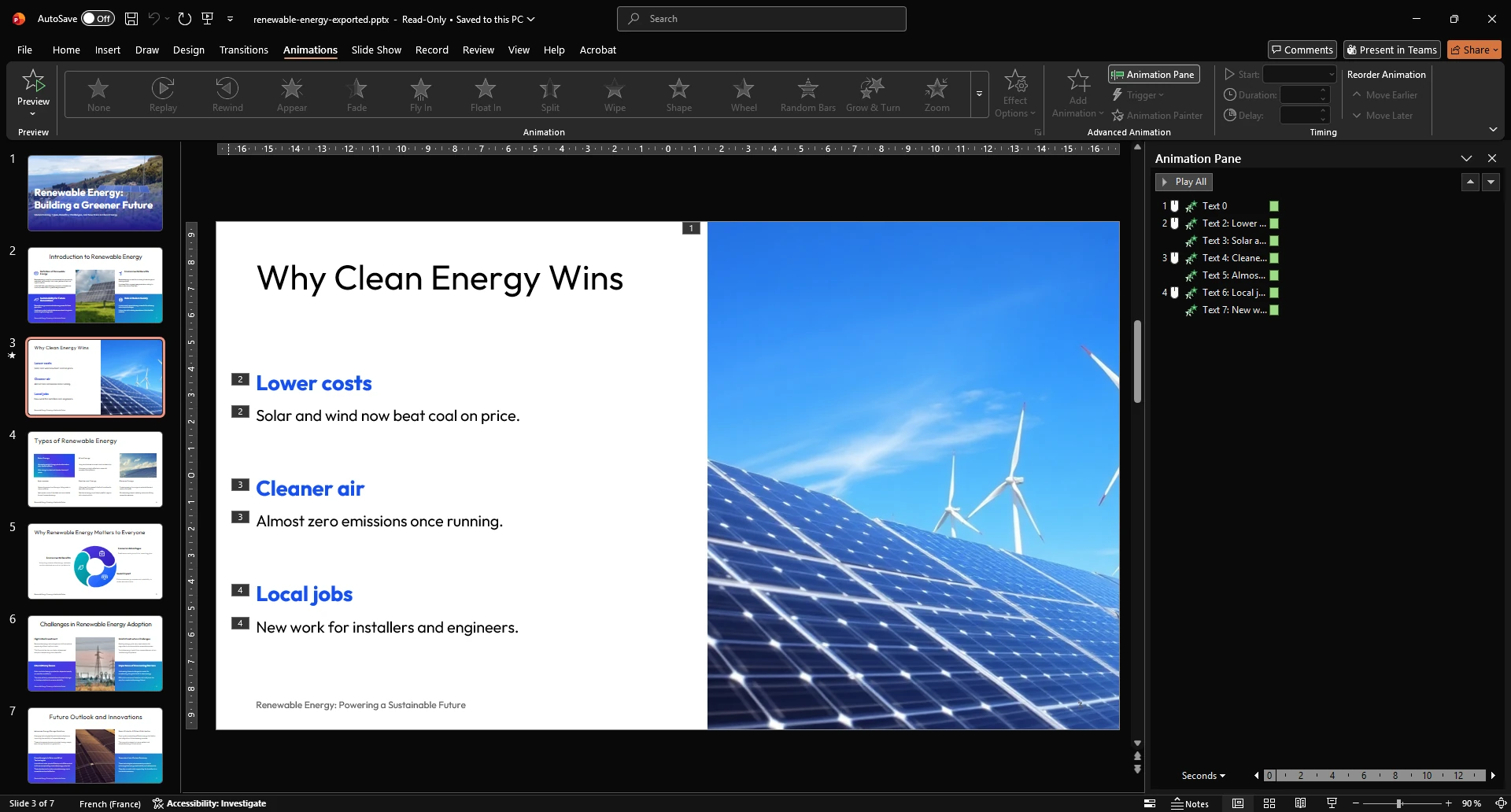
Yes. When you download your presentation as PowerPoint, the shape animations come along, with the same order and timing. PowerPoint shows them in its Animation Pane as its own closest effects, such as Fade, Fly In and Basic Zoom. See how to download your presentation as PowerPoint or PDF.
One difference: on a slide that advances automatically, clicking in PowerPoint's slide show jumps to the end of all of that slide's steps instead of playing only the next one. Without a click, the steps play on their timer as in SlideSpeak.
PDF and video (MP4) downloads don't play shape animations.
Troubleshooting
- An exit animation is greyed out in the list. A shape can't enter and exit in the same step, so SlideSpeak skips that exit. Move it to a later step, for example with As new step.
- I don't see the Animation button. You can view the presentation but not edit it. Ask the owner to invite you as an Editor. See how to invite someone to view or edit a presentation.
- Shapes appear without moving. Your device is set to reduce motion (for example, "Reduce motion" turned on on a Mac or iPhone, or "Animation effects" turned off in Windows). SlideSpeak then shows each step without the movement.
Need more help?
If you have any questions or need assistance, feel free to contact our support team at support@slidespeak.co