

Use Email activity to check a viewing-link email or a learner’s course invitation. Look up a recipient to see how far their email got. Delivered means their mail server accepted it. The history doesn’t show whether they read it.
Find the invitation
- Open the item you shared and choose Share, Send email, then Email activity. If the confirmation offers View delivery details, select it to open that send.
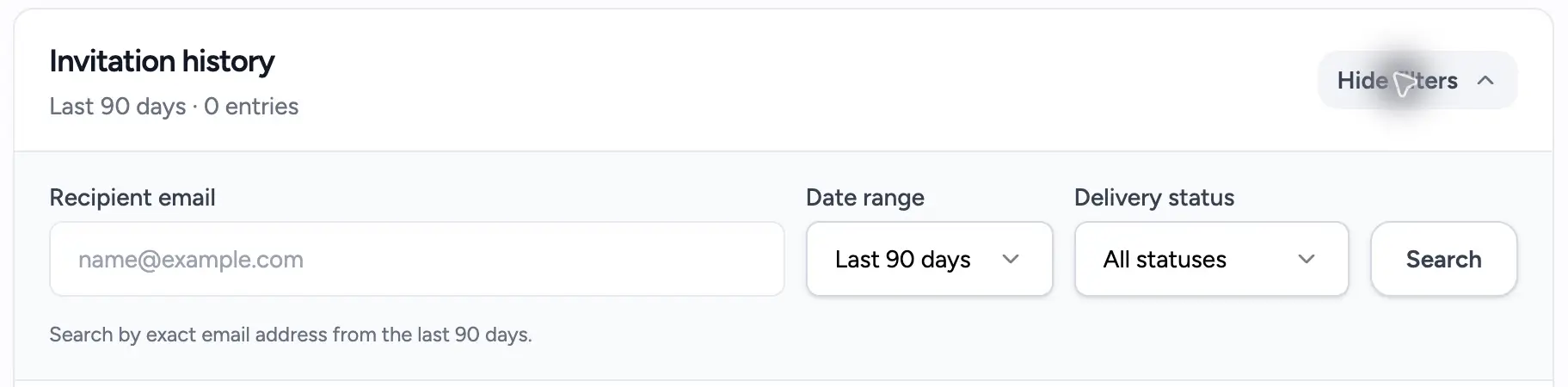
- Under Invitation history, find the send by date. To narrow the list, open Search & filter. Enter the recipient’s full email address or choose a date range or delivery status, then click Search.
- Open the matching send, then the recipient’s row. Each address has its own delivery history.
Check a course you’ve made private
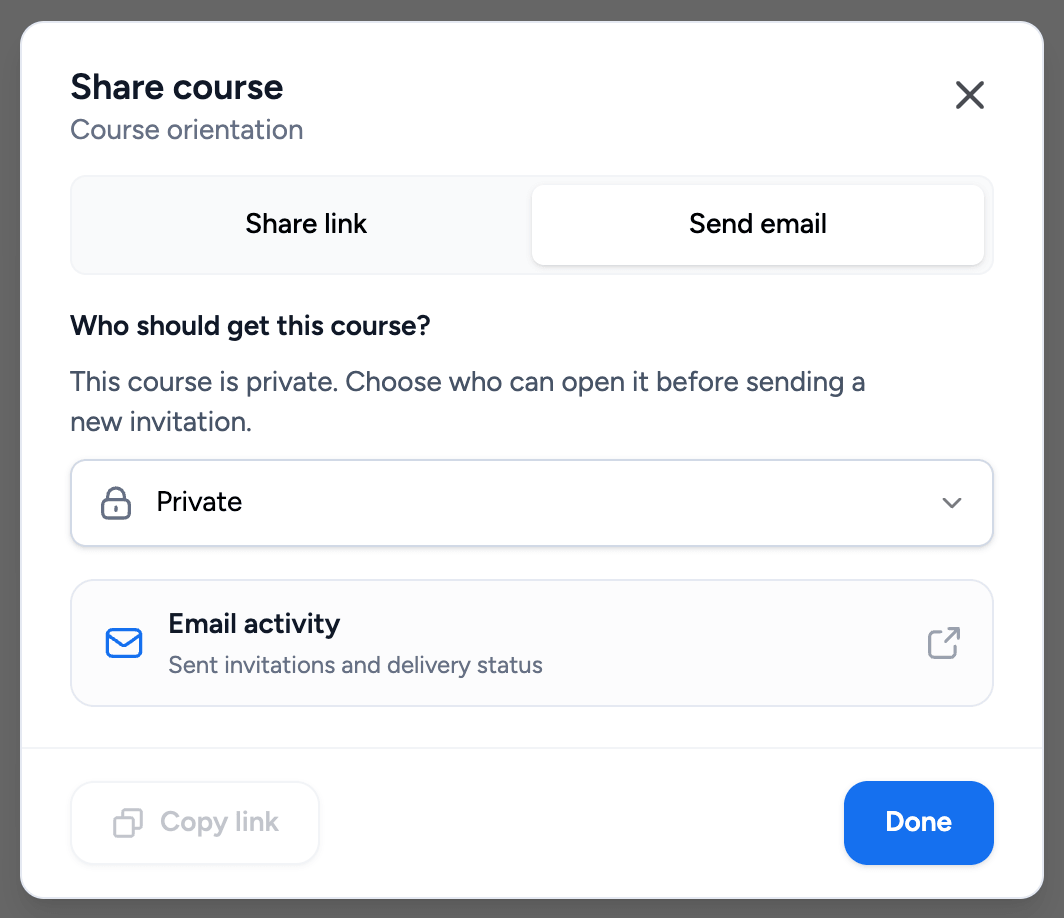
Open Share and select Send email. If you sent invitations for this course from this workspace in the last 365 days, you’ll see Email activity below Private. Choose it to open a new tab with the date range set to Last 365 days.
What each delivery status means
| Status | What to do |
|---|---|
| Queued | SlideSpeak is waiting to send the invitation. Check back later. |
| Submitted | The email provider accepted it. Give the recipient’s mail server time to respond. |
| Delayed | Delivery is taking longer. Wait for the next update before sending again. |
| Delivered | If the recipient can’t find it, ask them to check their spam folder and confirm which inbox they’re looking in. |
| Not queued | SlideSpeak didn’t queue this invitation. If the recipient asks for access, check who can open the item before giving them its link. |
| Not delivered | The provider couldn’t deliver it. Check the address with the recipient before trying a corrected one. |
| Cancelled or Expired | The invitation stopped before it was sent. Check whether the item should still be shared with this person before starting a new email. |
| Unconfirmed | SlideSpeak can’t tell whether the email went out. Use Check status if the send dialog is still open, or return to this entry later. Resending now could send a duplicate. |
Why can’t I find a particular email?
You can see the invitations you sent for this item in the workspace you used. If a colleague sent the invitation, ask them to check their history. If you sent the link through your own email app, check your sent mail there. Recipients can also stop SlideSpeak invitations, which prevents new emails reaching them.
Search by email address for the last 90 days. After that, SlideSpeak keeps the delivery summary for up to 365 days from the send date. Clear the email address and choose Last 365 days to find an older summary.
Did you invite a presentation Viewer or Editor? Open Share → Collaborators for that invitation. The menu beside their name offers Send invitation or Resend invitation.
For link visits, open share analytics. For an invite-only course, check who opened the course.
Need more help?
If you have any questions or need assistance, feel free to contact our support team at support@slidespeak.co