

When you share a presentation or an AI video with a link, SlideSpeak counts every visit. Share analytics show you how often the link was opened, by how many people and from where. For AI videos and presentations in a team workspace, you also see the email address of viewers who were signed in to SlideSpeak.
Before you start
- Any plan works. Share analytics are included on every plan.
- The link must be on. Analytics count visits to the share link only. Turn it on first: see How do I share a presentation with a link? or How do I share my AI video presentation?
- You must own it. Only the owner sees the analytics. In a team workspace, every member of the organization sees them.
What the numbers mean
Share analytics always cover all time, from the first visit on.
- Views: how many times the link was opened. Opening it again counts as a new view.
- Visitors: how many different people (browsers) opened it.
- Countries: how many countries the visits came from.
- Identified viewers: people who were signed in to SlideSpeak when they opened the link, listed by email address with their country. Visitors who weren't signed in are counted in Views and Visitors but stay anonymous.
Your own visits don't count while you're signed in. (In a team workspace, visits by members of the organization do count.) Visits by people you invited by email, who open the presentation from their invitation or Shared with me, aren't counted either. Only the share link is tracked.
Step 1: Check views on a presentation
- Open the shared presentation in the editor on a computer.
- Next to Share in the top-right corner, click the button with the eye icon and the number of views.
- The Share analytics card shows Views, Visitors and Countries.
Click View share details to open the Share dialog for this presentation.
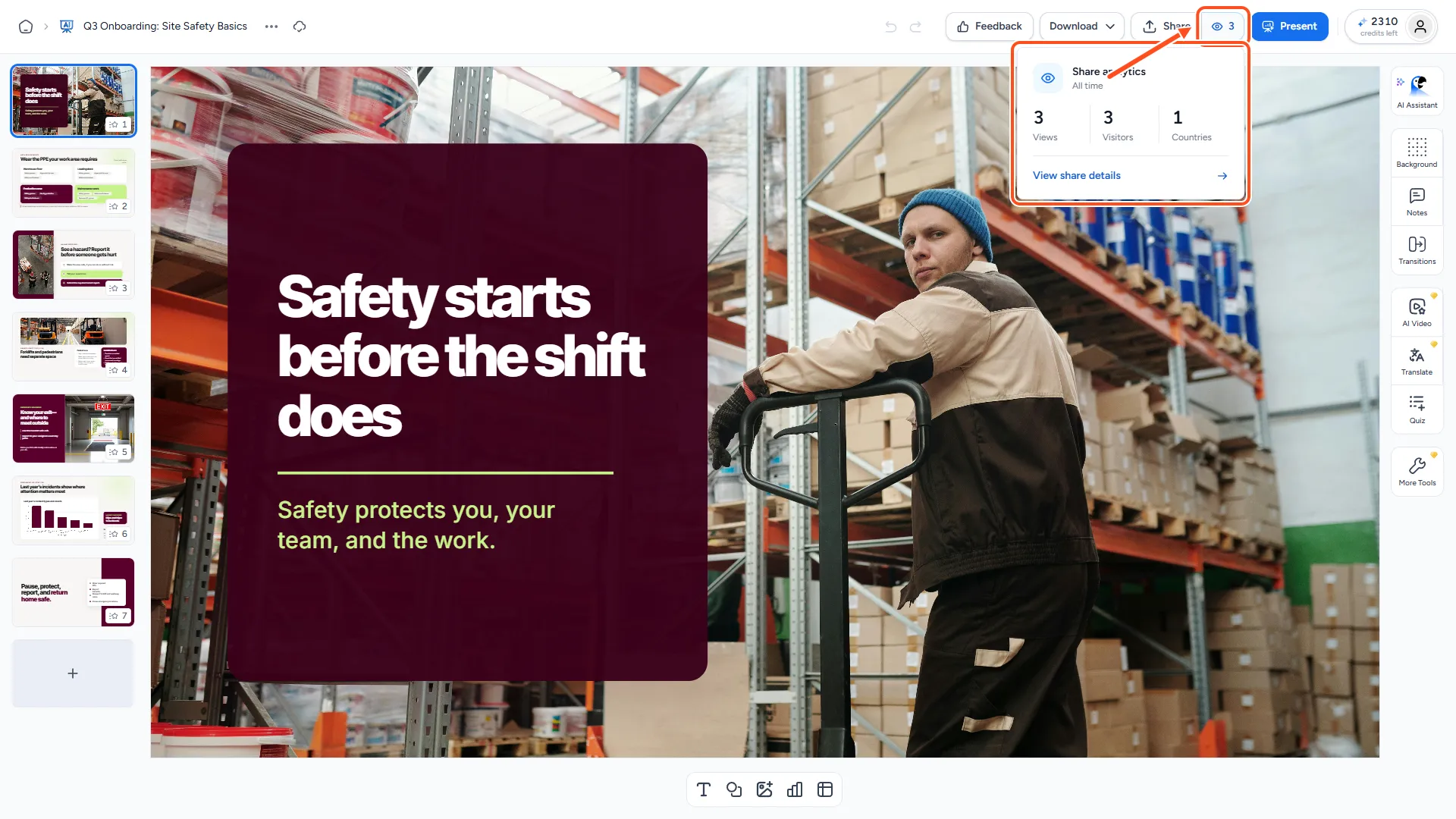
The view-count button only shows on computers, and only while Anyone with the link is on.
Step 2: See who viewed your AI video
- Open your video project. Under Generated Videos, click the three-dot menu on a finished video and click Share.
- Make sure the link is set to Anyone can access. The Share analytics section appears below it.
- Read Views, Visitors and Countries at the top.
- Under Identified viewers, you see the three most recent signed-in viewers with their country.
- If there are more than three, click View all to see the full list. For very popular videos, the list shows the 500 most recent viewers.
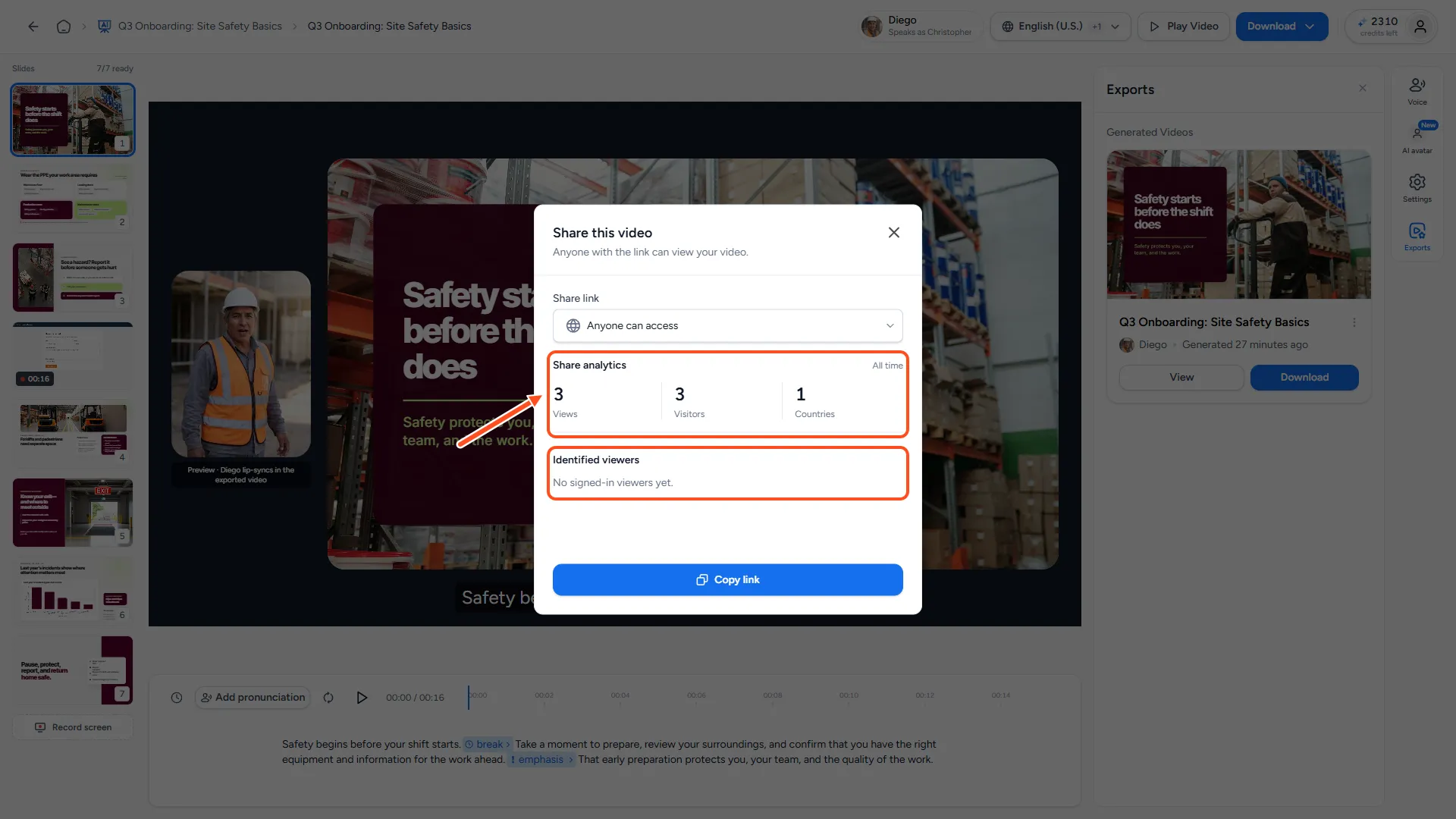
Presentations in a team workspace show the same Share analytics section, including Identified viewers, in their Share dialog.
Troubleshooting
- I don't see the view-count button. It appears only on a computer, only when the link is set to Anyone with the link, and only after the analytics have loaded. On a phone, open SlideSpeak on a computer instead.
- The numbers are lower than expected. Visits through an invitation email, your own visits and visits while the link was turned off aren't counted.
- A viewer isn't in Identified viewers. They weren't signed in to SlideSpeak when they opened the link. They still count as a view and a visitor.
- "Analytics are unavailable right now." Close the dialog and open it again in a moment. If it keeps happening, contact support.
Need more help?
If you have any questions or need assistance, feel free to contact our support team at support@slidespeak.co