

Quizzes you create in SlideSpeak don't have to stay on paper. You can export any quiz as a QTI package, the standard format that learning management systems understand, and import it straight into Canvas or Schoology. Your questions, answer options, and correct answers come along, so students can take the quiz directly in your LMS and it's graded automatically.
Using D2L Brightspace? Brightspace works best with its own CSV format instead of QTI; follow our guide on how to import a quiz into D2L Brightspace.
Step 1: Open your quiz
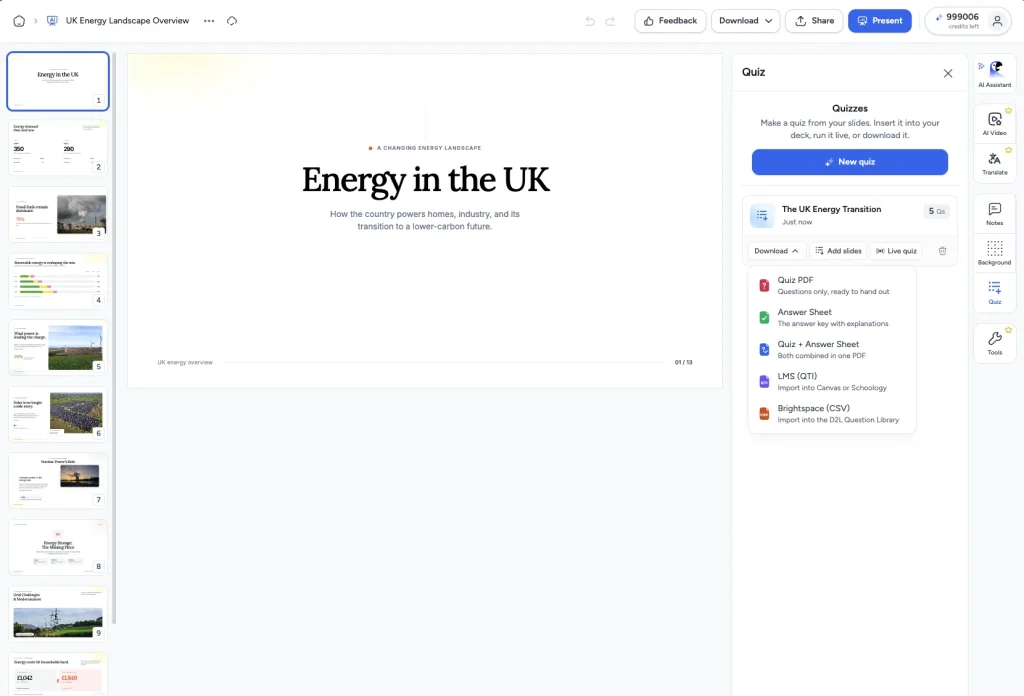
With your presentation open in the SlideSpeak editor, click Quiz in the right-hand side panel. You'll see the quizzes you've already generated for this presentation, each with its own Download menu.
Don't have a quiz yet? Click New quiz, or follow our guide on how to create a quiz from a presentation.
Step 2: Download as LMS (QTI)
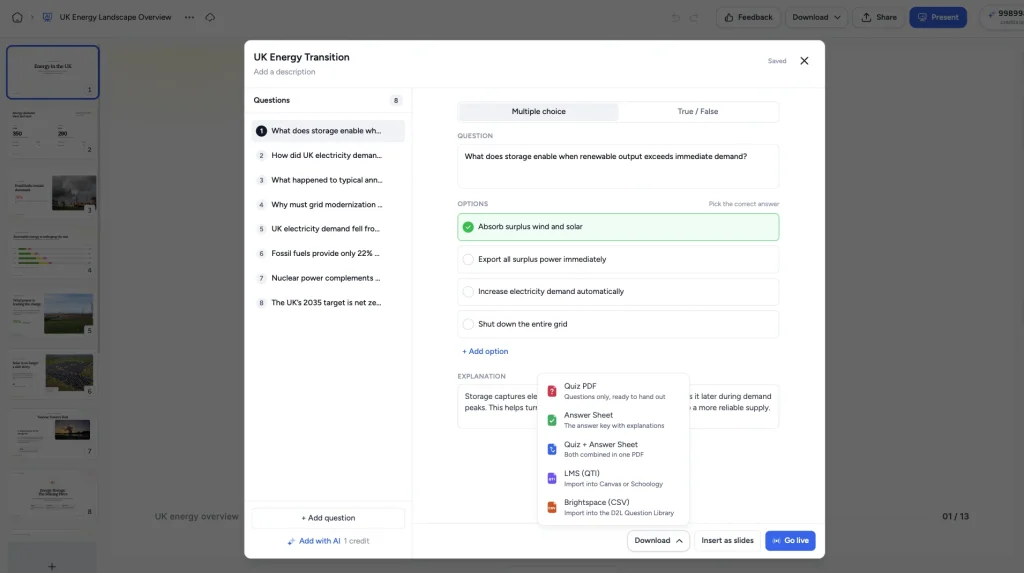
Click Download, either on the quiz card in the Quiz panel or at the bottom of the quiz editor, and choose LMS (QTI). The other options give you PDFs (the quiz, the answer sheet, or both combined) or a Brightspace CSV; the QTI option gives you a package built for Canvas and Schoology.
Step 3: Import the QTI file into Canvas
Here is the full flow in Canvas, from upload to a published quiz. Using Schoology? Skip to the section below.
1. Open Import Course Content
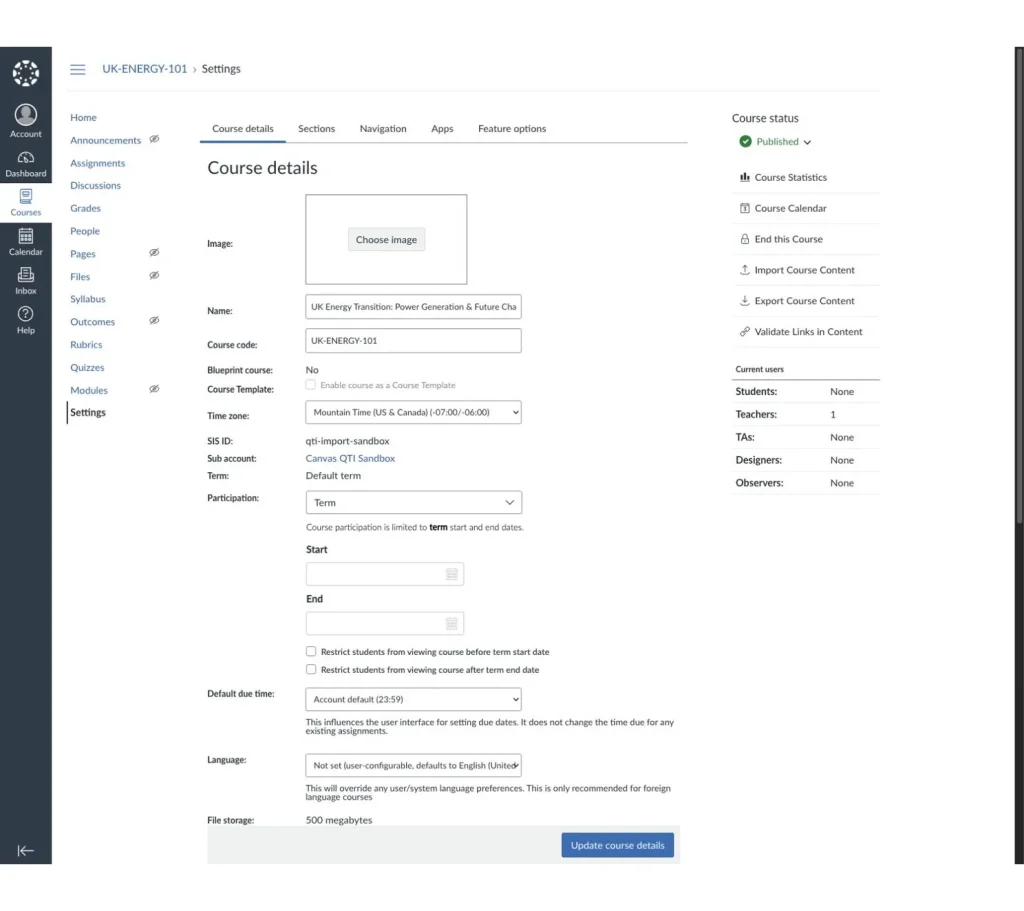
Open your course and click Settings at the bottom of the course navigation menu. Then click Import Course Content in the sidebar on the right.
2. Upload the QTI .zip file
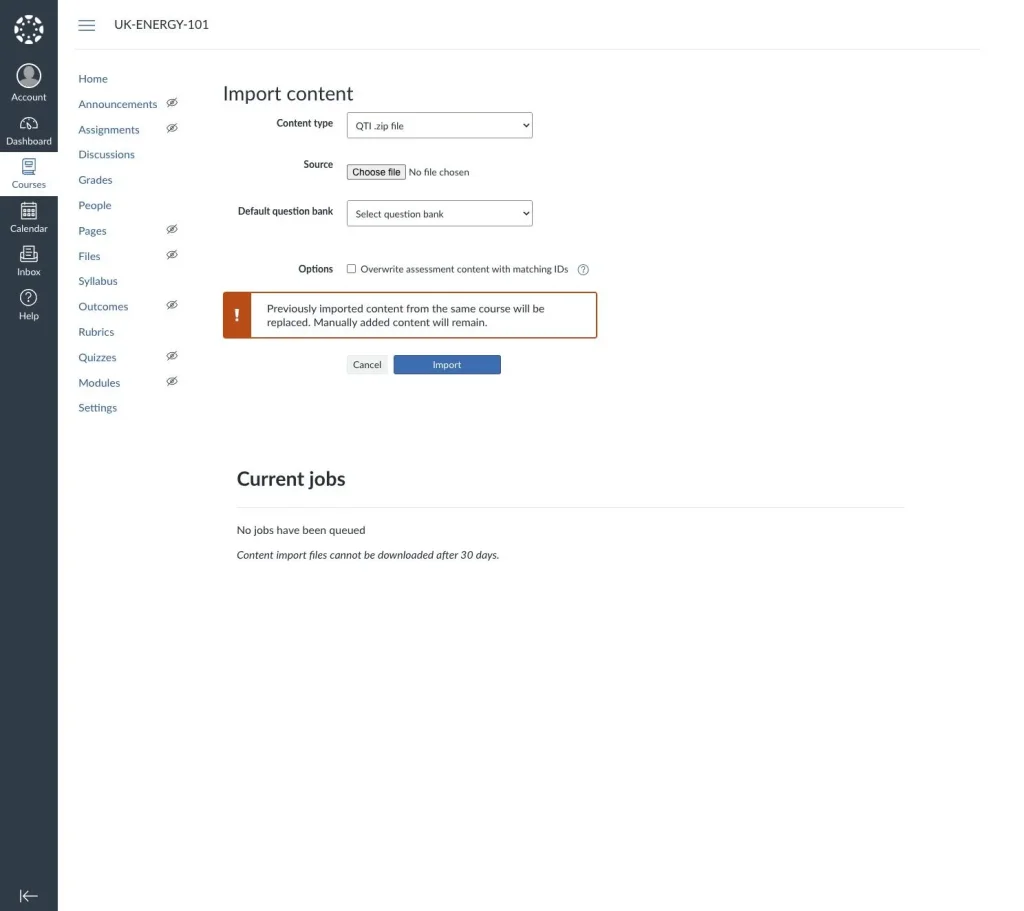
Set the content type to QTI .zip file, click Choose file, and select the package you downloaded from SlideSpeak. You can leave the question bank dropdown on its default. Click Import. Canvas shows a warning that importing the same package again replaces the earlier copy; for a first import you can ignore it.
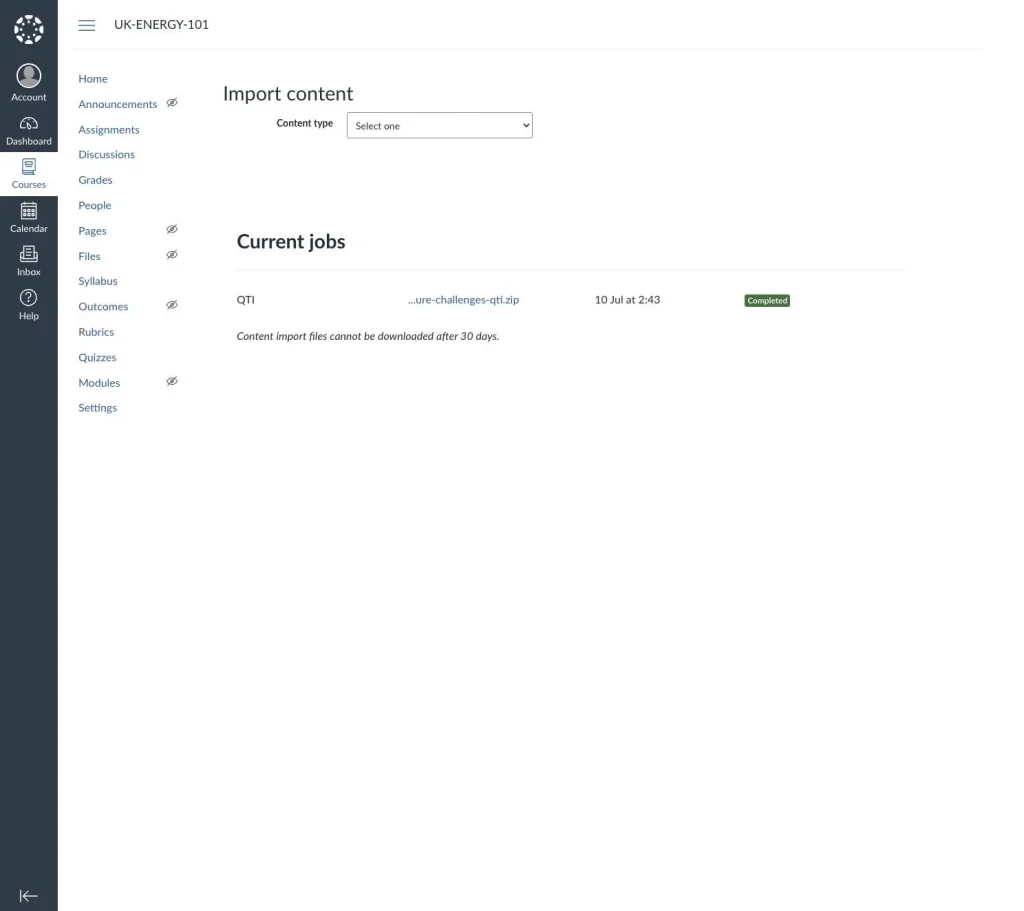
3. Wait for the import to finish
Your upload appears under Current jobs. A typical SlideSpeak quiz takes less than a minute; the status flips from Queued to Completed.
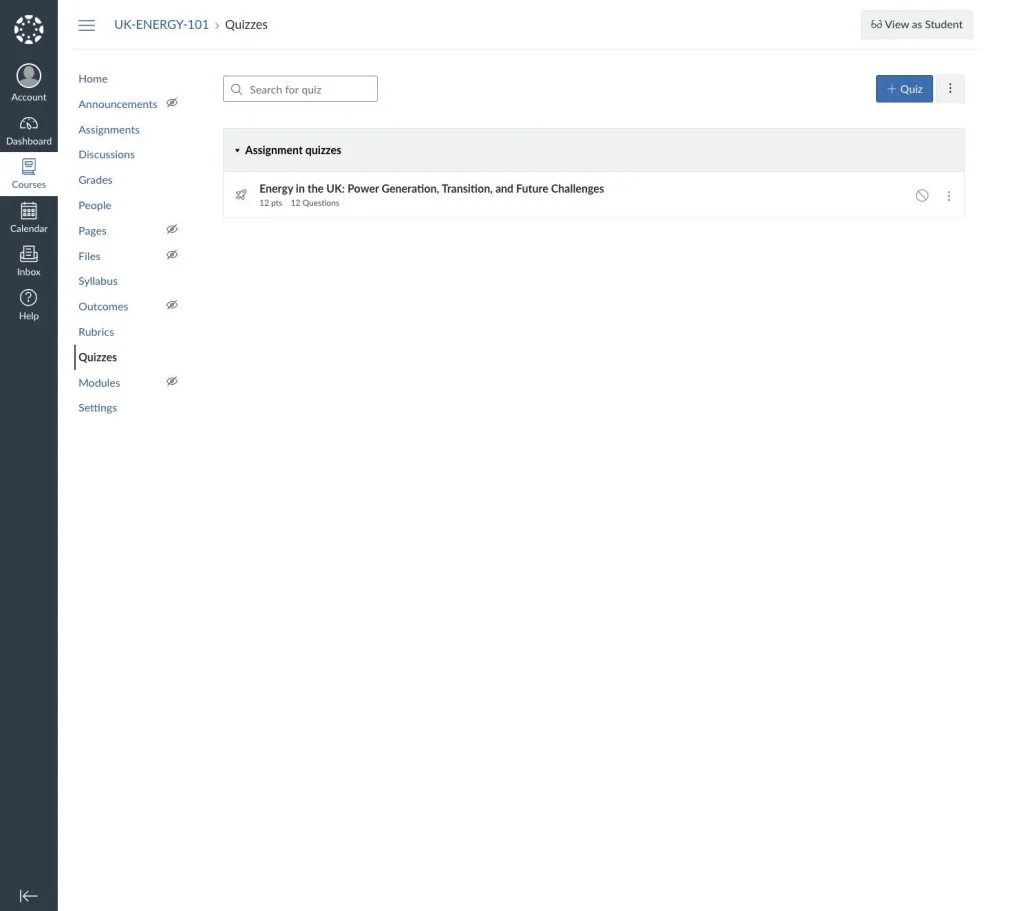
4. Find your quiz under Quizzes
Open Quizzes in the course navigation menu. Your quiz is there as a graded quiz, with every question and its points.
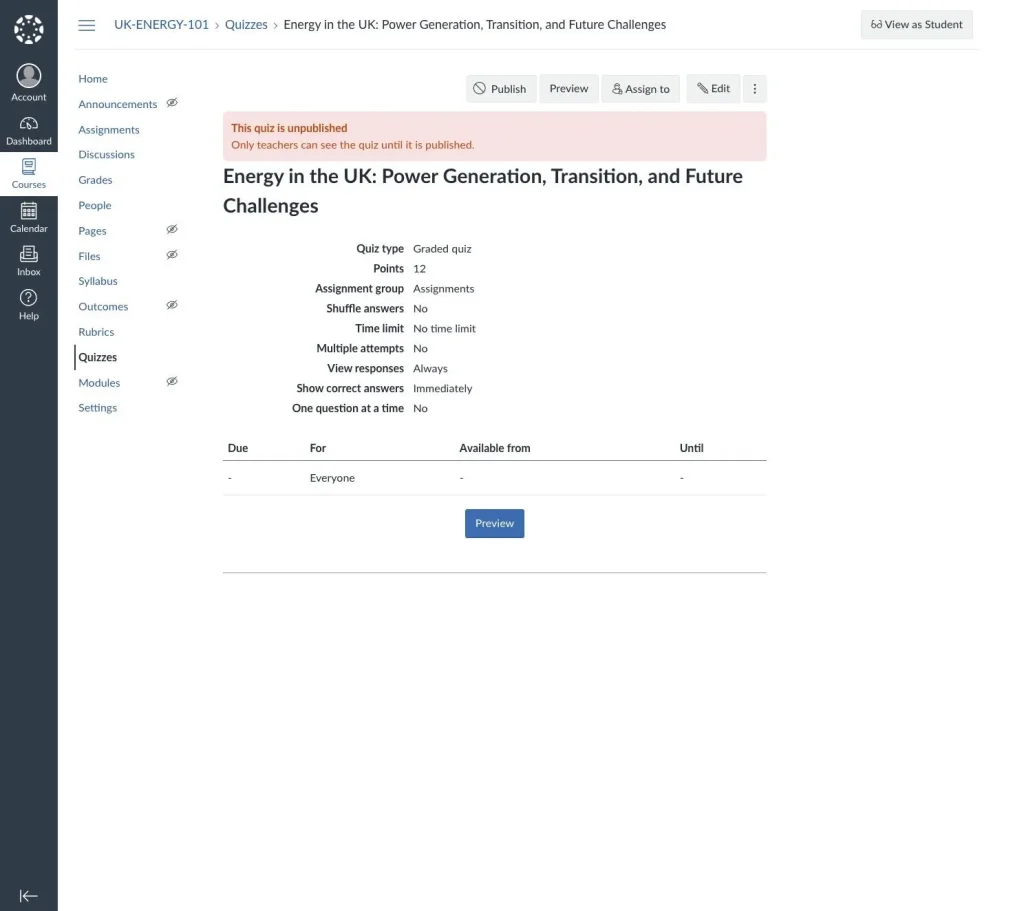
5. Review and publish
Click the quiz to check its settings. Canvas imports it as an unpublished graded quiz, so students can't see it yet. Click Edit if you want to set a due date, time limit, or number of attempts, then click Publish when you're ready.
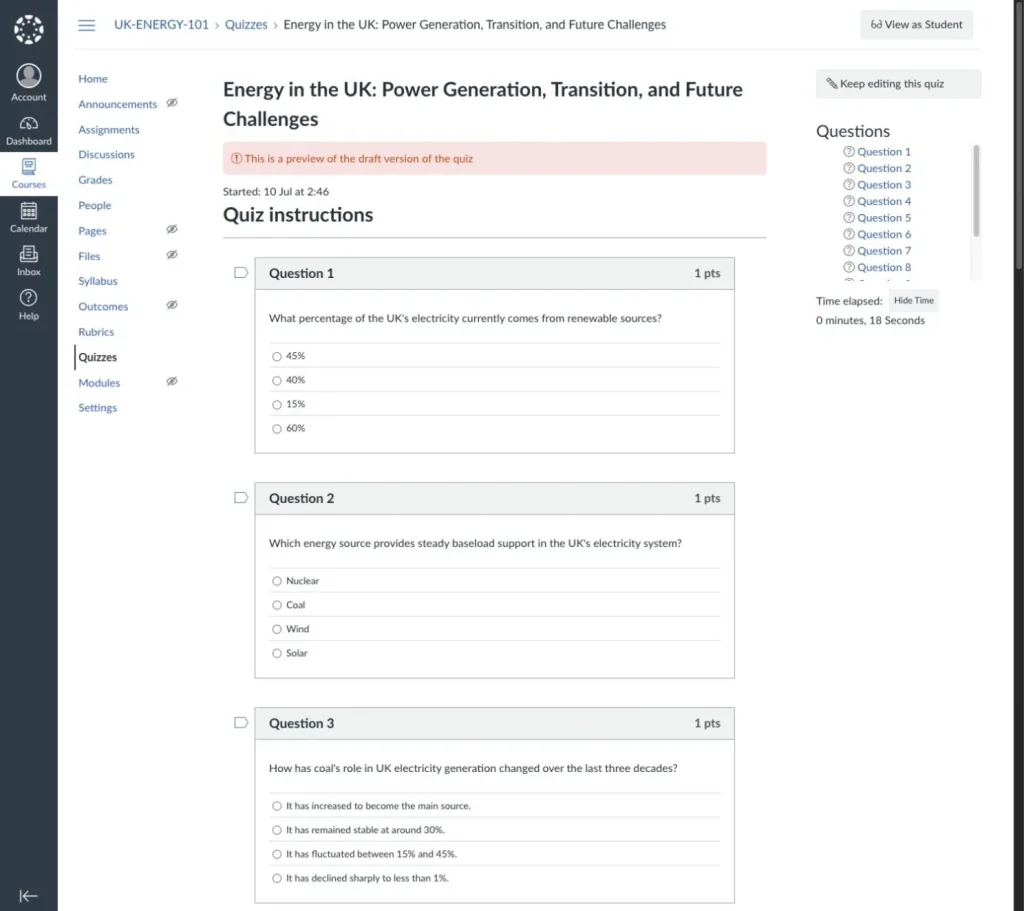
6. Preview it as a student
Want to see what students get? Click Preview on the quiz page and take it yourself. Answers are graded on the spot, the same way they will be for your students.
Using Schoology or Brightspace?
Schoology takes the same QTI package: in Resources, choose Import and select the QTI file. After the import finishes, review the quiz, assign it to your course, and you're done. Points, due dates, and grading all work the way they do for quizzes built natively in Schoology.
Brightspace users should skip QTI: SlideSpeak has a dedicated Brightspace (CSV) export that goes straight into the D2L Question Library. Follow our guide on how to import a quiz into D2L Brightspace.
That's it!
From slides to a graded LMS quiz in three steps: generate the quiz in SlideSpeak, export it as QTI, and import it into Canvas or Schoology. If you'd rather hand the quiz out on paper, the same Download menu also gives you the quiz and answer sheet as PDFs.
Need more help?
If you have any questions or need assistance, feel free to contact our support team at support@slidespeak.co