

Quizzes you create in SlideSpeak work in D2L Brightspace too. Export the quiz as a Brightspace CSV, upload it to the Question Library in your course, and your questions arrive with their answer options, correct answers, points, and feedback. From there you can drop them into any Brightspace quiz and grade them the same way as questions you built in Brightspace itself.
Step 1: Export your quiz from SlideSpeak
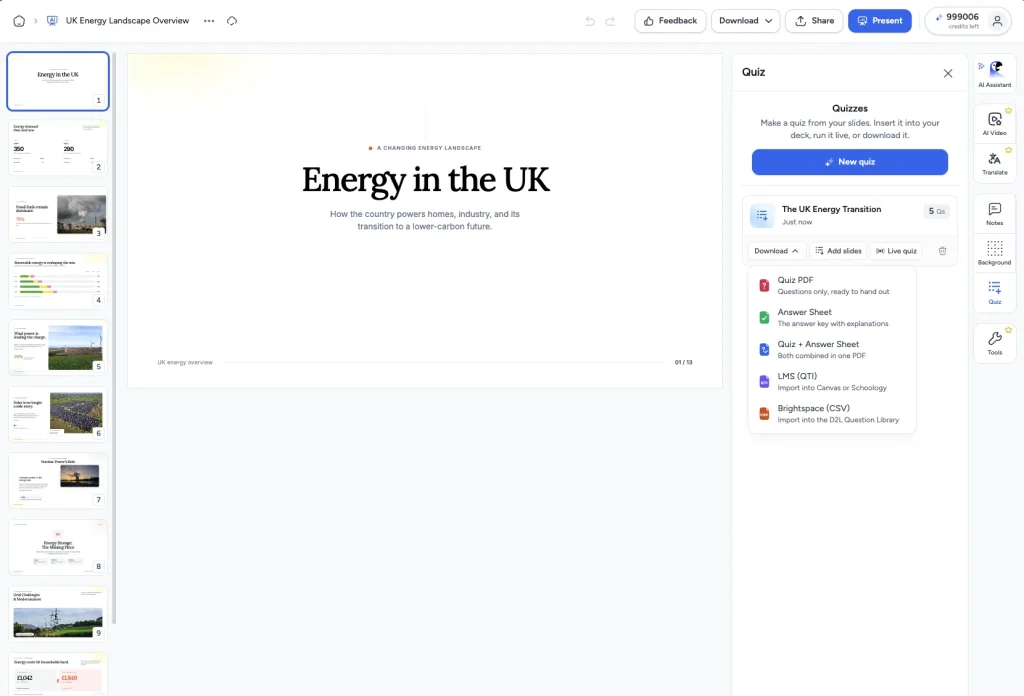
With your presentation open in the SlideSpeak editor, click Tools in the right-hand side panel and select Quizzes. Find your quiz, click Download, and choose Brightspace (CSV). The file that lands in your downloads folder is a CSV in the exact format Brightspace expects.
Don’t have a quiz yet? Follow our guide on how to create a quiz from a presentation.
Step 2: Open Quizzes in your Brightspace course
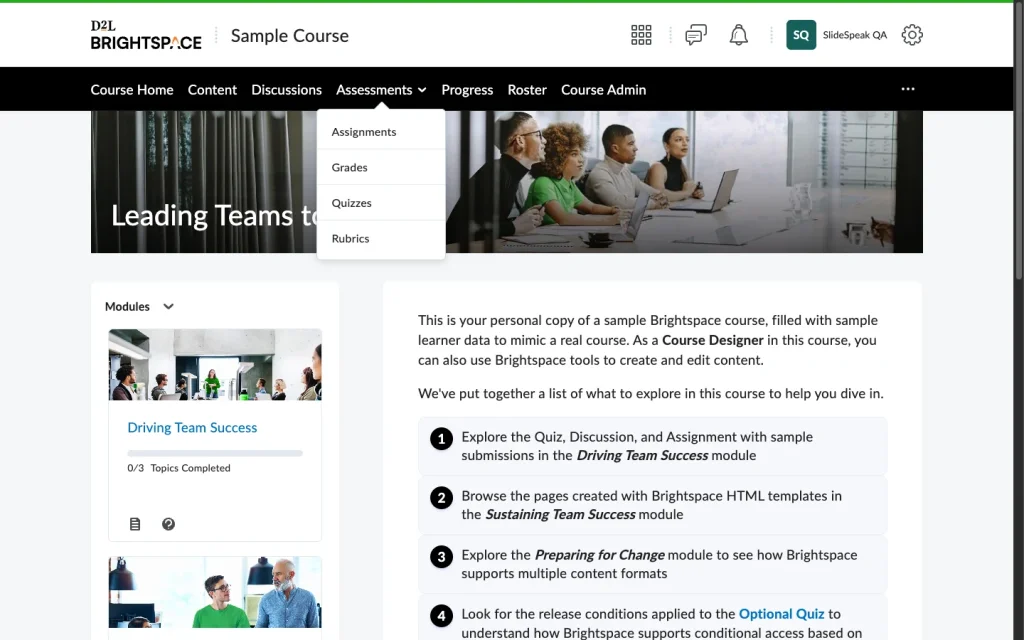
Log in to Brightspace and open the course you want the quiz in. In the course navigation bar, click Assessments and select Quizzes.
Step 3: Go to the Question Library
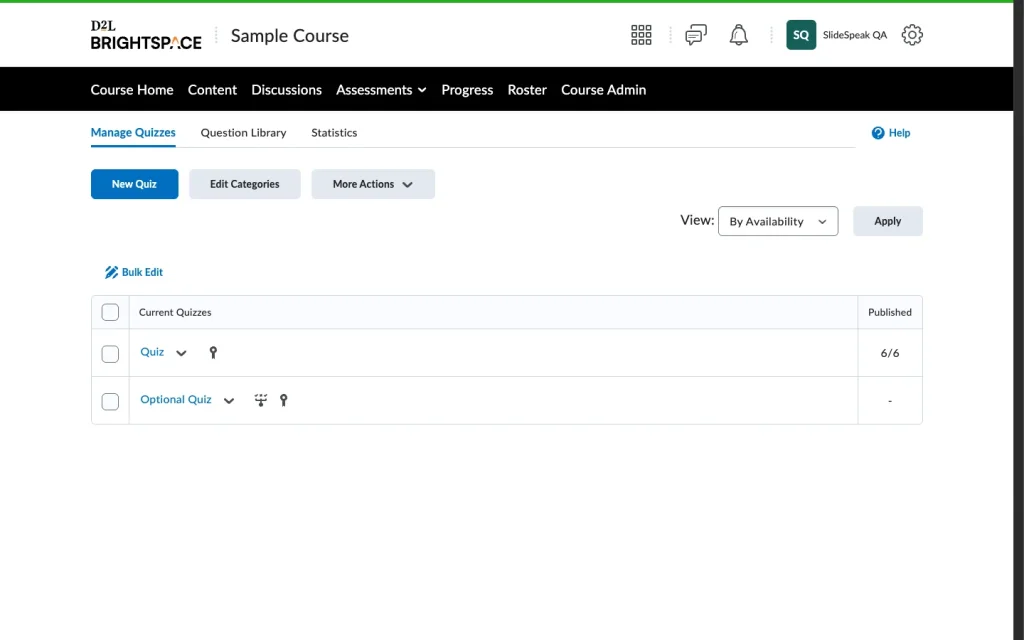
Brightspace keeps imported questions in the Question Library, a per-course bank you can reuse across quizzes. On the Quizzes page, click the Question Library tab.
Step 4: Select Import, then Upload a File
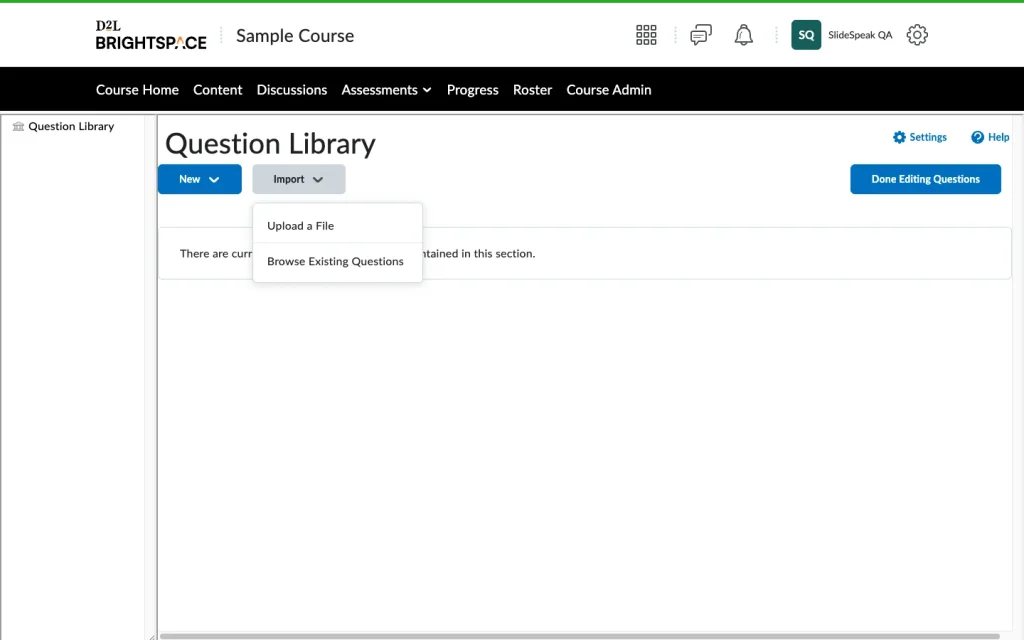
In the Question Library, click Import and select Upload a File.
Step 5: Upload the CSV from SlideSpeak
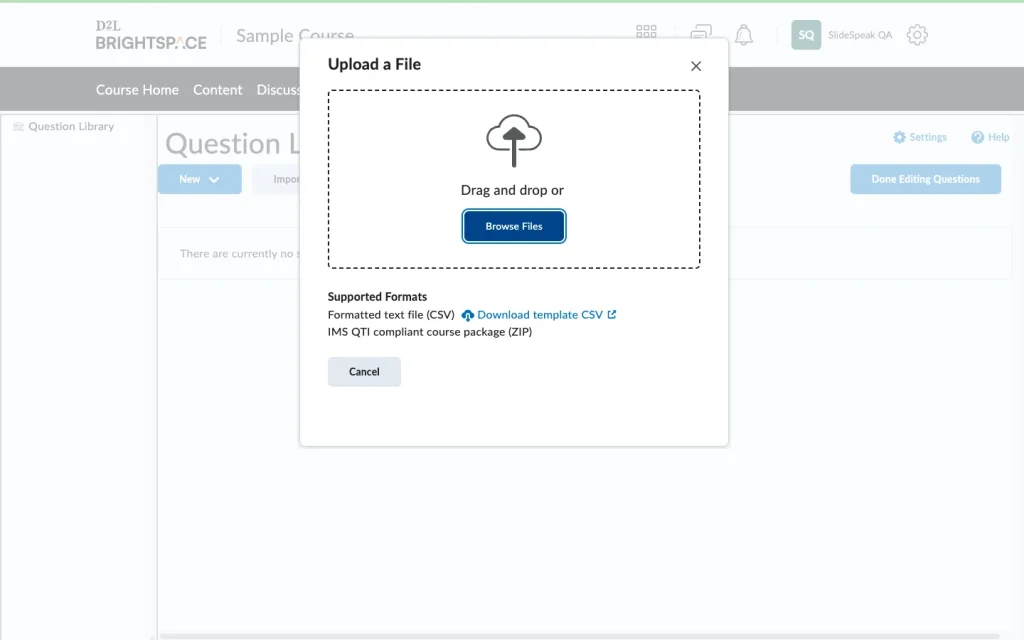
Drag the CSV you downloaded from SlideSpeak into the dialog, or click Browse Files and select it. The dialog lists the supported formats; your SlideSpeak export matches the “Formatted text file (CSV)” option.
Step 6: Review and import the questions
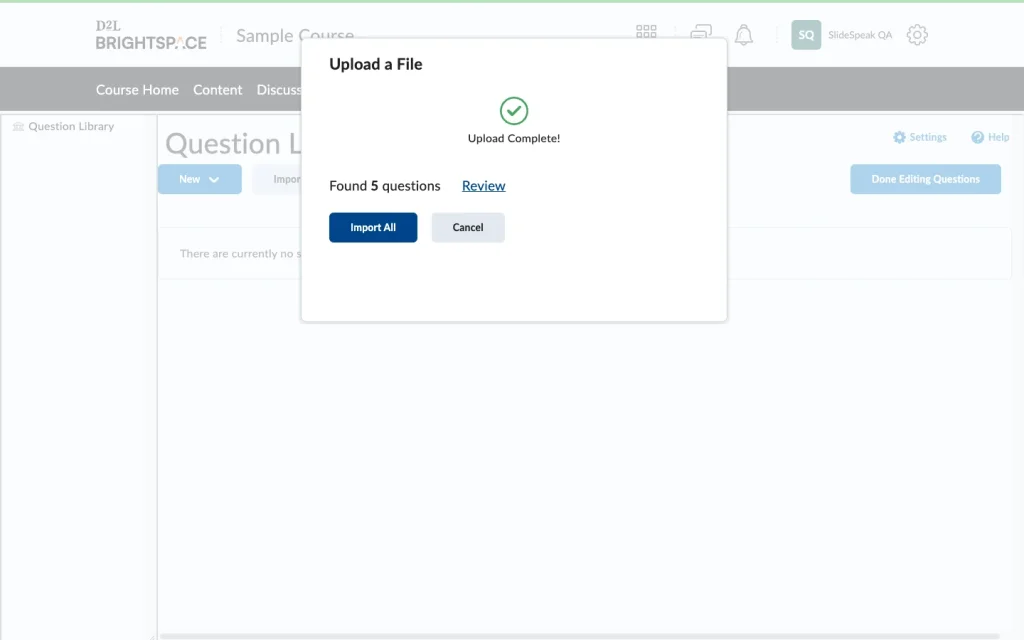
Brightspace reads the file and reports how many questions it found. Click Review if you want to check each question first; you can preview any of them and untick the ones you don’t want. Click Import All to finish.
Step 7: Your questions are in the Question Library
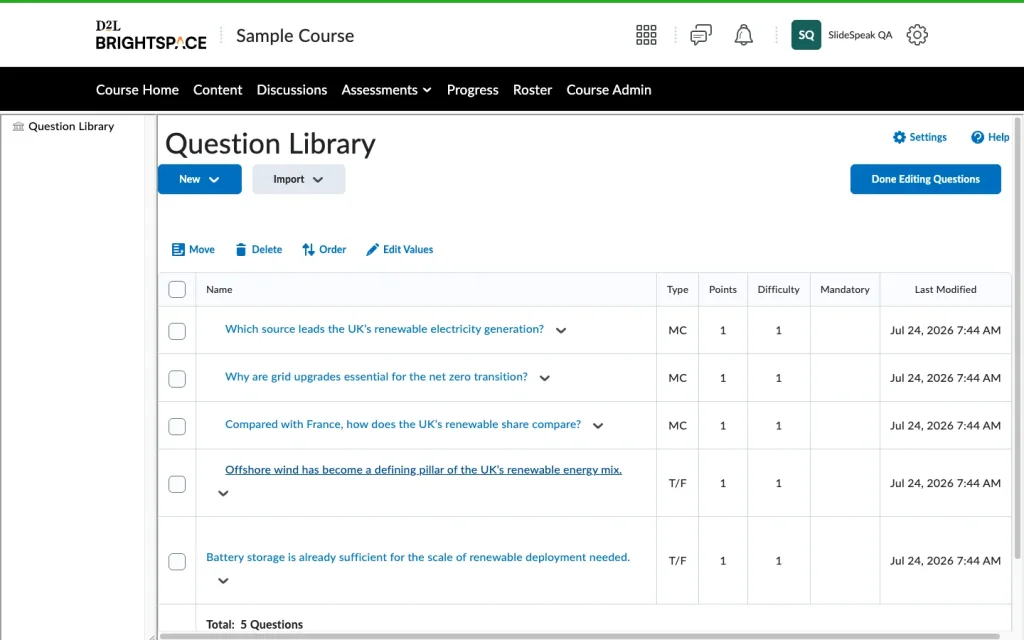
The imported questions now sit in the Question Library, each with its type and points. Multiple-choice and true/false questions keep their correct answers and answer feedback, so grading works out of the box.
Step 8: Add the questions to a quiz
To put the questions in front of students, go back to Manage Quizzes and click New Quiz (or open an existing one). Click Add Existing, choose Browse Question Library, select your imported questions, and add them. Set a due date and attempts if you like, then make the quiz visible to students.
That’s it!
From slides to a Brightspace quiz in one upload: generate the quiz in SlideSpeak, download it as a Brightspace CSV, and import it through the Question Library. Using Canvas or Schoology instead? Those work with a QTI package; see our guide on exporting a quiz as QTI.
Need more help?
If you have any questions or need assistance, feel free to contact our support team at support@slidespeak.co