

AI voices sometimes get names wrong, like your company name, a product, or an acronym such as "OSHA". The pronunciation glossary fixes that once for all your videos. You tell SlideSpeak how a word should sound, and every narration you generate from then on says it that way. Captions keep the original spelling.
Before you start
- Plan: Pronunciations are part of AI Video, so you need a paid plan (Premium, Premium Plus or Lifetime).
- Where it lives: Click your profile at the bottom left, choose Account Settings, then open the Personalization tab. The glossary is the Pronunciations section.
- Limit: You can add up to 200 words or phrases.
- When it applies: New narration audio uses the glossary. Audio you already generated doesn't change until you regenerate it (see Step 6 below).
Step 1: Open Pronunciations
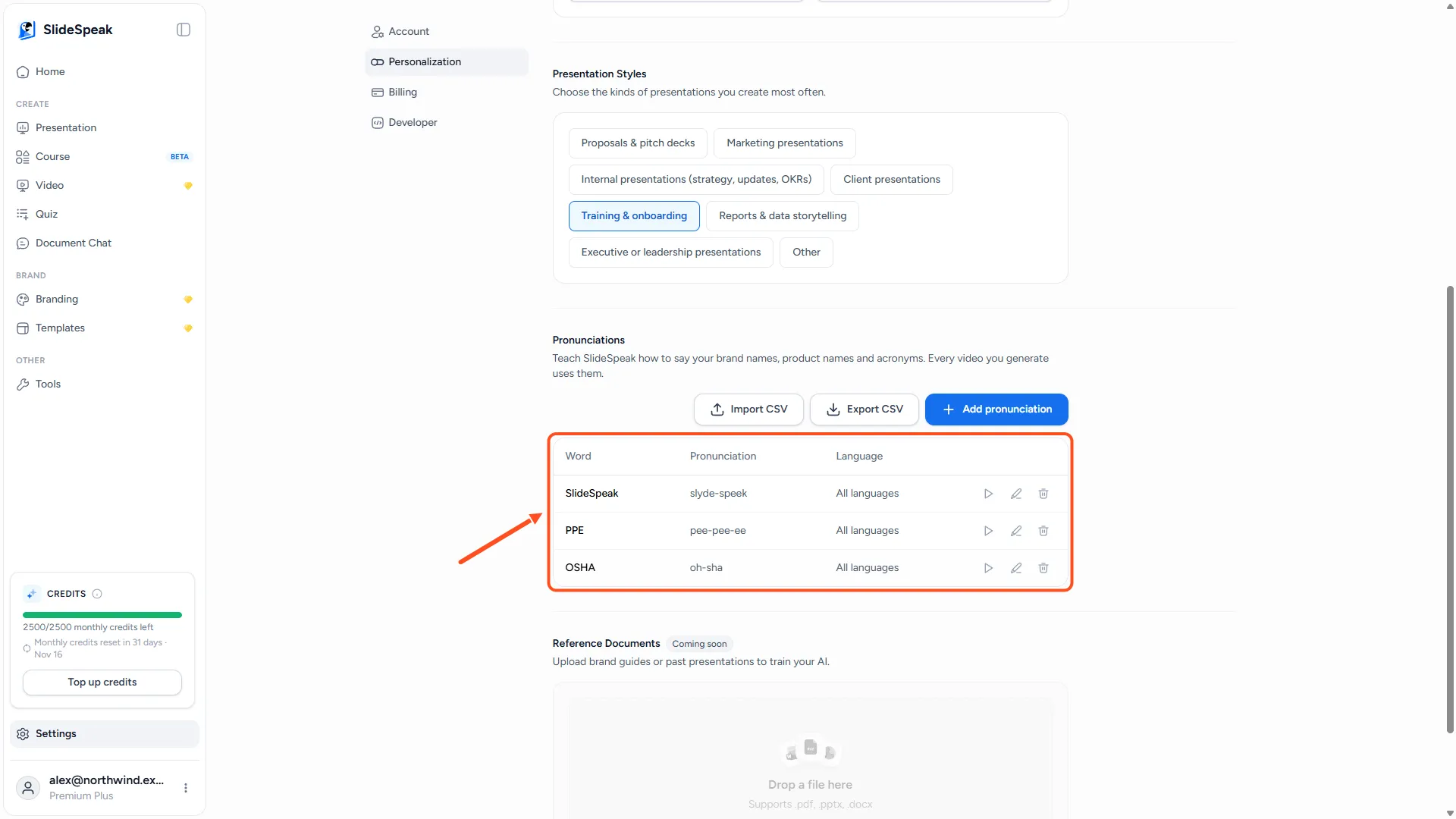
Go to Account Settings → Personalization and scroll to Pronunciations. You'll see your saved words with buttons to play, edit or delete each one.
Step 2: Add a word and how it sounds
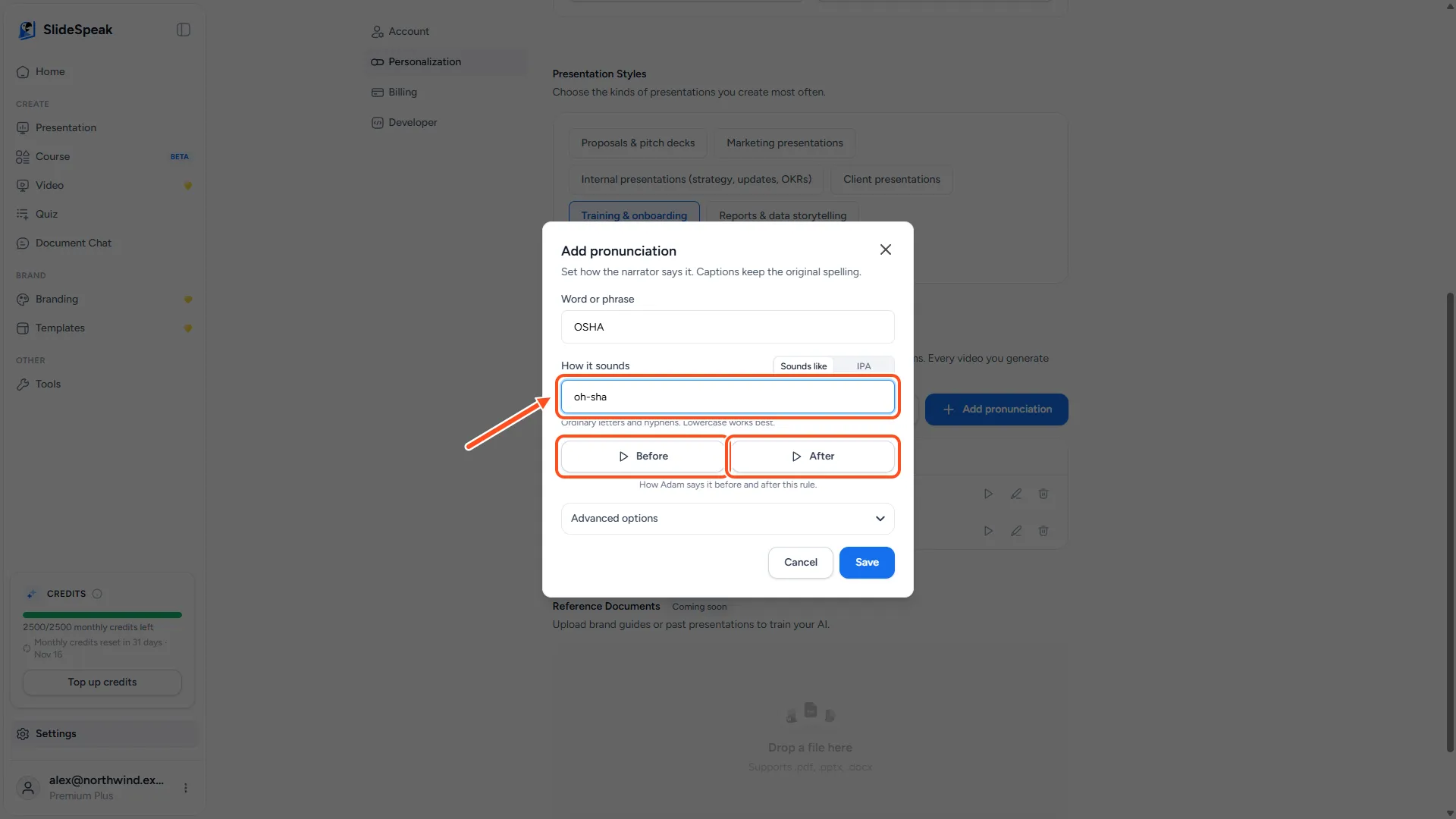
- Click Add pronunciation.
- In Word or phrase, type the word as it's written, for example
OSHA. It needs at least 2 characters. - Under How it sounds, pick a format:
- Sounds like: Spell the word the way it's said, using ordinary letters and hyphens, for example
oh-sha. Lowercase works best. This works with every voice and is the easiest choice. - IPA: Enter the word in the International Phonetic Alphabet and pick its language. IPA is more precise, but IPA symbols differ between languages, so the rule only applies to videos in the language you pick. It also only works with some standard voices. If the preview says an IPA rule can only be previewed with an Azure voice, use Sounds like instead.
- Sounds like: Spell the word the way it's said, using ordinary letters and hyphens, for example
Step 3: Preview the result
Below the spelling, click Before to hear how the voice says the word now, and After to hear it with your rule. If both sound the same, SlideSpeak tells you the rule doesn't change how the voice says the word. Try a different spelling, for example split it into more syllables or add hyphens.
Step 4: Set advanced options (optional)
Click Advanced options for more control:
- Apply this in: Choose Every language or One language. Use One language when a word should only be respelled in, say, your English videos. (This option is only shown for Sounds like.)
- Also matches: SlideSpeak adds common variants of the word automatically, such as plurals and possessives in English. Untick any variant you don't want the rule to cover.
- Match case exactly: Turn this on when capitals matter, for example so "US" is respelled but "us" isn't.
- Never translate this word: Keeps the word as it is when SlideSpeak translates your content, for example in a translated video.
Click Save.
Step 5: Add a word straight from your script
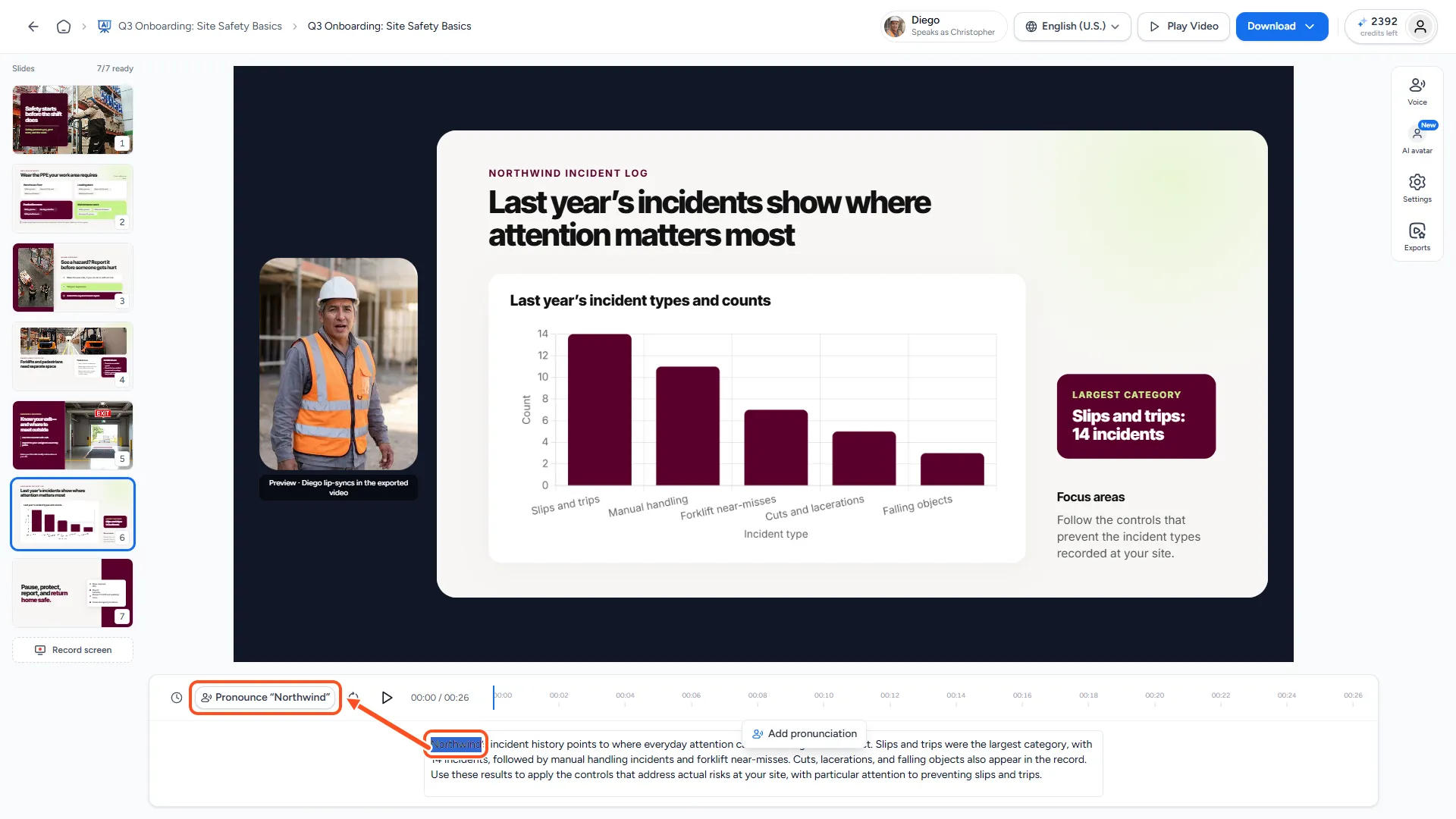
You don't have to leave the video editor. In the narration script of any slide:
- Select the word the voice gets wrong.
- Click Pronounce “your word” above the script.
- Fill in how it sounds and click Save.
Words that are already in your glossary are underlined with dots in the script. Click one to see how it's said, play it, or jump to Manage glossary.
Step 6: Update videos you already made
A new or changed pronunciation applies the next time narration audio is generated. For a video you already made, regenerate the audio of the slides that use the word. See How do I fix narration that failed or is out of sync?.
The same goes for deleting a word: videos you've generated keep the old pronunciation until you regenerate them.
Import or export your glossary as CSV
Use a spreadsheet to add many words at once, or to copy your glossary to another account.
- Export CSV downloads your glossary as
slidespeak-pronunciations.csv. - Import CSV adds the words in a file. Words that already exist are updated, new ones are added.
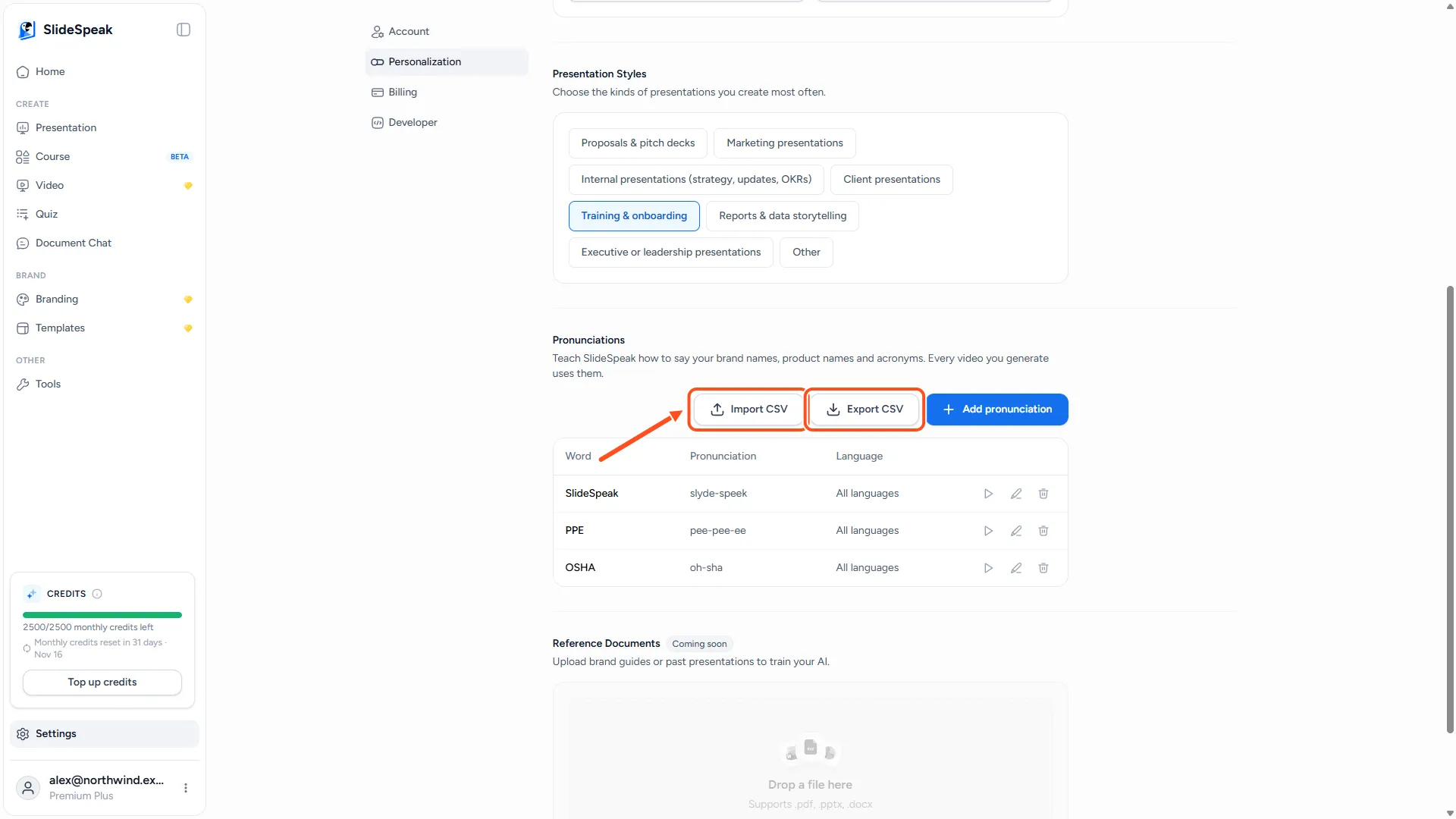
The easiest way to get the right format is to export first and edit that file. The columns are term, respelling, ipa, respellingScope, ipaLocale, caseSensitive and doNotTranslate. A file can be up to 256 KB and 1,000 rows.
If any row has a problem, nothing is imported. SlideSpeak shows "Nothing was imported" with the line numbers to fix. Fix those rows and upload the file again.
Troubleshooting
- I can't find Pronunciations. You need a paid plan. On the Free plan the section says "Pronunciations are part of AI Video. Upgrade to a paid plan to add them."
- "Add pronunciation" is greyed out. You've reached 200 entries. Delete words you no longer need.
- The video still says it wrong. The audio was generated before you added the word. Regenerate that slide's audio.
- The captions show my respelling. They shouldn't. Captions always show the word as it's written in the script. If you typed the respelling into the script itself, change the script back and use the glossary instead.
Need more help?
If you have any questions or need assistance, feel free to contact our support team at support@slidespeak.co