

Each slide in your AI video has its own narration audio. Sometimes that audio needs a refresh. You may have edited a slide's script, so the voice no longer says what's written. Or the audio for a slide couldn't be generated. SlideSpeak marks these slides for you and lets you regenerate the audio for one slide or for all of them at once.
Before you start
- Plan: Regenerating narration needs a paid plan (Premium, Premium Plus or Lifetime).
- Credits: Each regenerated slide costs the voice's narration rate: 5 credits for a standard voice, 8 for a custom voice, 12 for a premium voice. The exact cost is shown before you confirm. See How do credits work in SlideSpeak?.
- Where it lives: The slide tray and the narration controls in the video editor.
What the warnings mean
| You see | What it means |
|---|---|
| A spinning icon on a slide | "Narration audio is generating", or waiting to generate. Give it a moment. |
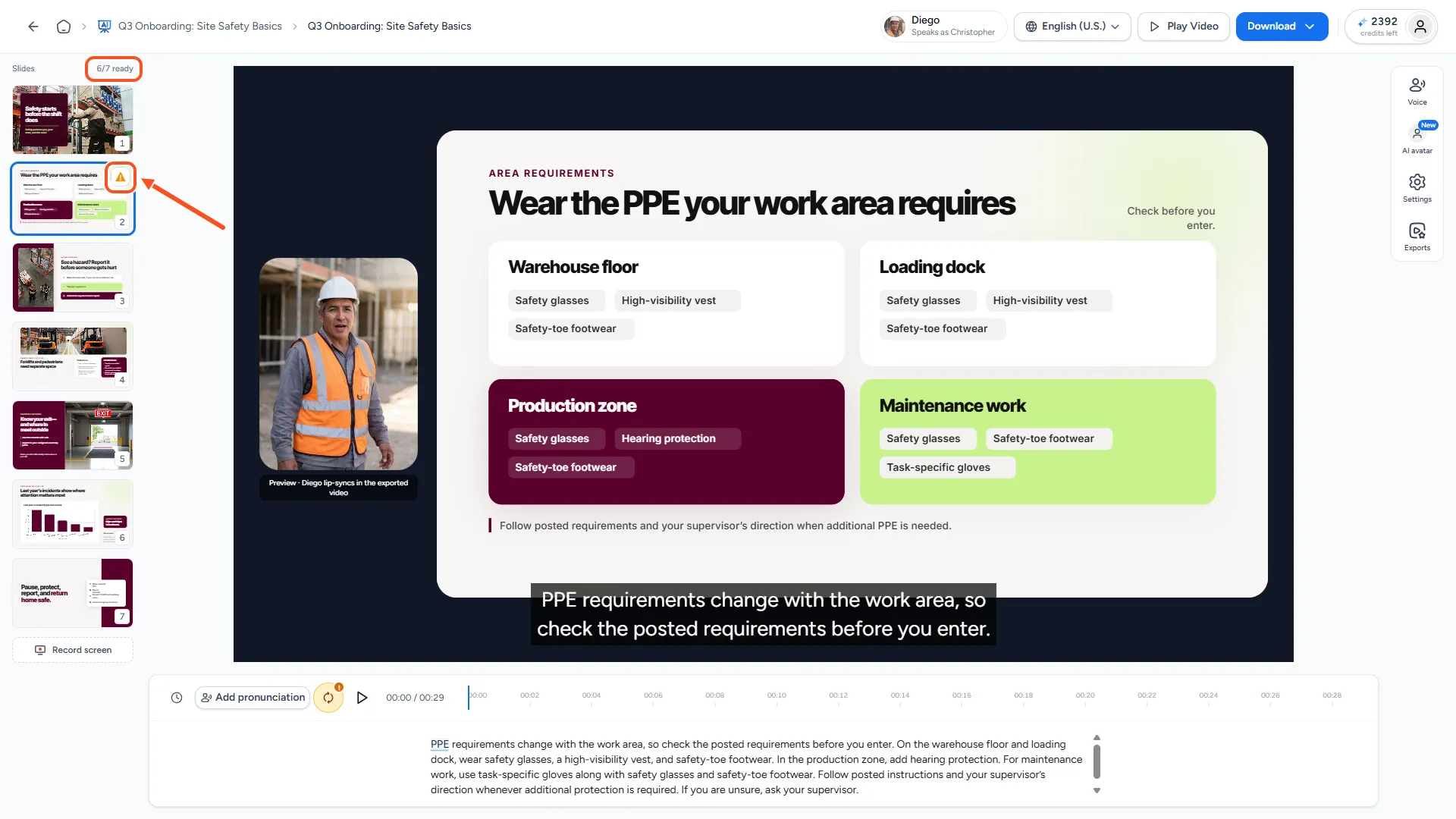
| A warning icon on a slide | "Narration audio is out of sync". You changed the script after the audio was made, so the voice still says the old text. |
| An error icon on a slide | "Narration audio failed". The audio for this slide couldn't be generated. |
The top of the slide tray also shows how many slides have audio, for example "7/8 ready", or how many are still generating.
Step 1: Find the slides that need attention
Look for the icons in the top right corner of the slide thumbnails. Hover over an icon to see what it means.
Step 2: Fix a single slide
- Click the slide in the slide tray.
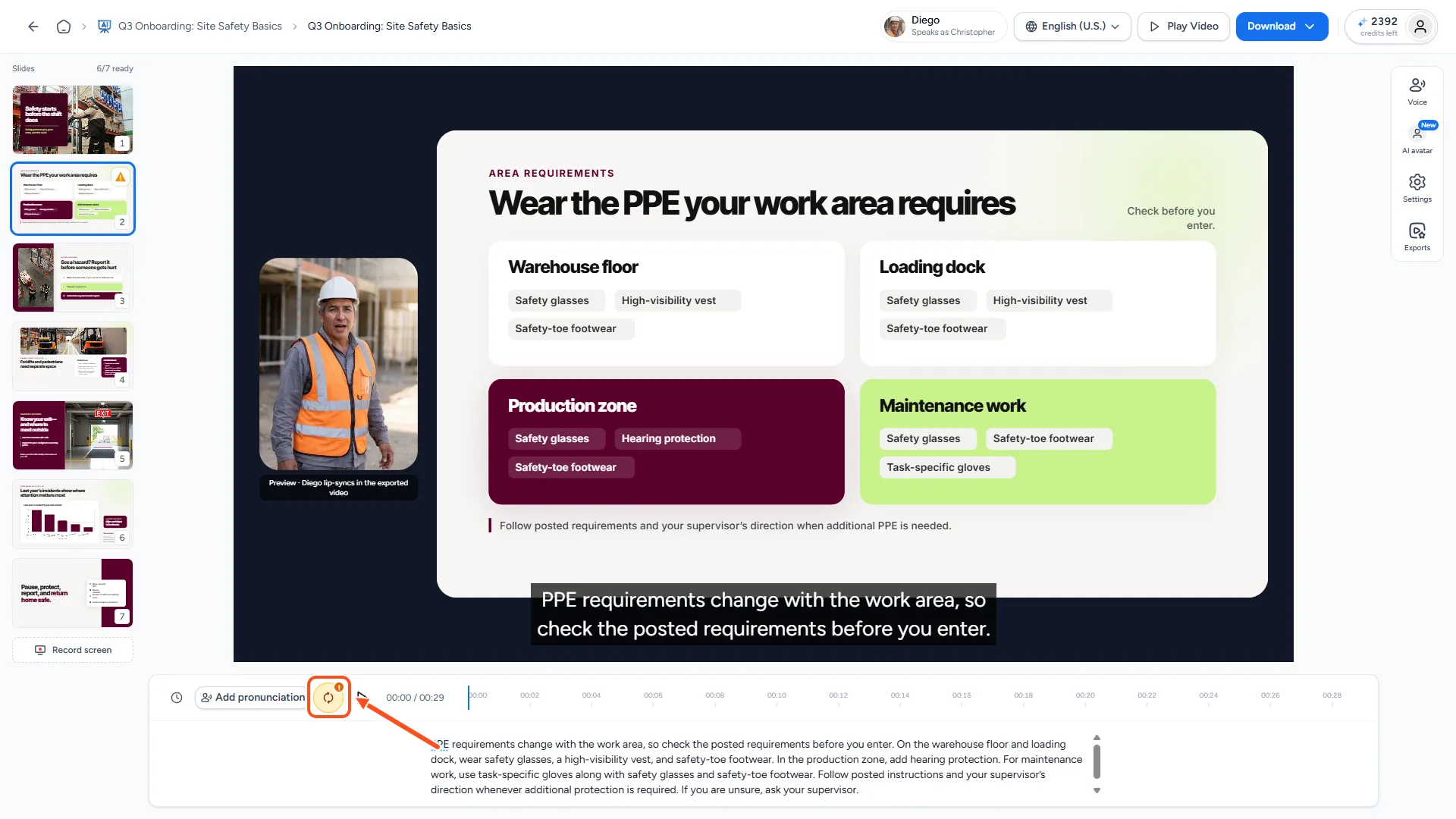
- In the narration controls above the script, click the regenerate button (the circular arrow). When the script has changed, the button is amber with a "!" badge.
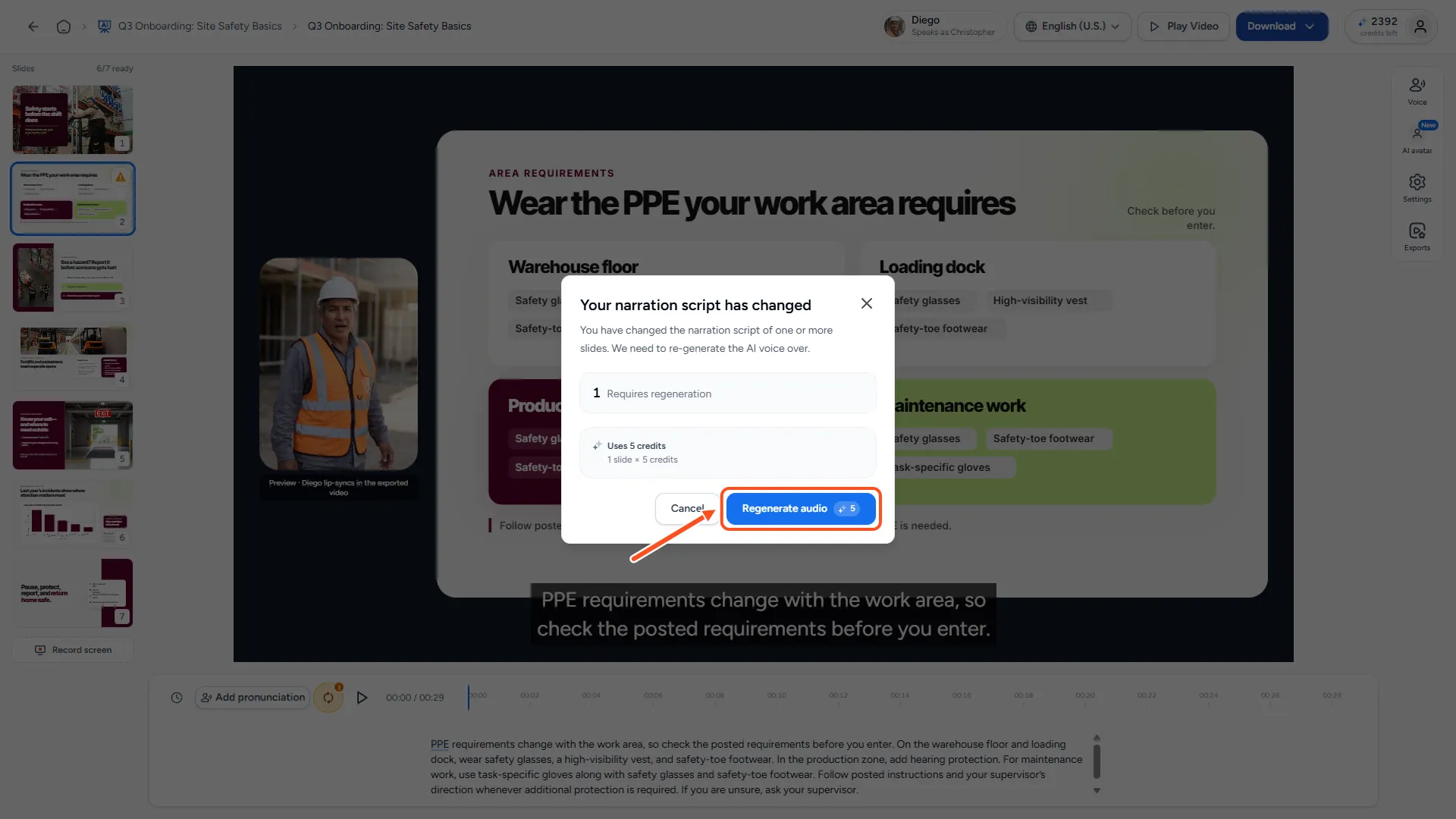
- "Regenerate narration audio?" explains that the audio is made again from the current script and replaces the old audio. Check the credit cost.
- Click Regenerate audio.
The slide shows a spinner while the new audio is made. When it's gone, click play to listen.
You can use the regenerate button on any slide, even one without a warning. That's handy after you add a word to your pronunciation glossary, because a glossary change doesn't mark slides as out of sync.
Step 3: Fix all slides at once
When several slides need new audio, fix them together:
- Click Play Video in the top bar, or open Download and choose Export video or PowerPoint with narration.
- SlideSpeak opens a dialog before it plays or exports:
- "Your narration script has changed" when you edited scripts.
- "Some slides need new audio" when audio is missing or failed.
- The dialog counts the slides under "Requires regeneration" and "Failed", and shows the total credit cost.
- Click Regenerate audio (or Regenerate N audio tracks for several slides).
When the audio is ready, play the video or export it again. See How do I download my AI video?.
Changed your mind about an edit?
If you change a script back to exactly what it was, the warning goes away and you don't need to regenerate. Extra spaces don't count as a change.
Troubleshooting
- The Regenerate audio button asks me to top up. You don't have enough credits for the slides shown. Top up or upgrade, then try again.
- "Could not regenerate the narration audio." Wait a moment and try again.
- A slide fails again after regenerating. Try once more a little later. If it still fails, try another voice or contact us.
- "Narration audio is still generating. You can switch the voice once it finishes." Wait until every spinner is gone before you change the voice.
- The voice says a word wrong, but there's no warning. Add the word to your pronunciation glossary, then regenerate that slide.
- I want pauses or more emphasis. See How do I add pauses and emphasis to the narration?.
Need more help?
If you have any questions or need assistance, feel free to contact our support team at support@slidespeak.co