

You made a video in English and now your team in Spain needs it too. Instead of starting over, you can create a language version. SlideSpeak translates the slide text and the narration script, then voices it again in the new language. Your original video stays as it is.
Before you start
- Plan: Video translation is part of AI Video, so you need a paid plan (Premium, Premium Plus or Lifetime).
- Where it lives: The language button (globe icon) in the top bar of the video editor.
- Languages: You can translate into any language SlideSpeak supports. See what languages SlideSpeak supports.
- Credits: Each slide costs 1 credit for the translation plus the narration rate of the voice you pick: 5 credits for a standard voice, 8 for a custom voice, 12 for a premium voice. A 10-slide video with a standard voice costs 60 credits. If you turn on Auto-export video and your video has an AI avatar, the export adds 5 credits per slide. The dialog shows the exact total before you start. See How do credits work in SlideSpeak?.
Step 1: Open the language menu
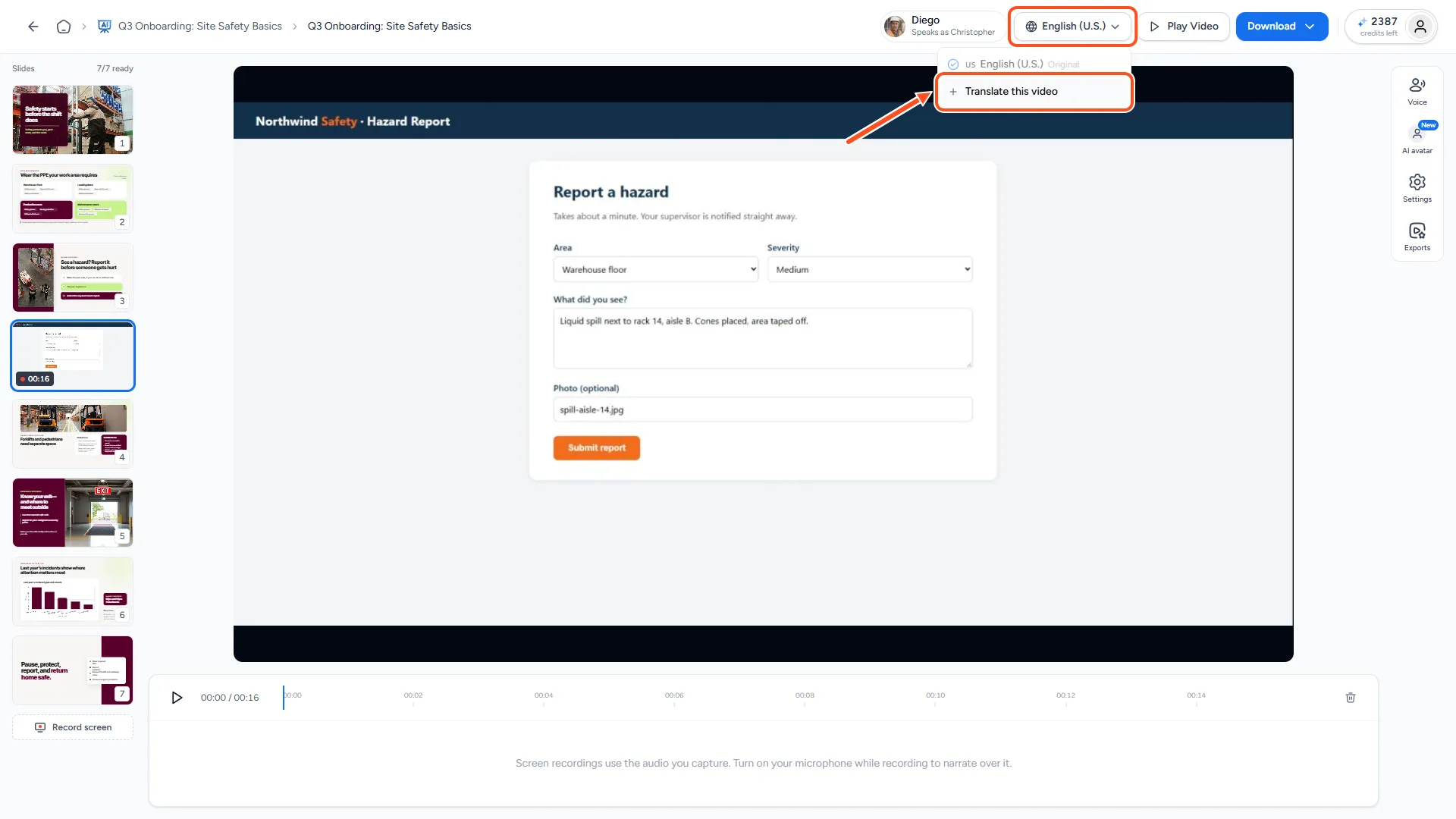
In the video editor, click the language button in the top bar. It shows the video's current language with a globe icon. Then click Translate this video.
Step 2: Choose the language and voice
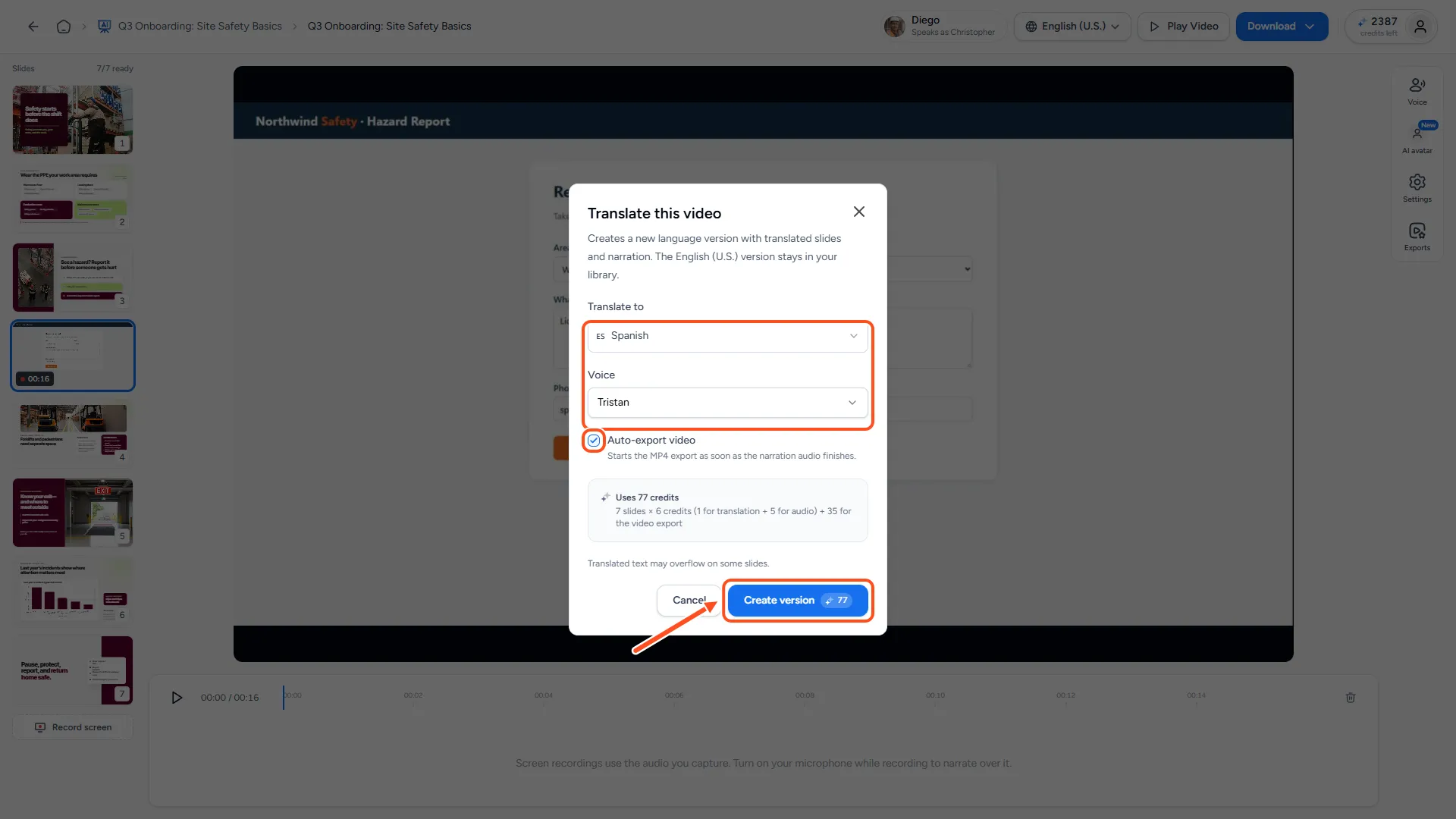
In the Translate this video dialog:
- Translate to: Search for and pick the language.
- Voice: Pick who narrates the new version. Your voices lists your custom voices, Standard voices lists the built-in voices for that language. Click the play icon next to a voice to hear it first.
- Auto-export video (optional): Tick this to start the MP4 export as soon as the narration audio finishes. Leave it off if you want to review the version first.
Check the credit total, then click Create version.
Step 3: Wait for the translation
SlideSpeak shows the progress: translating the slides, generating the narration audio, and exporting the video if you chose Auto-export video. Translation usually takes under a minute.
You don't have to wait. Click Continue in background and keep working. Once the slides are translated, you can click Open video project to open the new version while the narration finishes.
Step 4: Switch between language versions
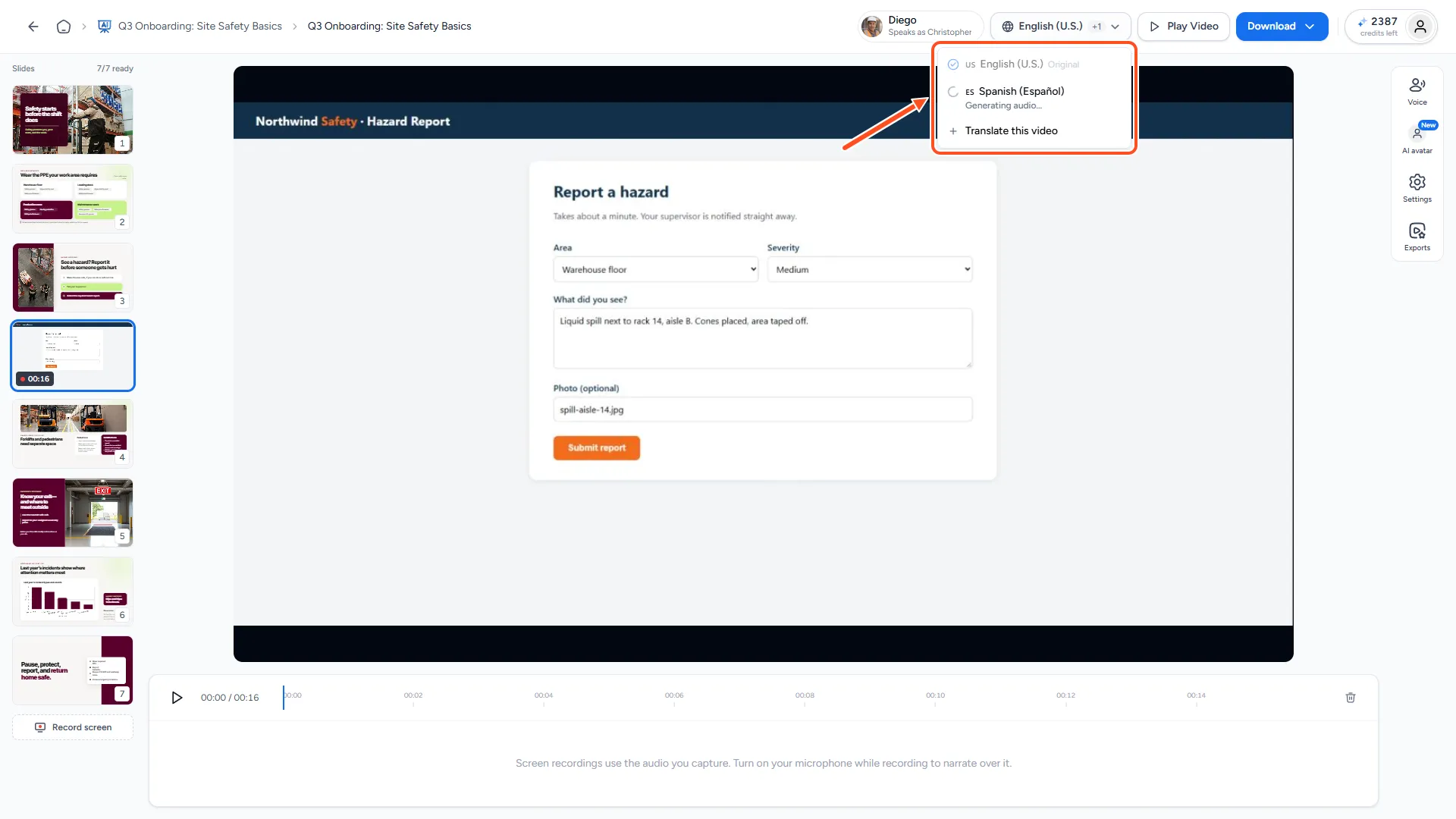
Open the language menu again at any time. It lists every version of the video, with "Original" next to the one you started from. A version that's still being made shows "Translating…" or "Generating audio…". Click a version to open it.
Each language version is its own video project. You can change its script, voice, captions or avatar without touching the original, and download it like any other video. See How do I download my AI video?.
What gets translated?
- Translated: The text on your slides and the narration script. The narration is then generated again in the new language with the voice you picked.
- Copied as they are: Captions and caption style, playback speed, HD quality, and the AI avatar.
- Kept in the original language: Words in your pronunciation glossary that have Never translate this word turned on, such as brand or product names.
- Not included: Screen recordings. They stay in the original video. Record them again in the new version if you need them.
Troubleshooting
- Text runs off a slide. Translated text can be longer than the original, so it may overflow on some slides. Check each slide in the new version before you export.
- "Audio needs attention" next to a version, or "Some narration audio failed" in the progress. Open that version and regenerate the affected slides. See How do I fix narration that failed or is out of sync?.
- The Create version button asks me to upgrade or top up. You're on the Free plan, or you don't have enough credits for the total shown in the dialog.
- A name was translated that shouldn't be. Add it to your pronunciation glossary with Never translate this word turned on, then create the version again.
Need more help?
If you have any questions or need assistance, feel free to contact our support team at support@slidespeak.co