

Speaker notes are what you plan to say while a slide is on screen. In SlideSpeak you can type them yourself, or let AI write them for every slide that doesn't have notes yet. Your notes travel with the deck: they stay when you upload a PowerPoint, and they come along when you download one.
Before you start
- Writing your own notes is free on every plan.
- Generating notes with AI needs a Premium, Premium Plus or Lifetime plan.
- AI notes cost 1 credit per slide. You only pay for the notes SlideSpeak actually writes.
- Only the owner of a presentation sees the Generate Speaker Notes button.
- You find notes in the icon rail on the right side of the editor, under Notes.
Step 1: Open the Notes panel and click Generate Speaker Notes
Open your presentation in the SlideSpeak editor. Then click Notes in the icon rail on the right.
The panel shows the notes for the slide you have selected. To write your own, click the box that says Add speaker notes and type. SlideSpeak saves as you go.
To let AI write them, select a slide that has no notes yet. Below the notes box, click Generate Speaker Notes. The button shows how many credits it will cost: one for each slide without notes.

Step 2: Confirm
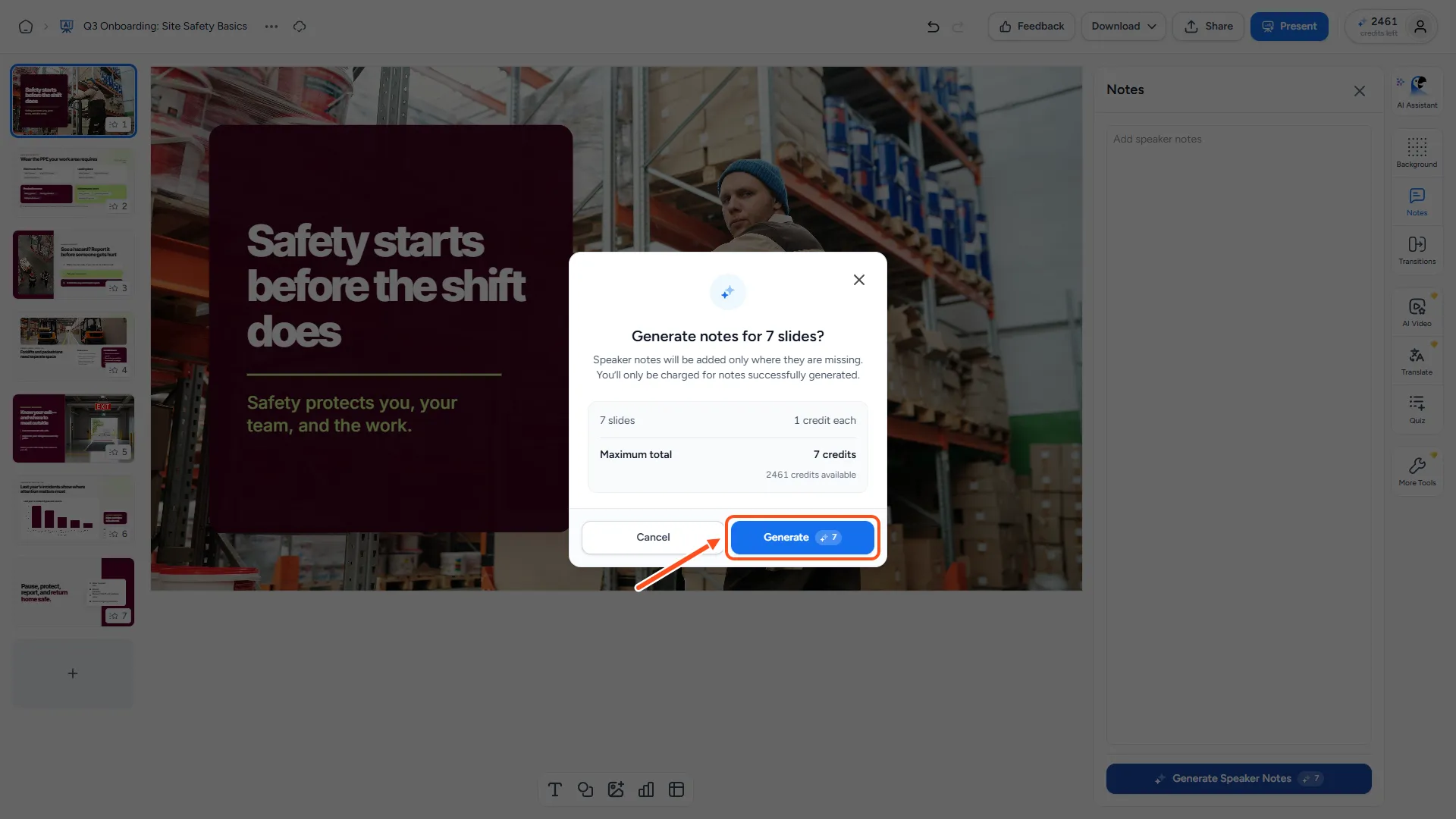
A window asks "Generate notes for 8 slides?" (with your own slide count). It explains that notes are added only where they are missing, and that you are only charged for notes that are generated. It also shows the maximum total and how many credits you have.
Click Generate.
Step 3: Review the notes
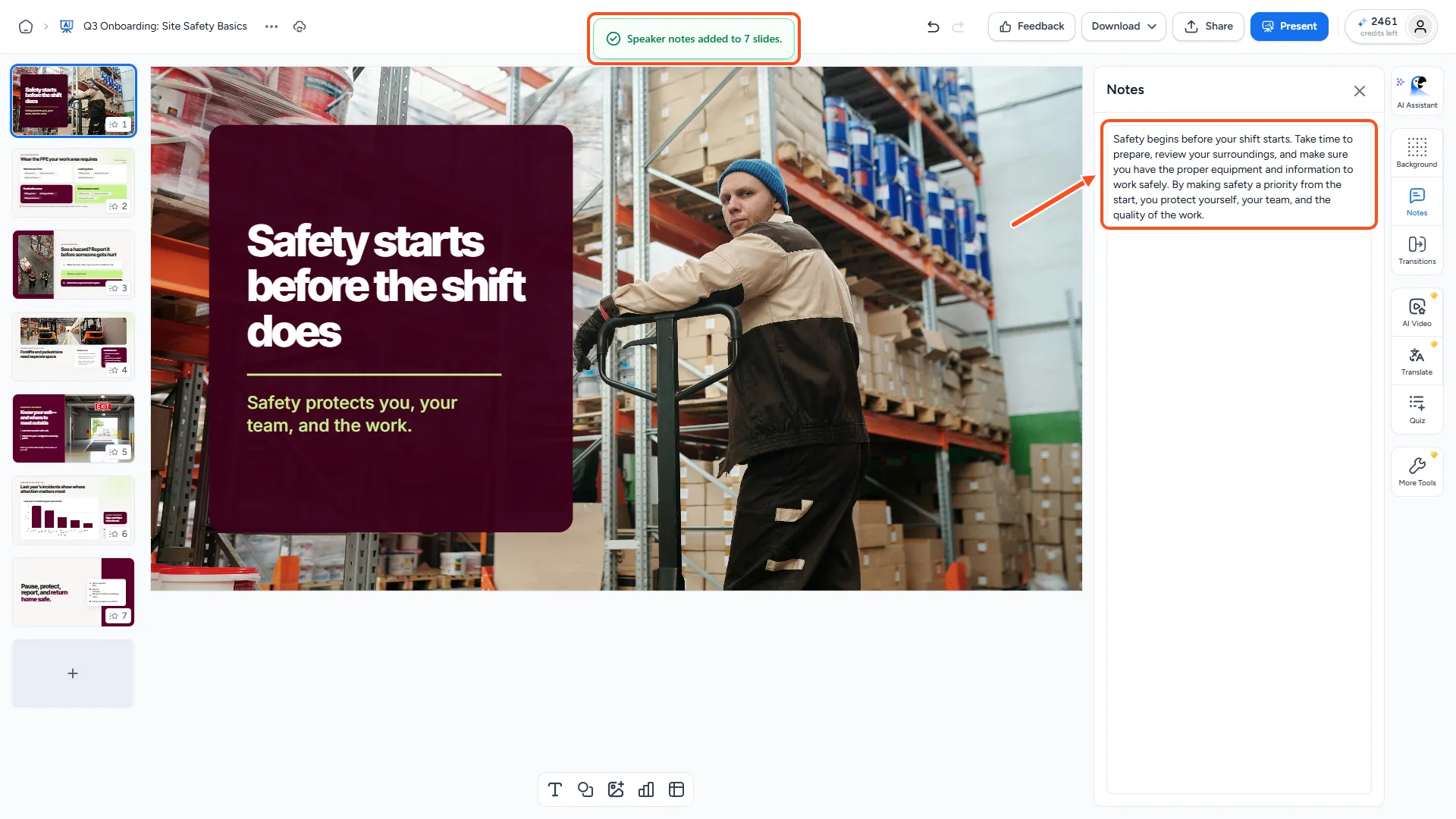
SlideSpeak writes notes for each slide that was empty and tells you when it's done, for example "Speaker notes added to 8 slides." Slides that already had notes keep them exactly as they were.
Click through your slides and read the notes in the Notes panel. Edit anything you want to say differently. If you don't like the result, click Undo in the top bar.
Where your notes go
- Uploaded PowerPoint files: notes from your file are kept. SlideSpeak only writes notes for the slides that have none.
- PowerPoint downloads: your notes are included, so you can use them in PowerPoint's Presenter View. See how to download your presentation as PowerPoint or PDF.
- Translations: when you translate a deck, the speaker notes are translated too. See how to translate a presentation.
- Present mode: SlideSpeak's own present mode shows only the slides, not the notes. To read your notes while presenting, download the deck as PowerPoint and use Presenter View.
Troubleshooting
- I don't see the Generate Speaker Notes button. The selected slide already has notes. Select a slide with an empty notes box. If every slide has notes, there is nothing left to generate. You also need to be the owner of the presentation.
- "AI speaker notes generation is available on Premium plans." You are on the Free plan. Upgrade to generate notes with AI, or type them yourself.
- "You don't have enough credits to generate notes for these slides." Get more credits or upgrade, then try again.
- "Added speaker notes to 6 of 8 slides." Some slides didn't get notes. Click Generate Speaker Notes again to fill in the rest. You are only charged for the notes that were added.
Need more help?
If you have any questions or need assistance, feel free to contact our support team at support@slidespeak.co