

SlideSpeak can translate a whole presentation into another language in one go. It translates the text on your slides, including tables, charts and speaker notes, and keeps your design, fonts and layout as they are. You can translate a deck you are editing in SlideSpeak, or upload a PowerPoint file and get a translated copy.
Before you start
- SlideSpeak translates into a wide range of languages. See what languages SlideSpeak supports.
- Translation costs 1 credit per slide. A 12-slide deck costs 12 credits.
- Translating a deck in the editor needs a Premium, Premium Plus or Lifetime plan.
- The Translate tool (upload a PowerPoint) works on every plan, including Free. Decks you translate this way can also be downloaded on the Free plan.
- Text inside images is not translated.
There are two ways to translate. Option A is for decks already in SlideSpeak. Option B is for a PowerPoint file you have on your computer.
Option A: Translate a presentation in the editor
Use this when the deck is already in SlideSpeak.
The editor translates the presentation you have open. It replaces the original text. If you want to keep the original language too, first open the ⋯ menu next to the presentation name and click Duplicate Presentation, then translate the copy.
Step 1: Open the Translate panel and choose a language
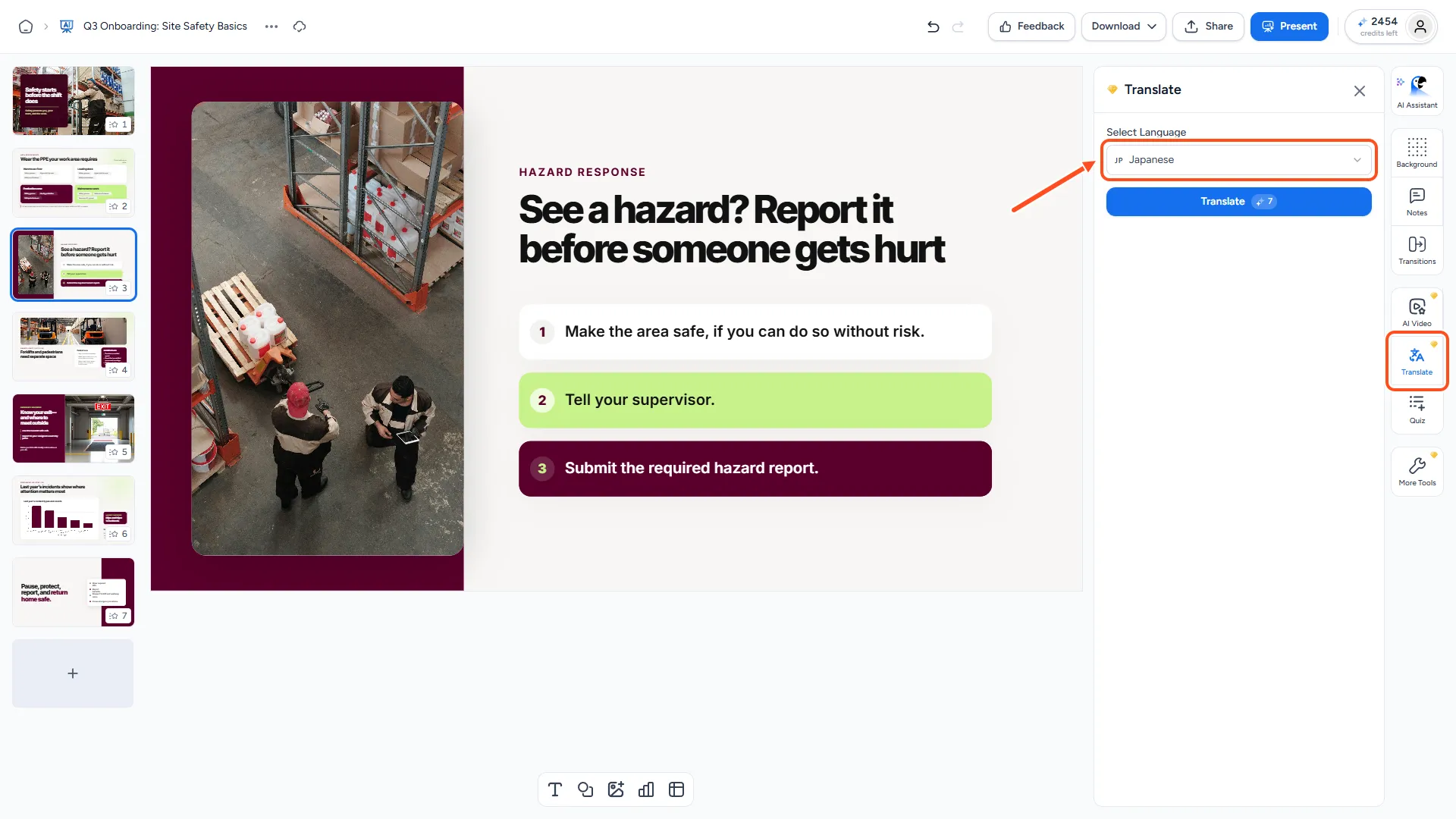
Open your presentation in the SlideSpeak editor. Then click Translate in the icon rail on the right.
Under Select Language, click the language box and type to search. You can type the English name or the name in the language itself, for example "Japanese" or "日本語".
If some slides have no text, the panel tells you, for example "2 out of 12 slides have no text to translate."
Step 2: Click Translate
Click Translate. The button shows how many credits the translation costs.
SlideSpeak translates every slide and shows its progress in a small message on screen. You can't edit the slides while it works. When it finishes, the presentation is in the new language, and its language setting is updated.
Not happy with the result? Click Undo in the top bar to go back to the original text.

Option B: Translate a PowerPoint file with the Translate tool
Use this when you have a PowerPoint file you didn't make in SlideSpeak.
Step 1: Open the Translate tool and upload your PowerPoint
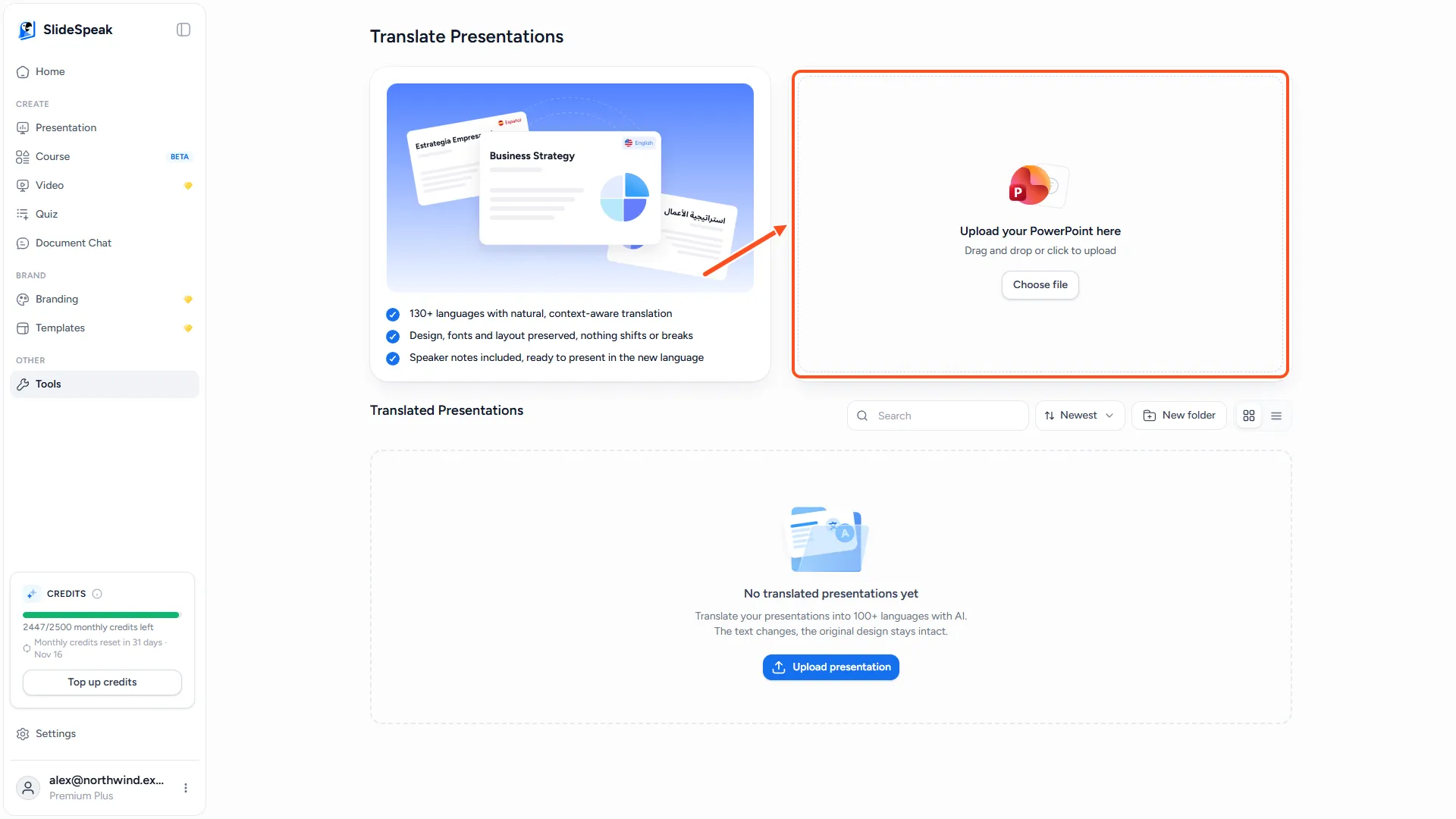
Go to app.slidespeak.co/translate. The page is called Translate Presentations. On a phone, tap Tools in the bottom bar, then Translate Presentation.
Drag your file onto Upload your PowerPoint here, or click Choose file. The tool accepts .pptx files up to 100 MB.
Step 2: Choose a language and translate
When the upload finishes, SlideSpeak opens your deck in the editor with the Translate panel already open. Under Select Language, pick the language you want, then click Translate.
Step 3: Download the translated deck
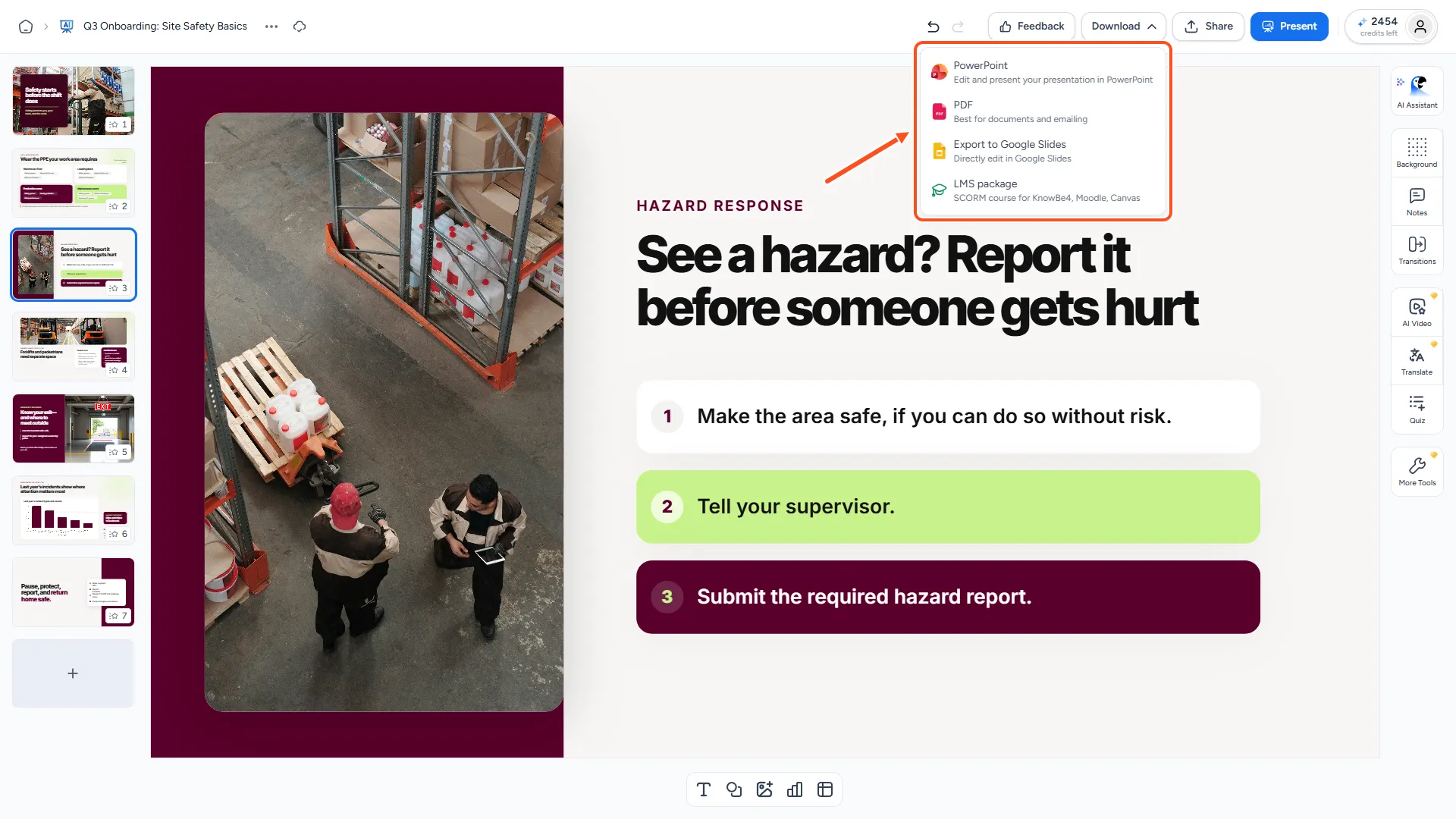
Click Download in the top right corner and choose PowerPoint, PDF or Export to Google Slides. For more detail, see how to download your presentation as PowerPoint or PDF.
Every deck you translate this way is listed under Translated Presentations on the Translate page, so you can come back to it later.
What gets translated
- Text in titles, text boxes and lists
- Text in tables and charts
- Speaker notes
SlideSpeak does not translate text that is part of an image, such as a screenshot or a logo.
Want to translate an AI video instead? See how to translate an AI video into another language.
Troubleshooting
- The Translate button asks me to upgrade. Translating in the editor needs a paid plan. Use the Translate tool instead (Option B), or upgrade.
- "You don't have enough credits to translate this presentation." Translation costs 1 credit per slide. Get more credits or upgrade, then try again.
- The translation failed. The progress message lets you try again.
- Some text didn't change. Check whether that text is part of an image. Images are not translated.
- The upload was rejected. The Translate tool only accepts .pptx files up to 100 MB. Save older .ppt files as .pptx in PowerPoint first.
Need more help?
If you have any questions or need assistance, feel free to contact our support team at support@slidespeak.co