

A team workspace gives your team one shared place for presentations, videos and brand assets. In SlideSpeak a team workspace is called an organization. You create it, share one invite link, and everyone who joins sees the same shared content.
Before you start
- You need a paid plan. Creating, joining and opening an organization needs Premium, Premium Plus or Lifetime. Every member needs one of these plans too.
- There is no extra charge. Organizations come with your plan. There are no seats to buy and no shared credit balance: each member uses their own plan and their own credits.
- Where it lives: open the profile menu in the bottom-left corner of the app. You see Organizations there once you are on a paid plan.
Step 1: Create the organization
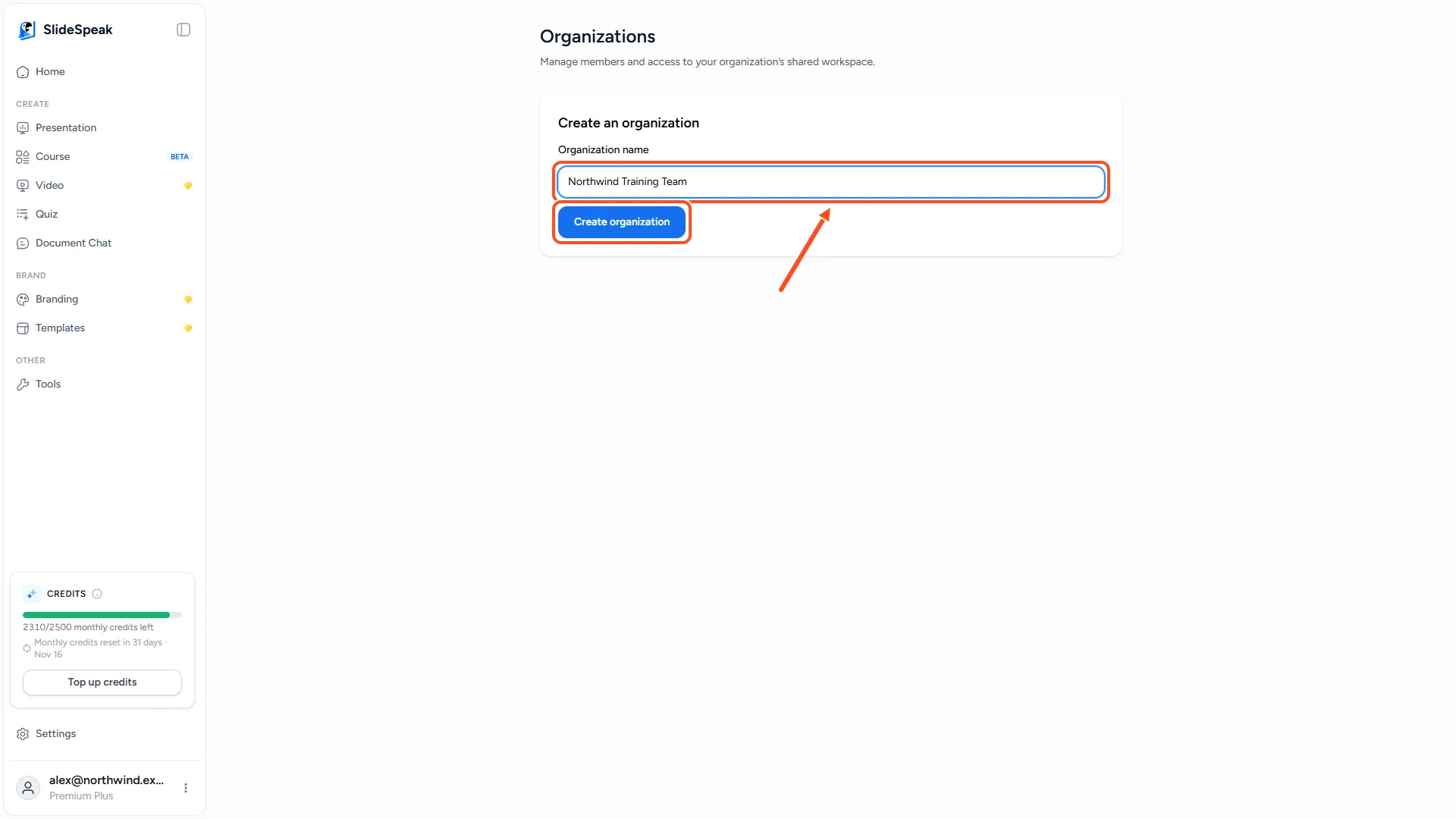
- Open the profile menu in the bottom-left corner and click Organizations.
- Type a name for your organization, for example your team or company name (up to 100 characters).
- Click Create organization.
You become the organization's Owner. To create another organization later, click Create organization in the top-right corner of the same page.
Step 2: Invite your team with the invite link
Each organization has one invite link that you share with everyone.
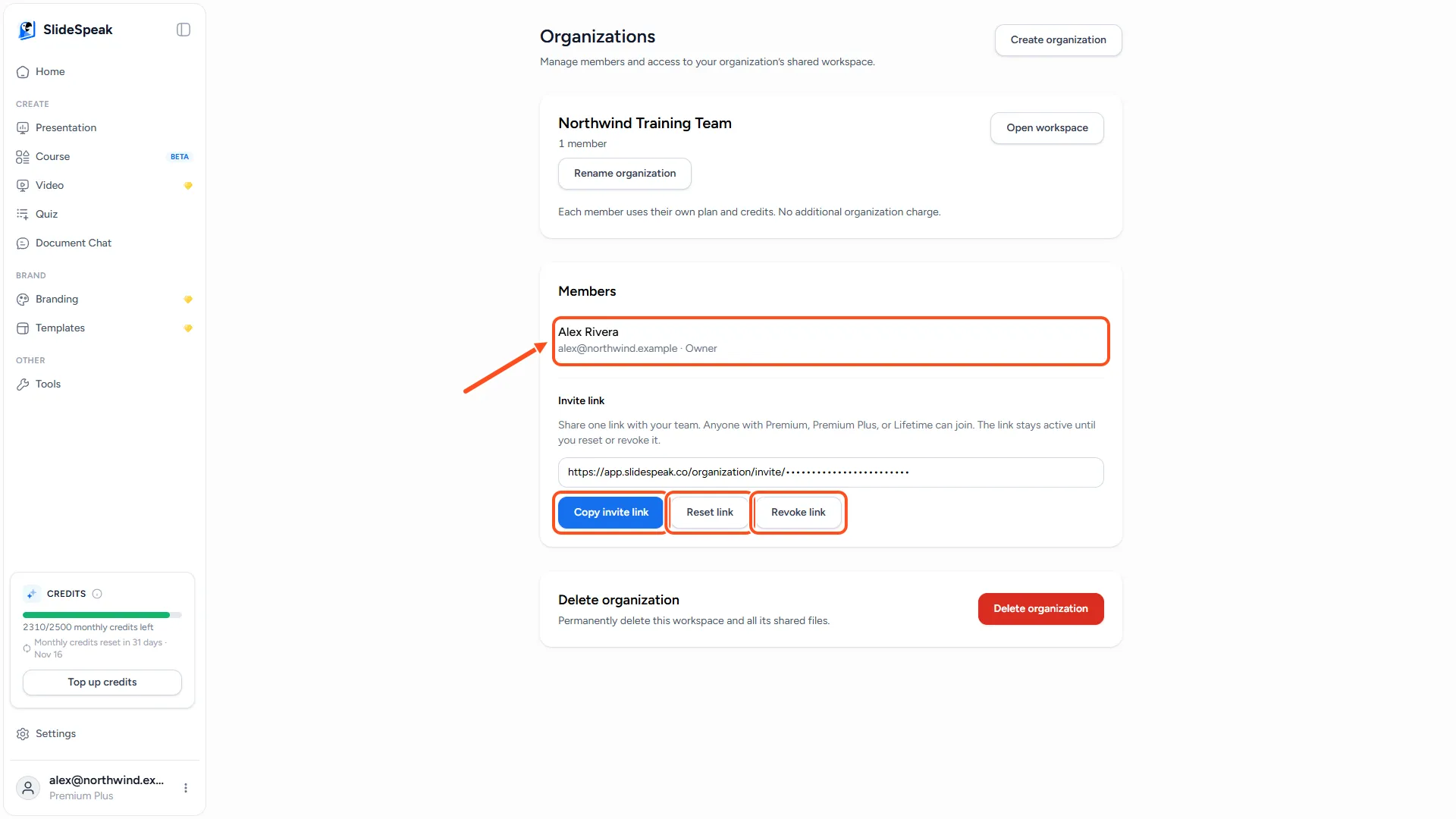
- On the Organizations page, find Invite link under Members.
- Click Copy invite link.
- Send the link to your teammates by email, chat or any other way. SlideSpeak doesn't send it for you.
When a teammate opens the link, they sign in to SlideSpeak, see the name of your organization and click Join organization. They join as a Member and land straight in the shared workspace.
The link keeps working until you change it. To control who can still join:
- Reset link creates a new link and stops the old one. People who already joined keep their access.
- Revoke link turns joining off. Click Create invite link when you want to invite people again.
Step 3: Switch to the team workspace
Everything you create goes into the workspace you have open. To work in the team workspace:
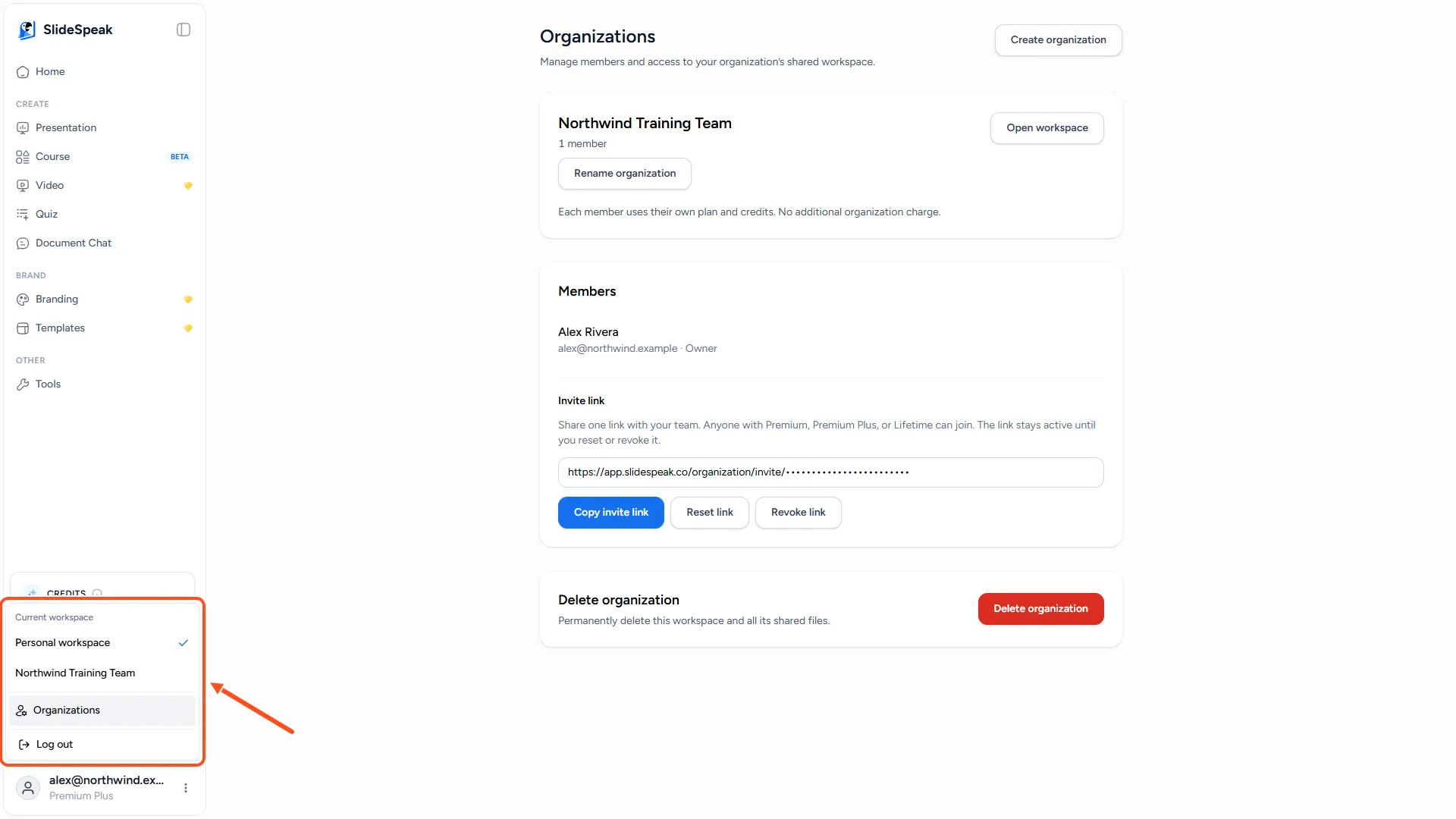
- Open the profile menu in the bottom-left corner.
- Under Current workspace, click the name of your organization. A check mark shows which workspace is open.
- To go back to your own files, click Personal workspace in the same menu.
You can also click Open workspace on the Organizations page. Switching reloads the app, and any other SlideSpeak tabs you have open switch with it.
Step 4: Work together in the shared workspace
Everyone in the organization sees the same shared library. This is shared in a team workspace:
- Presentations, documents, AI videos, quizzes and courses
- Brands, custom fonts and templates
- Folders
- Custom voices
Your existing files stay in your personal workspace. They don't move into the organization. Anything you create while the organization is open belongs to the organization and stays there, even if you later leave the team.
Credits: when you generate slides, a video or anything else that uses credits in the team workspace, the credits come from your own plan, not from the owner's.
Editing at the same time: an organization doesn't lock a presentation while someone works on it. If a teammate has the same presentation open, you see a message such as "Alex is also editing this resource." Agree who edits first, because changes made at the same time can overwrite each other. Use version history to go back if that happens.
Sharing outside the team: presentations in a team workspace can be shared with a link. See How do I share a presentation with a link?. Inviting people by email works for presentations in your personal workspace: see How do I invite someone to view or edit a presentation?.
Manage members and the organization
Only the Owner can manage the organization. On the Organizations page the Owner can:
- Remove a member: click Remove next to their name. They lose access right away, and everything they created stays with the organization. The invite link also resets, so they can't rejoin with the old one. Share the new link with anyone who still needs to join.
- Rename the organization: click Rename organization.
- Delete the organization: click Delete organization at the bottom of the page. This permanently deletes all files in the organization, including presentations, documents, videos, quizzes and courses, and every member loses access. Personal workspaces are not affected. This can't be undone.
There are two roles: Owner and Member. Members can create and edit everything in the shared workspace. Only the Owner can invite with the link, remove members, rename or delete the organization. There is no member limit.
If you belong to more than one organization, pick the one to manage under Organization to manage at the top of the page.
Troubleshooting
- I don't see Organizations in the profile menu. The menu entry only shows on Premium, Premium Plus and Lifetime. Upgrade your plan and check again.
- My teammate's invite link sends them to the billing page. They need their own Premium, Premium Plus or Lifetime plan before they can join.
- "This invite link is no longer valid." The Owner has reset or revoked the link. Ask them for the current one.
- "Upgrade to Premium or higher to open this workspace." Your own plan has ended or changed to Free. You keep your membership, but you can only open the team workspace again after you upgrade. Your personal workspace stays available.
- I can't find a presentation I made. Check which workspace is open in the profile menu. Files created in your personal workspace don't show in the organization, and the other way round.
Need more help?
If you have any questions or need assistance, feel free to contact our support team at support@slidespeak.co