

A share link is the quickest way to show your presentation to anyone. People who open the link can view and present your slides without a SlideSpeak account. They can't change your presentation.
Before you start
- Any plan works. Share links are free on every plan, including Free.
- You must own the presentation. Only the owner can turn a share link on or off. In a team workspace, every member of the organization can.
- Where it lives: open the presentation and click Share in the top-right corner of the editor.
Step 1: Turn on the share link
- Open the presentation and click Share in the top-right corner.
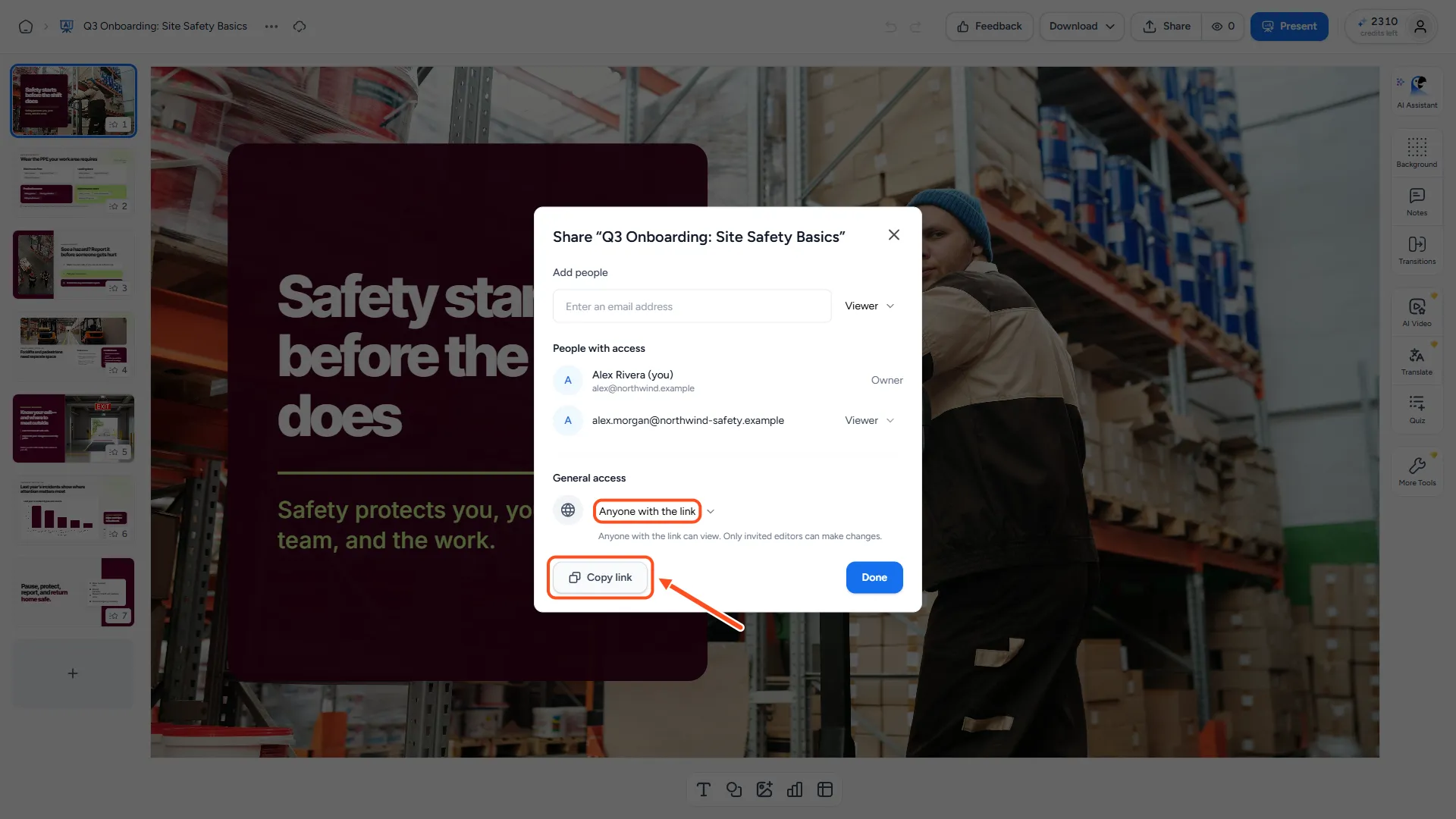
- Under General access, change Restricted to Anyone with the link.
The dialog now says "Anyone with the link can view. Only invited editors can make changes." To let specific people edit, invite them as Editors: see How do I invite someone to view or edit a presentation?
Step 2: Copy and send the link
- Click Copy link at the bottom of the dialog.
- Paste the link into an email, a chat message, your LMS or a website.
- Click Done.
Copy the link after you switch to Anyone with the link. While access is Restricted, Copy link copies the private editor link, which only you and the people you invited can open.
Step 3: What people see when they open the link
-
No sign-in needed. Anyone with the link can open the presentation in their browser.
-
View and present. Viewers can scroll through the slides and click Present to show them full screen. They can't edit, download or share your presentation.
-
Make their own copy. Viewers who are signed in to SlideSpeak can open the menu next to the presentation name and click Duplicate Presentation. This puts an editable "Copy of …" in their own library. Their changes never touch your original.
-
Always up to date. The link shows the latest saved version of your presentation, so you don't need to send a new link after you make changes.
Every visit to the link is counted in your share analytics. See How do I see who viewed my presentation or video?
Stop sharing the link
- Click Share in the editor.
- Under General access, change Anyone with the link back to Restricted.
The link stops working straight away. People you invited by email keep their access.
Sharing from a team workspace
In a team workspace the Share dialog looks a little different. Under Share link, choose:
- Only you can access: only members of your organization can open the presentation.
- Anyone can access: anyone with the link can view it.
Then click Copy link. If you copy the link while it's set to Only you can access, SlideSpeak reminds you to change the access first.
Sharing an AI video
AI videos have their own share link. See How do I share my AI video presentation?
Troubleshooting
- The link says the presentation can't be found. Check that General access is set to Anyone with the link, and that you sent the link you copied after switching. A presentation that was deleted can't be opened either.
- The viewer wants to edit. A share link is view only. Invite them by email as an Editor instead, or ask them to use Duplicate Presentation to make their own copy.
- I don't see the Duplicate Presentation option as a viewer. Sign in to SlideSpeak first. The option only shows for signed-in viewers.
Need more help?
If you have any questions or need assistance, feel free to contact our support team at support@slidespeak.co